← Chapter 9. Signals · Contents
This chapter covers monitoring Indicator readings, classifying downtime reasons, working with Tickets, and linking these mechanisms to equipment maintenance. For each mechanism, it describes the settings, event-processing conditions, and records used to verify the result.
Chapter 9 covers classic Signals and Signals 2.0: reaction conditions and execution of actions. This chapter focuses on the production facts that can provide the basis for those reactions—continuous process parameter monitoring, downtime reasons, Tickets, and the available ways to connect them with maintenance work. Preparing Parameter sets remains in Chapter 4, while the day-to-day actions of Operators, Foremen and Mechanics are covered in Chapter 6. External notification delivery through Messenger is described in Chapter 13.
1. Production events, DPA records and personnel actions
Consider a machine stopping after its load rises. The chart shows Indicator values; process parameter monitoring can save the interval during which a threshold was exceeded. From machine data, DPA registers the equipment stop interval. The Operator explains its reason, while a Ticket assigns the problem to a responsible person. Each of these results answers a different question.
| Result | What question does it answer? | Where to check it |
|---|---|---|
| Indicator values | What was measured, and how did the reading change? | Current value, history and the Gantt chart |
| Process parameter violation interval | Which threshold was violated in the selected program context? | Parameter validation journal, boundaries and boundary violations on the Gantt chart |
| Machine downtime interval | When was the equipment in the corresponding state? | Gantt chart, state journals and downtime list |
| Downtime segments with reasons | What explains the stopped time? | Downtime classification, details and reason analytics |
| Ticket | Who reported the problem, who was assigned to it, and was the result accepted? | Ticket card, messages, assignments and action history |
| Actual period of a Maintenance Job | When was the planned maintenance work performed? | Job and its execution history |
| Prepared notification | Which fact was selected, and what message was addressed to the recipients? | Selection, event and template settings; then the delivery mechanisms |
A Signal is connected where a configured reaction is required. For example, exceeding a threshold can start a Handler, while a saved reason can provide data for a specialised scenario. The existence of a violation by itself does not create a Ticket: a user, an integration, or code must create the request separately.
The start and end of these intervals can differ. For example, a request was created at 08:00, the equipment stopped at 08:10, maintenance was performed from 08:20 to 08:35, production resumed at 08:40, and the author accepted the result at 08:50. Here, the Ticket duration is not the same as the repair duration or downtime. It is useful to compare them on a common time scale.
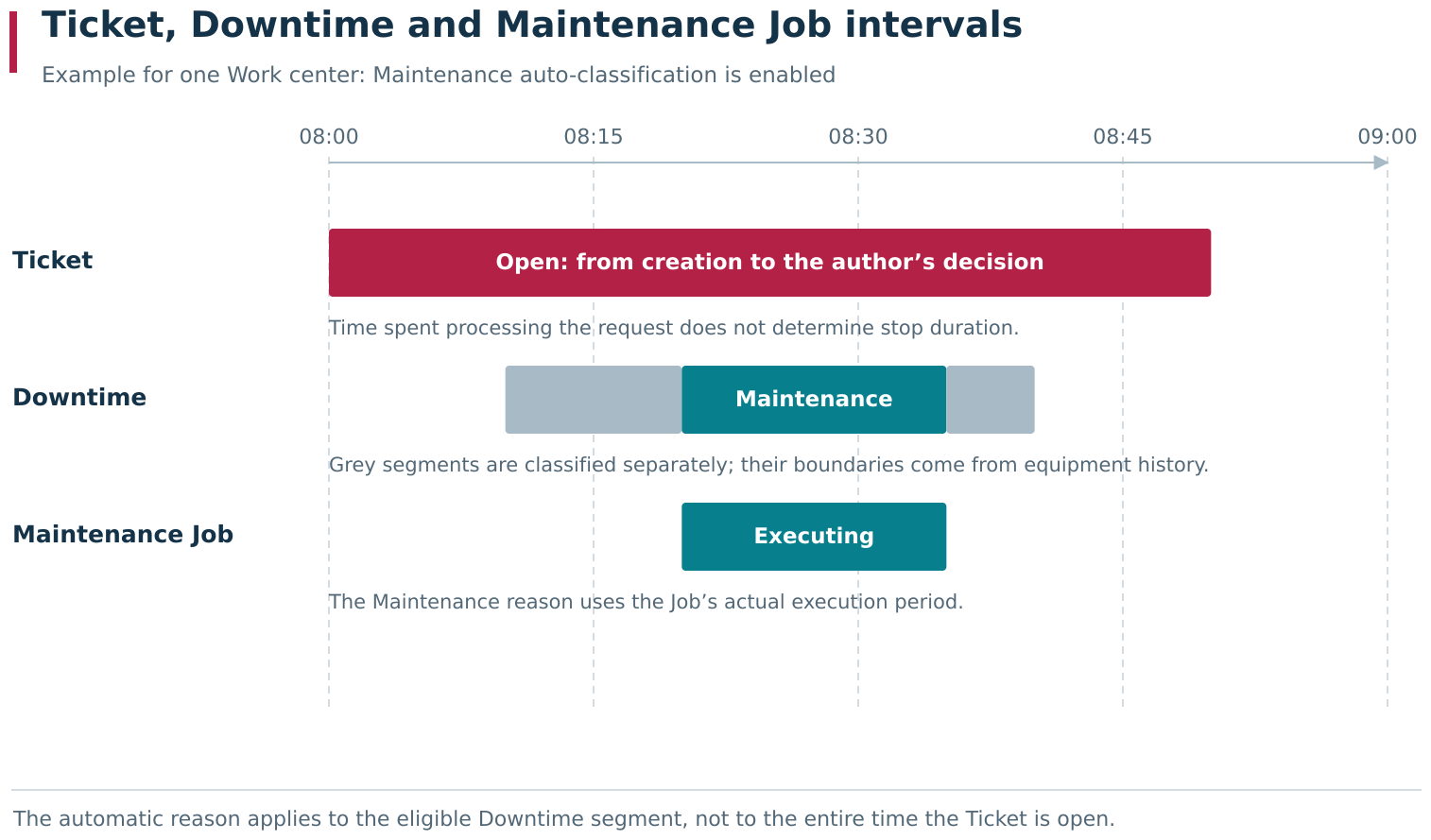
Illustrative example: the Ticket, Downtime and actual execution of a Maintenance Job have different boundaries. With automatic classification enabled, an eligible stop interval during Job execution receives the Maintenance reason. Time before and after the repair is classified separately.
When configuring the system, first decide which result is needed: register a deviation, explain lost time, assign work, or deliver a message to a person. Then configure the corresponding mechanism and verify the resulting record, assigned reason, Ticket stage, or prepared message.
2. Configuring continuous process parameter monitoring and selecting effective thresholds
Continuous process parameter monitoring compares numeric Indicator readings with thresholds selected for the executing Control program version. Preparation of sets, parameters, sources and relationships is described in Section 5 of Chapter 4. Here we trace how those settings are selected while equipment is operating.
Enabling continuous process parameter monitoring on a Work center
From the Settings menu, open Enterprise structure, select the Work center and its Settings tab. Find the Parameter validation group. Enable real-time parameter validation allows continuous checking on this equipment. Save the card after changing the setting.
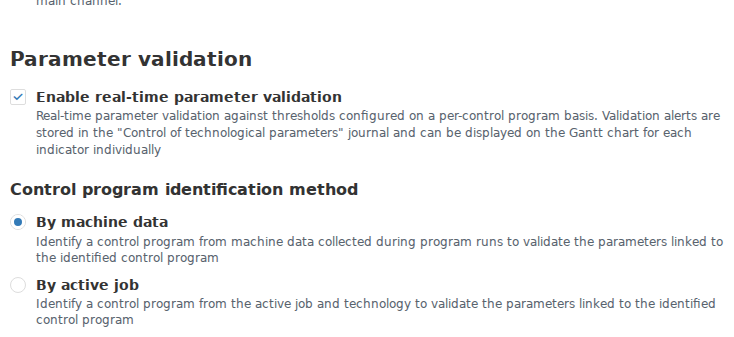
On the Settings tab of the selected Work center, real-time Parameter validation is enabled and By machine data is selected under Control program identification method. The sets to be checked are determined from the executing CP and Subprogram. The Parameter validation group is in the lower part of this tab.
The same group contains Control program identification method:
| Option | Where the context comes from | What is required | Dependency on a Job |
|---|---|---|---|
| By machine data | Recognised execution of the main CP and Subprogram on the Work center’s main channel | Program-execution data and its mapping to the CP catalogue | An executing Job is not required |
| By active job | The CP version determined by the currently executing Job | The executing Job must determine exactly one CP version; separate Subprogram sets are not selected by this method | Without an executing Job, monitoring is absent even if a CP is running on the machine |
The main channel is configured higher on the Settings tab. For multi-channel equipment, the program context is taken specifically from that channel. Admission to continuous monitoring is determined by the resulting Work center state built from the overall-state channels: it must be Production. CP execution data from another channel does not by itself determine the CP version for continuous monitoring.
For a particular reading to be checked, all of the following conditions must hold at the same time:
- Process parameter monitoring is enabled for the Work center that owns the Indicator.
- The resulting Work center state is Production.
- The selected method can determine the program context: By machine data uses the executing CP with a determined CP version; By active job uses the executing Job with one CP version. A planned or suspended Job does not provide that context.
- Related parameters and applicable numeric thresholds have been found for that context.
- A value suitable for numeric comparison is arriving from the required Indicator.
If the production context disappears or monitoring is disabled, the current violation interval is closed. The absence of the next record in that situation is explained by monitoring having stopped. Recovery of the reading into the permitted range is covered in Section 3.
One-off parameter validation and continuous monitoring
| Method | What starts the check | What it produces |
|---|---|---|
| Test parameters | A user command for the selected set and context | Detailed parameter-validation result |
WorkCenterValidationService.Validate(...) | An explicit API call from an integration or Signal 2.0 | A returned result handled by the calling code |
| Continuous process parameter monitoring | Incoming values and working-context changes while monitoring is enabled | Effective boundaries and violation intervals |
One-off validation supports numeric and text parameters and expression evaluation. Continuous monitoring uses the numeric value of the related Indicator; the parameter expression and text comparison are not evaluated by this mechanism. If a parameter has both an expression and an Indicator relationship, one-off validation can evaluate the calculated result while continuous monitoring checks the raw reading.
Calling Validate(...) by itself does not open a record in the process parameter monitoring journal. In the Signals 2.0 example, the validation result is used explicitly. In the same way, the scenario author decides whether to record the result, reply to equipment, or create a request.
Selecting Parameter sets for the main CP and a Subprogram
When monitoring by machine data, a CP version is determined first. During main-program execution, sets related directly to that version are selected. Entering a recognised Subprogram switches selection to the sets connected to the relationship between that Subprogram and the executing main CP version. Parameter sets of the main CP are not added to the sets selected for the Subprogram at that moment.
For example, the main CP maximum is 9 and the Subprogram maximum is 3. A reading of 8 is permitted in the main context, exceeds the boundary inside the Subprogram, and becomes permitted again after leaving it. The reading has not changed; the applicable monitoring conditions have.
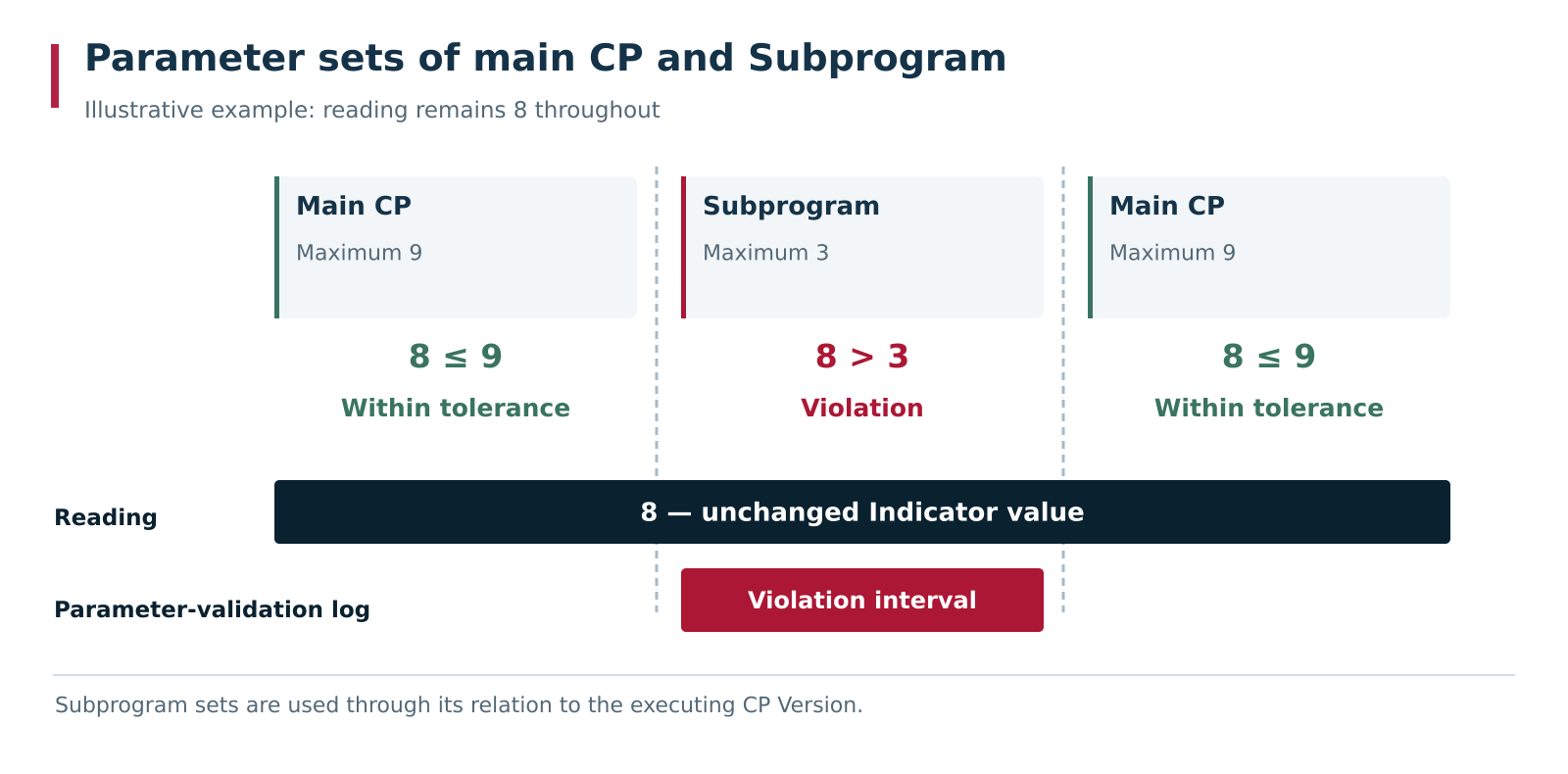
The Indicator reading is 8 throughout the example. During main-CP execution the maximum is 9; inside the Subprogram it is 3; after leaving the Subprogram it is 9 again. The process parameter violation interval therefore opens for the duration of Subprogram execution. The numbers and time scale are illustrative.
Continuous monitoring uses Parameter sets related to the active CP version of the main program, either directly or through the relationship between a Subprogram and that CP version. Check which main-program CP version has actually been determined for the current execution, and check the status of that exact CP version. The name of the main CP alone is not sufficient for this check.
Execution of a main CP that has already begun can retain the CP version previously determined for that execution. Activating another CP version of the same main program in the catalogue does not by itself replace the version in the context of the cycle already in progress.
For a Subprogram, its catalogue name is matched. The file name of a Subprogram version does not replace this setting. If a non-empty name of an unknown Subprogram is received, there is no applicable context and monitoring stops. During troubleshooting, therefore, check both the source name and the relationship between the found Subprogram and the required main CP version.
With By active job, the version from the current executing Job is used. It must be unambiguous: no version or several applicable versions do not provide the required context. Separate Subprogram sets are not selected by this method. While a Subprogram is executing, process parameter monitoring continues to check readings against the sets related to the CP version from the Job. Thresholds from the Subprogram’s own sets are not applied in this mode.
Parameter overrides in relationships with a CP and Subprogram
For an individual parameter, the effective value is refined in this order:
- Base value in the Parameter set.
- General override in the relationship between the set and the CP version or Subprogram.
- Override for a particular Work center in the same relationship.
With a base value of 300, a general override of 240, and a value of 220 for one machine, that machine uses 220. Another machine in the same relationship without its own override uses 240; a different relationship without overrides uses 300.
One Subprogram can be used by different versions of main CPs. Its sets and overrides are evaluated in the corresponding relationship, so the conditions can differ. When analysing a process parameter monitoring record, open the exact CP version and Subprogram specified in that record.
Combining thresholds from several parameters of one Indicator
Several parameters from one or more Parameter sets can be related to the same Indicator. Continuous monitoring builds one combined set of boundaries for that Indicator. DPA combines boundaries separately for each type from Parameter threshold types: for example, separately for Minimum, Maximum, and each additional warning threshold.
At one settings level, the strictest boundary is selected among values of the same type: the greatest lower boundary and the smallest upper boundary. For example, ranges 10…95 and 20…100 with the same Minimum and Maximum types produce 20…95.
If three parameters of one Indicator have values 50, 60, and 70 of the same Maximum type, the combined maximum is 50. Readings of 55, 65, and 75 all violate that one combined boundary of 50. Values 60 and 70 from the other parameters do not become additional severity levels. Different threshold types are required for several levels; their selection is described below.
An empty numeric threshold (NULL) does not define a boundary and does not participate in its combination. It does not cancel numeric boundaries defined by other parameters or sets. For example, if one parameter has a maximum of 95 and another has an empty maximum, 95 applies regardless of processing order. If no applicable parameter defines a boundary of that kind, DPA does not check that boundary.
The general override level then replaces the corresponding combined boundary, and the Work center override level replaces it again. This is done by threshold type. Configuring a local maximum does not simultaneously replace all lower boundaries and the nominal value.
| Maximum values of parameters for one Indicator | Effective maximum |
|---|---|
Base values 95 and 100 | 95 |
Base value 95 and an empty maximum (NULL) | 95 |
The second parameter has a general override of 120, with no other general overrides for this maximum | 120 |
General overrides of 110 and 120 are configured | 110 |
A local maximum of 130 is configured for this Work center | 130 |
Adding a related parameter or an override can therefore change monitoring of an Indicator that is already in use. One-off validation iterates through all parameters in the selected Parameter set or sets determined by the call context. It checks each parameter against its own effective thresholds and returns per-parameter results together with the overall validation result. Thresholds from different parameters of one Indicator are not combined into one boundary in that mode.
For example, two checked parameters are related to the same Indicator: the first has an effective maximum of 95, the second 100. At a reading of 98, one-off validation finds a violation for the first parameter and a permitted value for the second. Continuous monitoring with the same effective boundaries uses the combined maximum 95 and registers an Indicator violation.
The nominal value is a reference value. If several parameters provide the same nominal value, it is retained; if their nominal values differ, no single nominal value is determined for the Indicator. Violations are formed from lower and upper boundaries.
Configuring threshold types and selecting the violated threshold
Configuring the threshold type in the directory and its numeric value in a parameter
From the Applications menu, open Reference books → Parameter threshold types.
A row in this shared directory defines the threshold type name, comparison direction,
whether equality is permitted, and Severity. Its numeric value is configured in a
particular set parameter and can then be refined by overrides. Configuration of the
directory and threshold-type card is shown in Section 5 of Chapter 4.
For example, Maximum is an upper threshold with equality permitted and High severity.
Values of this type in different parameters can be 50, 60, or 70; the type severity
remains High. Use different types for warning and emergency boundaries so that each
can have its own severity.
Whether an Indicator reading equal to the threshold is permitted
Tolerant value in the threshold-type card determines whether a reading exactly equal to the boundary number is considered permitted:
| Type | Allowed value — Yes | Allowed value — No |
|---|---|---|
| Upper | Violation when reading > boundary | Violation when reading >= boundary |
| Lower | Violation when reading < boundary | Violation when reading <= boundary |
For example, with an upper boundary of 60 and equality permitted, a value of 60 is
still permitted and 60.1 violates the condition. When equality is not permitted, the
violation begins at 60. The name Maximum does not by itself select the comparison
rule; it is defined by the fields of the threshold type.
Selecting a violated threshold when several upper threshold types exist
Consider one load parameter with three different types of upper thresholds:
| Threshold type | Effective boundary | Equality permitted | Type severity |
|---|---|---|---|
| Warning maximum | 50 | Yes | Warning |
| Maximum | 60 | Yes | High |
| Emergency maximum | 70 | Yes | Disaster |
All three boundaries are retained. When checking the current reading, upper boundaries
are evaluated from the greatest number downwards: 70 → 60 → 50. The first violated
boundary is selected. Therefore, among simultaneously exceeded upper boundaries, the
greatest one is selected:
| Reading | Selected violated threshold | Violation severity |
|---|---|---|
45 | No violation | — |
50 | No violation: equality is permitted | — |
55 | Warning maximum 50 | Warning |
65 | Maximum 60 | High |
75 | Emergency maximum 70 | Disaster |
At 65, 70 is checked first and is not violated. The next check is 60; it is
violated and selection stops. Boundary 50 is also exceeded, but no separate current
violation is created for it at the same time.
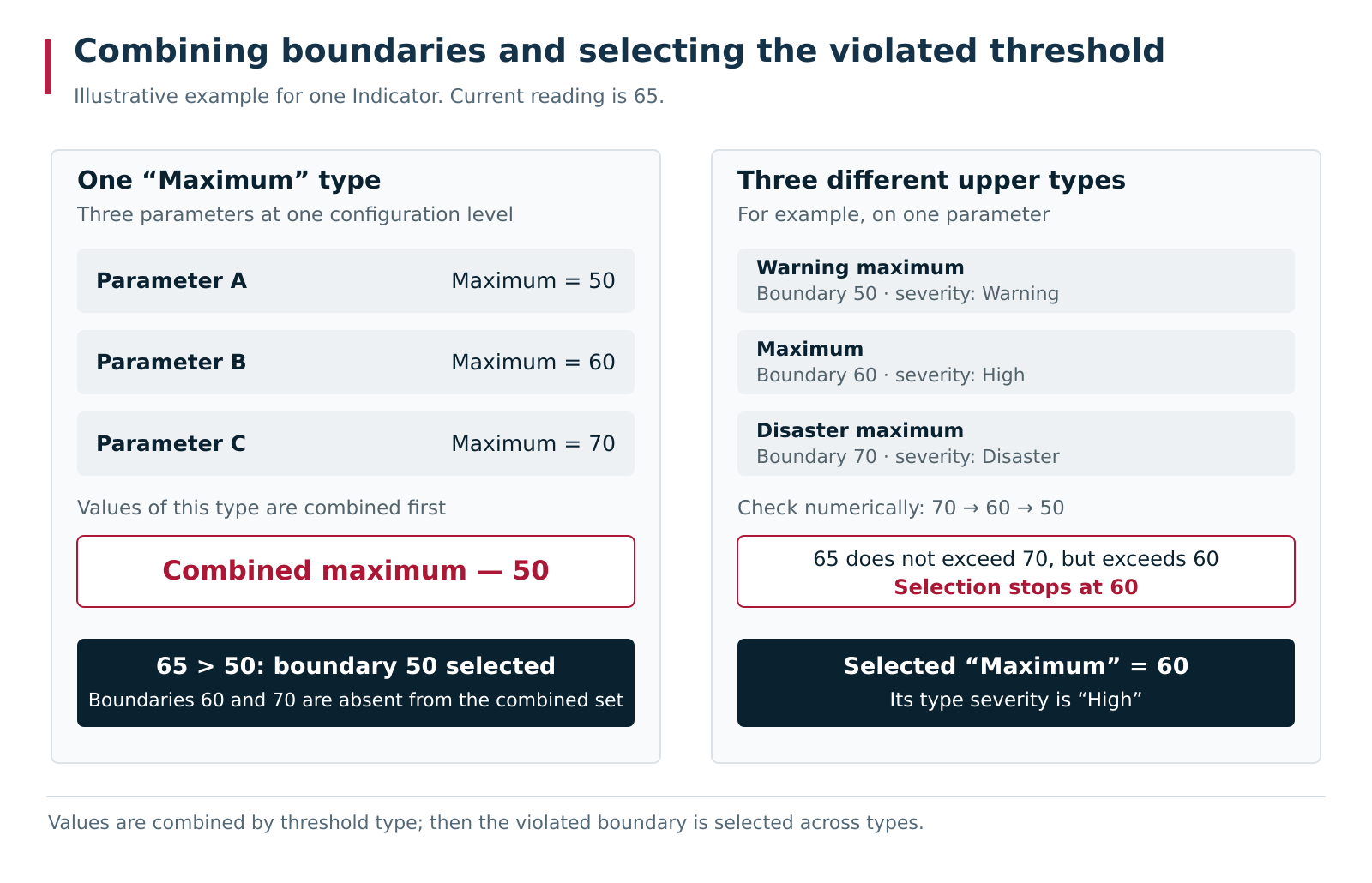
Three parameters with the same Maximum type are first combined into one boundary of 50, so at a reading of 65 the violation refers to that boundary. Three different upper threshold types retain boundaries of 50, 60 and 70; at the same reading, 60 is selected together with the severity of its type. This is an illustrative comparison of two configurations, not a production-data chart.
This differs from three parameters with the same Maximum type 50/60/70. In that
case, the values are combined first and only one boundary, 50, remains. Here, three
different types are configured, so three candidates remain after values of each type
are combined.
Selecting a violated threshold when several lower threshold types exist
Lower boundaries are checked in ascending numeric order, from the lowest to the higher
ones. For example, with lower thresholds of 20 with Warning severity, 10 with
High severity, and 5 with Disaster severity, a reading of 8 violates 20
and 10. Boundary 10 is selected with High severity.
Selection depends on the current reading. The previous value and direction of change
are not needed for this operation: in the upper-threshold example, a reading of 65
selects 60 both after increasing from 45 and after decreasing from 75.
Upper boundaries are considered first, then lower ones. In a consistent range, a reading cannot violate both sides at the same time. If a lower boundary is configured above an upper boundary and a reading violates both, the upper violation can be selected first; correct such a range configuration.
Violation severity and information in the monitoring journal record
After a violated boundary is selected, the Severity of its threshold type is used.
Severity does not belong separately to a parameter, number, or Parameter set and is
not a criterion for sorting boundaries. For example, if boundary 50 is assigned
Disaster and 60 is assigned Warning, a reading of 65 still selects boundary
60 and Warning severity. Numbers and severities of different types must therefore
be configured consistently.
Sort order in the directory controls display, not violation selection. For boundaries of the same direction with identical numbers, a boundary for which equality is not permitted is considered first. If both the number and equality rule are identical, do not rely on the more severe type being selected: the algorithm has no severity priority. Use distinct, consistently ordered boundaries for different severity levels.
One current violation record is maintained for one Indicator. It contains the selected
threshold type, its effective numeric value, and the parameter that supplied that combined
boundary. Severity is determined by the selected type. If a transition 55 → 65 changes
the selected type from the warning threshold to Maximum, the previous interval is
closed and a new one is opened. The history is described in Section 3.
When testing configuration, provide values slightly below each boundary, exactly on it, and slightly above it. Compare the selected threshold type, its number and severity. Also test several parameters of one Indicator: identical types must first produce a combined boundary, while different types must retain separate comparison levels.
3. Registering and viewing process parameter threshold violation intervals
When a numeric reading violates the selected threshold, process parameter monitoring opens an interval. One current violation record is maintained for one Indicator. Separate parallel records are not created for every parameter that uses that Indicator.
Opening, continuing and closing a violation interval
| Next event | Result |
|---|---|
| The reading still violates the same threshold type with the same numeric value in the same execution context | The existing interval continues |
| A different violated threshold is selected | The previous interval closes and the next one opens |
| The numeric value of the same threshold changes at the next check | The previous interval closes; if the reading violates the new threshold, a new interval opens |
| The CP version, Subprogram, or their execution-record context changes | The previous interval closes; if the violation persists, a new interval begins |
| While monitoring continues, the numeric reading no longer violates any thresholds | The interval closes |
| An empty value arrives instead of a number | The current interval also closes; this result does not prove that the reading returned to normal |
| Monitoring stops: the Work center leaves Production, monitoring is disabled, or no applicable context exists | The interval closes |
When the CP version, Subprogram, or execution record changes, adjacent violation intervals can appear without any period of permitted values between them. The old interval closes because the monitoring context changed; a separate interval opens for the new context. Before treating them as one continuous violation, compare the threshold, CP version, Subprogram, and execution records.
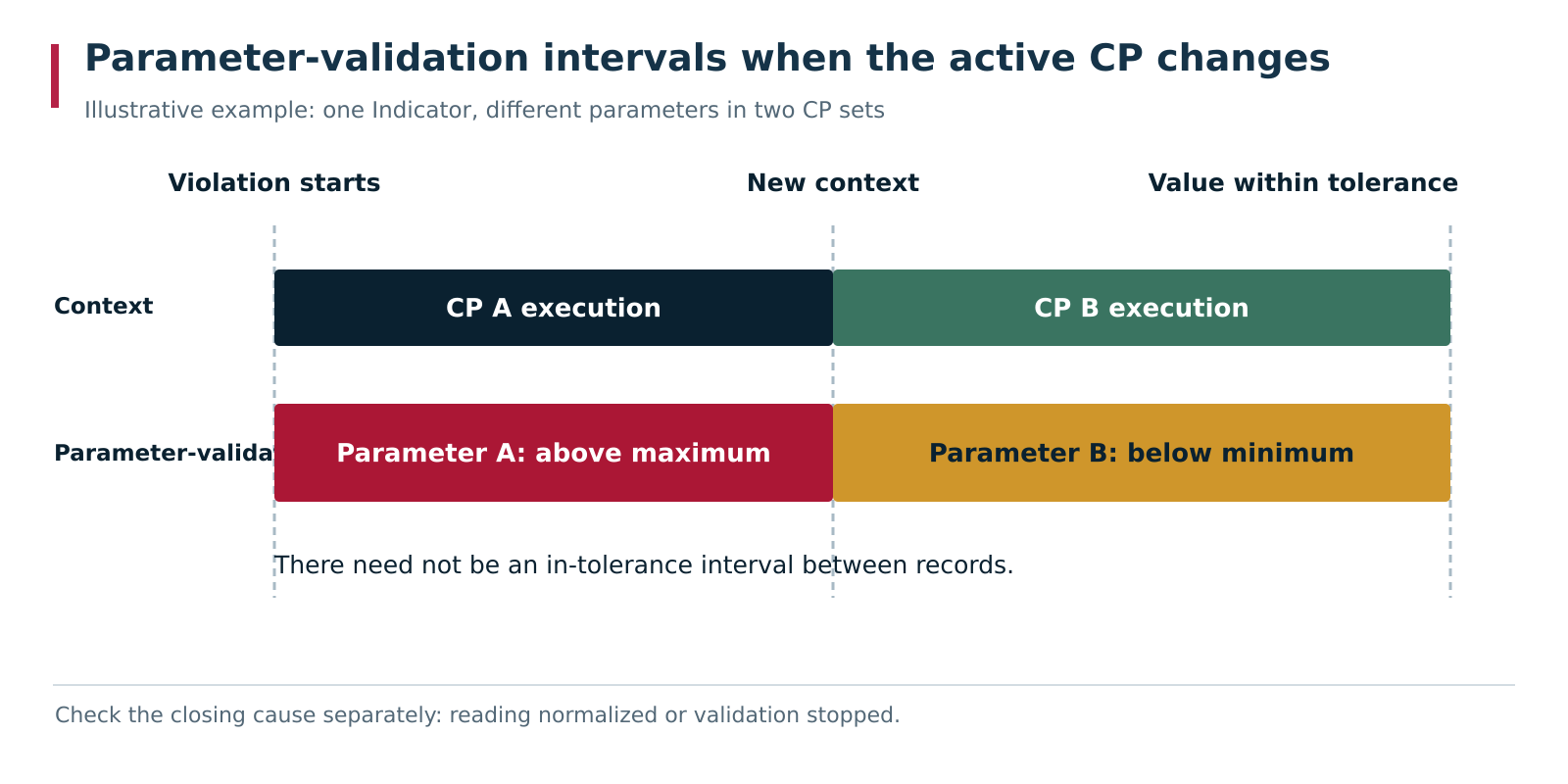
One Indicator is related to parameter A from CP A’s set and parameter B from CP B’s set. While CP A executes, the reading is above parameter A’s maximum; after switching to CP B it is below parameter B’s minimum. The context change closes the first violation record and opens the second; a permitted reading appears only at the end of the second record. This is an illustrative diagram.
The numeric threshold value with which the interval was opened is remembered. If a later check uses a different numeric value of the same threshold, the old interval closes. If the Indicator reading also violates the new threshold, a new interval with the new threshold number opens at the same moment. If the reading is permitted under the new threshold, no new interval opens.
Viewing violations in the monitoring journal and on the Gantt chart
Open Journals → Process parameter monitoring. Set the Work center and period. In a record, check:
- equipment, channel and Indicator;
- parameter and its set;
- CP version and, when present, Subprogram;
- violated threshold type and saved value;
- interval start, end and duration.

The journal is filtered to Turning centre TC-01 and the period from 10:23 to 10:24 on 17 October 2026. Two historical intervals are shown for CP Housing — finishing #3, parameter Number, Indicator Feed rate, mm/min, and saved boundary 99 / Maximum. The full durations belong to the records; the later interval ends beyond the right edge of the selected window.
Violation severity comes from the selected threshold configuration. The threshold value in the record is the saved monitoring boundary, not the measured Indicator value at the peak of the deviation. Check the actual sequence of readings in the Indicator history.
For a time-based comparison, open the same machine and period on the Gantt chart. Select the name of the required Indicator to the left of its chart; display settings open below the name. Enable Thresholds and Threshold areas.
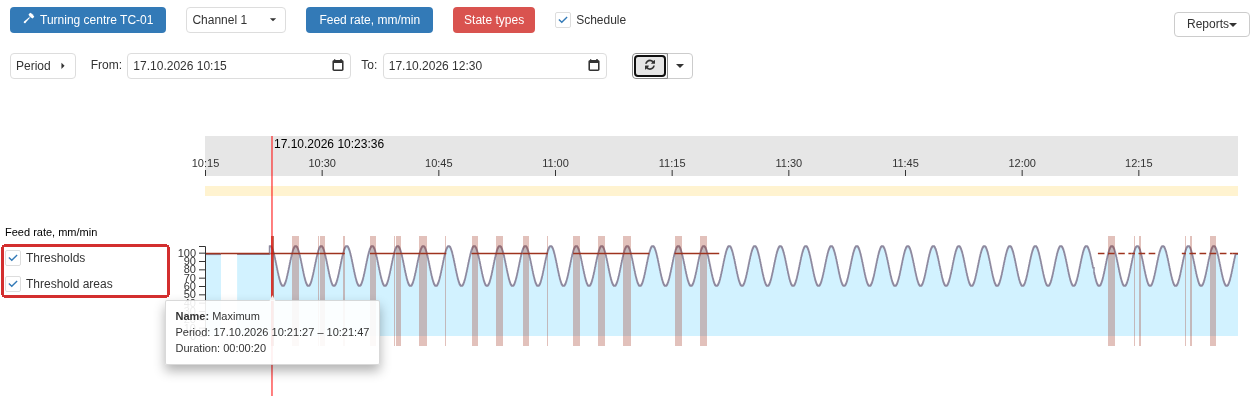
Select the Indicator name Feed, mm/min to expand its display settings. The frame highlights Thresholds and Threshold areas. The graph shows Indicator values, the upper-threshold line and a highlighted violation interval; the tooltip shows Maximum, the period and duration.
The chart shows Indicator values and neighbouring events, while the journal provides the exact record context. When comparing them, account for the channel and time zone.
The end of a record does not by itself prove that the reading recovered. Determine what happened at that moment: the value returned to the permitted range while monitoring continued, or monitoring itself stopped. In the second case, later valid data is required before concluding that the parameter normalised.
Signal reactions to the start and end of a process parameter violation
The start and end of a violation interval are passed to the classic Signals event mechanism. In a Trigger condition, select the Parameter validation data source and the Severity property. For example, Severity = High can react to a corresponding violation within the Signal’s equipment scope. The device is refined with the Trigger condition’s device selector.
For this source, the classic editor offers Severity. The journal’s list of columns does not mean that every column is available as a condition property. For a scenario requiring additional identifiers, calculations, or custom actions, use the appropriate public services from Signals 2.0.
When a violation ends, Severity is reset in the classic Signal event data. That event does not prove that the reading returned to the permitted range: the interval may have closed because monitoring stopped. If such confirmation is required, define the necessary conditions in advance—for example, an applicable working context and a valid reading within range.
Repeated readings inside an ongoing violation do not necessarily cause new firings. A classic Signal still follows Trigger state transitions, dwell, grouping and schedule rules described in Chapter 9. For verification, trace the sequence: reading → selected threshold → monitoring record → condition state → firing → Handler result.
4. Downtime reasons and equipment settings
Classification distributes stopped time among reasons that explain it. One machine downtime interval can be divided into several segments with different reasons. For example, during a ten-minute stop, two minutes may be spent waiting for material, five minutes correcting a fault, and another three minutes checking readiness. The original machine interval remains one interval and does not change. In the separate classification layer, three consecutive reason intervals together cover the same ten-minute span. Each such interval is called a downtime segment below: it has one assigned reason, a start time, and an end time if the segment has already finished.
Machine state, downtime reason, stop class and processing status
| Field or object | Meaning |
|---|---|
| Machine state | State determined by DPA from equipment data: Downtime, Switched off, Setup, and others |
| Reason in the directory | A possible explanation of the stop, with its type, category, appearance and availability |
| Downtime segment with a reason | A separate part of downtime with its reason, start, end, author and comment |
| Stop class | Additional stop characteristic, for example command stop or reset |
| Downtime processing status | Shows whether a reason other than Unknown has been assigned to a particular downtime segment; used to select unclassified downtime |
Assigning a reason to a downtime segment does not change the equipment’s machine state. A reason named “Setup” does not create a machine setup state or a Job of that type. Downtime processing status does not confirm that a fault has been corrected; it only shows whether a reason has been assigned to the corresponding downtime segment.
Downtime reasons directory
Open Reference books from the Applications menu and select Downtimes. Double-click the required row. The card contains the following fields.
| Property | Purpose |
|---|---|
| Name | Human-readable wording of the reason |
| Color | Display colour of the downtime reason |
| Type | Reason group in the structure adopted by the organisation |
| Standard reason | Built-in system designation of the reason. Read-only; empty for a reason without such a designation |
| Category | Classification as planned, unplanned, or not-yet-determined loss time |
| Sort order | Display sequence |
| Allow set reason in operator | Whether this reason can be selected manually during operational work |
| Allow set reason in analytics | Whether this reason can be selected manually in downtime-classification analytics |
| Require comment | Requires an explanation when assigning this reason |
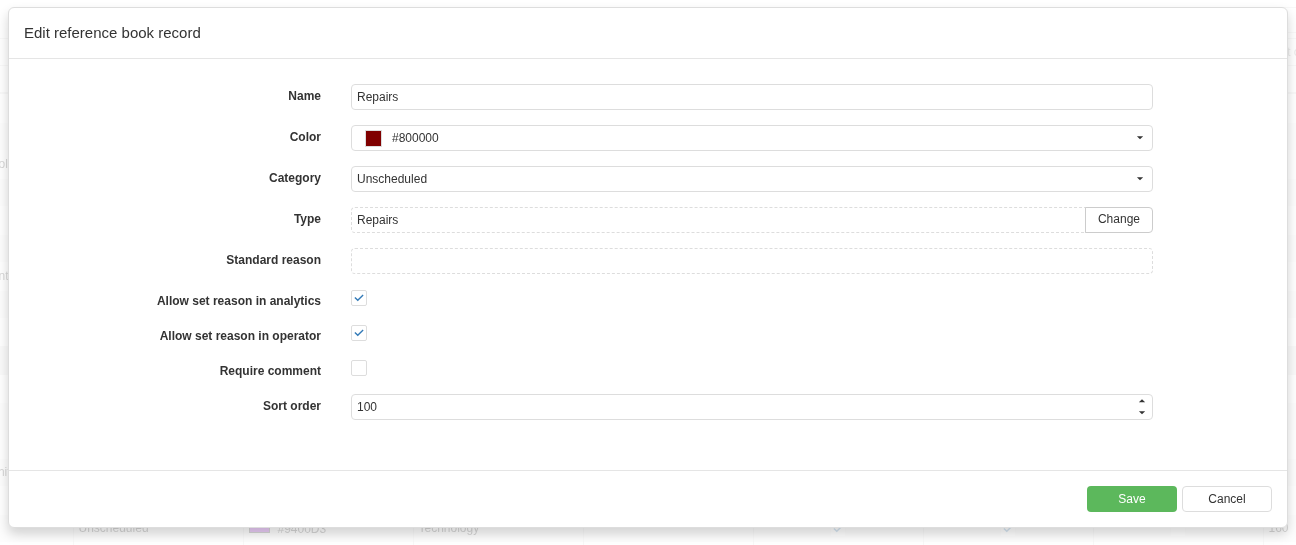
The Repairs reason card contains its category, type, assignment permissions and comment requirement. An empty Standard reason means that Repairs has no built-in system designation. This field is always read-only.
Type and category are used to group results. It is useful to agree in advance which reasons correspond, for example, to waiting for materials, organisational losses and maintenance. Several almost identical names make selection harder and fragment the analytical result.
A comment should explain the particular case: which material was awaited, what was repaired, or what obstacle was found. When a comment is required, an empty explanation is rejected on save. The substance of the text remains the person’s responsibility: formally filling the field with one character does not explain the lost time.
What Standard reason means
Standard reason shows the built-in purpose of a directory item used by DPA mechanisms. For example, Break between shifts lets automatic classification find the specific reason intended for time between shifts. The displayed reason name, its Type, and its Category are configured separately.
The field is read-only both when creating and editing a reason. DPA itself assigns the system designation when it creates built-in directory records. A new ordinary reason has an empty field; saving the card, selecting a type, or changing the category does not fill it. When a system reason is edited normally, its built-in designation remains. For ordinary reasons, including the pre-filled Repairs, this field remains empty.
| Field value | How DPA uses such a reason |
|---|---|
| Empty | Ordinary reason without a built-in system designation; it can be selected to explain downtime within its configured availability |
| Unknown | Initial reason for a downtime segment that has not yet been explained |
| Break, Break between shifts | Schedule-based classification when the corresponding automatic processing is enabled |
| Maintenance, Setup, Innovation | Classification based on actual execution of Jobs of the corresponding types when enabled |
| Short downtime, Short setup, Short emergency stop | Classification of short intervals of the corresponding machine states according to configured conditions |
For example, in the card of the system Break between shifts reason, the same value in Standard reason remains read-only. Renaming the displayed reason does not prevent DPA from recognising it by its built-in designation. A new ordinary reason with the same displayed name still has no system designation and will not be selected automatically instead of the built-in one. Automatic selection order and its settings are covered in Section 5.
System reasons are protected from deletion.
Renaming a directory reason or changing its category affects how related history is read: saved intervals reference the directory object. If a new independent explanation is required, create a separate reason with a meaningful name and configure its availability.
Configuring available downtime reasons for equipment
On Available reasons filtering in Enterprise structure, select Downtimes. This view configures the list of reasons for the selected enterprise node or Work center. The other tabs on this form relate to other kinds of reasons—deviations, suspensions and underproduction.
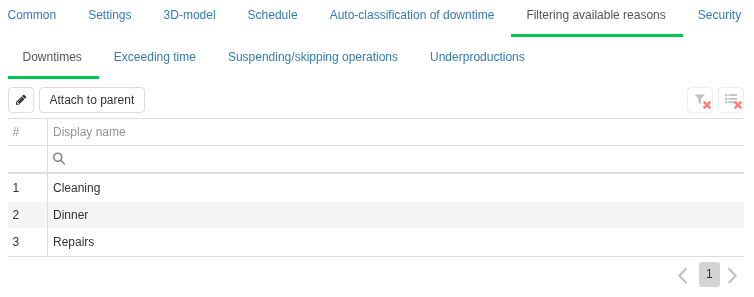
The Downtimes tab under Available reasons filtering shows a local reason list for the selected Work center. Attach to parent restores inheritance of this list. To restrict reason selection with the list, Filter downtime reasons must be enabled in System settings.
The list is used when system-wide downtime-reason filtering is enabled. To find this setting, open System settings from the Settings menu and expand Available reasons filtering. The required option is Filter downtime reasons. If filtering is disabled, a shortened list on the enterprise-structure tab does not by itself limit the general directory. In addition to this list, the selection dialog respects whether a reason is allowed for assignment in the corresponding module.
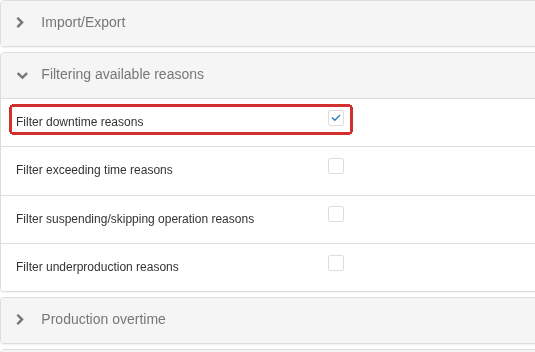
The Available reasons filtering group is expanded in System settings. The frame highlights the enabled Filter downtime reasons option; separate filtering settings for other reason kinds appear below it.
The list can be inherited from a parent node. Detaching creates a local list initially copied from the parent. Linking back to the parent makes the parent’s reasons apply again and clears the local list. Inheritance here applies to the entire list.
An operation involving several Work centers requires a common permitted set. When filtering is enabled, the intersection is used: if a reason is allowed for machine A but absent for machine B, it is not offered in the joint selection for A and B. Check this when classifying downtime in bulk.
Local and inherited automatic-classification rules
In the same Enterprise structure, open Auto-classification of downtime. This tab defines rules for splitting downtime into segments, automatically assigning reasons to those segments, and hiding short downtime in the Operator Workplace.
First check whether the selected node uses its own automatic-classification settings or inherits them from a parent node. The form indicates inheritance and the parent node, or offers Attach to parent when the object has its own settings. Two machines can therefore show identical visible values while obtaining them from different sources.
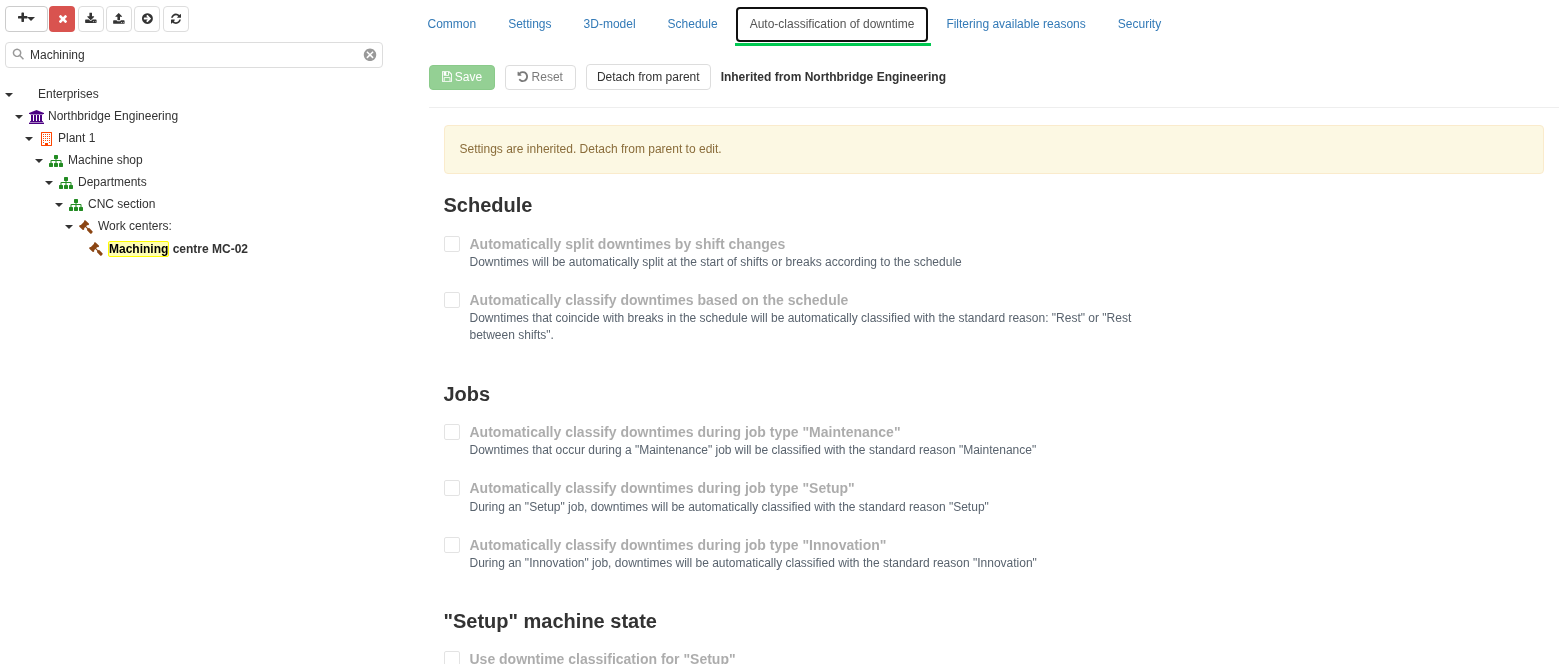
Downtime auto-classification settings for Machining centre MC-02 are inherited from Northbridge Engineering. The inheritance source and Detach from parent command appear above the form; the fields are unavailable for local editing. To define a local configuration for this Work center, detach it from the parent first.
When inherited, DPA uses the automatic-classification settings of the nearest parent node that has its own configuration. Changing that parent configuration affects descendants that inherit it. Detach from parent creates a local copy of the effective values; later parent changes no longer apply. Attach to parent deletes the local configuration and restores complete inheritance, including all flags and durations.
If one machine needs a different setting, give that machine its own configuration. If the difference should apply to an entire area, check inheritance on its equipment. Save the changes and reopen the tab; this verifies not only the numbers but also the source of the effective configuration.
Groups of downtime auto-classification settings
In Enterprise structure, select the required enterprise node or Work center and open Auto-classification of downtime. The fields are grouped: Schedule and Jobs are at the top, while settings for individual machine states and display in the Operator Workplace are further down. Scroll down to see the lower groups.
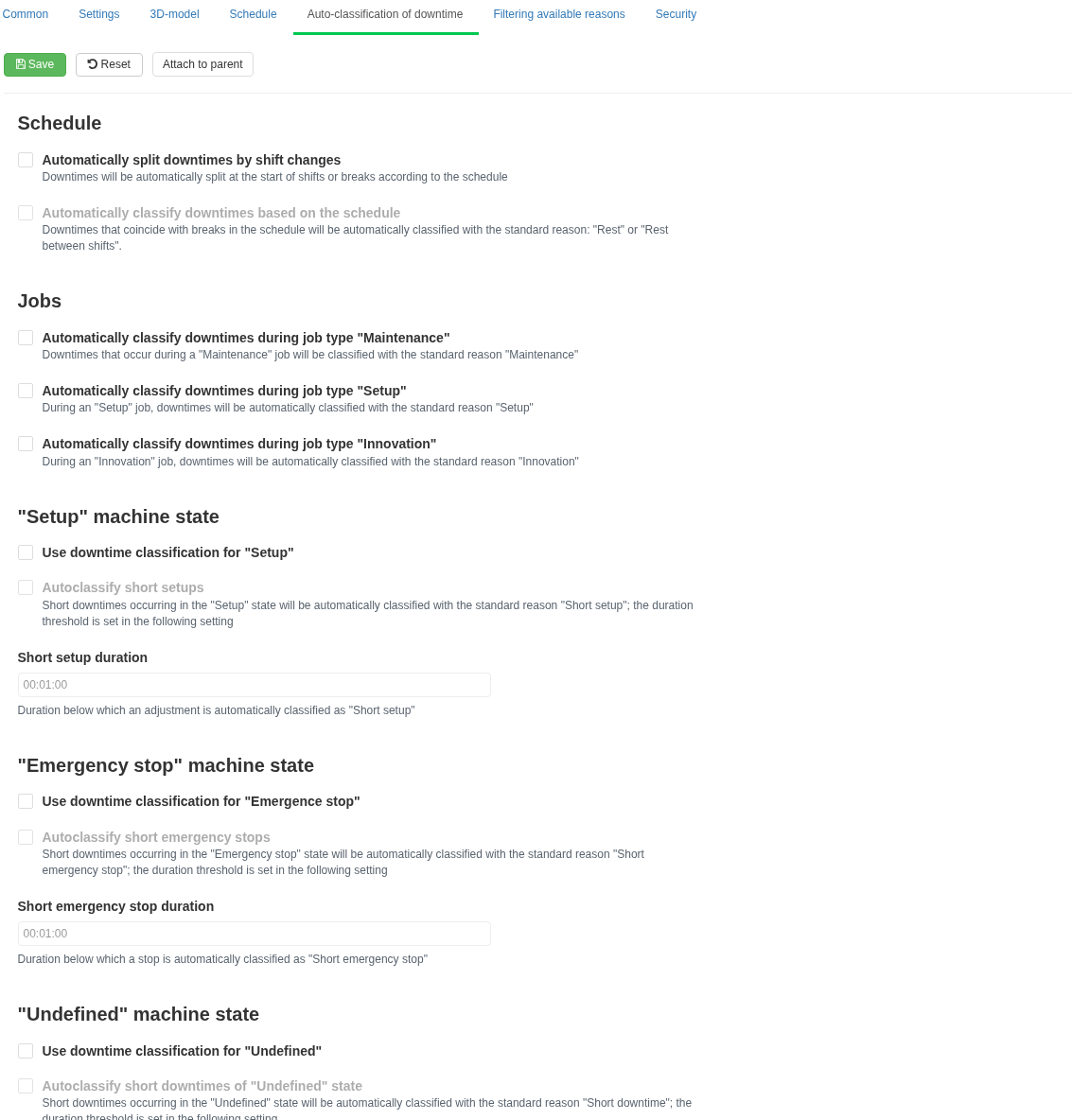
The upper part of Auto-classification of downtime for Machining centre MC-02 with its own configuration: Attach to parent is available above the fields. The Schedule, Jobs, “Setup” machine state and “Emergency stop” machine state groups are visible. Main options can be edited; dependent options and durations become available when the corresponding enabling options are selected.
| Group | What it controls |
|---|---|
| Schedule | Whether downtime segments are split at shift and break boundaries; whether Break and Break between shifts reasons are assigned |
| Jobs | Whether actual execution of Maintenance, Setup, and Innovation Jobs is taken into account |
| Machine state “Setup” | Whether this state is classified; whether Short setup is assigned and at what downtime-segment duration |
| Machine state “Emergency stop” | Whether this state is classified; whether Short emergency stop is assigned and at what downtime-segment duration |
| Machine state “Undefined” | Whether this state is classified; whether Short downtime is assigned and at what downtime-segment duration |
| Machine states “Downtime” and “Switched off” | Whether Short downtime is assigned and at what downtime-segment duration |
| Display in Operator Workspace | Whether short downtime is hidden from operational classification and which threshold is used |
Downtime and Switched off are part of the normal set of classifiable states. For Setup, Emergency stop and Undefined, classification of the corresponding state must first be enabled. Settings for assigning the system short-interval reason for that state then become available.
An undefined machine state and the Unknown reason can occur independently: an ordinary Downtime interval can also initially have that reason. Classify downtime of state… options permit processing of the corresponding machine state. An assigned Unknown reason means that the cause of the particular downtime segment has not yet been established.
Durations use a time format such as 00:01:00. The maximum segment duration for automatically assigning Short downtime and the duration used to hide short downtime in the Operator Workplace are configured separately. Their application is described below.
5. Automatic classification: Schedule, Jobs and machine states
Automatic classification reacts to production events: downtime creation and completion, a Schedule-period change, and start, resume, suspension and completion of an applicable Job. When processing an event, DPA uses the effective automatic-classification settings of that equipment. It processes downtime segments for the equipment: the system can split a segment at the event time and assign a reason to each resulting segment.
Priority of system downtime reasons during automatic replacement
| Reason | Position when choosing a replacement |
|---|---|
| Maintenance | Highest of the listed system priorities |
| Setup | Below Maintenance, above Innovation |
| Innovation | Above break reasons |
| Break, Break between shifts | Equal priority, above short-state reasons |
| Short downtime, Short setup, Short emergency stop | Above Unknown |
| Unknown | Initial reason when no other basis exists |
| User-defined reason | Is not replaced solely because a system reason has a higher priority |
Replacement by this rule requires a strictly higher priority. Equal priority alone does not allow replacement. Starting a Maintenance Job can replace the system Unknown reason with Maintenance, but does not by itself replace a manually assigned reason. Splitting at a Schedule boundary creates a new downtime segment after the time boundary; its reason is determined again.
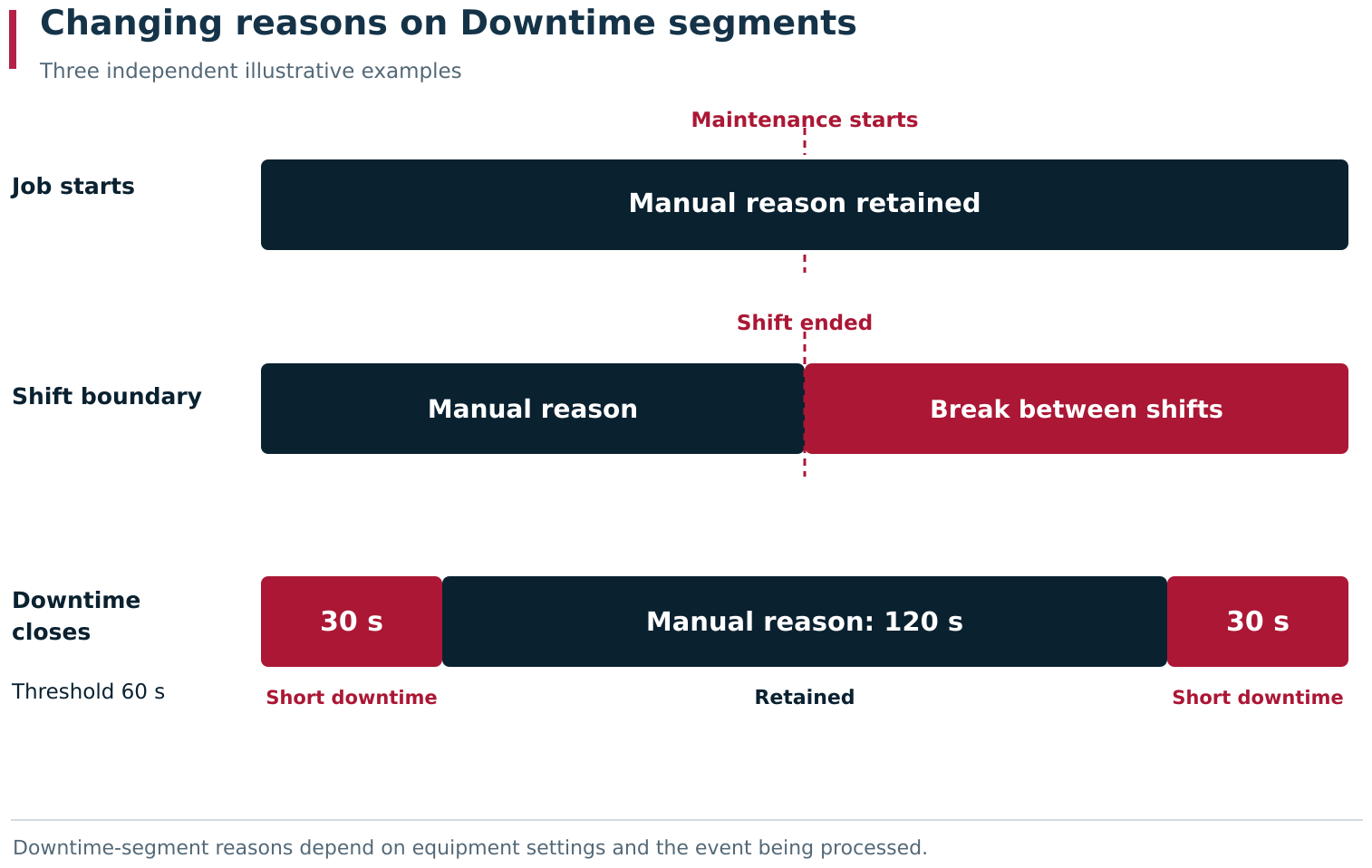
When a Job starts, a manually assigned reason remains. When downtime is split at a Schedule boundary, the reason for the new segment after the boundary is determined again. After downtime ends, two short segments with no established reason can receive Short downtime. The diagram shows three separate illustrative examples.
Schedule group settings
Automatically split downtimes by shift changes allows downtime segments to be split when the Schedule moves between working periods and breaks. Automatically classify downtimes based on the schedule allows the corresponding system reasons to be selected. Automatically classify downtimes based on the schedule becomes available after Automatically split downtimes by shift changes is enabled; both options must be effective for Schedule-based reasons to be selected.
| Split | Shift classification | Result for new downtime and later Schedule boundaries |
|---|---|---|
| Disabled | Disabled | The Schedule neither splits downtime segments nor assigns shift/break reasons |
| Enabled | Disabled | Downtime segments are split; a new segment with no other basis receives Unknown |
| Enabled | Enabled | Downtime segments are split; Break between shifts is assigned outside a shift, and Break during a shift break |
A working part of a shift with no break by itself leaves Unknown when no other applicable basis exists. DPA uses the production Schedule assigned to the equipment. An Operator’s open personal shift or a Foreman’s registration does not replace that Schedule.
For example, downtime begins before a break and continues after it. With both options enabled, classification can contain three consecutive segments with reasons Unknown → Break → Unknown. The machine stop itself remains continuous.
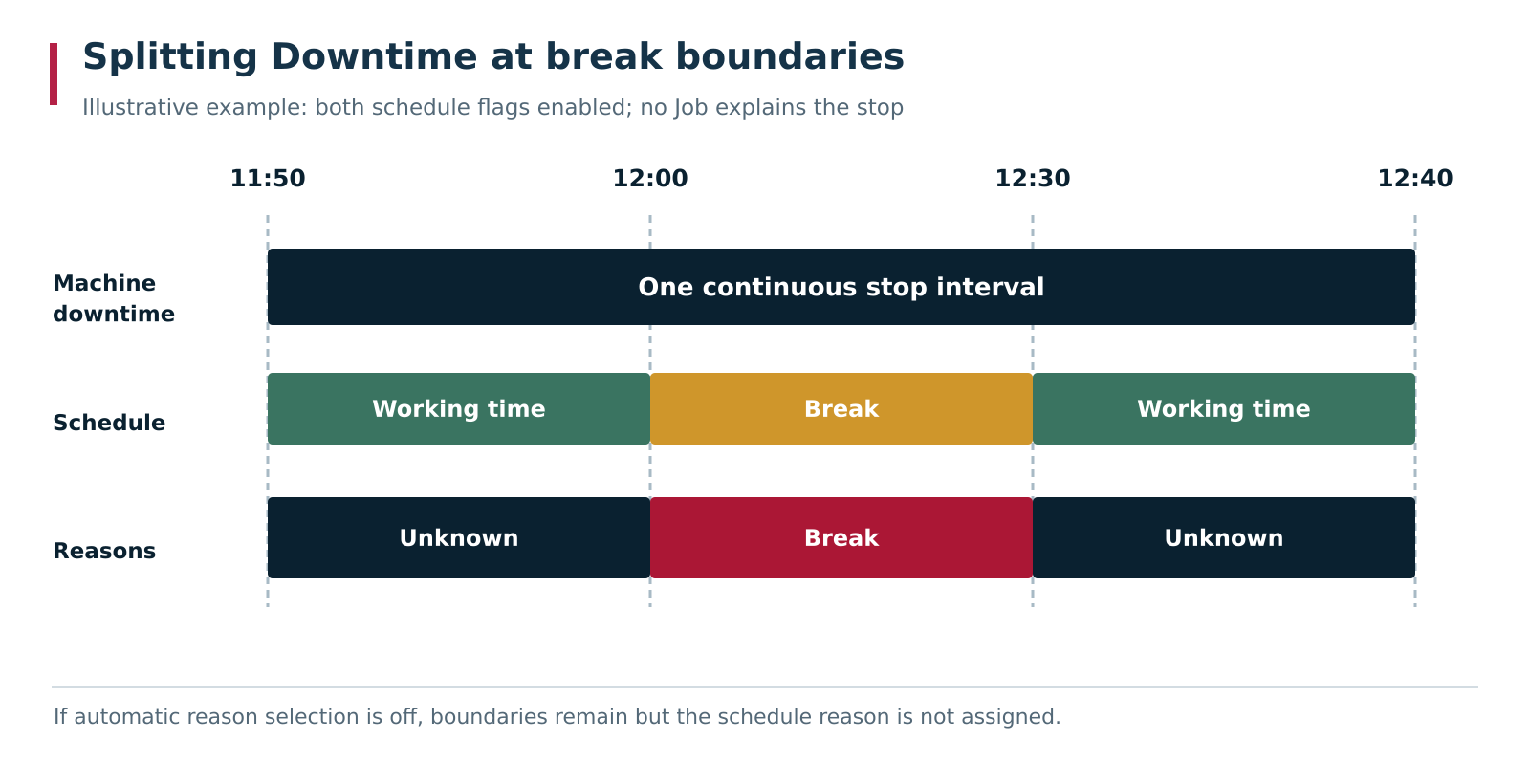
One machine downtime continues before, during and after a break. With shift splitting and classification enabled, DPA creates three downtime segments with reasons Unknown → Break → Unknown. Segment widths are illustrative; time labels show their boundaries.
A shift or break boundary in the Schedule can split a downtime segment whose reason was assigned manually. The segment before the boundary retains its previous reason and comment. For the segment after the boundary, DPA selects a reason again from the executing Job and Schedule settings. After every shift or break boundary, therefore, check the assigned reasons for continuing downtime, including when the reason before the boundary was manual. This is behaviour of this particular splitting operation, not a general priority of every automatic reason over manual reasons.
If a boundary event is processed late, reasons on later downtime segments that already existed can remain: automatic reconsideration of those segments is limited. When analysing history, inspect the actual sequence of boundaries and assignments.
Jobs group settings
The three options in Jobs enable classification for Maintenance, Setup and Innovation types. Actual execution periods are considered. A planned or suspended Job is not a basis for assigning a reason from actual execution of that Job.
When an applicable Job starts, a downtime segment containing the start moment can be split at the execution start. The segment after that boundary receives Maintenance, Setup or Innovation according to the Job type if its existing reason is allowed to be replaced. When the Job is suspended or completed, the downtime segment is split again. The reason for the segment after that boundary is determined from the other effective classification bases. Resuming the Job creates a new execution period and participates in classification again.
If several applicable Jobs execute at the same time, selection order is Maintenance, then Setup, then Innovation. A production Job or production with setup is not treated here as a separate Setup-type Job.
In practice, check four things: the Job type, whether the corresponding option is enabled for this machine, when the Job actually executed, and which reason had already been assigned to the downtime segment containing the Job start. The word “repair” in a request is not by itself enough to assign the system Maintenance reason.
Classifying short downtime in machine-state groups
Automatic assignment of reasons for short machine states occurs when downtime closes. DPA checks the duration of each downtime segment with its assigned reason, not only the duration of the entire machine interval. With a threshold of 00:01:00, a segment lasting exactly 60 s is considered short; 60.001 s is already longer than the threshold.
| Machine state | System reason for a short downtime segment when the required options are enabled |
|---|---|
| Downtime, Switched off | Short downtime |
| Setup | Short setup |
| Emergency stop | Short emergency stop |
| Undefined | Short downtime |
Example: a machine stop lasts three minutes. The first 120 s are in the Emergency stop machine state, the final 60 s in Setup. The first 30 s of Emergency stop and the final 30 s of Setup are left unexplained. The same user-defined reason is manually assigned to the two intermediate segments on either side of the machine-state boundary. After the stop closes, with a one-minute threshold the first edge segment can receive Short emergency stop and the final one Short setup. The user-defined reason remains on the intermediate segments.
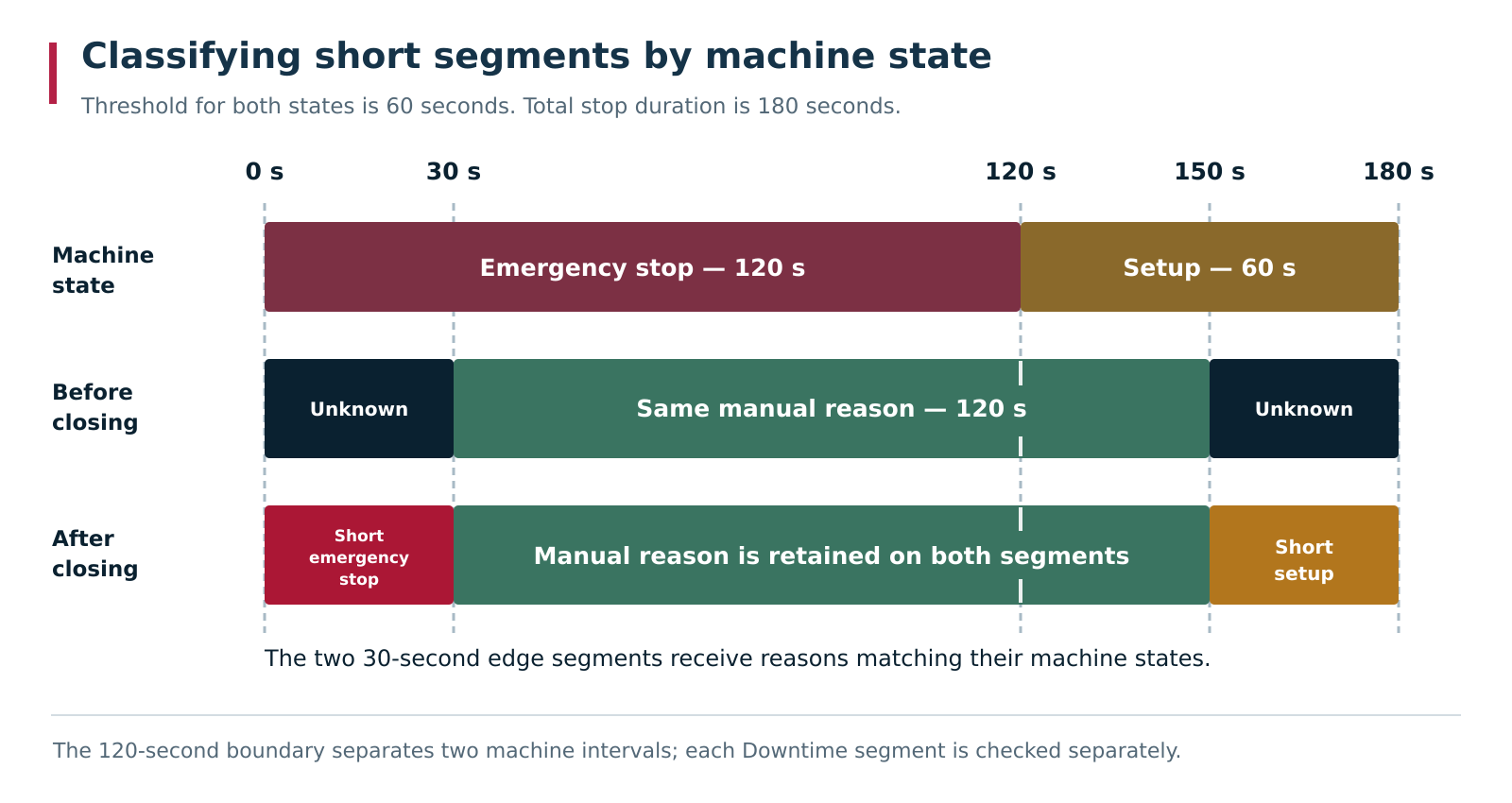
The first 120 seconds of the stop are in Emergency stop machine state and the final 60 seconds in Setup. The same user-defined reason is assigned to two intermediate segments on either side of the machine-state boundary. With a 60-second threshold, the two 30-second edge segments receive Short emergency stop and Short setup; the user-defined reason remains.
A reason for a short downtime segment does not replace an already assigned reason with a higher system priority. A thirty-second Break remains Break. A user-defined reason also remains during this check. For a stop that is still in progress, its currently short duration is not a final automatic-classification result.
Display in Operator Workplace group settings
Ignore short downtimes in operator module controls display and selection for operational classification. Short downtime duration in operator module defines its separate threshold. This setting does not itself assign the Short downtime reason.
For example, short downtime segments can be hidden in the Operator Workplace while their assigned reasons remain in history. Conversely, Short downtime can be assigned automatically while the segments remain visible in a list containing all reasons. For an unfinished downtime segment, duration is evaluated from its start to the moment of the check.
Applying changes to downtime automatic-classification settings
Saving new options does not trigger a bulk recalculation of all historical classification. Changes are used by subsequent events. The list can nevertheless change immediately if the set of classifiable machine states changes or short segments are hidden—without deleting the underlying records.
To verify a new configuration, create new downtime and check processing of its start, Schedule boundary, execution of an applicable Job, and downtime completion. When analysing an older registered downtime, determine which settings were effective at that time. The current form does not show setting-change history.
6. Manual reason assignment and splitting downtime into segments
Operators and Foremen analyse downtime in their Workplaces; historical classification is also available in the dedicated analytical views. Workplaces are introduced in Chapter 6, and analytical context selection in Chapter 8. This section focuses on the rules for saving the result.
Selecting downtime for reason assignment
Open Downtimes, select equipment and a period. To view already classified downtime, enable display of all reasons rather than only unclassified ones. Check the start, end, machine state, and existing segments of that downtime. To use one reason for the whole selected downtime segment, select the reason and enter a comment. For several reasons, select Split downtime at the right side of the row.
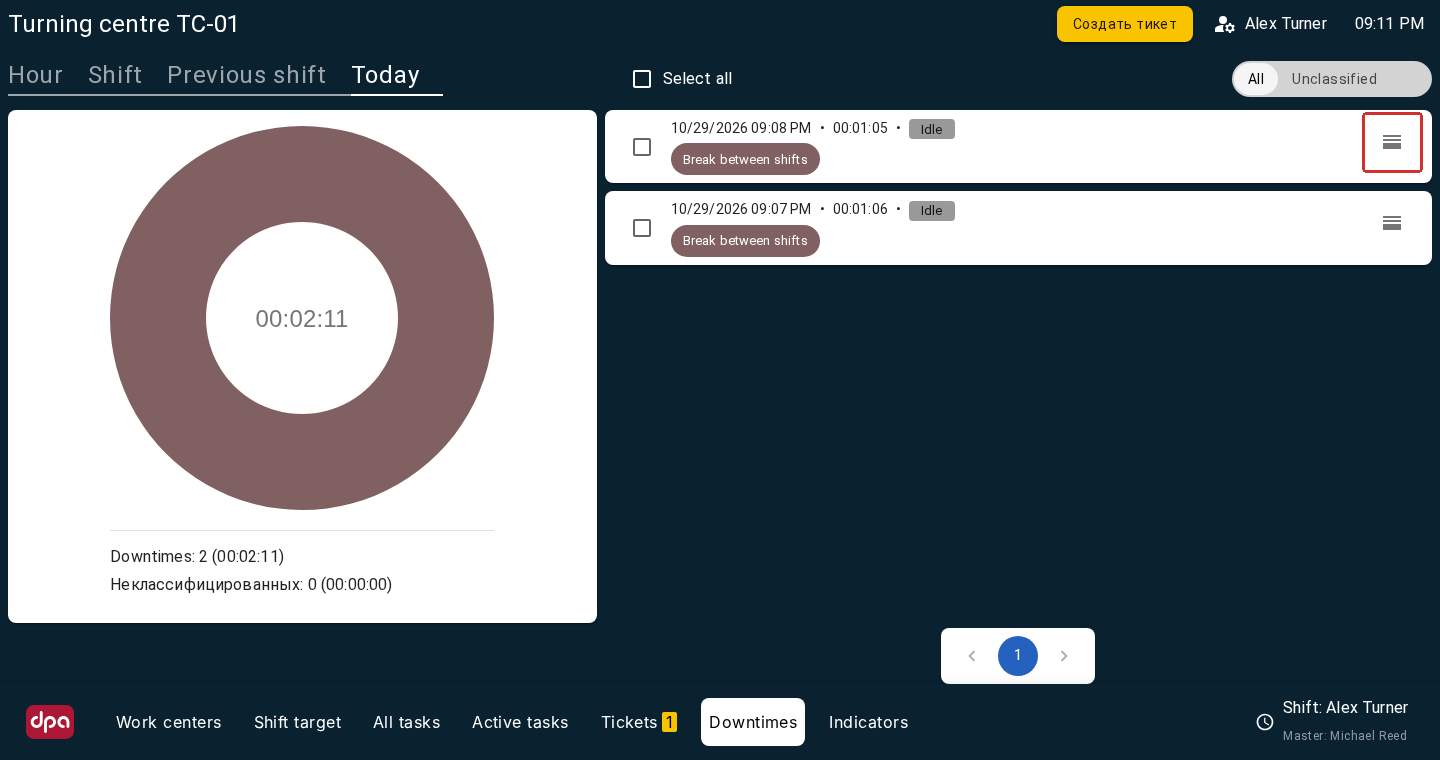
The Downtime area in the Operator workplace: individual intervals with start time, duration and assigned reason are shown on the right, with a summary for the selected period on the left. All includes already classified intervals. The outlined Split downtime button opens the form for splitting the selected interval.
Before a bulk assignment, check exactly which rows are selected: the same machine state does not imply the same reason.
Splitting downtime into segments with different reasons
The form does not save parts one by one: when previously unsplit downtime is first opened, it is immediately represented by two segments. Each press of Add creates another segment by automatically splitting the last one, and OK saves the complete resulting breakdown in one operation.
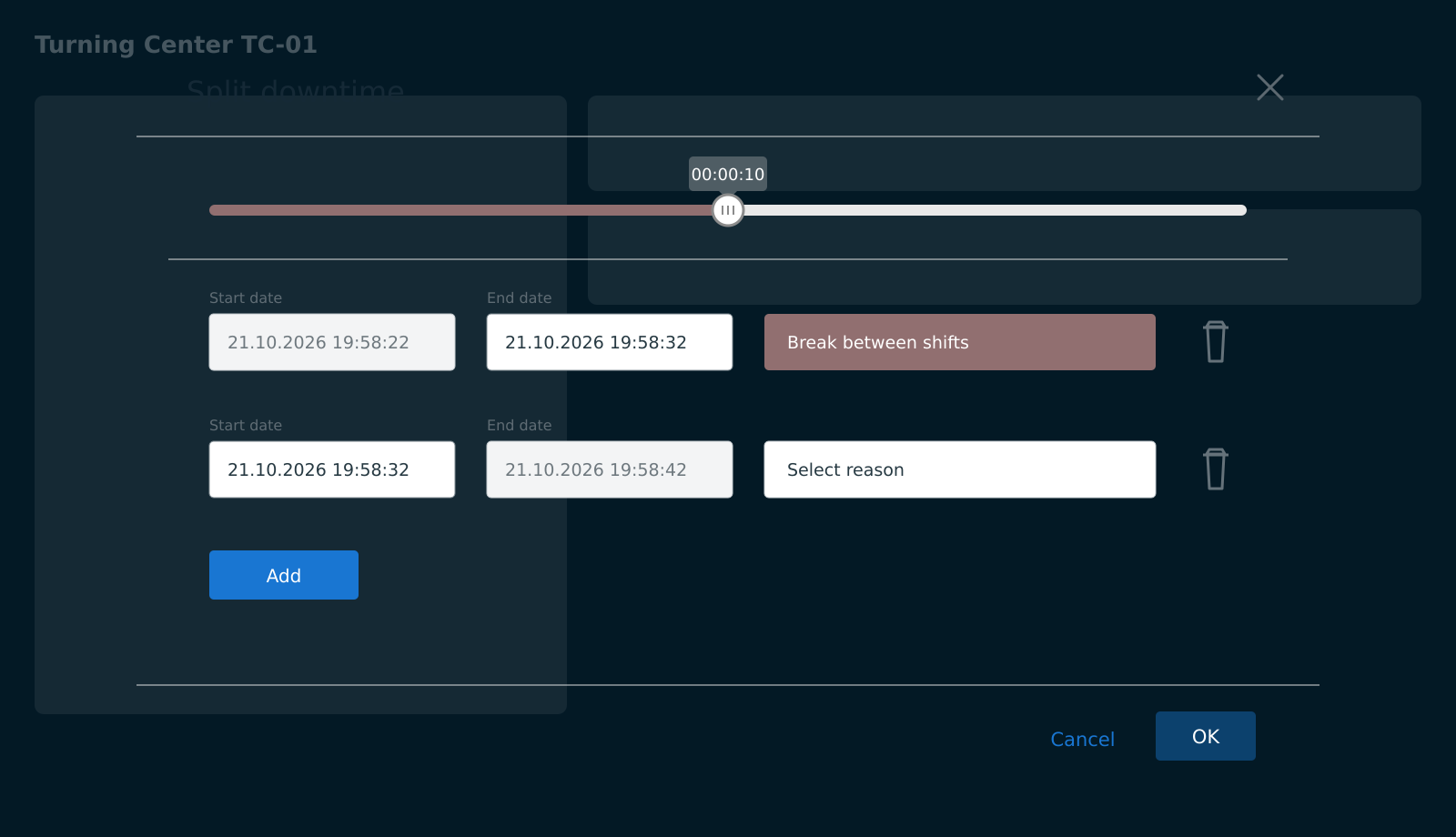
When first opened, Split downtime already contains two segments. The original reason remains on the first segment and a reason must be selected for the new one; Add creates another segment, while OK saves the complete breakdown in one operation.
Splitting changes the explanation of the original machine interval. Segment boundaries can be moved on the time scale or edited in date/time fields. Select a reason for each segment; its comment is entered in the reason-selection window. Remove an unnecessary segment with the trash button.
Downtime segments must satisfy four conditions:
- Every completed segment has a positive duration.
- The end of the previous segment exactly matches the start of the next one.
- The complete original downtime is covered from its start to its end; for ongoing downtime, the final segment remains open.
- Every segment has a downtime reason assigned.
The outer boundaries are tied to the machine record. They cannot be used to arbitrarily lengthen or shorten the downtime itself. On save, the service aligns the first segment start and final segment end to the source record, then validates the internal boundaries.
For example, downtime 10:00–11:00 can be split into 10:00–10:20 and 10:20–11:00. Starting the second segment at 10:20:01 leaves a one-second gap and rejects the update. Starting at 10:19:59 creates an overlap and is also invalid. A zero-length segment 10:20–10:20 is not saved.
After changing a time, check the neighbouring downtime segment as well. In an interface with one shared time scale, moving a boundary can change adjacent intervals; judge the result from all dates, not from one slider position. Save the form, reopen the downtime, and verify that reasons, comments and total duration match the breakdown you created.
Downtime-classification rights and the permitted age for changing reasons
Saving requires access to the equipment and either the permission to manage downtime or an Operator/Foreman role. Without the separate downtime-management permission, the role uses a configured maximum age, in hours, for downtime segments that may be classified manually. Age is measured from the current moment back to the segment start: older classification cannot be changed retrospectively. If the system requires an Operator personal shift, it must be open.
When correcting long historical downtime, a closed segment beyond the permitted period is also taken into account: visibility of the full history does not allow it to be rewritten freely. If saving is rejected, check the exact error text, role, age of the segments being changed, and whether a comment is mandatory.
If a reason cannot be selected, check its availability option for the relevant module and the equipment reason list from Section 4. For several machines, the reason must be available in their common list.
Downtime processing status after assigning a reason
The system Unknown reason means that the cause of the downtime segment has not yet been established. Assigning a user-defined or another system reason marks that segment as processed and removes it from the unclassified-downtime selection. An automatically assigned reason can change this status as well; a person does not have to analyse the downtime manually for that to happen.
Changing text in a Ticket does not change the downtime reason. Saving the reason “Repairs” also does not assign a Mechanic or confirm completion of work. If correcting the cause requires personnel action, create or find the corresponding Ticket separately.
For final verification, open Analytics → 13.1. Downtime reason classification, keeping the same equipment, period and state set. Compare the durations of all downtime segments with the duration of the source machine interval. Grouping order and accumulated percentage are covered in Section 7 of Chapter 8.
7. Configuring Tickets and working through a request
A Ticket preserves a request about a specific problem: equipment, request type, author, assigned performer, messages, and work stages. Day-to-day actions in the Workplaces are already covered in Chapter 6. This section focuses on configuration and the common process conditions.
Configuring Ticket Groups, Sources and Types
From the Settings menu, open Tickets setup. The Tickets tab contains groups, sources and request types.
| Level | Purpose | Example |
|---|---|---|
| Ticket group | Broad request area | Work center |
| Ticket source | Object or node within a group | Loader |
| Ticket type | Kind of problem or required action for the source | Broken, Repair, Check |
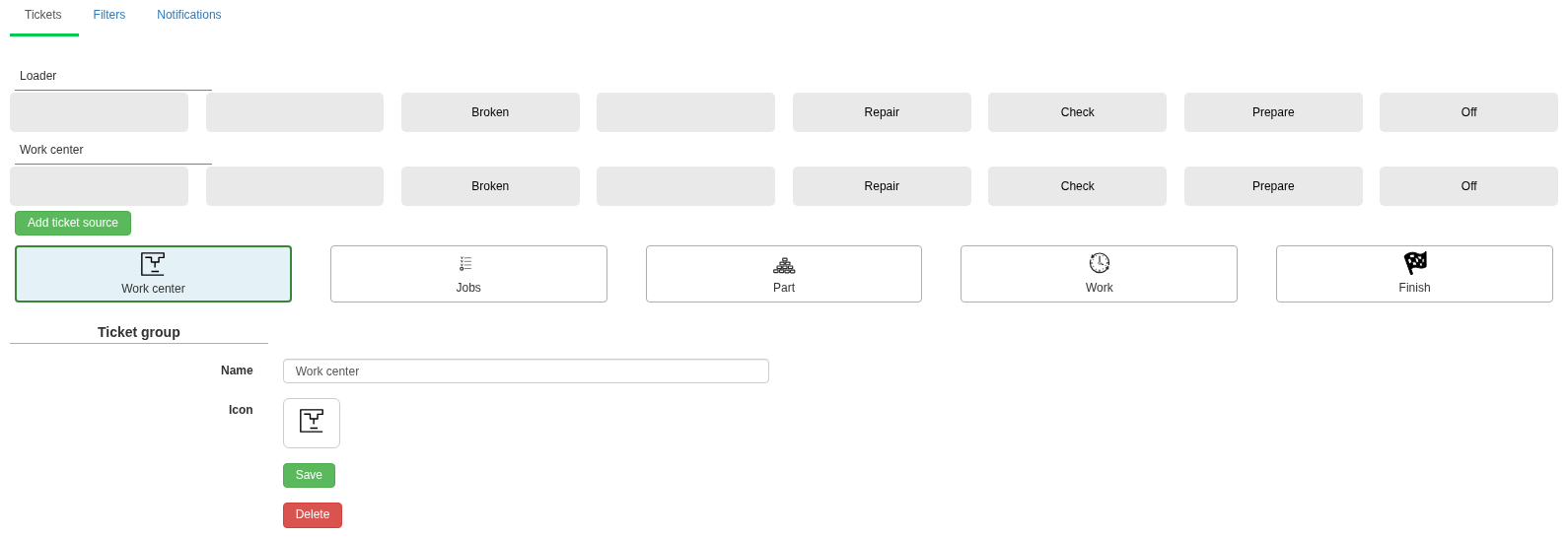
The selected Work center group has Loader and Work center sources, each with request-type positions. The editor below belongs to the selected group.
Select a group button. Its sources and type positions for each source appear. Selecting a group, source, or type opens the editor for that object. Watch the editor heading: the fields below belong to the selected item.
A group has a name and icon. Add ticket source creates a source in the selected group. A type has a name, icon and colour. An empty type position can be filled with a new request kind. Select Save after editing.
Here, a source is part of request classification—for example, a machine node. It does not select a technical telemetry source. The same displayed Check name under Loader and under Work center represents two directory types in different contexts. For selection and automation, use the complete combination or the ID of the required type.
The interface provides five group positions and eight type positions for each source. Positions determine button placement. When configuring through the API, keep indices within 1…5 and 1…8 and preserve position uniqueness in the corresponding context: two objects with the same index do not produce two visible buttons in one position.
Colour and icon help identify a request. Performer, due date and stage are set by the Ticket process itself; they are not inferred from the button colour.
Editing and deleting Ticket Groups, Sources and Types
Renaming changes the directory object referenced by existing requests. Use editing when the wording itself needs clarification.
Warning. Deleting a Ticket Group, Source, or Type irreversibly deletes every related Ticket together with its messages, assignments and stage history.
The cascade depends on which directory object is deleted:
| Deleted object | Related information deleted |
|---|---|
| Type | Tickets related to that type |
| Source | Its types and Tickets related to those types |
| Group | Its sources, types, and Tickets related to those types |
Before deletion, check related Tickets and preserve any required data. To stop work on one request, use the Ticket lifecycle commands: closing a Ticket does not delete its history.
Ticket participants and rights to act on a request
Working with a Ticket takes into account the user’s access to the equipment, role on that machine, and participation in the specific request.
- The Author reports the problem and accepts or rejects the result.
- The Executor receives an assignment, accepts the work, and marks it completed.
- A Foreman or participant with assignment rights distributes Tickets among performers: selects a performer and, where allowed, reassigns the Ticket.
Assigning an employee as a Mechanic for a machine allows them to work with requests for that equipment within the granted rights, but does not make them the performer of every request. The performer is assigned separately in the Ticket. For a Foreman, the assignment also depends on the equipment scope and an active registration on it. A Mechanic does not need to open a separate personal shift in the Maintenance Workplace.
If a request is visible but the required command is absent, check the current stage, author, assigned performer, role and user registration. Changing the request colour or type is not required to make the command appear.
Main sequence of Ticket actions and stages
| Action | Stage after the action | Meaning |
|---|---|---|
| Create request | New | The problem is registered and the author is known |
| Assign performer | Assigned to executor | Work is offered to a specific person |
| Performer accepts assignment | Accepted by executor | The person agrees to perform the work |
| Performer starts | Executing | Work start is recorded |
| Performer completes | Completed by executor | The result is handed to the author; the request is still open |
| Author accepts result | Accepted by author | Acceptance is complete and the request is closed |
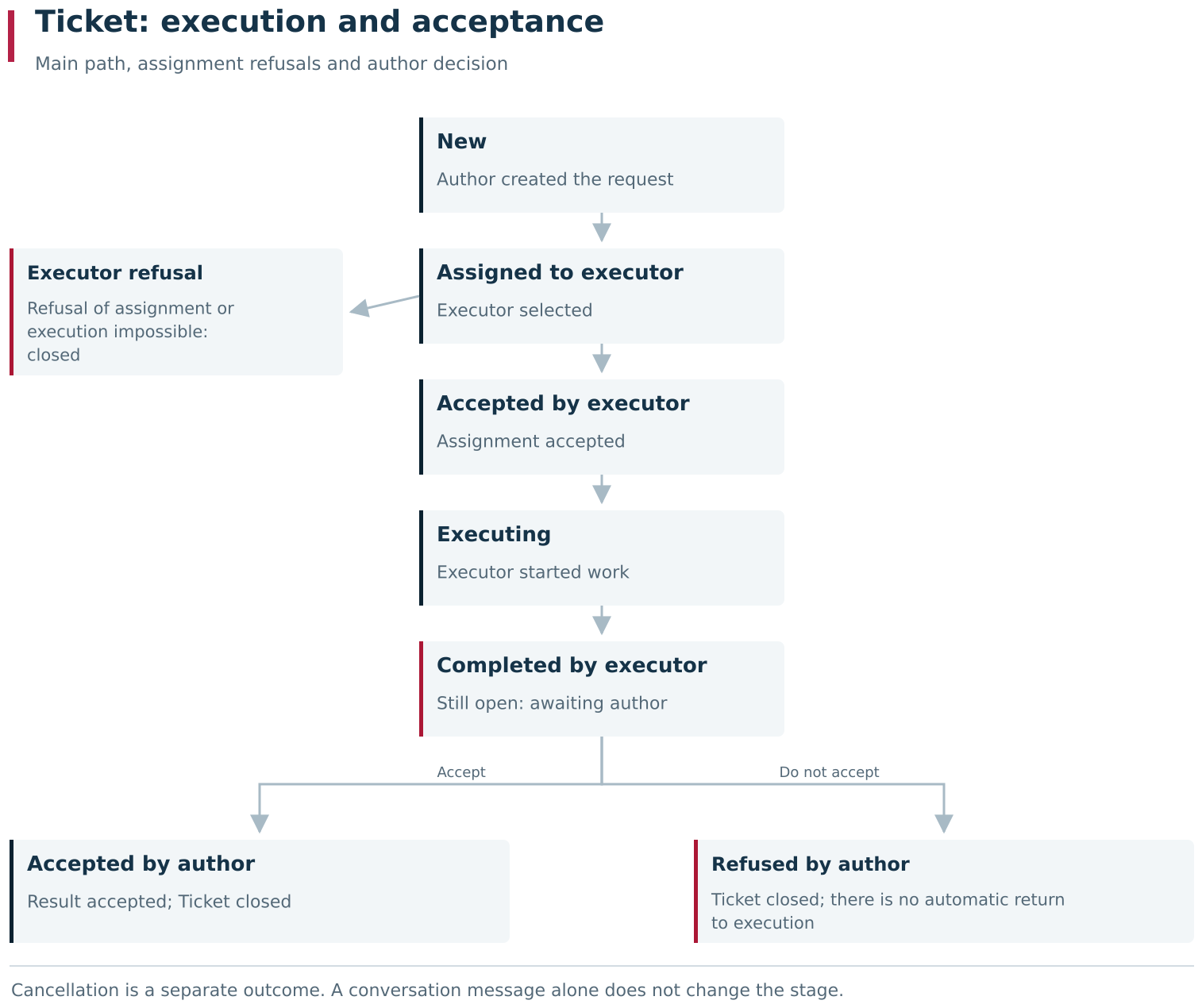
Completion by the performer leaves the Ticket open until the author decides on the result. Refusal at the assignment stage and rejection by the author close the request; messages do not replace lifecycle commands.
An initial self-assignment can be accepted by the performer immediately when the user is permitted to do so. There may therefore be no separate pause between assignment and acceptance.
The performer can be changed while the Ticket is at Assigned to executor. Reassigning the same person is rejected. After the assignment is accepted, the normal reassignment command is no longer the continuation of that stage. First agree on the next action for the request; a message saying “passing this to a colleague” does not change the performer.
Production stop describes the impact of the problem. It does not send a stop command to the machine and does not create machine downtime. The required completion date also does not by itself enable automatic escalation or closure.
Closing a Ticket after refusal, result rejection or cancellation
At Assigned to executor, the performer can refuse or report that the work cannot be completed. These are different outcomes with different explanations, but both close the Ticket. Enter the required reason message before using the command. A refusal does not leave the request in a queue awaiting reassignment.
After work is completed, the author can accept the result or choose Do not accept. Rejection closes the request with the Refused by author stage; it does not automatically return to Executing. If the problem remains, create the next agreed step while preserving the information in the original request.
Cancel finishes the request with a separate outcome. Use this command for an allowed cancellation of an open process.
After closing, a Ticket disappears from the Not closed selection. To find a refusal, cancellation, or rejected result, switch to All and check equipment and dates. Completed by executor remains open until the author decides on the result.
Action history and messages in a Ticket
Action history shows transitions and assignments: who performed the action and when. Messages store diagnostics, explanations and the result. A text message such as “done” does not replace the Complete command and does not move the request to the next stage.
Creation date, required completion date and closure date represent different moments. Check which date limits the list. In addition to filters, visibility also depends on the user’s access to the equipment.
For troubleshooting, preserve the Ticket ID, equipment, type, author, performer, current stage and required history records. Then compare the request with the Gantt chart and downtime reasons. This distinguishes waiting for a performer from waiting for acceptance and lets you check the actual production state separately.
8. Configuring Ticket notifications and automation through Signals 2.0
A notification setting defines which requests to select, which event to react to, which messages to prepare, and who should receive the result. External delivery through Messenger is described in Chapter 13. First, configure and verify the selection inside DPA.
Configuring Ticket selection on the Filters tab
In Tickets setup, open Filters and select the plus button. Enter a name and select Work centers, groups, sources and types. Save the filter.
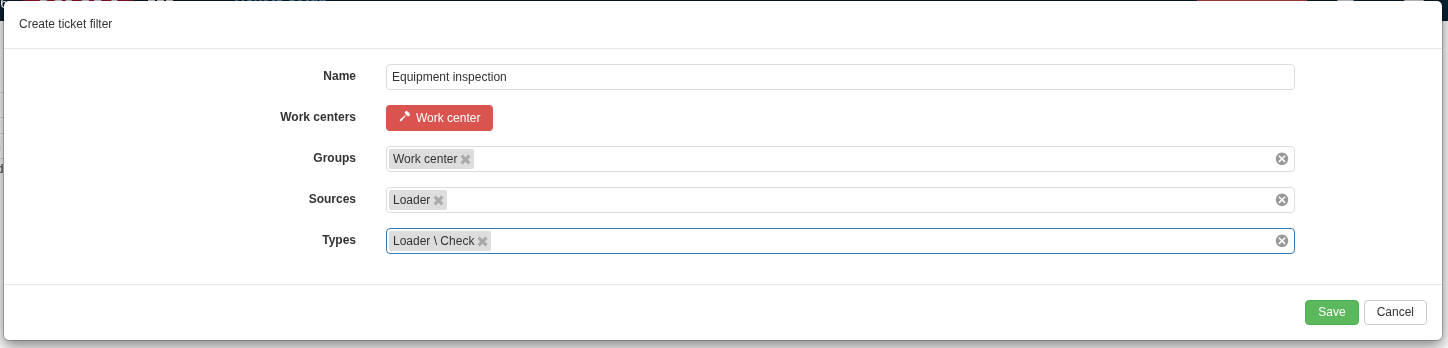
The “Equipment inspection” filter is restricted to the Work center group, Loader source and the specific Loader \ Check type. No Work center is selected here, so there is no equipment restriction. Populated lists are applied together.
Several values in one selection field are combined with or: a Ticket passes if it matches at least one of them. Conditions from different fields are combined with and: a Ticket must satisfy every populated field.
| Setting | Ticket selection condition |
|---|---|
| Machines A and B | Machine A or B |
| Work center group | Request belongs to this group |
| Inspect and Broken types | One of these specific types is selected |
| All listed restrictions together | Matching machine and group and type |
Selecting a source or type from another group does not create an alternative to the selected group. Contradictory restrictions can exclude every request. In the type list, pay attention to the full name including the source: the word Inspect can occur more than once.
An empty list does not restrict selection by that field. An empty equipment list means there is no equipment restriction. If all filter lists are empty, the filter does not restrict requests by these fields.
This named filter is used by notification settings. Saving it does not change the temporary filters in a Workplace Ticket list. Before connecting it, test two examples: a request that should pass and a similar one that should be excluded.
Configuring a card on the Notifications tab
On Notifications, select the plus button. Fill in the card and save it after all required relationships have been prepared.
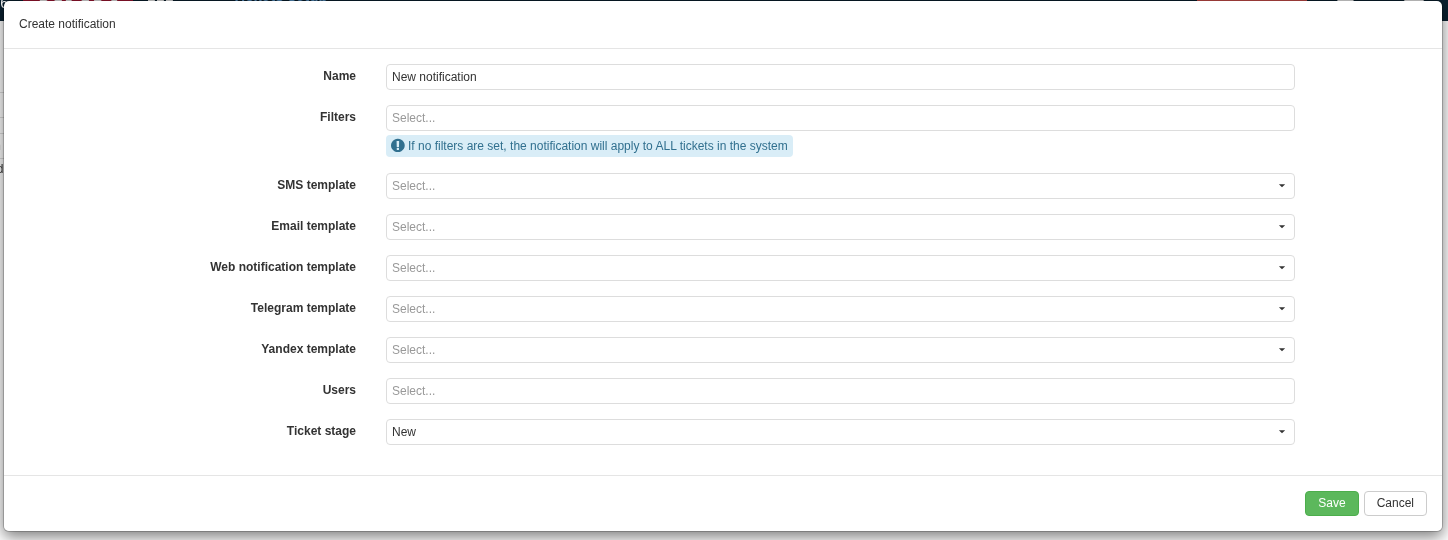
The notification card connects filters, templates, users and Ticket state. The hint about operating without filters does not match notification selection in this release; for broad coverage, connect a filter with empty restrictions.
| Field | What it defines |
|---|---|
| Name | Setting name used to find and diagnose it |
| Filters | Which requests the notification applies to |
| SMS template, Email template, Web notification template, Telegram template, Yandex template | Text and formatting for the corresponding message type |
| Users | Recipients of prepared messages |
| Ticket stage | The relevant stage, or the broad Any option |
Several connected filters are alternatives: matching any one is enough. Matching several filters of the same notification does not by itself create several copies. Separate notification objects remain independent.
If no filter is connected to a notification, it applies to all Tickets. Ticket stage still restricts events to the selected stage; Any removes that restriction.
Each message kind requires its own template. Users is explicit: the Ticket author and performer do not become recipients solely because of their role. A notification type appearing on the form still requires the corresponding transport and recipient data to be configured.
Ticket state and the notification event
Ticket stage on the card actually selects the event at which a notification is prepared. It is not a periodic check of current state: the Handler receives an action event for the Ticket and matches it to one of the state values. For example, Ticket creation maps to New, performer assignment to Assigned to executor, and author acceptance to Accepted by author.
Any removes this restriction and covers all supported Ticket events. One user action can record a stage, add a message, create a specialised action event, and create a general closure event. Do not therefore assume there will always be exactly one prepared notification per button press. For a specific requirement, choose the required field value and test it on a controlled Ticket, including the refusal branch.
The list contains separate values for final states, including Accepted by author, Refused by author and Cancelled. There is no separate Closing value: closure is an internal event accompanying the transition to a final Ticket state. To notify on one particular outcome, select the corresponding Ticket stage value.
Ticket data in the message template
The template receives Ticket context: equipment and department, group, source and type, author, performer, current stage, time and latest message. The latest message is the most recently saved text at build time, not necessarily the original problem description.
The request link is built from the DPA address configured in system settings. If that address is empty or incorrect, a correct event still does not produce a working link. Check the rendered text and address on a device available to the recipient, then continue to delivery verification.
Creating a Ticket from a Signals 2.0 Handler
The public ITicketService can create requests and perform supported process actions. For an automated scenario, decide in advance on the equipment, type, author, comment, time, required due date, production-stop flag and whether an initial assignment is required.
The training Handler below receives a Work center ID as a long and creates a Ticket. It is intended for a one-off manual test with the related Trigger from Chapter 9. Replace the training ticketTypeId and authorUserId with existing agreed values from your installation.
| |
CreateTicket(...) returns the created request ID. ORM-session rules are described in Section 10 of Chapter 9. Decide in advance which user the code creates the Ticket on behalf of, who will accept the result, and whether that user has access to the equipment. Perform assignment and later actions through the process service so that action-validity checks are applied and Ticket history is preserved.
This training code creates a new Ticket every time the Handler is called. For a permanent automated scenario, add duplicate protection: define a stable relationship to the source production episode and persist the creation decision. Identical request text is not a sufficient episode identifier. With concurrent events, coordinate the “no Ticket yet” check and creation so that two Handlers cannot create duplicates.
Subscribing to Ticket changes and releasing the subscription
ITicketService.SubscribeToTicketChange(...) returns a disposable subscription. In a long-running Trigger, keep it and call Dispose() on stop. Pass IDs or independent data onward from the event; read entities inside an ORM session according to Chapter 9.
A subscriber must distinguish the required change kinds. A message, a stage record and a specialised action event can all belong to one user step. If creating a Ticket itself produces an event that starts creation again, use an explicit filter that prevents such a loop.
Verify the persisted object and history after every action. Directly changing ORM-entity fields does not replace ITicketService: doing so can bypass process checks and lose required events. When testing automation, perform the action with an eligible participant at an appropriate stage. Separately test a call from a user without the required rights, a call at an unsuitable stage, and repeated processing of the same source event.
9. Tickets, Maintenance Jobs and downtime reasons during equipment service
Equipment maintenance is represented by separate records: a Ticket, a Maintenance Job, the actual execution periods of that Job, and downtime reasons. The Ticket organises communication and acceptance. The Maintenance Job represents the work in planning. The Maintenance reason is assigned to the corresponding downtime segment when the relevant settings apply.
Working with a Ticket as a Mechanic in the Maintenance Workplace
In the Maintenance Workplace, Ticket handling includes assigning a Mechanic, accepting the request, performing the work, handing over the result, and acceptance by the author. The detailed sequence and commands are described in Section 4 of Chapter 6.
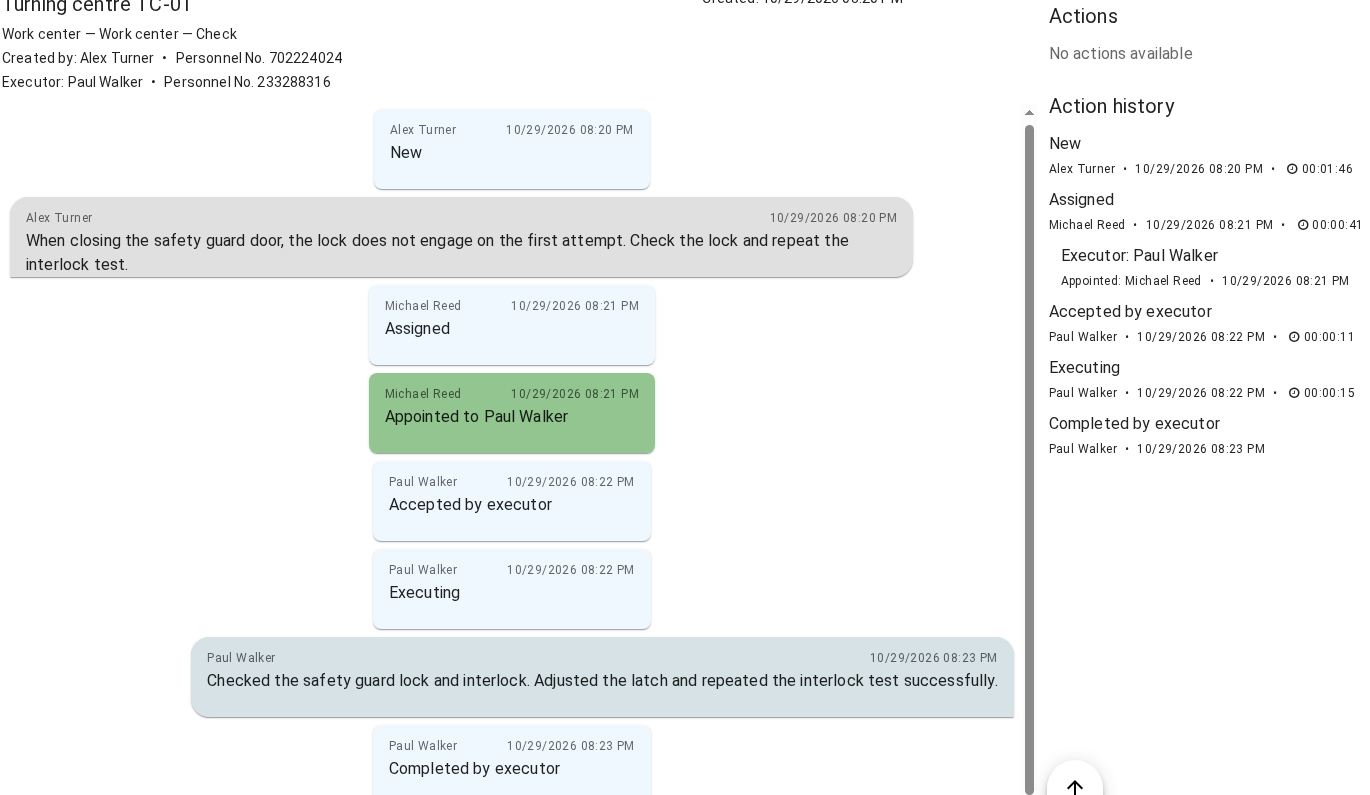
The Mechanic recorded the result and clicked COMPLETE EXECUTION. Completed by executor appeared in the conversation and action history. No actions available applies to the current participant: the Ticket itself is not yet closed and still waits for the author’s decision.
After the performer completes the work, the request still waits for the author’s decision. When handing over the result, record the actions performed, the identified cause of the problem, and any remaining limitations. Separately verify whether production has recovered and whether the downtime has been explained.
Creating a Maintenance Job in Planning
In Planning, the Maintenance work type represents service as a separate Job. General equipment assignment, planned dates, start and actual-period rules are covered in Chapter 5. When creating such a Job, select the actual required work type: writing “repair” in the comment of a production Job does not change its type.
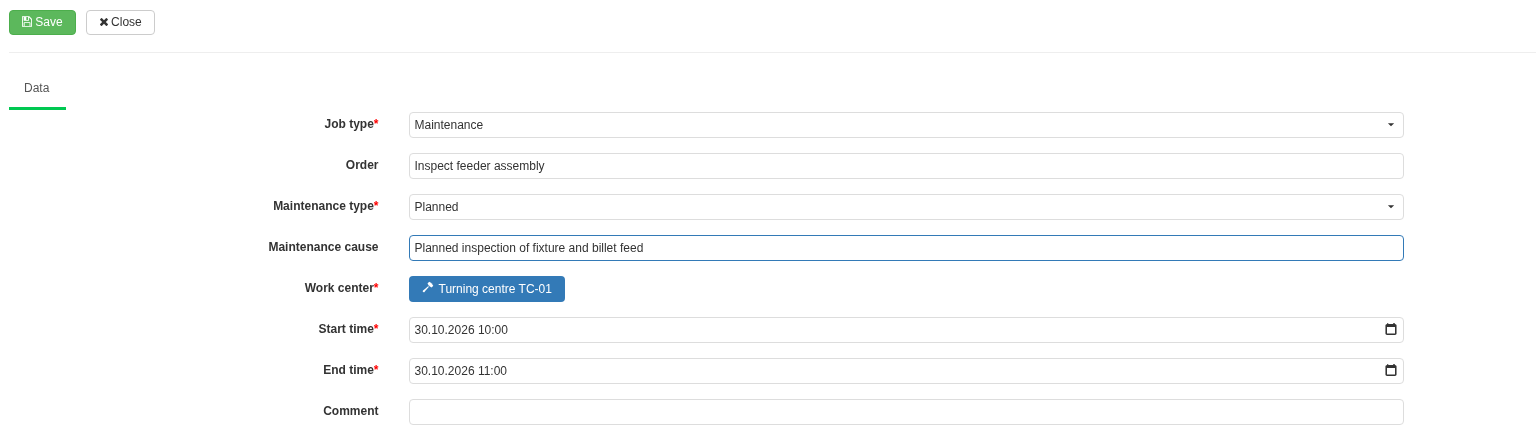
A new Job card has Job type → Maintenance selected. Order, Maintenance cause, Work center, and planned Start time and End time are filled in. Planned is selected under Maintenance type.
When Job type → Maintenance is selected on a new Job form, the following fields are available:
| Field | What to enter |
|---|---|
| Order | Clear work name, for example “Inspect feeder assembly” |
| Maintenance type | Planned, Not planned, or Accident |
| Maintenance cause | Basis for this particular work |
| Work center | Equipment to be serviced |
| Start, End | Planned execution time |
| Comment | Additional task description |
After saving, check the created Job and assigned equipment. Maintenance cause on this card explains the maintenance work; separate classification of machine downtime continues to follow the rules in Sections 4–6.
For classification, the actual start, pauses, resumes and completion of the work matter. Planned dates do not create an actual execution period for the Maintenance Job. When Automatically classify downtimes during execution of a “Maintenance” job is enabled, the corresponding events participate in reason selection according to Section 5.
For example, a stop begins before repair, a Maintenance Job then executes, and the equipment is checked afterwards. With a suitable configuration, Maintenance is assigned to the downtime segment coinciding with actual execution of that Job. Reasons for downtime before the Job begins and after it ends are determined separately. User-defined reasons and other existing bases are handled by the replacement rules described above.
The relationship between a Ticket and such work must be organised explicitly. The request description can retain the Job ID and explain the agreement. Accepting the Ticket does not start the Maintenance Job, and closing the request does not transfer its dates into machine history.
Available maintenance functions
The Maintenance Workplace is intended for handling Tickets; it does not contain tabs for executing Jobs. Use the sections intended for Maintenance Jobs that are available to your role.
For the workflow described here, it is sufficient to verify four results: the request reached the performer, the work was actually performed, the author accepted the result, and the stop received the correct explanation. Each result is verified in its own record.
10. Verifying process parameter monitoring, downtime classification, Tickets and notifications
Start with the expected result. “No monitoring record”, “downtime received a different reason”, “the Ticket did not appear”, and “the message was not delivered” require checks of different settings. Identify the specific machine, time and result that should have been produced.
Equipment, time and object identifiers for verification
For the event being analysed, record the Work center, channel, Indicator or device, and time range. For process parameter monitoring, add the CP version and Subprogram; for a Job, its ID and actual execution periods; for a Ticket, its ID, author, performer and stage.
The time of a reading, violation save, Signal firing, action execution and manual confirmation can differ. Compare time zones and period boundaries across all views. Two events appearing next to each other on the Gantt chart still require configuration or action history to establish a causal relationship.
Verifying readings, records and actions stage by stage
| Result being checked | Confirmation | What to check when it differs |
|---|---|---|
| Source reading | Indicator value and history | Source, units, device, freshness of data |
| Effective monitoring boundaries | Control limits and applicable configuration | Monitoring enabled, resulting Work center state, main channel and program context, relationships and overrides |
| Monitoring violation | Journal record with exact context | Reading at the boundary, threshold type, start and end of monitoring |
| Machine downtime | Gantt chart and state record | Source machine state and its duration |
| Downtime reasons | All downtime segments of the selected machine interval | Inheritance, state set, Schedule, actual Job execution periods, short-downtime settings and manually assigned reasons |
| Ticket | Card and history | Whether creation was provided for, correct type and author selected, then assignment and transition validity |
| Signal result | State, Fires and Handler result | Conditions, scope, enabled state, dwell, grouping and schedule; for Signals 2.0, compilation, relationships and code |
| Notification preparation | Filter match, required event, template and recipients | List logic, multiple events from one action, context fields and DPA address |
| External delivery | Control tools for the corresponding transport | Messenger configuration and state described in Chapter 13 |
Move to the next processing stage only after confirming the result of the previous one. If there is no monitoring record, start with context and thresholds. If the record exists but no Ticket is present, find the setting or code that should create it. If the Ticket exists and the event was selected, check message preparation and then delivery.
Verifying registration of a process parameter threshold violation
- Select one numeric parameter, one Indicator, and an unambiguous relationship to the active CP version. Record the equipment and effective thresholds.
- Enable continuous monitoring and the applicable CP-determination method. Check the Production state and program context.
- On test equipment or a designated simulator, produce values below the boundary, exactly on it, and above it. Changing a filter or opening a journal does not set an Indicator reading.
- Compare the readings, Gantt control limits and start of the monitoring record.
- While monitoring continues, return the value to the permitted range and check the record end. Separately stop monitoring so you can see the difference between closing causes.
- If Subprograms are used, repeat the test on entry, exit and an unknown name. Compare the selected sets and journal context.
- For any configured reaction, trace the Signal state, firing and specific Handler result.
Verifying automatic and manual assignment of downtime reasons
Choose test equipment, check its effective automatic-classification settings, and register new downtime. Check the source machine state and initially assigned reason. Then separately test a Schedule boundary, actual execution of a Job, and short-segment reason assignment when downtime closes.
Test a manual reason before a schedule boundary and during Job start. These are different classifier operations and can have different expected results. For short states, use a duration slightly below the threshold, exactly equal to it, and slightly above it.
After a manual split, reopen every downtime segment and check that each end time equals the next start time, together with reasons, comments and total duration. Then compare the same downtime with downtime-reason analytics. If a row disappears, first check selection of processed segments and hiding of short downtime.
Verifying Ticket processing and notification preparation
Create a new training request. Walk it through assignment, performer acceptance, start, completion and author acceptance. Use separate requests for refusal branches: refusal and result rejection close the process.
Test the notification filter with both a matching and an excluded request. For broad selection, connect an explicit filter with empty restrictions. Compare the selected stage with actual history and prepared text. For automated creation, repeat the source event and verify that repeated processing behaves as designed.
The verification result is a specific record or completed action: a saved reason, created Ticket, confirmed transition, or prepared message. Ok status on a script and a Host log line help with diagnostics, but do not by themselves confirm every subsequent action.
To hand the analysis to another specialist, preserve the equipment and time, object IDs, effective configuration, expected and actual result, and exact error text. If code was involved, preserve the revision that was executing and the common assembly used. This is sufficient to repeat the check at the same transition and verify the result of a fix.