← Chapter 8. Monitoring production and analysing what is happening · Contents · Chapter 10. Production events and handling deviations →
1. Detecting events, performing actions and delivering notifications
Event-driven work in DPA has two related tasks: detecting and handling a situation and delivering a notification. The system receives data, determines what happened, checks reaction conditions and prepares the result of that reaction. For example, excessive load can become a recorded firing, a reason to execute a programmatic action, or the source of a message to a responsible employee.
This chapter covers Signals: how to define conditions, require them to remain true for a specified time, limit repeated reactions, obtain event context and execute Handlers. Two mechanisms are described. Classic Signals are configured in a condition editor; Signals 2.0 let you write custom logic in C# and use DPA’s public services.
External delivery of information to personnel — SMS, email and messages over other channels — is provided by the Messenger microservice. Its purpose, transports and delivery verification are covered in Chapter 13. Here notification configuration is considered up to the boundary where a firing and its context are handed off for further processing. KTP, Tickets and downtime classification as event sources are described in Chapter 10.
Before configuring a scenario, determine which event matters, which equipment it belongs to, when a reaction is required, and what result should remain afterwards. For example: “if X-axis load is above 70% for at least three seconds during working time, record a firing and prepare a notification.” This requires equipment scope, Trigger conditions, dwell time, a schedule and a Handler.
2. Classic Signal: tree nodes and card fields
Open Signals from the Applications menu. The configuration tree is on the left. Selecting the Signal itself opens its card; expanding the branch shows six nodes. Permission to manage Signals is required to change these settings.
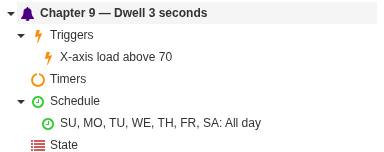
Expanded branch of a classic Signal: six nodes provide access to conditions, timers, schedule, diagnostics, history and actions. Configuration branches can contain several child objects.
- Triggers — conditions that turn the Signal on when data arrives. One Signal can have several Triggers, each with its own condition tree and dwell time.
- Timers — time-based firings independent of event conditions. Several timers can be created with different start times and repetition intervals.
- Schedule — days of the week and periods during which the Signal is allowed to operate. A schedule can contain several periods.
- State — current diagnostics: whether the Signal is active now, which drivers it uses, and what is happening with its Triggers and individual conditions.
- Fires — recent history of reactions with detailed source-data context.
- Handlers — actions executed on every firing. In the classic mechanism, notification actions are configured here; a Signal can have several Handlers.
The plus button above the tree opens the create menu: Signal, Trigger, Timer, Period or Handler. For a child object, first select the required Signal or its corresponding branch. After creation the object appears in the tree and can be selected and edited separately.
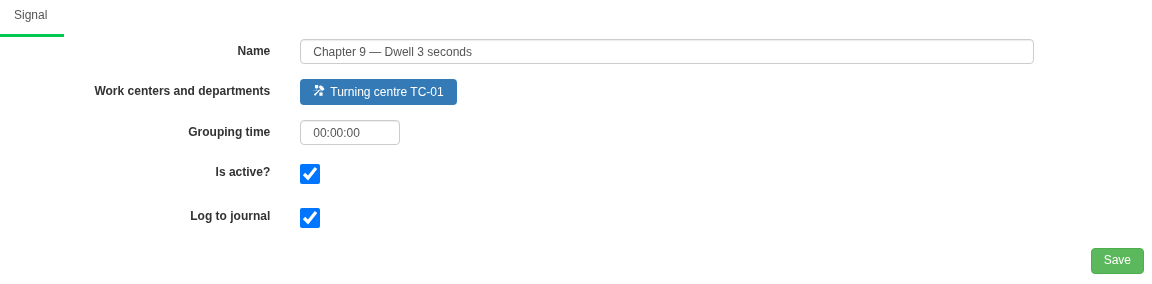
Signal card: equipment scope, grouping, active state and journal logging are configured separately. In this example grouping is zero and long-term journal logging is enabled.
Name
Use Name for a clear Signal name, for example “X load exceeded” or “Long downtime”. The name helps find the configuration in the tree and correlate it with history. The following card fields and Trigger conditions determine which equipment and data are used.
Work centers and departments
Select Work centers and departments to choose the equipment whose data the Signal should process. The selector supports two object types. Work centers contains individual Work centers and Departments contains enterprise-structure departments. Selected shows the combined result; the Type column identifies the kind of each selected object. Search and table filters help find the required rows. Confirm with Select, then save the Signal card.
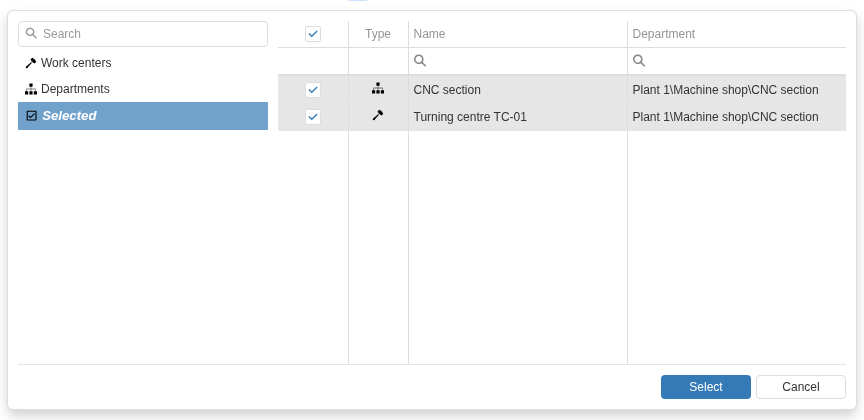
Selected shows objects of different types in one list. A Department and an individual Work center are selected together; their types are distinguished by the icons.
Selecting an individual Work center brings its driver into scope. A selected Department expands to equipment directly assigned to it. Child departments are not traversed automatically. If machines belong to “CNC area” inside “Mechanical shop”, selecting only the shop does not add the machines from the area. Select the area itself or list the required Work centers explicitly. For a Signal to work, the equipment must be connected to a server and driver.
Different object types can be combined, for example a whole area plus one individual Work center from another department. If a Work center is already included through a selected department, selecting it explicitly as well does not extend the Signal scope.
For a classic Signal, the driver is an important source boundary. Select the required channel, axis or other device in the device selector of a Trigger condition. Consider two Work centers that share one driver: A uses channel 0 and B uses channel 1. Selecting only Work center A admits events from that driver. If All is selected in the device selector of a channel-state condition, the condition checks events from any channel of the driver. The Signal can therefore react to a channel-1 event belonging to Work center B. To check only the channel for Work center A, select that channel’s specific name in the device selector for the condition.
Names in the device selector come from the driver description. For example, Channel 1 can represent numeric channel 0, while Channel 2 represents channel 1. Verify the mapping in equipment configuration and the available devices; the Work center name in the tree does not add a separate channel filter to every condition. Default in the device selector uses the main channel stored for the driver in its data context. With a shared driver, this cannot automatically be assumed to be the main channel of the particular Work center selected on the Signal card.
If several selected Work centers use one driver, they share one Signal state for that driver and one grouping-time counter. When a department is selected, the diagnostic equipment list may show only one representative for such a driver. Check the actual driver list and device-selector settings in Trigger conditions; the number of selected Work centers does not define the number of independent states.
Grouping time
Grouping time limits the frequency of repeated event-based firings for one driver. After the first firing, a time interval begins during which another event-based firing is suppressed. For example, eight seconds of grouping can combine nearby repeated threshold crossings into one reaction so that short oscillation around a threshold does not create many notifications.
For another event-based reaction, the condition must first stop turning the Signal on and then turn it on again. A continuing threshold violation does not by itself produce periodic firings. If the Signal has several Triggers, its overall state turns off when none of them remains on.
| Sequence after the first firing | Result |
|---|---|
| The condition remains true | No new firing is created for every value |
| The condition becomes false and true again within grouping time | The repeated firing is suppressed, although the state can turn on again |
| The suppressed on-state persists after grouping time ends | Expiry of grouping time alone does not create a new firing |
| After grouping time ends, the condition becomes false and then true again | A new firing can occur |
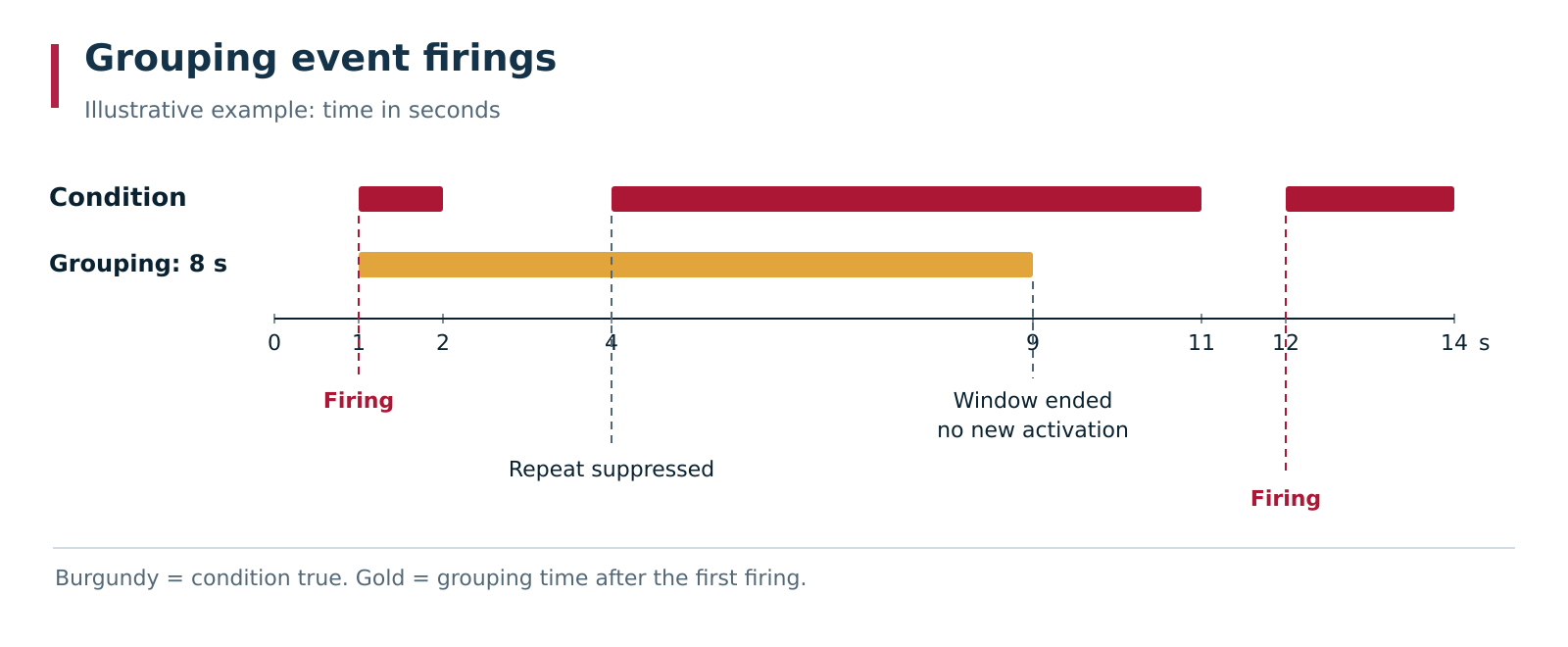
Illustrative example with eight-second grouping. A repeated firing at the fourth second is suppressed; the Signal can still turn on; expiry of the window at the ninth second does not itself create another reaction. Another firing becomes possible after a new off-to-on transition outside the window.
The boundary is strict: the time of the new transition to on must be later than the first firing time plus grouping time. An event exactly on the boundary is still suppressed. Grouping time 00:00:00 removes the time suppression interval; the requirement for a new transition from off to on remains.
Timer firings use their own repetition intervals. Their frequency is configured under Timers; card grouping time does not apply to them.
Active?
Is active? is the master switch for a Signal. Clear it to prevent processing by the Signal, including its timer firings. Enable and save it when the configuration is ready. For the first test, prepare the conditions while Is active? is clear, then enable the Signal and verify the result.
A copied Signal is created disabled. Before enabling it, check its equipment scope, conditions, schedule, timers and Handlers: the copied configuration can contain actions from the source scenario.
Log to journal
Log to journal enables persistence of firing facts in Journals → Signals. Enable it in advance when long-term history is required. The recent context under Fires and the journal record are covered in Section 7 of this chapter.
After changing fields, select Save. Saving a Signal or one of its child settings can reinitialise evaluation using the latest data already known to DPA. A reaction based on the stored equipment state can therefore occur immediately after an edit; do not assume that the system must wait for the next physical change.
3. Triggers: firing conditions, states and dwell time
Create a Trigger under Triggers and give it a name. Each Trigger contains a condition tree and a Firing timeout field. “X-axis load above 70%”, for example, describes the condition itself, while a three-second timeout requires the condition to remain true long enough.
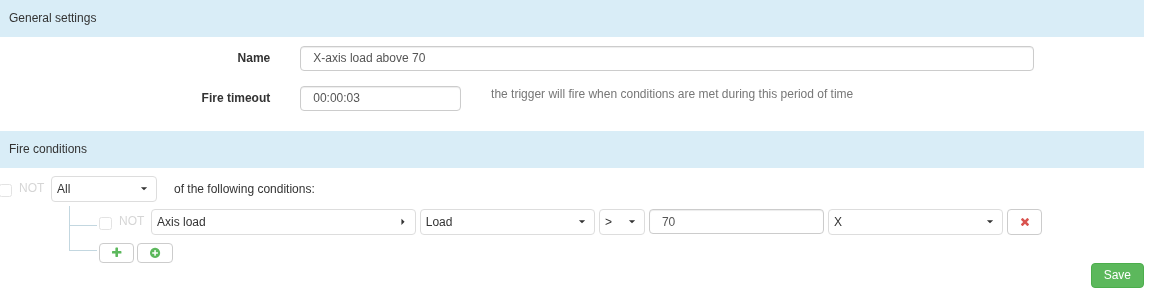
The Trigger checks load on the selected X axis against threshold 70 and uses a dwell of 00:00:03. Firing timeout belongs to this Trigger; grouping is configured on the Signal card itself.
Trigger-condition fields
Configure an individual condition from data source to comparison. Select the data source, then its property, operation, comparison value and any applicable device-selector or Indicator detail.
| Part of the condition | What it defines | Example |
|---|---|---|
| Data source | Incoming data checked by this condition | Axis load |
| Property | Property of the selected source to check | Load |
| Operation | How to compare the field with the configured value | > |
| Value | Threshold or other comparison value | 70 |
| Device selector | Axis, channel or other device to which the condition applies | X |
| Indicator, when provided by the selected source | Which value source to use | Required Indicator from the list |
In this example the condition is true when X-axis load is above 70. At exactly 70, > is false. Choose the operation according to the required boundary and test three values: below, exactly at, and above the threshold. The available operations and value editor depend on the selected source and property: a state enumeration is selected from a list, while a numeric threshold is entered as a number.
The device selector is the drop-down list in which X is selected in the illustration. If All is selected, the condition checks matching events from different devices of that driver. For an axis-load condition, for example, All lets values from different axes update the same condition result. It does not create one mandatory check for every axis. To require both X and Y axis loads to be above 70 at the same time, create two conditions in an All group and select X in one device selector and Y in the other. To react when either axis exceeds the threshold, place those conditions in an Any group.
Available data sources include current server states and journal context: channel states and modes, CPs and Subprograms, loads, messages, CP-execution information, downtime reasons, work schedule and technological-parameter monitoring. Available server states depend on the connected servers and driver descriptions. If a required source or device is absent, first check that connection and incoming data; after restoring it, reopen the section or refresh the page so that the editor reads the available descriptions again.
Choose a data source according to the task. A CP-change event describes current execution; an execution-journal record can contain start, finish, duration and final result. A condition on the current CP name is appropriate for reacting during execution, while a condition on the duration of a completed operation evaluates an already accumulated interval. The presence of a field in a journal table does not mean it is necessarily available as a condition property; use the list provided by the editor.
Combining conditions with All, Any and NOT
An All group is true when all child conditions are true. An Any group is true when at least one child is true. A child can be an individual condition or a nested group. NOT inverts the result of the element on which it is set.
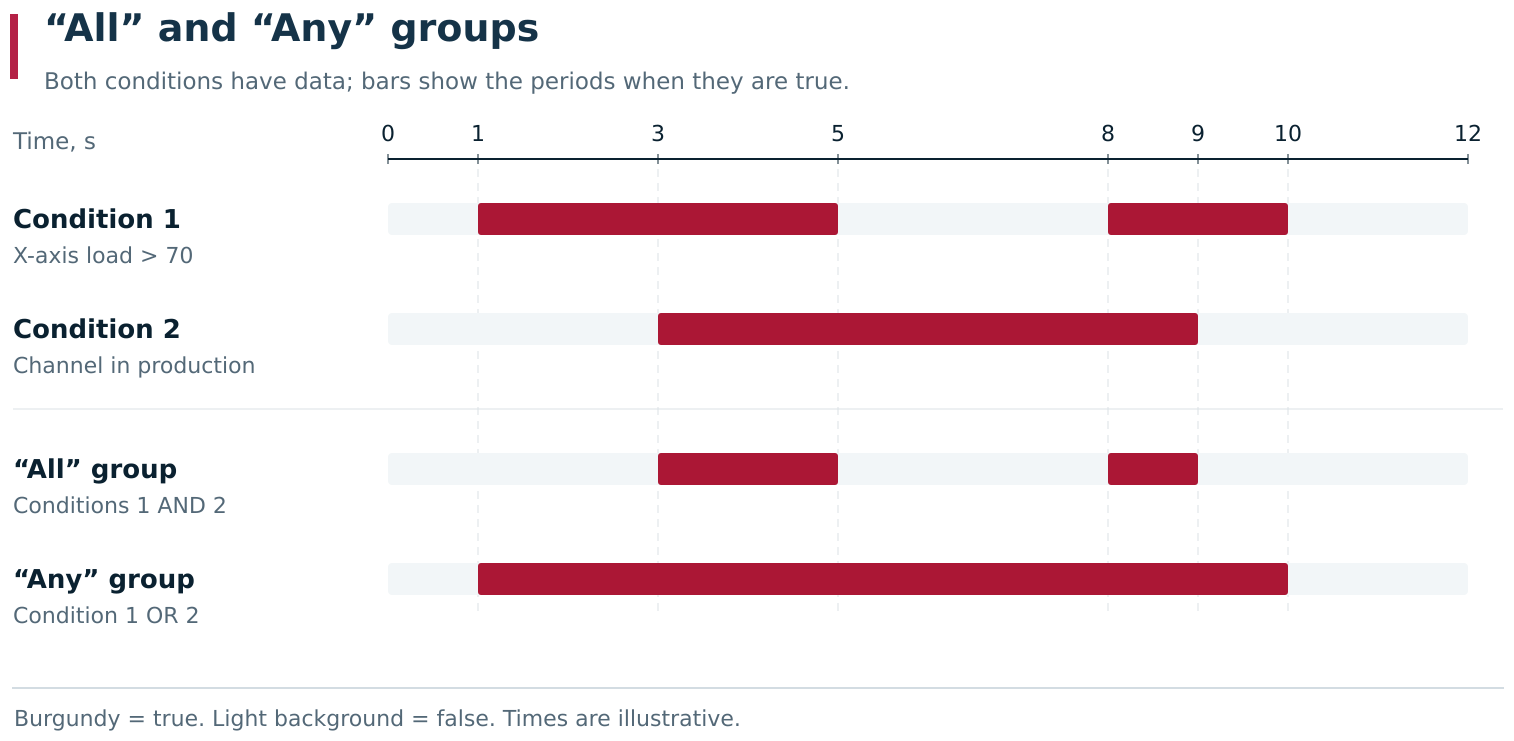
The same two conditions are shown with two grouping methods. All is true only when both conditions are true at the same time, while Any remains true while at least one condition is true. In this example both conditions already have data.
For example, “X-axis load above 70 AND (channel in Production OR channel in Setup)” consists of an outer All group, a load condition, and a nested Any group containing two channel-state conditions. NOT on one condition changes only that condition; NOT on the outer group applies to the result of the whole group.
Several Triggers under one Signal are alternative ways to turn it on. If two conditions must be true together, put them in one All group of one Trigger. Separate Triggers are useful, for example, for two independent reaction causes with different dwell times.
Updating and using the latest condition values
Each condition uses the latest matching data from its selected source, taking the device selector into account. Data for different conditions is updated independently: a new event recalculates conditions that it matches, while other conditions retain their previous values and evaluation results. A group can therefore be evaluated from values received at different moments; all checked data does not have to arrive simultaneously.
Consider two conditions in an All group: “machine X-axis load above 70” and “Y-axis load above 70”. X first reports 80 while no Y value has arrived. The first condition is true, but the second result is still unknown, so the group result is also unknown. When Y later reports 90, the second condition becomes true and so does the group. The first condition is still using the previously received value 80. If actual X load has already changed but no new reading has arrived, the group does not know that. Data freshness therefore matters when designing a scenario.
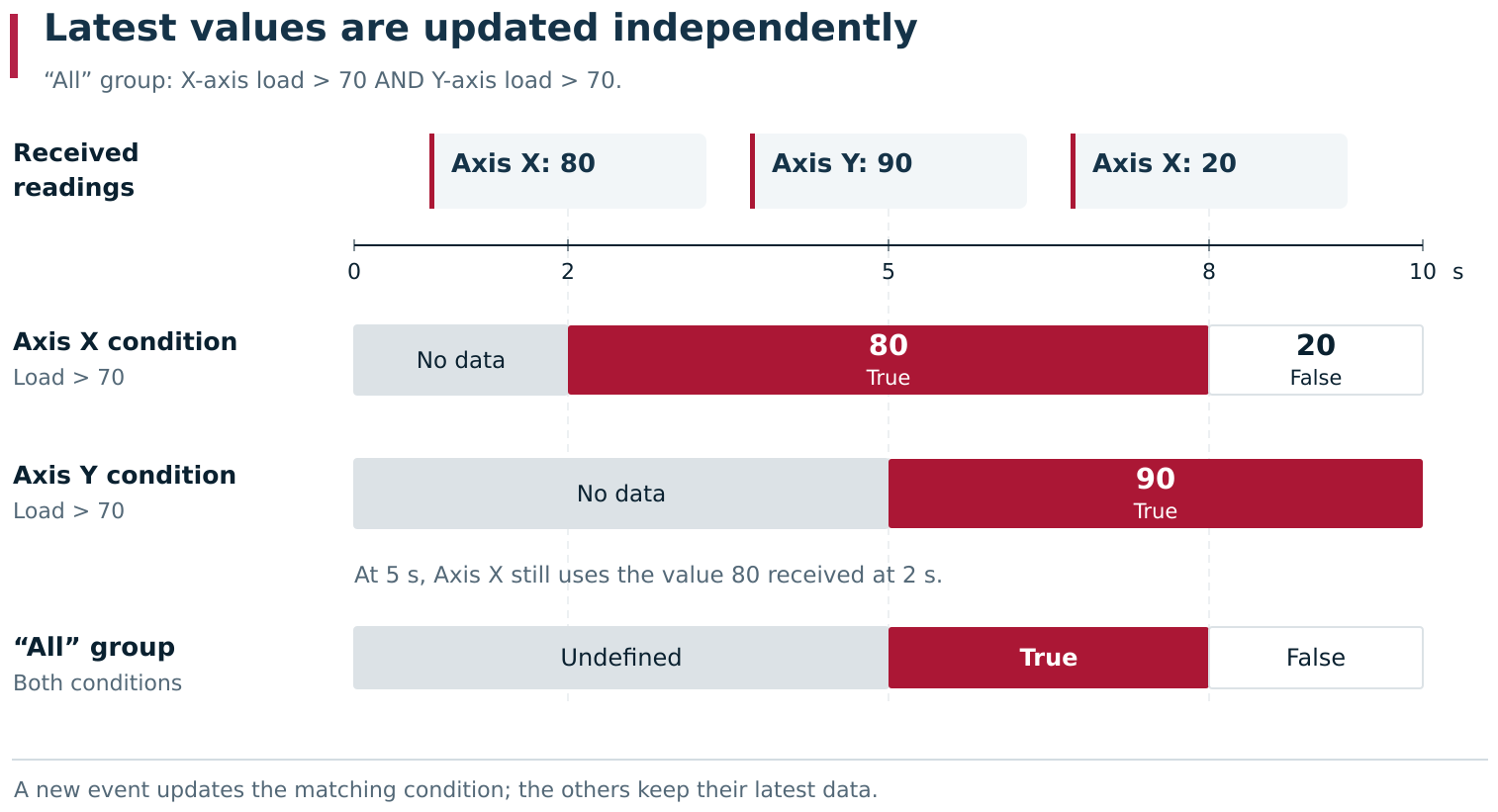
Conditions for loads on two machine axes update at different times. At the fifth second, the new value 90 for Y is evaluated together with the stored value 80 for X and the All group becomes true. After a new value 20 arrives for X, its condition and the whole group become false; the latest Y value remains 90.
The initial Unknown state means that no usable result is available. It participates in group logic as follows:
| Group | Known child results | Result |
|---|---|---|
| All | At least one false | False |
| All | All true | True |
| All | No false result, but some results still unknown | Unknown |
| Any | At least one true | True |
| Any | All false | False |
| Any | No true result, but some results still unknown | Unknown |
NOT preserves the unknown state of an unknown result. The incoming property itself can also be empty and participate in comparison according to its value type. For diagnostics, inspect both the evaluation result and the last value: “no event has arrived yet”, “the event field is empty” and “a normal value below the threshold arrived” are different situations. Empty-field processing has a special case: one comparison branch does not apply negation in the same way as it does to an ordinary value. For example, with an empty numeric load, “load > 70” remains false even with NOT enabled. Do not use NOT on a numeric condition as a universal data-presence test; test an empty-value scenario separately.
Turning on a Trigger, turning on a Signal and firing
After its conditions are met, a Trigger turns on immediately or after its configured dwell time. The Signal for a driver turns on when at least one of its Triggers is on. This new transition to on is what initiates the check for whether a firing is allowed under the grouping rule.
If a Trigger remains on, every new confirming value does not create another firing. A second Trigger turning on while the first already keeps the Signal on also does not create a new event reaction. To produce another transition to on, the Signal must first become off: no Trigger can continue holding it on.
A useful test sequence for “X-axis load above 70” is 20 → 90 → 95 → 20 → 90. Values 90 and 95 in the first excursion belong to one continuous on-state. After returning to 20, the next 90 creates a new transition; whether another firing is recorded also depends on grouping time.
Firing timeout
Firing timeout is the dwell time for a particular Trigger. With 00:00:00, fulfilled conditions can turn it on immediately. With three seconds, a waiting period begins and the conditions must remain true until it ends.
| Sequence with a three-second dwell | Result |
|---|---|
| Threshold crossing begins; one second later a below-threshold value arrives | Waiting is cancelled; the Trigger does not turn on |
| Threshold crossing begins and remains for more than three seconds | The Trigger turns on after the dwell |
| New values arrive during the wait and continue confirming the violation | The timer is not restarted for every value |
| The condition becomes false and then true again | A new dwell begins |
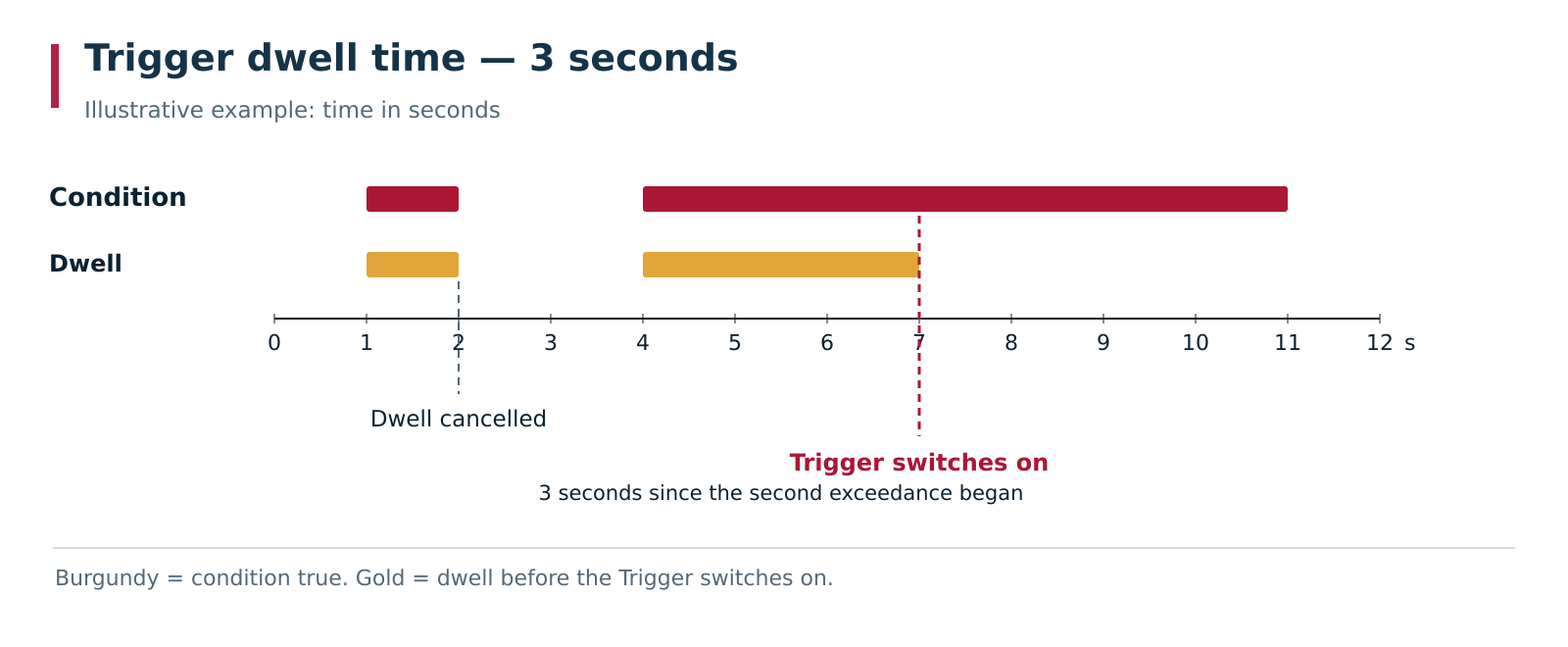
Illustrative example with a three-second dwell. A short threshold violation cancels the wait; a sustained violation lets the Trigger turn on after the dwell. Repeated confirming values do not move the start of the countdown.
Journal intervals use their own start time and duration. If a received record already describes a condition that lasted long enough, the Trigger can turn on immediately. If a completed interval is shorter than the dwell time, its record does not turn the Trigger on even when it is received long after the interval ended.
DPA does not necessarily poll the machine again when the dwell expires. It uses the state built from received events. If the source disappears after the last above-threshold value and no event arrives to clear the condition, the wait can finish with the Trigger turning on. If equipment availability and measurement freshness matter to the task, include those requirements explicitly in the scenario logic.
4. Timers: time-based firings
Timers contains independent time-based firings. They are useful, for example, for periodic preparation of information. A Signal can have several timers; each has its own name, first run and repetition. To create one, select the required Signal or branch, select the plus button and choose Timer.
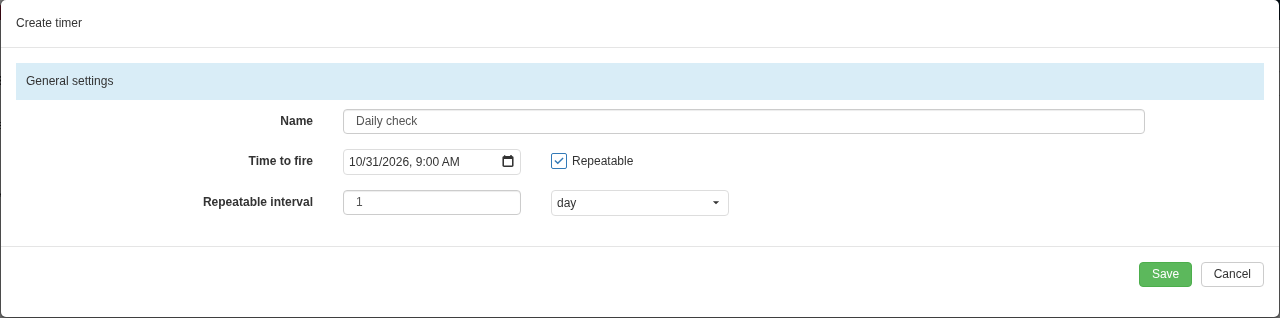
Creating a timer with its first run at a specified date and repetition once per day. The number and time unit together define the interval. This timer fires by time independently of Trigger conditions.
Use Name to describe the timer’s purpose. Under Time to fire, set the date and time of the first run. For a one-time action, leave Repeatable clear. For repetition, enable it and fill in Repeatable interval with a number and time unit. For example, 1 and day define a daily interval. Select Save and check that the timer appears in the tree.
A timer does not require any condition under Triggers to be true. If there is a timer “every two seconds” next to an event condition “load above 70”, the timer fires according to its own schedule even when load is lower. A scenario that means “at the specified time, check the load and only then perform the action” needs logic that actually performs both checks; this can be implemented with Signals 2.0.
Timer firings obey the Signal’s Is active? flag and schedule. Card grouping time does not reduce their frequency: a timer configured for every two seconds can fire at that interval even when grouping time is eight seconds. Change timer frequency in the timer itself.
For an initial test, schedule the first firing in the near future so that its occurrence is visible. Check the time in the time zone used by the interface and the DPA installation; when analysing history, compare the same instants. Do not treat periodic timers as a journal that guarantees replay of every missed occurrence: after system downtime, missed times do not become a mandatory burst of firings.
The implementation limits delay length: for ordinary time units, the first run and repetition interval are limited to approximately 49.7 days. A distant date can be rejected on save with an interval-related message. Monthly repetition also has a validation defect: an interval of 1 month is rejected. For a calendar-month scenario, use a separately verified scheduling implementation, for example in Signals 2.0, rather than replacing a month with an assumed 30 days.
5. Classic Signal schedule
Schedule defines when a Signal is allowed to operate. Each child Period contains days of the week and, when needed, time boundaries. A Signal is active when it is enabled on its card and the current moment belongs to at least one schedule period. Multiple periods are combined: any matching period is sufficient.
A new Signal is created with one full-day period for all seven days. Its schedule is therefore already suitable for continuous operation; for restricted hours, edit that period or replace it with the required set of periods. Leaving the original Whole day period in place will continue allowing operation and makes any narrower added periods ineffective as restrictions.

The initial period allows all seven days in full. For restricted working time, edit or delete this period; otherwise it continues allowing the Signal to operate around the clock.
Select a period in the tree. Under Days of week, mark the required days. Whole day allows the whole selected day; with the option clear, specify start and end times. Save the period. For another allowed time segment, create another Period from the plus menu. If no period matches, the Signal is inactive.
Selecting weekdays and periods across midnight
The weekday is checked for the moment currently being evaluated. If a period starts later than it ends, it allows the late and early hours of each selected calendar day. Selecting Monday from 22:00 to 06:00 produces the following result:
| Moment | Included in this period |
|---|---|
| Monday, 01:00 | Yes |
| Monday, 12:00 | No |
| Monday, 23:00 | Yes |
| Tuesday, 01:00 | No, unless Tuesday is selected |
A night-period setting therefore does not automatically carry its early-hours part into the following day. For a shift from Monday evening to Tuesday morning, explicitly cover late Monday and early Tuesday with the corresponding periods. Selecting both Monday and Tuesday in one night period also adds early Monday and late Tuesday.
For an ordinary period whose start is before its end, both boundaries are included. For a period crossing midnight, comparison with start and end is strict: the exact start moment and exact end moment are excluded. If a scenario depends on an exact second boundary, test it separately; the displayed pair of times does not reveal this comparison detail.
Processing events outside the Signal schedule
The schedule limits both event processing and timers. Data received while the Signal is inactive is not accumulated as a queue of future firings for the beginning of the working period. The start of an allowed period also does not replace a check of current conditions and data freshness.
After changing the schedule, open State and check Signal is active now. For a controlled test, check one moment inside a period and one outside it, then the nearest transition across its boundary. Test a night period separately if the working scenario uses one.
6. State node: activity, drivers and condition results
State shows what is currently happening with the configuration. Start with Signal is active now: it takes the card’s master switch and current schedule into account. If it shows NO, check those two settings first.
Open list next to Signal monitors drivers opens the actual driver list. The number in parentheses is the number of drivers. This is useful after selecting Work centers and departments, especially when several Work centers share one driver.
Under Driver state by work center, select Select and choose equipment for detailed inspection. This selection only controls the diagnostic view. The equipment scope processed by the Signal is configured on its main card.
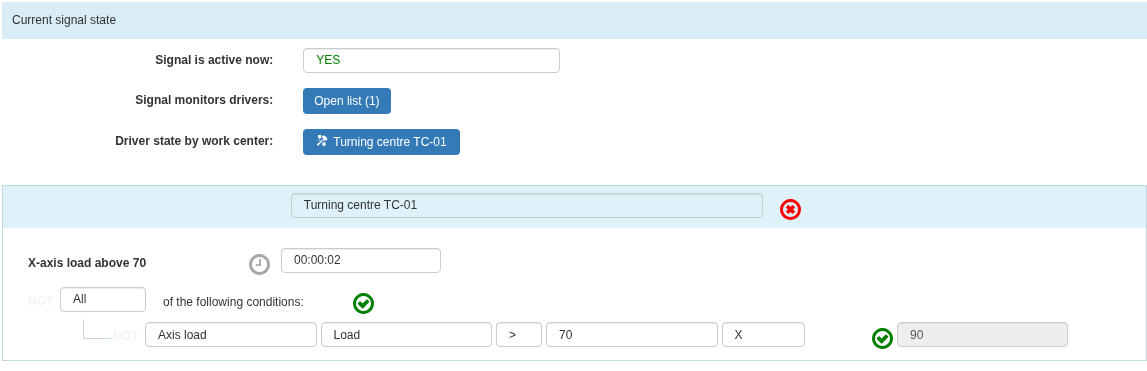
The load condition is already true: the latest value 90 is above threshold 70. The clock icon and two seconds remaining show the Trigger dwell; the overall Signal state is still off.
Below are the overall equipment state, Triggers and their condition trees. Each condition shows the selected data source, property, comparison, device-selector value and latest received value. A green mark means that the condition is true; a red mark means false. During a dwell, a Trigger shows a clock and the remaining time: its conditions are already true, but the dwell has not finished and the Trigger does not yet turn the Signal on.
| Element state | Meaning and what to check |
|---|---|
| Unknown | No usable condition result yet; check incoming data from the selected source and the device-selector value of the Trigger condition |
| Turned off | On-conditions are not satisfied; find the false condition or group |
| Delayed on a Trigger | The dwell is in progress; check remaining time and events that can clear the condition |
| Turned on | The Trigger has satisfied its conditions and dwell, or the overall Signal state is being held on |
The waiting state can be labelled Delayed. In the detailed tree, also use the clock icon and countdown. In the illustrated example, load 90 is already above threshold 70 and the condition is green, but the Trigger is still waiting for its three-second dwell to finish.
If a condition value is unexpected, trace the source before changing the threshold: correct driver, correct axis or channel, and which latest event matched. If All is selected in a Trigger condition’s device selector, the latest value may have come from another device; neighbouring conditions in a group may also have been updated at different times. Then trace the overall Signal transitions: a second Trigger turning on does not create another transition while the first keeps the Signal on.
This node is useful for observing current logic. To establish whether a reaction actually occurred, open Fires: an on-state can persist after one firing or can arise within grouping time without a new reaction.
7. Fires node and Signals journal
Fires shows reactions that have occurred for the Signal. It lets you correlate firing time with the source event and its detailed context. With a dwell, source-data time and reaction time naturally differ: the event started the wait and the firing occurred later.
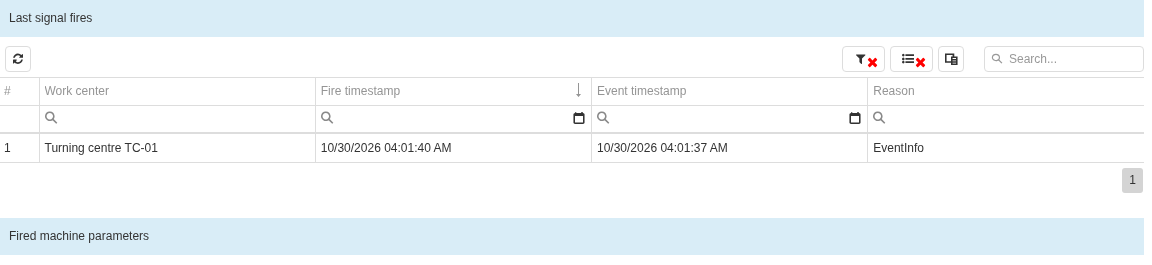
Firings shows reaction time and source-event time separately. In this example they differ by three seconds — the configured Trigger dwell.
Select a firing with one click on its table row. Detailed context appears below the table. The context contains the event that caused the firing and related latest equipment data. For a condition group this helps reconstruct which values participated in evaluation. Latest data can have different timestamps; the context is not necessarily a synchronous snapshot of every device on the machine.
For a timer firing, the source is the timer. It does not require a separate channel event, so its equipment context differs from event-driven context. When investigating, identify the reaction source first and then expect fields appropriate to that source.
Where settings and firings are stored and for how long
| Result | Location | Lifetime |
|---|---|---|
| Signal configuration, its conditions and child objects | DPA database | Persist across restarts |
| Recent firings with detailed context | Fires node, Host memory | Limited list; cleared when Host restarts |
| Journal firing facts | Journals → Signals | Persist in the database when Log to journal is enabled |
| Notification result | Subsequent processing and delivery | Verified through Handler and Messenger operation |
Host memory keeps the latest 1000 firing contexts in total across all classic Signals. Older contexts are displaced by newer ones, so the recent list is not a full operational archive. A journal record stores the firing fact, Signal name and description, time and, for an event-driven firing, its driver relationship. It does not automatically reproduce the complete detailed context from the recent list.
Log to journal applies to subsequent reactions. Enabling it after a test does not retroactively copy previous recent firings into the database. If the fact is important for later analysis, enable journalling before the test. Deleting a Signal configuration should likewise not be used as a command to erase its historical journal records.
If an expected record is missing, first check the recent firing and condition state, then journalling and subsequent result processing. This sequence identifies where the reaction stopped: condition, state transition, grouping, persistence or notification handling.
8. Classic Signal Handlers
Handlers defines what should be prepared when a firing occurs. In the classic mechanism, a Handler describes a notification: its type, template, recipients and, when needed, attached reports. Several Handlers can prepare several actions for one firing, for example messages for different user groups.
To create one, select the required Signal branch, select the plus button and choose Handler. Fill in the card and save it after all required settings have been prepared.
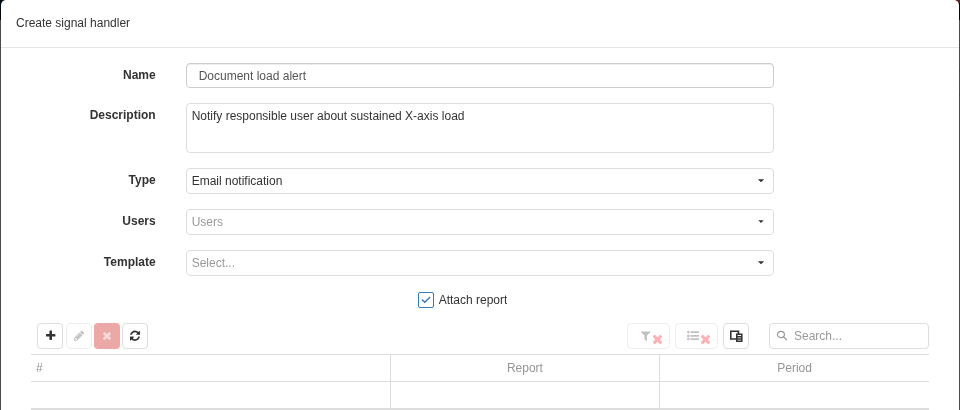
A classic Handler card defines notification type, recipients and template. Attach reports opens the attachment-configuration table.
| Field | Purpose |
|---|---|
| Name | Action name used to find it in the tree |
| Description | Explanation of the action’s purpose and particulars |
| Type | Notification channel; the list includes Sms notification, Email notification, Telegram, Web, Yandex |
| Users | Recipients selected from DPA users |
| Template | Prepared message template for the selected type |
| Attach report | Enables report attachments; for email, a report and its period can be configured |
After creation, select the Handler in the tree. Its notification parameters are edited on Common; a separate Users tab contains its recipient table. The plus button opens selection of additional users, and deleting selected rows removes those users from the recipients of this Handler. The user accounts themselves remain.
The transport and recipient details for the selected notification type must be configured before delivery can work. This section selects the Signal action; Messenger purpose and delivery configuration are covered in Chapter 13.
The template defines message content and the firing context supplies data for filling it. Event-driven and timer scenarios provide different contexts. Test the template with the same firing source it will use in operation, especially when text or an attached report expects a particular Work center.
Enabling Attach report adds a table. Add the required report and configure the period for which it should be generated. Enabling the option with an empty table does not select a report or time range. A report attachment must also be appropriate for the selected channel; an ordinary SMS message does not become an email with a file merely because the table contains a report.
Handlers in this branch belong to their parent Signal and are prepared when it fires. Arbitrary C# actions use the separate Signals 2.0 mechanism described below. When verifying a notification, first find a firing with the correct context, then the prepared message result, then the external delivery result.
9. Signals 2.0: Triggers, Handlers and Common scripts
Signals 2.0 let you write custom event-detection and handling logic in C#. There is no condition tree like the one used by a classic Signal. Instead, scripts are used: one receives data or observes a situation and another performs the required action. Shared code can be moved into separate scripts and reused by several scenarios.
Open Signals 2.0 from the Applications menu. The section contains Triggers, Handlers and Common Scripts tabs. The corresponding Signals permissions are required for management. The following examples are intended for a specialist who knows C# and understands which data and actions are available in the installed DPA environment.

In the Handlers list, switched-on state, compilation, runtime state and Common assembly number are shown separately. A red number marks an older common assembly; a compile error appears as a separate state.
Each tab contains a list of scripts of the corresponding kind. A row represents one script; double-click it to open its card. Select Add, the plus button above the list, to create a script. Actions on an existing script apply to the selected row.
List columns and script control
Read state from the combination of fields:
| Indicator | What it establishes |
|---|---|
| Compiled | A compiled instance of this script exists |
| Running for a Trigger / Switched on for a Handler | The Trigger is running / the Handler is allowed to receive calls |
| State | Result of the latest reflected operation: Ok, Error compile, Error running or Error working |
| State info | Error text, including compiler messages with a position in the source |
| Common assembly number | Which common-code assembly the instance was compiled against |
Running indicates whether a Trigger is operating now. On Triggers, use Start and Stop; on Handlers, use Switch on and Switch off. Compile creates an executable instance from the saved code. A Handler needs both a relationship to the Trigger and the switched-on state to receive an event. After execution, verify the intended production result: a record, service response or other action for which the scenario was created.
Stop a running Trigger and disable a Handler before changing code or relationships. Then save the changes, compile and enable the required parts again. Code and relationship editing is restricted while the object is running; changing only the name or description does not replace the executable instance with new code.
A Trigger’s automatic start type requests startup during Host initialisation. After changing it, check the current Running state and start the Trigger manually if necessary. For a Handler, Switched on is permission to process calls and this state persists across restarts. After copying a card, re-check startup, switched-on state, relationships and all IDs in the code so that the copy does not repeat the source scenario’s actions on the same equipment.
Script contracts and Trigger–Handler relationships
| Object | Purpose | Main contract |
|---|---|---|
| Trigger | Subscribe to events, start observation or a periodic check and pass reaction context | Subclass of Signals2TriggerBase; methods StartAsync() and StopAsync(); call OnSignal(obj) |
| Handler | Perform an action for received context | Subclass of Signals2HandlerBase; method SignalHandleAsync(Signals2ScriptEventArgs args) |
| Common script | Define shared classes, settings and helper methods | Ordinary C# code included in the common assembly |
A Trigger card selects its Handlers; the same relationship can be configured from the Handler side by selecting Triggers. Multiple objects are allowed on both sides. An event is passed only to related and enabled Handlers. A Handler appearing in the general list does not make it a recipient of every event.
Calling OnSignal(myObject) in a Trigger queues an event for which the enabled Handlers related to that Trigger are invoked. In each SignalHandleAsync(Signals2ScriptEventArgs args) call, the object myObject is available as args.Obj. args.TriggerId contains the Trigger ID and args.Sender its instance.
The object is passed between scenario parts in memory. After passing it, do not mutate it in a way that is invisible to the receiver; for independent events, create separate model instances.
The script author defines the payload format. If the Trigger passes a long, the Handler must expect a long; if it passes a custom class, both sides must use the same type definition.
The event queue and script instances live in the Host process. Saving a script card does not persist the event queue to durable storage. Do not use Host restart as a method for reliably delaying or replaying every unprocessed event. If an action must recover after failure, durable accounting and retry must be designed into the scenario itself.
Shared event object and Handler invocation order
All Handlers for one event receive the same Signals2ScriptEventArgs instance. If myObject is a class instance, list or other reference object, args.Obj contains one shared reference: DPA does not create a separate copy for every receiver. For example, if one Handler changes the passed list before another reads it, the second sees the changed list. Even assigning args.Obj = otherObject changes the field on the shared args object and affects what later Handlers read from it.
In the loaded configuration, Handlers are invoked sequentially in the current order of the relationship list in Host memory. While the list remains unchanged, its traversal order remains stable. There is, however, no explicit priority or step number for a Handler. Order by ID, name or relationship-selection sequence is not defined; after relationships are changed, the list is rebuilt or Host is restarted, do not rely on the previous sequence.
If the first Handler in the current list mutates the object in the synchronous part of its call, the next Handler sees that change. With asynchronous work, the time of the read matters: the scheduler does not await the Task returned by SignalHandleAsync. After an await of an incomplete operation, the first Handler can continue concurrently with the next, which may read the object either before or after the mutation. Invocation order therefore does not define completion order for asynchronous actions. This behaviour is described in more detail in Section 11 of this chapter.
If a second action must necessarily receive the result of the first, implement that sequence explicitly inside one Handler, including awaiting asynchronous stages. Relating several Handlers to one Trigger does not establish such a sequence by itself.
Conditions, repeated calls and event data in scenario code
In Signals 2.0, the author defines how data is obtained, when OnSignal is called, the context format and receiver actions. One scenario may subscribe to an Indicator, another may periodically query a public service, and another may combine several production events.
Implement repeat suppression, dwell time, working-time checks and repeat conditions in code wherever they are required. For example, if every new value above a threshold should only maintain one continuing violation, store the previous state and call OnSignal only on the required transition. If separate states are needed per Work center, store them by Work center ID. Calling OnSignal for every reading sends every such reading for handling.
Choose a sufficient and stable payload: equipment ID, time, value and reaction reason. A receiver can then perform its action without guessing the source from the script name.
10. Signals 2.0: ORM sessions and a parameter-check scenario
ORM session for reading and changing DPA data
A Work center, journal record, Ticket and many other DPA objects are stored in the database. In C# they are represented by ORM entities such as Equipment. The ORM connects these objects to database data: it performs queries, loads fields and related objects, and tracks changes. This work requires an active ORM session, the database-access context in which the entities were obtained.
Getting an Equipment through Query.Single<Equipment>(id), reading its settings, traversing related objects or changing a journal record must be done inside an ORM session. Ordinary long, bool and string values and independent DTOs into which data has already been copied can be used after the ORM session is closed. Merely adding using Xtensive.Orm makes type names available; it does not open a session.
Availability of an ORM session when script methods are called
The table shows which Signals 2.0 calls open an ORM session automatically. An additional session from external calling code can sometimes be available, but that depends on the invocation path.
| Execution point | Is a ready ORM session available? | How to access the database |
|---|---|---|
Trigger StartAsync(): synchronous part before the method returns a task or reaches the first incomplete await | Yes. The scheduler calls the method in a system ORM session. | Short synchronous queries can use this ORM session. |
Handler SignalHandleAsync(args): synchronous part before the method returns a task or reaches the first incomplete await | Yes. A system ORM session is opened for the call. | Synchronous work can be completed in the method and Task.CompletedTask returned. |
Continuation of these methods after an incomplete await | The scheduler does not keep its session until the returned Task completes. | Open an ORM session where the database operation actually runs. |
Trigger StopAsync() | The scheduler does not open a separate ORM session; an external session depends on the caller. | If stopping accesses the database, open an ORM session explicitly. |
Script constructor and Dispose() | No ORM session is opened specifically for these calls. | Obtain dependencies in the constructor and release resources in Dispose(); open an ORM session explicitly for database access. |
| Subscription callback, timer or custom background task | A ready ORM session is not provided for the whole lifetime of such work. | Open an ORM session inside the operation being executed; do not retain a session from StartAsync(). |
The important point is an incomplete await: if the awaited operation has already completed, execution can continue synchronously. But even a method named StartAsync or SignalHandleAsync does not mean that an ORM session remains open until all asynchronous work finishes. The way Handler tasks themselves are awaited is described in Section 11.
IEventSource has an additional detail: previous events can be delivered synchronously while subscribing and can use the context of that call. For future events, the source does not open a separate ORM session for the subscriber. Therefore, when a callback needs database access, open its own ORM session regardless of whether an entity could be read during the initial delivery.
Opening an ORM session explicitly
For a short ORM operation, obtain the public ISystemSessionExecutor and call Execute. It opens a system session, runs the supplied function and closes the session when the call ends. By default, the operation runs in a transaction; on normal completion changes can be saved, while an exception rolls the transaction back. This executor runs as the DPA system user.
The following standalone Handler example reads the Work center setting that allows several Jobs to run simultaneously. It receives a Work center ID as long and writes the Work center name and setting value to the Host logs. The main card-creation example below uses a different Handler, for parameter validation.
| |
services is passed to the script constructor, and GetRequiredService obtains the executor and logger from it. The Query.Single<Equipment> call and reads of Name and AllowMultipleTasksSimultaneously are inside the function passed to sessions.Execute. That function returns a finished string. The }); line completes the sessions.Execute call; by then, the ORM session that it opened has been closed. The following logger.LogInformation call is outside this explicitly opened ORM session and uses only the finished string; the workCenter object does not leave the ORM session. If no Work center with that ID exists, the read ends with an exception.
For an operation that needs a particular DPA service, use IInScopeExecutor<TService>: it opens an ORM session and provides the service for the operation. Execute accepts an action without a return value, while ExecuteRead accepts a function that returns a result. The word Read in the method name does not prohibit writes: changes to entities inside the function can also be saved. Choose the method according to the required result; the nature of the operation is defined by its code and the service contract. The main example below uses IInScopeExecutor<WorkCenterValidationService> to call the validation service.
The executors also provide asynchronous methods: ExecuteAsync, and IInScopeExecutor<TService> also provides ExecuteReadAsync. They keep their ORM session open until the supplied task completes. If database work requires await, use the corresponding asynchronous method; passing a function that returns Task to synchronous Execute or ExecuteRead does not extend the ORM-session lifetime until that task finishes.
Rules for working inside an ORM session
- Load an entity in the same ORM session in which you will use it. Pass an ID or independent data into a long-lived script field,
OnSignalevent, timer or queue. - Copy required fields into a string, number or DTO before the ORM session closes. A DTO must also contain independent data: a property of type
Equipmentinside a DTO keeps the same dependency on the session. - Complete deferred reads inside the ORM session. A returned
IQueryablemay not have executed its query yet; materialise the result and copy the required fields first. An array of ORM entities afterToArray()still contains ORM entities. - For the next event or background operation, retrieve the entity again by ID. A session and its entities are not intended to be shared by several parallel tasks.
- For changes, use the appropriate domain service and transaction. If several actions must form one operation, perform them in one ORM session and one transaction; separate executor calls are not automatically combined into a shared transaction.
If all work is synchronous and the calling contract already supplies a session, use the ready ORM session listed in the table. An explicitly opened ORM session is particularly important in subscriptions, background tasks and continuations for which no such guarantee exists.
Example: validating Work center parameters on request
We will create two scripts: a manual Trigger passes a Work center ID, and a related Handler validates its parameters and writes the result to the Host logs. First configure and save both cards, then relate the scripts, compile them and run the check.
The example requires an existing Work center and access to Host logs. The code uses training ID 772L; replace the number with the ID of your equipment. The L suffix makes the value a long, which is the type expected by the Handler. Parameter-set configuration is described in Section 5 of Chapter 4. If CP-execution context or parameter values are unavailable, validation can return Unknown; that result is also covered below.
1. Trigger card
Open Triggers and select Add, the plus button above the list. A separate Create trigger card opens.
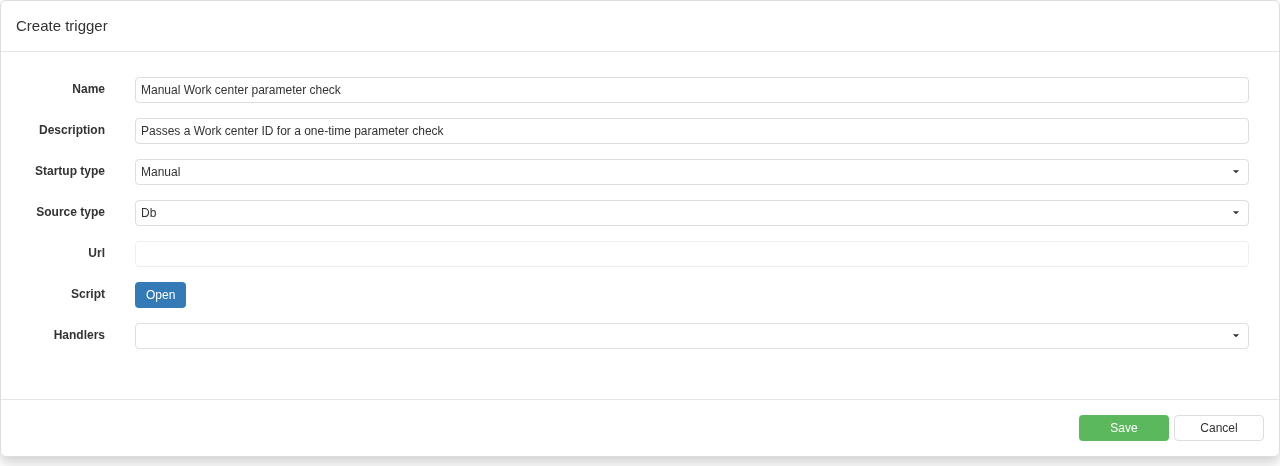
A new manual Trigger card: the code is stored in the DPA database, while Handlers is still empty. The receiver is created next and the relationship is configured afterwards.
Fill in its fields:
| Card field | Example value and meaning |
|---|---|
| Name | Manual Work center parameter check. This name is used below to find the script in the list. |
| Description | Passes a Work center ID for a one-time parameter check. Use this field to explain the scenario’s purpose and specifics. |
| Startup type | Manual. In this example, the user starts it with Start. |
| Source type | Db. The code text is stored in the DPA database together with script settings. |
| Link | Unavailable when Db is selected; it does not need to be filled in. A link is used to obtain source text from an external source, described in Section 12. |
| Script | Open opens a separate window with the source code. |
| Handlers | Leave the list empty for now. We will create the required Handler in the next step, then return to this relationship. |
Select Open in Script. Replace the entire suggested template with the following code, including both method definitions. A new card template contains throw new NotImplementedException(); leaving that call in place causes an exception when the corresponding method runs.
| |
StartAsync() is called when the Trigger starts. Here it calls OnSignal exactly once, passes the Work center ID and immediately returns a completed task. OnSignal(772L) queues the event; the Handler performs the actual parameter read.
Returning from StartAsync() completes startup; it does not stop the Trigger. The list continues to show it as running. To run another manual check, use Stop and then Start again. StopAsync() performs no additional work in this example because the script creates no background tasks, timers or subscriptions. Continuous monitoring must create such resources in code and release them when stopping; this is covered in Section 11.
In the code window, select Save. After closing it, select Save in the Trigger card as well. These are two separate actions: the first transfers the edited text into the card, and the second saves the card and that text in DPA. The created row appears under Triggers. Do not start it yet: the event receiver has not been created or related.
2. Handler card
Open Handlers and select Add. A Create handler card opens.
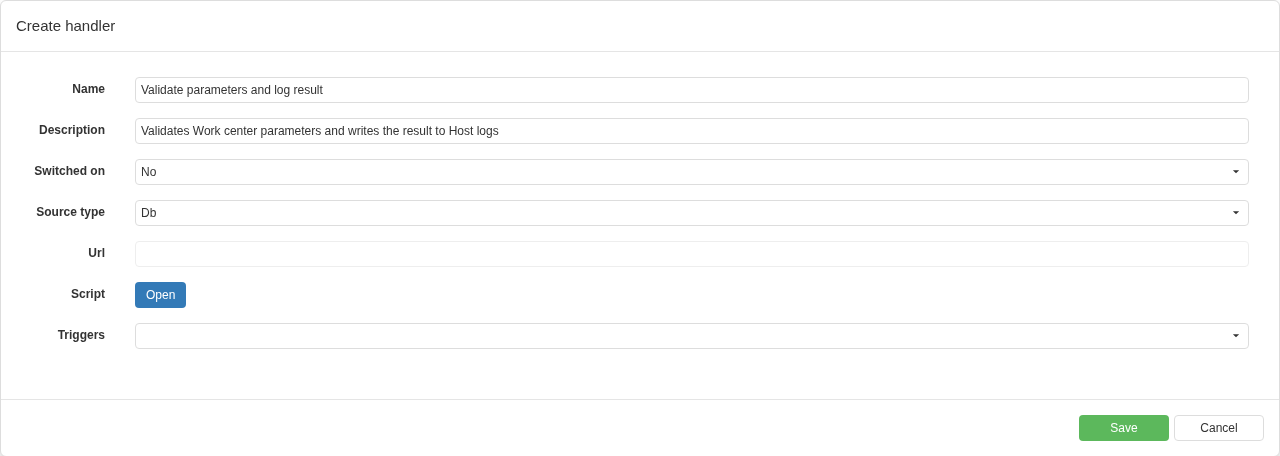
A new Handler card: Switched on remains No and the code source is Db. The relationship under Triggers is configured after both cards have been saved.
| Card field | Example value and meaning |
|---|---|
| Name | Validate parameters and log result |
| Description | Validates Work center parameters and writes the result to Host logs |
| Switched on | No. Prepare the code and relationship before allowing event processing. |
| Source type | Db, as for the Trigger. |
| Link | Unavailable with Db selected. |
| Script | Use Open to define the event receiver code. |
| Triggers | Leave the list empty for now. Configure the relationship after both cards are saved; defining it from one side is sufficient. |
Select Open in Script and replace the entire template with the code below.
| |
When an event arrives, DPA calls SignalHandleAsync(Signals2ScriptEventArgs args). The args.Obj is not long workCenterId check confirms the payload type agreed with the Trigger. Passing the string "772" or a number of another type instead of 772L makes the Handler throw the exception shown in the code. Keep the types consistent on both sides of the relationship.
The constructor obtains public DPA services through IServiceProvider. Inside ExecuteRead, the code finds Equipment by Work center ID, calls WorkCenterValidationService.Validate and creates a result string.
In Validate(workCenterId, 0), 0 is the number of the channel being checked. Use another number for another channel. The service evaluates parameters in the current CP-execution context; having a Parameter-set configuration does not guarantee that the context can be determined or that all values are available. Unknown requires investigation and does not mean that validation passed. The result string contains the Work center name, validation result and description returned by the service.
logger.LogInformation writes a line beginning with Parameter validation to the Host logs when the Information level is enabled for the corresponding category. Use this line to verify the run. The code does not add a row to Journals -> Signals and does not send a notification to personnel.
The example deliberately has a limited effect: it reads data and obtains a validation result. It does not change machine settings, create a Ticket or open a continuous KTP interval. If a subsequent action is required, add it explicitly and verify it separately. Continuous KTP is described in Section 2 of Chapter 10.
Save the text in the code window, then save the Handler card itself. DPA now contains both scripts, but there is still no relationship between them and processing is still disabled.
3. Relating, compiling and test run
Relate the scripts. Return to Triggers and open Manual Work center parameter check by double-clicking its row. Under Handlers, open the list and select Validate parameters and log result. Save the card. The same relationship is then shown under Triggers in the selected Handler card. It does not need to be created a second time from the other side. You can select several receivers here when needed, subject to the shared-object and invocation-order behaviour described in Section 9.
Compile the Trigger. In Triggers, select the created script row and select Compile, the check-mark button above the list. Check Compiled and State. On failure, open the script card, read State info, correct the code, save it in both windows and compile again. Successfully saving text does not by itself create an executable instance.
Compile the Handler. In Handlers, select Validate parameters and log result and use the same Compile command. Make sure both scripts compile successfully. When common code is used, also check Common assembly number; updating it is described in Section 12.
Enable the Handler. With the row selected under Handlers, select Switch on, the triangle button. Check Switched on. Enabling allows event reception but does not itself call SignalHandleAsync; a related Trigger must pass an event.
Start the Trigger. Under Triggers, select the created row and select Start, the triangle button. Check Running and the startup status. StartAsync() puts one Work center ID into the queue, after which the related enabled Handler performs the validation.
Check the result. Find the new Parameter validation line in the Host logs and read the Work center name, result and description. If the line is absent, check the relationship, Handler enabled state, both script statuses and logging level. For Unknown, investigate the returned description: for example, whether information about the running CP and the required values is available. A successful script run and successful equipment-parameter validation are separate results and are visible in different places.
Repeat the request. Select the Trigger, select Stop, confirm that Running is cleared, then select Start again. Another result line should appear. The script does not start periodic polling: each such sequence creates one new request.
To test error handling, create a separate test copy of the scenario and pass an ID that does not exist. A synchronous read error should be reflected for the Handler in State and State info. After correcting it, save the code, compile the changed script and run the next request; correlate its result with the Host logs. When copying, always check the relationships so that the test Trigger calls the intended test copy of the Handler.
Finish the test. Stop the Trigger with Stop and disable the Handler with Switch off on its tab. Before later changes to code or relationships, also stop the Trigger and disable the Handler, then save changes and compile. For the next test, enable the receiver and start the event source again.
11. Signals 2.0 code: API and lifecycle
Public entities, services and ORM sessions
Scripts can use public DPA entities, APIs and services required by a scenario. Add the corresponding using directives and obtain services through dependency injection. The available options are not limited to a special set of methods “for Signals”. A scenario can, for example, read equipment, analyse CP execution, call a validation service, or work with Tickets through the service intended for them.
A using directive identifies a namespace; it does not install an arbitrary external package. Required types must exist in assemblies available to the installed Host. Follow the service contract: whether it needs an ORM session, whether it reads or changes data, which parameters and permissions are required, and which events or side effects are produced by writes. ORM-session handling and executor selection are described in Section 10.
If imported namespaces contain types with the same name, use a fully qualified name or an alias. For example, System.IO.File unambiguously selects the .NET file API when DPA also has a type named File. A compiler message about an ambiguous reference helps identify such a collision.
A public type also does not erase the distinction between current state, a historical record and configuration. Calling a validation method directly does not automatically perform every action of continuous monitoring. Reading a record does not subscribe to its changes. Repeating a service call that creates an object can create a second object if the scenario author has not implemented duplicate detection.
For customer scenarios, prefer public contracts over reflection into internal implementation details. In the script description, document its purpose, expected context, dependencies and observable result.
Subscriptions, background tasks and stopping
StartAsync() should prepare observation and finish quickly. In a normal configuration, start waiting is limited to five seconds. An infinite loop with await inside StartAsync() itself is not the correct way to keep a Trigger running: startup ends with a timeout error. Exceeding that timeout also does not guarantee that user code already started has stopped.
For an event-driven scenario, subscribe to the required public source and retain the subscription object. IEventSource, for example, can provide IndicatorValueInfo events; when monitoring one Indicator, filter by its ID. With a subscription that includes previous values, take into account immediate processing of already known state: this can produce another event on every new start.
For periodic work, start your own background task or timer and let StartAsync() finish immediately. Provide your own CancellationTokenSource, observe task failures and limit the duration of individual operations. In StopAsync(), cancel the work, unsubscribe from events, stop the timer and wait for resources to be released. Restarting must not add a second subscription on top of the first.
The inherited CancellationToken property by itself does not replace lifecycle management for every task you create. Stopping a Trigger also does not mean that all asynchronous Handler actions that were already started have finished. If data changes must not continue after stop, implement explicit coordination and test stopping while work is in progress, not only in an idle state.
OnSignalError(message) reports a Trigger error. In background code, catch failures explicitly, log them and decide whether observation should continue. Do not assume that an exception in a separate task will automatically appear on the script card.
Public event source
IEventSource provides several ways to work with events. The choice determines what happens immediately after observation begins:
| Method | Data received by the scenario |
|---|---|
EventsOf<TEvent>() | New events after subscription |
EventsIncludingPreviousOf<TEvent>() | Already known events first, then new ones |
PreviousEventsOf<TEvent>() | Collection of already known events at query time, without a continuing subscription |
For Indicators, IndicatorValueInfo contains IndicatorId and Value. Filter on the required ID so that another Indicator changing does not cause the reaction. A subscription that includes previous values can invoke processing immediately during subscription; initialise required instance fields before subscribing. The same initial processing can happen again after a restart.
If a callback accesses the database, open an ORM session according to the rules in Section 10. They apply both to initial delivery of previous events and to later new events.
Example of a periodic Trigger
The following version sends the same Work center ID as a long every five seconds. It can be related to the ValidationHandler from the previous section. The background task is stored in a field, startup returns immediately, and stopping cancels the delay and awaits the worker task.
| |
The first validation occurs after the first five-second wait. The interval is measured while the process is running. After Host restarts, the script does not retroactively perform checks missed during downtime. For a production scenario, choose an appropriate interval and ID and add a working-time schedule and durable result accounting when required.
In the example, cancellation completes the Trigger’s own background task. An event already handed off for processing can continue executing its action. Coordinating Handler shutdown and long-running operations requires an explicit design in the scenario.
Asynchronous Handlers: waiting and concurrency
The scheduler calls SignalHandleAsync(args) but does not await the returned Task. This is important for code using async/await and for methods that return a task still in progress:
- subsequent events can call the same Handler before the previous action has finished;
- an exception in the returned task, including one after
await, may not appear as Error working; - Ok and a stopped Trigger do not mean that such actions have completed;
- completion order across several Handlers cannot be assumed.
For example, three events whose handling takes 1.8 seconds can start three actions almost at the same time. Status can remain Ok even if one action later fails. A method name ending in Async does not mean that the scheduler awaits the returned task.
For a short synchronous operation, perform the work directly in the method and return Task.CompletedTask, as in the previous example. A synchronously thrown exception is reflected in the Handler state; after the next successful call the status can become Ok again, so it is not an error history.
For genuinely asynchronous work, implement your own queue or concurrency limit, a complete try/catch around the whole operation, logging and durable recording of the final result. Do not turn a long network operation into blocking wait inside the scheduler without analysis. Test load, redelivery, disabling during execution and restart recovery. The guarantees of your scenario must follow from its code and persisted data.
12. Common scripts and loading source code
Compiling and updating Common scripts
Use Common Scripts for context classes, shared configuration and helper functions used by several Triggers and Handlers. Common scripts that are enabled for use are compiled together into one assembly. An error in any one of them prevents creation of a new common assembly.
A custom context class that you use to pass data between a Trigger and Handler must have one public declaration in a Common script. Both sides must use that type from the common assembly. Do not copy the class declaration into both Trigger and Handler code.
Trigger and Handler scripts are compiled into separate assemblies. Two separate declarations create different CLR types even when their source code, class name and namespace are identical. An object created by the Trigger is not an instance of the separate copy of the class in the Handler assembly: an is test against that copy returns false, and a direct cast throws InvalidCastException.
Fields and properties of the shared class should describe sufficient event context such as equipment ID, time and value, rather than storing a live ORM entity.
After changing common code, compile the Common scripts. Common assembly number represents the assembly generation in the current Host process, not the version of a technology document. Lists of dependent scripts identify instances built against a different common assembly. Recompiling common code does not silently replace every already running Trigger and Handler instance.
A practical update sequence for a dependent chain is: stop Triggers, disable Handlers, save common code, compile Common scripts, compile dependent scripts, enable Handlers and start Triggers. Check assembly numbers and payload compatibility. Updating both sides together is particularly important when a shared class changes: an old instance and a new instance can refer to different generations of the type.
Example of a common context type
For a request with several fields, define a public model in a Common script:
| |
After the common assembly is compiled, a Trigger creates an InspectionRequest and passes it to OnSignal. The related Handler checks args.Obj is InspectionRequest request and uses the request fields. Both scripts must be compiled against the same common assembly containing that type. This replaces passing a single long: update sender and receiver together, then compile and start the whole chain.
When changing the context schema, decide explicitly whether old events are acceptable and how to recognise them. If state is persisted in your own durable storage, store the data-format version with it. Common assembly number in the UI helps show the current dependency of script instances but does not replace a data-format version.
DB and Link code sources
The UI provides Db and Link sources. With Db, code is edited in DPA. With Link, specify an address, open the script and use Load; the loaded text must then be saved in the card. Code obtained from a link is available for viewing in the code window rather than normal editing.
The link is accessed by Host, so the address must be reachable from Host itself. An address that opens in the user’s browser can still be inaccessible to Host. Verify that the response is C# source, not a login page or a web page that displays the file.
Changing the file at the address does not refresh the saved text every time the Trigger starts. Explicitly load the new revision, save it, compile and restart the required chain. Stop or disable a running script before updating it. Storing source at a URL also does not make it a verified or agreed revision: record code provenance and version in the description and in your normal change process.
13. Scenario verification and error diagnostics
Controlled test for a classic Signal
Verify the mechanism step by step, adding one setting at a time. This makes each behaviour change traceable to a particular field.
- Select equipment, then specify the required axis, channel or other device in the device selector of the Trigger condition. Make sure data is arriving and that the latest values belong to the required channel or axis.
- For the first test, use zero dwell and grouping, an allowed schedule, and journal logging enabled. Prepare equipment or a test data source that can provide values below the threshold, exactly on it and above it.
- Open State for observation. Have the equipment or test source produce a sequence “below → above → still above → below → above” around the threshold. Observe changes in Signal state and compare them with the number of records under Fires. State displays source values; it does not set or substitute them.
- Add a dwell when required. Test a short pulse, a sustained violation and clearing the condition before the wait ends.
- Add grouping when required. Perform new off/on cycles inside and after grouping time. Keep a suppressed on-state active until the window ends and confirm that no automatic repeat firing appears.
- Test moments allowed and forbidden by the schedule. For a night period, test both sides of midnight and the exact boundaries.
- Test a timer separately, including its repetition and restriction outside the schedule. Then correlate recent context with the durable journal.
- Only after verifying the firing itself, attach a Handler and verify preparation of the notification result.
With several conditions, include a test in which data arrives in different orders: for example X-axis load first and then Y-axis load, and then the reverse. With one driver shared by two Work centers, test events from each channel. With a selected department, compare its direct equipment composition with the actual driver list.
When a classic Signal did not fire
| Observation | Next check |
|---|---|
| Signal is currently inactive | Is active?, periods, weekdays, hours and time zone |
| Required driver is absent from scope | Work center relationship to server and driver, direct department composition, mixed selection |
| Condition remains unknown | Data source, property, device-selector choice in the Trigger condition, Indicator, actual incoming data |
| Condition is false at an expected threshold violation | Latest value, units, boundary operation, specific channel or axis |
| Trigger shows a clock | Current dwell and events that can cancel the wait |
| Signal is already on but no new reaction occurs | Continuing on-state, another Trigger holding it on, grouping |
| Timer does not have the expected frequency | First run, recurrence and its own interval, then Signal activity and schedule |
| Firing is visible but journal is empty | Log to journal at the time of reaction and processing errors |
| Firing exists but there is no message | Handler, template, recipients and subsequent Messenger delivery |
Compilation and execution errors in Signals 2.0
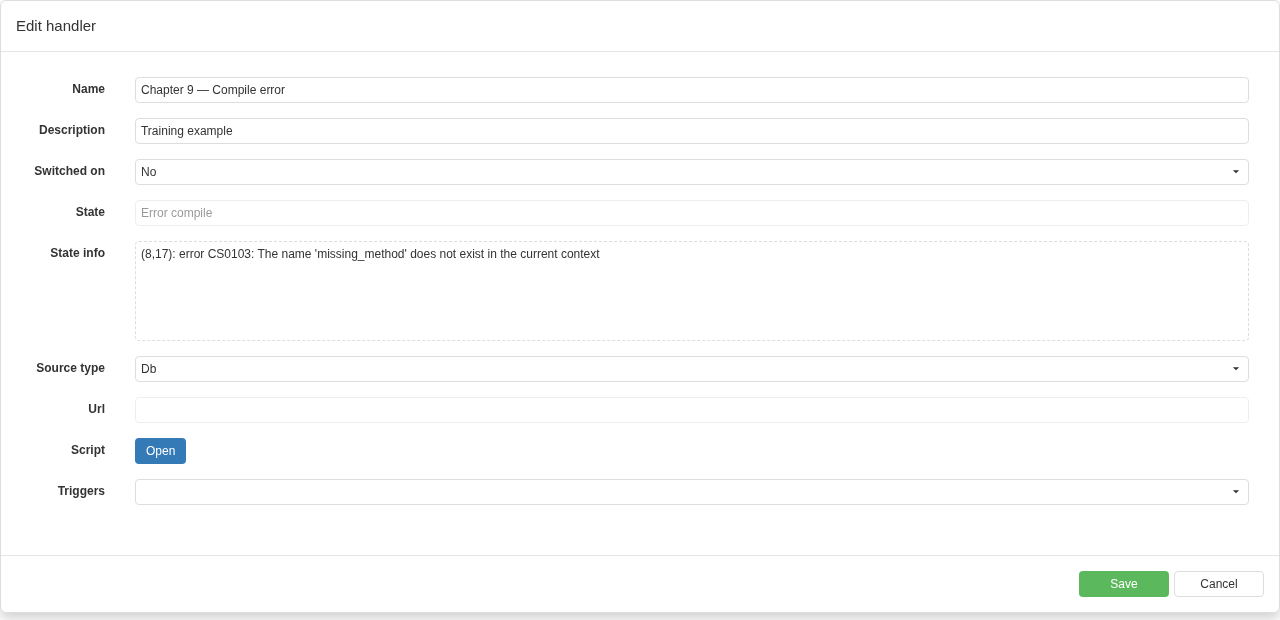
State info contains the compiler diagnostic and its source position. This Handler is not compiled and is not switched on.
For Error compile, open the script card and read State info: the message contains an error code, line and position. Check the namespace, availability of the type and common code, and signatures of overridden methods. After correcting the problem, save and compile again.
For a start error, check the constructor, service resolution and StartAsync(), including its timeout. For an execution error, check the args.Obj type, object availability by ID, ORM session, data and the called service. For asynchronous code, inspect its own logs and stored final result even when the card shows Ok.
If no action occurs at all, check in order: Trigger start, whether it receives source data, the OnSignal call, its relationship to the Handler, and whether the Handler is enabled. Then check input data and the immediate result. Also test missing data, an invalid ID, several events in succession, restart and stopping while work is active. For an action involving an external notification, this verification ends with the prepared internal result; Messenger delivery is analysed separately.
Repeated events, load and recovery after restart
Do not test only one successful event for a production scenario. Send several events in succession, restart observation, stop it during a wait and during an action. For code using common types, verify coordinated updates on both sides. For a Link source, make sure that the changed source text was actually loaded and compiled.
If an action changes data, define the repeat-execution rule in advance. For example, reprocessing the same cause should find an object already created or deliberately create the next one. Store an operation marker and final result in durable storage when recovery after restart is a requirement. The in-memory script queue and current Ok status do not provide such accounting.
A scenario-verification result should be observable: a specific record, service result, Host-log line containing a context ID, or a prepared message. With that, even a complex condition chain can be traced from input data to action.
← Chapter 8. Monitoring production and analysing what is happening · Contents · Chapter 10. Production events and handling deviations →