← Chapter 7. Connectivity and external interfaces · Contents · Chapter 9. Signals →
DPA lets you observe equipment while it is running and analyse accumulated history: find when a stop began, correlate messages with CP execution, check output and obtain results for a selected period. These tasks use live views, timelines, Journals, Dashboards and Reports.
This chapter explains how to choose the right view, select equipment and a period, read the result and move to more detailed data. We will start with general reference points that apply across these screens.
1. Choosing a view, equipment and period
Before opening a screen, decide what data you need: the current state of a machine, a sequence of events, an exact record, or a result for a shift. This determines both the view to use and which data should be compared.
Opening Analytics, Journals, Dashboards and Reports
In the main interface, open the Applications menu on the left of the top bar. Analytics opens the Analytics gallery, which contains charts, tables and operational views. Category buttons such as History, Production and CPs or Downtimes narrow the list; open a view by selecting its card. Thumbnails help identify the kind of view, while equipment data is examined after the view is opened. Journals, Dashboards and Reports are separate entries in the Applications menu.
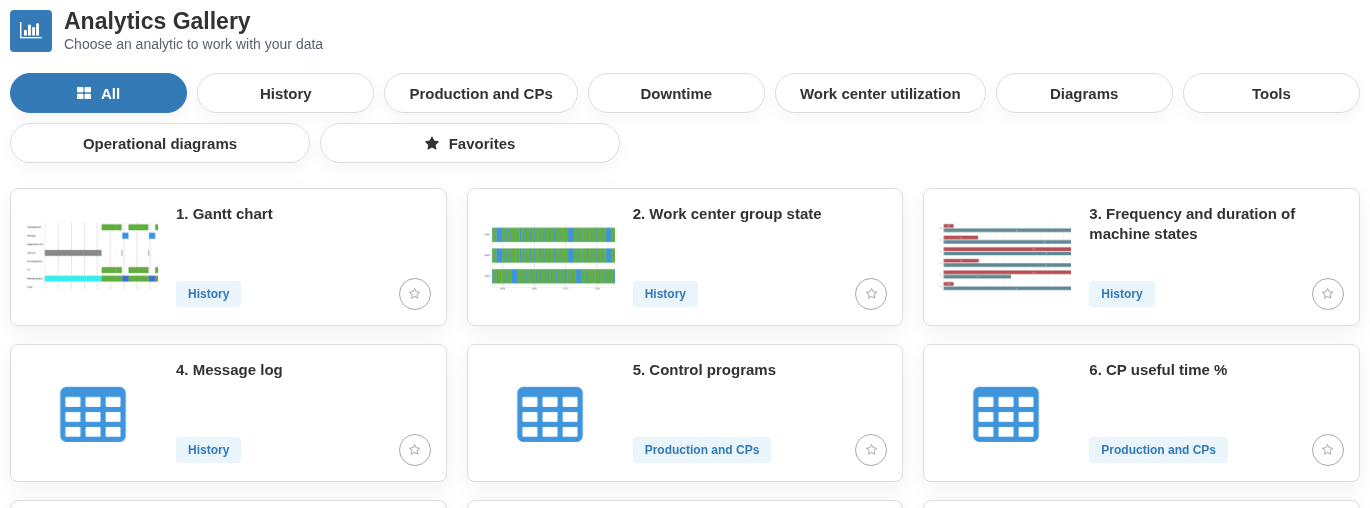
The Analytics gallery is opened from the Applications menu. Categories filter analytics by purpose, while cards open the required view; thumbnails indicate the view type and are not machine data.
| What you need to find out | Where to start |
|---|---|
| How is the equipment operating now, and what needs attention? | Analytics → 16. Monitoring or the appropriate role workplace. |
| When did an episode begin, how long did it last, and what happened around the same time? | Analytics → 1. Gantt chart. |
| Which message, state transition or other event was recorded? | Journals and the history of the relevant object. |
| How can I regularly monitor a selected area or set of indicators? | Dashboards with a saved set of widgets. |
| What calculated value was obtained for a period? | Analytics → 26. KPI or Analytics → 26.1. KPI timeline, depending on whether you need the overall result or how values changed over time. These views require the KPI microservice to be deployed and connected to DPA Host. |
| How can I obtain a formatted result for selected conditions and save it to a file? | Reports: choose a template, set its parameters and generate the result. |
The name Monitoring is used in two different places. Analytics → 16. Monitoring is the production view for equipment. Technical Monitoring is opened from the Settings menu on the right of the top bar: Settings → Monitoring. It shows servers, drivers, devices and their current data. Use it when you need to check whether machine data is being received and processed.
The KPI item in the Applications menu is used to configure production indicators calculated from formulas over time-based equipment states and Indicator values. For example, you can calculate the proportion of a shift spent in a particular state or the average value of an Indicator. Overall calculated values are shown in Analytics → 26. KPI, while changes over time are shown in Analytics → 26.1. KPI timeline. Calculated indicators can also be placed on Dashboards. The presence of the menu item does not by itself mean that the required calculation is configured or that its data is available.
Checking equipment, period, channel and filters
The chosen view determines how data is presented. Before reading the result, check its context:
- Equipment. Is the required Work center or group selected? A shop-wide result and data for one machine answer different questions.
- Period. Do the date and the start and end of the interval match the episode you are analysing? For repeated analysis, it is useful to fix the episode boundaries. With a relative period such as Last 15 minutes, the time window moves as data is refreshed.
- Channel and parameters. If the view allows them to be selected, check the channel number, the list of Indicators and the enabled data types. A value from another channel or a hidden timeline can change the visible picture.
- Additional conditions. Check the selected journal, widget parameters or report template. If this is an interactive table, check the conditions configured for its view. An individual Dashboard widget can also have its own settings.

Selected Gantt-chart context: Work center Turning centre TC-01, Channel 1, period Day for 17.10.2026. The frames highlight the equipment and channel selections and the period; check these conditions again when moving to another view.
When moving between sections, check the visible conditions again. Identical period labels do not necessarily mean that two screens are showing the same interval: a relative window may have moved, or another view may have retained an earlier equipment selection.
Checking the sources of compared data
Matching equipment and time is not enough when different data is being compared. Machine output and output registered against a Job have different meanings. A Ticket that records a production stop and a Downtime interval are also different records. First determine exactly what a metric counts, what a table row represents, or what a chart band denotes.
For example, to analyse a stop you might first notice it in a production view, then open the same Work center and period on the Gantt chart, and finally open the appropriate journal for the exact message. A common timeline helps correlate events; coincidence in time alone does not establish the cause of the stop.
If a table is empty or a line is missing, first check the selected equipment, period and filters. Then determine whether that particular data should be arriving and being stored, and whether the current user has access to it. An empty view by itself does not show that the equipment is not sending any information at all.
The available set of screens and data depends on the user’s permissions, access scope and the settings of the relevant functions. The following sections describe the individual views in more detail.
2. Monitoring: equipment states and running Jobs
Analytics → 16. Monitoring lets you observe several Work centers at the same time: see their recent states and compare the current production situation with running Jobs. It has two modes — a state timeline and detailed tiles.
Selecting equipment and a Monitoring mode
- Open
Analytics → 16. Monitoring. - Select the Work centers. With no selection, the button is labelled Work center; after selection it shows the machine name or the number of selected Work centers. In the selection window you can search for equipment, choose it from Work centers, switch to Departments, and inspect the current set under Selected. Mark the required rows and select Select.
- At the left of the toolbar, choose the mode: the chart button shows timeline bands, while the adjacent tiles button shows detailed machine information.
Group by department helps organise the selected equipment. In tile mode it adds department headings, while chart rows are ordered according to the enterprise structure. The set of selected machines does not change.
Equipment-state timeline
Each Work center has a row on a common time scale. The colour of each segment represents the equipment state during that interval. Adjacent rows make it easy to compare when machines were running and when stops or periods of unavailability occurred. Point to a segment to see information about the interval.
Choose the length of the time window, for example Last 15 minutes, Last hour or Last 2 hours. For a different duration, use Last N minutes or Last N hours. The window ends at the current time and moves periodically, so this is an operational view of recent events. To analyse an episode on a particular date, use Analytics → 1. Gantt chart and set the required period there.
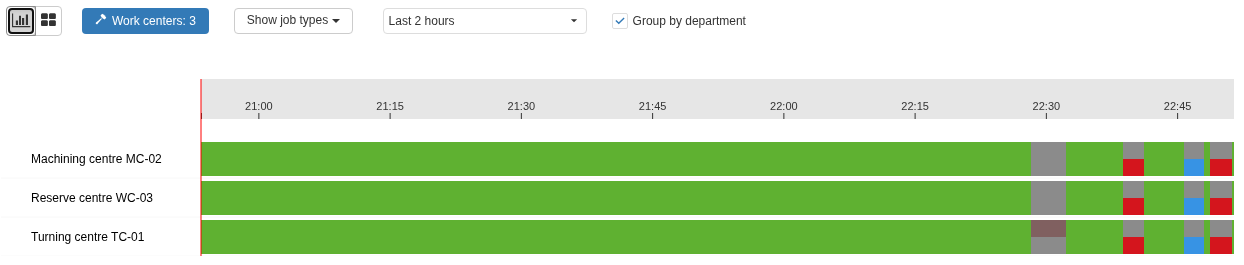
The Monitoring timeline: three selected Work centers are shown on a common scale for the Last 2 hours. The two buttons on the left switch between the timeline and detailed tiles; the period selection applies to the timeline.
Through Show job types you can also display Maintenance, Innovation and Setup periods when such work is present in the history of the selected equipment. These periods supplement the machine-state picture. Selecting additional types affects the timeline and does not filter the Jobs shown in detailed tiles.
Detailed tiles: machine state and Job output
The tile header shows the Work center name and its last known state. The header colour helps you scan a selected group of equipment quickly.
If the machine has a production Job in progress, the tile also shows its name, Product version, Operator, output information and percentage of plan completion. The Operator name comes from the latest actions on that Job.
A pair of numbers separated by a vertical bar means plan | output counted towards plan completion. For example, 8 | 0 means a plan of eight parts and no registered output yet. The green counter shows good output and the red counter shows rejects. Conditionally accepted items are parts whose quality-assessment result has not yet been specified. If they are accounted for separately, a yellow counter is shown; otherwise their output is displayed together with good output.
Plan-completion percentage is calculated from good output and conditionally accepted output. Rejects are shown separately and do not increase the percentage. These figures belong to the production Job; they are not a machine counter of cycles or CP executions.
No active job means that the tile has no production Job currently in progress. Machine data may still show a Production state: physical operation of the machine and starting a Job in DPA are different facts.
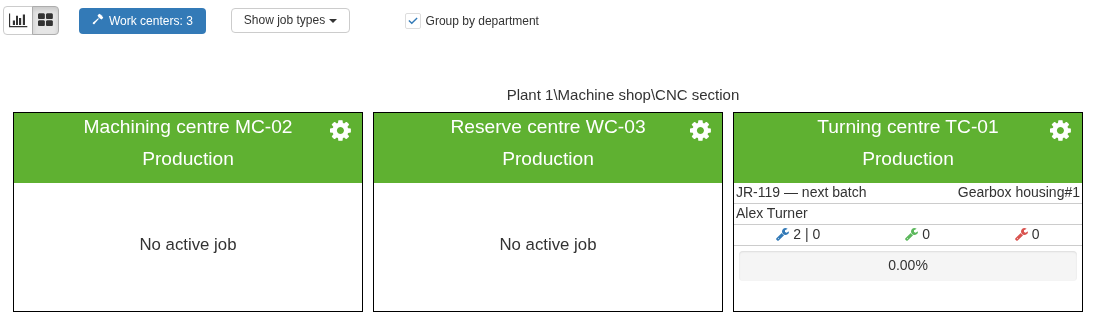
Detailed tiles for the same Work centers. Turning centre TC-01 shows the Job, Product version, Operator and output 2 | 0. The neighbouring machines show No active job, although their machine state is also Production.
When CP-text verification is configured, the tile may also show a program name and an icon with the comparison result. Point to the icon for its explanation. The icon concerns CP verification; the tile-header colour still represents the equipment state.
Detailed mode shows current Job information, so the relative-period selector is hidden. Tiles refresh automatically at intervals.
Work center tile menu
Select the gear in the required Work center tile header. The menu provides:
- Gantt chart — opens analytics view No. 1 with that machine selected;
- Operator module — opens the Operator workplace in a new tab in the context of that equipment; if there is exactly one running Job, it opens that Job directly;
- Schedule — opens the schedule settings for that Work center in a new tab.
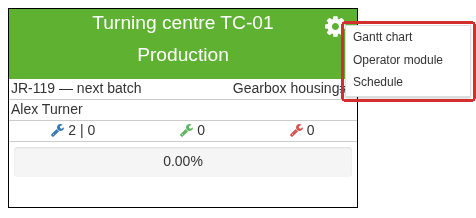
The menu for the Turning centre TC-01 tile is opened from the gear in its header. The highlighted commands open the Gantt chart, the Operator workplace and the schedule for this machine.
After moving to the Gantt chart, check the date, period, channel, selected Indicators and displayed state types. The transferred machine selection does not mean that every other condition is the same as on the original screen.
Checking data freshness and composition
Automatic screen refresh does not by itself mean that new data has arrived from the machine. If you are unsure whether a state is current, check receipt of the data and its timestamp in the technical Settings → Monitoring section.
To inspect the actual Indicator values, use the separate Analytics → 8. Indicators view or the corresponding widgets. The summary bands and tiles in Monitoring help you notice a situation and choose where to investigate next; exact messages, parameter values and production history are then examined in the views intended for them.
3. Gantt chart: events and values on a common timeline
Analytics → 1. Gantt chart helps you analyse the history of one Work center. On a common timeline you can compare equipment states, CP execution, production Jobs, output, Tickets, personnel activity and Indicator values. You choose which information to display, so when analysing a particular episode it is useful to leave only the data types you need.
Selecting a Work center, channel and period on the Gantt chart
- Select the Work center. If the screen was opened from another view, check the equipment selection that was carried over.
- Select the Channel for data that belongs to a machine channel: its states, mode, CP and Subprogram execution, CP uploads and machine output. The overall Work center state is separate from the state of the selected channel.
- Set the period. To view a date, select Day; Today, Yesterday, Week, Work week, Month and relative periods are also available. To specify the exact boundaries of an episode, select Period and fill in From: and To:.
- Under State types, select the check boxes for the required rows and then select Select. Under Indicators, select the parameters to plot. After selection, the buttons can show the number of state types and the name of the Indicator.
- If necessary, enable Schedule to compare events with working and non-working time according to the machine schedule. Select Refresh to retrieve the data again for the selected conditions.
When you change the equipment or channel, check the selected Indicators and state types again. Different parts of the chart can belong to different data levels: for example, channel state depends on the selected channel, while a Ticket belongs to the Work center.
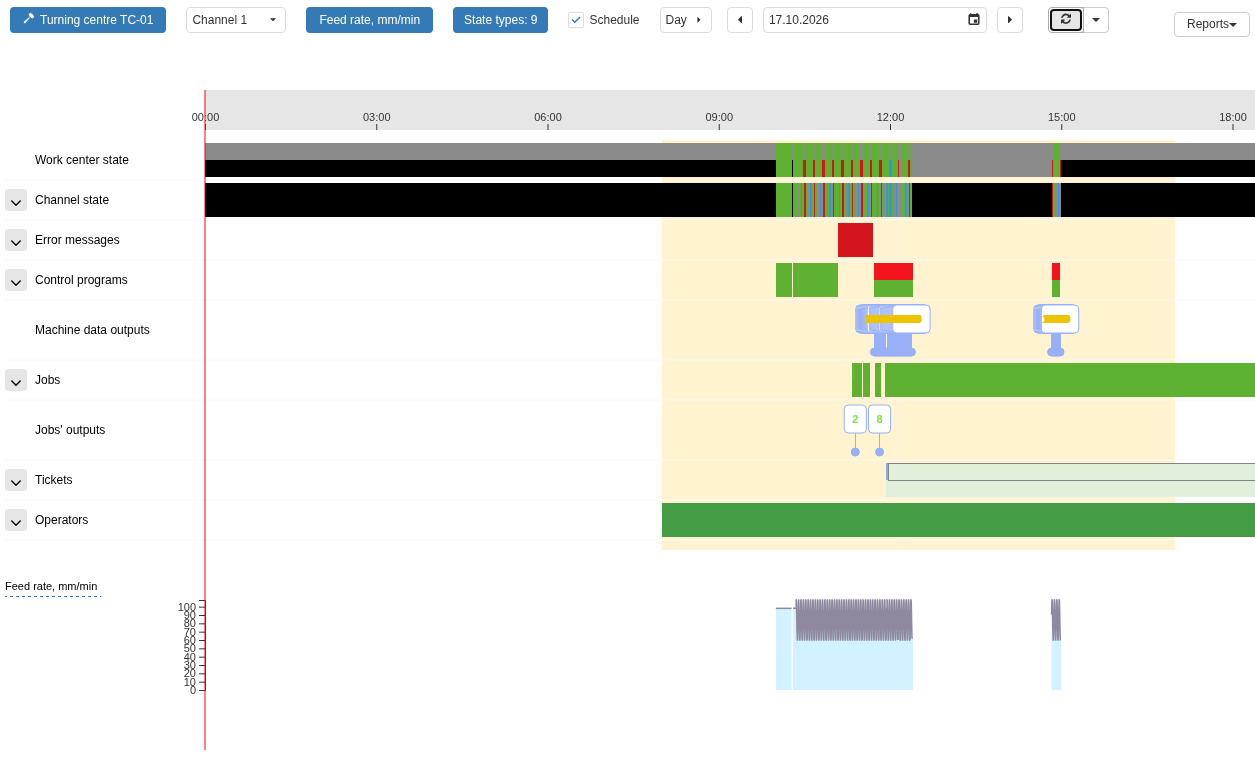
Gantt chart for Turning centre TC-01 for one day: states, CP execution, Jobs, Tickets and Personal shifts are correlated with the feed graph on a common timeline.
Choosing data in the State types window
The State types window contains not only machine states but also events from other production areas. For multiple selection, use the check boxes in the left column.
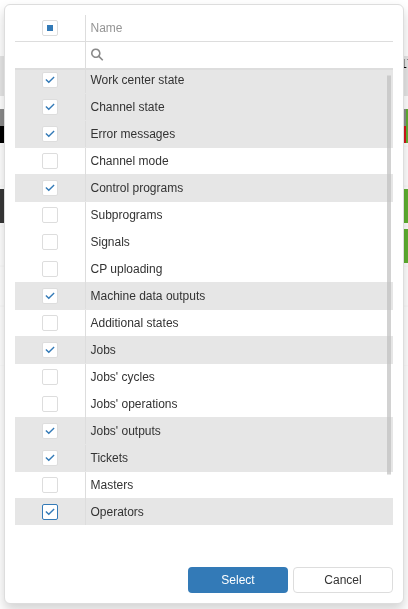
The State types window: use the checkboxes in the left column to choose information for timeline bands, then select Select. Machine data, Jobs, Tickets and personnel shifts can be combined in one view.
| Information you need | State types to select |
|---|---|
| Equipment state and messages from the machine | Work center state, Channel state, Error messages, Channel mode. |
| CP activity and information about its execution | Control programs, Subprograms, CP uploading, Machine data outputs. |
| Production Job execution | Jobs, Jobs’ cycles, Jobs’ operations, Jobs’ outputs. |
| Requests and personnel involvement | Tickets, Foremen, Operators. The Operators band shows Personal shifts. |
Machine data outputs and Jobs’ outputs come from different sources. The first represents machine output events; the second represents output registered against a production Job. Their markers and quantities can differ. Likewise, CP uploading and Control programs show different facts: CP upload events and intervals during which a CP was executed on the machine.
Selecting state types controls the composition of the chart. If a type is selected but there are no corresponding records for the period, its band may remain empty. An empty band for one type does not mean that the equipment has no other data.
Tooltips, row expansion and Gantt chart scale
Each timeline band represents its own kind of facts. Intervals show the duration of a state or process, while individual markers show events. To compare them, look at their positions on the common time scale.
Point to the required segment to see information about the particular record. The tooltip content depends on the data type: it can include a state or CP name, a Job, start and end time, duration and other details. Some records also provide links or actions for further analysis.
If an arrow is shown next to a type name, expand it to see detailed bands. For example, CP execution can be expanded by program name, while Job information can be expanded into individual Jobs. Collapse details you no longer need to preserve the overall picture.
To zoom in on a section, rotate the mouse wheel over the time scale. To move the selected window without changing the scale, hold the left mouse button on the time axis and drag it left or right. After changing the scale or position, the screen switches to Period mode and From: and To: show the resulting boundaries. Check them before comparing this view with another one. To return to the original day view, select Day and the required date again.
An interval that reaches the edge of the visible area may continue beyond it. Use the tooltip or a wider period to determine its actual boundaries.
Indicator charts, control limits and KTP intervals
Charts for selected Indicators appear below the timeline bands and use the same time scale. This lets you compare, for example, a feed-rate change with CP execution and channel state. To inspect one parameter in detail, you can temporarily remove state types and leave only its chart.
Gaps in a chart should not be read as zero values: DPA may have no suitable values for that part of the period. First check the history of the required Indicator, the equipment and the period.
Select the Indicator name to the left of the chart to open its control-display settings:
- Thresholds adds plots for the thresholds associated with that Indicator;
- Threshold areas adds coloured highlighting for saved control intervals.
These options control the display of data that already exists. To show limits and violations, the corresponding thresholds and process-parameter control must be configured and the required history must be stored. Preparation is described in Section 5 of Chapter 4.
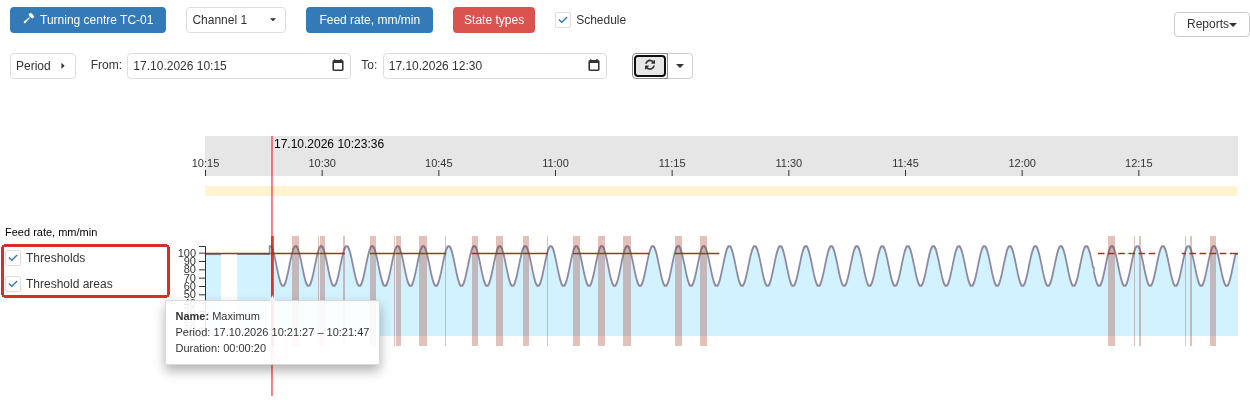
Select the Indicator name Feed, mm/min to expand its display settings. The frame highlights Thresholds and Threshold areas. The graph shows Indicator values, the upper-threshold line and a highlighted violation interval; the tooltip shows Maximum, the period and duration.
Pointing to a coloured interval helps you determine which threshold was used for control and which time range the result belongs to. For example, a tooltip can show Maximum, the start and end of the interval, and its duration. The highlight colour represents the parameter-control result; read the equipment state from the corresponding timeline band.
Example: analysing a stop on the Gantt chart
For example, when investigating a stop, select the machine and period and add Work center state, Channel state and Control programs. Find the required interval, zoom in and read the tooltips. Then add data that can test your hypothesis: Error messages, Tickets, Jobs, Operator shifts or the chart for the required Indicator.
Events occurring at the same time help you choose what to check next. To conclude what caused the stop, inspect the contents of the records themselves and, when necessary, open the detailed journal or object history. The next section describes working with journals.
4. Journals: finding exact records and analysing history
In Journals, each opened journal shows accumulated history as rows. It is an interactive table: you can read an exact message, find a state transition, clarify CP execution or locate the time of a KTP violation. The Gantt chart helps locate an episode among neighbouring events; a journal lets you inspect the corresponding stored records.
Selecting a journal
Open Journals from the Applications menu. The General tab contains an interactive table of available machine- and production-data journals; open the required journal by double-clicking its row. Search by name for quicker selection. The Tool tab contains journals for the Tool Management area. These require the ToolManagement microservice to be configured and connected to DPA Host.
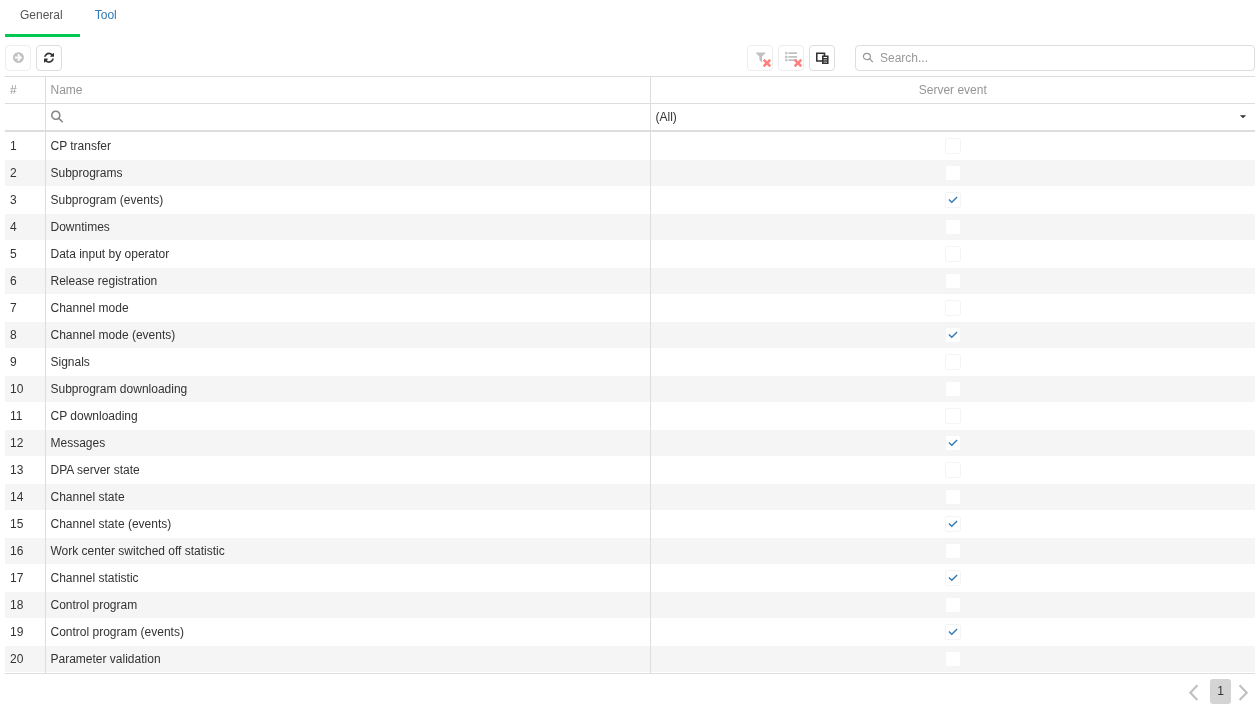
The Main tab in Journals. Select the required kind of history by name; open a journal by double-clicking its row.
| What you need to check | Journal to open |
|---|---|
| Exact message text, type and time | Messages. |
| Channel state or mode | Channel state, Channel mode; for source transitions, the corresponding (events) journal. |
| Main CP execution | CP — execution intervals; Control program (events) — individual program events. Subprograms have separate journals. |
| Program transfer and text verification | CP transfer, CP downloading or Subprogram downloading, depending on the action being checked. |
| Production records | Release registration, Data input by operator, Downtimes — each for its own kind of record. |
| Technological-parameter violation | Parameter validation. |
| A classic Signal firing | Signals, when its journalling is enabled. |
CP transfer, CP downloading and CP refer to different stages. The first journal is used to check events for transferring a program to equipment and the result of the attempt. The second records retrieving program text from the machine and comparing it with the catalogue. The third records observed execution of a program. A successful transfer does not by itself mean that the machine has started that CP.
Selecting equipment, period and channel in a journal
- Select the Work centers, mark the required machines and select Select.
- Set the period, for example Today, Yesterday, Day with the required date, or Period with explicit start and end times. Relative periods are also available for operational searches.
- Select Refresh and wait for the table to load.
- If records have a channel, check the Channel number column and filter it when needed. One Work center can contain data from several channels. In the example, Channel 1 in the Gantt selector corresponds to channel number 0 in the journal.
After changing equipment, check the period again. Another journal can retain its own conditions; switching by journal name does not automatically carry the full context from the previous screen.
When correlating records with the Gantt chart, use the same machine, channel and time boundaries. Explicit dates are more reliable for repeated analysis than a moving window such as Last N-hours.
Finding records and configuring the journal table
An open journal is an interactive table. Pay attention to the journal-specific fields. In the CP journal, for example, records can be filtered by Program name and Channel number; when correlating a particular execution it is useful to keep machine, channel, program name, time and, when relevant, the technical identifier visible.
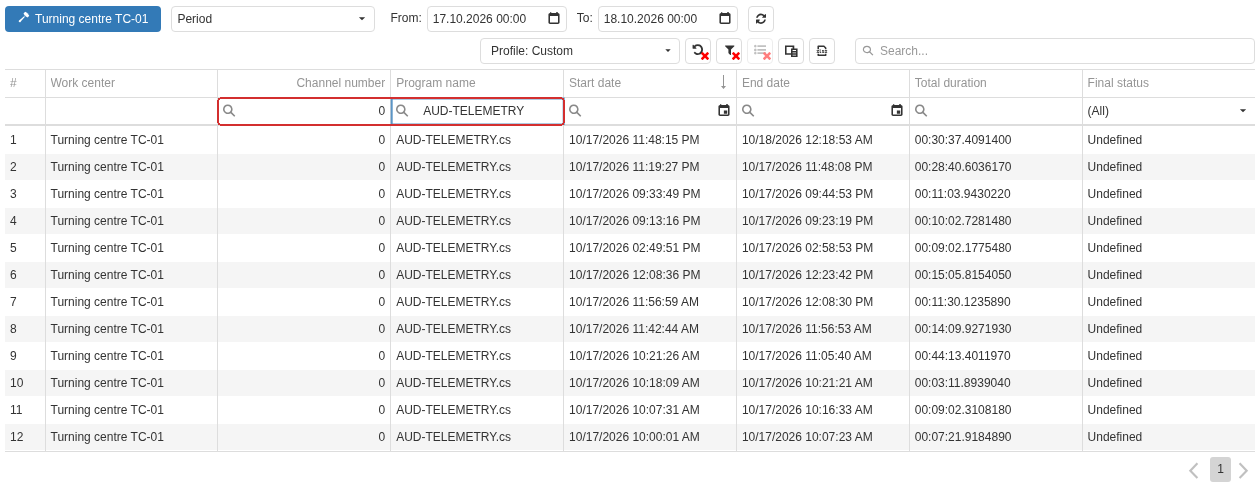
The CP journal for Turning centre TC-01 over 17.10.2026: channel number 0 and program name AUD-TELEMETRY in the filters. The frame highlights the selection conditions; some columns are hidden through Select columns.
The selected Work centers and period are journal context above the table. They are not replaced by a table profile and must be checked separately when repeating an investigation.
CP execution events and intervals
The CP journal represents program execution as an Interval: when it started and ended, how long it lasted, which statuses occurred and what the final status was. Control program (events) shows individual Time points — program transitions. The general rules for including time points, intervals and open intervals in the selected period are described in the Interactive-table section of Chapter 1.
For one execution, correlate equipment, channel, program name, time and, when available, Event identifier. The number of rows in these two journals does not have to match: they represent the same process using different record types. A missing interval end does not by itself prove that the equipment is still running that program; such a conclusion requires subsequent records and current machine data.
Checking a KTP-violation record
Parameter validation lets you determine which parameter was monitored, on which machine and channel, which CP and Parameter set it belonged to, which threshold was used and how long the interval lasted.
Select equipment and period, then find the required Indicator or Parameter. Compare Start date, End date, Duration, Threshold and Threshold value. If a required field is not visible, configure the table view as described in the Interactive-table section of Chapter 1.

The Parameter validation journal for 17.10.2026 from 10:23 to 10:24: two intervals for Feed rate, mm/min with threshold Maximum, value 99. The upper interval ends beyond the right boundary of the selected window.
The same episode can be examined on an Indicator graph with thresholds and highlighted control intervals, as described in Section 3 of this chapter. Control configuration is covered in Section 5 of Chapter 4.
The end of a KTP interval does not always mean that the value returned inside its permitted range: monitoring may have ended or its context may have changed. To determine whether the parameter recovered, check subsequent values and the control conditions that were active at the time.
Exporting a journal selection and checking for missing records
When necessary, export the current journal selection to Excel; the general export rules are described in the Interactive-table section of Chapter 1. For analysis of a specific episode, save the journal name, machine, channel, exact period boundaries and applied conditions together with the export. This makes it possible to repeat the search and explain which records were included.
If rows are still missing after checking the context and table state, verify access to the equipment and whether the required type of history is being stored. A missing row in one journal does not mean that all machine data is absent. A stop investigation can begin with the overall Gantt timeline and then proceed through channel state, CP execution, messages and, when needed, KTP intervals while keeping the same time context.
5. Creating, configuring and viewing Dashboards
A Dashboard stores a selected data view and its settings. An individual view placed on a dashboard is called a widget. A dashboard can contain one widget or several, for example the current feed value, a machine tile with its Job, and recent history on a Gantt chart. This lets you reopen a useful working screen without assembling it again every time.
A dashboard uses DPA data. Creating one does not by itself enable history collection, change Indicators or configure calculations. If the source data is unavailable, adding another widget does not fix the cause.
Viewing a saved Dashboard
Open Dashboards from the Applications menu. The dashboard list on the left is an interactive table. Select the required row — a single click only highlights it — then select View, the button framed in the illustration below. Button names are also shown in tooltips when you point to them.
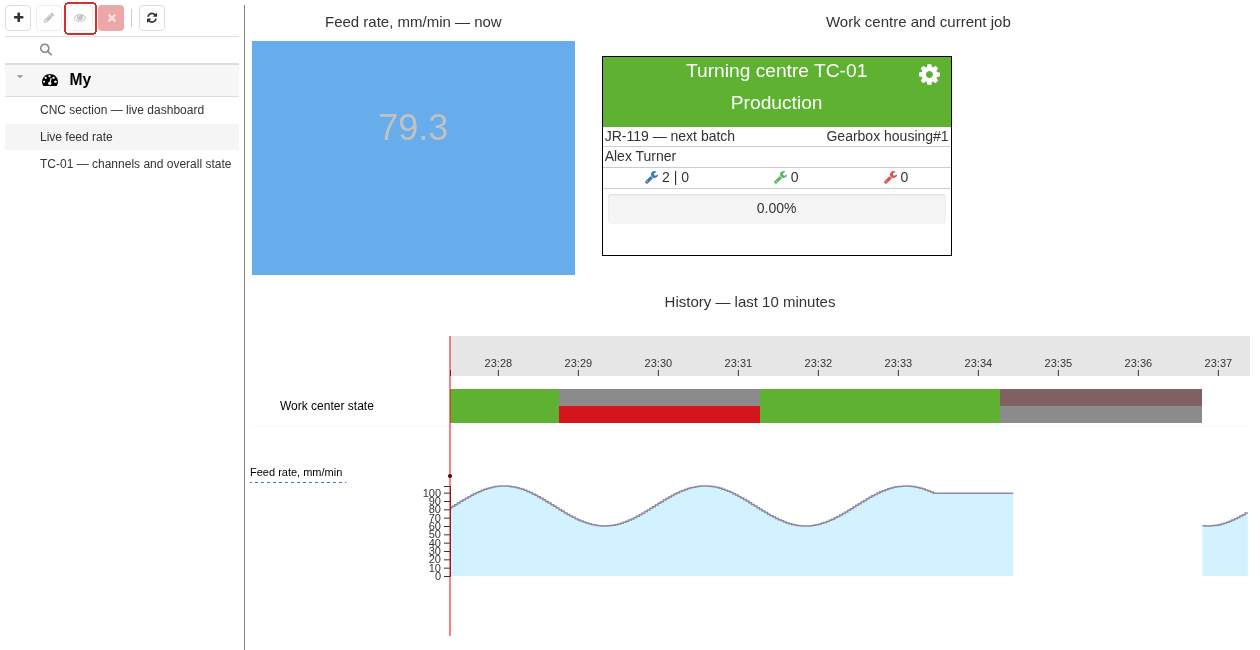
Dashboard CNC section — live dashboard: the current feed value, Monitoring tile for a machine with its Job, and the last ten minutes of history are shown side by side. Each widget has its own settings. The frame highlights View in the header of the list on the left.
The example places three different views for one Work center side by side. A tile shows the current Job, an Indicator value shows feed, and the Gantt widget shows the last ten minutes of history. When comparing them, check that the widgets really refer to the required machine, channel and time.
Widgets can use different equipment, periods and automatic-refresh settings. Two graphs displayed next to each other do not necessarily have the same conditions. A relative period moves as it is refreshed, while explicit boundaries refer to a fixed historical window. Reading Monitoring and the Gantt chart is covered in Section 2 and Section 3 of this chapter.
Creating a Dashboard with one widget
The corresponding permissions are required to create and modify dashboards. If an action is unavailable, ask an administrator to check your permissions.
The Add button in the header of the Dashboards list on the left is highlighted by the frame.
- Select Add in the dashboard-list toolbar on the left — the plus button highlighted in the illustration.
- Enter a Name that makes the dashboard’s purpose clear.
- Under Type, choose the required widget. For example, Indicator value tile shows the selected value without building a separate graph.
- In the settings that appear, select the Work center and Indicator. For other widget types, fill in their own conditions such as channel, period and other available parameters.
- Select Save, then open the dashboard through View and check the result.
Check not only that a value appears, but also which source was selected. When indicators have similar names, it is easy to save a dashboard for the wrong machine. If the widget supports automatic refresh, configure it in the widget’s own settings.
Configuring an advanced Dashboard
To place several widgets on one dashboard, choose Type → Advanced when creating it. To modify an existing dashboard, select it in the list and use Edit, the pencil button.
- Select Add item.
- In Settings, choose the Widget type and set the conditions for its data.
- If needed, enable the widget heading and enter a clear title. It is useful to include the machine, metric or period. If the content does not fit, enable Use scrollbar.
- Select OK. Repeat for the remaining widgets.
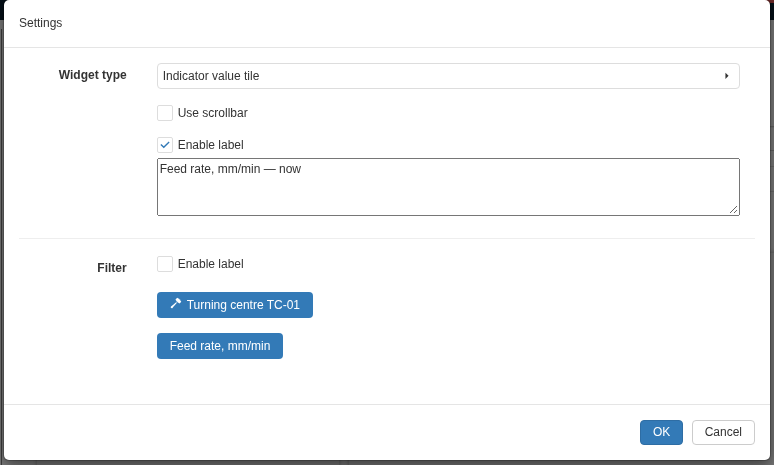
Settings for the Indicator value tile widget: label Feed rate, mm/min — now, Work center Turning centre TC-01, and Indicator Feed rate, mm/min are selected. These parameters belong to this dashboard widget.
Widget settings include a heading for the widget container and may also include heading settings for the selected view itself. These belong to different parts of the screen: in the example, Feed rate, mm/min — now is the container title.
Drag widget blocks to change their positions; drag the lower-right corner of a block to resize it. The gear button Setup opens settings for that widget, while Delete removes it from the composition.
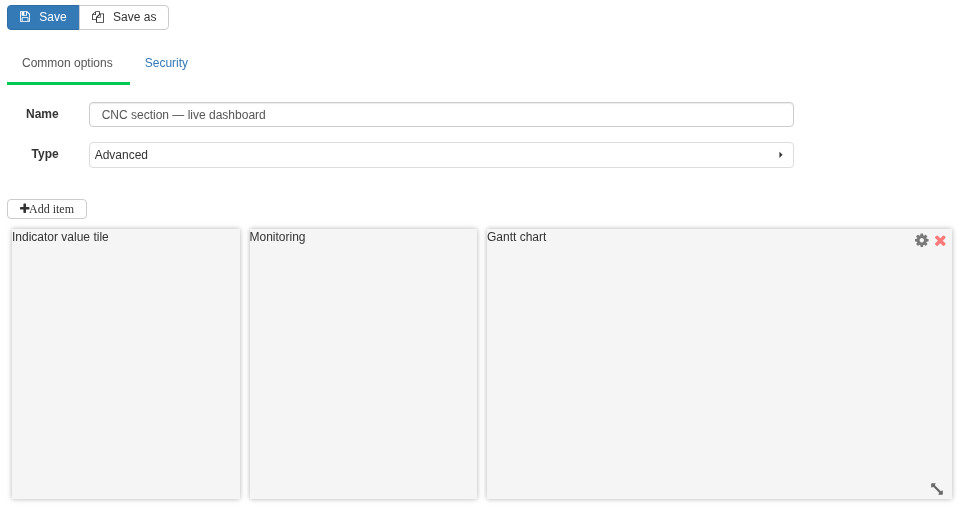
Example layout of an Advanced dashboard: three widgets are arranged in one row and the Gantt chart block is twice as wide as the others. The gear opens settings for the corresponding widget. After changing the layout, select Save and check the data through View.
The editor shows the widget placement areas. Check the actual data in View mode. After changing the set or layout of widgets, select Save, open the dashboard and make sure its labels are readable, important data fits, and every widget uses the required conditions. Reopening it also confirms that the intended version was saved.
Copying a Dashboard and configuring access
To use an existing dashboard as a starting point, open its editor and select Save as. Enter a different Name and save the copy. Then select the new row in the list: after saving a copy, the selection may remain on the original dashboard. Check the name of the open dashboard before making further changes.
Your own dashboards are under My. With the required permissions, the Security tab provides a Global option. For a global dashboard, configure availability either to all users or to selected access groups. When editing a shared dashboard, remember that other employees may use it.
A saved dashboard stores settings, not an immutable snapshot of values: when reopened, it reads the data again. When analysing a specific episode, preserve the exact period and source records as described in Section 4 of this chapter.
6. Building and saving Reports
A Report produces a formatted file from a selected template and specified conditions. For example, you can save information about CP execution, product output or equipment utilization for a required period. The template determines the data, calculations, sheets and presentation of the result; the user selects the conditions for building it.
Selecting a Report template
Open Reports from the Applications menu. On the Reports tab, the list of available templates is an interactive table. Select the required row, then select the triangle button highlighted in the illustration. Its tooltip is Show report options and rebuild report. This command also opens the parameters when the selected report is built for the first time.

The Reports tab with the report-template list. The outlined triangle button opens Show report options and rebuild report for the selected template.
Choose the template according to the information you need. For example, Completed CP cycles concerns CP execution, Release of products concerns output, and Work center utilization concerns how equipment time is used. Similar report and analytics names can overlap, so check the conditions and the composition of the result in each view.
Selecting Report parameters
The form depends on the template. It can contain selection of Work centers, period, channel, Indicators and additional options. Fill in the conditions available for the task; changing the template can change the form.
For example, open Completed CP cycles:
- Select the Work centers, mark the required equipment and select Select.
- Check Channel. In the illustrated example, Channel 1 is selected; it corresponds to number 0 in the CP journal.
- Select the period. For a report for a particular date, choose Day and the required date; for other boundaries, use the appropriate available period mode.
- Check the machine, channel and time again, then select Build report.
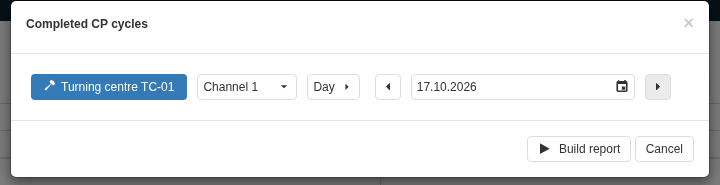
Parameters for the Completed CP cycles report: the required Work center, Channel 1 and the report period are selected. Check these conditions before selecting Build report.
When comparing the result with a journal or Gantt chart, use the same equipment, channel and time boundaries. Explicit dates are preferable for repeated analysis: a relative period can refer to a different window when the report is built again.
Building a Report and downloading the file
After the build starts, a window opens with progress messages. The file is prepared on the server and this can take some time. Wait for Report completed. The result may begin downloading automatically; use Download in the window to download it again.
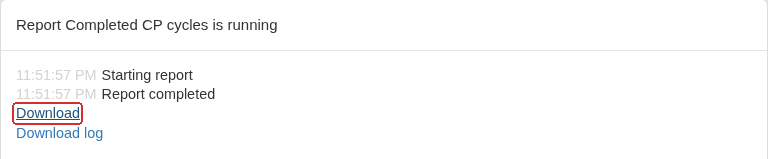
The report-build window after Report completed. The generated file can be downloaded again with Download.
Open the resulting file and check its contents: selected equipment, period, sheet names and the required rows. In the example, the Excel file contains a Данные (Data) sheet with CP-execution intervals and a Work centers sheet with equipment information. The first sheet name is untranslated in this packaged report template. To analyse an individual execution in more detail, return to the journals described in Section 4 of this chapter.
A successful build means that a file was produced. If expected rows are missing, check the conditions and whether the corresponding history exists in DPA. When comparing figures, also account for the meaning of the source data: for example, output registered against a Job can differ from machine output registration.
A downloaded Report captures the result of that build. New production records and later corrections in DPA do not change the file you already obtained. Build the report again to obtain an up-to-date result.
Generated Reports: downloading again, cancellation and errors
On the Generated reports tab, the list of runs is an interactive table. It shows the state, start and completion time, and result size. Select the required row; button names are available in tooltips.
- Download downloads a completed result again.
- Show report options and rebuild report opens the conditions of the selected build for checking and a new run. Check the period and the other parameters again before starting it.
- Connect returns to the messages of a build that is still running, when the command is available.
- Download log saves the build messages when they were retained.
With the corresponding permissions, Show reports of all users expands the list. Without it, only results for your user are shown.
To stop a build, use Cancel. Closing the message window with Close only stops viewing the messages. After requesting cancellation, wait for the final state: the current build may not stop immediately.
If a build fails, read the messages and save the available log file. When analysing the problem, record the template name, machines, period, additional conditions and start time. An empty result in a successfully built file and a build failure require different checks: in the first case, begin with the conditions and source data; in the second, begin with the failure messages.
The Generated reports tab is intended for current builds. The list and file availability are not permanent storage: after DPA Host is restarted or old results are removed, they may no longer be available. Download important Reports and save them in the location accepted by your organisation together with the conditions used to build them.
7. Plan–actual analysis and downtime-reason analysis
Plan–actual analysis compares planned work with registered execution and output. Downtime analysis shows which reasons account for stopped time. The views complement one another but use different facts: suspension of a Job and equipment Downtime may overlap in time, but one record does not replace the other.
Comparing planned and actual Job execution
Open Analytics → 24. Plan–actual analysis. Select the Work centers and period and wait for the data to load. The result is an interactive table. Use an explicit date or fixed time boundaries when you need to repeat the analysis.
The result contains Jobs that have already started, with a registered starting Operator and an actual execution period that intersects the selected time. It can include both completed Jobs and Jobs still in progress. To inspect the entire planned workload, including Jobs that have not started, use Planning.
Useful comparison fields include the Job name and status, planned quantity, actual quantity and period durations. Additional fields can identify the product, technology, equipment, Operator, shift and deviation reasons.
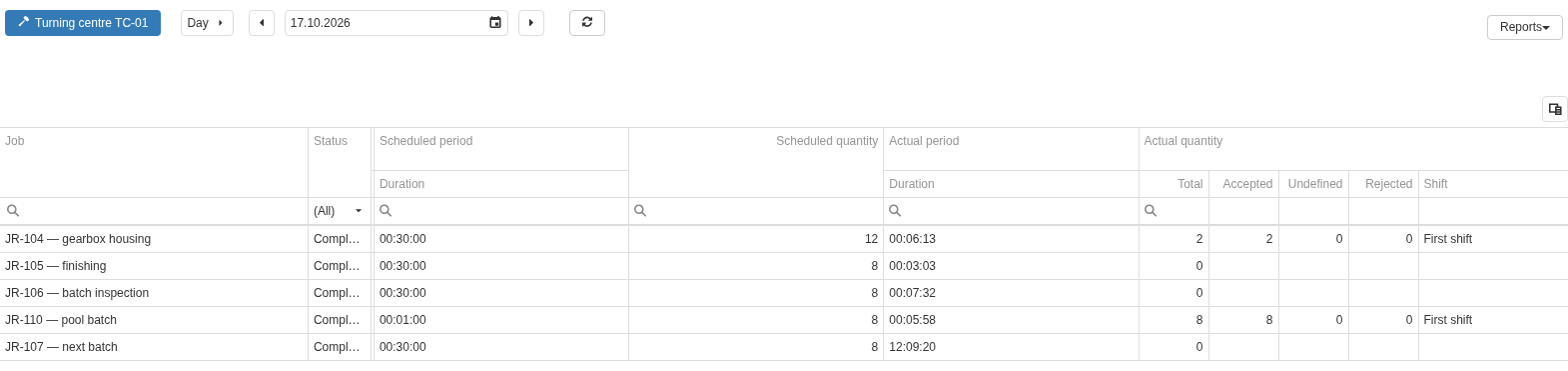
Plan–actual data for Turning centre TC-01 on 17.10.2026. The visible columns compare status, durations and quantities: for JR-104 — gearbox housing, the plan is 12 and actual output contains 2 accepted parts. Total includes accepted and conditionally accepted output; rejects are shown separately.
Read a row in sequence:
- Check the Job, machine and status. Completed by itself does not mean that registered good and conditionally accepted output together equal the plan.
- Compare Planned quantity with Actual quantity. Total combines good and conditionally accepted output; Rejects is shown separately. Do not read Total as the sum of all three quality categories. Separate registration of conditionally accepted output and the three counters in the Operator card are described in Section 2 of Chapter 6.
- Compare planned and actual dates, then durations. Actual duration in this view accounts for execution time excluding Job suspensions and can differ from the simple elapsed time between start and finish.
- To understand a specific discrepancy, open
Analytics → 27. Job analysisand select the same Job. Check its execution, output and stored deviation reasons.
Output here comes from output records for the Job. It can differ from a machine counter and from machine-output analytics. For example, in the illustration the completed Job JR-104 — gearbox housing has a plan of 12, while 2 accepted parts are registered as actual output. First check that Job’s output records and completion conditions; comparing the two numbers alone does not identify the cause of the discrepancy.
When comparing time, distinguish the purpose of each field:
| Compared value | Meaning |
|---|---|
| Planned period | Calendar interval allocated by the planner for execution of the Job. |
| Actual execution | Registered start, finish and execution time with Job suspensions taken into account. An unfinished Job has no finish yet. |
| Standard time | Estimate based on Technology-operation durations and the output quantity used in the calculation. It is not the duration of the planned calendar interval. |
For a short selected period, a row may show the full execution boundaries of a Job that intersects it, while output contains only records that fall inside the selected time. Do not assume that every value in the row is clipped to the filter boundaries. To verify the whole Job, choose a period that covers its execution and compare the result with Job analysis. Planned, actual and adjusted dates are described in Section 2 of Chapter 5.
The Reports button in the analytics view offers related templates when they are configured. Selecting a report immediately starts generation with the conditions from the open analytics view, so check equipment and period before using it. To inspect or change template parameters separately, open the template in the main Reports section as described in Section 6 of this chapter. The Plan actual analysis (version 2.0) report has an option to include the entire Job: it expands the representation of Jobs already selected because they were running, but does not add the complete plan of Jobs that never started.
Durations and shares of downtime reasons
Open Analytics → 13.1. Downtime reason classification. Select equipment, period and, when needed, shifts. Before reading the chart, check the additional conditions:
- Unclassified — whether intervals without Processed status, including ignored intervals, are included. Without them, the distribution represents only the processed portion of the data.
- Group — whether individual reasons or their categories are shown. Grouping changes labels and the set of columns.
- Work center state selection — which equipment states are included.
- Show job types — whether Maintenance, Innovation or Setup periods from the corresponding Jobs are included. They change the time considered by the analysis.
In the upper chart, bars show reason durations and the percentage curve shows their cumulative share of the total duration of all reasons included by the current selection. Each successive reason adds its contribution to the previous total. The 100% basis is the sum of durations of the selected reasons, not all equipment working time. The time unit is shown on the axis and can change with the data scale. Point to a bar to read the reason, duration and its individual share.
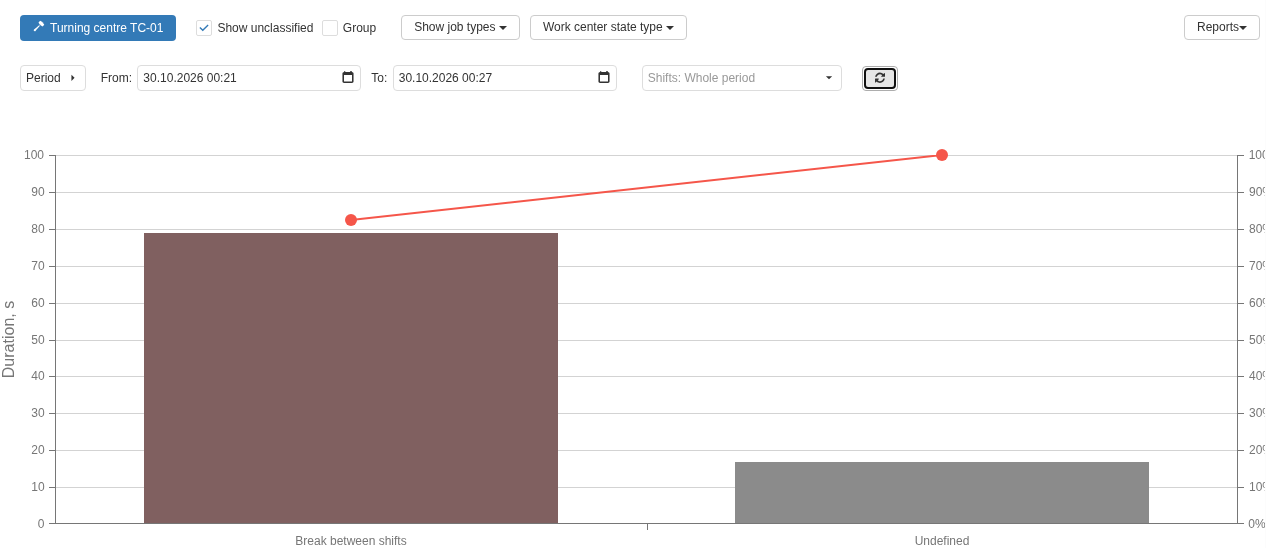
Upper Downtime reason classification chart for Turning centre TC-01, 30.10.2026, 00:21–00:27. Two real Idle intervals created through the lab’s normal machine-state signal are classified by DPA as Break between shifts; a neighbouring unclassified interval remains Undefined. Bars show duration in seconds and the curve shows cumulative share within the current selection.
Below it is a distribution over the selected Work centers. It helps identify which equipment accumulated most of the time for the selected downtime reason. A large Undefined contribution means that a substantial amount of time still has no assigned downtime reason; hiding such data does not remove the intervals themselves.
To compare different dates, use Analytics → 13.5. Downtime reason dynamics. It lets you select reasons and statuses, the detail period and, when needed, comparison with the previous period. Compare results using the same equipment and filter conditions. A decrease in the absolute duration of one reason does not by itself explain why its share changed: the total duration in the result may also have changed.
Checking downtime segments in Work center downtime accounting
Open Analytics → 7. Work center downtime accounting, select the same machine and the required period. The result is an interactive table. Min. duration: can exclude short intervals; when looking for a missing record, check both this external threshold and the conditions of the table itself.
For analysis, it is useful to keep reason, status, reason dates and duration, and total downtime visible. Sort records by reason start to inspect an episode in sequence.
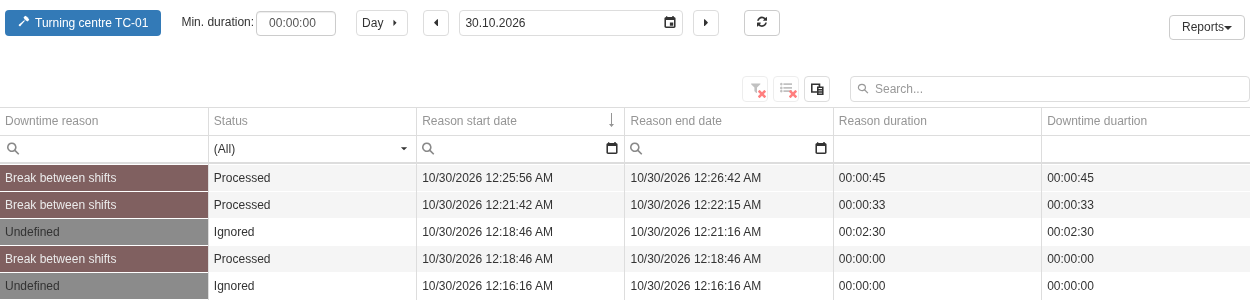
Part of Work center downtime accounting for Turning centre TC-01 on 30.10.2026. Records are sorted by reason start from later to earlier; the two real processed Break between shifts intervals appear first with durations 00:00:45 and 00:00:33, followed by a neighbouring ignored Undefined interval. Minimum duration is 00:00:00.
Each row describes one downtime segment with one assigned reason. The table contains two groups of time fields. Reason start date, Reason end date and Reason duration belong to the segment explained by that reason. Stop date, Run date and Total downtime belong to the original stop interval. If reasons changed during one stop, its total time can be repeated in several rows. Do not sum that value as if it were the duration of each individual reason.
Record boundaries can extend beyond the selected period. The sum of full durations in visible rows therefore does not have to match the chart result, which is calculated within the selected time and its own conditions. Compare not only the number but also interval boundaries, downtime-processing status and selected equipment states.
To reconstruct the event sequence, open the same period on the Gantt chart and, when necessary, check messages, CP execution and other records in Journals. These are covered in Section 3 and Section 4 of this chapter.
Reasons for Job suspensions, deviations and underproduction are analysed separately: the gallery provides analytics 13.2, 13.3 and 13.4 with the corresponding names. Use them to analyse Job execution; check the reason for machine downtime against equipment intervals. Assigning a reason and working with a problem in a role workplace, and the distinction between Downtime, Ticket and Maintenance job, are described in Section 6 of Chapter 6.
A practical investigation ends by correlating specific records: what was planned, what was registered against the Job, when the equipment stopped, and how that interval was explained. When handing over the result, preserve the machine, Job, time boundaries and filter conditions and, when useful, the corresponding report. This makes the comparison reproducible and the conclusions verifiable.
← Chapter 7. Connectivity and external interfaces · Contents · Chapter 9. Signals →