← Chapter 5. Production planning and execution · Contents · Chapter 7. Connectivity and external interfaces →
The previous chapter covered creation of orders and Jobs, planning, and registration of actual production results. This chapter looks at the same process from the shop-floor participants’ point of view: who starts work at a Work center, who supervises the shift, and who resolves technical problems.
DPA provides the Operator workplace, Foreman workplace and Maintenance workplace for these tasks. They work with the same production model while giving each role its own views and actions. This chapter covers everyday work in each workplace and interaction between participants: from executing a Job and handling an exceptional situation to assigning a technical problem, resolving it and accepting the result.
1. Purpose of the Operator, Foreman and Maintenance workplaces
The Operator workplace, Foreman workplace and Maintenance workplace organise people’s work around the same Work centers, Jobs and Tickets. They differ in the participant’s responsibilities and available actions. DPA does not create a separate copy of production data for each workplace.
For example, the Operator executes an assigned Job and registers output. The Foreman sees progress of the same Job in the context of current supervision. A technical problem can be recorded as a Ticket and assigned to a Maintenance performer. If participants change, the Ticket keeps its history; assigning another performer does not turn it into a new request.
What the Operator, Foreman and Mechanic do
| Participant | Primary task in the workplace |
|---|---|
| Operator | Execute a production Job: start it, perform its Operations, register actual output and complete execution |
| Foreman | Supervise equipment and people, investigate deviations, decide on Operator requests, and distribute Tickets among performers |
| Mechanic / Maintenance | Receive an assigned Ticket, accept it for work, perform the required actions and return the result to the author for acceptance |
The Foreman participates in production as a supervisor and coordinator. Viewing a Job in the Foreman workplace does not replace its execution by the Operator. Likewise, a Mechanic marking a Ticket as performed and the author accepting the result are separate actions by different participants. The following sections describe the procedures of each workplace in detail.
Opening the required workplace
In the main interface, open the Applications menu in the top bar. The entries Operator, Foreman / Dispatcher and Maintenance open the corresponding workplace in the context of the current user.
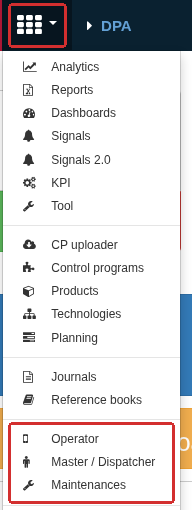
The red frames highlight the Applications menu button and the three role-workplace entries. These entries open the corresponding workplace in the context of the current user.
Inside a workplace, the DPA-logo button in the lower-left corner opens a menu with Operator, Foreman and Maintenance. Go to DPA returns to the main interface. This allows the workplace to be changed without changing the signed-in account.
Switching between workplaces does not assign the employee as Operator, Foreman or Mechanic and does not open a shift. If a person combines several production functions, staff assignments to Work centers must be configured separately for every required role. The assignments can differ: the same employee can be an Operator at one Work center and a Foreman at another.
Staff assignments, access scope and opening shifts
To work with a particular Work center, several conditions matter independently: whether the Work center is inside the user’s access scope, whether the employee is assigned there in the required production role, and whether the prerequisites of the particular action are satisfied. Feature permissions and production assignments are also configured separately. Merely seeing a workplace entry in the menu does not mean that all of these conditions are met.
Each role has its own operating conditions:
- for the Operator, assignment to the Work center is used. If opening a Personal shift is required, that shift is necessary for the production actions governed by this setting;
- for the Foreman, the assignment determines available equipment, while an open Foreman shift defines the current supervision scope and the Foreman’s active actions;
- the Mechanic does not open a separate shift in the Maintenance workplace. In the Ticket workflow, the Mechanic works with Work centers that are both inside the user’s access scope and assigned to that user in the Mechanic role.
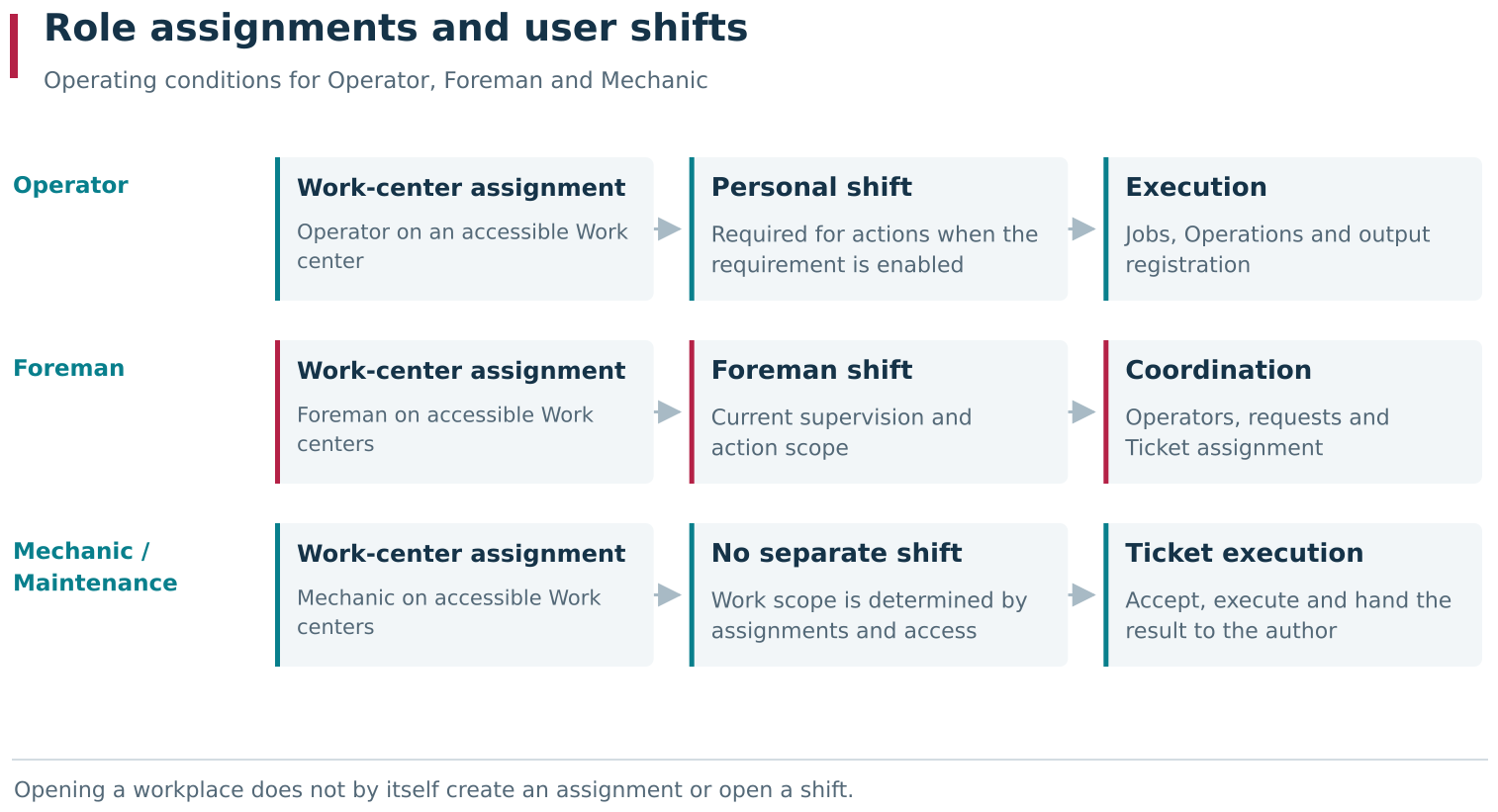
An employee assignment to a Work center and the current shift are separate operating conditions. For the Operator, the requirement for a Personal shift depends on the setting; the Foreman acts within the scope of the open Foreman shift. In the Ticket workflow, the Maintenance workplace has no separate Mechanic shift.
Equipment missing from one workplace is therefore not necessarily absent from DPA or unavailable in another workplace. For example, an employee can see a machine in the Operator workplace but, after switching to the Foreman workplace, have no Work centers available for opening a Foreman shift because the employee has no Foreman assignment there.
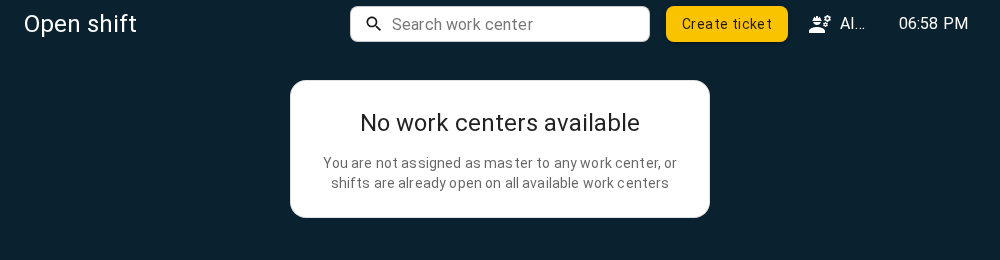
Switching to the Foreman workplace does not create a Foreman assignment. The shift-opening form shows No work centers available and lists possible reasons for the empty result: no Foreman assignment, or shifts already open on the available equipment.
In that situation, first check the selected workplace and account, then the production-role assignment and whether the required equipment is inside the user’s access scope. For actions that depend on a shift, also check that the corresponding shift is open. An empty list does not identify one unique cause by itself: the Foreman-shift opening form, for example, also excludes Work centers on which that Foreman has already opened a shift.
2. Operator workplace: shifts, Jobs, output and equipment events
The Operator workplace brings together the Operator’s everyday equipment-side actions: selecting a Work center, opening a Personal shift, executing Jobs, registering output, and handling events that require attention. It is useful to treat it as the Operator’s working environment for the duration of a shift. Execution of an individual Job, Job pools and preparation of a Shift target were covered in Chapter 5; this section connects those actions into one working sequence.
Selecting a Work center and checking the current participants
After sign-in, open Work centers. The list contains equipment to which you are assigned as an Operator and which is inside your access scope. If the list is long, search by name in Find work center. Each card shows the Work-center name and state, Operators with open Personal shifts, and the Foreman who has opened a Foreman shift there. The card shows participants with currently open shifts; permanent staff assignments are checked separately.
Click the required Work-center card. The selected equipment name appears at the top, while the lower navigation provides access to its Jobs, Tickets, Downtime and Indicators. Before acting, check the Work-center name and your signed-in account: the same commands apply to whichever equipment is currently open.
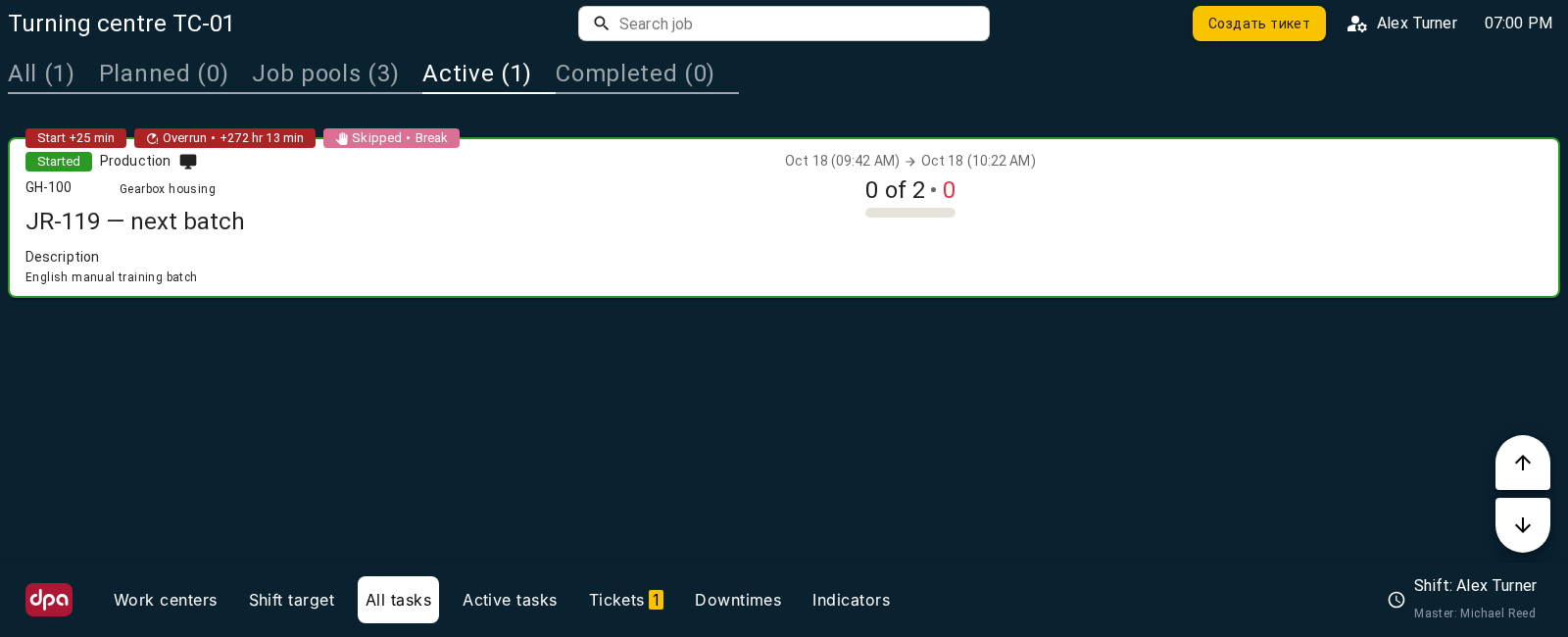
The selected Work center is named at the top, while the lower navigation connects its Jobs, Tickets, Downtime and Indicators. At the lower right, the open personal shift and current Foreman are shown; navigating to another section does not close the shift.
Navigating to another page, returning to the equipment list, or signing out does not replace the command for closing a Personal shift. If your name is shown on an equipment card, your shift is open on that Work center even when you are currently viewing another screen.
Opening the Operator’s Personal shift
A Personal shift records the period during which a particular Operator works on a particular Work center. When Operator must open personal shift is enabled, the actions governed by this setting require an open Personal shift first. Available equipment and its pages can still be viewed before the shift is opened. When the requirement is disabled, an open shift is not mandatory for these actions; the Operator assignment and user permissions are still required.
To open a shift:
- Select the required Work center.
- Click Open personal shift in the lower panel.
- In the opening dialog, check the selected equipment and, if necessary, select other available Work centers.
- Click Open shift.
- Confirm that the opening command has been replaced by Shift: followed by your name.
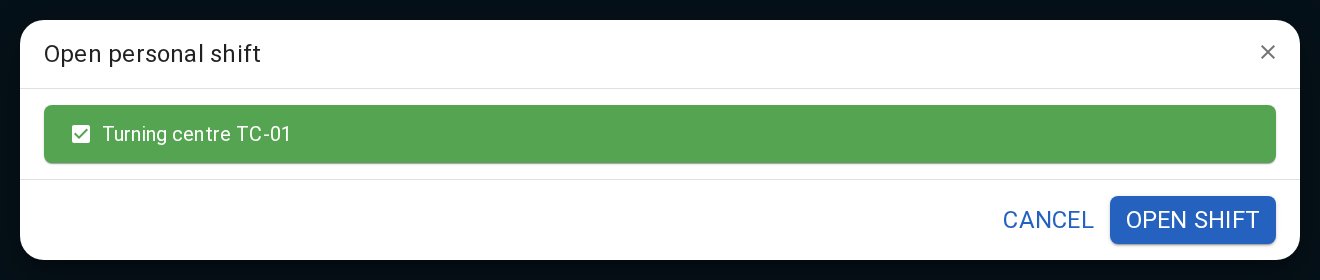
The selected Work center is already marked in Open personal shift. Open shift records the beginning of a Personal shift on the marked equipment; starting a Job is a separate action.
A separate Personal shift is opened on every selected Work center. A shift open on one machine does not mean that it is open on another. Opening the shift does not start a Job and does not register manufactured quantity.
If another Operator is already working on the equipment, DPA offers to close that person’s shift while opening yours. When several Personal shifts are allowed on the Work center, COOPERATIVE WORK can be selected so that your shift opens alongside the existing Operator shift. For an ordinary handover, CLOSE SHIFT in this dialog closes the previous shift and opens yours. COOPERATIVE WORK preserves the other Operator’s shift. Cancelling the dialog leaves the previous set of shifts unchanged.

When several Personal shifts are allowed on a Work center, the handover dialog offers CLOSE SHIFT for equipment handover or COOPERATIVE WORK for simultaneous work. With COOPERATIVE WORK, the previous Operator shift remains open and the current Operator opens another.
Personal shift, Shift target and production Job
Three separate objects are involved in Operator work:
| Object | What it describes |
|---|---|
| Personal shift | Who is working on a Work center, and when |
| Shift target | What has been assigned to an Operator for a period |
| Job | What work is to be performed and what result was obtained |
Viewing a Shift target does not open a Personal shift. Opening a shift does not select a Job for the Operator. Completing one Job does not close the shift, and closing the shift does not change an unfinished Job to Completed. Registered Job output survives Operator handover; opening a new Personal shift does not reset it.
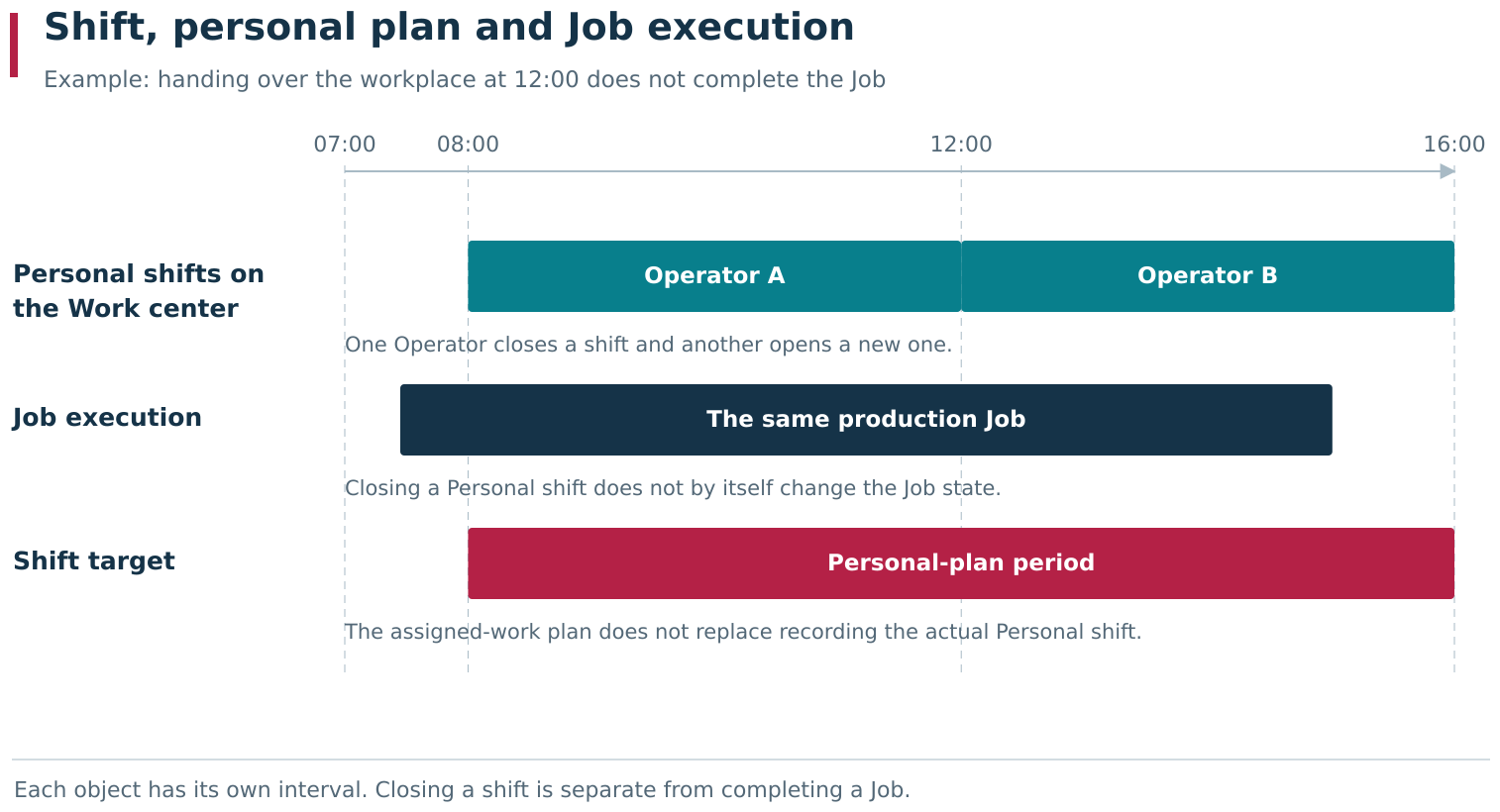
In this schematic example, Operator A hands the workplace over at 12:00 while the same Job continues under the next Operator. Personal shifts, the Shift target and actual Job execution have independent intervals. Closing a Personal shift does not invoke Complete for the Job.
When equipment is handed over, decide separately what happens to the current Job: whether it is truly complete, temporarily suspended, or should continue under the next Operator. First bring its state and registered output into line with what actually happened, then close your shift. Do not complete a Job merely to change the performer.
Operator-workplace sections
After a Work center is selected, the lower navigation provides several ways to continue:
| Section | What to do there |
|---|---|
| Work centers | Select equipment |
| Shift target | View the personal plan |
| All jobs | Find a required Job |
| Active jobs | Open an active Job |
| Tickets | Check Ticket assignment, state and messages |
| Downtime | Specify a reason for stopped time |
| Indicators | View current Indicator values |
Shift target shows the current user’s personal plan. In All jobs and Active jobs, the context is the selected Work center. These are different ways to find production work; switching between them does not create another copy of a Job or change its state.
All jobs refers to the list in this workplace. Scheduled and completed Jobs are loaded for an administrator-defined period around the current moment, while started Jobs remain in the list regardless of that window. If a required Job is missing, check the selected equipment, state tab and search first, then the configured loading period. The absence of an old or far-future Job from this list does not mean that it was deleted.
To execute a Job, check the Product, quantity, equipment and prescribed CP, then use the actions on its card. Moving through Technology Operations, registering output and completion remain separate actions. The detailed procedures, Foreman approval for deviations and component accounting are described in Job execution, exceptional situations and Job materials.
Select CP next to the file name opens Loading CP. Select a CP available for the Job and click Upload to transfer it to the selected Work center. This is a separate action: it does not change the CP-version assignment in the Technology and does not start the Job. The transfer workflow and reasons for an empty list are described under Transferring CPs and Subprograms to equipment.
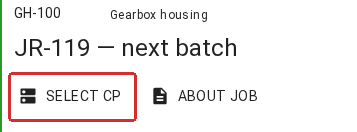
SELECT CP is a button even though it looks like ordinary text. The red frame highlights it below the CP file name; ABOUT JOB is on the right.
Enabling output whose quality is not yet specified
This category is used for products whose quality-assessment result has not yet been specified. Separate registration of such output is disabled by default in the Operator workplace. To enable it, open System settings from the Settings menu, expand Operator, and enable Allow unknown output. The general setting Allow output registration in Operator WS must remain enabled as well.
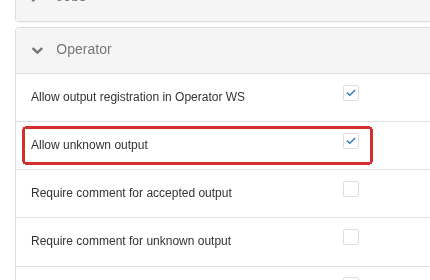
Under Settings → System settings, the Operator group is expanded. General output registration is already enabled; Allow unknown output adds a separate quality category to the Operator workplace. The adjacent setting can separately require a comment for such output.
Allow unknown output applies to the Operator workplace as a whole, not to one Work center. The Work-center Quality mark setting defines the quality category for output that DPA registers from equipment data; it does not control whether the yellow action is present in the Operator workplace.
If an explanation is required for this category, enable the adjacent Require comment for unknown output setting. All other output-registration rules still apply. For example, when batch-based component consumption is enabled, DPA requests those component details for this output category as well.
Registering and accounting for quality-unspecified output
After the setting is enabled, a yellow quick-action button appears next to the green accepted-output button and red rejected-output button on a started Job card. Clicking a quick-action button registers one unit in its category. Release below the quick actions opens detailed quantity entry; when the additional category is enabled, the form contains three quality categories: accepted, quality not yet specified, and rejected.
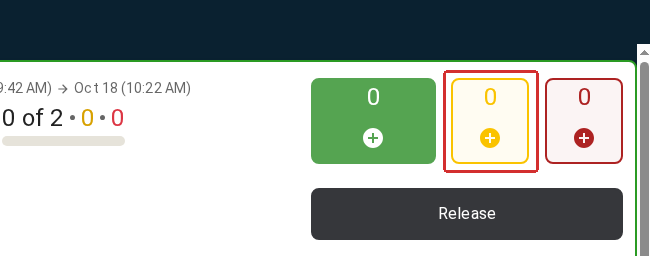
A started Job card: three output quick actions are available on the right — accepted (green), quality not yet specified (yellow), and rejected (red). Release below them opens detailed quantity entry.
DPA stores the quantities of all three categories separately. When output is compared with the plan, accepted output and output whose quality is not yet specified are counted together; rejected output remains separate. With a plan of 8, for example, 7 accepted + 1 quality-unspecified unit satisfies the planned quantity, while 7 accepted + 1 rejected unit does not. The same rule is reflected in the Total column of the plan-versus-actual view described in the production analysis section.
Disabling Allow unknown output hides the yellow action and separate yellow counter but does not delete quality-unspecified output that was already registered. Such stored units are then included in the green quantity shown on the Job card. This is a presentation change, not a change to the stored quality. The absence of the yellow button therefore does not prove that the Job history never contained such output.
Tickets, Downtime and Indicators for the selected Work center
If a technical problem occurs during work, use Create ticket at the top of the screen. The Operator creates a Ticket for the selected Work center and describes the problem; distribution of the Ticket and the Maintenance performer’s workflow are covered in the following sections. Tickets lets the Operator return to the request and check its progress.
Under Downtime, the Operator works with time intervals representing equipment state. Classifying an interval and creating a Ticket serve different purposes: the first explains why time was lost, while the second organises people’s work on the problem. One action does not replace the other.
Indicators shows production parameters alongside execution. Choosing which Indicators to display affects this view only; it does not replace configuration of the Indicator-to-equipment relationship. If a required parameter is missing or is not updating, check its data source and configuration rather than only the open workplace.
The same view also shows the result of continuous process parameter monitoring (KTP) configured through Parameter sets. Under All, select Parameter validation: the selected Indicators are divided between those taking part in monitoring and Other. When KTP is configured, a tile uses colour to show the result of comparison with the effective thresholds and, when a numeric nominal value exists, shows that value as well. Creating a Parameter set alone is not enough: parameters must be mapped to Indicators, applicable thresholds must exist, and monitoring must be enabled on the Work center. Preparation of these conditions and selection of the applicable CP are described under Parameter sets and validation of process values.
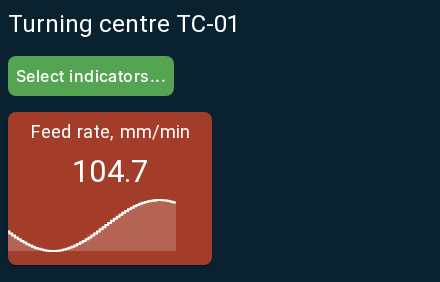
Continuous process parameter monitoring in Indicators of the Operator workplace: the Feed rate, mm/min tile shows the current value 101 and is colored according to the triggered threshold. In this example the upper threshold is 99, and the current value is above it.
Closing a Personal shift and handing over equipment
Before finishing work, check registered output, unfinished Jobs, unclassified Downtime and open Tickets. Pass to the next participant or the Foreman any information required to continue work.
To close a Personal shift, click Shift: in the lower panel. In Close personal shifts, select the shifts on the required Work centers and click Close shift. The list shows the start time of each shift; when its period contains unclassified Downtime, the corresponding count is shown as well. This count helps reveal intervals that still require classification.
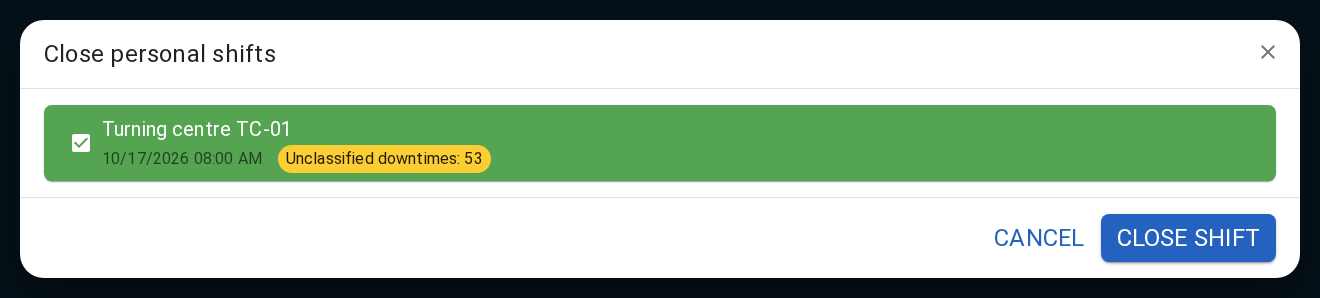
Close personal shifts shows the selected equipment, shift start time and the number of unclassified Downtime intervals during the shift. Close shift ends the Personal shift; the Job state and output are checked separately.
After closing, Open personal shift becomes available again. Check that the shift was closed on the intended equipment; when working on several machines, other shifts can remain open. Tickets, output and Job history are preserved. If the Personal-shift requirement is enabled, a new shift must be opened before further production actions governed by that setting.
3. Foreman workplace: shift, equipment, Operators and requests
The Foreman workplace supports current supervision: seeing equipment and Operators, noticing deviations, handling approval requests and distributing Tickets. A Foreman works not only with one machine but with the entire scope supervised during the shift. The lower navigation lets the same production activity be viewed through Work centers, people, Jobs and events.
Opening a Foreman shift on selected equipment
A permanent Foreman assignment determines the equipment on which a user can act in this role. The Foreman shift defines the current supervision scope inside that assignment. Entering the workplace does not open a shift automatically. If no shifts are open, Work centers shows that the shift is not open and offers Open foreman shift.
To begin supervision:
- Click Open foreman shift. If you already supervise other equipment, use
Foreman shifts → Open selffrom the lower panel of Work centers. - On the opening screen, select the required Work centers. Departments, Groups and List views help find equipment.
- Click Confirm.
- In Open foreman shifts?, check your name and the equipment list, then click Confirm again.
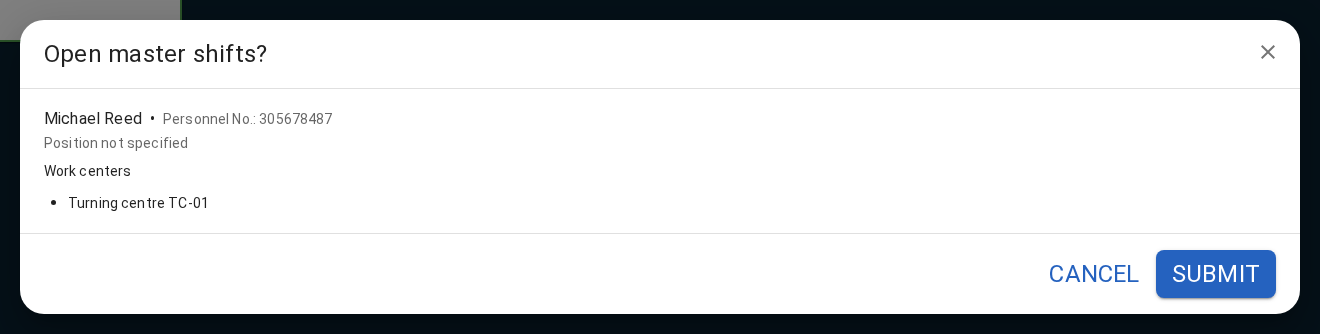
Before opening a Foreman shift, DPA shows the Foreman name and selected Work centers. The final SUBMIT opens supervision on the listed equipment; Operators’ Personal shifts are managed separately.
A separate Foreman shift is opened for every selected Work center. If another Foreman already has a shift open there, opening yours closes the previous one and current supervision passes to you. This differs from Operator joint work, where several Personal shifts can be allowed on one machine.
After the shift is open, Work centers shows the equipment in your current supervision scope. If a machine is missing, first check search and filters, then your open shift and permanent Foreman assignment. The fact that equipment exists in the Enterprise structure does not mean that it belongs to this Foreman’s current supervision scope.
Information on a Work-center card
In Work centers, each card combines the machine state, executing Jobs, planned and actual quantity, Operators with open Personal shifts, the current Foreman and event counters. Click the equipment name to open a detailed view with participants, their shift start times and Job cards.
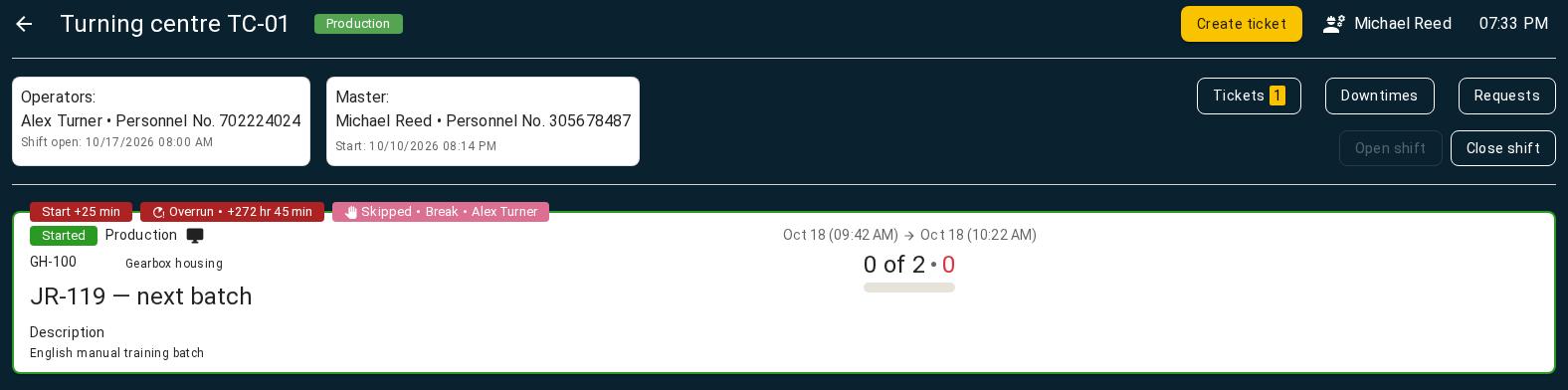
The detailed Work-center view in the Foreman workplace connects participants and their shift start times with the executing Job and actual output. Tickets, Downtimes and Requests open events for this machine; shift-management buttons apply to Operators.
This view supports a simple sequence of checks: who is working at the machine, which Job is executing, what the output counter shows, and what requires intervention. Tickets, Downtime and Requests links next to the participants open events for the selected Work center. The lower-navigation sections with the same names aggregate data across the Foreman’s supervision scope. Before acting, check whether you are viewing the general Work-center list or one specific machine.
The Downtime counter on a card helps reveal unclassified intervals with the start of the Foreman shift taken into account, including ongoing stoppages. It is a prompt for current-shift review, not the total number of all historical stops on that equipment. Highlighting of Tickets that require attention similarly helps reveal a new request or a changed stage; the counter alone does not explain the problem, so open the corresponding list and Ticket card before deciding what to do.
Operators and Jobs
Operators shows people with open Personal shifts on equipment within your supervision scope. This is the current set of working people, not a personnel directory and not the complete list of permanently assigned Operators. A person’s card shows that person’s machines and current production work. Click the name to open the detailed Operator view.
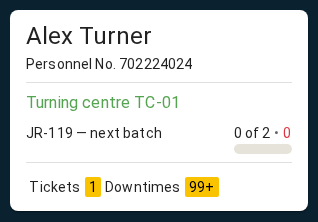
An Operator card in the Foreman workplace: the person, Work center, executing Job and registered output are visible together. The Operator appears in the current list because a Personal shift is open on equipment inside the Foreman’s supervision scope.
One Operator can work on several Work centers. If the person’s card shows a shift outside your supervision scope, that does not give you permission to control it: information visible about a person and the equipment on which you can act as Foreman are not always the same set.
Jobs moves the focus from equipment and people to production work. In a Job card, the Foreman checks state, quantities and progress through Operations. This is a supervision view; the Operator executes the Job, registers output and moves between Operations in the Operator workplace. State filters and the configured loading period must also be taken into account: the Job list in the Foreman workplace is not a complete historical production journal.
Opening and closing Operators’ Personal shifts as Foreman
The Foreman can open and close an Operator’s Personal shift on equipment inside the current supervision scope. This changes the registration of a person’s participation in work; it does not change the state of the production Job.
To open a shift, use Operators → Operator shifts → Open shift. Select the Operator, mark equipment available to that person, and confirm the list in the opening dialog. Available equipment is determined by both the Operator’s assignment and your current supervision scope. Do not select a person merely because the account exists; the person must be assigned as Operator to the required Work center.
If other Operators already have shifts open on the selected machine, this Foreman command closes those shifts and opens a shift for the selected person. It performs an Operator handover even when several Personal shifts are permitted on the machine. For joint work, the Operator opens a new shift in the Operator workplace and chooses COOPERATIVE WORK in the handover dialog.
To close a shift, use Operators → Operator shifts → Close shift, select the required shifts and click Confirm. Before final confirmation, check the names and equipment. The detailed Work-center view also provides Open shift and Close shift actions with Operator selection for that machine.
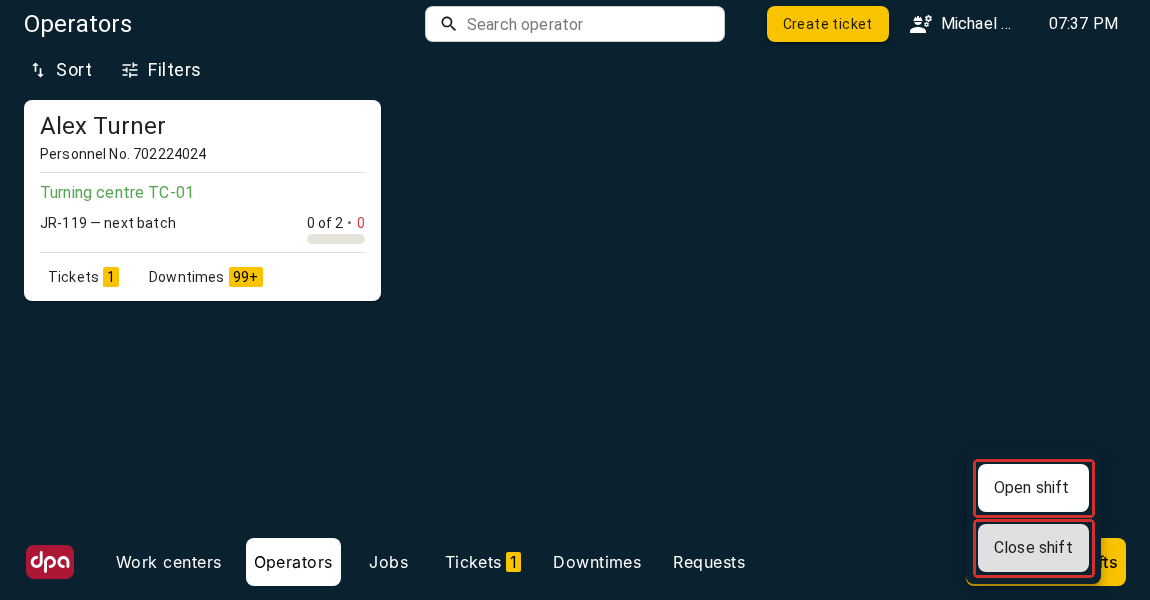
The Operators section of the Foreman workplace shows Operators with open Personal shifts. The red frames highlight Open shift and Close shift in the Operator shifts menu; the required person and equipment are selected on the next screen.
Closing an Operator shift does not complete that person’s Job and does not cancel registered output. Before closing the shift, reconcile the actual work state and the equipment handover. Opening your own Foreman shift likewise does not open an Operator Personal shift for you; these are different kinds of participation.
Requests, Tickets and Downtime
Requests contains Operator actions on Jobs within your supervision scope that are waiting for approval. A request belongs to a particular action, Job and requester. Open it, check the context and click Confirm when the action is approved. Delete request removes the request; it is not approval. The complete approval flow, including the Operator returning to the original action, is described under exceptional Job situations.
Under Tickets, the Foreman acts as dispatcher: check the request, assign a performer from Maintenance staff available for the equipment, and follow the subsequent stages. Assigning a performer, carrying out technical work and the author accepting the result are separate steps. This multi-workplace workflow is covered below; a Job-action approval request is not a substitute for a Ticket.
Under Downtime, the Foreman reviews stoppage intervals and their reasons. When the reason is a technical problem, a Ticket organises work to resolve it, but the Downtime interval still has to be classified separately. Foreman approval, assignment of a Mechanic and specification of the lost-time reason remain separate operations. Finding an interval, choosing a reason and checking the result are described in the manual Downtime-classification section.
Closing a Foreman shift and handing over supervision
Before leaving, check pending Requests, unfinished Jobs, open Tickets and unclassified Downtime. Pass to the next Foreman the information about deviations and agreements that is needed to continue supervision.
Under Work centers, open Foreman shifts → Close shifts on machines.... Select the required equipment, click Confirm, and check the list in Close foreman shifts? before final confirmation. Shifts can be closed on only some machines while supervision continues on the others.
Closing a Foreman shift ends your current supervision on the selected equipment. Operators’ Personal shifts, Jobs and Tickets continue to exist. Signing out or closing the browser tab does not replace the shift-close command.
4. Maintenance workplace: accepting and performing Tickets
The Maintenance workplace helps a Mechanic receive a technical request, investigate the problem, record progress and return the result to the author. The main working object is a Ticket: it preserves the equipment, participants, problem description, messages and action history. The Mechanic continues work on the same request that was created by the Operator or another participant.
Mechanic assignment and available Tickets
Open Maintenance from the Applications menu described in Section 1. The workplace opens Tickets. A Mechanic does not open a separate shift: the working scope is determined by Mechanic assignments to Work centers and by whether that equipment is inside the account’s access scope.
Being assigned as Mechanic to a machine and being selected as performer of a particular Ticket are different relationships. The first defines the equipment scope in the workplace; the second identifies the person responsible for the request. The list can therefore contain Tickets for accessible equipment that are assigned to another performer or have no performer yet. A row appearing in the list does not mean that the work has been assigned to you.
If the workplace reports that no Work centers are assigned, check the account, Mechanic assignment and equipment access scope first. If the list itself is simply empty, also check the active filters and whether matching requests exist.
Finding, filtering and viewing a Ticket
The list shows the Work center, Ticket state, author, performer, group, source and request type, together with creation, completion and required-completion dates. These fields help identify the required request and understand its current stage.
Filters restrict the list by equipment, state, author, performer and other attributes. To focus on work assigned to you, select yourself in Executor and click Apply. When a request appears to be missing, check these conditions as well as the Not closed / All switch. All includes closed Tickets but retains the restrictions of the other filters.
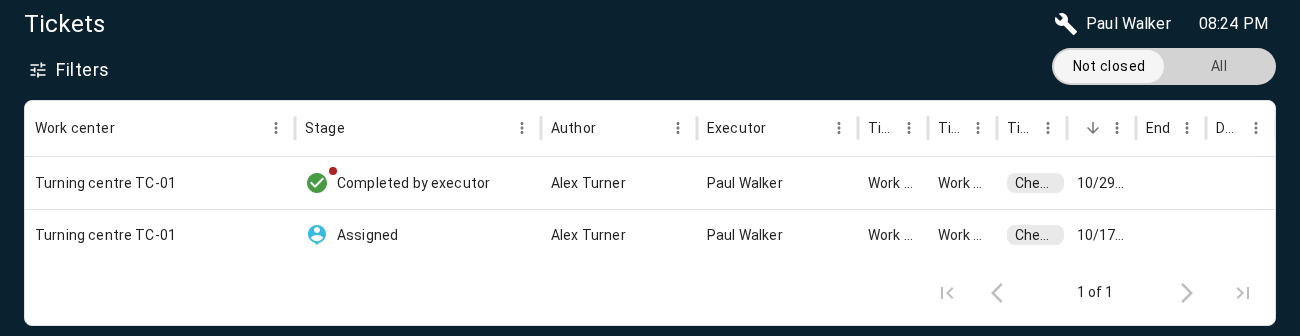
The Tickets list in the Maintenance workplace shows equipment, state, author and performer in the same row. Not closed is selected; a request in Completed by executor state remains there while it waits for the author’s decision.
On a desktop computer, double-click a Ticket row to open View ticket. On a touch device, one tap is sufficient. Before acting, check:
- the Work-center name and request contents;
- who created the Ticket and who is listed as performer;
- the required completion time, when specified;
- participant messages and actions already recorded.
The combination of group, source and type classifies the request, while the specific circumstances are normally described in the messages. For example, the type Check alone does not tell the Mechanic which unit must be checked. Production stop, when present, indicates the problem’s production impact; it is not a machine-control command.
Accepting a Ticket as performer
If you are the assigned performer and are ready to take the work, click ACCEPT under Actions. The history records Accepted by executor. This accepts the assignment; the beginning of actual work is recorded separately.
ASSIGN opens performer selection. It does not replace ACCEPT: choosing a person and that person agreeing to perform the request are separate actions. If no performer is assigned or the request needs to be transferred to someone else, use assignment according to the adopted work-distribution process. Check the selected performer before confirming; available candidates depend on the equipment. The Ticket performer can be changed while the Ticket remains in Assigned to executor state.
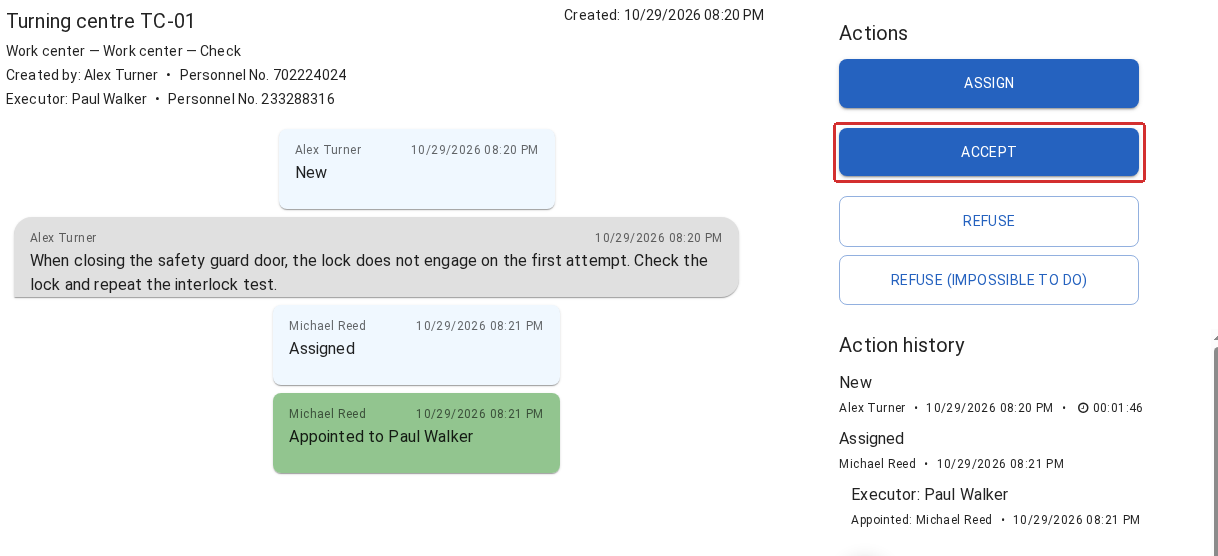
An assigned Ticket is open under a Mechanic account. The description and participants are on the left, actions on the right. The red frame highlights ACCEPT: this records acceptance of the assignment; actual work starts with START EXECUTION.
The available commands depend on the Ticket state and your role in it. Viewing another person’s request does not allow you to accept or complete it on behalf of the assigned performer. If an expected command is absent, first check the performer and the history, then identify which stage the Ticket is in and which participant is expected to act next.
Starting, performing and completing Ticket work
After accepting the assignment, click START EXECUTION when actual work begins. The state changes to Executing. This records the start of the performer’s work on the Ticket; it does not start a production Job and does not change the equipment state by itself.
During the work, preserve significant details in messages: what was found, which actions were performed, what prevents further progress, and what is required from other participants. Enter a message at the bottom of the window and send it with the arrow button on the right or with Enter. Use Ctrl+Enter for a line break inside the message. Sending text and changing the Ticket state are separate actions: a message saying that work is complete does not move the Ticket to the next stage.
When the work is finished:
- Record what was done, how the result was checked and which limitations remain.
- Send the message and confirm that it appears in the conversation.
- Click COMPLETE EXECUTION.
- Check that Completed by executor appears in the action history.
The result now waits for a decision by the Ticket author. The Mechanic having no further action buttons does not mean that the request is finally closed: the author must still accept or reject the completed work. Until then, the Ticket remains in Not closed.
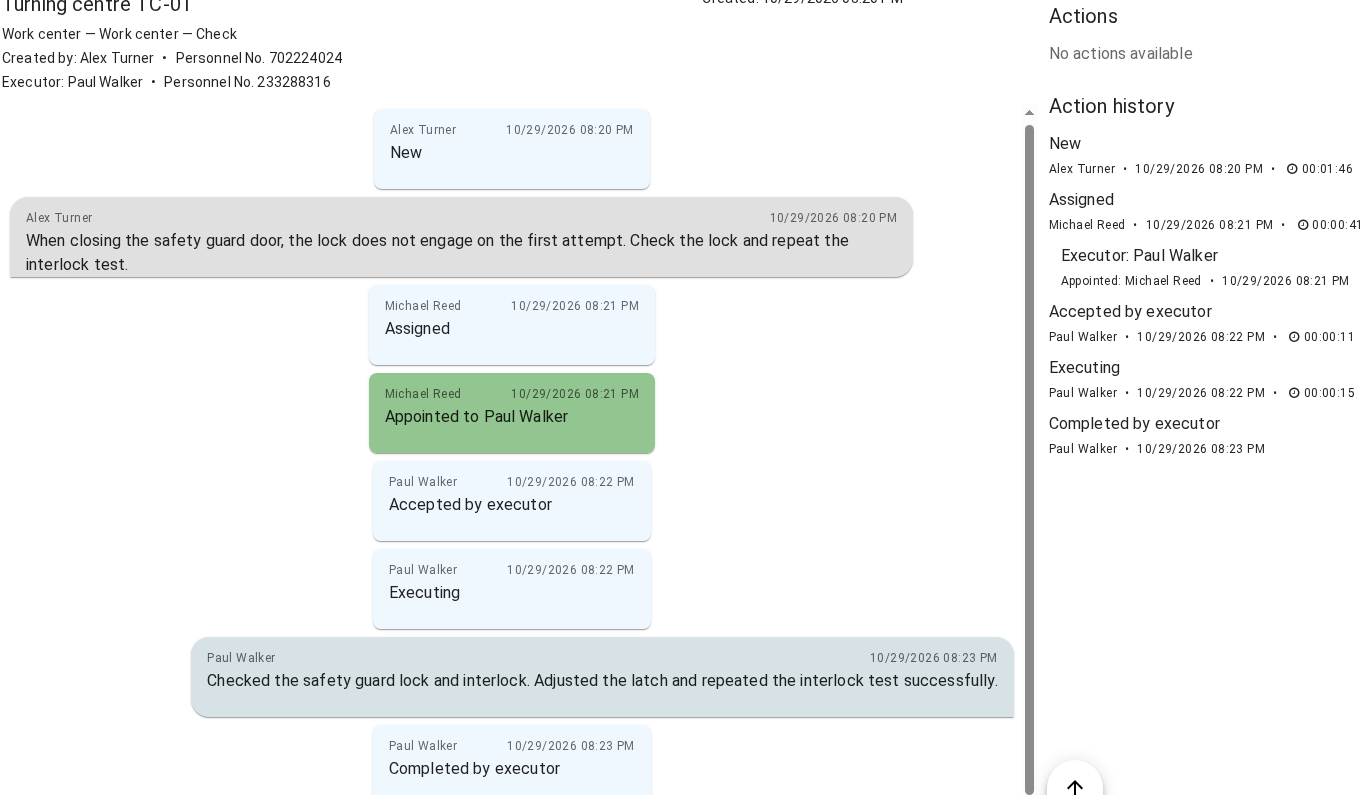
The Mechanic recorded the result and clicked COMPLETE EXECUTION. Completed by executor appeared in the conversation and action history. No actions available applies to the current participant: the Ticket itself is not yet closed and still waits for the author’s decision.
Action history shows the sequence of stages, assignments, participants and action times. The conversation preserves explanations for those events. Use both when handing over the result: Completed by executor identifies the stage, while the message explains what was actually done.
Performer refusal of an assigned Ticket
At the Assigned to executor stage, the performer has two different refusal actions:
| Command | When to use it |
|---|---|
| REFUSE | You do not accept the assigned work; for example, another specialist is required |
| REFUSE (IMPOSSIBLE TO DO) | The request cannot be completed; for example, a required spare part is unavailable |
Before using either command, enter the reason in the message field. The command stores that explanation together with the refusal. Both outcomes close the Ticket with the corresponding result; they do not pause it until another performer or spare part becomes available. To find such a request later, switch to All while taking the other filters into account.
After the assignment has been accepted, these refusal commands are no longer offered. If an obstacle appears during execution, describe it in the conversation and agree the next step with the Foreman and author. Do not mark work complete merely to remove it from the current list: COMPLETE EXECUTION states that the result is ready.
Checking the Ticket after handing over the result
Before ending your work, make sure important information is stored in the Ticket, its state matches the actual situation, and the next participant knows what is expected. Closing the window or leaving the workplace does not change the request stage.
Author acceptance, author rejection, performer refusal and impossibility of completion are different outcomes. A closed request can be found under All and its history remains available; closure does not delete the execution information. Do not assume that author rejection automatically returns a Ticket to the Mechanic in Executing state.
The author or Foreman can also cancel an open Ticket when the action is available. Cancellation closes the request; it does not mean that the work was successfully completed.
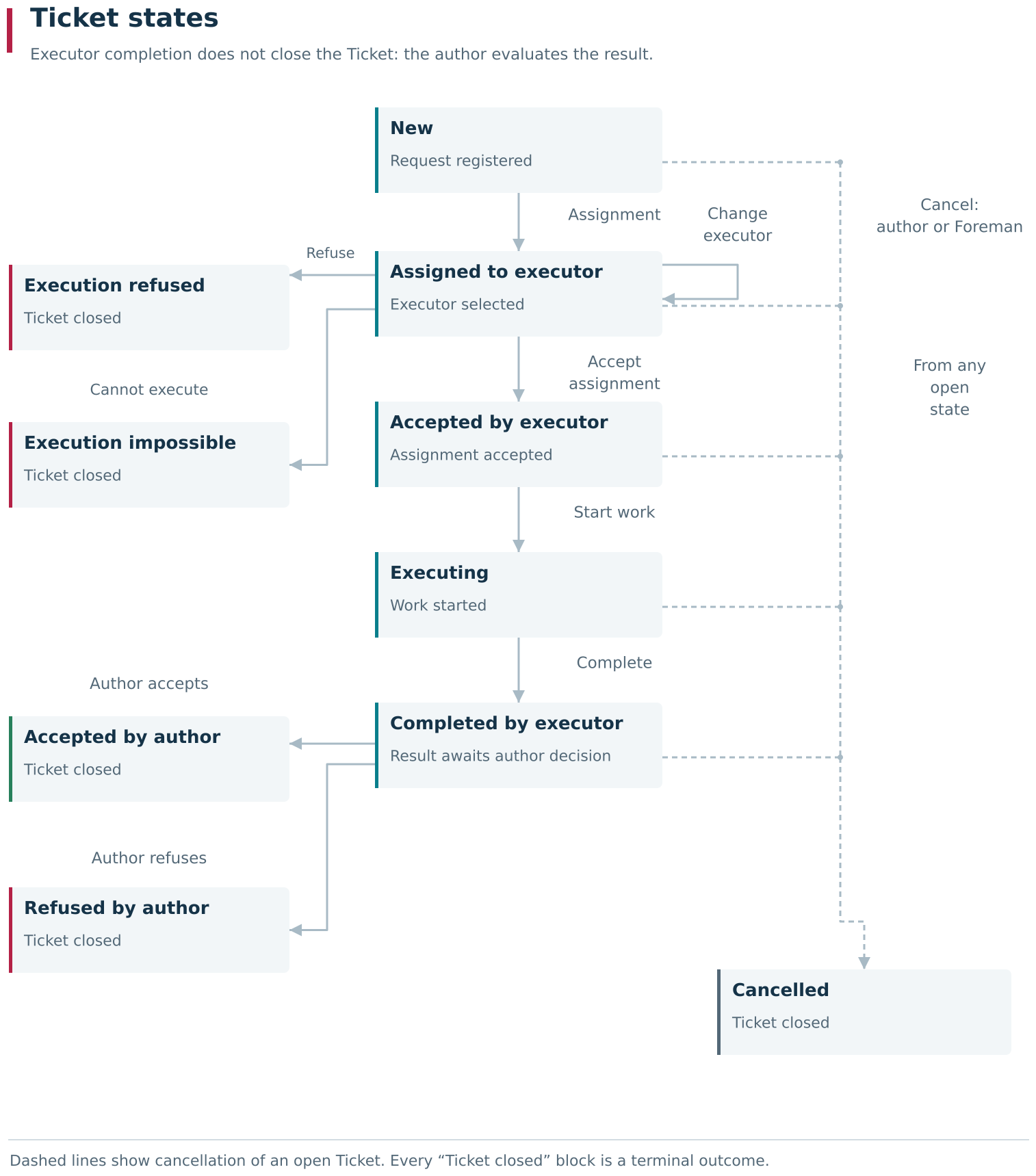
The main Ticket transitions are assignment, performer acceptance, execution and the author’s decision. Performer refusal and inability to perform are available before assignment acceptance; both outcomes close the request. Dashed lines group cancellation by the author or Foreman from any open state. Closed outcomes do not automatically return to execution.
Working with a Ticket does not replace Downtime classification or maintenance-Job records. Those objects capture different aspects of equipment work. The following sections connect the participants’ actions into one process and clarify the boundaries between these objects.
5. Role interaction during Job execution and Ticket processing
An Operator, Foreman and Mechanic can all be involved in work on the same Work center, but they hand over different tasks to one another. While executing a Job, the Operator may need the Foreman’s decision about a particular action. When a technical problem occurs, the participants work through a Ticket: from describing the problem and assigning a performer to completing the work and accepting its result.
In both processes, it is important to understand who is expected to act next. After the Foreman approves a production action, the Operator continues it. After a Ticket reaches Completed by executor, its result is checked by the Ticket author. Neither event by itself means that the entire process is complete.
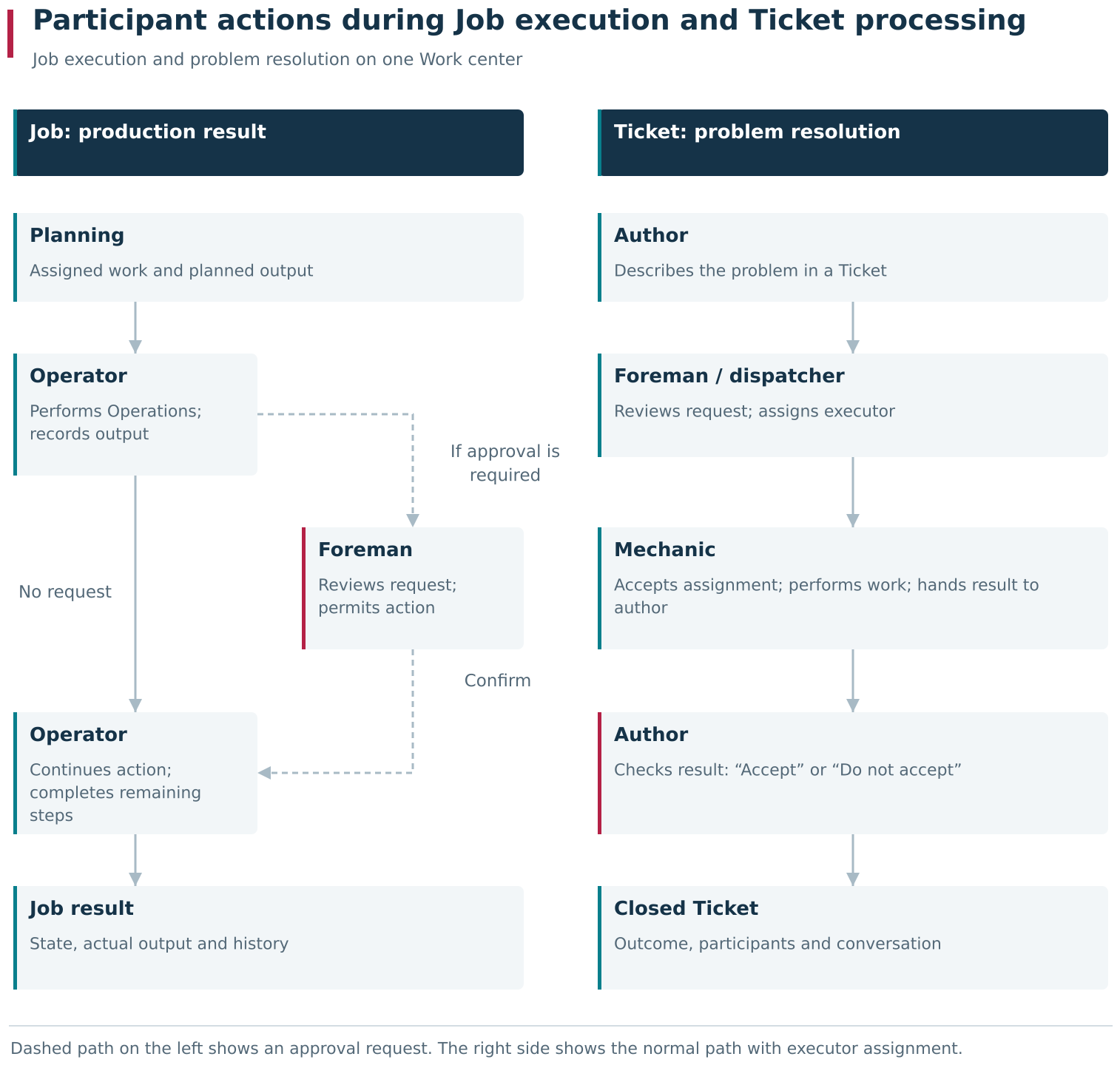
In the production workflow, the Operator continues the action after the Foreman’s decision; in the Ticket workflow, the Ticket author checks and accepts the result. The dashed branch shows the approval path, which is required only when the corresponding checks are enabled. On the right is the usual request-distribution sequence; a performer can already be selected when the Ticket is created.
Operator and Foreman actions during Job execution
Planning determines what must be produced and on which equipment. The Operator finds the assigned Job, checks the Work center and start conditions, performs the Operations and records actual output. The Foreman monitors the same production work within the current supervision scope. When execution proceeds normally, a separate Foreman approval is not required for every action.
With the corresponding checks enabled, a Foreman decision is required for a specific deviation: for example, completing a Job with underproduction or overproduction, starting work out of sequence, or skipping a Job. In this case, the participants act in sequence:
- The Operator starts the required action from the Job card. DPA opens Action confirmation and creates a request for the Foreman.
- The Foreman opens Requests in the workplace and checks the equipment, author, Job and action type. If the action is approved, the Foreman clicks Confirm.
- The Operator receives Foreman confirmed request, clicks Continue and completes the remaining steps. For example, when completing with underproduction, a reason may also be required.
- The Operator checks the final Job state, actual output and information about the completed action in its history.

A request in Foreman workstation → Requests identifies the Work center, action, author, Job and time. The Foreman’s decision allows the Operator to continue the original action; the decision alone does not start or complete the Job.
The Foreman’s decision permits the particular action with a deviation. It does not register output, perform the remaining steps for the Operator, or cancel the other conditions of the action. The request does not become an independent Job stage: until completion is actually performed, the Job remains running. The individual deviation cases and their settings are described in Section 6 of Chapter 5.
Creating a Ticket for a technical problem
When a problem needs to be organised for resolution, create a Ticket. In the Operator workplace, select the required Work center, open Tickets and click Create ticket. In the creation window, select Ticket type, enter a Comment and click Create. In the type selector, the group and source help locate the required option; check the complete selected path because the same type name may occur under different sources.
Describe the observed problem so that the next participant can begin investigating it: identify the affected unit, what happened, under which circumstances it was noticed, and what needs to be checked or done. For example, the type Check is not sufficient on its own if the actual problem is that the guard-door lock does not engage on the first attempt. Do not reduce the request to a generic message such as “the machine does not work”.
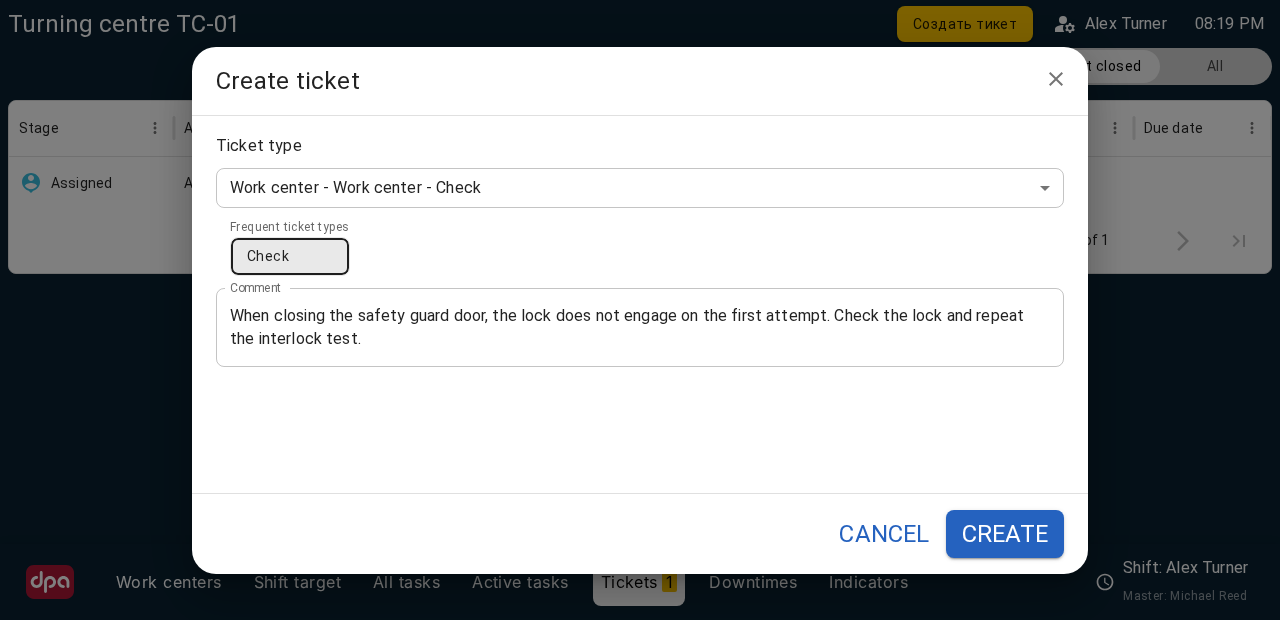
In Operator workplace → Tickets, a request is created for the selected Work center. The Check type is supplemented with a specific problem description in Comment, so the next participant understands which unit is affected and what must be checked.
The Ticket equipment is determined by the selected Work center. After creating the request, open the Ticket and check its contents and author: the author is the participant who will later accept the result. A Foreman can also create a request from the Foreman workplace; that form additionally allows the Work center, performer and required completion time to be selected, and Production stop to be specified when appropriate. This flag describes the circumstances of the problem; it does not stop the equipment.
Assigning a Ticket performer
The Foreman finds the required Ticket under Tickets for the supervision scope, reads the description and checks the equipment. In View ticket, ASSIGN opens performer selection. Select the required employee and confirm with ASSIGN. The candidates are Mechanics assigned to the Ticket’s Work center.
The performer assignment is recorded in the history of the same Ticket. The Mechanic then accepts the assignment, records the start of work, saves information about what was done and hands the result back to the author. These actions and the refusal outcomes are described in Section 4. While a request has been assigned but not yet accepted by the performer, it can be reassigned. Once execution has started, do not assume that the same command can simply switch the performer; first agree the next step with the participants.
Foreman assignment is the normal way to distribute work in this process, but it is not a mandatory separate action for every request. For example, the Foreman may select a performer when creating the Ticket. Follow the current assignment and available commands rather than repeating assignment merely to reproduce every possible step in the lifecycle.
Accepting or rejecting the result as Ticket author
When the Mechanic clicks COMPLETE EXECUTION, the Ticket reaches Completed by executor and remains open. The author must return to the request, read the performer’s message, check the actual result and make a decision. If the author is the Operator, the request can be opened under Tickets for the corresponding Work center.
Under Actions, the author can use ACCEPT or REFUSE TO ACCEPT. At this stage, ACCEPT means accepting the work result; the button with the same label at the earlier Mechanic stage means accepting the assignment. The current participant and Action history show which meaning applies.
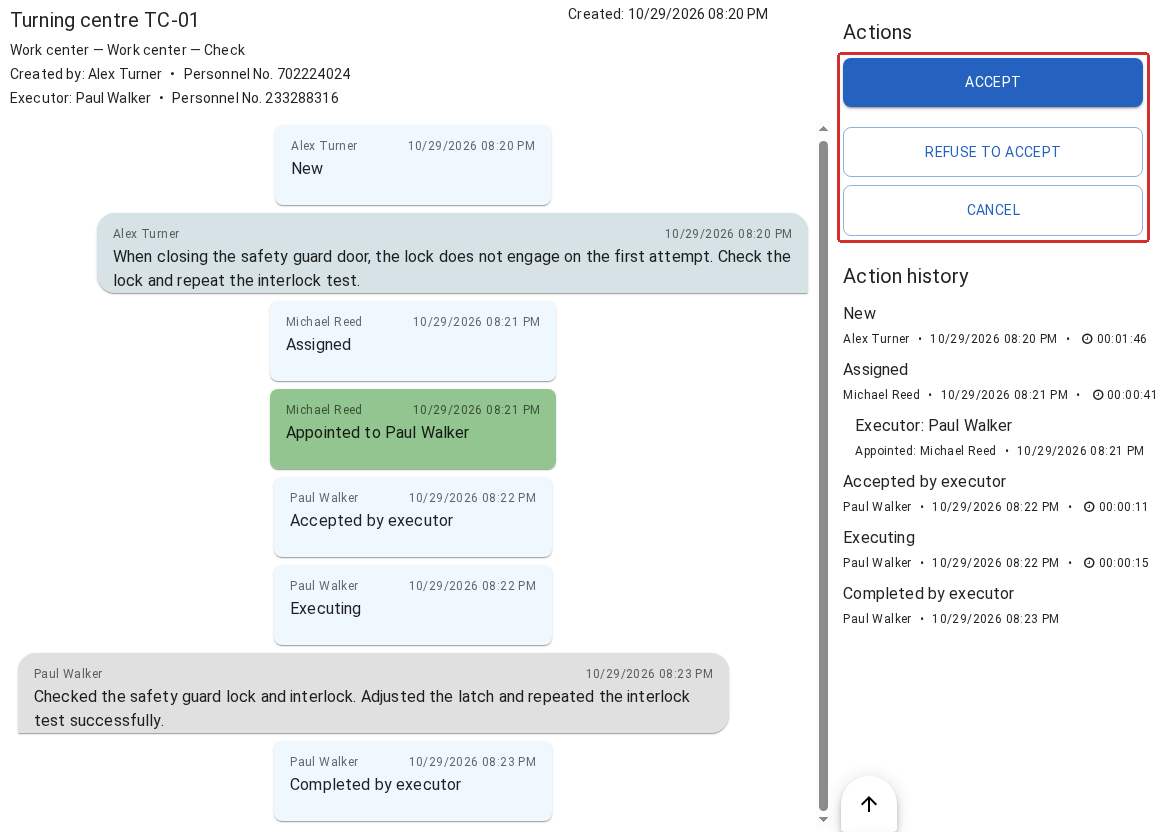
The author has opened the Ticket after the Mechanic handed over the result: Completed by executor is already present in the history, and acceptance decisions are available on the right. The outline highlights the author’s action area; ACCEPT here applies to the work result, while REFUSE TO ACCEPT closes the request with an author rejection.
If the result is satisfactory, click ACCEPT. Accepted by author appears in the history, and the window reports Ticket closed. The request disappears from Not closed; it remains available together with its history under All.
If the result is not satisfactory, enter the reason in the message field and click REFUSE TO ACCEPT. The command stores the explanation and closes the request as Refused by author. It does not automatically return the Ticket to the Mechanic in Executing state. Agree with the Foreman and performer how the remaining problem will be handled; the closed Ticket preserves what was already done and why the result was rejected.
The request author accepts the result. Having the Foreman or Mechanic production role does not by itself allow one participant to accept another author’s result. If the expected commands are missing, check the current account, the author and the Ticket stage.
Relating Job execution to Ticket work
Suppose a technical problem prevents a production batch from being completed in full. A Ticket is created to organise resolution of the problem and is handed to a performer. If the production Job is to be completed with a lower actual output, the Operator separately goes through the configured completion checks, obtains Foreman approval and specifies an underproduction reason when required by the settings.
| What must be recorded | Where to continue the work |
|---|---|
| How much was produced and what happened to the production plan | Job output, state and history |
| Whether a particular action with a deviation is permitted | Foreman request, followed by the Operator continuing the action |
| Who is resolving the problem, what was done and whether the result was accepted | Ticket assignment, messages and stages |
Closing a Ticket does not complete or resume the production Job. Confirming a Foreman request does not assign a Mechanic and does not mean that the technical problem has been resolved. When handing work over, identify the specific object and the expected next action: “Job completion is approved; the Operator continues” or “the Ticket result has been handed to the author for acceptance”.
6. Purpose and relationships of Tickets, Downtimes, and Maintenance Jobs
On one Work center, the same technical problem may appear at the same time in a Ticket conversation, in equipment-stop history and in the maintenance plan. These records help analyse the same production situation, but they answer different questions.
| Object | What it records |
|---|---|
| Ticket | The problem, performer, conversation and author’s decision |
| Downtime | An equipment-stop interval and its reason |
| Maintenance Job | Planned maintenance dates and actual execution |
The Foreman sees Tickets and unclassified Downtimes near each other because both lists may require attention during the shift. A common Work center and close event times help correlate the circumstances. They do not create an automatic relationship between a particular Ticket and a particular Downtime interval.
The Production stop flag in a Ticket
Production stop in a Ticket indicates that the request is associated with a production stop. It helps participants assess the situation when reviewing and distributing requests. Setting this flag does not send a stop command to the machine, create a Downtime, or assign a Downtime reason.
The start and end of a Downtime are determined from equipment-state history. Ticket creation and closure dates belong to the request workflow. For example, a Ticket may be created after a stop has already begun and its result may be accepted later, after the equipment is operating again. The time for which a Ticket remains open therefore cannot be used as the machine-stop duration.
For the same reason, a Ticket entering Executing does not start a Downtime interval, and Completed by executor or Accepted by author does not end one. Several stops may relate to one problem being discussed, while one long Downtime may include waiting for a specialist, the repair itself and other circumstances that must be distinguished when classifying the time.
Classifying Downtime when a Ticket exists
Under Downtime, the Operator or Foreman reviews intervals for the selected equipment and assigns reasons for lost time within the actions available to that participant.
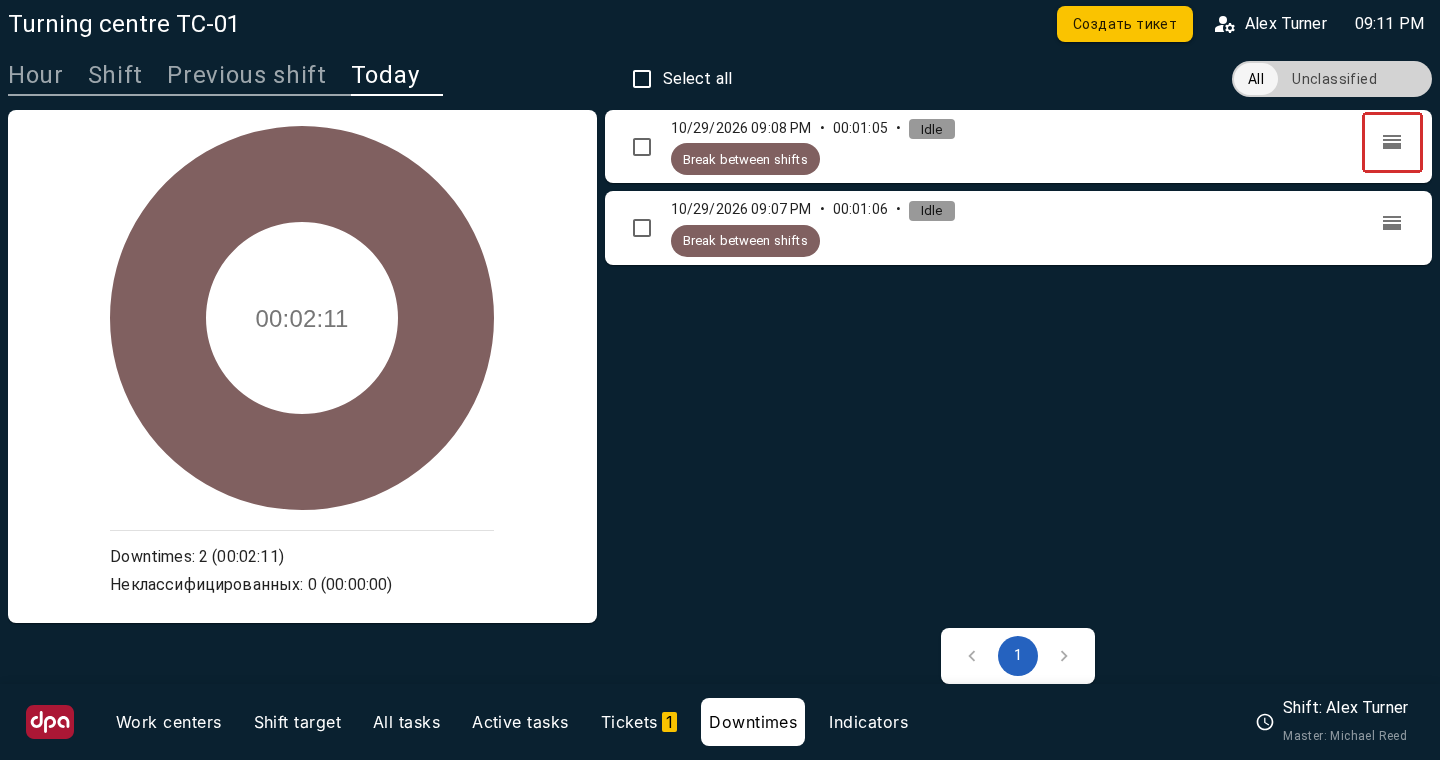
The Downtime area in the Operator workplace: individual intervals with start time, duration and assigned reason are shown on the right, with a summary for the selected period on the left. All includes already classified intervals. The outlined Split downtime button opens the form for splitting the selected interval.
In a Ticket, participants describe the problem, distribute the work and accept its result. A message such as “waiting for a spare part” preserves useful context in the request, but it does not by itself classify the corresponding Downtime interval.
Before handing work to the next participant, check both the Ticket and Downtime records: whether the Ticket stage matches the actual progress of the work and whether the stop intervals have been classified. A closed Ticket can coexist with unclassified time; likewise, an assigned Downtime reason does not mean that the request has been completed and accepted by its author. Manual Downtime classification is described in Section 6 of Chapter 10.
Using a Maintenance Job for automatic Downtime classification
A Maintenance Job is a separate Job for equipment maintenance or repair. It has its own planned dates and actual execution. Assigning a Ticket performer, starting Ticket work or handing over its result does not automatically create or start a Maintenance Job. When an organisation uses both objects, they are managed according to the adopted planning and execution process.
A Maintenance Job has a separate connection to stop classification. On the Auto-classification of downtime tab in the enterprise structure, automatic classification of Downtimes during Maintenance Job execution can be enabled. Check the effective setting for the required Work center, including inheritance from its parent element.
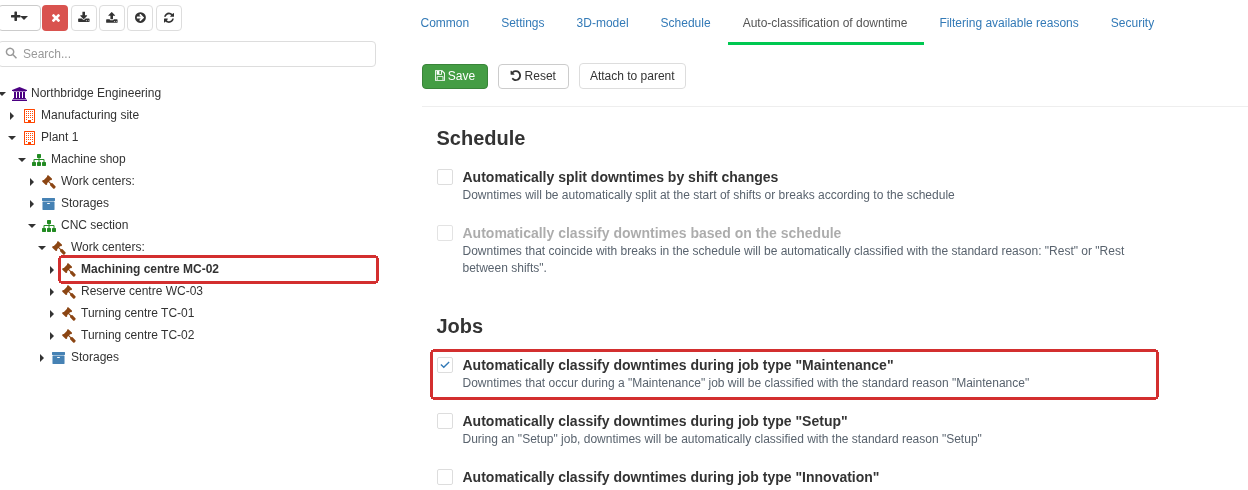
On the Auto-classification of downtime tab for the selected Work center, classification during execution of a Maintenance Job is enabled. The setting applies to actual Job execution; an open Ticket does not trigger it by itself. If the settings are inherited, check their source on the same tab.
When the setting is enabled, eligible portions of Downtime that overlap the actual execution of a Maintenance Job can receive the system reason Maintenance. DPA uses actual Job execution, not merely the Job’s presence in a plan and not the period for which a Ticket is open. When the setting is disabled, starting a Maintenance Job does not by itself assign this reason; the other classification rules continue to apply.
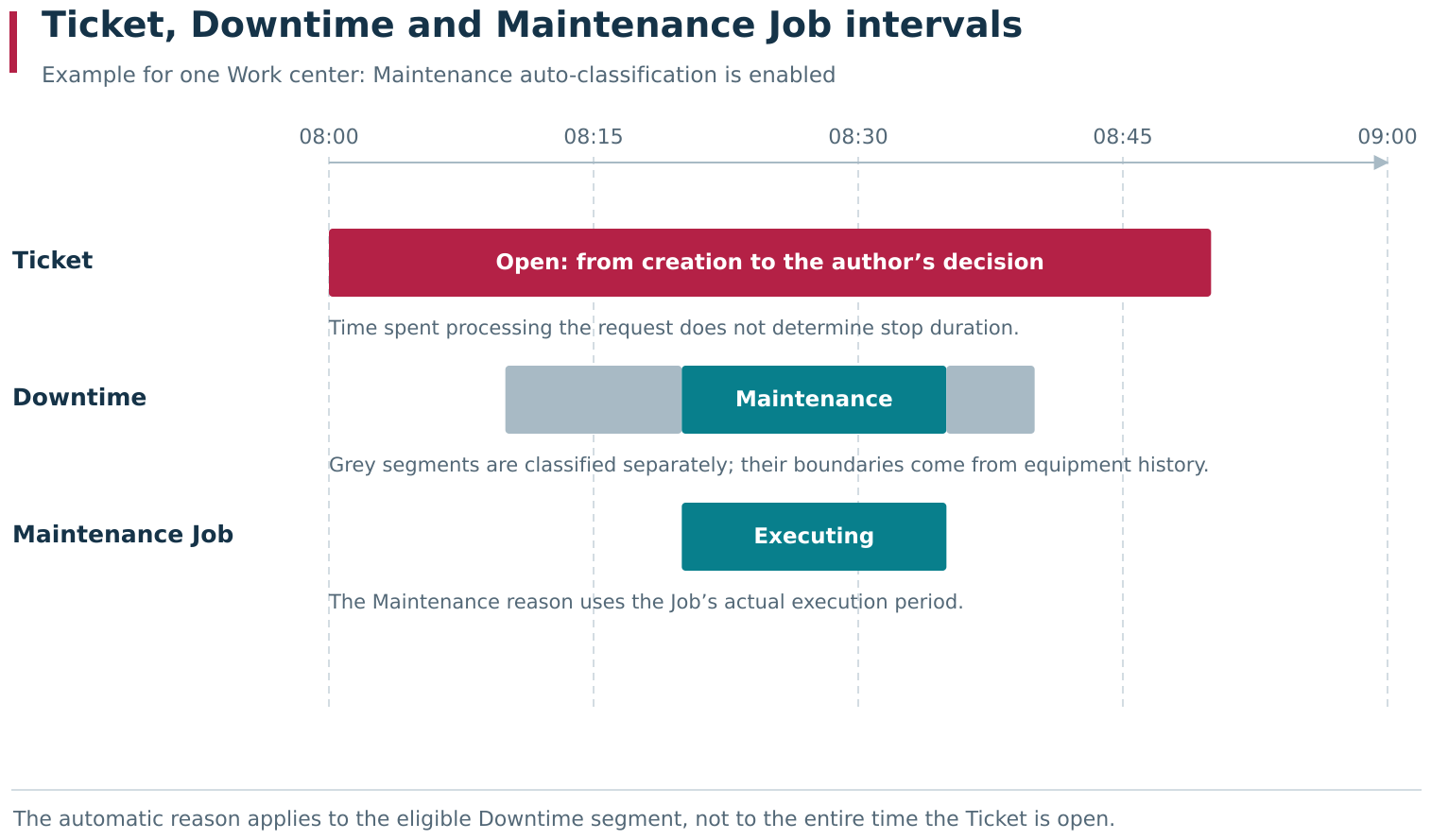
Illustrative example: the Ticket, Downtime and actual execution of a Maintenance Job have different boundaries. With automatic classification enabled, an eligible stop interval during Job execution receives the Maintenance reason. Time before and after the repair is classified separately.
Automatic classification works with eligible machine states and respects reasons that have already been assigned. For example, a reason explicitly entered by a user is not overwritten when a Maintenance Job starts. If the equipment is in Production at that moment, starting the Maintenance Job alone does not turn the period into Downtime. Check the result in equipment history rather than inferring it from the Job state alone.
Checking the Ticket, Downtime, and Maintenance Job together
Suppose equipment stops because of a fault. The Operator creates a Ticket, the Foreman assigns a Mechanic, and the repair is also recorded separately as a Maintenance Job. After the fault has been resolved, check:
- in the Ticket — the performer’s message, the stage and the author’s decision on the result;
- in equipment history — the actual stop intervals and their reasons, including waiting time before the repair and time after it;
- in the Maintenance Job — actual execution and completion;
- in the production Job — whether work can continue, its state and recorded output.
Do not extend one reason over the entire time for which the Ticket is open merely because the request concerns a repair. Likewise, do not assume that production has resumed simply because the Mechanic marked the result as ready: equipment state, the production Job and acceptance of the request are checked separately.
Participant actions in the workplaces are stored in the history of the corresponding objects. Their use for observation and analysis is described in Chapter 8.
← Chapter 5. Production planning and execution · Contents · Chapter 7. Connectivity and external interfaces →