← Chapter 4. Production preparation and control programs · Contents · Chapter 6. Workplaces: Operator, Foreman and Maintenance →
What this chapter covers
A prepared Technology answers the question “How can this Product be made?”, but it does not yet create production demand or assign work to the shop floor. To move from preparation to execution, DPA has to connect four different kinds of information:
- what must be produced, in what quantity and by what deadline;
- which specific producible items are required for that output;
- how much of each item must be provided;
- which Jobs will perform the work.
This connection is formed by Production orders, Work orders and quantity allocations between Work orders and Jobs. Planning then adds dates, equipment, performers and shift context; execution adds the actual result. When a plan changes, keep two boundaries in mind: changing demand does not always update lower-level objects that already exist, and allocating quantity to a Job does not by itself assign that Job to a machine.
1. Production order, Work order and Job
Purpose of the Production order, Work order and Job
A production requirement is represented by several related objects rather than one large card:
| Object | Question it answers | What it fixes |
|---|---|---|
| Production order | What must be produced, and by what deadline? | The Product as a whole, quantity, deadline, ERP-order details and comment |
| Work order | Which specific producible item must be provided? | Product version, Technology version, quantity and dependencies on other Work orders |
| Job | Which work can be scheduled and handed over for execution? | Product version, a stage of a particular Technology version, quantity and assignment context |
There is one more entity between a Work order and a Job: a quantity allocation. It answers the question “What part of this Work order is covered by this Job?” There is no separate top-level application for these allocations. They are created and viewed on tabs in Work-order and Job cards.
The basic chain is:
Production order → Work orders → quantity allocation → Jobs
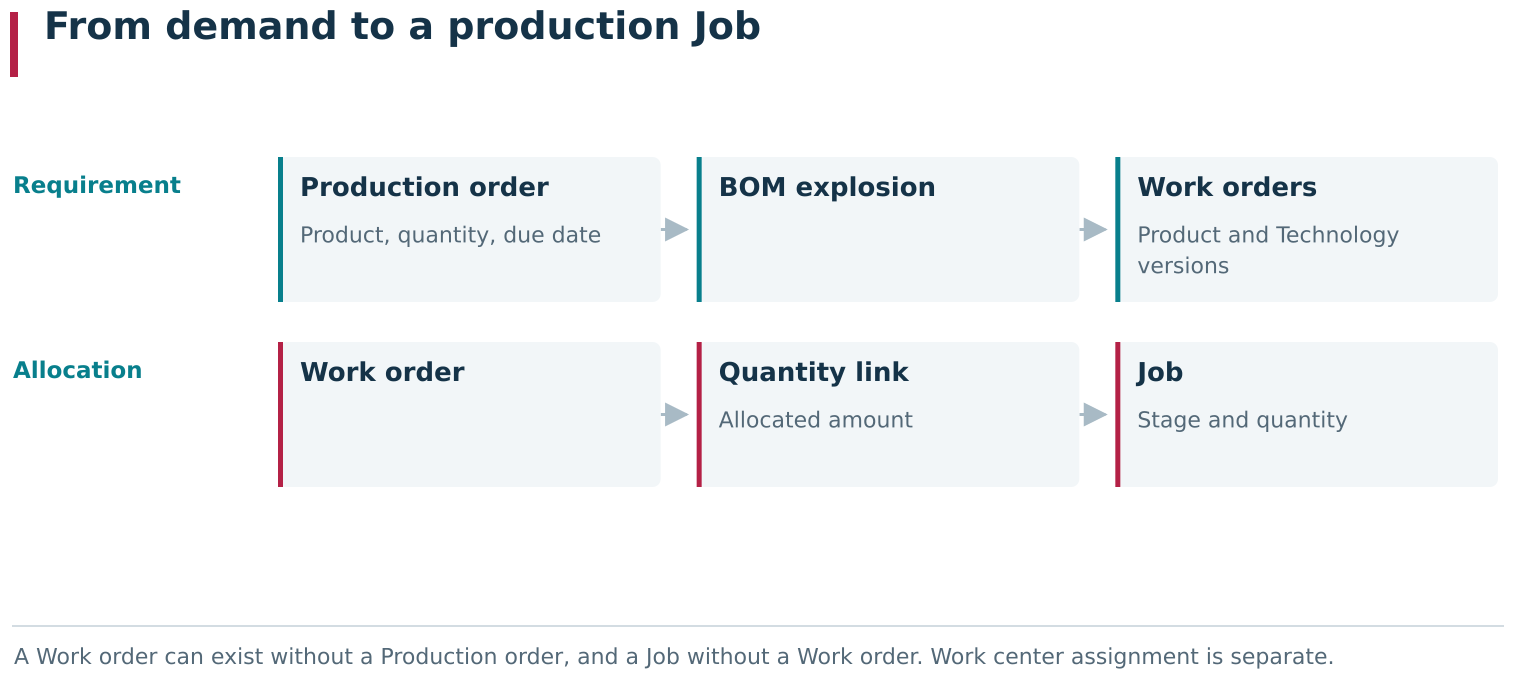
Production planning uses several independent objects: a Production order records demand at Product level, a Work order selects specific Product and Technology versions, and quantity allocation links that volume to one or more Jobs. These upper relationships are optional: a Work order can exist without a Production order, and a Job without a Work order.
This chain connects demand with execution; it is not a mandatory hierarchy for every object. A Work order can exist without a Production order, and a Job can exist without a Work order. This independence is useful, for example, for standalone production work that has not yet been included in a common order, or for planning directly from a known Technology stage.
All objects and relationships in the chain can be created manually. The procedure below first describes manual creation. BOM explosion is an additional way to prepare Work orders and their dependencies automatically; it is covered after the main workflow.
Creating a Production order
Production demand starts in Planning → Production orders. The main list is an interactive table. A Production-order card contains Name, Product, Quantity, Deadline, ERP order, ERP order details and Comment. The table shows the result in Name, Product, Quantity, ERP order details, ERP order, Deadline, Status and Note columns.
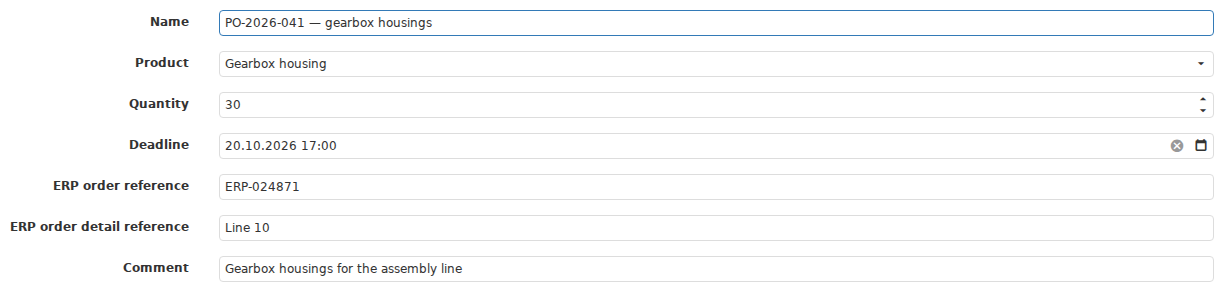
The Production order card records the overall product requirement: Name, Product, Quantity, Deadline, ERP fields and a comment. Specific Product and Technology versions are selected later in the related Work orders.
Here Product means the Product as a whole, not one of its versions. The Production order therefore describes the business demand but does not yet select a particular production variant. The Product version and Technology version are chosen in the Work orders created for this demand.
A new Production order has New status. Saving the card does not by itself create Work orders, Jobs or equipment assignments. The downstream structure can be created manually or prepared with BOM explosion.
Creating a Work order and linking it to a Production order
For the manual route, open Planning → Work orders. The main list is an interactive table. Create a new Work order. The form contains Name, Production order, Product version, Technology version, Quantity and Comment.
In Production order, select the Production order created earlier. This includes the Work order in that demand. Then select a particular Product version and Technology version and enter the quantity. One Production order can contain as many Work orders as the plan requires. For example, an overall requirement for 100 products can be split into Work orders for 40 and 60. Each Work order stores its own quantity, Product version and Technology version, so different portions of one Production order can use different valid product and technology versions when required.
If one Work order depends on the output of another, open its card and configure Depends of on the Data tab. The link to a Production order and the dependency between Work orders have different meanings:
- Production order groups Work orders under the same demand;
- Depends of defines relationships between the Work orders themselves.
Unlike a Production order, a Work order already refers to a particular Product version and Technology version. At this level you can see how much of the selected production variant must be covered by Jobs.
Production order is optional. To represent standalone demand, leave it empty and specify only the Product version, Technology version, quantity and other details. Such a Work order participates in allocation to Jobs in the same way as one linked to a Production order.
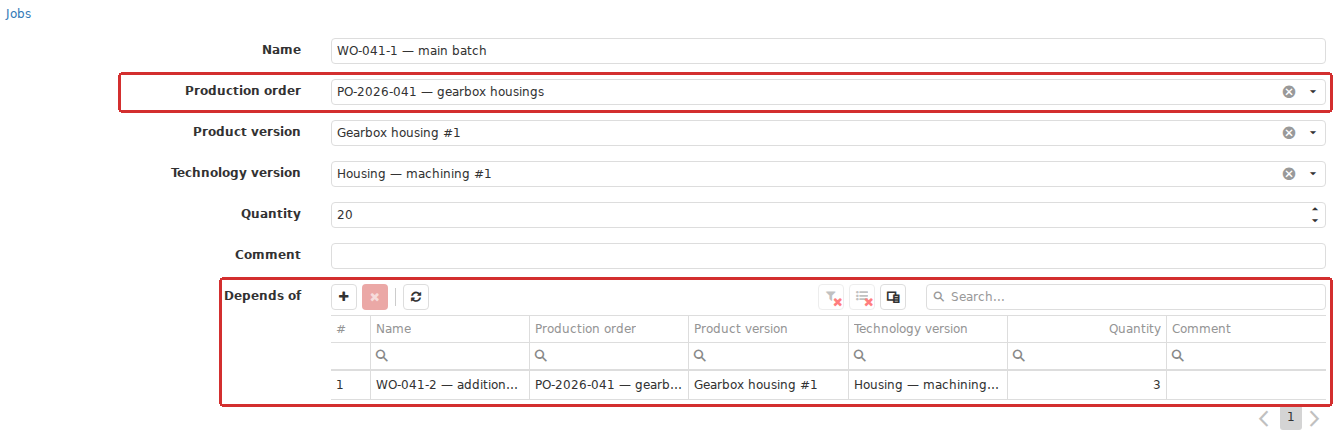
The Work order card shows both its Production order and its technological dependency on another Work order under Depends of. It also fixes the Product version, Technology version and quantity: the specific production variant that Jobs must fulfill.
Creating a production Job for a Technology stage
Jobs are under Planning → Jobs; the main list is an interactive table. For normal Technology-based production, choose Production in Job type. Job is the free-form name of the new Job, not a reference to another object. Then specify Product version, Technology version, Stage and Quantity. A Job therefore identifies both the production result and the stage that must be performed.
A Work order is not selected when a Job is created. First save an independent Job; the quantity relationship between the Job and Work order is created separately. This allows one Work order to be covered by several Jobs, and the available quantity of one Job to be allocated among several Work orders.
Under Assigned to, leave Not assigned or choose a Job pool, Work center or Some work centers. An unassigned Job without planned dates can be saved; it appears in the list with Created status.
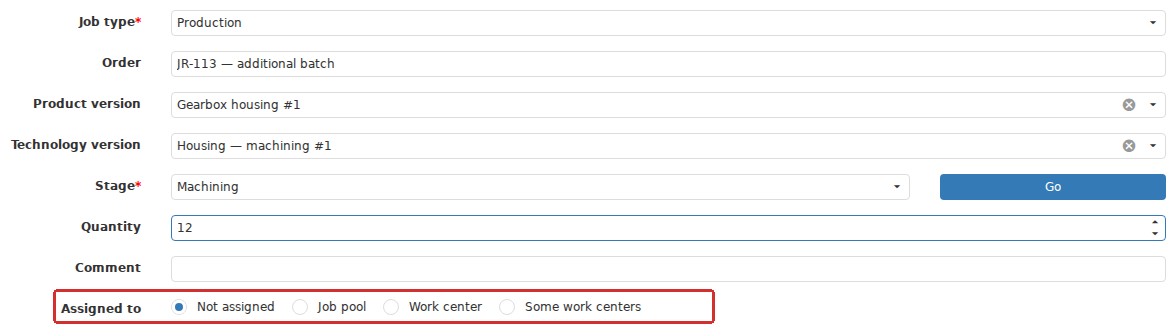
A production Job is created for a particular Stage of the selected Technology version. Its assignment method is configured separately, for example Unassigned, Job pool, Work center or Multiple work centers. This choice does not replace quantity allocation to Work orders.
This gives two independent operations:
- allocation links a quantity of the Work order to a Job;
- assignment determines where, or in which pool, the Job can be executed.
An allocation does not mean that the Job is already assigned to a Work center, placed on a schedule or ready to start. Those decisions are covered in the following sections.
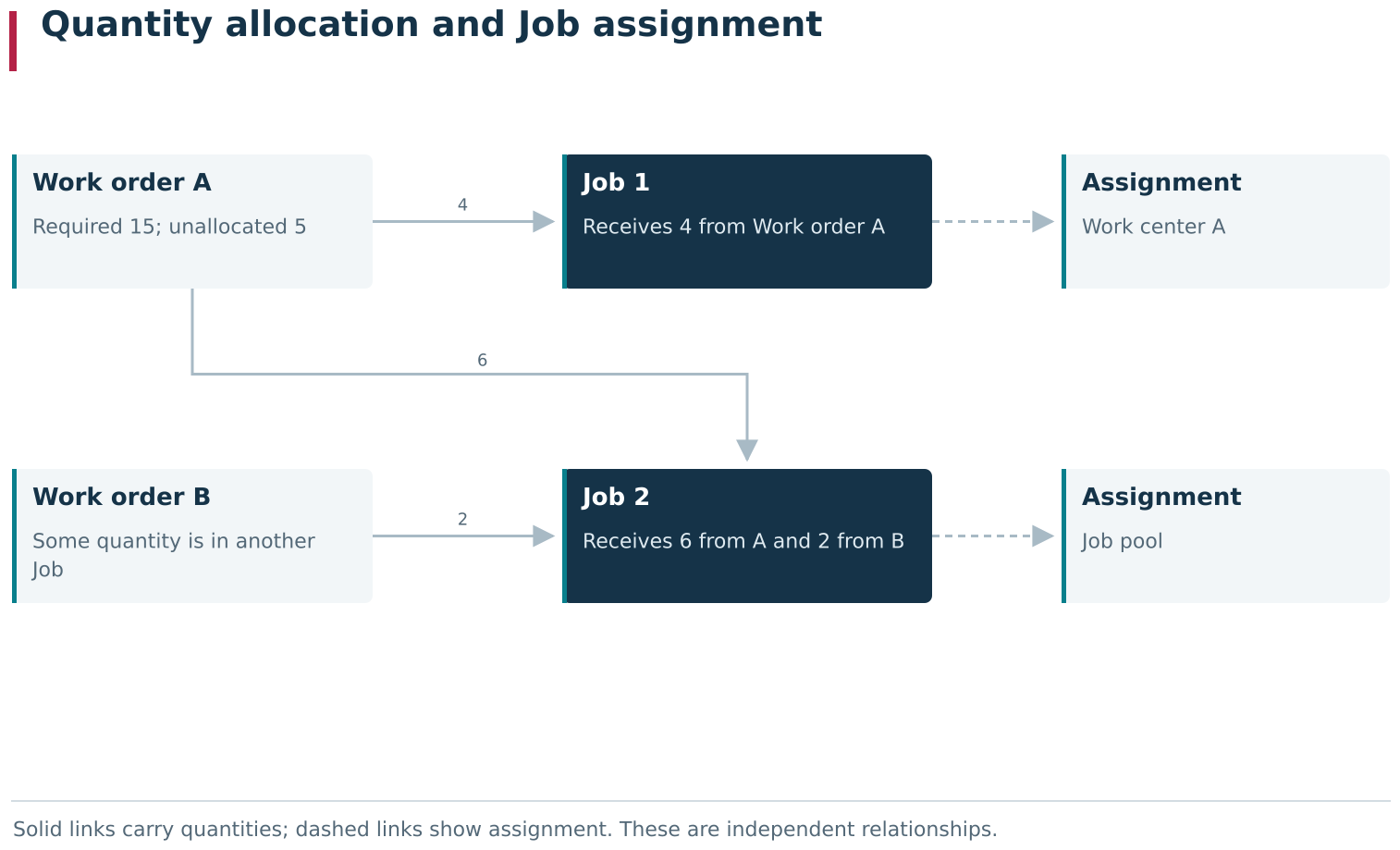
Allocation records which part of a Work order’s quantity is covered by a specific Job. Job assignment separately determines the Work center or pool through which the Job will be executed. Changing one relationship does not automatically change the other.
Allocating Work-order quantity to Jobs
To link a Work order to Jobs that already exist:
- Open the required Work order.
- Open the Jobs tab.
- Click the add button.
- Select suitable Jobs in the selection dialog.
- Save the selection and reread the assigned-Jobs list; it is an interactive table.
Candidates must use the same Product version and the Technology version to which the Stage selected in the Job belongs. A candidate must also have available quantity remaining. Selecting a Job here creates a quantity allocation; it does not change the Job’s equipment assignment.
The allocation is visible from both sides. In the Work-order card it is on the Jobs tab. In the Job card it is on Dependendent, where the Dependent work orders interactive table shows the opposite side of the same relationship. Because both tables represent one link, after changing an allocation it is useful to check both the Work order and the reverse view in the Job.
For example, a Work order for 15 units can be linked to two Jobs for 4 and 6 units. The table shows allocations of 4 and 6; the remaining 5 units still need another Job or a plan adjustment. The existence of the Work order does not create the missing Job automatically.

The Work order’s Jobs tab displays saved quantity allocations. After a link is added or edited, use the quantities shown after saving as the authoritative allocation.
After editing an allocation, check the saved quantity
A row in the assigned-Jobs table can be opened for editing. The dialog contains Quantity and the hint Max possible value is. The form can accept a number, but after saving DPA can recalculate the allocation to the full quantity currently available from the selected Job.
For this reason, treat the number shown in the table after saving as the result of the operation, not the number that was entered in the dialog. If one large quantity has to be divided strictly between several Work orders, first prepare Jobs with suitable quantities, then create the relationships and reread both sides of each allocation after saving.
Creating orders, Jobs and quantity allocations manually
For new production demand, the complete object chain can be prepared manually:
- Make sure the required Product versions, Technologies, Technology versions and stages exist for the Product.
- Open
Planning → Production ordersand create a Production order. - Open
Planning → Work ordersand create the required Work orders, selecting the common Production order, a specific Product version and a Technology version for each one. - Configure Depends of relationships between Work orders when required.
- Open
Planning → Jobsand create Jobs for the required Technology stages. - Return to each Work-order card, open Jobs, and allocate its quantity.
- Reread the saved quantities on the Jobs tab.
- Open the corresponding Jobs and check the reverse relationships on Dependendent, in Dependent work orders.
- Compare each Work-order quantity with the sum of its allocations, and separately check the assignment of every Job.
This route does not require BOM explosion. It gives the user direct control over which Work orders belong to the same demand, which Product versions and Technology versions they use, how they depend on each other, and which Jobs cover their quantities.
Creating Work orders with BOM explosion
If the production structure is already defined in DPA, part of the manual work can be automated. Select the Production order in the list and run BOM explosion from the action bar. The page of the same name opens with a tree of producible items.
When the tree is built for the first time, DPA selects an active Product version and a suitable active Technology version. In the simplest case the tree contains only the root item. For a composite Product, child items and dependencies can appear. Items that are to be produced become Work orders when the tree is saved. Components that are to be taken from stock remain part of the demand calculation but do not become separate Work orders.
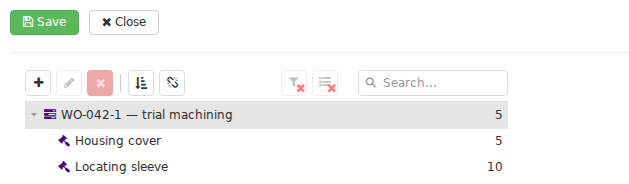
BOM explosion prepares a tree of items to be manufactured; in this example, two child items were added manually in the editor. Saving creates the corresponding Work orders and dependencies. Jobs, quantity allocations, equipment assignments and a calendar plan are configured separately.
Limitation. BOM explosion for a structure whose Technology contains components can fail with an error such as
Entity of type 'ProductVersion' with key '...' not found. For composite Products, use the manual route described above as the primary reliable way to prepare Work orders and dependencies. Test automatic BOM explosion separately on the actual working model before relying on it.
After the tree is saved, DPA opens Work orders. The generated records are already linked to the original Production order, contain specific Product versions and Technology versions, and relationships between tree nodes become Work-order dependencies.
Treat the result of BOM explosion as a prepared initial structure. After generation, manually check the resulting Work orders, selected Product versions and Technology versions, quantities and Depends of, and edit them when necessary. This operation does not replace Jobs, allocations, equipment assignments or the calendar plan.
Rebuild tree recreates the subtree for the selected item. DPA asks for confirmation in Rebuild subtree before performing it. The command is useful for preparing the structure again, but it is not a universal synchronization of every field in Work orders that have already been created.
Changing quantity after BOM explosion of a Production order
During the first BOM explosion, the root Work-order quantity is taken from the Production order. Once the Work order exists, the two quantities become separate planning values.
Changing Quantity in the Production-order card does not automatically change the existing root Work order. Reopening BOM explosion and using Rebuild tree also use the quantity stored in the root Work order. The root quantity on the BOM explosion page is read-only.
To bring a chain created through BOM explosion in line with a new demand quantity:
- Save the new quantity in the Production order.
- Open the related Work order under Work orders.
- Change Quantity and save the Work-order card.
- Open BOM explosion again and confirm that the root item shows the new quantity.
- Check the other Work orders, their dependencies and the allocations on the Jobs tab.
Changing the Work-order quantity does not create additional Jobs and does not change their quantities. After such a correction, compare the total Work-order quantity with the sum of its allocations again.
The manual and automated routes therefore lead to the same underlying model. In the manual route the user creates and connects the objects explicitly. BOM explosion accelerates preparation of the initial Work-order structure; subsequent work continues in the cards and tabs of those Work orders.
2. Planning with schedules and eligible Work centers
Job assignment options and planned time
After creation, a Job already contains its production context: Product version, Technology version, Stage and quantity. That still does not answer where and when the Job is expected to run. Those values are configured separately in Assigned to.
The card provides four options:
- Not assigned — the execution location and planned interval are not yet defined;
- Job pool — the Job is placed in a shared queue, described in the next section;
- Work center — one specific Work center is selected;
- Some work centers — the original quantity is divided among several Work centers.
An unassigned Job appears in the list with status Created. After one Work center is selected, planned dates are entered and the card is saved, the status becomes Scheduled. If the assignment is removed by selecting Not assigned and saving the Job card, the planned dates are cleared and the status returns to Created.
Scheduled means that a specific assignment and planned interval exist. It does not guarantee that the Job is ready for actual startup. For example, the selected Technology version must be effective when execution begins, and the user and equipment must satisfy the conditions of the relevant production workplace.
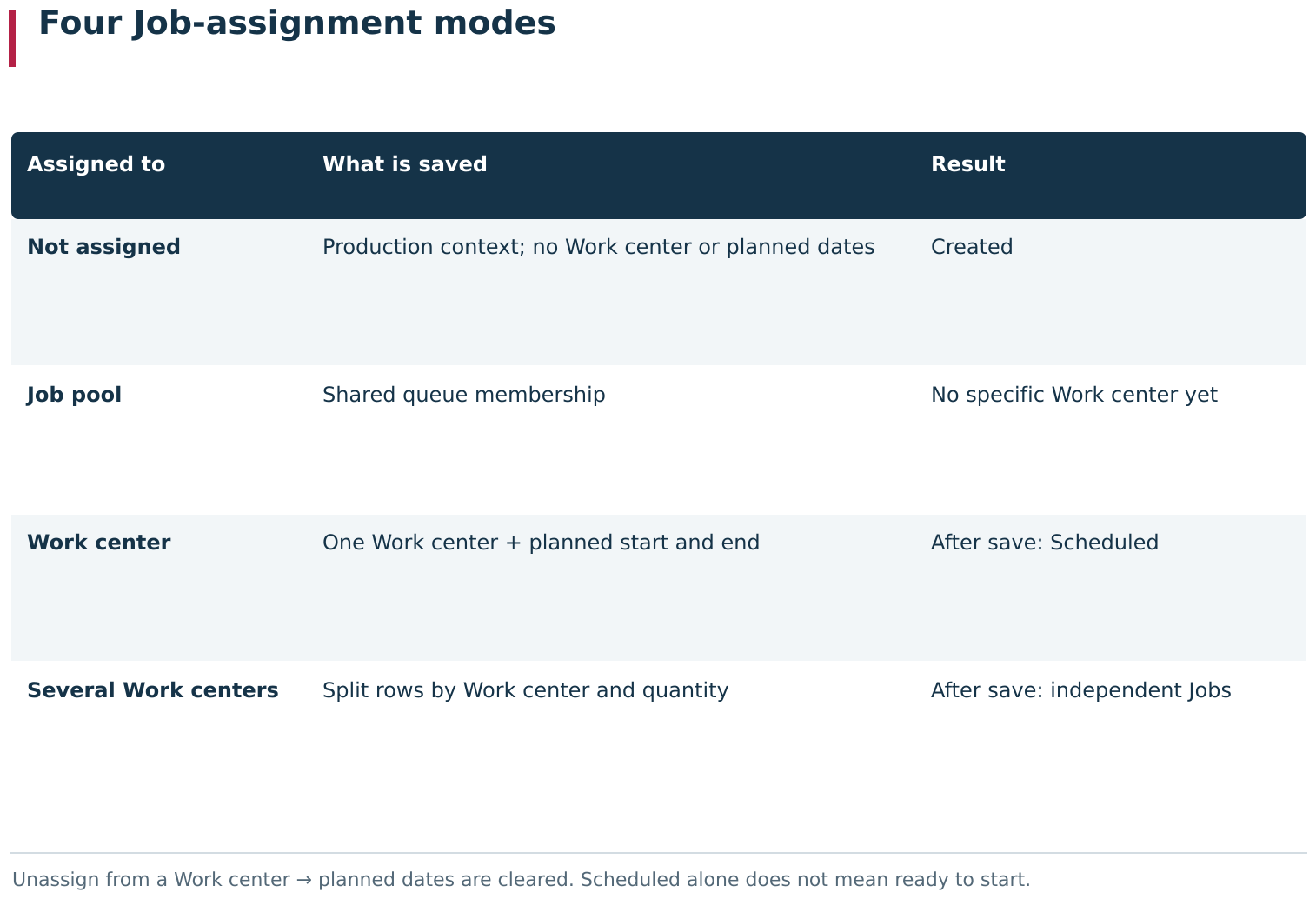
A created Job defines what must be done; assignment separately determines where it will be placed: unassigned, in a Job pool, on one Work center, or split across several Work centers. Saving planned dates for one specific Work center changes the Job from Created to Scheduled. Removing that assignment clears its planned interval and restores Created state.
The Only work centers from technology stage filter
A Technology Stage specifies individual Work centers and Work center groups on whose equipment that Stage is intended to run. When equipment is selected in a Job, Only work centers from technology stage is enabled by default. In this mode, the selector shows both the Work centers added directly to the Stage and Work centers belonging to the groups added to it.
This checkbox filters the list; it is not an absolute restriction. It can be cleared, another Work center can be selected, and the Job can still be saved. Treat the Stage equipment as the eligible set defined by the technologist, not as server-side protection against every deviation from that set.
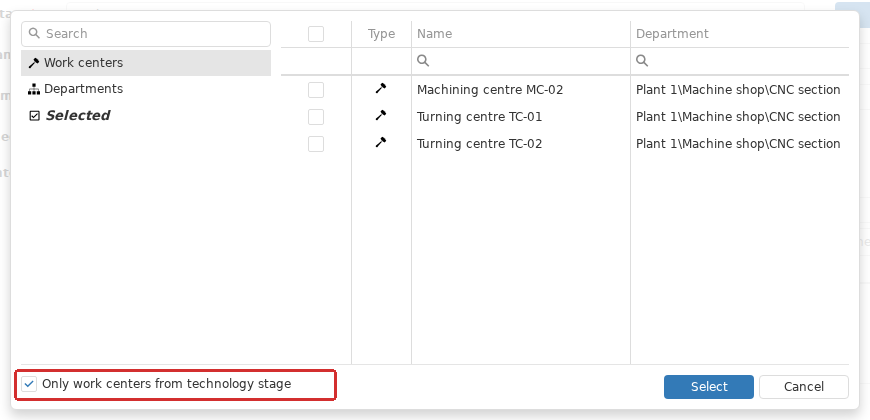
In the equipment selector, Only work centers from technology stage lists Work centers assigned directly to the Stage or through Work center groups. Clearing this selection filter permits another Work center to be chosen, so that deviation requires a separate technological check.
After selecting equipment outside the Stage, verify that the chosen Work center can actually perform the Stage operations, that the required CP relationships exist for it, and that the deviation complies with the production-control procedure used at the site.
Assigning a Job to one Work center
To assign a Job to one Work center:
- open the Job card and select Work center in Assigned to;
- open Work center and select the equipment;
- enter Start and End under Planned time manually, or use Find time;
- save the card and verify the Job status, Work center and planned dates in the list.
Manual date entry and schedule-based search are two ways of filling the same planned interval. With manual entry, the planner is responsible for respecting shifts and breaks. Saving can also show a warning when another Job is already planned on the same Work center during the selected period. The warning can be confirmed and the overlap saved, so it does not replace the dispatcher’s decision.
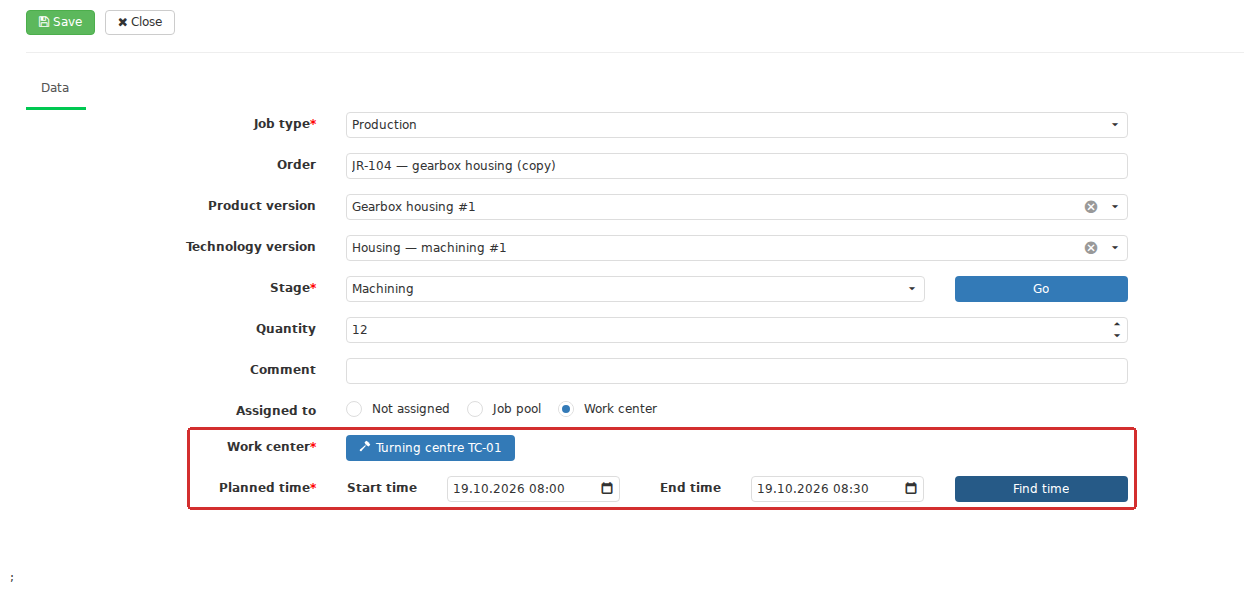
For assignment to one Work center, the lower section of the card specifies the equipment and one planned Start–End interval. Dates can be entered manually or filled using Find time. The Job is then saved with Save.
Finding free time with Find time
Find time opens the time-search settings. Two modes are available:
- Start no earlier than — find the first suitable free interval after the specified time;
- startAtSpecificTime — check whether execution can begin at exactly the selected time.
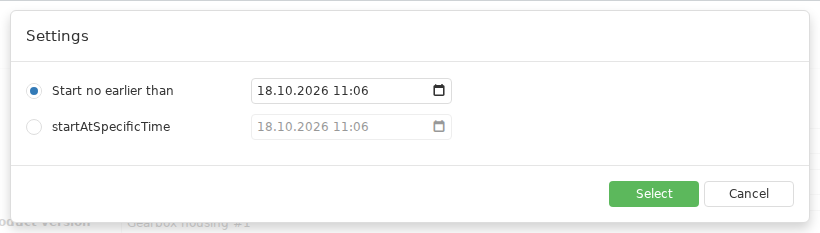
The time-search Settings dialog can find the first available interval starting no earlier than a given time, or check a start at a specific time. The result fills the planned Start and End fields in the card; the Job is then saved separately.
The Work center must have a schedule containing shifts in the period being searched. If no working time is available, DPA reports that the selected Work center has no available working time. The search excludes intervals occupied by other scheduled Jobs and fills the resulting Start and End values into the card. The Job itself is saved only after the normal Save command.
The standard duration of the operations and the duration of the window found by the search can differ. The command divides the required working time into 30-minute increments. Therefore, even when the standard duration is shorter, the found interval occupies at least 30 minutes. If all increments do not fit into one working interval, the calculation can use several working intervals; the displayed Start and End then span the full calendar period from the first interval to the last.
Use schedule for calculate job duration
Under System settings, in the Jobs group, Use schedule for calculate job duration controls how standard operation time is converted into calendar duration. When enabled, DPA stretches the calendar interval across working portions of the schedule: non-working time and breaks can fall inside the overall interval but do not count as working time. If there are not enough suitable shifts, the calculation ends with a message asking the user to check the Work center schedule.
This duration setting and Find time are independent. The checkbox controls how required working time becomes calendar duration. Find time searches the selected Work center’s shifts for a free interval and works regardless of this checkbox.
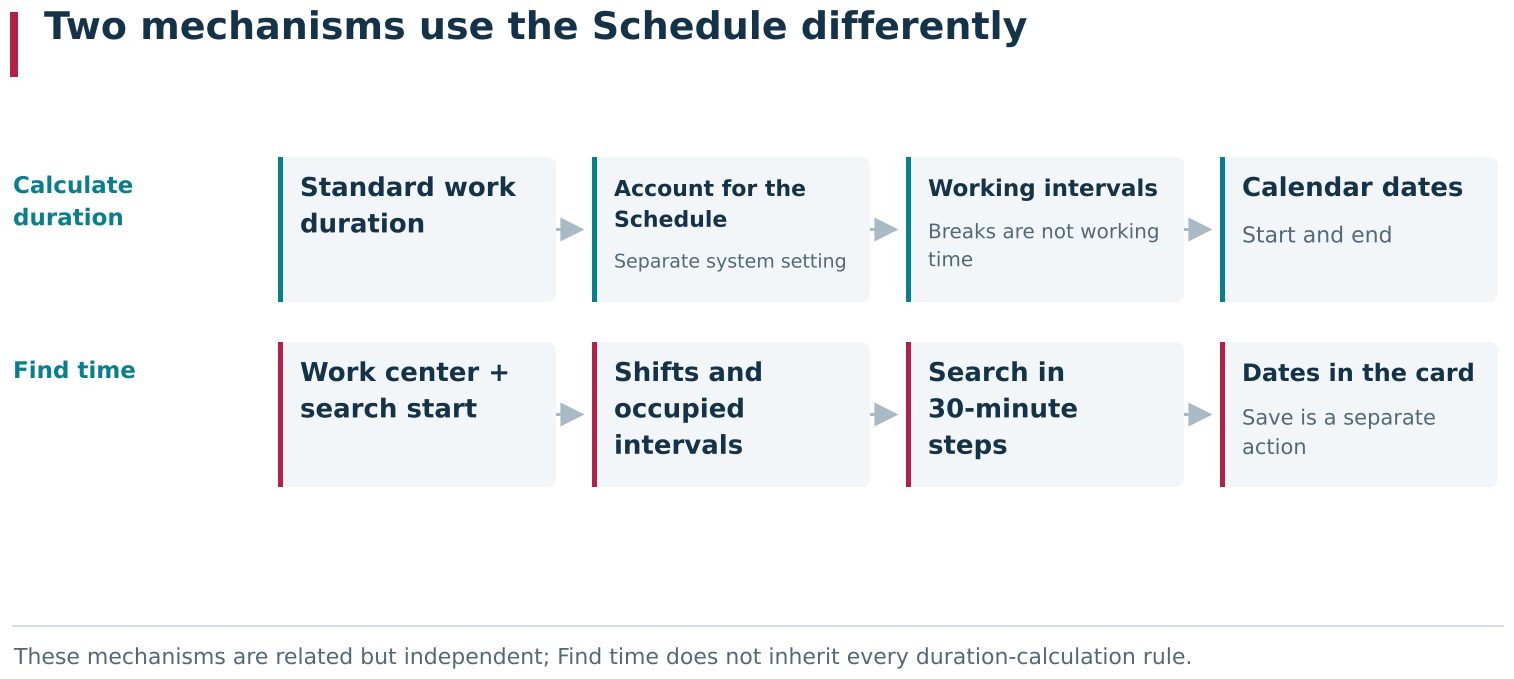
Account for the Schedule when calculating Job duration and Find time use the Schedule differently. The setting converts required working time into calendar duration using working intervals. The command searches for a free slot in the selected Work center’s shifts, accounts for occupied intervals, and fills the planned dates with the resulting boundaries.
Splitting a Job among several Work centers
Use Some work centers when the original Job quantity has to be divided among equipment. After selecting the Work centers, an interactive table appears with Work center, Start, End and Quantity columns. DPA initially distributes the quantity among the rows automatically, but the planner must verify every value before saving. Quantities must be positive and their sum must exactly match the quantity of the original Job. If the row total exceeds the required quantity, the form reports that the total quantity for the Work centers exceeds the specified quantity; when the total is smaller, it reports the corresponding shortage. For example, with a Job quantity of 1, two rows with quantity 1 cannot be saved until the allocation is corrected.
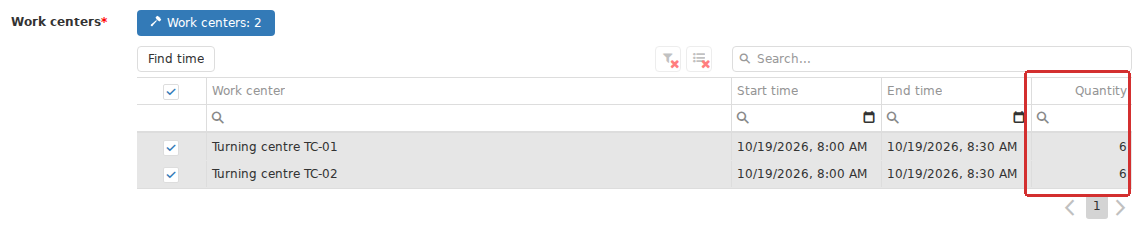
In Some work centers mode, the original quantity is divided among rows with separate Work centers, planned dates and Quantities. Their total must exactly match the original Job quantity before saving. Find time can run for selected rows; check each row’s result separately.
Find time operates on the selected rows of the table. If suitable time is not found for every Work center, DPA reports it and the rows without a result require separate checking. Old or manually entered dates can remain in those rows; a failed search does not by itself prevent the Job card from being saved.
When the card is saved, DPA does not keep one Job assigned to several Work centers. Instead, it creates independent Jobs, one for each row. The Work center name is appended to the original name, while quantity and planned interval are taken from the corresponding row. After saving, return to the main list and verify the resulting set of records.
If the original Job was linked to a Work order or participated in dependencies, open the newly created Job cards after the split and recheck Dependendent and Depends of. The relationships are transferred to the created Jobs, but the allocated quantities must not be assumed to have been automatically reconciled with the new split.
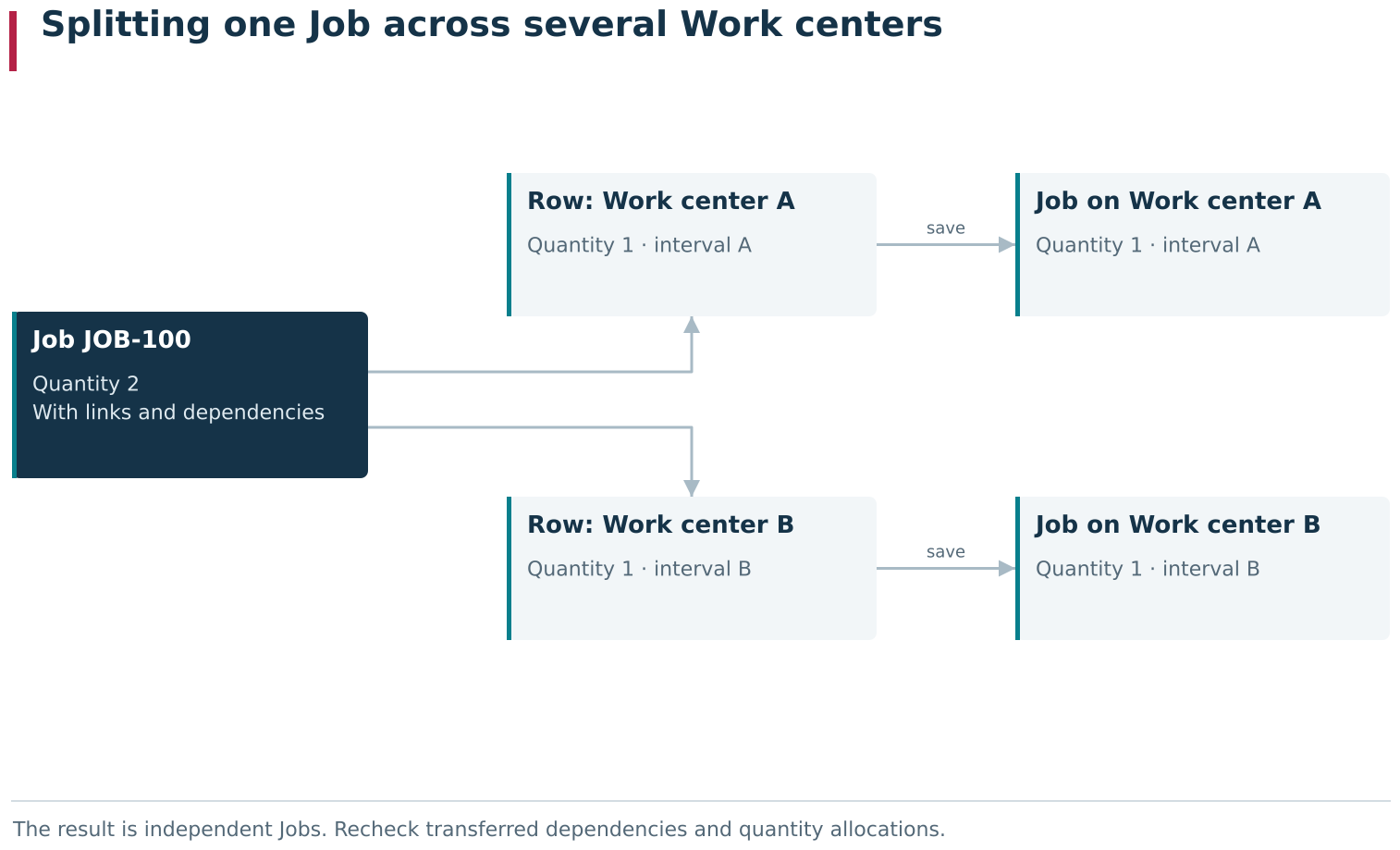
Several Work centers is a split editor. Saving turns one source record into independent Jobs, one per row, each with its own Work center, quantity and planned interval. Recheck transferred dependencies and Work order quantity allocations after the split.
Planned, actual and adjusted Job dates
A Job uses three kinds of dates:
| Dates | Meaning |
|---|---|
| Planned | The planner’s decision about the intended execution interval |
| Actual | The start and end of real execution recorded by the system |
| Adjusted | A separate correction to the actual timing when the adopted process requires one |
This section changes the planned dates. Starting work in the production interface must not be replaced by manually changing the plan, and correcting actual time is not a new planning operation. Actual execution is covered later together with the Operator and Foreman workplaces.
Practical sequence for assigning and checking a plan
For a typical assignment of one Job:
- verify the selected Technology version and Stage, including the Stage equipment;
- select Work center or Some work centers;
- keep the Stage equipment filter enabled unless there is a reason to assign the Job outside that Stage’s equipment;
- check the selected Work center’s schedule for the required period;
- enter planned dates manually or use Find time;
- compare the resulting interval with the schedule and neighboring Jobs;
- when several Work centers are used, verify the quantity and dates on every row;
- save the Job card and reread the result in the main list;
- after splitting among several Work centers, additionally check the new Jobs, their quantities, Work-order allocations and dependencies.
If Find time produces no result, first check that the Work center and its inherited schedule contain shifts, then check occupied intervals, the selected starting point and the calculated duration. No search result does not mean that the Job can never be performed; it means that the algorithm found no suitable window with the current data and search conditions.
3. Job pools and competitive dispatching
Purpose of a Job pool
Sometimes the planner needs to prepare a Job without deciding in advance which of several interchangeable Work centers will execute it. In that case, place the Job in a Job pool: a shared ordered queue available to several Work centers.
A pool does not create a copy of the Job for every Work center and does not assign it to all pool equipment at once. While the Job remains in the queue, no specific Work center or planned interval has been selected. Under Planning → Jobs, such a Job has status Created; in the Operator workplace it appears as New.
When using a pool, distinguish three equipment sets:
- Work centers and Work center groups in the Technology Stage describe the execution options defined by the technologist;
- the composition of the Job pool determines which Work centers can access that pool’s shared queue;
- the specific Work center is assigned to the Job after an operator claims it from the pool.
These sets are not automatically identical. DPA does not compare the pool composition with the Stage equipment when a Job is claimed from the queue. For example, if a Stage contains Work centers 1, 2 and 3, while the pool contains 2, 3 and 4, an operator on Work center 4 with the required access can see the Job and assign it to that Work center. Include only genuinely interchangeable Work centers in a pool: the corresponding Stage must be executable on them, and the required schedules, production workplaces and CP relationships must already be prepared. Claiming a Job from a pool does not bypass the other conditions required for actual startup.
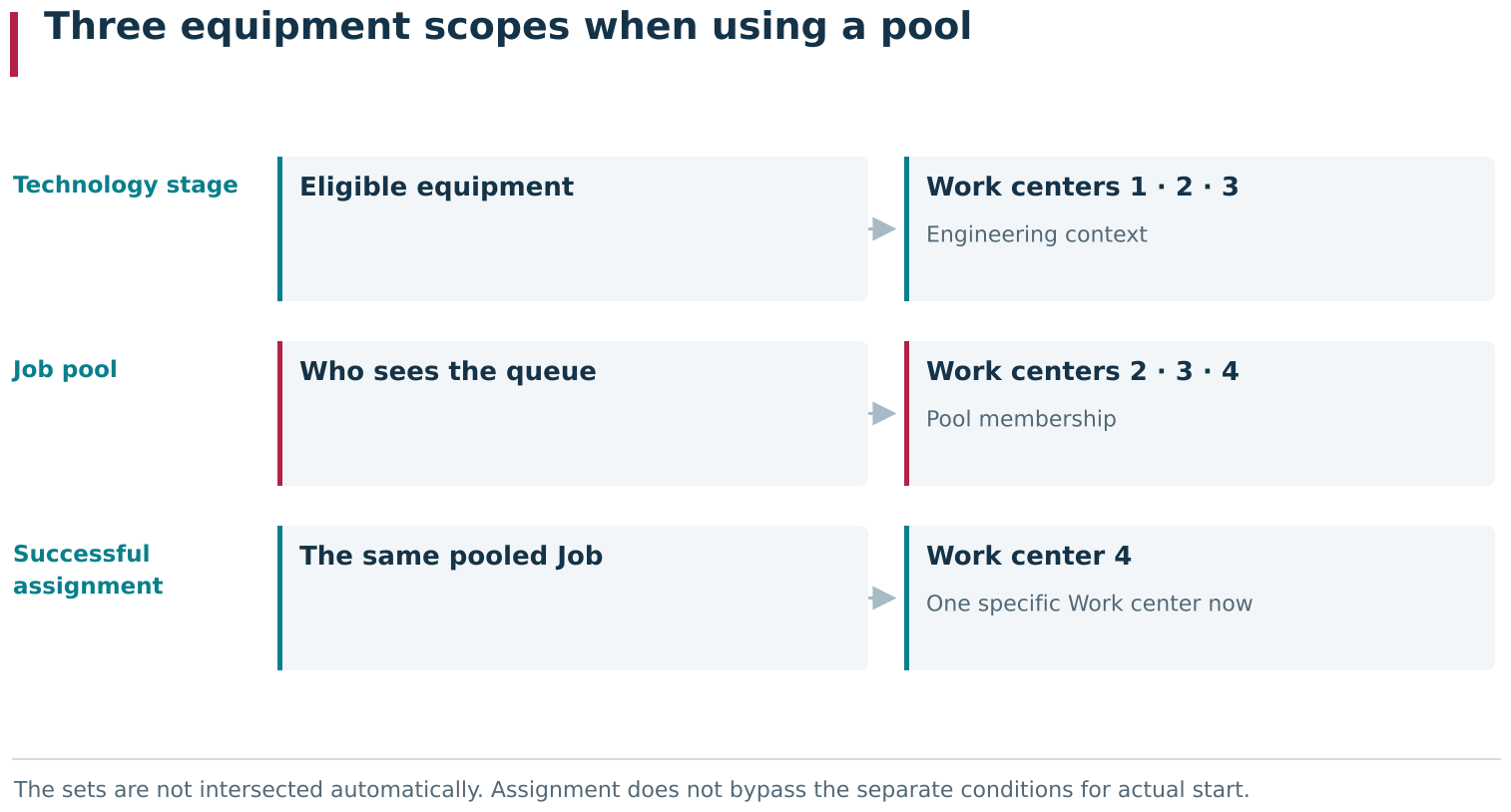
A Job pool involves three equipment sets: the Stage’s eligible Work centers, the pool’s own membership, and the specific Work center assigned to a Job after it is claimed from the queue. DPA does not intersect these sets automatically. For example, with Stage members 1, 2, 3 and pool members 2, 3, 4, the Operator at Work center 4 can see and assign the pooled Job when the other access and start conditions are met.
Creating a Job pool in Planning
Open Planning and click Add job pool next to the main tabs. On the new pool card, enter Name and Composition. Composition can contain:
- individual Work centers;
- Work center groups.
One pool can contain both types at the same time. When a group is selected, the queue becomes available to the Work centers belonging to that group. Group membership is resolved when the pool is used, so adding or removing a Work center from the group changes access to the shared queue without editing the pool itself.
After saving, the pool appears in Planning as a separate tab with its own name. Pool edit and delete commands are available next to the tab, and the Jobs in the pool are shown as an interactive table.
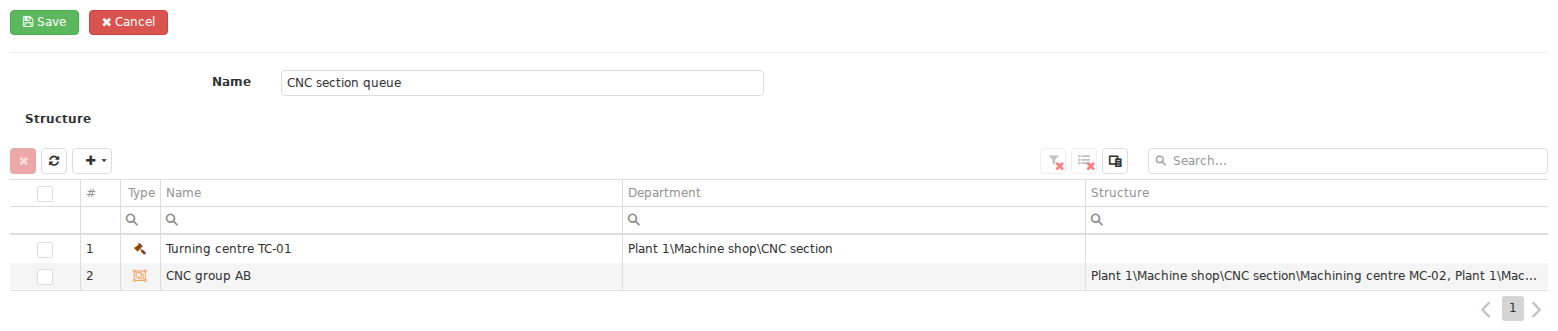
A Job pool card defines the shared queue’s Name and Structure. Its members can include individual Work centers and Work center groups. After saving, the pool appears in Planning as a separate tab with its own Jobs table.
Three ways to add a Job to a Job pool
The first method is to open the pool tab and click Add. A new Job card opens with Job pool and the current pool already selected. In addition to the usual Job data, specify Order, Start no earlier than and Finish no later than.
The second method is to create or edit an unassigned Job under Planning → Jobs, select Job pool in Assigned to, and then choose the pool, queue order and time bounds.
The third method is to create an unassigned Job under Planning → Jobs first, then use Add job to job pool on the pool tab. For this method, prepare a Job in Created state that has not been assigned to a Work center and is not executing.
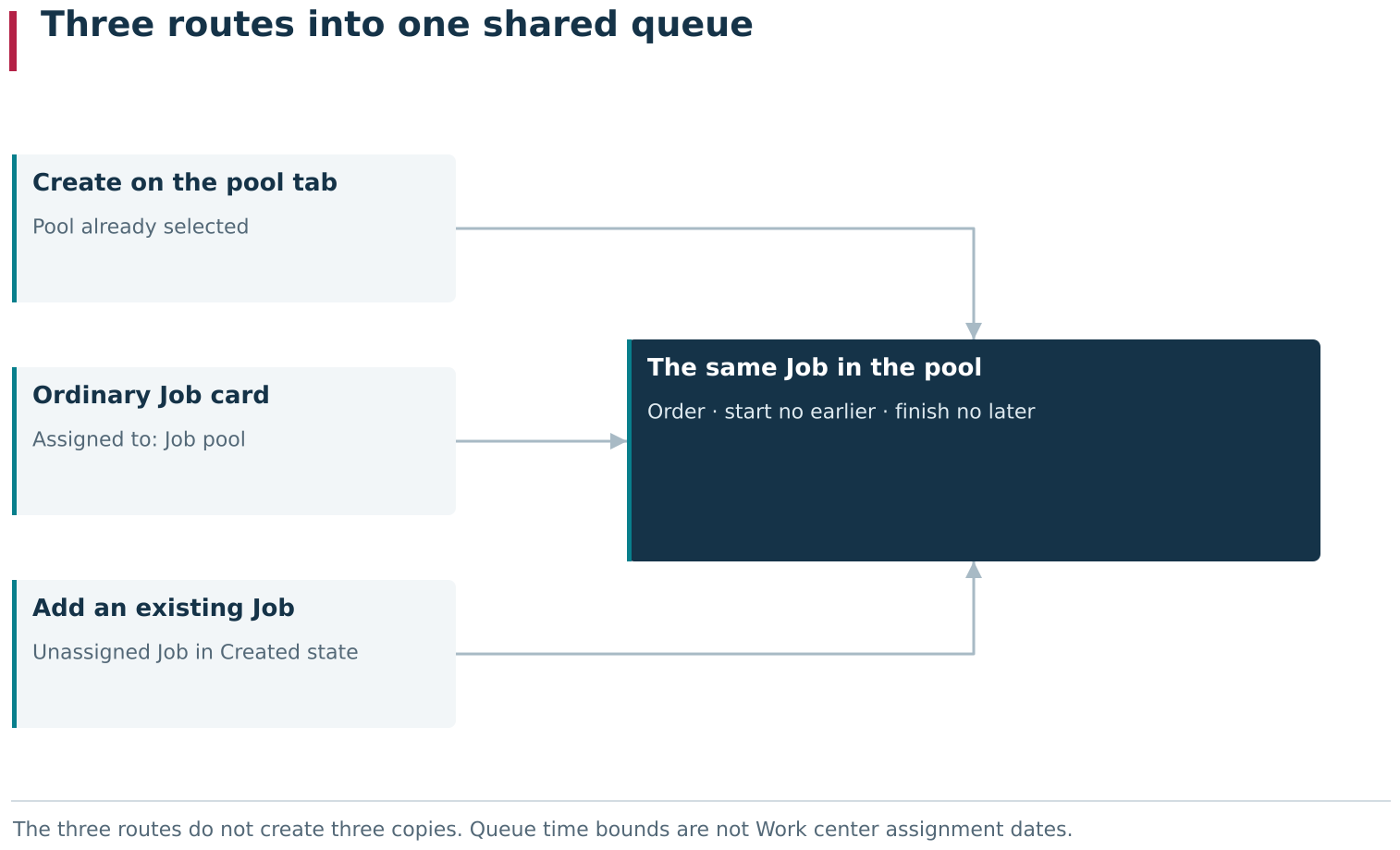
A Job can enter the same pooled state in three ways: create it directly on the pool tab, select Job pool in its ordinary card, or add an existing unassigned Job to the pool. All three routes refer to one Job in the shared queue; the pool does not create a copy.
The pool table lets you verify the Job type and name, Product, Product version, planned quantity, Technology, Stage, Order, Start no earlier than and Finish no later than. These time bounds belong to the queue entry; they are not the planned execution dates. The planned interval appears only after a specific Work center is selected.

The Job pool table combines the production context with queue fields Rank, Start not earlier than and End not later than. These bounds belong to the shared queue entry. The numerical Rank field controls the queue order in the Operator workstation independently of the Planning table’s current sort order.
The delete commands have different meanings:
- Remove job from job pool removes the selected Job from the shared queue but keeps the Job itself under Jobs;
- the ordinary Job delete command deletes the production object itself.
If the Job merely needs to return to the planner for another assignment, remove it from the pool rather than deleting the Job.
Job order inside the pool queue
Order controls the Job’s position in the queue: in the Operator workplace, pool entries are automatically shown from the lowest number to the highest. When another Job is added, DPA proposes the next number, but the value can be changed manually.
The current sort order of the pool table is only a presentation choice and does not change Order. To compare the visible rows with the queue sequence, sort the table by Order. The stored numbers and their effect in the Operator workplace do not change when the table is sorted differently.
After repeated insertions and rearrangements, the values can become sparse, for example 1, 2 and 10. Resort jobs in job pool preserves the relative queue order but replaces the values with consecutive numbers 1, 2, 3 and so on. This command does not assign Jobs to equipment and does not change their production content.
Order controls how Jobs are presented, but it does not force an operator to take the first Job. The operator still considers Work-center availability, Job state and the current production situation when choosing work.
Using a Job pool in the Operator workplace
In the Operator workplace, select a Work center and open Job pools. It shows Jobs from pools that include the selected Work center directly or through a Work center group. About job shows the pool name and the Job’s queue number.
To claim a Job from a pool for the selected Work center:
- select the Job on Job pools;
- click Assign;
- in Select work center, choose the equipment on which the Job will run;
- confirm with Assign.
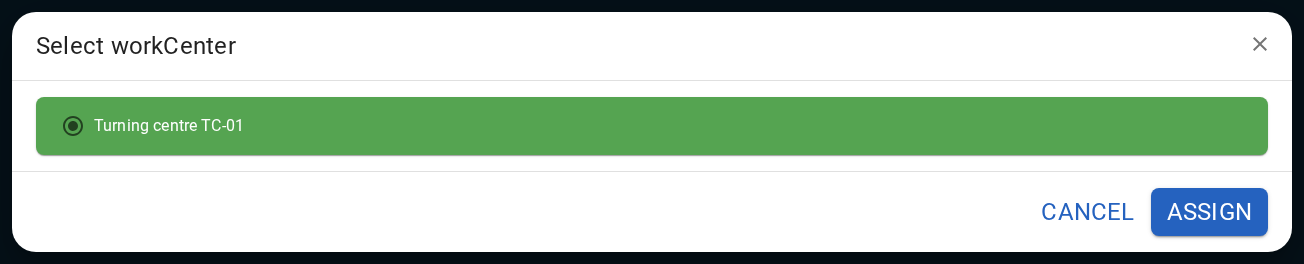
In the Operator workstation, Job pools displays the shared queue available to the selected Work center. Assign moves the selected Job to specific equipment. In Select work center, the Operator confirms the destination for that Job.
After assignment, the Job disappears from the shared queue, receives the selected Work center and a planned interval, and changes to Scheduled. This still does not start execution: actual start is registered by a separate operator action.
The same Job can be visible in the queues of several eligible Work centers at the same time. This is competitive dispatching: the Job is claimed by whichever operator first succeeds in assigning it to a specific Work center. After refresh, the other operators should no longer see it as an available pool Job. No new Jobs are created; the original Job continues its lifecycle with the specific assignment.
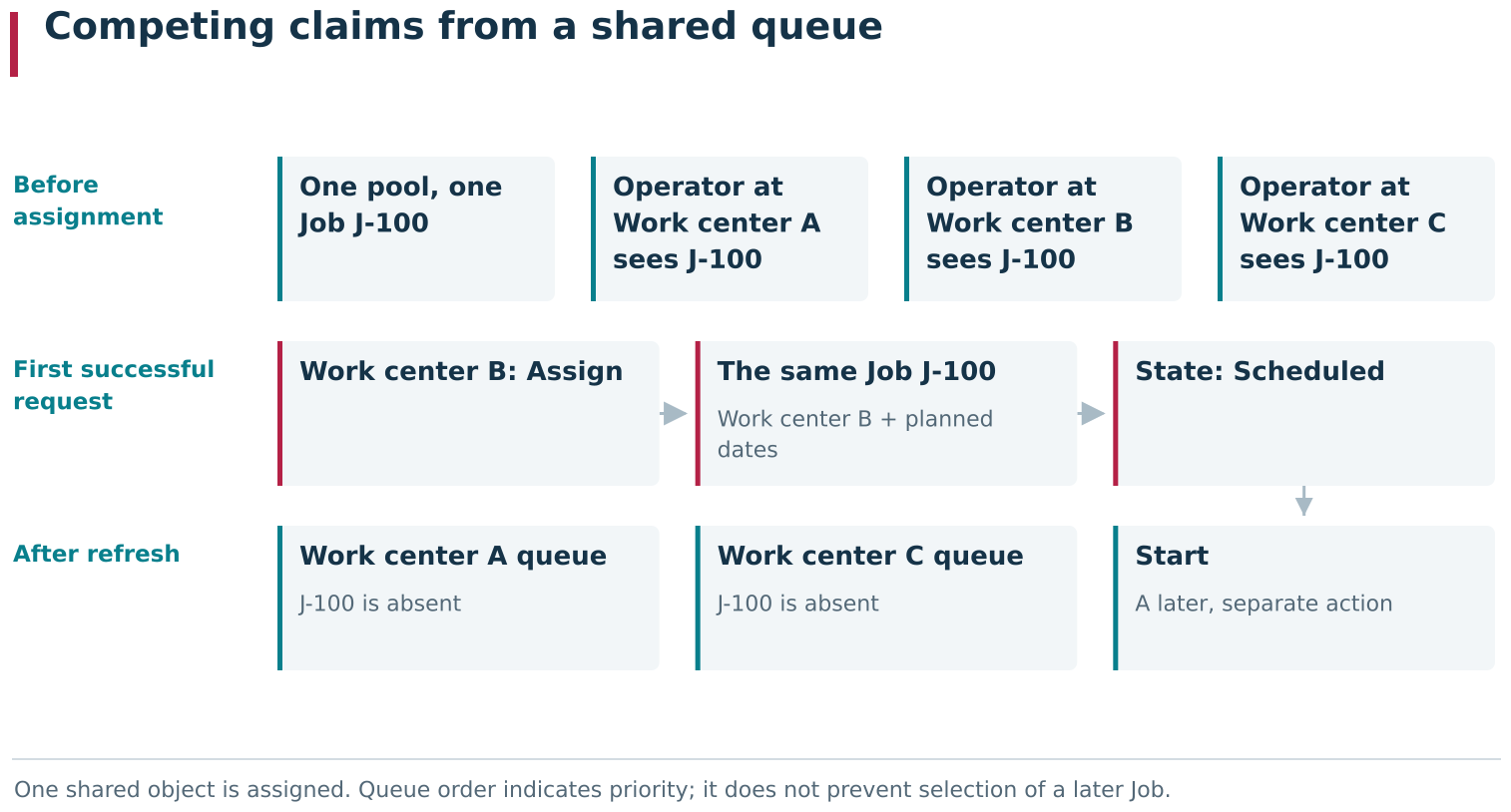
A pooled Job can be visible at several eligible workstations simultaneously while remaining one object. The first successful assignment fixes a specific Work center and planned interval, changes the same Job to Scheduled, and removes it from the shared queue for other operators. No additional Jobs are created.
Practical sequence for a shared queue
A typical pool workflow is:
- identify the Work centers that are genuinely interchangeable for the relevant work;
- group them in a Work center group if useful;
- create a Job pool and define its Name and equipment Composition;
- create new Jobs directly on the pool tab, select the pool on a Job card, or add previously prepared unassigned Jobs;
- verify the Order and time bounds of every queue entry;
- open the Operator workplace on the intended Work centers and confirm that the shared queue is available to the required workplaces;
- select a Job on Job pools and assign it to a specific Work center;
- under
Planning → Jobs, verify Scheduled, the selected Work center and the newly created planned interval; - only then proceed to actual startup and execution registration.
A pool is especially useful when the final equipment decision is better made close to execution time. If the machine is known in advance and a fixed calendar plan is required, assign the Job directly to one Work center as described in the previous section.
4. Shift targets: the operator’s personal plan
What a Shift target contains
After Jobs have been assigned and scheduled, they can be collected into a personal plan for a particular performer. A Shift target links a selected operator, a time interval and a set of existing Jobs.
A Shift target does not replace a production Job and does not create a copy of it. It stores only which portion of which Job is intended to be performed during the specified period. The Job itself still stores the Product version, Technology, Stage, Work center, planned dates, Job state and actual output.
One Shift target can contain Jobs from different Work centers. It should therefore be understood primarily as a person’s plan, not a schedule for one Work center. A Job from a pool can also be included. In that case it remains a pool Job and must still be assigned to a particular Work center as described in the previous section. Adding it to a personal plan does not perform that assignment.
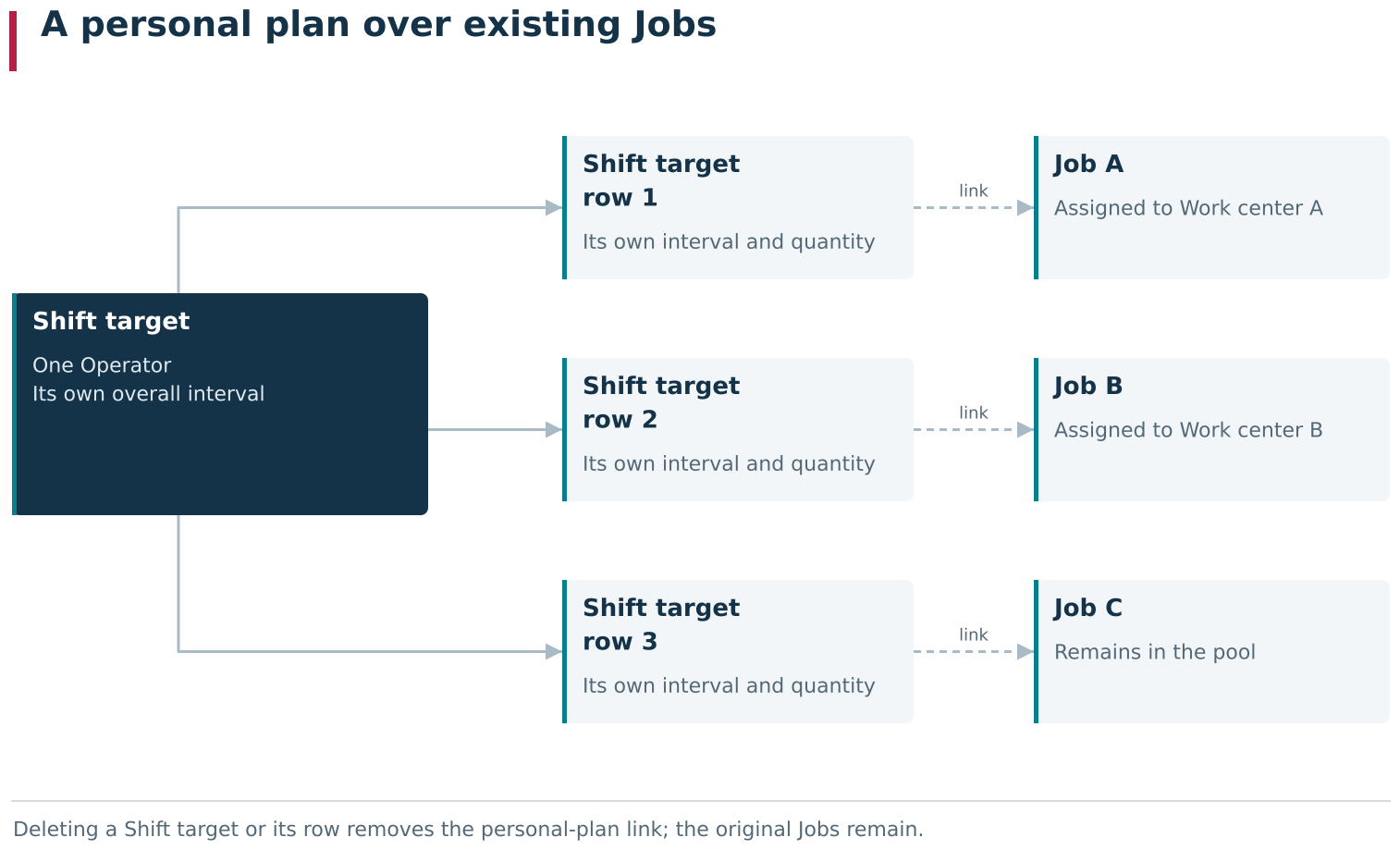
A Shift target is an Operator’s personal plan over existing Jobs. Each Shift target row references a specific Job and has its own interval and quantity. The Jobs retain their Work centers, planned dates, state and output; one personal plan can include work from different Work centers, and a pooled Job remains in its pool until separately assigned to a specific Work center.
Creating a Shift target
Open Planning → Shift targets. The main list is an interactive table. Click the add button. At the top of the Shift-target card specify:
- Start and End — the overall interval of the personal plan;
- Operator — the user for whom the plan is intended.
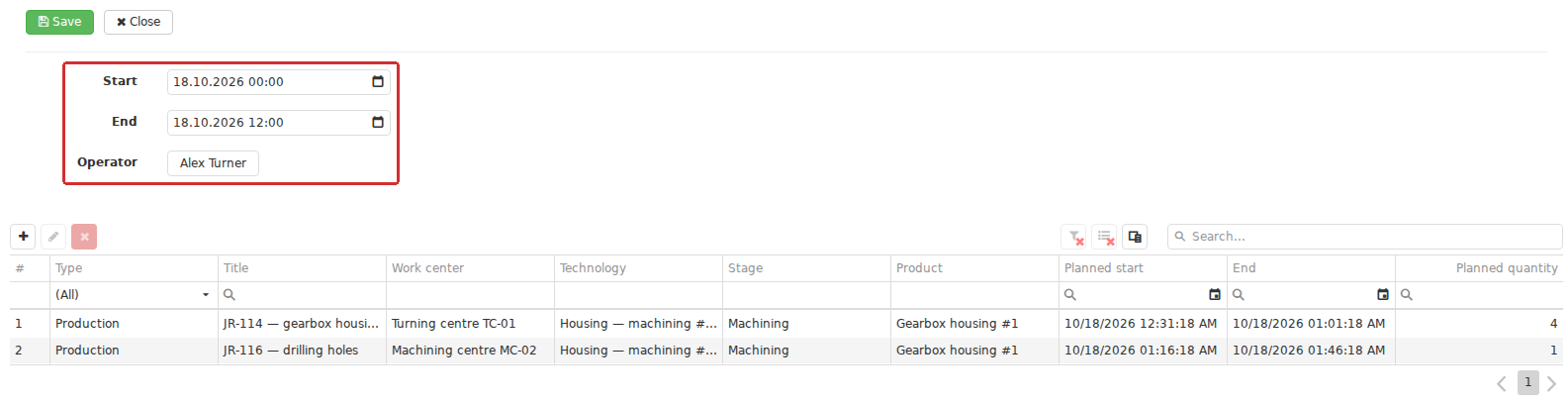
A Shift target card defines the overall period of a personal plan and its Operator, then collects rows of existing Jobs. One plan can include work from different Work centers: it schedules a person.
After the operator is selected, the rows of the personal plan are displayed as an interactive table. The add button opens a selector for existing Jobs, also shown as an interactive table. In addition to production information and planned dates, check three quantities:
| Column | Meaning |
|---|---|
| Planned quantity | The full planned quantity of the Job itself |
| Count in other shift targets | The portion already included in other Shift targets |
| Available quantity | The remaining portion that can still be allocated |
Use Available quantity when preparing the plan. It equals the Job’s planned quantity minus the amount already allocated to other Shift targets. If one Job is intended to span several shifts, its quantity can be divided sequentially among several personal plans.
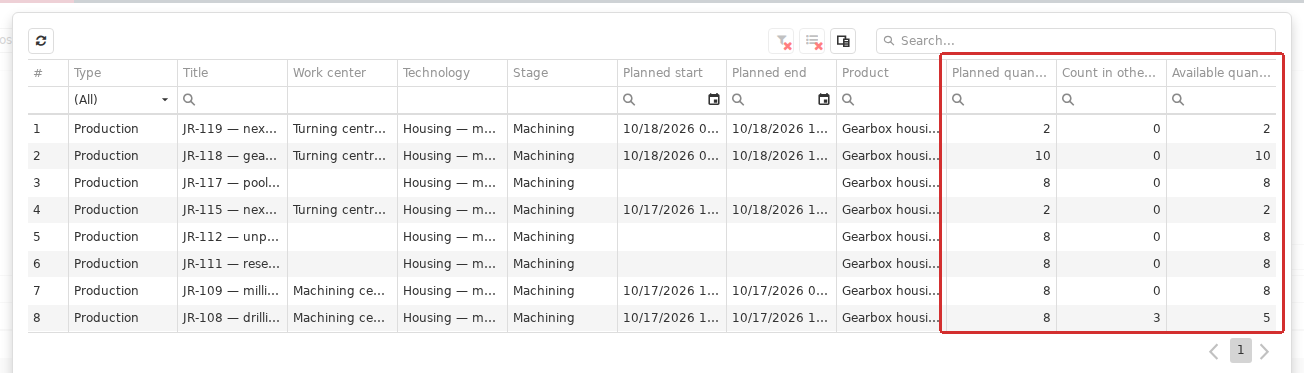
When a Shift target row is added, DPA displays the Job’s full planned quantity, the quantity already allocated to other shift targets and the available remainder. This remainder helps divide one production Job among several personal plans without changing the Job itself.
Select a row and click Select. The Parameters dialog opens with Start, End and Quantity. For a scheduled Job, DPA initially inserts that Job’s planned interval. If the Job has no planned dates, it inserts the interval of the Shift target itself. These values can be adjusted for the individual row without changing the planned dates of the original Job.
Enter in Quantity the portion to be included in this personal plan and save the parameters. Add the remaining Jobs in the same way, then save the Shift-target card.
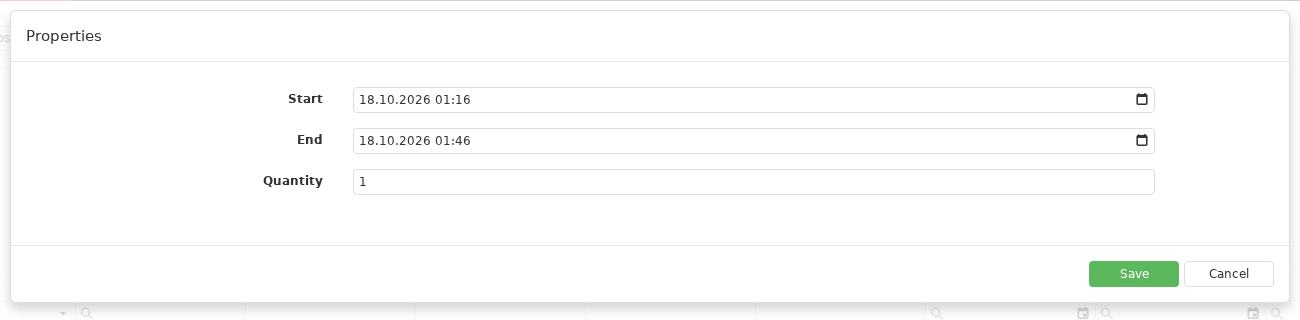
Parameters defines the personal time interval and Quantity for the selected Shift target row. These values can be changed independently of the source Job’s planned dates and full quantity.
The main Shift-target list shows the interval, operator and Planned quantity. Here the planned quantity is the sum of the quantities in the Shift-target rows. For example, two rows of one unit each give a planned quantity of 2 even when the full planned quantities of the source Jobs are larger.
Shift-target time and the time of each row
The personal plan has two time levels:
- Start and End on the card define the period of the Shift target for the selected operator;
- Start and End on each row refine when the particular Job is intended to be performed within that plan.
These intervals do not replace the Job’s planned dates. If a Job has to be rescheduled on a Work center, edit the Job itself under Planning → Jobs. Editing a Shift-target row changes the personal allocation of the Job; it does not move that Job’s planned interval on the equipment calendar.
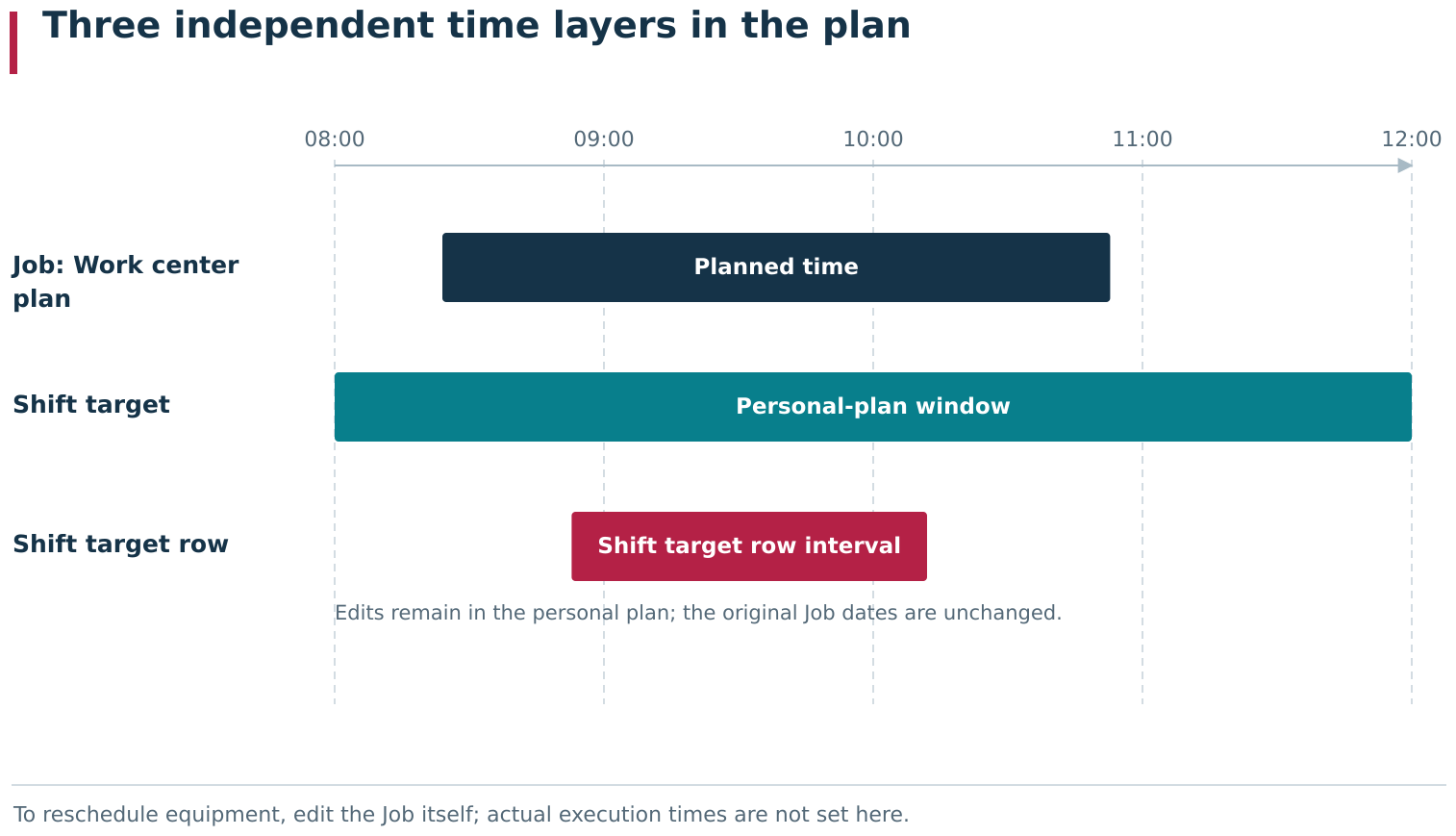
This planning view compares three intervals: the original Job’s planned Work center dates, the Operator’s overall Shift target interval, and a specific Shift target row’s interval. Editing the personal plan does not reschedule equipment. Work center planned dates change through the original Job.
To change a row, edit the Shift target, select the required Job, and click the pencil button. Parameters allows the interval and quantity to be changed. Deleting the row removes it only from the current personal plan.
Viewing a Shift target in the Operator workplace
In the Operator workplace, open Shift target. DPA shows Jobs from Shift targets assigned to the signed-in user and relevant to the current time period. Jobs from different Work centers can appear in the same list; the corresponding Work-center name is shown on each Job card.
Jobs are distributed between Scheduled, Job pools, Active and Completed according to the current state of the source Jobs. The personal plan therefore has no independent manually assigned execution state: starting, pausing and completing work are actions on the Jobs themselves.
The quantity shown on a Job card in the Operator workplace refers to the full quantity of that Job and its actual output. It can differ from the quantity of the Shift-target row. For example, if one unit of a two-unit Job is included in the personal plan, before the Job starts its card still shows 0 of 2, not 0 of 1. Check the personal-plan quantity in the Shift-target card under Planning.
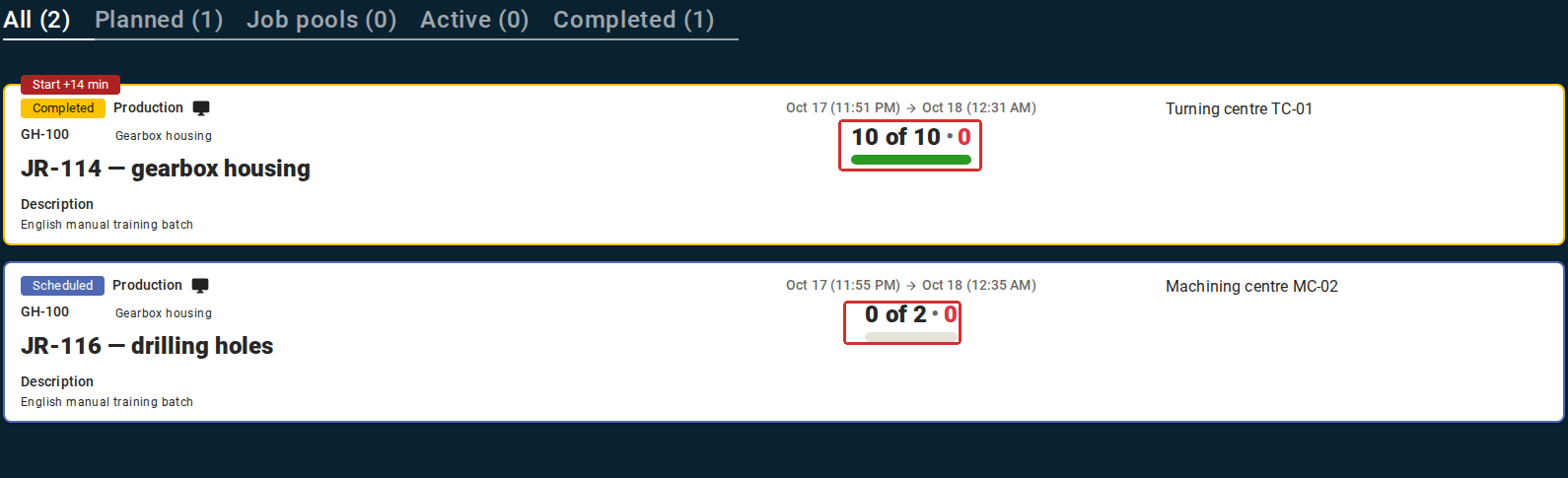
In Operator workstation → Shift target, the personal plan collects a user’s Job cards, potentially from several Work centers. The card shows the full production Job quantity and its output rather than the quantity of the personal-plan row. A row allocating 1 unit from a 2-unit Job therefore still shows 0 of 2 before execution.
A card being present in the personal plan does not remove the other execution prerequisites. To start a Job, it must be assigned to a suitable Work center, and the user and equipment must meet the production-workplace conditions. A pool Job must first be assigned to a specific Work center.
Deleting a Shift target or one plan row
From the main list, a personal plan can be opened for viewing or editing, or deleted. Deleting a Shift target removes its interval and allocation rows but keeps the source Jobs. Their Work-center assignments, planned dates and Job states are not reset.
Before deleting, distinguish what is actually meant to change:
- if only the operator’s personal plan is no longer needed, delete the Shift target or the relevant row;
- if the Job has to move to different equipment or time, reschedule the Job itself;
- if the Job is no longer required, decide separately whether to change or delete the Job, taking related Work orders and dependencies into account.
Practical sequence for preparing a personal plan
A useful sequence for preparing a Shift target is:
- Create the required Jobs in advance and check their quantities.
- Assign ordinary Jobs to Work centers and give them planned intervals; for pool Jobs, check the set of equipment from which they can be claimed.
- Open
Planning → Shift targetsand create a new Shift target. - Enter the overall interval and select the operator.
- Add Jobs while checking Planned quantity, Count in other shift targets and Available quantity.
- Check start, end and quantity for every row.
- Save the Shift-target card and reread the total Planned quantity in the main list.
- Sign in as the selected user, open Shift target in the Operator workplace, and check the Job cards on the expected tabs.
- Before actual start, make sure every Job has the correct Work center and that the production-workplace prerequisites are satisfied.
A Shift target completes the personal allocation of already prepared Jobs, but it does not execute them automatically. Start, output registration, suspension and completion remain actions on the Jobs included in it.
5. Executing a Job in the Operator workplace
Checking the conditions for starting a Job
Actual execution begins in the Operator workplace. Select the required Work center and open the Job on Scheduled, or open it from the current Shift target. The Job card shows its production context, planned quantity and already registered output; when a Control program is involved, the prescribed CP is shown there as well.
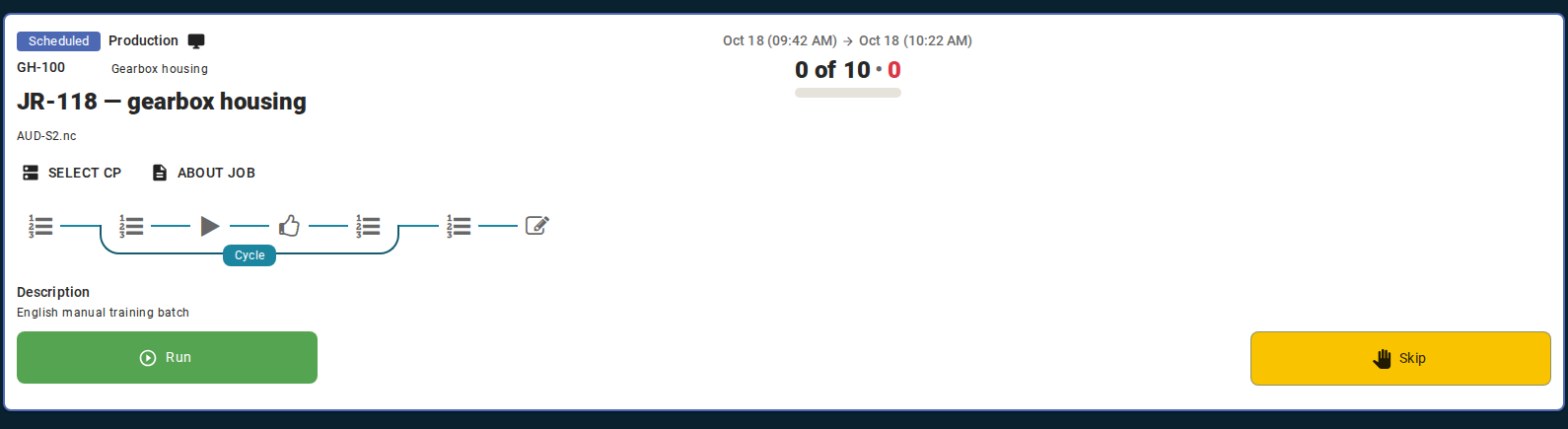
Before launch, the scheduled Job card in the Operator workstation combines the product, planned and registered output, assigned Work center, prescribed CP and Run action. The workstation, shift and prescribed active CP version must also be ready for the launch to succeed.
Select CP opens transfer of the CP files associated with this Job. It does not allow an arbitrary CP version to replace the one prescribed by the technologist. The transfer workflow and the reasons why the list can be empty before Job startup are described under Transferring CPs and Subprograms to equipment in the previous chapter.
A Job card being visible in the workplace does not mean that the Job can be started under any conditions. The preparation from the preceding sections must already be complete: the Job is assigned to a specific Work center, the operator has access to that workplace, and the required personal shift is open. If the Technology prescribes a particular Control program version, that version must be active and available for execution. Starting a Job with an inactive prescribed CP version is rejected with an explanatory message; after the required version is activated, the Job can be started normally.
If startup is rejected, correct the reported preparation condition rather than trying to bypass it from the Operator workplace. Work-center, Technology and Control-program configuration belongs to production preparation covered in the previous chapter.
Starting a Job and moving between Operations
Click Start. After successful startup, the Job changes from Scheduled to Started, and DPA records its actual start time. Planned dates are not replaced: they remain the plan, while actual start and end form a separate execution history.
The working Job card shows the current Technology operation and actions appropriate to that operation type and the Job state. The available buttons therefore depend on the Technology. In a sequence of several operations, the operator can advance with Next; repeated processing can use Next cycle. Particular operation types can request data, display a Control program or provide their own completion action.
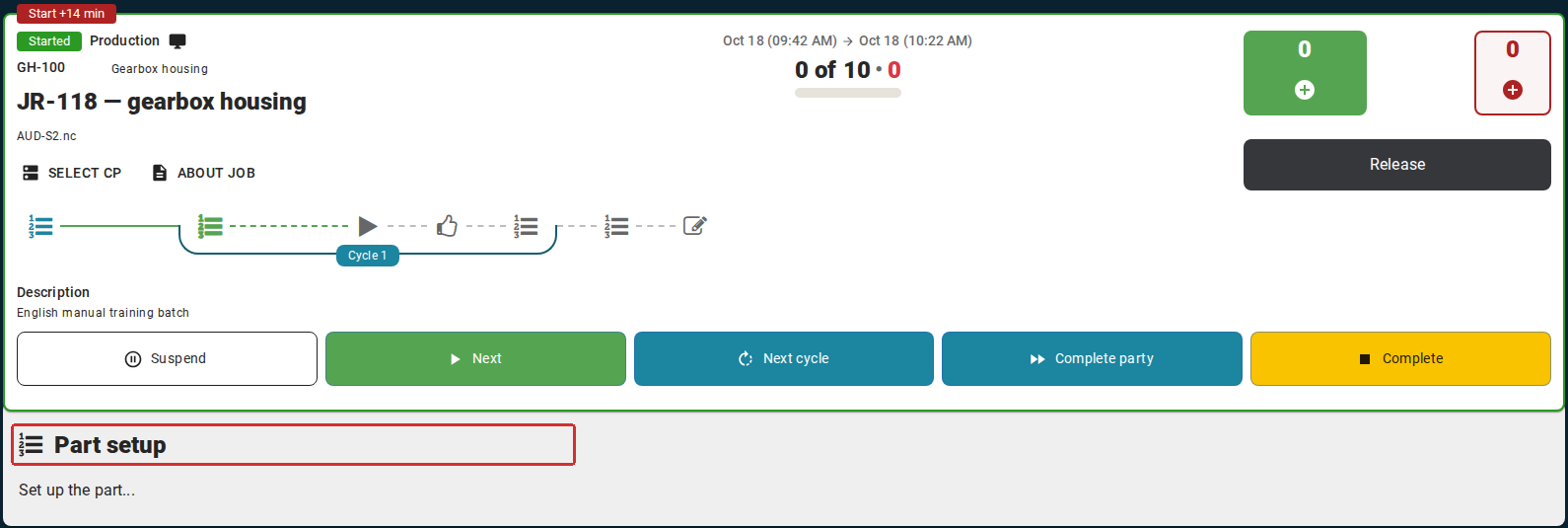
After a successful start, the Job card shows the current Technology operation and its available actions. Next and New cycle advance the technological process, while Suspend and Release control other aspects of execution. The exact buttons depend on the operation and Job state.
Progressing through Technology operations and registering manufactured quantity are separate events. Moving to the next operation does not by itself mean that an accepted part has been produced, and entering output does not automatically complete the required Technology operations.
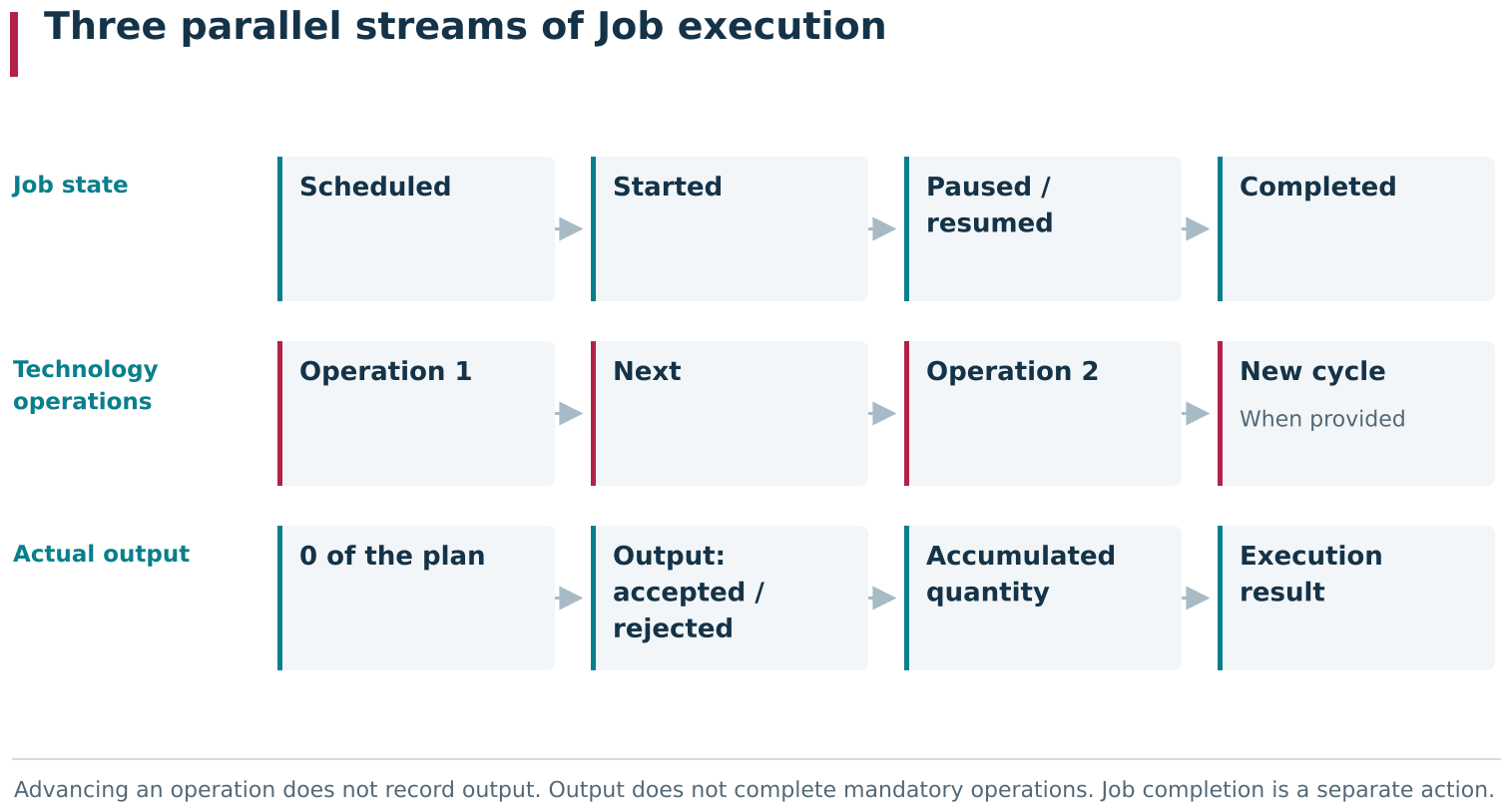
After start, three independent streams proceed within one production episode: the Job’s state, progress through Technology operations and accumulation of actual output. Next or New cycle changes operation progress, Output changes accepted and rejected quantities, and Complete changes the Job’s state. Each action has its own effect.
Suspending and continuing a Job
If execution has to stop temporarily, click Suspend. Select a pause reason in the dialog, for example Break or Off time, and add a comment when necessary. After confirmation, the Job remains active but is shown as Paused.
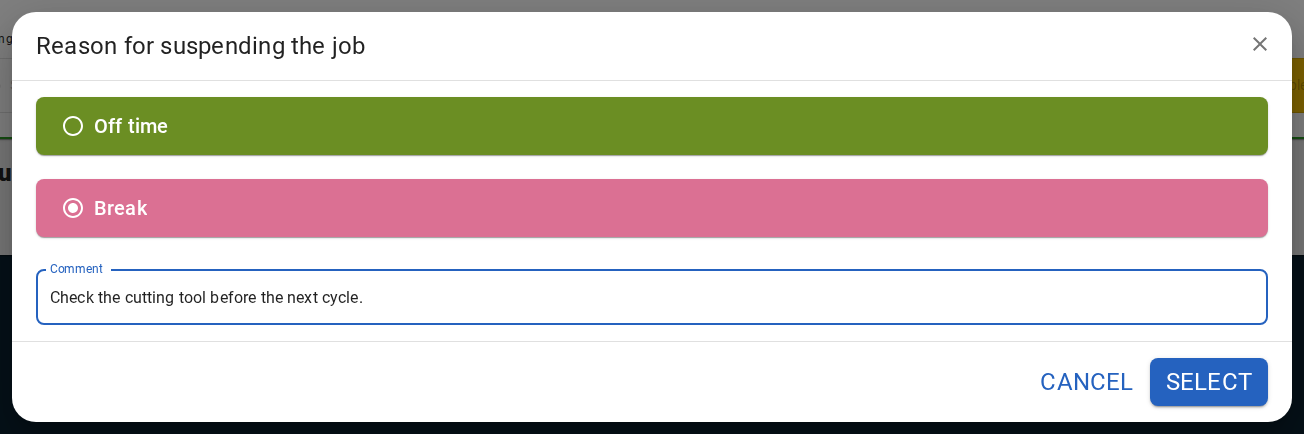
Suspend temporarily suspends the same Job. The Operator selects a reason and can add a comment. After confirmation, the Job remains active in the Paused state. Continue returns to execution of that same Job.
To return to work, click Continue. A pause does not create a new Job and does not reset actions already performed. DPA stores the suspension interval separately from working intervals, allowing the actual history to distinguish execution time from breaks.
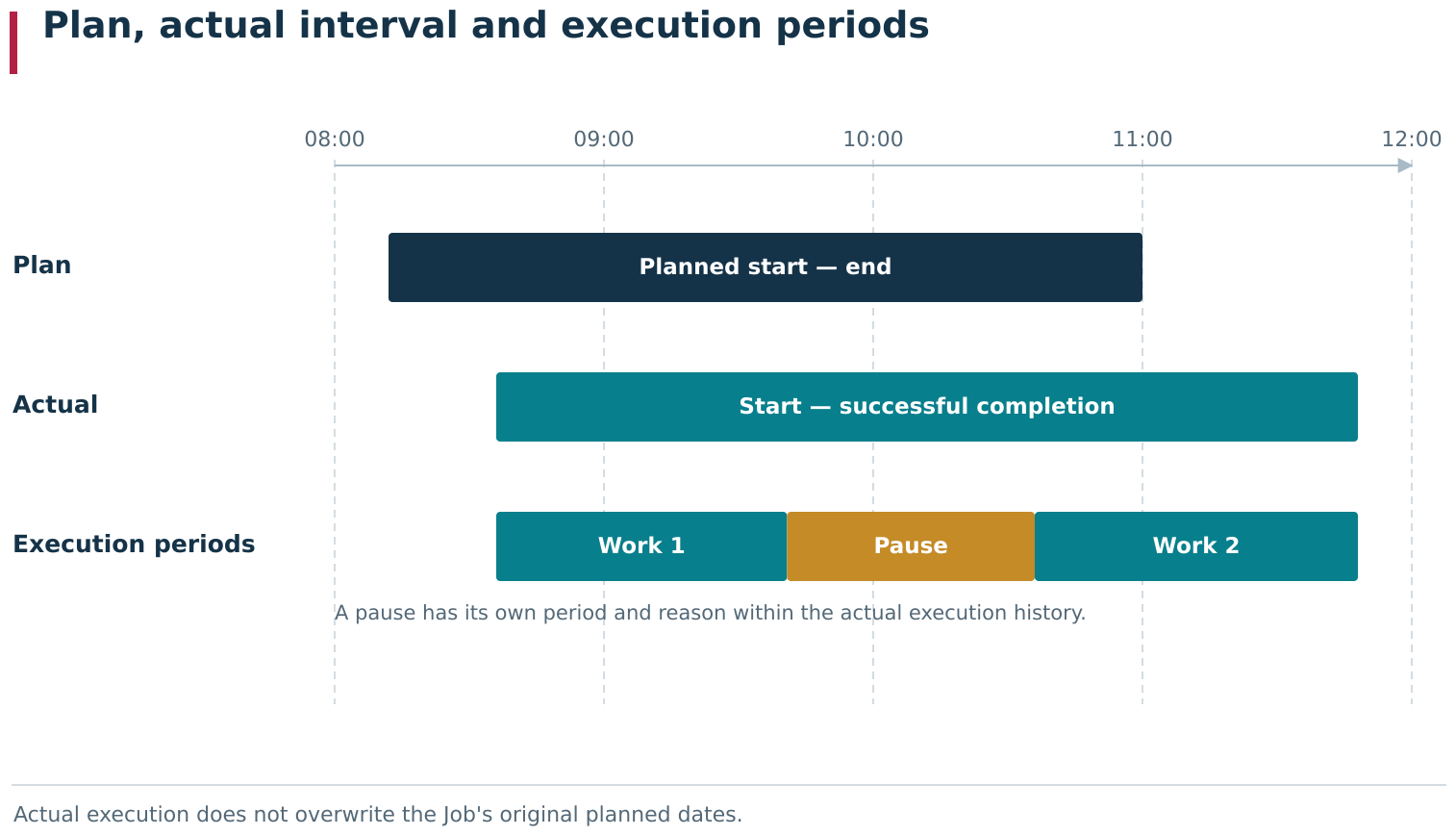
The Job’s planned interval remains the original calendar plan; actual history is recorded separately after Start. Within the actual interval, DPA retains work periods and pause intervals as distinct segments. Keep the plan, overall actual interval and the work → pause → work structure separate when interpreting execution.
Registering output and quality categories
To register manufactured quantity, click Release. Entering the number of items shows the quality categories enabled by the Operator-workplace settings:
- Accepted — the number of accepted products;
- Conditional fit — products whose quality-assessment result has not yet been specified; this category is available when the administrator allows separate registration of such output;
- Rejected — the number of rejected products.
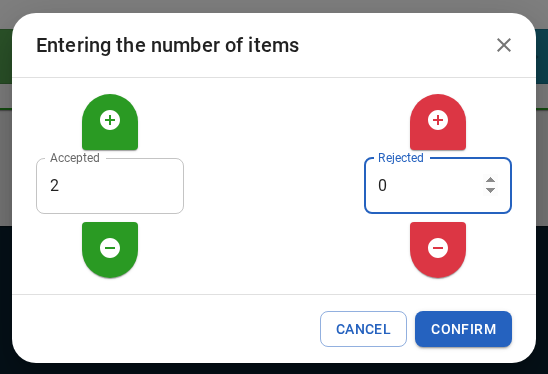
Actual output is registered through the separate Release action. In Entering the number of items, the Operator specifies Accepted and Rejected quantities. Saving increases the Job’s accumulated output; it does not itself complete the technological operations or change the Job to Completed.
Separate registration of the middle category is disabled by default, so a normal configuration may show only accepted and rejected output. The setting and the additional yellow output action are covered in the Operator-workplace settings section.
After confirmation, quantities are stored by quality category. For production-progress purposes, accepted output and output with quality not yet specified are counted together, while rejected output is shown separately. For example, registering two accepted units against a plan of 15 changes 0 of 15 to 2 of 15.
Do not use Complete as a substitute for output registration. Record the actual result first, then complete the Job. The setting for output whose quality is not yet specified is covered with the Operator workplace; machine-based output registration and component consumption depend on workplace configuration and are covered separately below.
Completing a Job and preserving the result
Once the required operations are complete and output has been registered, click Complete and confirm the action. When the actual result matches the plan, the Job becomes Completed, its actual end time is recorded, and its card moves to Completed.
A completed Job remains a production fact. It retains planned and actual dates, output quantities, operator, working and pause periods, and the history of completed Technology operations. This information does not depend on whether the operator opened the card through the Work-center list or through a personal Shift target.

After Complete is confirmed, the same Job moves to Completed and remains as a stored production result. Its card compares final output with the plan. Actual dates, the Operator, work and pause intervals, and operation history remain available for analysis.
If the actual quantity differs from the plan, Foreman approval is required, the Job must be skipped, or another exceptional situation occurs, do not treat it as the normal completion path. Those branches are covered in the next section.
Practical execution sequence
For a normal Job:
- Open the Operator workplace and select the required Work center.
- Find the Job among Scheduled Jobs or open it from Shift target.
- Check the Product, planned quantity, assigned Work center and prescribed CP.
- Click Start and confirm that the Job changes to Started.
- Perform Technology operations in the offered sequence, using Next and Next cycle when required.
- Record temporary stops with Suspend, selecting a reason, and return to work with Continue.
- Register the actual manufactured quantity with Release.
- Compare the actual result with the plan.
- For a normal result, click Complete and confirm completion.
- Check that the Job appears on Completed with the correct output.
After completion, both the Job plan and actual execution remain available for analysis. DPA stores the plan, Technology-operation progress, output and execution periods separately, allowing later analysis not only of the final Job state but also of how the work was performed.
6. Exceptional situations during Job execution
Normal completion assumes that actual output matches the plan. When DPA compares output with the planned quantity, accepted output and output whose quality is not yet specified are counted together; rejected output does not satisfy the planned quantity. In practice, a Job can finish below or above plan, and sometimes it has to be skipped before startup. DPA handles these situations separately and stores the deviation information together with the Job’s final state.
Underproduction and overproduction
If accepted output plus output whose quality is not yet specified is below the planned quantity, DPA treats the result as underproduction. For underproduction or output above plan, first register the quantity actually made with Release, then complete the Job subject to the configured checks.
Whether output above plan can be registered depends on the overproduction-prohibition setting. That check can separately define whether rejected output is counted together with accepted and quality-unspecified output when DPA determines the permitted limit. When overproduction is prohibited, DPA does not allow a quantity above that limit to be recorded. In that case, first correct the plan or the actual output to reflect the production situation before attempting output registration again.
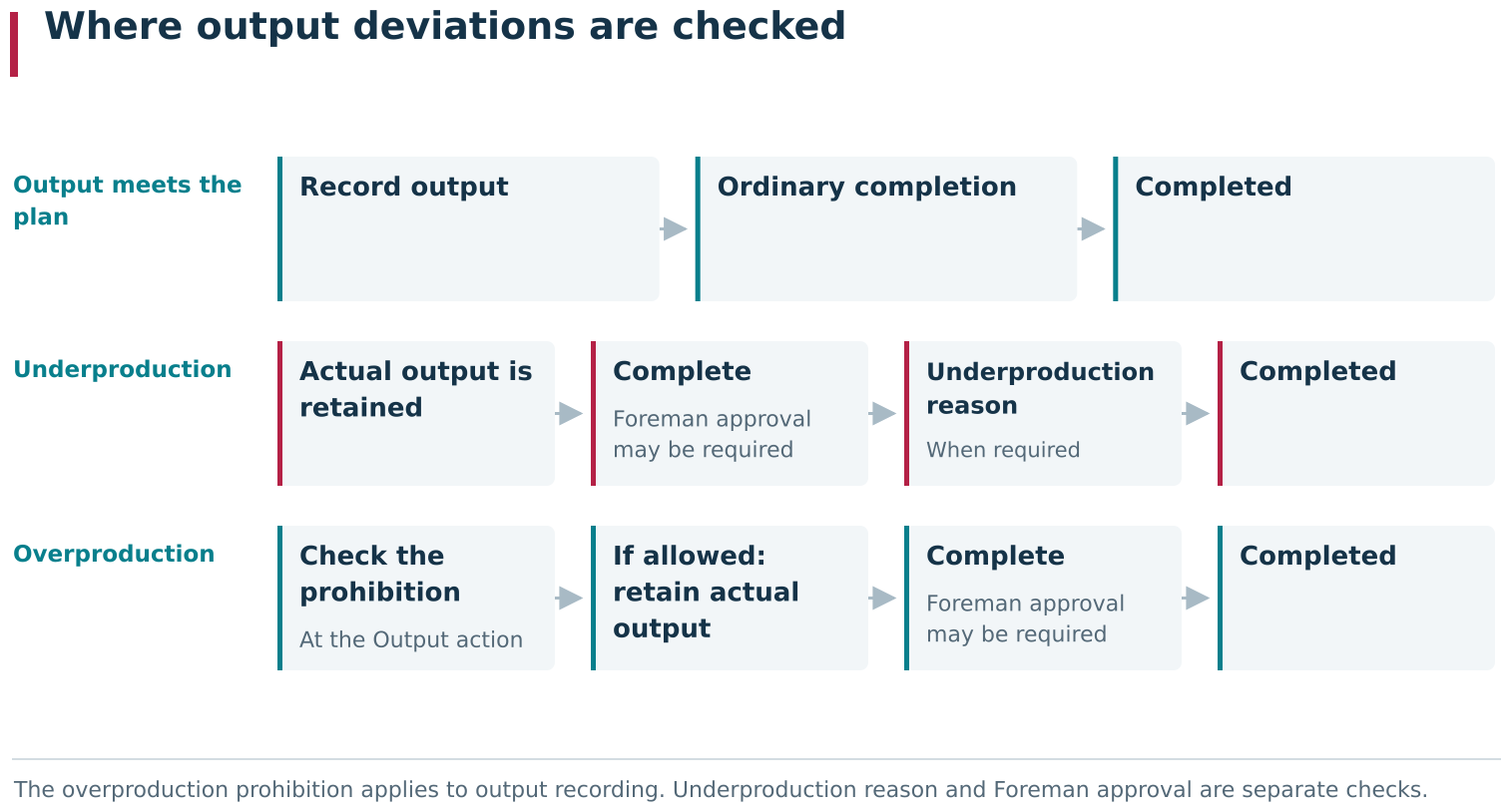
Output deviations are checked at different stages. An overproduction prohibition can block the Output action before Job completion. For underproduction, actual output is retained, while completion may additionally require Foreman approval and a deviation reason. The underproduction reason applies only to short output and does not replace Foreman approval.
Underproduction can also require a reason. If Require set reason of underproduction is enabled in DPA settings, Reason for production not according to plan opens before final Job completion. Select an underproduction reason from the available reference data and enter a comment. The reason and comment are stored in the completed Job together with its actual output. Overproduction does not require a deviation reason.
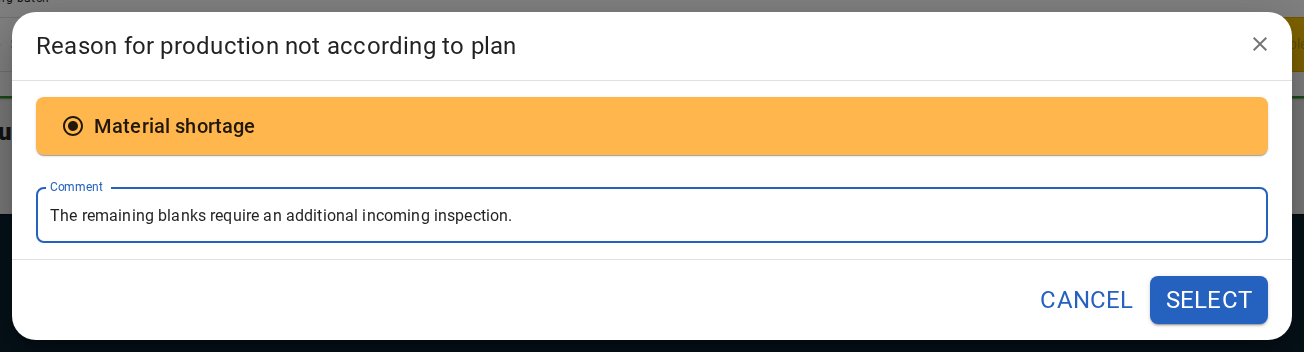
When an underproduction reason is required, completing a Job below its planned quantity opens Reason for production not according to plan. The Operator selects a reason and can add a comment. These details are stored with the completed Job’s actual output.
Requesting Foreman approval for completion with a deviation
A Work center can have Foreman must confirm job close with underproduction or overproduction enabled. In that case, the Operator cannot complete a Job independently when actual quantity differs from the plan.
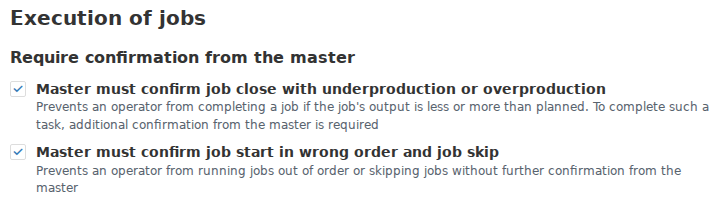
Two Work center settings control different approvals: completion with underproduction or overproduction, and starting out of order or skipping a Job. When the relevant option is enabled, DPA creates a Foreman request before the action continues. Other start and completion conditions still apply.
First register actual output with Release as described in the previous section. Then click Complete and confirm the standard completion prompt. If output differs from plan, DPA opens Action confirmation with Foreman must confirm the action: Production is not equal to planned. Until approval is received, the Job remains Started and retains the output already registered.
The request appears under Requests in the Foreman workplace. The Foreman sees the Work center, action type, requester, Job and request time. After the Foreman approves the completion, the Operator receives Foreman confirmed the request and can click Continue. Only then does DPA proceed to the remaining checks, including the underproduction reason when the settings require one.

A request in Foreman workstation → Requests identifies the Work center, action, author, Job and time. The Foreman’s decision allows the Operator to continue the original action; the decision alone does not start or complete the Job.
This approval applies specifically to the attempt to complete the Job with a deviation from plan. The request disappears from the Foreman queue after the decision, but the Job history retains which Foreman approved such completion. Approval requires the Foreman production role; general administrative permissions do not replace that role.
Foreman approval and an underproduction reason therefore serve different purposes: approval permits completion with a deviation, while the reason explains why the plan was not achieved in an underproduction case.
What the Operator does after the Foreman’s decision
The Foreman’s decision removes only the configured restriction. It neither registers output nor closes the Job on the Operator’s behalf. After approval, the Operator continues the action already started and completes the remaining form steps.
If approval is not granted, the Operator can cancel the action and continue the Job: register more output, return to Technology operations, or record a pause. A Foreman request is therefore not a separate Job state.
A Foreman request is not a Ticket either. It is short-lived permission for one particular action on a Job. Tickets represent independent production events and are covered separately in the workplace descriptions.
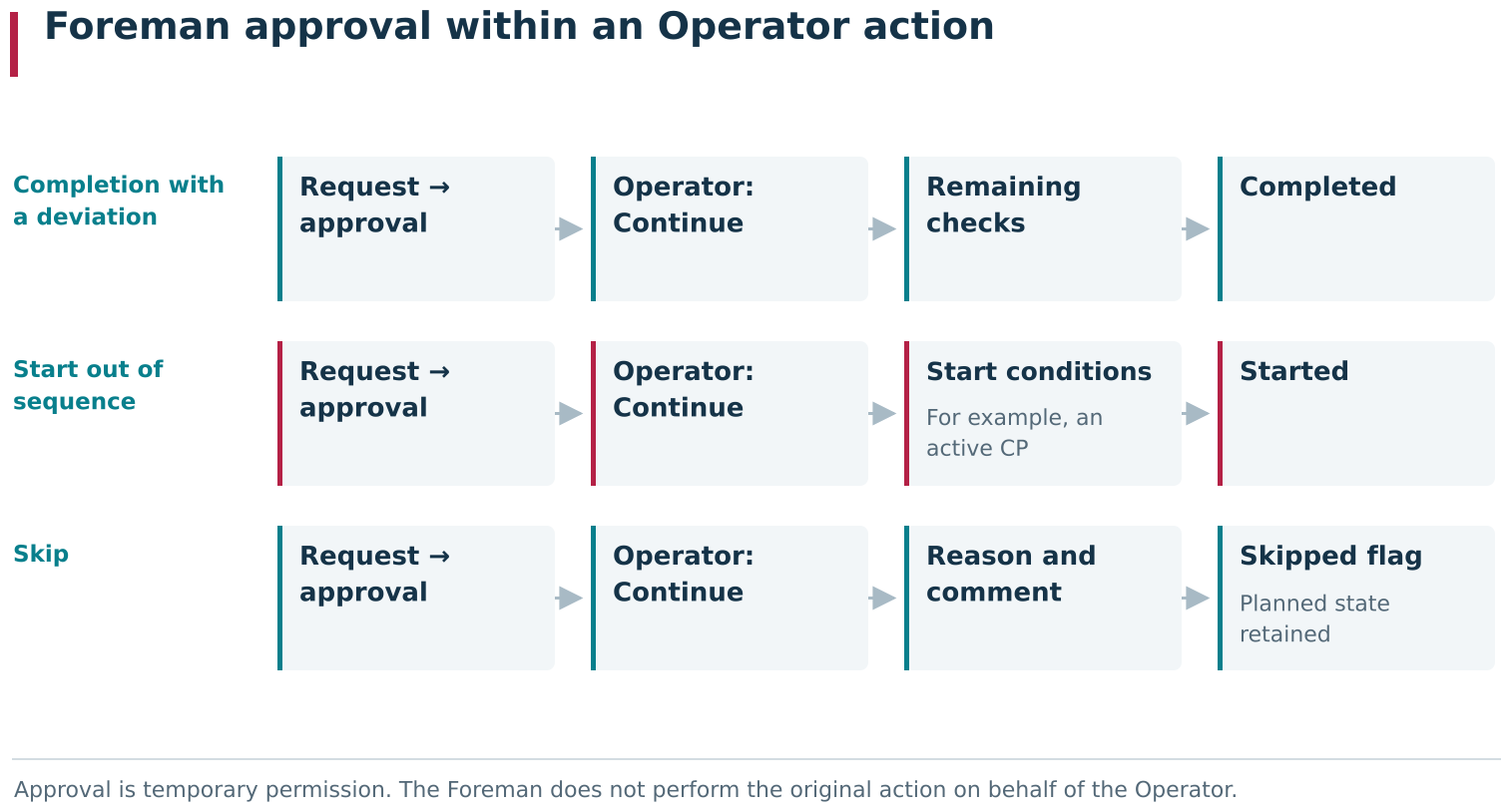
Foreman approval gives temporary permission to continue a specific Operator action. The Operator initiates completion with a deviation, an out-of-sequence start or a skip; DPA creates a request if approval is required. After the Foreman’s decision, the Operator presses Continue, and the original action proceeds through its remaining normal checks.
Foreman approval for starting a Job out of sequence
The Work-center setting Foreman must confirm job start in wrong order and job skip also applies at startup. If DPA does not consider the selected Job to be the next available Job for that Work center, clicking Start opens Foreman must confirm the action: Unordered job start, and DPA creates a request in the Foreman workplace.
After the Foreman approves it, the Operator clicks Continue, and DPA returns to the ordinary startup checks. Approval does not start the Job for the Operator and does not remove other startup prerequisites: the required CP version, for example, must still be active. After successful startup, the Job history records the Foreman who authorised the out-of-sequence start.
Skipping a scheduled Job
If a scheduled Job should not be started now, use Skip. Skipping is not a substitute for completing an already started Job with underproduction; it is a separate action for a Job that is deliberately not being started at this point.
The Work-center setting Foreman must confirm job start in wrong order and job skip can prohibit skipping without a Foreman’s decision. Clicking Skip then opens Foreman must confirm the action: Skip job, and creates the corresponding request in the Foreman workplace. After approval, click Continue.
DPA then opens Reason for skipping job. Select a reason and add a comment when necessary. After confirmation, the Job does not become Completed and receives no actual output. It remains scheduled, and the Job card receives a Postponed mark with the reason.
The skip history records the reason, the Operator who skipped the Job, the time and, when approval was required, the Foreman who authorised the skip. This distinguishes a Job actually performed with a deviation from one deliberately not started in the current sequence.
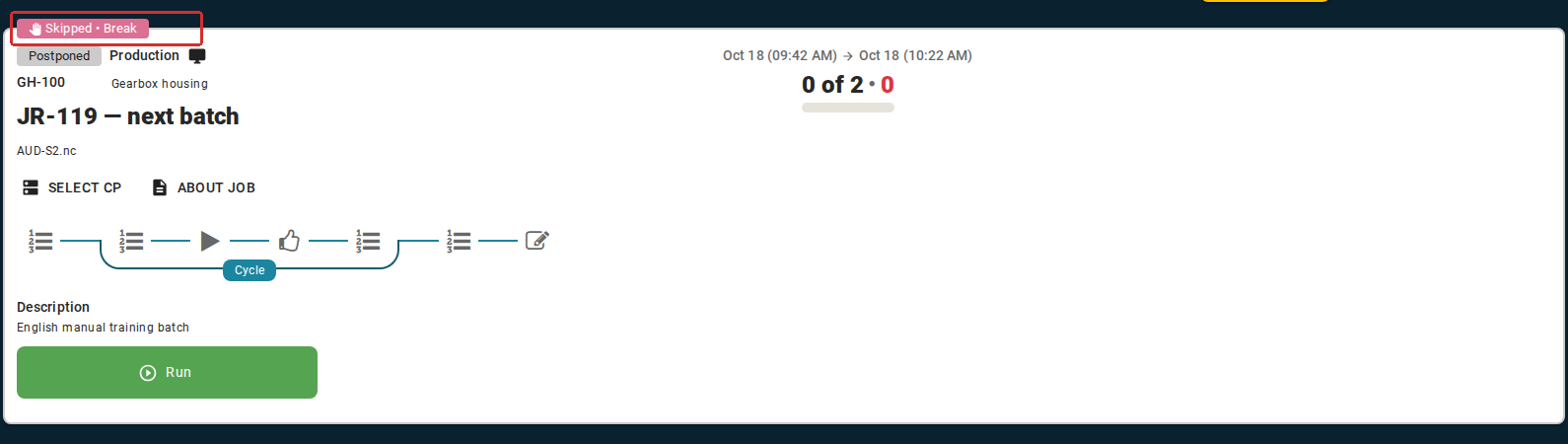
A skipped Job retains its planned state and receives no actual output. Its card displays a Skipped mark and the selected reason. History separately records the Operator, time and, when approval was required, the Foreman who approved the skip.
Choosing Suspend, Complete or Skip
Use different actions for different production events:
- Suspend — an already started Job has stopped temporarily and will resume;
- Complete — the Job has been performed; completion is normal when output matches plan, while a deviation can additionally require Foreman approval and an underproduction reason;
- Skip — a scheduled Job should not be started now.
Do not use Skip instead of completion with underproduction. A skipped Job remains scheduled and records no execution result. Conversely, do not complete a Job with zero or partial output merely to remove it from the scheduled list when it was not actually performed.
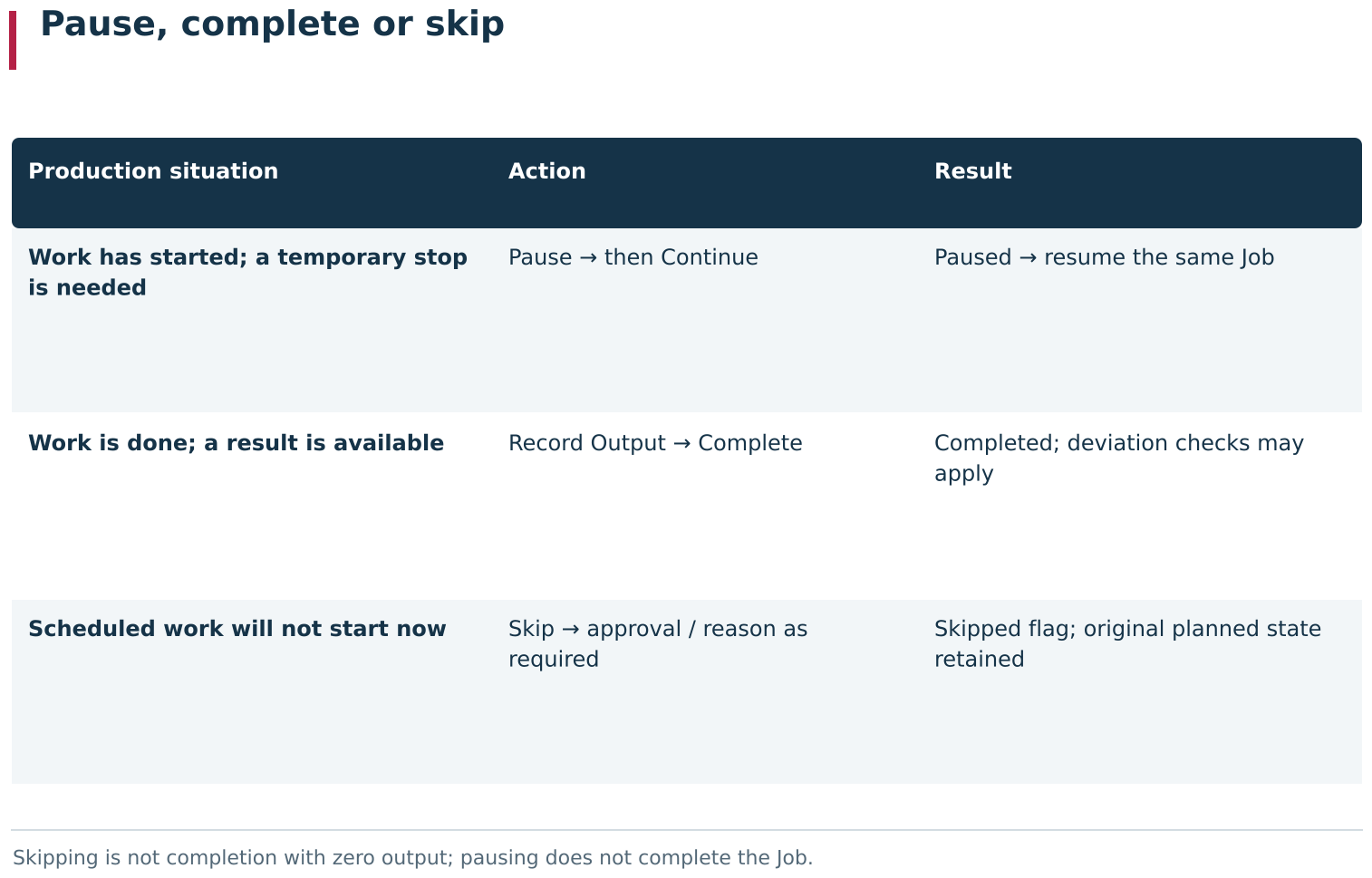
Pause, completion and skipping describe different production situations. A pause temporarily stops a running Job; completion records the result of work actually performed, including deviations; skipping applies to scheduled work deliberately not started now and creates no actual output.
Practical sequence for completion with a deviation
If a Job is already running and actual output differs from plan:
- Register the real output with Release.
- Make sure the quantity on the Job card matches what was actually produced.
- Click Complete and confirm the ordinary Job-completion prompt.
- If DPA opens Foreman must confirm the action: Production is not equal to planned, wait for Foreman approval and click Continue.
- For underproduction, specify the reason and comment when required by the settings.
- Complete the remaining form steps and check that the Job moves to Completed.
- Check the stored actual output and deviation information on the Job card.
There is no separate “complete with approved deviation” button. The Operator always begins with Complete; subsequent steps depend on the relationship between actual and planned output and on DPA settings.
The completed Job preserves the deviation information: what was produced, why the result differs from plan, and who authorised completion in that form.
7. Job materials: demand, reservations and actual consumption
For Job materials, DPA stores calculated and actual data separately. Calculated component demand, reservation of a particular batch and the quantity actually consumed are not the same record. They form a related chain:
Technology-based demand → reservation for the Job → actual consumption during output registration → remaining reservation balance.
In the standard DPA interface, reservations are not created manually. A Job receives reservation data when it is supplied by an external planning system or another integration with the enterprise IT environment.
The chain above explains how the concepts relate; it does not mean that each step automatically creates the next record. A component in the Technology does not create a reservation for the Job by itself, and enabling component-consumption accounting does not create one either.
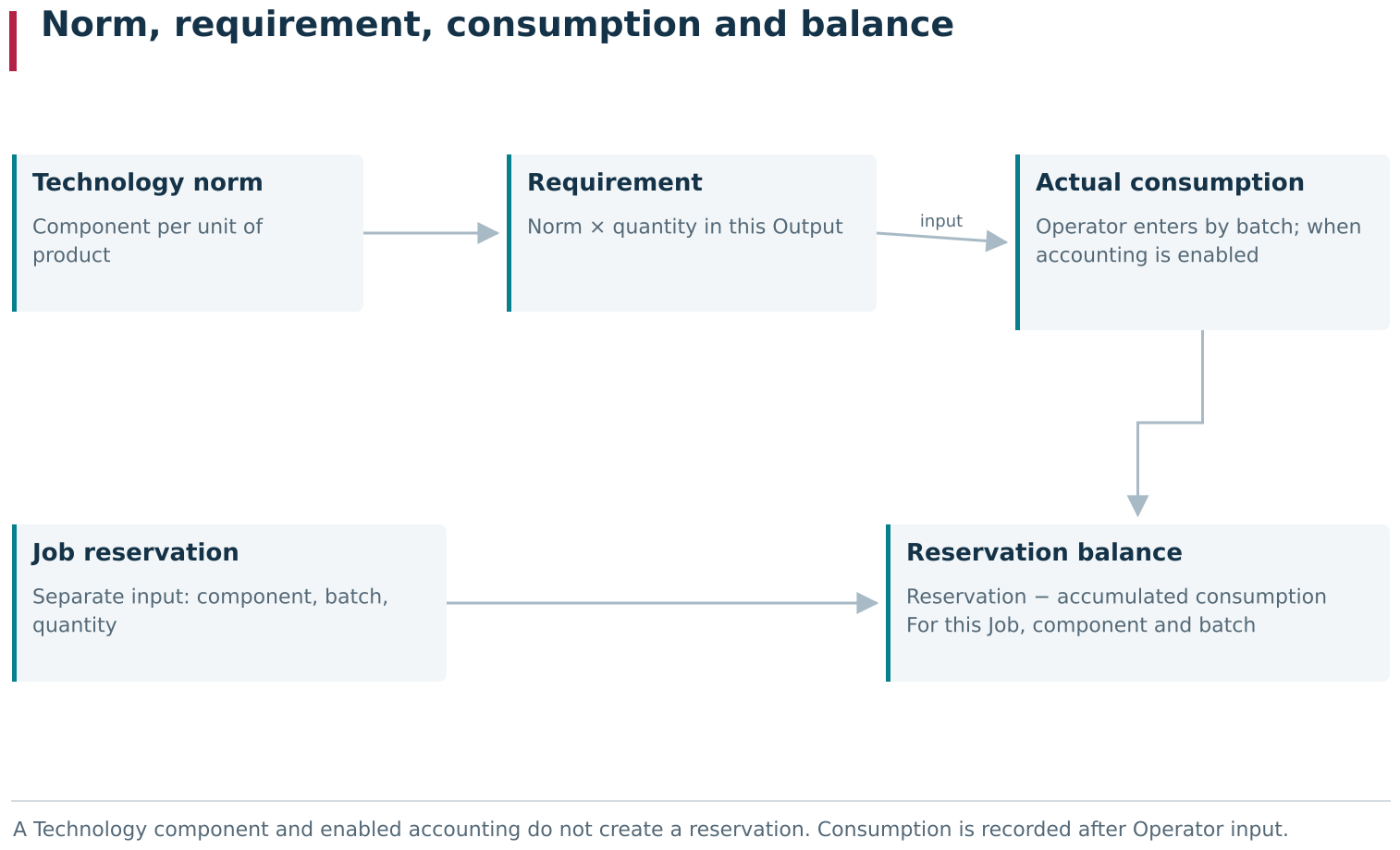
A Technology defines the component norm; each Output action calculates the requirement for the product quantity being recorded. A batch reservation, actual consumption and displayed Balance are separate data: a reservation can come from external planning, consumption is recorded after Operator input, and balance is calculated from the reservation and accumulated consumption. A Technology component alone creates neither a reservation nor actual consumption.
Enabling component-consumption accounting
If the Operator must specify batches and actual component consumption when registering output, open System settings, expand Operator, and enable Enable components consumption with batch allocation.
Here, a batch is a text identifier of a particular material batch from which a component is consumed. This workflow has no separate batch reference book. If the Job has a reservation for a specific batch, DPA offers it to the Operator together with the available balance. If no suitable reservation exists, the batch identifier can be entered manually.
This setting specifically controls registration of actual consumption in the Operator workplace. When it is disabled, Release does not open a separate component-entry form even when the Job’s Technology contains components, and actual component consumption is not recorded for that output. When it is enabled, DPA opens Components after the output quantity is entered and asks for the batches and quantities actually used.
Enabling the setting does not reserve material and does not populate Reserved components on the Job card.
Calculating component demand from Technology norms
Components are defined in Technology operations. Each component has a Product, quantity and supply method. When the Operator registers output, DPA calculates the demand for the Stage components based on the number of Products being registered by that particular Release action.
For example, if the component norm is 2.5 units per Product, registering one Product gives a calculated demand of 2.5 units, while registering two gives 5 units. This quantity applies to the current output registration, not to the planned quantity of the entire Job.
Calculating demand does not reserve the material and does not mean that the component has already been consumed.
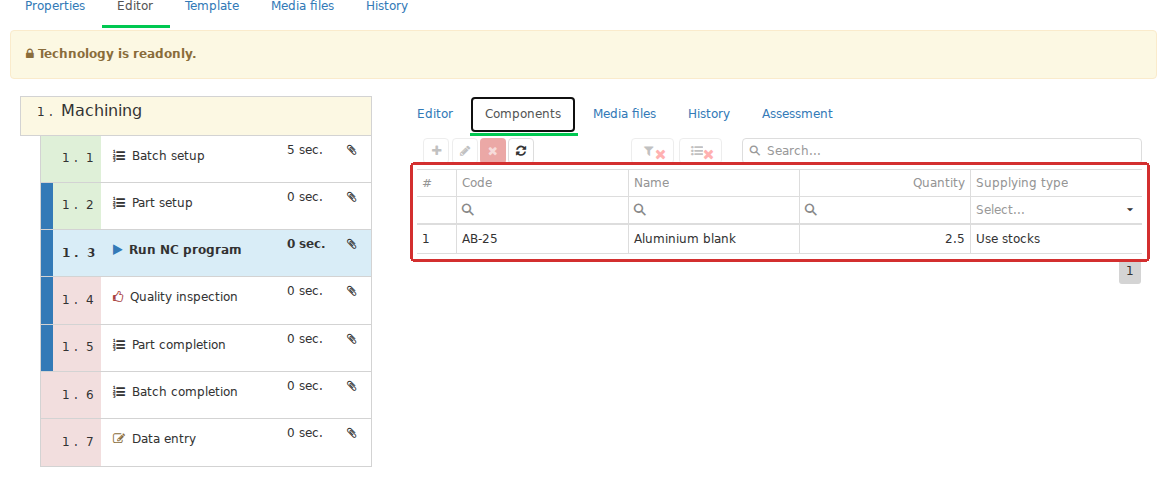
The Technology operation’s Components tab defines a material, quantity and supply method. These values are inputs for calculating the requirement of a particular Output action; they do not reserve a batch for a Job.
Viewing reservations on Reserved components
A component reservation belongs to a particular Job and contains the component, batch and reserved quantity. These rows are shown on Reserved components on the Job card. The tab is an interactive table.
In the standard planning form, this tab is used to view reservations already linked to the Job; a reservation row cannot be added there manually. Adding components to a Technology and then creating a Job manually does not create a reservation automatically. An empty Reserved components tab on such a Job is therefore not an error by itself.
BOM explosion of a Production order serves a different purpose: it creates the production structure and related Work orders. It is not required for component-consumption accounting and does not by itself fill the reservation for a particular Job.
A reservation can be supplied separately together with Job data from an external planning system or import. Its quantity does not have to equal the demand of one output event; for example, one larger reservation from a particular batch can cover several future output registrations.
A reservation is not a consumption record either. Until the Operator registers component consumption, the reserved quantity remains a reservation regardless of the Job’s actual output.

The Reserved components tab displays reservations supplied for a particular Job: component, batch and reserved quantity. It is a read-only view of reservations. An empty tab for a Job whose Technology has components does not by itself indicate an error.
Entering the batch and actual consumption during output registration
With component accounting enabled, DPA opens Components after the output quantity is entered. For every component it shows the calculated demand for the current output registration.
For each row, specify the batch and the quantity of material actually used. If one component was taken from several batches, add extra rows and distribute consumption between them.
A reservation is not required. If reserved batches exist for the component, DPA offers them and shows the current Remaining value. If there is no reservation, enter the batch manually. This records actual consumption but does not create a reservation automatically.
In the Operator form, total entered consumption for a component must not exceed the calculated demand for the current output registration. For a reserved batch, the entered quantity also cannot exceed its current remaining balance.
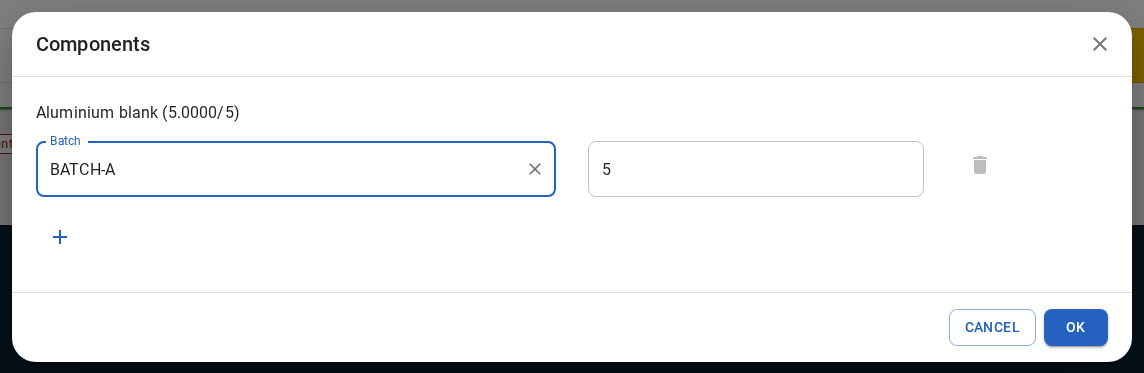
After the output quantity is entered, Components shows the calculated requirement for this output event and allows the actual batch and consumed quantity to be specified. A reserved batch is offered with its remaining balance. Without a reservation, the batch can be entered manually; this records consumption without creating a reservation.
After output is confirmed, the component data are stored as actual consumption for that output record. The reservation itself is not converted into a consumption record: reserved and consumed quantities continue to be stored separately.
Viewing component consumption in Job analisys
To inspect consumption that has already been recorded, open Analytics → 27. Job analisys, select the Job and open Output. Expand the required output row. In the nested table, DPA shows the component Product, Batch and Quantity.
A reservation is not required for this display. If the Operator entered an unreserved batch manually during output registration, consumption from that batch is stored and shown in Job analisys in the same way as consumption from a reserved batch.
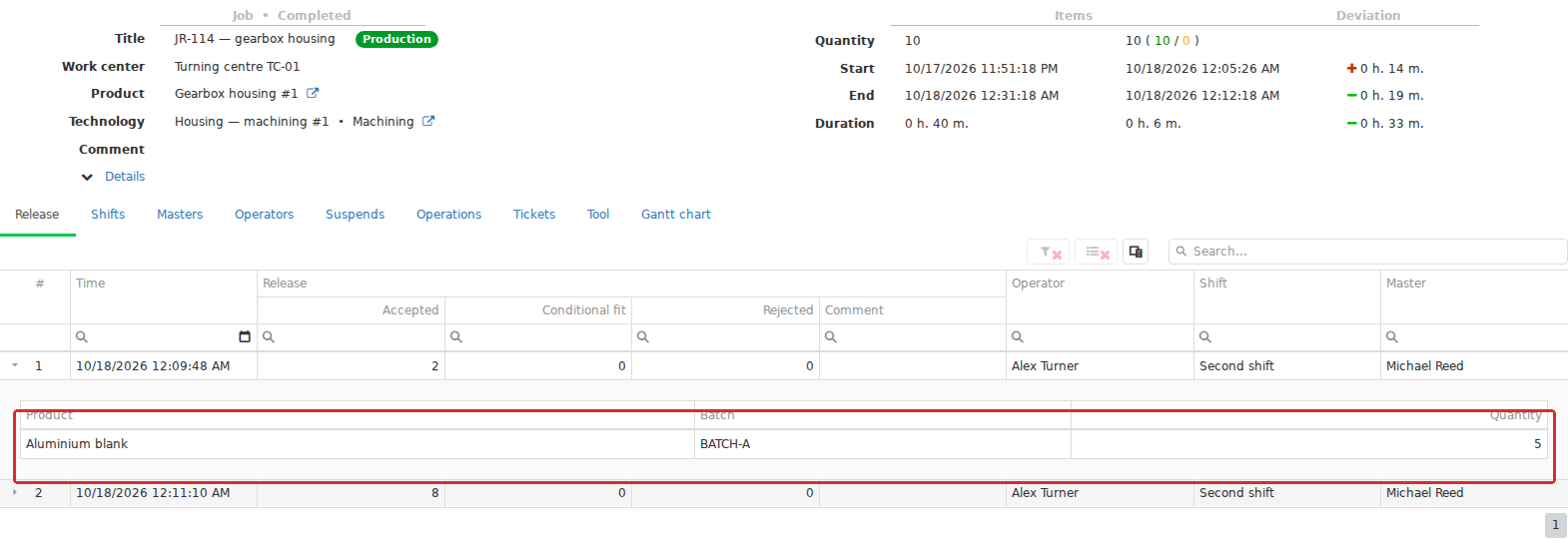
In Job analysis, component consumption expands within an individual output row. Each record shows Product, Batch and Quantity, preserving the batches consumed for each output event as well as the Job’s total result.
Calculating the remaining reservation balance
For each component/batch combination, the remaining balance is the reserved quantity minus the accumulated actual consumption for that Job.
For example, if 5 units of a component are reserved from one batch and 2.5 units are consumed during the first output registration, DPA shows Remaining: 2.5 for that batch the next time consumption is entered. Subsequent output registrations continue to reduce the calculated balance. A fully consumed reservation row no longer appears as a positive remaining balance.
Consumption from a manually entered batch without a reservation does not create a reservation automatically. The balance is therefore not an overall warehouse balance and not actual stock availability; it is the unused part of the reservation for this particular Job.
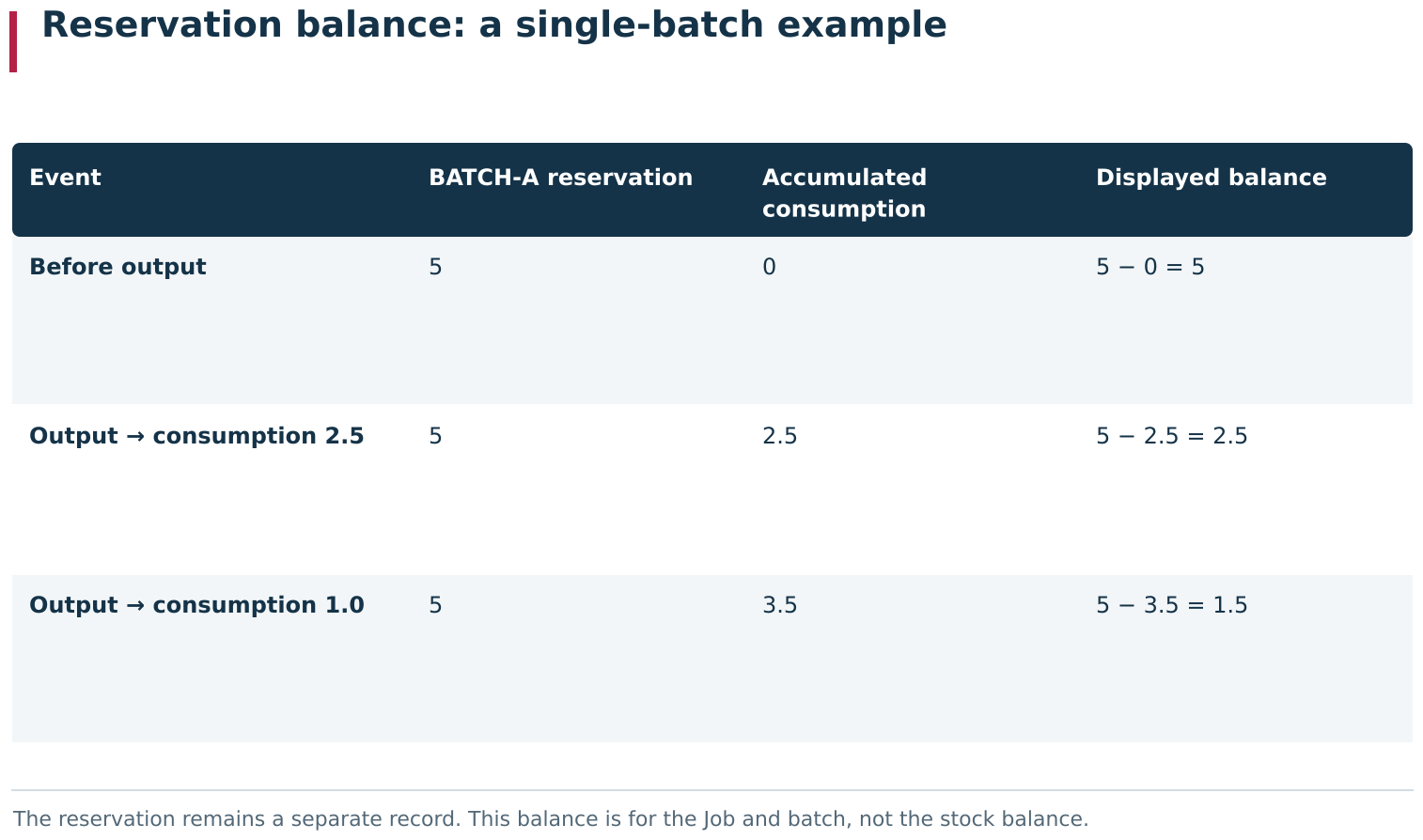
Reservation and consumption are recorded separately. The original BATCH-A reservation can remain 5 while individual output records accumulate actual consumption. The Operator’s displayed Balance is reservation − accumulated consumption for this Job and batch; it is neither the stock balance nor a change to the original reservation record.
Preserving component consumption in output history
Each Release creates its own production result. Component consumption entered with that Release belongs to the corresponding output record, so several output registrations for one Job form an accumulated consumption history. After the Job is completed, actual Product quantities and the components used remain part of the execution result.
This keeps planning and actuals separate: the Technology defines the norm, the reservation describes material prepared for the Job, and the output records show how much material was actually used and from which batches.
Practical sequence for working with materials
For a Job where component consumption is tracked:
- if batch-level consumption must be recorded, enable Enable components consumption with batch allocation under Operator in System settings;
- define the components and their consumption norms in the Technology;
- create and plan the Job; do not expect a reservation to appear automatically merely because the Technology contains components;
- if an external planning system supplied a reservation, verify its component, quantity and batch on Reserved components;
- start the Job in the Operator workplace and click Release when output is produced;
- enter the actual output quantity and confirm it;
- in Components, select a reserved batch or enter another batch manually, then enter the actual consumption;
- confirm the output and verify the Job’s updated actual quantity;
- at the next output registration, check the displayed Remaining value for reserved batches;
- when necessary, open
Analytics → 27. Job analisys, expand the output row and verify the stored batch and actual component quantity; - after Job completion, use the stored output records as the actual history of production and component consumption.
If Reserved components is empty while components exist in the Technology, actual consumption can still be registered. With component accounting enabled, the components still appear in Components, and the batch can be entered manually.
DPA therefore connects the material side of production with the Job lifecycle described above: from the norm in the Technology and, where present, a separately supplied reservation to actual batch consumption during actual output registration.
Operator, Foreman and Maintenance actions are described in Chapter 6.
← Chapter 4. Production preparation and control programs · Contents · Chapter 6. Workplaces: Operator, Foreman and Maintenance →