← Chapter 3. Equipment, Work centers and machine data · Contents · Chapter 5. Production planning and execution →
What this chapter covers
The previous chapter focused mainly on two questions: “where is the equipment?” and “what data are coming from the machine?”. That is not enough to perform production work. DPA must also know which product is to be manufactured, which technology should be used, which stages and operations make up the process, and which equipment is eligible to perform it.
Together, these data form a connected production-preparation model. Its core sequence is:
Product → Product version → Technology → Technology version → Stage → Operation
At subsequent levels, Work centers, Control programs, parameter sets and production Jobs are connected to this chain. An error near the beginning can therefore surface much later in the workflow: the required Technology may be unavailable when a Job is created, a Stage may offer no suitable equipment, or an Operator may not receive the required CP.
This chapter follows the complete production-preparation model in sequence: first the path from Product to Operation, then Control-program versions and CP relationships, execution parameters, validation of process values, and transfer of programs to equipment.
1. Product, Technology, Stage and Operation
A Product has Product versions, and a Technology has Technology versions. The parent object stores information common to the whole item. Its version describes a particular variant used in production.
Each level answers a different question:
| Level | What it defines | Where it is configured |
|---|---|---|
| Product | What the enterprise produces; common name, code, type, category and unit of measure | Products, on the selected Product edit page |
| Product version | Which particular Product variant is used | version list on the Product edit page |
| Technology | How the selected Product version is manufactured | Technologies, on the selected Technology edit page |
| Technology version | Which Technology variant applies, and which stages and operations it contains | version list on the Technology edit page, Properties and Editor tabs |
| Stage | Which block of work is performed and which Work centers are eligible for it | Editor tab of the selected Technology version |
| Operation | Which specific action is performed within the stage | inside the Stage on the Editor tab |
This table describes semantic relationships, not one universal interface tree. On the main Products and Technologies pages, the primary object list is an interactive table. After you open an item, its name appears on the left side of the page with a single list of versions of that item beneath it. This area looks visually similar to an expanded tree node, but it is not a multi-level Product or Technology hierarchy. When a Job is created, DPA connects objects from the two sections into one sequence.
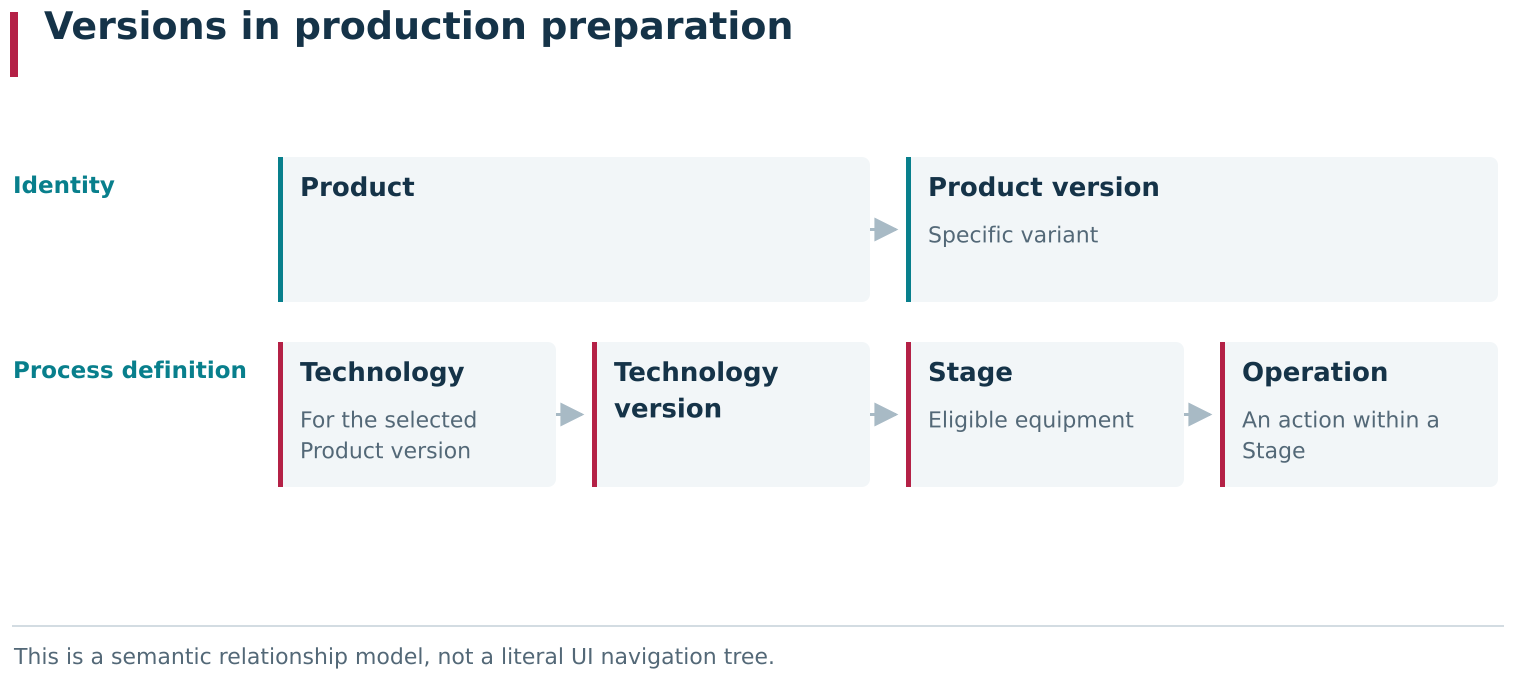
The production-preparation chain is Product → Product version → Technology → Technology version → Stage → Operation. Products and Technologies retain stable identities; their versions define specific production variants. A Stage links the process structure to eligible equipment, and an Operation describes an individual action. These are connected entities accessed through different screens, rather than one UI tree.
A Product stores information shared by its versions
Create a Product under Products. Its card contains information that applies to the Product as a whole: code, name, category, type, Department, comment and unit of measure. Custom fields can be added when required.
The Product itself is not yet the production variant selected for a Technology or a Job. After creating it, add at least one Product version. On the Product edit page, its Product versions are listed on the left beneath the object name. Each Product version has its own number, description and custom fields.
This separation is useful even when the enterprise currently uses only one Product variant. Common information remains in the parent card, while design or composition changes can be represented by new versions instead of creating another unrelated Product with a similar name.
Activating and editing a Product version
One Product can have several versions, but only one can be active. Change the Product version status with Activate and Deactivate in the selected version card. An active Product version is read-only; to change its number, description or custom fields, first deactivate the current Product version or create a new one.
The active flag belongs specifically to the Product version. In the main list it also indicates whether the Product has an active version. A Product that exists under Products may therefore be absent from the selection dialog when a Technology is created. In that case, check not only the Product card but also whether an active Product version exists.

The Product page separates the parent card from its versions. Activation belongs to a Product version; the active version is read-only and is the version available for creating a Technology.
A Technology describes how a particular Product version is manufactured
Create a Technology under Technologies. The New technology dialog contains Name, Product and Description. Despite the label Product, the field selects an active Product version. This ties the Technology not to the Product in general, but to one particular production variant.
Several Technologies can be created for one Product version. This makes it possible to describe alternative manufacturing methods for the same result — for example, different production routes or operating conditions. When a Job is created, DPA offers only Technologies associated with the selected Product version.
Like a Product, a Technology is separate from its versions. It stores common information and the relationship with the Product version, while the changeable technological content resides in its Technology versions.
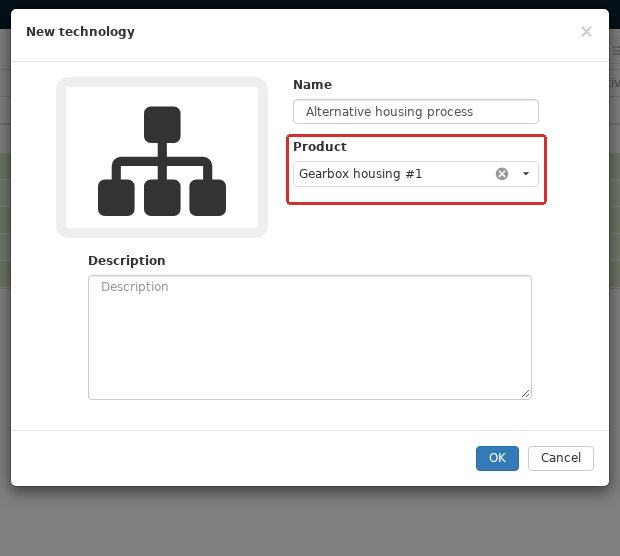
In New technology, the Product field selects an active Product version. This fixes the production variant for which the Technology is created and subsequently constrains the technologies available when creating a Job.
Technology version Properties and Editor
When a Technology is created, DPA immediately adds its first Technology version. On the Technology edit page, the Technology versions are listed on the left beneath the Technology name. The Technology version name is built from the Technology name and version number, for example Gearbox housing #1.
The Properties tab of the selected Technology version shows its associated Product version, active period, state, description and custom fields. A new Technology version has the New state. Other states and transition rules are covered separately; for initial configuration, the important distinction is between editing and execution: a Technology version being present in the list does not yet mean that production work can be started from it.
The contents of the Technology version are configured on the Editor tab. A new Technology already contains Stage 1 and a standard sequence of six operations:
- Batch setup;
- Unit setup;
- CP execution;
- Quality control;
- Unit completion;
- Batch completion.
This is an initial template, not a mandatory immutable route. In the editor, existing elements can be changed and new stages or operations can be added to match the enterprise’s production process.
A Stage groups operations and eligible equipment
A Stage belongs to a particular Technology version. Its card contains a name, description and equipment list. The list can include individual Work centers as well as Work center groups.
The Stage equipment list defines the set of eligible choices. If processing can be performed on any of several interchangeable machines, there is no need to create several copies of the same Technology: assign a suitable group or several individual Work centers to the Stage. The specific Work center on which the Job will be performed is determined later, when production work is assigned and planned.
Equipment preparation and Job assignment are separate:
- production preparation defines which equipment can in principle perform the Stage;
- Job assignment defines which Work center will perform it in this particular case.
If the required machine is not offered when assigning a Job, first open Technologies, select the Technology version being used, then select the required Stage on the Editor tab and check its Work centers and Work center groups.
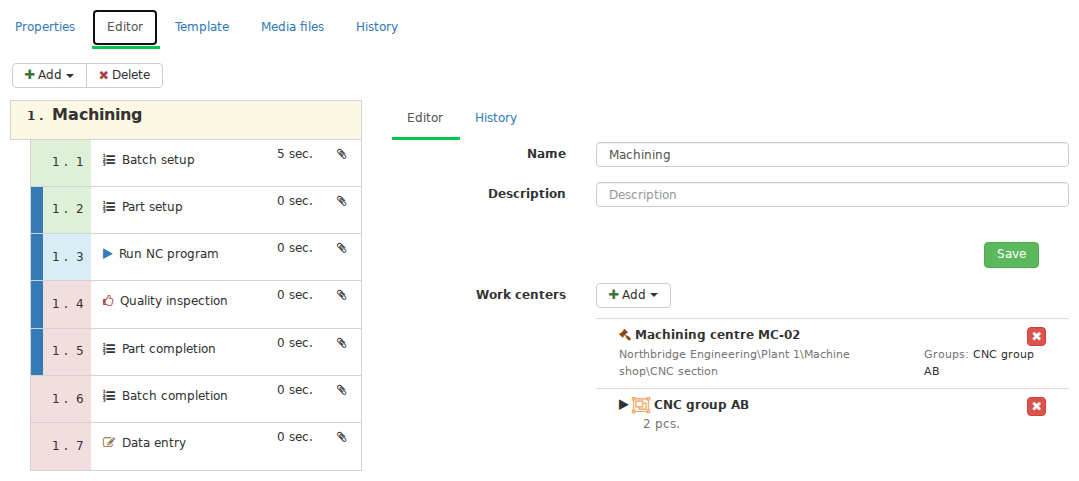
In a Technology version’s Editor, a Stage defines both the process structure and eligible equipment. Its operation list shows the initial sequence, while Stage settings list the Work centers and Work center groups that can perform it. A particular Job is assigned later.
An Operation defines a specific action inside a Stage
A Stage contains an ordered sequence of Operations. On the Editor tab, every operation has the common fields Name, Description, Operation type and Duration. The type determines where the action belongs in the production cycle: batch setup, individual-unit setup, main operation, completion for one unit or completion for the whole batch.
When an operation is added, the editor offers several content variants:
- Instruction — textual instructions for the action;
- Work by CP — execution of an assigned Control program;
- Quality control — verification of the result;
- Data input — fields that must be filled in while working.
Operation type and operation content therefore answer different questions. The type tells DPA when the action is performed and to which part of the Job it applies, while the selected content variant defines what the user or equipment must actually do. For example, a Work by CP operation can be a main operation for one unit, while a text instruction can apply to setup of the entire batch.
DPA checks the ordering of operation types when a Technology version is activated. For example, placing a unit-completion operation after a batch-completion operation prevents activation of the Technology version. After adding an operation, check both its type and its position in the sequence.
The fields below the common part depend on the operation content. Instruction provides a Text field; Work by CP provides program assignments for the Stage equipment; Data input provides configurable fields that can be linked to Indicators when required. In addition to Editor, the operation card provides Components, Media files, History and Standard estimate tabs. At this point, the important thing is to understand the Operation’s place in the overall model; the purpose of the additional tabs and differences between operation kinds are covered together with the corresponding production scenarios.
For a Work by CP operation, a CP version is assigned to selected Work centers or Work center groups configured for the Stage. First select the equipment to which the assignment applies; only then does Assign CP become available. A relationship between the Control program itself and that equipment can be used to filter the list, but it is not a mandatory prerequisite for the assignment. The distinction between these relationships and CP selection during execution is explained in the following sections.
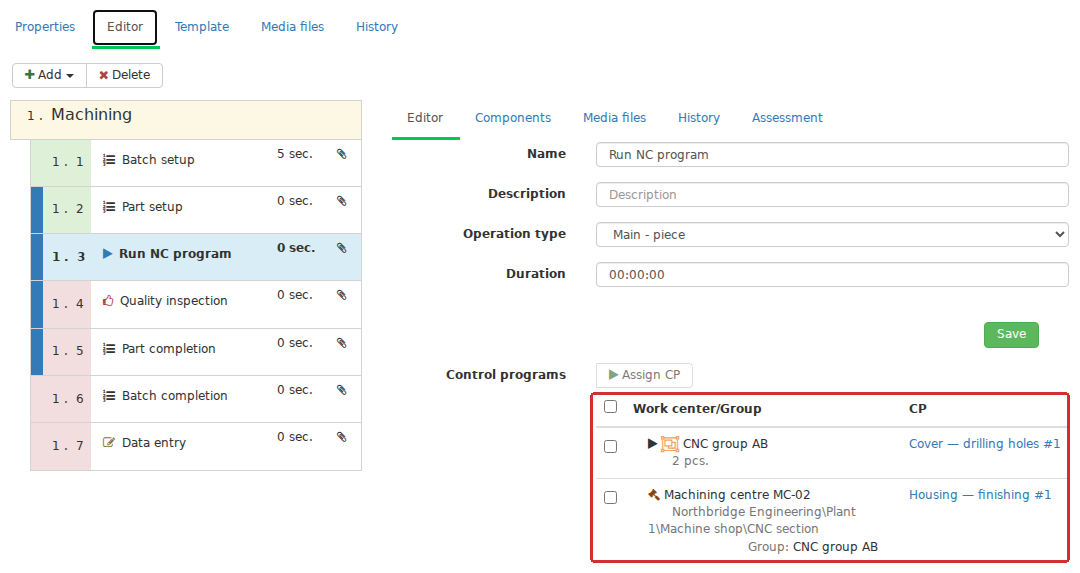
The Operation editor combines general properties, Name, Operation type and Execution time, with fields specific to its content. For Work by CP, it shows the CP assignments for the Stage’s equipment. The operation type locates the action in the production cycle, while its content defines the work performed.
Selecting Product version, Technology version and Stage for a Job
When creating a Job, DPA leads the user through the relationships that have already been configured:
- select an active Product version;
- Technology versions created for that Product version become available;
- select a Stage from the corresponding Technology version;
- specify quantity and other Job parameters;
- choose the specific Work center for execution from the Stage’s eligible equipment.
If only one suitable Technology version or Stage exists, the interface can select it automatically. This does not mean the intermediate level is absent: the Job still stores a relationship to a particular Product version and Technology Stage.
Troubleshooting therefore follows the same order. If a list is empty at one step, move one level back and check the relationship configured there: whether the Product version is active, whether the Technology is associated with that version, whether a suitable Technology version and Stage exist, and whether eligible equipment is assigned.
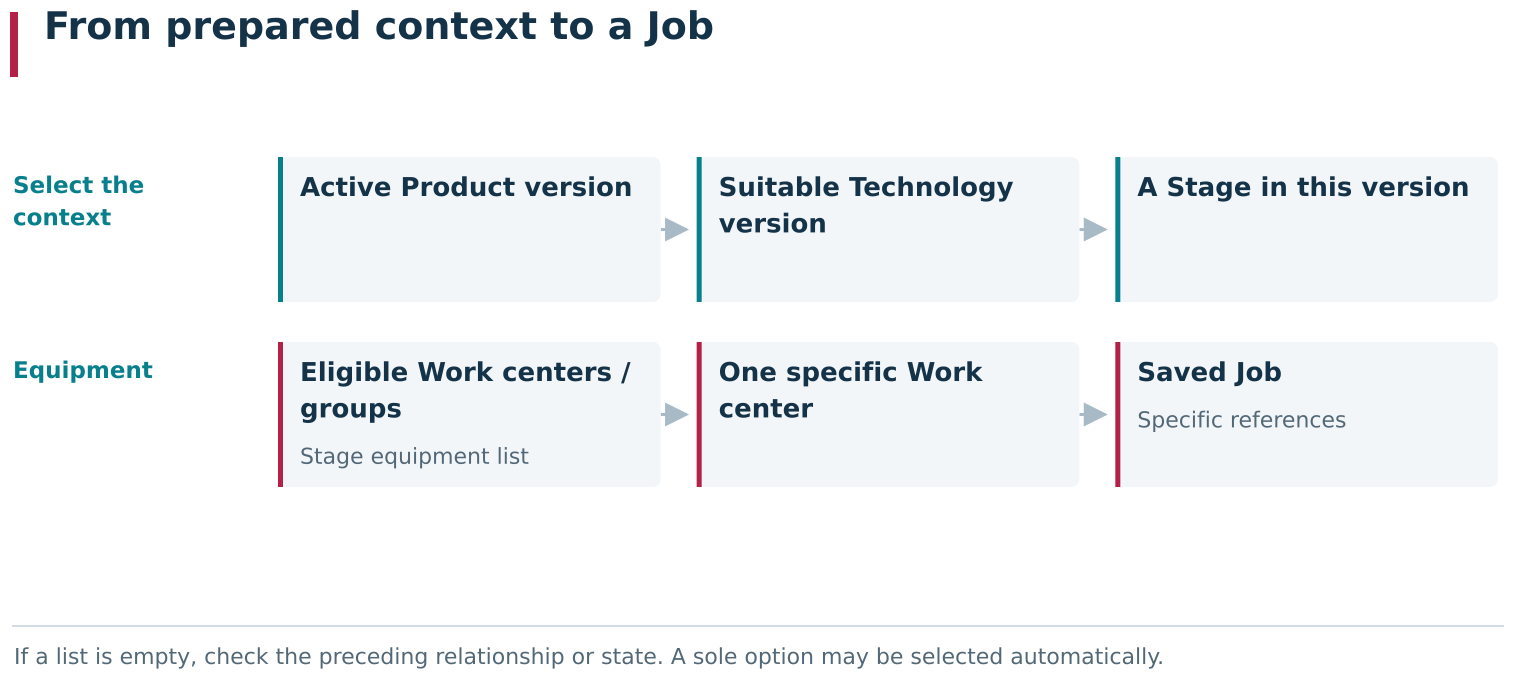
Creating a Job follows prepared relationships: active Product version → suitable Technology version → Stage → eligible equipment → a specific Work center. If a list is empty, check the preceding relationship. Automatic selection of a sole option does not remove that intermediate level from the model.
Practical order for initial configuration
For a new Product, it is convenient to work from the top down:
- prepare the required reference values — Product type and unit of measure;
- under Products, create the Product and fill in its common information;
- add a Product version, save it and activate it;
- under Technologies, create a Technology for the selected active Product version;
- open the created Technology version and check its properties;
- on the Editor tab, configure the stages and assign eligible Work centers or Work center groups to them;
- adjust the operation sequence to match the production process;
- for Work by CP operations, prepare the required relationships with Control programs;
- move the Technology version to a state that permits production execution;
- create a test Job and confirm that the complete chain can be selected without gaps.
After this configuration, a Job can be associated with the required Product version, Technology Stage and equipment. The next section covers Control programs and their versions.
2. Control program and CP version lifecycle
The Control programs area contains several related tabs: CP, Subprograms, Parameter sets, Upload Wizard and History. This section deals with the first of them: the CP catalogue and work with CP versions. Subprograms, parameters and file transfer to equipment are covered separately.
A Control program in DPA is more than an uploaded file. It is a catalogue object with a persistent name, classification and relationships, and it contains individual CP versions. The CP version is the object that contains a particular file with CP text and becomes part of a Technology, Job and execution history.
This separation lets you prepare a new revision of a CP without changing the revision currently used in production. While a new CP version is being edited, the current CP version remains available to the other DPA functions.
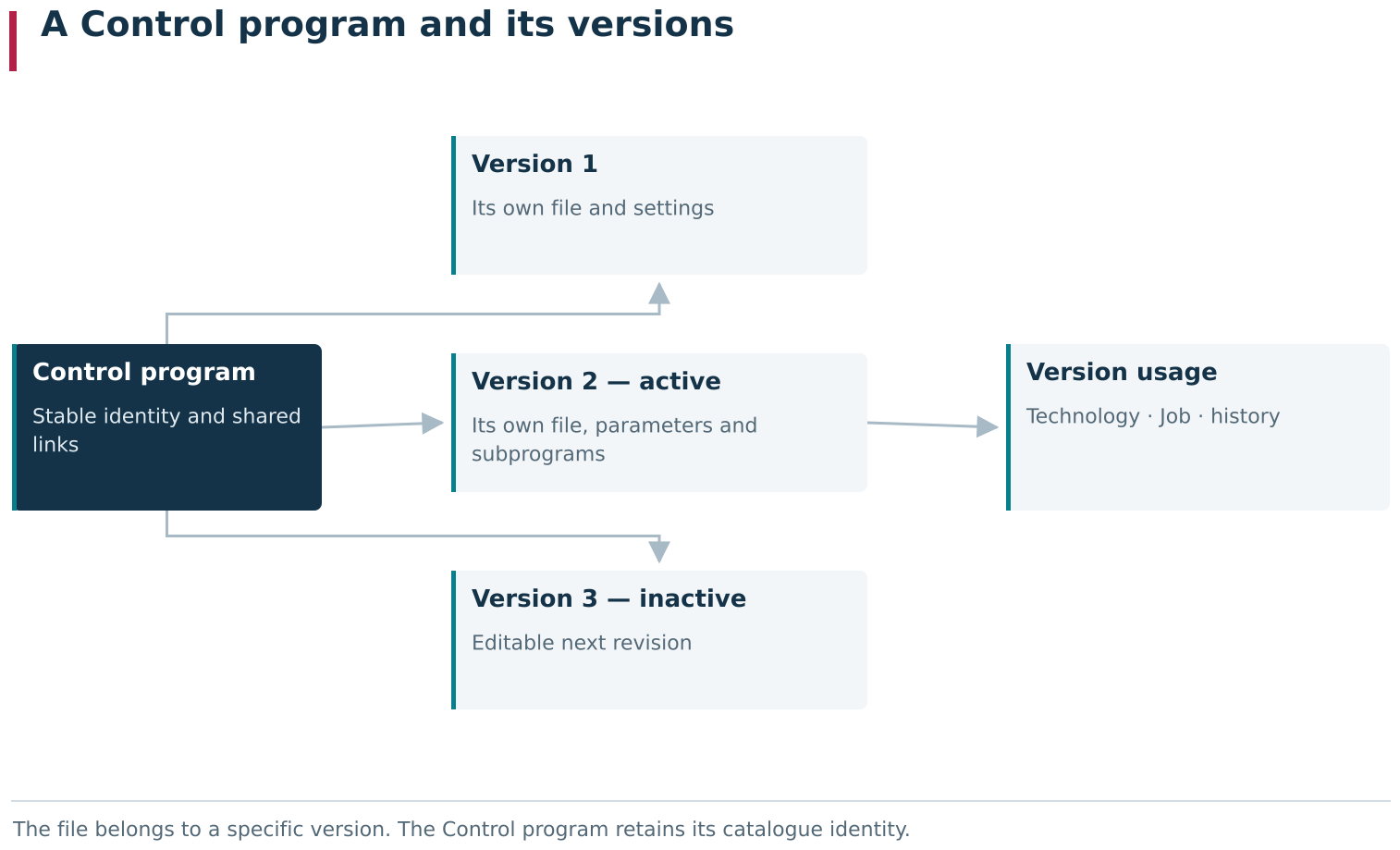
The diagram separates the Control program, a stable catalogue object, from its CP versions, which own specific files and editable revisions. A new version can be prepared independently of the current one; a selected version then participates in the Technology, Job and execution history.
What the CP list shows
On the CP tab, the common list of Control programs is an interactive table. The main columns used when working with CPs are:
- Name;
- File and File modification date;
- associated Work centers;
- Category and Comment;
- Program type and Processing type;
- Active and Deployed flags;
- additional fields, if custom fields are configured for Control programs.
Above the list is a Work center selector. It filters the CPs shown in the table but does not itself associate a CP with the selected equipment. Equipment relationships are configured on the Control program card and are covered in detail in the next section.
The File, File modification date, Active and Deployed columns describe the active CP version. A file uploaded to an inactive CP version may therefore be absent from the common list. To inspect such a version, open the Control program itself and select that CP version on the left side of the edit page.

The Control programs catalog combines properties of each CP with information from its active version: file, modification date and the Active and Deployed flags. The Work center selector above the list filters rows; it does not create equipment links.
A Control program stores shared information
Add opens New control program. The form contains:
- Name;
- Program type;
- Processing type;
- Category;
- Department;
- Comment;
- Channel number;
- additional fields configured for CPs.
Name, Program type and Processing type are required. The remaining fields refine the CP’s purpose and place in the production model. No file is selected on this form: the file belongs to a particular CP version and is added only after the Control program has been created.
After saving, the Control program card opens. It has the Program, Work centers and History tabs. Program is used to edit the shared properties, and the Active version line is shown above the form. If no CP version has been activated yet, this line shows None.
The first CP version is created automatically
When a new Control program is created, DPA automatically creates CP version 1. It is stored immediately, but it remains inactive and does not have the Deployed flag. On the left side of the page, the CP itself is shown first and its CP versions are listed beneath it. Parameter sets associated with a CP version can form another level below the version.
A CP version has the following properties:
- Version number;
- Description;
- Release count;
- associated Parameter sets;
- additional CP-version fields;
- File name;
- File format;
- the file itself and File modification date;
- associated Subprograms and their Parameter sets.
The Version number must be unique within one Control program. Release count defaults to 1. DPA uses it as the standard number of products produced by one execution of this CP version. This is a property of the version and is stored separately from the planned quantity specified in a production Job.
The CP-version card has Version and History tabs. Version contains the main properties, file, Subprograms and Parameter sets. History belongs specifically to the selected version rather than to the whole Control program.
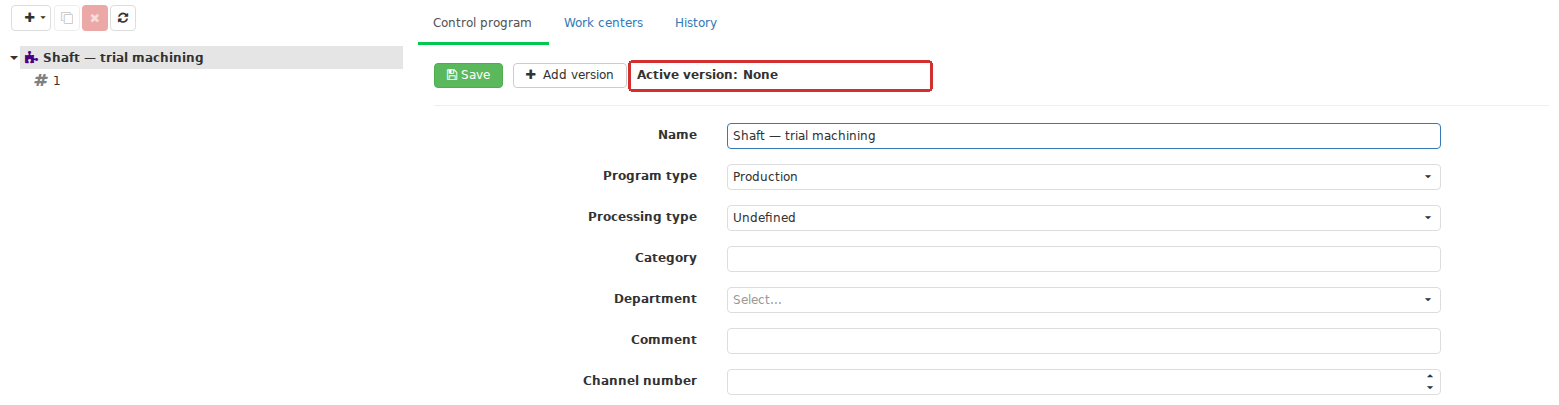
A newly created Control program already contains version 1 as a separate child item, initially inactive. Until a version is activated, the parent CP card displays None in Active version.
Uploading, saving and replacing a CP-version file
Add the file on the CP version card. The same area contains File name and File format and displays upload state and the modification date. After upload, the file can be downloaded or opened for viewing; while the CP version remains editable, a text file can also be edited directly in DPA.
If the selected file name differs from the value in File name, DPA offers to replace the current name. Accepting the change updates that field, but selecting the file does not complete the operation. To save the CP-version properties and the selected file contents, click Save on the CP-version card. If you leave the page before saving, a file selected in the browser should not be considered added to the catalogue.
The file can be replaced or removed while the CP version is editable. The modification date refers to the file contents, not to every change in the description or other version fields.
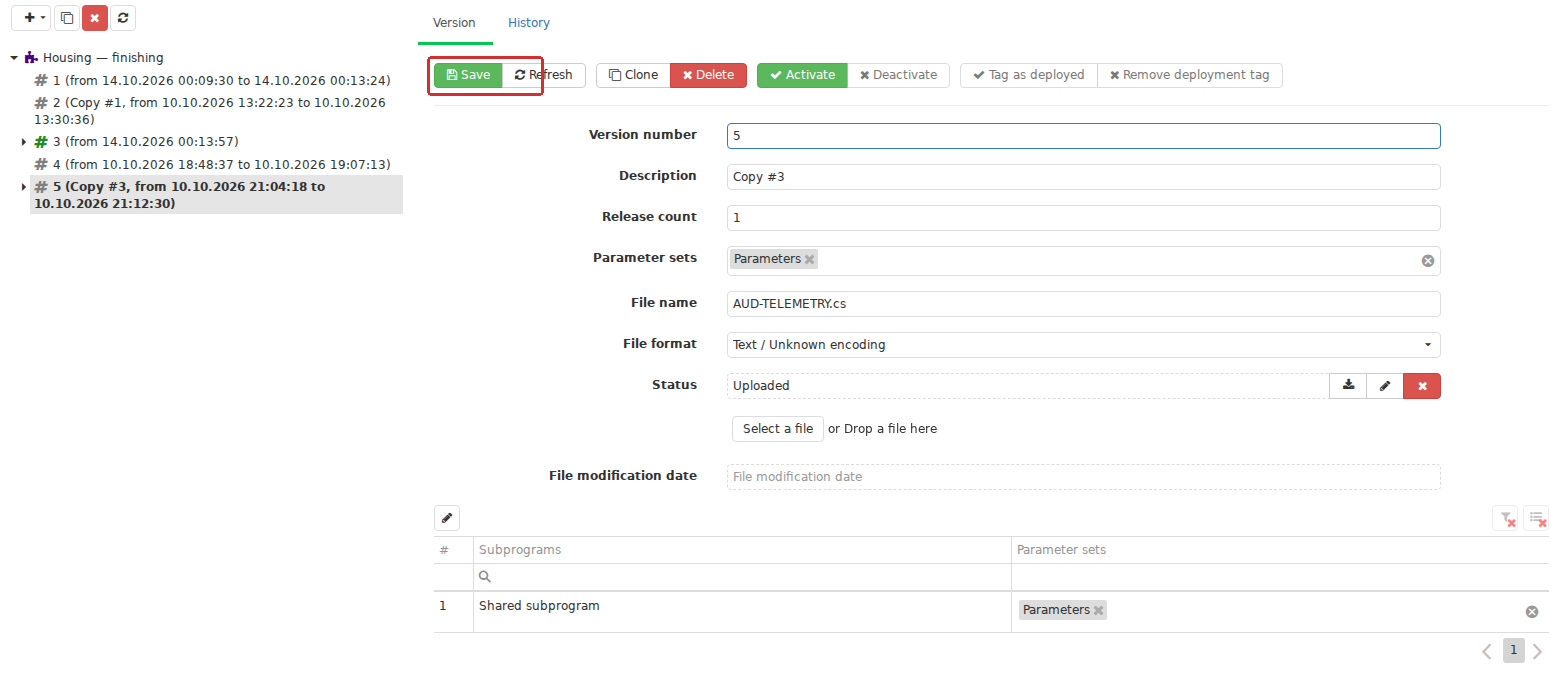
A file belongs to a particular Control program version. Its File name, File format and modification date appear in that version’s card. Selecting a file in the browser is followed by Save, which commits both the version properties and file contents.
Creating an empty CP version and cloning a version
Add version on the Control program card creates a new independent CP version with the next number. It appears immediately on the left side of the page but does not automatically receive the previous version’s file or settings. Use this option when a new revision should be prepared from scratch.
Clone on the selected CP-version card also creates the next version number, but copies a prepared basis into the new version: the file, Release count, File name and File format, and relationships with Parameter sets and Subprograms. The clone is created inactive and without the Deployed flag, so it can be changed without affecting the source version.
The location of the Clone command determines which object is copied:
- Clone on a CP-version card adds a copy inside the same Control program;
- Clone in the common CP list creates a new Control program with its own name, its own CP versions and its own relationships.
Before cloning, check which item is currently selected. On a CP-version card, one version is copied. In the common list, the whole CP is copied.
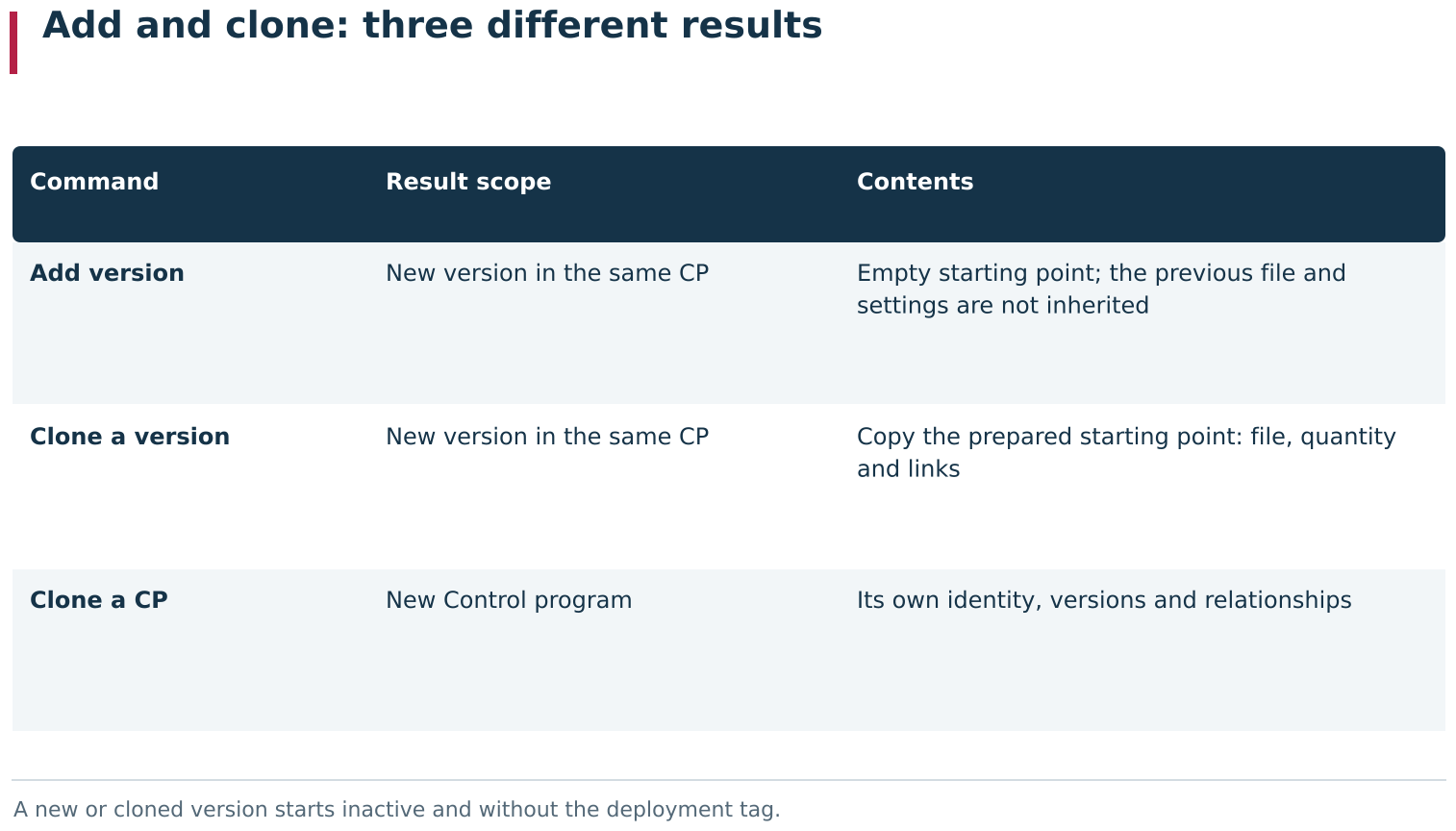
Similar commands create objects at different scopes. Add version creates an empty version within the same CP. Clone on a selected version copies its prepared starting point into a new inactive version of the same CP; Clone in the overall CP list creates a new independent Control program.
Activation and the Deployed flag
A CP version has two separate production flags: activity and deployment. A new or cloned CP version is created inactive. After activation it becomes the current CP version for that CP and its form becomes read-only. To prepare changes, first deactivate that CP version or create a new one.
Deployed can be set only for an active CP version. It is an informational indication that the CP version is considered introduced into production use. DPA displays this flag in the CP catalogue, Upload Wizard, production workplace and Journal, but does not use it as permission to assign or transfer a CP. A CP version without this flag can still be assigned in a Technology and transferred to equipment.
Deactivation automatically clears the Deployed flag, and activating the version again does not restore it automatically. Neither activation nor Tag as deployed transfers the file to the machine: separate tools handle CP transfer.
Only one version of a Control program can be active at a time. DPA does not automatically replace it when another version is activated: deactivate the previous version first and then activate the new one. The meaning of both flags and their role in CP selection are covered further below.
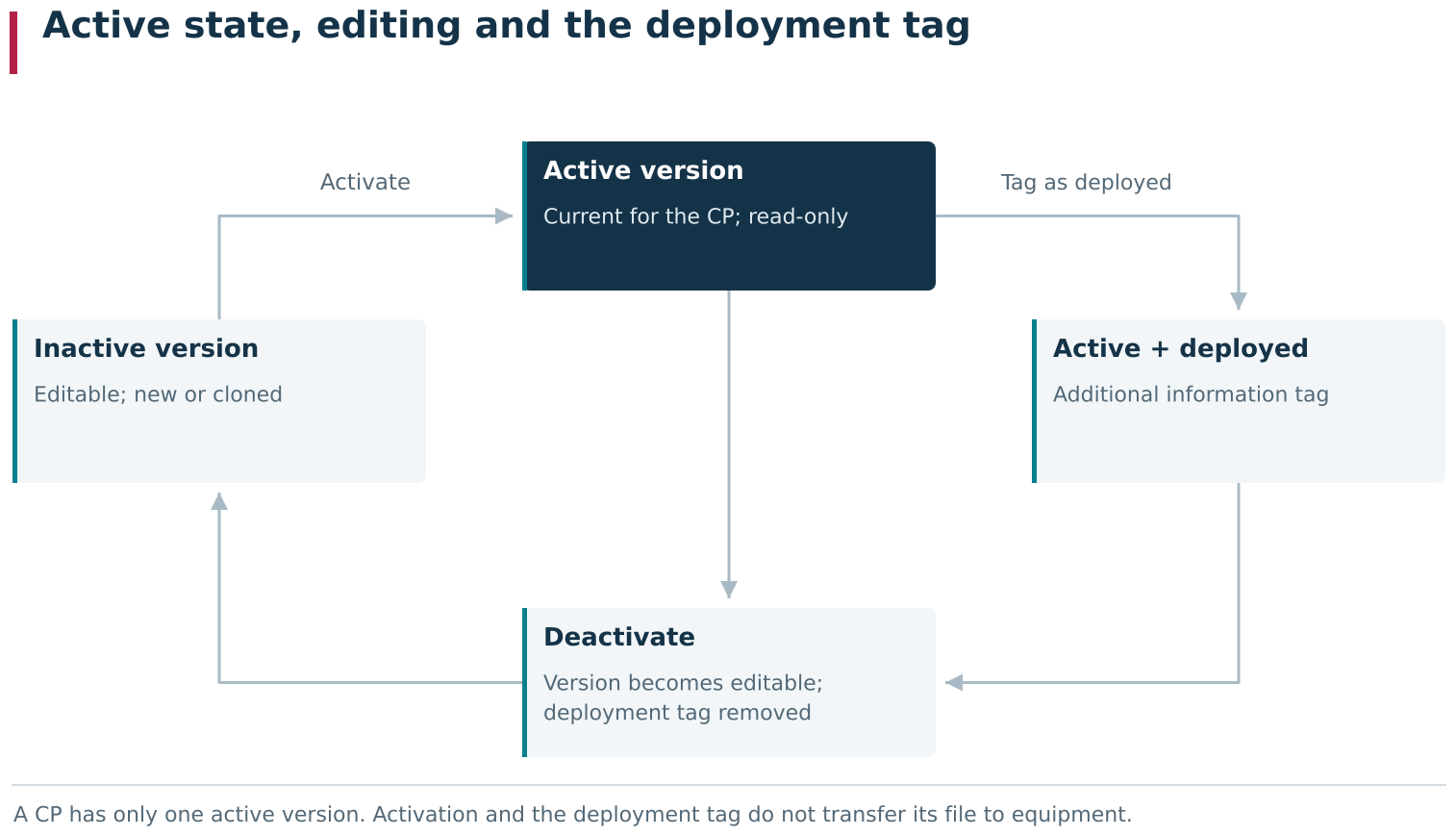
A CP version is prepared while inactive and editable. Activation makes it current and read-only; only an active version can be tagged Deployed. Deactivation clears the tag. Neither activation nor the deployment tag transfers the file to a machine: CP transfer remains a separate operation.
History of the CP and of individual CP versions
History on a Control program card shows changes to the shared properties of the CP itself. Each CP version has its own history, which records changes to its fields, activity, Deployed flag and file. CP text revisions can also be compared.
The history follows the same object model as editing: renaming or changing the type concerns the Control program, while uploading a new file concerns a particular CP version. When investigating a change, first determine which of these two objects was modified.
A CP version cannot always be deleted. If it has already been recorded when a Job started, DPA prevents deletion because the relationship with that CP version forms part of the Job execution history. If the version is only assigned to equipment in a Technology Operation, deleting the version clears that assignment.
Practical sequence for preparing a new CP
For a new CP, a convenient sequence is:
- on the CP tab, click Add and fill in the shared CP properties;
- save the Control program and open the automatically created CP version 1;
- check Version number and Release count;
- set File name and File format, select the file and click Save;
- associate the CP version with Parameter sets and Subprograms where required;
- check the file contents and its modification date;
- activate the CP version after preparation is complete;
- if the CP version has been accepted for production according to the enterprise procedure, set the Deployed flag;
- check the File name and the Active and Deployed flags in the common list.
After preparing the CP version, configure the CP’s equipment relationships and assign the CP version in the Technology. The next section covers relationships between a Control program, individual Work centers and their groups, and assignment of a particular CP version in a Technology.
3. CP-to-equipment relationships and Technology assignments
The same Control program is related to equipment in two different places. The CP card specifies the Work centers for which the program is generally intended. In a Work by CP operation of a Technology, a specific CP version is assigned to the equipment of the selected Stage. These relationships complement one another, but do not replace each other.
This distinction matters both during configuration and when diagnosing a problem. A Work center listed on the CP tab does not by itself assign the CP to a Technology operation. Conversely, a CP version can be assigned in a Technology operation even if the Control program itself is not related to that Work center on Work centers.
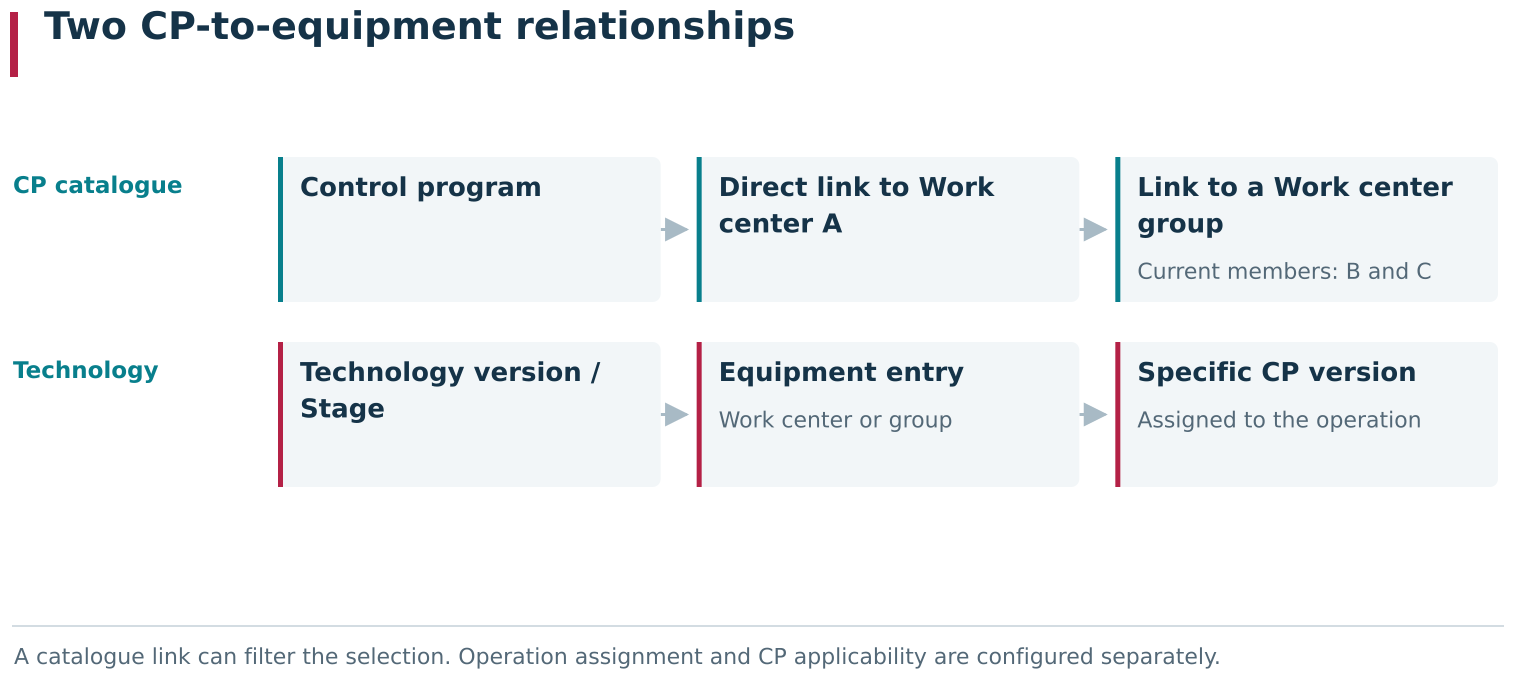
A Control program’s links to Work centers and a specific CP version’s assignment in a Work by CP operation are separate settings. The catalogue link applies to the whole CP and describes where it is applicable; the Technology operation separately selects a specific CP version for its Stage’s equipment. Each relationship must be configured explicitly.
CP relationships on the Work centers tab
Equipment relationships are configured on Work centers in the Control program card. They belong to the CP itself rather than to an individual version. After creating a new CP version, there is therefore no need to add the same Work centers again. Cloning a CP version also does not create an independent relationship set, while cloning the whole CP carries those relationships into the new Control program.
A CP can be related to:
- an individual Work center;
- a Work centers group.
The main equipment-relationship view is an interactive table. Each direct relationship to a Work center is shown as a separate entry. Expanding that entry shows the groups to which the Work center belongs. For a Work center group relationship, the entry represents the group and its child area shows the equipment contained in that group.

The Work centers tab defines links for the whole Control program, either to an individual Work center or to a Work center group. A group link covers the group’s current members; a direct link to the same Work center remains independent when group membership changes.
Selected relationships can be deleted. This removes only the corresponding catalogue association; the CP itself, its versions, files and Work centers remain in the system.
Direct CP relationships and Work center group relationships
A direct relationship is suitable when a CP is intended for a particular machine. A Work center group relationship is convenient for interchangeable equipment because one entry covers every Work center in the group.
Current group membership is taken into account when the relationship is used. If another Work center is later added to the Work center group, the CP’s group relationship starts applying to it as well. If a Work center is removed from the group, that group-derived CP relationship no longer applies to it. A direct relationship to the same Work center is independent of group membership.
One Work center can be covered by both mechanisms at once. Deleting the direct relationship therefore does not always mean that the CP is no longer considered related to that Work center: the group relationship may still apply. Check both kinds of relationship when troubleshooting.
Using CP relationships for filtering and recognition
A CP-to-equipment relationship is used in several scenarios:
- the Work center selector above the main CP list filters the catalogue;
- a Work by CP operation can be limited to CPs associated with the selected equipment;
- when preparing program transfer, the list can be restricted to CPs intended for the selected Work centers;
- when a machine reports the name of the running CP, DPA uses the relationship as one of the criteria for finding a suitable active CP version in the catalogue.
The last case is particularly important when the CP cannot be determined unambiguously from the executing Job. A matching file name is not enough if the system cannot determine which catalogue program belongs to the equipment. If the relationship is missing, the machine can report the name of the running file while no suitable CP version is recognised.
The relationship itself does not activate a CP version, set the Deployed flag or transfer a file to the equipment. It only indicates the equipment on which the CP is intended to be used. Those other actions are separate.
Assigning a CP version to equipment in a Technology Operation
To configure a Work by CP operation in a Technology, first add the eligible equipment to the Stage. The operation card then shows the individual Work centers and Work center groups configured for the Stage.
Assign a version in this order:
- select one or more equipment entries;
- press Assign CP;
- select one active CP version;
- make sure the CP name and version number appear for the selected equipment entries.
Assign CP remains unavailable until at least one equipment entry is selected. If several entries are selected, the CP version is assigned to each of them.
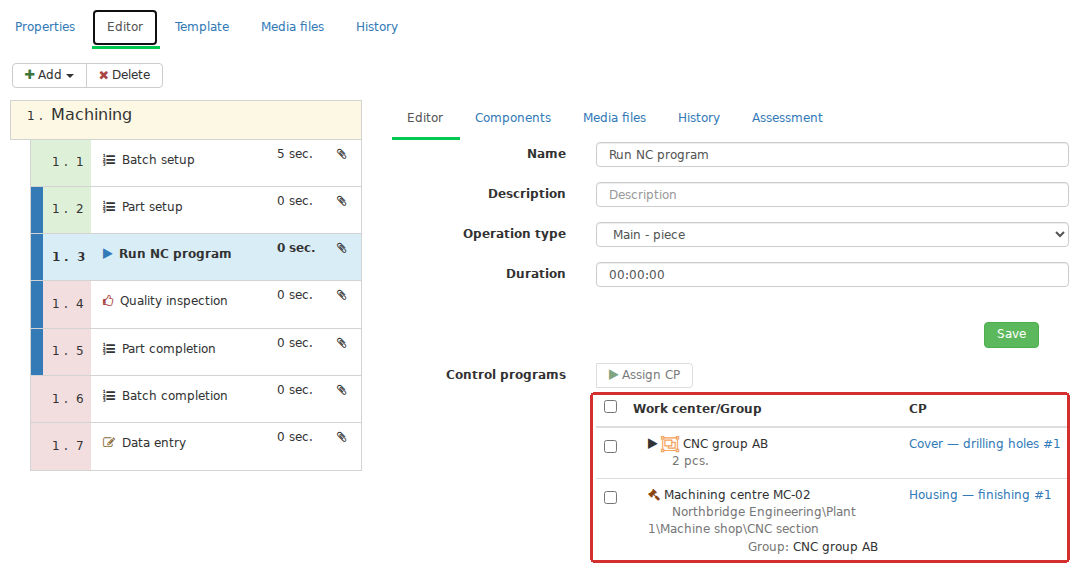
In a Work by CP operation, a particular CP version is assigned to an equipment entry of the Stage: a Work center or Work center group. The assigned program and version number then appear beside that entry. One version can be assigned to several selected entries at once.
The selection dialog contains Use only CP associated with the selected equipment. This filter is disabled by default, so the list contains every active CP version available to the user. In that mode, you can assign a CP version even when the corresponding CP has no relationship to the selected Work center on Work centers.
When the filter is enabled, DPA uses both direct and group catalogue relationships. If several Work centers are selected, the CP must be related to all of the selected equipment. If a Work center group is selected, the Work centers contained in that group are taken into account. Assigning a CP version in the operation does not create new relationships on the CP’s Work centers tab.

The Assign CP dialog selects active CP versions. Use only CP associated with the selected equipment filters the catalog by existing links. With the filter cleared, an active version can be chosen without a link to the selected Work center; enabling the filter does not create links.
Changing and deleting an assigned CP version
A Technology operation stores a reference to one specific CP version, not simply to the CP and not to “whatever version is currently active”. If a later CP version is created and activated after the operation was configured, the operation does not switch to it automatically. To move to the new version, open the operation again and assign the new CP version to the equipment.
Creating and activating a new CP version therefore cannot silently change an already prepared Technology. At Job startup, however, the CP version assigned in the operation must still be active. If that CP version was deactivated after the Technology was configured, startup is blocked with a message about an inactive CP version. The Deployed flag is not required for startup.
If no CP-version assignment is found at all for the actual Work center, that alone does not prohibit Job startup. The operation proceeds without a recorded prescribed CP version. Check that a CP version is assigned for every intended equipment option while preparing the Technology instead of relying only on startup validation.
Whether a CP version can be deleted depends on whether it has been used in Jobs. If the CP version is only assigned to equipment in a Technology operation, deleting it clears that assignment from the operation. If the CP version has already been recorded when a Job was started, DPA does not allow deletion because the relationship is retained as part of the Job execution history.
Selecting and recording the CP version when a Job starts
One Stage can allow several units of equipment, but a particular Job runs on the selected Work center. At startup, DPA looks for the CP version assigned in the operation for that Work center. A direct assignment to the individual Work center is considered first; if none exists, DPA uses the CP-version assignment of an applicable Work center group.
A direct CP-version assignment to one Work center can therefore specify a machine-specific version even if that machine belongs to a group to which the same operation assigns another version of the same CP or a version of another CP. Configure overlapping groups carefully: without a direct assignment, a Work center should be covered by no more than one group CP-version assignment within the same operation. If one Work center needs an exception, add it to the Stage separately and assign its CP version directly.
The CP version found at Job startup is recorded in the executing Job itself. Later changes to the CP-version assignment in the Technology operation do not retrospectively replace the CP of a Job that has already started. In the Operator workplace, the recorded CP version is used as the prescribed version and can be compared with the CP actually detected on the machine.
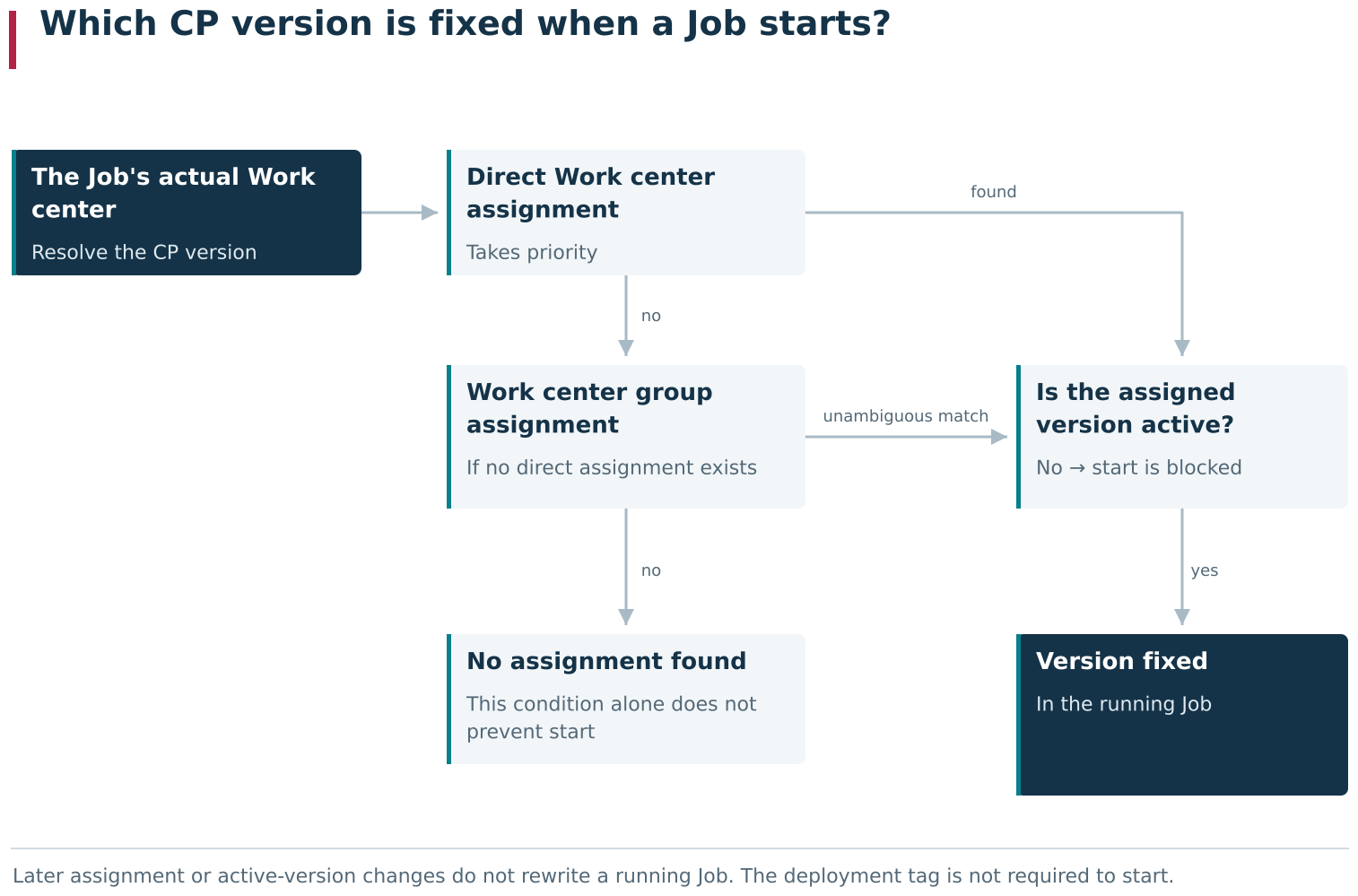
When a Job starts, DPA resolves the CP version for its actual Work center: a direct assignment is checked first, followed by a suitable group assignment. A found version must be active and is then fixed in the Job as its prescribed version. Later Technology changes do not replace it retrospectively; absence of an assignment alone does not prevent start.
Checking the configuration before production startup
Before using a new CP, check the whole chain:
- open Work centers on the Control program card and add the individual Work centers or groups for which the CP is intended;
- prepare the required CP-version file and activate the version;
- open the required Stage in the Technology version and check its eligible equipment;
- open Work by CP, select the equipment entries and assign a specific CP version to them;
- check the CP name and version number shown next to every Work center or group;
- if required by the enterprise procedure, set the Deployed flag;
- when required, transfer the file to the equipment separately in Upload Wizard;
- create a test Job and make sure it starts on the required Work center with the expected CP version.
If the assignment button is disabled, first select at least one equipment entry in the operation. If the program list becomes empty after the filter is enabled, check that the CP version is active and that the CP itself is related to every selected Work center. If a new active CP version does not appear in an already configured operation, assign it again: changing the active CP version does not update the Technology automatically.
Once the CP’s equipment scope and its version assignment in the Technology are defined, you can move on to the contents of the CP itself. The next section covers Subprograms and the rules for associating them with a CP version.
4. Subprograms and their relationship to a CP version
A Control program can call other program files: for example, a shared machining, measurement or auxiliary sequence. If such a part needs to be stored, revised and transferred to equipment separately through DPA, create it as a Subprogram.
In DPA, a Subprogram has its own card and its own versions. It can be used by several CPs, so preparing one is not the same as simply attaching another file to the main CP card. Keep three things separate: the Subprogram as a catalogue object, the particular file stored in a Subprogram version, and the relationships with the CP versions that require it.
A Subprogram is an independent catalogue object
Work with Subprograms on the Subprograms tab of Control programs. The main list is an interactive table. It shows the Subprogram name, related CPs, Category, Comment, Type, Processing type and whether an active Subprogram version exists. Custom fields are shown as well when configured.
One Subprogram can be related to several versions of one CP or to versions of different CPs. A shared measurement routine, for example, can be prepared once and included in several Control programs while retaining its own name and change history.
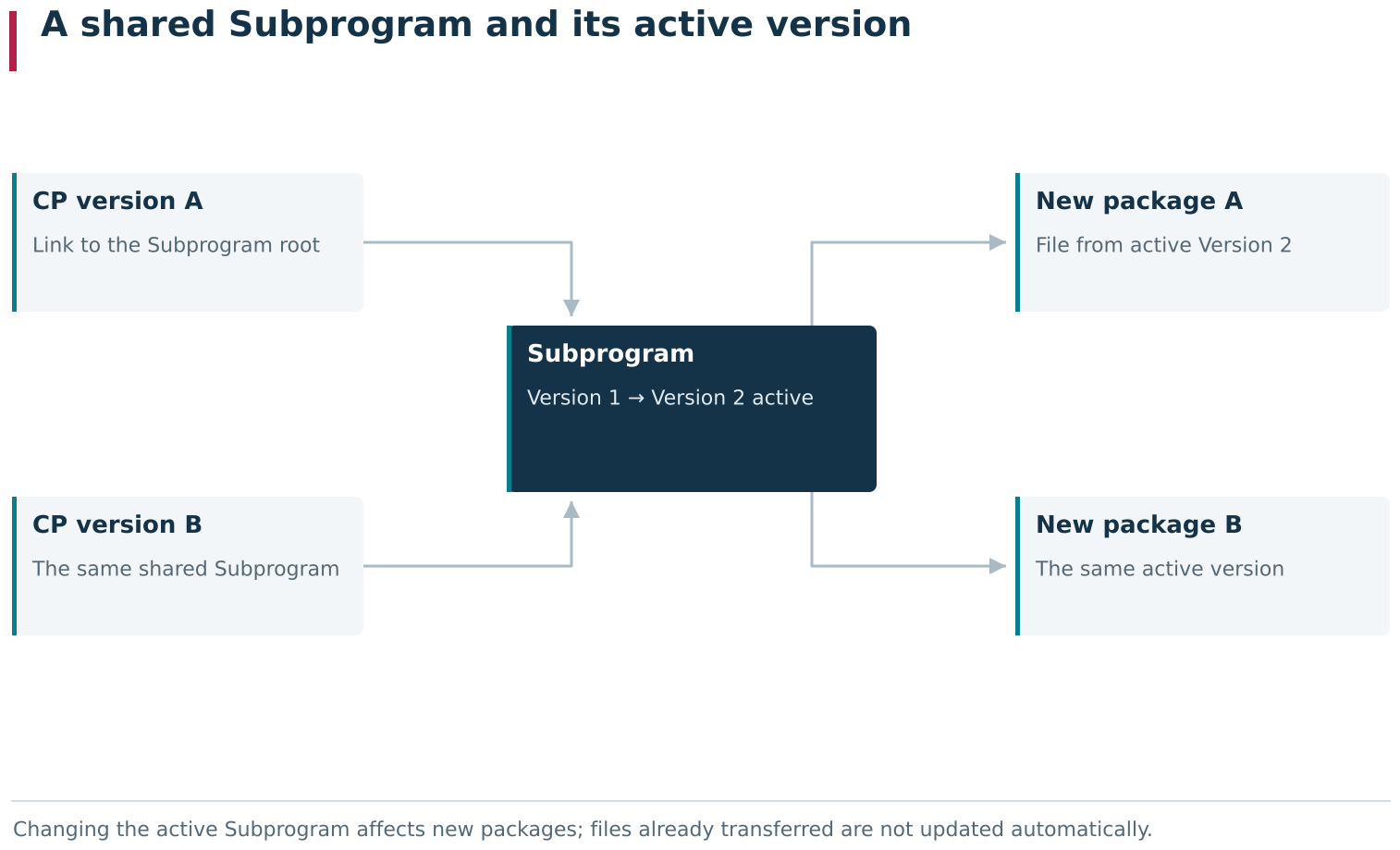
Two or more CP versions can reference one shared Subprogram. The relationship points to the Subprogram object; a new package uses its current active Subprogram version. Switching the active revision therefore changes new packages for all linked parents while leaving files already sent to machines unchanged.
The relationship belongs to a particular CP version. If a Subprogram is required by CP version 1, that does not automatically add it to a newly created empty CP version 2. When a CP version is cloned, its Subprogram relationships are copied, but the Subprograms themselves remain the same shared catalogue objects.
Subprogram and Subprogram-version cards
Add on the Subprograms tab opens New subprogram. Enter Name, Type, Processing type, Category, Comment and any custom fields. Name, Type and Processing type are required.
After saving, DPA automatically creates the first Subprogram version. The edit page shows the Subprogram itself and the list of Subprogram versions on the left. A new Subprogram version has version number 1 and is inactive.
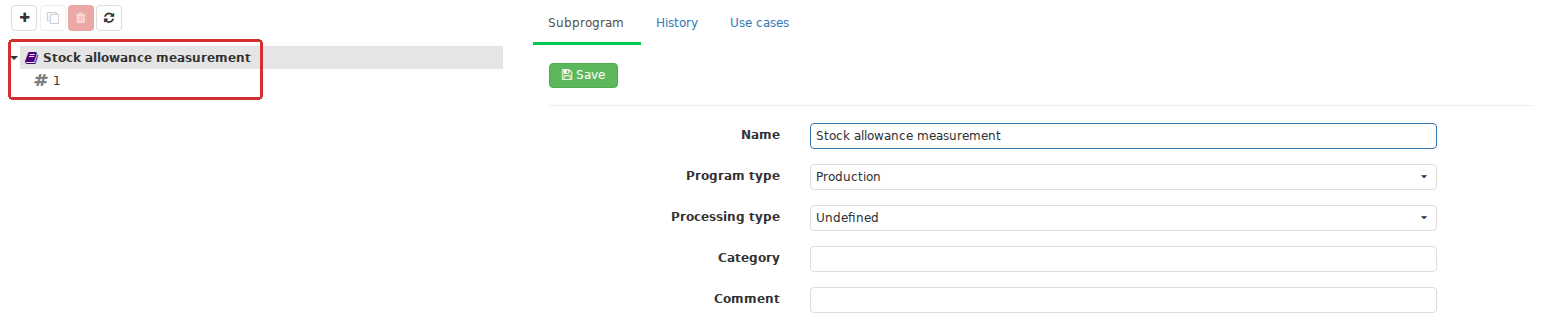
On the Subprograms tab, each Subprogram is an independent catalog object with separate Subprogram versions. Creating a subprogram automatically creates inactive version 1. General information belongs to the parent object; the file and its properties belong to the selected version.
The Subprogram card contains shared properties. The Subprogram version card contains Version number, Description, custom fields, File name, File format and file contents. This keeps the Subprogram as one shared object while representing text revisions as separate Subprogram versions.
Add the file to the selected Subprogram version. After selecting the file and checking its name, click Save on the Subprogram version card. A file being present on the user’s computer or merely selected in the browser does not mean its contents have been saved in DPA.
Creating, cloning and activating Subprogram versions
One Subprogram can have several Subprogram versions, but only one can be active. An active Subprogram version is read-only. To change its main properties or file, first deactivate it or prepare the next version.
There are two ways to prepare the next revision:
- Add version creates the next Subprogram version number without copying the previous version’s file;
- Clone on the Subprogram version card creates the next version from the selected one, including its file, File name and File format.
Both methods create an inactive Subprogram version. If the previous Subprogram version remains active, preparing a new revision does not change the current file DPA selects when related Subprograms are automatically added to a transfer package.
Switching versions is explicit: deactivate the old Subprogram version first, then activate the prepared one. Activation does not transfer the file to equipment; it only changes the current Subprogram version in the catalogue. After switching, transfer of the new file must be prepared separately.
As with CPs, the history of shared Subprogram properties and the history of each Subprogram version are separate. Look for a name change in the Subprogram’s History and for a file, description or activity change in the selected Subprogram version’s History.
Adding a Subprogram to a selected CP version
Relationships are configured on the CP version card, on its Version tab. Here the Subprograms interactive table shows the related catalogue objects. To change the set, open Subprogram selection with Edit, select the required Subprograms and save the CP-version card. If the CP version is active, first return it to an editable state or work with a new inactive CP version.
This uses a different rule from CP assignment in a Technology operation. The operation stores a particular CP version. The Subprograms table stores the Subprogram itself; the Subprogram version number is not fixed in this relationship.
When related Subprograms are added to a transfer package automatically, DPA selects each Subprogram’s active Subprogram version. If a related Subprogram has no active Subprogram version, it is not added to the package in this way. A row in Subprograms therefore does not by itself mean that a file is ready for transfer: check that the required Subprogram version is active and that its file has been saved.
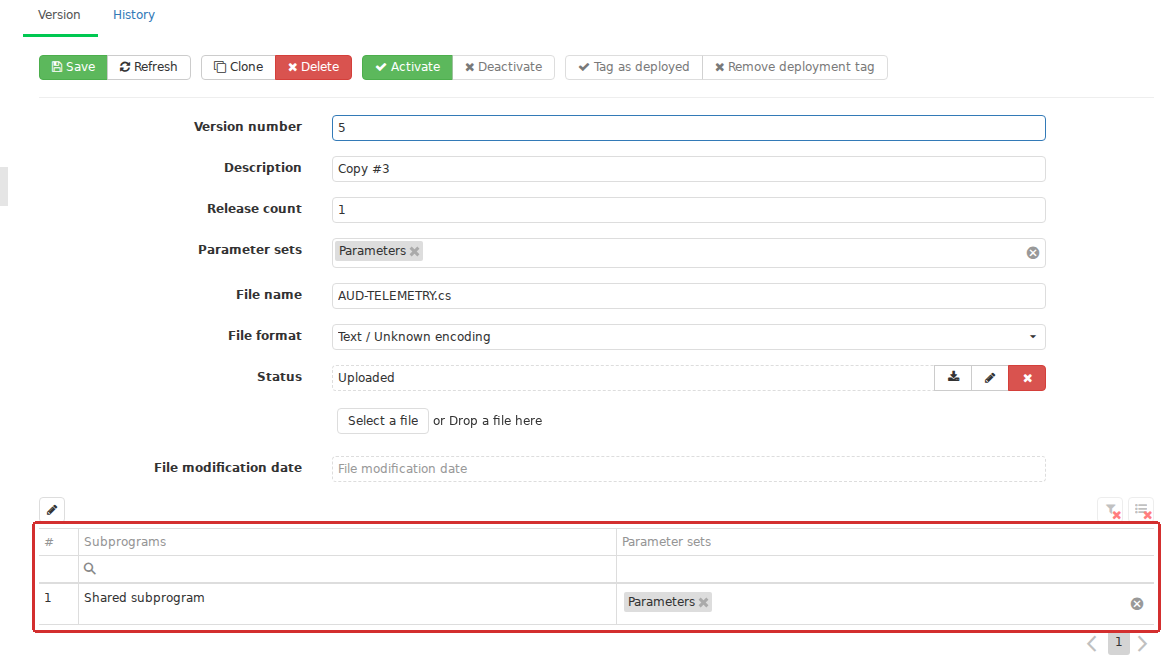
The Subprograms table in a CP version stores links to Subprogram objects rather than fixed subprogram-version numbers. Each linked subprogram can also have Parameter sets for its use from this particular CP version.
Selecting the active Subprogram version for a new transfer package
Suppose that two versions of different CPs are related to the same Subprogram, whose active Subprogram version is version 1. When a transfer package is prepared with related Subprograms included, DPA adds version 1. If Subprogram version 2 is activated later, a newly prepared package contains version 2 instead, even though the relationships in both CPs have not changed.
Before changing the active version of a shared Subprogram, it is therefore useful to check which CPs use it and whether the new revision is compatible with all of the required main CPs. If two CPs simultaneously need different variants of an auxiliary file, one shared Subprogram with a switchable active version may not be sufficient. Prepare separate Subprograms for independent use and make sure their file names match the calls in the corresponding CPs.
Changing the active Subprogram version in the catalogue does not replace a file that has already been transferred to a machine. These are two separate actions: selecting the current revision in DPA and transferring that revision to equipment. Check the actual contents of a newly prepared package before starting the transfer.
Viewing CP relationships on Usage
The Subprogram and Subprogram version cards have a Use cases tab. Its interactive table shows the related CP versions and the equipment specified in those CPs’ relationships. You can open the corresponding CP version from this list.
This is a useful starting point before changing a shared Subprogram. Instead of searching for its name through every CP, open Use cases, identify the related versions of the main CPs and check where they are used.
The table reflects catalogue relationships. Even on an individual Subprogram version card, it shows which CP versions are related to the parent Subprogram. It is not an execution log for that particular file revision and does not show whether the file has been transferred to each listed Work center.
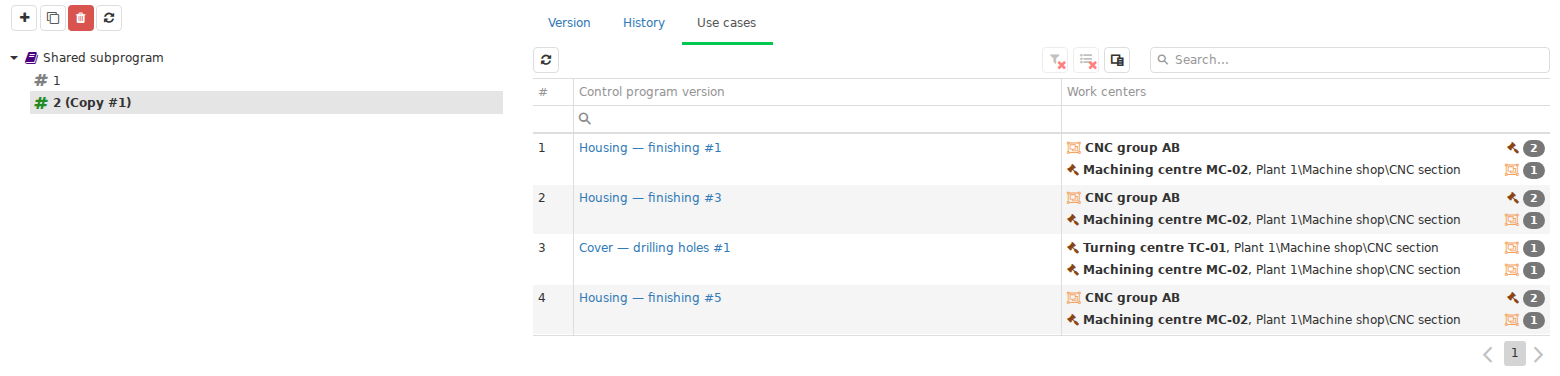
The Usage tab shows the scope of a shared Subprogram: linked CP versions and equipment derived from those programs’ catalog links. It describes catalog relationships rather than recording execution of a particular Subprogram version. It does not show whether the file has been uploaded to every listed machine.
Subprogram calls, catalogue relationships and the transfer package
When preparing a composite CP, distinguish three levels:
| Level | What is configured or checked there |
|---|---|
| CP and Subprogram files | Which Subprograms the main file calls and under which names the equipment must find them |
| Relationships in DPA | Which Subprograms are related to the selected CP version |
| Transfer package | Which specific CP and Subprogram versions, and which files associated with them, will be transferred to the selected equipment |
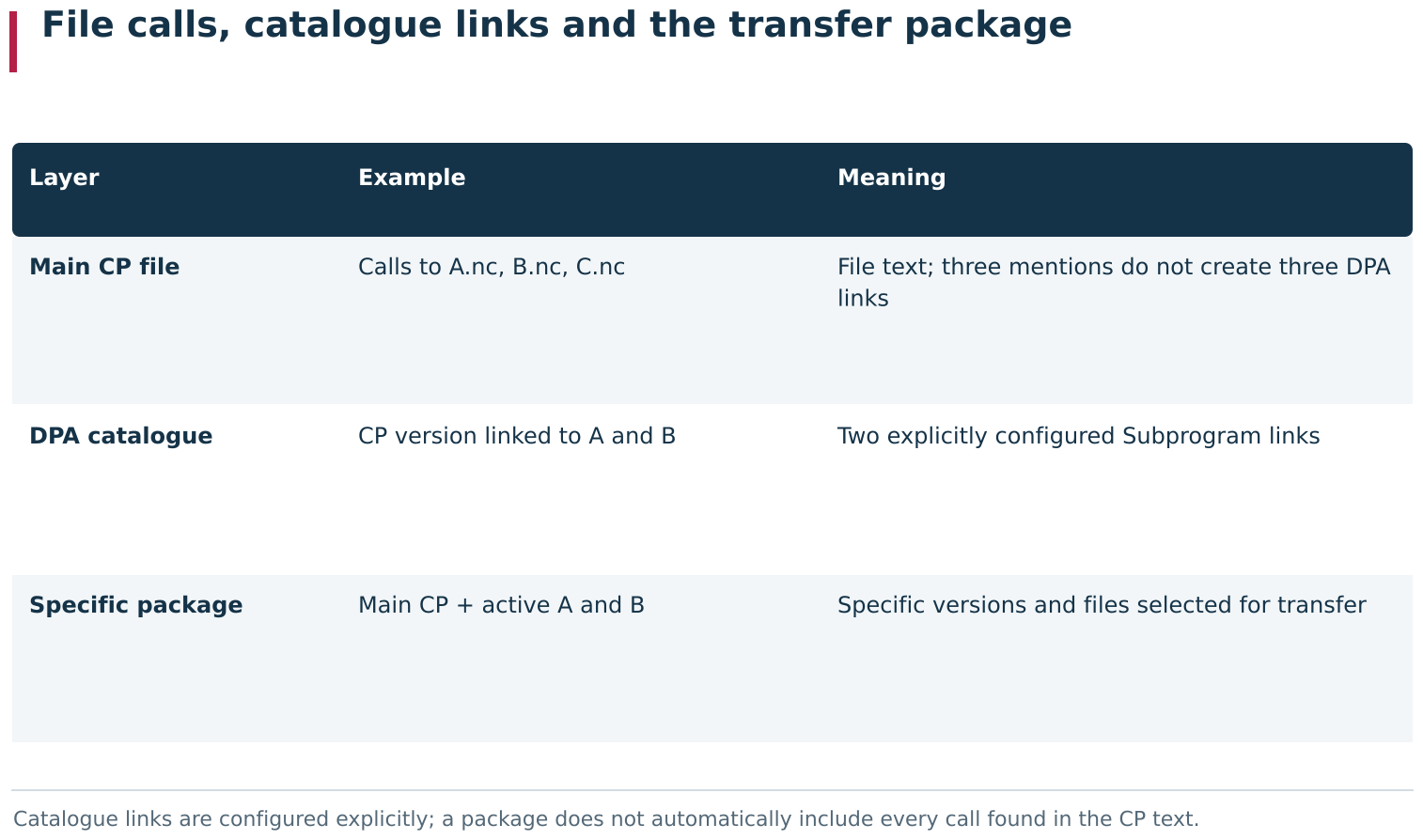
For a composite CP, check three layers separately: calls to auxiliary files in the program text, explicit Subprogram links in the DPA catalogue, and specific files included in the upload package. These layers do not create one another automatically. A text call does not create a catalogue link, and a catalogue link does not guarantee that every required file is present in the package.
Adding a Subprogram to the DPA table does not insert a call to it into the main CP text. Conversely, mentioning an auxiliary file in the CP text does not create a catalogue relationship.
When preparing a transfer of the main CP, related Subprograms can be included. DPA adds their active Subprogram versions as separate package items. It does not add arbitrary files based on similar names and does not derive the complete dependency set from the main CP text. Configure the required relationships explicitly.
For example, if the main file calls three auxiliary files but only one corresponding Subprogram is related in DPA, automatic inclusion adds only that one. Prepare the other required files separately and verify that they are present on the equipment. The detailed procedure for creating and executing a package is covered in the transfer section.
Parameter sets for a Subprogram in the selected CP version
A Parameter set is not another program file in the transfer package. It contains parameters used by DPA to validate Indicator values while a CP or one of its Subprograms is running. These are DPA-side validation parameters, not arguments passed to a Subprogram call. The next section covers Parameter sets, their structure, effective values and overrides in detail.
In the Subprograms table on a CP-version card, each related Subprogram has its own Parameter sets field. It lets you select Parameter sets that should be used to validate that Subprogram specifically when it is called from this CP version.
These relationships differ from Parameter sets attached directly to the main CP version. The same Subprogram can be used by different CP versions with different validation Parameter sets. When checking configuration, inspect both the CP version’s general list of Parameter sets and the sets selected on individual related-Subprogram rows.
Practical sequence for preparing a related Subprogram
For initial configuration, the following sequence is convenient:
- determine which auxiliary files the main CP requires and under which names it calls them;
- on Subprograms, create the required Subprogram and fill in its shared properties;
- open the automatically created Subprogram version and check the version number, File name and File format;
- add the file, save the Subprogram version and check its contents;
- activate the prepared Subprogram version;
- in the editable CP version, open Subprograms, select the required catalogue objects and, where necessary, their Parameter sets;
- save and complete preparation of the main CP version;
- when preparing a transfer package, include related Subprograms and check the exact CP and Subprogram versions and their File names in the preview;
- run the transfer and verify the result for every required file.
If a Subprogram is missing from the package, first check its relationship in the CP version being used, whether an active Subprogram version exists, and whether related Subprograms were enabled when the transfer was prepared. If the package contains the wrong file revision, check which Subprogram version is currently active. If the equipment cannot find the Subprogram, compare the name used in the main-file call, the prepared File name and the result of transfer to the required machine.
This sequence connects catalogue preparation with the actual files on the equipment. The next section turns to Parameter sets: which process values they describe and how the same configuration obtains a different context for the CP, Subprogram and Work center.
5. Parameter sets and process-value validation
While a CP is running, it is important to know not only which CP is executing on the machine, but also whether the process values satisfy the required conditions. For example, feed rate can arrive in DPA as an Indicator value. To evaluate it, DPA needs the limits that apply to the work currently being performed.
Parameter sets provide these validation rules. A set groups validation settings that can then be linked to a CP version or to the use of a Subprogram from that CP version. The same set can be reused, while expected values and limits can be refined for a particular CP version and equipment context.
For parameters whose values come from equipment, validation is configured through links to specific Indicators. First add the required Work centers to the set, then choose which Indicators on those Work centers provide values for the parameters. Selecting the equipment is only a preparatory step: by itself, it does not define which quantities will be checked.
The prepared conditions are used both for on-request validation of the set and for continuous process parameter monitoring (KTP). An on-request check can be started manually or automatically through Signals 2.0. Continuous KTP is enabled in the Work center settings. These methods differ in their start conditions, supported checks and handling of results; the following subsections describe them separately.
Parameter thresholds, the Indicator value and the validation result
Parameter validation uses three kinds of data:
- a validation setting defines an expected text value or numeric thresholds;
- the current value comes from the linked Indicator; if the parameter has a calculation expression, an on-request set check produces a separate calculated value;
- the validation result shows whether the obtained value satisfies the effective validation conditions and whether enough data is available to make that assessment.
For example, an upper feed-rate limit of 300 mm/min is a setting. A reading of 340 mm/min is the current value. A message that the upper limit has been exceeded is the validation result. Changing the limit in DPA changes the condition used to assess the value; it does not command the machine to use a different feed rate.
A Parameter set stores DPA-side validation settings. Its values are not passed to a Subprogram as call arguments and do not change the contents of the CP file.
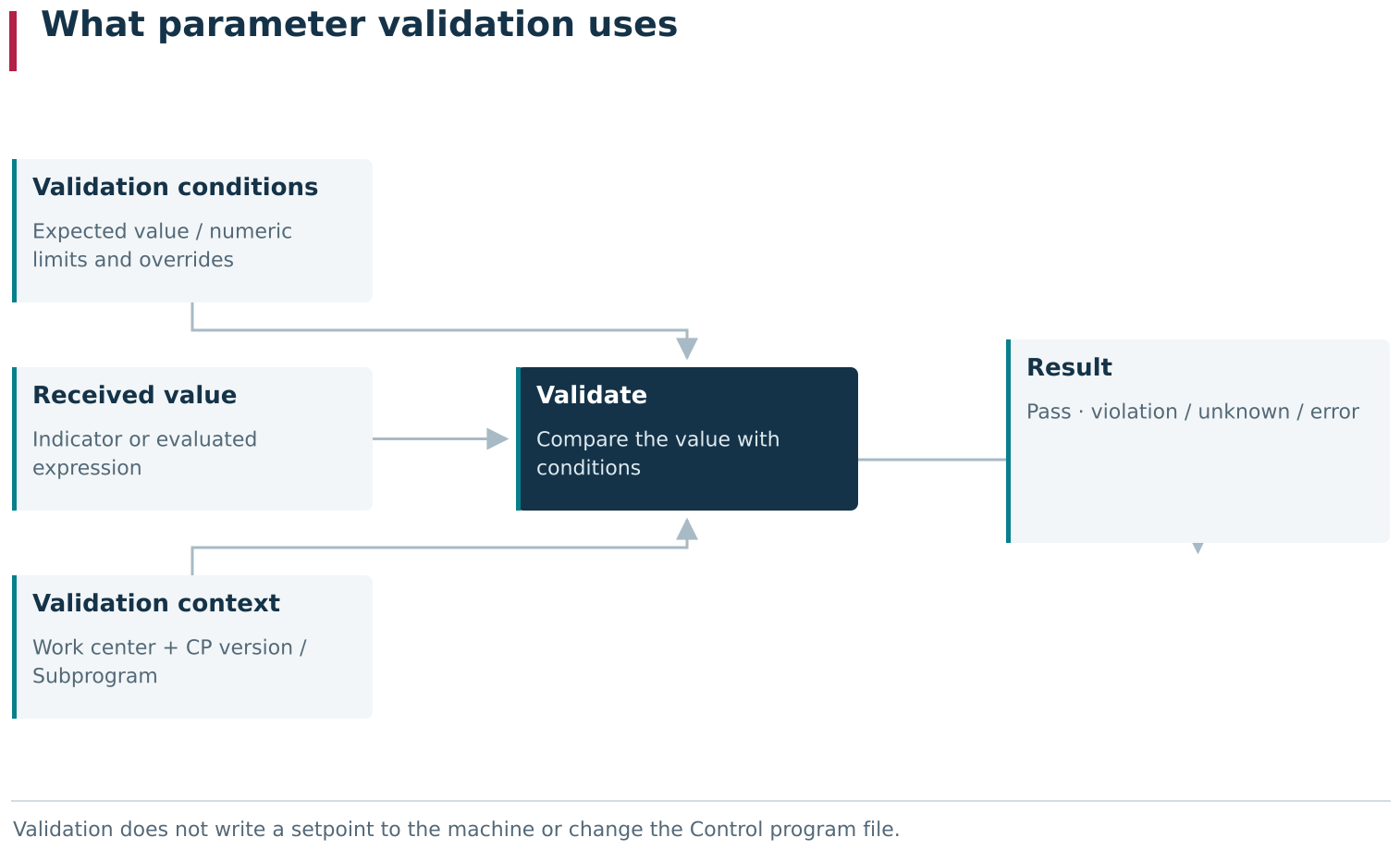
Parameter validation combines three independent parts: effective validation conditions, the source or calculation of the current value, and production context. Its result states whether the received value meets those conditions. A Parameter set does not issue machine setpoints or change the CP file.
Creating a Parameter set and using its tabs
Start on the Parameter sets tab in Control programs. The set list is an interactive table. Add a new set or open an existing one with Edit. The general card contains Name, Category and Description. The parameter list below is also an interactive table.
Use a name that makes the purpose of the set clear, for example, “Feed-rate validation for finishing”. The description can record the operating conditions the values were prepared for, the units expected from the data source, and any limitations that matter when the set is reused.
A Parameter-set card has several tabs:
- Parameter set — general properties, parameters and their base values;
- Work centers — equipment for which parameter-to-Indicator links are configured;
- Indicators — links from parameters to specific current-value sources on the selected equipment;
- Control programs — CP versions and Subprogram links in which the set is used;
- Redefinitions — values refined for particular usage contexts.
Creating a set does not by itself associate it with a running CP or enable continuous monitoring on equipment. Those steps are configured separately.
Shared reference book of threshold types
The available numeric threshold fields are configured separately from Parameter sets. From the Applications menu, open Reference books → Parameter threshold types. Each row defines one threshold type: its name, comparison direction, whether equality is tolerated, and the severity assigned to a violation. The actual numeric value for that type is then entered on an individual numeric parameter.
For example, a threshold type named Maximum can represent an upper bound where equality is tolerated and the severity is High. The value for a “Spindle load” parameter could be 60, while the value for a “Feed rate” parameter could be 300. Both parameters use the same Maximum threshold semantics but compare their own readings against their own numbers.
The initial reference-book contents include Nominal value, Minimum and Maximum. Equality is initially tolerated for Minimum and Maximum, and their severity is High. Additional types can be created, including several distinct upper or lower thresholds.
Open an existing threshold type with Edit, or click Add to create one. The card contains these fields:
| Field | Meaning | Example |
|---|---|---|
| Name | Name of the threshold type; the same name appears as a value field on numeric parameters | “Warning maximum” |
| Color | Display colour for this threshold | The colour chosen for the warning boundary |
| Type | Comparison direction: Upper, Lower or Nominal | Upper |
| Tolerant value | Whether a reading exactly equal to the threshold is tolerated | Enabled: with a limit of 50, violation begins above 50 |
| Severity | Severity assigned when this threshold is violated | Warning |
| Sort order | Display order of the threshold type | Its position among the other threshold fields |
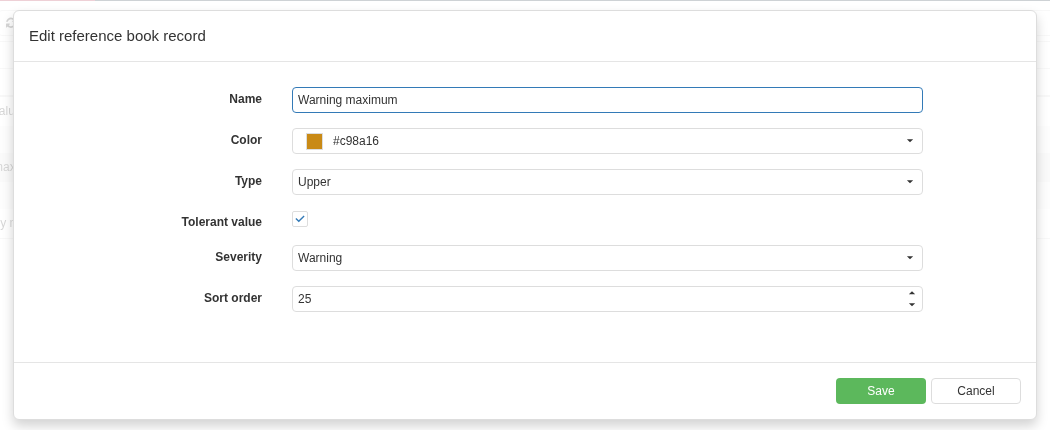
The Warning maximum type card defines an upper boundary, allows equality, and assigns Warning severity. No numeric limit is stored here: each parameter supplies its own value. The type settings are shared by all parameter sets that use it.
Tolerant value and Severity are shown for upper and lower thresholds. Nominal provides a reference value; merely differing from the nominal value is not treated as a violation. Severity can be Undefined, Information, Warning, Average, High or Disaster. With Undefined, the numeric threshold is still checked; its violation simply has no assigned severity.
For an upper threshold with equality allowed, the violation condition is reading > threshold; without equality it is reading >= threshold. For a lower threshold the conditions are reading < threshold and reading <= threshold, respectively. The name itself is arbitrary: the direction and comparison rule come from the threshold-type fields, not from words such as “minimum” or “maximum” in the name.
Severity belongs to the threshold type. If Maximum has severity High, violations of that type are High regardless of the numeric Maximum entered on a particular parameter. To create both a warning upper bound and a more serious upper bound for one parameter, define two threshold types and enter a value for each of them. The parameter card does not assign a separate severity to each number.
For example, one numeric load parameter can use the following configuration:
| Threshold type | Direction | Equality tolerated | Type severity | Parameter value |
|---|---|---|---|---|
| Warning maximum | Upper | Yes | Warning | 50 |
| Maximum | Upper | Yes | High | 60 |
| Emergency maximum | Upper | Yes | Disaster | 70 |
Create and save any missing threshold types in the reference book first. Then open or reload the numeric parameter card and enter 50, 60 and 70 in the fields that appeared. The numbers are entered on the parameter, not on the threshold-type card. A numeric threshold left blank does not participate in validation.
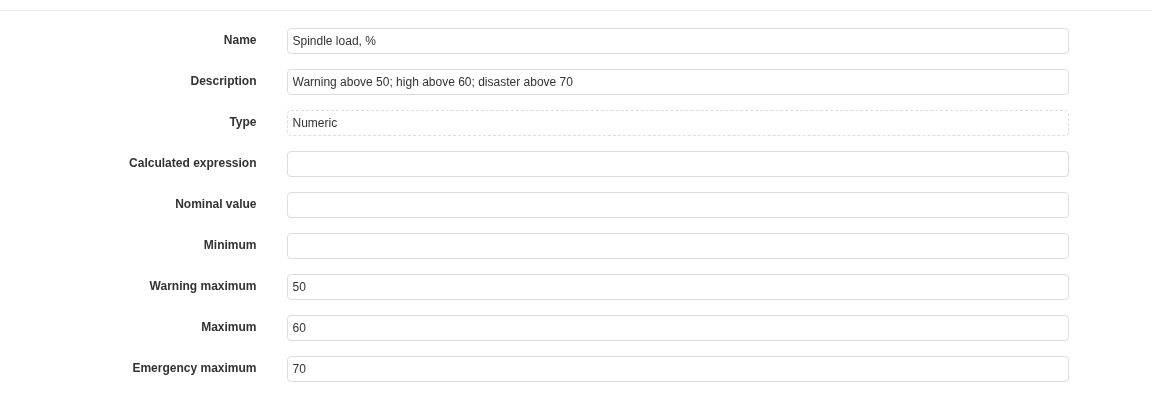
One numeric parameter contains fields for three different upper-threshold types: Warning maximum — 50, Maximum — 60, Emergency maximum — 70. Their severities are defined in the shared reference book; this card supplies the numeric values.
These are three boundaries for one parameter, not three mandatory parameters in the set. A set can contain several parameters, and each can have its own value for every configured threshold type. Selection of the violated boundary and the way conditions from several parameters are combined during continuous KTP are described in Chapter 10.
The threshold-type reference book is shared across DPA. Changing a type’s name, comparison rule or severity affects every parameter and set that uses it. Numeric values and overrides for individual CPs and Work centers are configured separately. Sort order controls field placement; it does not define priority when a violated threshold is selected.
Configuring numeric and text parameters
When adding a parameter, specify its Name, Description and Type. The available types are Numeric and Text. After creation, Type is shown on the parameter card as a read-only property.
For a numeric parameter, enter threshold values. A typical configuration includes Nominal value, Minimum and Maximum; additional fields correspond to the threshold types configured in the reference book described above. Lower and upper thresholds define deviation conditions. The nominal value is a reference and does not by itself define an acceptable range.
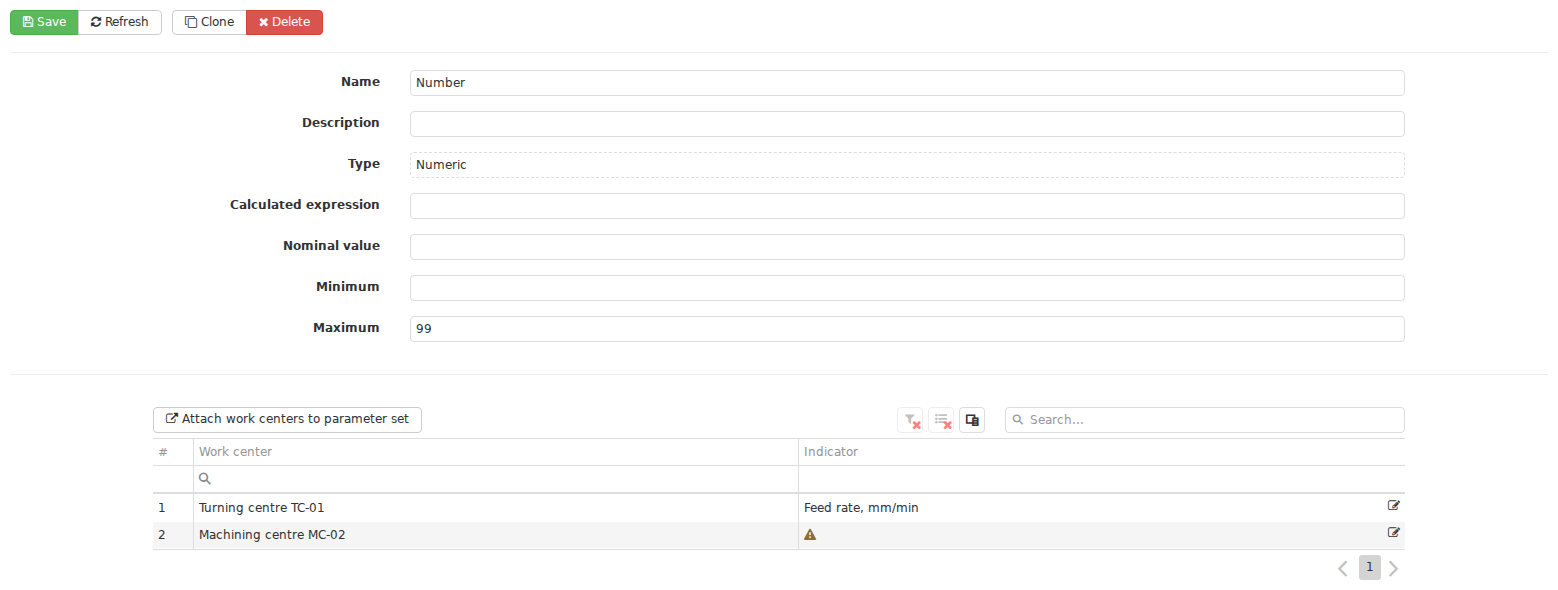
A numeric parameter card combines its Name, Description, immutable Type, numerical thresholds and optional Calculated expression. A text parameter uses a Text value instead of numerical thresholds, making the two validation methods visible in the editor.
Whether a value on the boundary is accepted also comes from the threshold configuration. When reviewing a parameter, check both the number in Minimum or Maximum and the comparison rule defined for that threshold type.
For a text parameter, fill in Text value. During parameter validation DPA compares the current value of the linked Indicator with this expected text. This can be used, for example, to check an expected mode identifier when the equipment reports it as text.
A numeric parameter can also contain a Calculated expression. During an on-request set check DPA evaluates the expression and compares the result with the numeric thresholds. The expression can use current values of other parameters. If a required value is missing or calculation fails, the validation result reflects that condition. A calculated parameter remains a numeric parameter rather than becoming a third parameter type.
Linking a parameter to a Work center Indicator
The same process quantity can be measured on several machines. Each Work center in DPA has its own Indicators. To validate a quantity on a particular machine, link the parameter to the corresponding Indicator on that equipment.
First add the required machines on the set’s Work centers tab. Equipment can be selected through the enterprise structure or added through Work center groups. Then, for the required Work center on the parameter card, select its Indicator and save the change. This link identifies which current value is evaluated against the parameter settings.
For example, one set’s “Feed rate” parameter can be linked to the feed Indicator on machine A and to the corresponding Indicator on machine B. The parameter name and base thresholds remain shared, while the current value comes from the machine being checked.
The main view on the Indicators tab is an interactive table showing parameter-to-source mappings. If no source is selected, the row remains in the table and the Indicator field shows a warning. If that quantity is meant to be checked on the machine, select the appropriate source. The missing link can also be intentional: for example, the quantity no longer needs to be monitored and the Indicator link has been removed while the Work center remains in the set’s equipment list.
A parameter with a Calculated expression may not require its own Indicator. It can be validated from the expression result when the required input values are available. Therefore, a warning on an empty Indicator field must be interpreted according to how that particular parameter obtains its value.
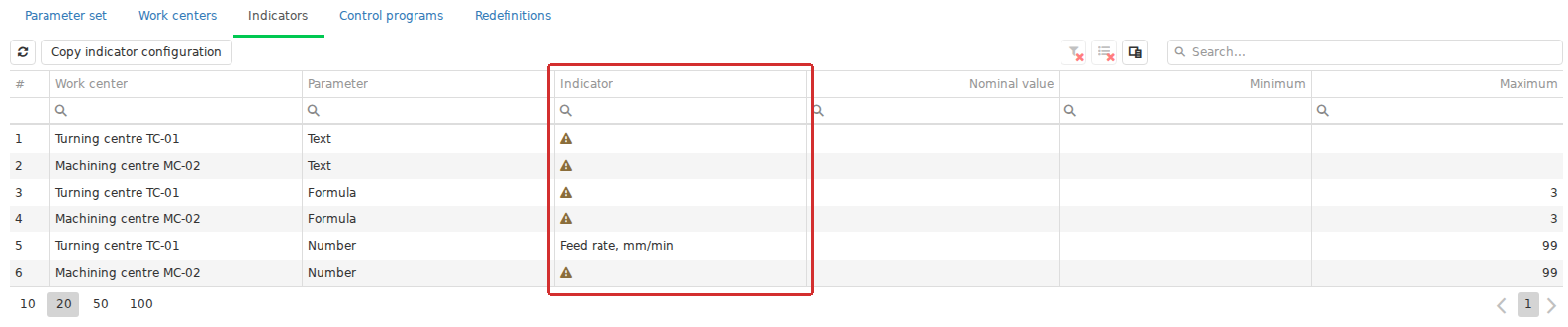
The Indicators tab shows the source selected for each parameter’s current value on each Work center. Equipment membership provides the configuration context, while the parameter-to-Indicator link identifies the measured quantity. An empty source remains a distinct visible state and does not automatically mean a threshold violation.
When choosing a source, verify that it represents the required physical quantity and that its value and the numeric thresholds use compatible units. Adding a machine to the set does not create a measurement channel or guarantee that values are being received.
Before removing an equipment relationship from a set, check its local overrides. If removal leaves the Work center outside the set’s equipment both directly and through any remaining group, that Work center’s overrides in the set are deleted.
Adding a Parameter set to a CP version or Subprogram
On a CP version card, sets for the main CP are selected in Parameter sets. Sets for a related Subprogram are selected separately on that Subprogram’s row in the Subprograms table, as described in the previous section.
One Parameter set can be used by several CP versions. The base set remains one shared object; attaching it to another CP version does not create a copy.
Keep the two kinds of equipment relationship separate as well. The Work centers tab on the general CP card describes equipment associated with the CP. The same tab on a Parameter set card lists equipment for which parameter-to-Indicator mappings are configured. To run Test parameters in a CP context, the required machine must be present in both lists. Obtaining values also requires the appropriate Indicator links or calculation expressions.
After a set is attached, it appears as a child of the CP version in the tree on the left. Open that child node to see the values in the context of the selected CP or Subprogram relationship and to define any required overrides.
Overriding parameter values for a CP and Work center
Base values are useful as a common default. If one CP version requires different validation values, override them in that CP-version-to-set relationship. If the difference applies only to one machine, add an override for its Work center within the same relationship.
For each individual text value or numeric threshold, the following priority applies:
| Configuration level | When the value is used |
|---|---|
| Override for a particular Work center in the CP-version or Subprogram relationship | When that value is explicitly overridden for the machine being checked |
| General override in the same CP-version or Subprogram relationship | When the machine has no own override for that value |
| Base value in the Parameter set | When neither of the above overrides exists |
For example, the shared set can have feed-rate Maximum 300 mm/min. When used by CP version “Finishing #2”, that limit can be overridden to 240 mm/min, and for machine A within the same relationship to 220 mm/min. Machine A then uses 220 mm/min; the other configured machines use 240 mm/min for this CP version. Another CP version with no overrides continues to use the base 300 mm/min limit.
An override does not rewrite the base value in the shared set. It changes the validation condition only in the selected relationship. The same Subprogram, when used by different CP versions, can therefore have different effective validation values.
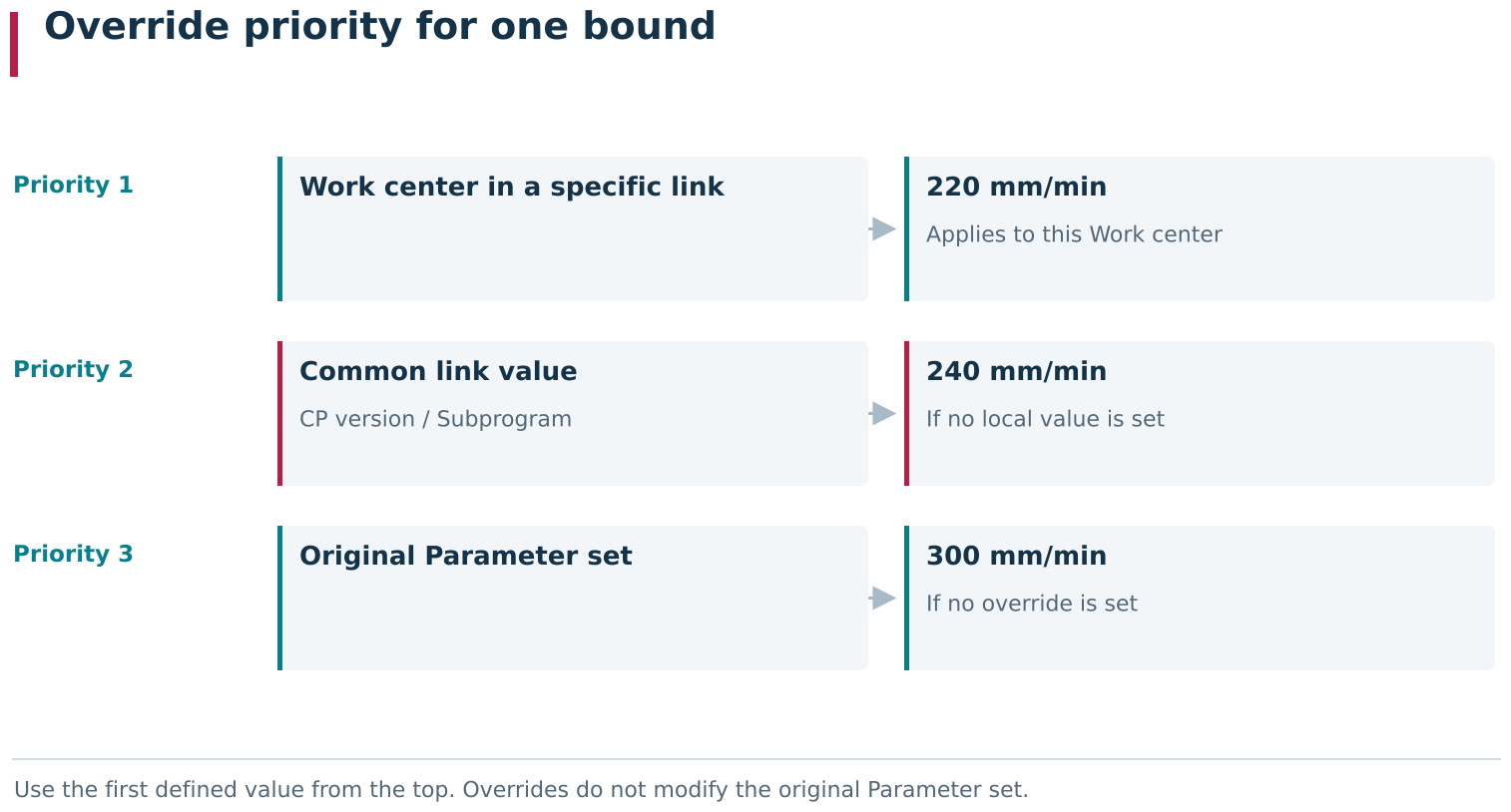
An effective parameter value is selected by context: a local Work center override takes priority over the common override on a CP-version or Subprogram link, which takes priority over the original Parameter set value. Overrides leave the shared set unchanged, so one set can provide different validation conditions in different links and on different machines.
To override values in an inactive CP version:
- expand the required CP version in the tree on the left using the small triangle before its row;
- select the child node named after the required Parameter set;
- select the parameter row in the opened table; the pencil Edit button above the table becomes available;
- click it to open Redefine parameter;
- for values shared by the selected relationship, edit the fields in the upper part of the dialog;
- for machine-specific values, find the required Work center in the lower table and click the pencil Edit button at the right of that row;
- double-click the required cell in the row, for example Minimum, Maximum or Text value; input fields and row-level save/cancel buttons appear in place;
- enter the values and confirm the row with the diskette-shaped save button on the right;
- click Save at the bottom of Redefine parameter to save the prepared changes;
- reopen the parameter and verify the saved values for the required Work center.
The Parameter sets field on the CP-version card selects which sets are attached. Clicking a set chip in that field opens the set-selection dialog. The override editor is reached through the child node in the tree on the left.
For a numeric parameter, Redefine parameter changes thresholds; for a text parameter it changes the expected text. The calculation expression remains a property of the source parameter.
The set table inside a CP version shows values shared by the selected relationship. If equipment-specific overrides exist, also open the parameter and inspect the Work center rows. The value in the general row does not necessarily apply to every machine.
After clicking the row pencil, inherited values may initially appear as ordinary text. Double-click a value cell to open the inline editors. No separate dialog opens for the Work center row. Saving the row prepares the changes inside Redefine parameter; the final Save button at the bottom of the dialog commits them.
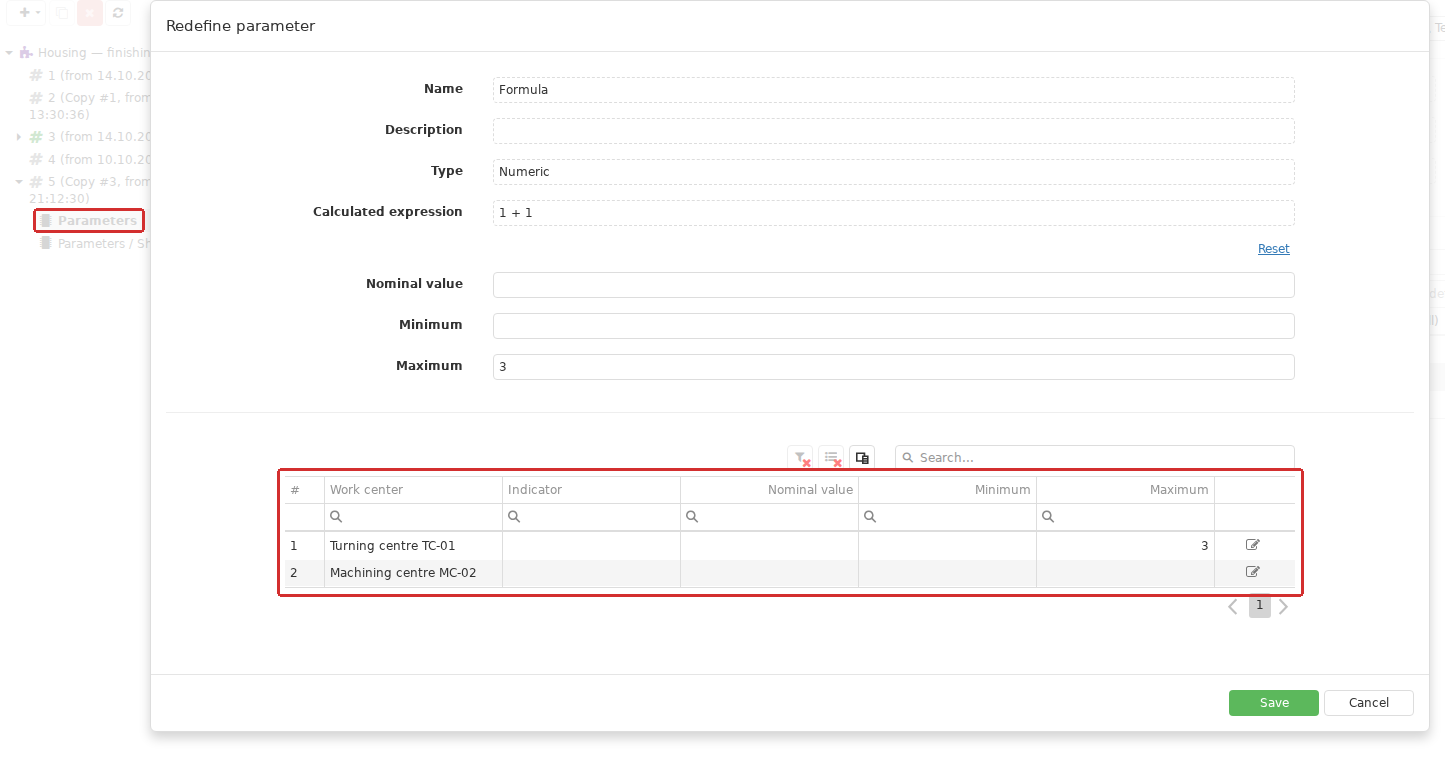
A context override opens through the Parameter set’s child node in the left tree. In Redefine parameter, the upper section defines shared link values and the lower table defines values for individual Work centers. Saving a Work center row and pressing the final Save button are separate steps.
Outside edit mode, the lower table shows the Work center’s own overrides. A blank cell means that the corresponding value is inherited; it does not mean that there is no effective threshold. During editing, inherited values are filled into the fields. Saving a changed Minimum does not by itself turn an unchanged Maximum into a local override.
To review overrides across different CPs and Subprograms, open the general Parameter set card and select the Redefinitions tab.
The main view on Redefinitions is an interactive table that places base and overridden values side by side. To select the relevant relationships:
- click Select CP version or subprogram above the table;
- select a Control program to review its relationships with the set, or select a specific CP version to view the direct relationship with that CP version; when the set is used through a Subprogram, select the corresponding Subprogram;
- if necessary, also select a Work center to restrict the view to its local overrides.
You do not need to select a CP and its version at the same time. Until a program context is selected, the table shows the set’s base values; selecting only one Work center does not expose program-level override columns. Once a context is selected, separate column groups appear for values in the CP-version relationship and for its local equipment settings. If the table is wider than the viewport, scroll to the right and check the group headings, for example “CP #1” and “CP #1 on machine A”. This lets you compare base values, general relationship values and machine-specific overrides.
Do not treat an empty or incomplete overview table as proof that no overrides exist. For a particular relationship, verify saved values in the parameter dialog opened through the set’s child node in the required CP-version tree.
Editing restrictions when active CP versions use a Parameter set
Changing a base parameter affects every relationship that uses it without its own override. Before making such a change, open the set’s Control programs tab and determine which CP versions and Subprogram relationships use it.
DPA prevents a parameter from being changed or deleted if its set is related to at least one active CP version, either directly or through a Subprogram. Deactivating only the CP version from which you started may therefore be insufficient: the shared set can still be used by another active CP version.
Overrides in a particular relationship, and removal of that relationship with the set, are likewise unavailable while the corresponding CP version is active. To change them, first prepare an inactive CP version or deactivate the version being changed according to the procedure adopted at the site.
If a new revision requires independent base settings, create a separate Parameter set. This preserves the previous values for already prepared CP versions instead of changing one shared object for several programs at once.
One-time validation with Test parameters
Test parameters is available both on the general set card and in the set view inside a CP version. The launch context matters: the general card checks the base settings for equipment in the set’s list, while the CP-version view checks the settings of the selected relationship, including overrides for individual Work centers.
For validation in a CP context, DPA considers equipment associated with the main CP. If the required machine is not also included in the set’s equipment, the result reports missing configuration. If the CP itself has no equipment relationships, the set cannot be tested in that context either.
A one-time result can include a machine for which one parameter has no Indicator selected. If that parameter has no calculation expression, DPA reports Unknown with the explanation “Parameter is not configured or data is missing”. This means that the parameter value could not be assessed. A missing link can indicate incomplete configuration or a deliberate choice not to validate that quantity on this machine. Unknown by itself is not a recorded threshold violation.
If an Indicator is selected but its numeric value cannot be obtained or interpreted, the check can report Error with the explanation “Invalid value”. A calculation-expression failure, by contrast, can result in Unknown with an explanation that identifies the point of failure. Read the status together with its explanation.
Results are grouped by Work center and parameter. They can show the current value, the calculated value for a parameter with an expression, and the explanation of the result. This lets you distinguish an actual violation from a missing Indicator link, unavailable data or an expression error.
An overall Unknown result for a Work center does not mean that every parameter under it is Unknown. Individual parameters can also show Success or Error. Expand the parameter results when looking for the cause.
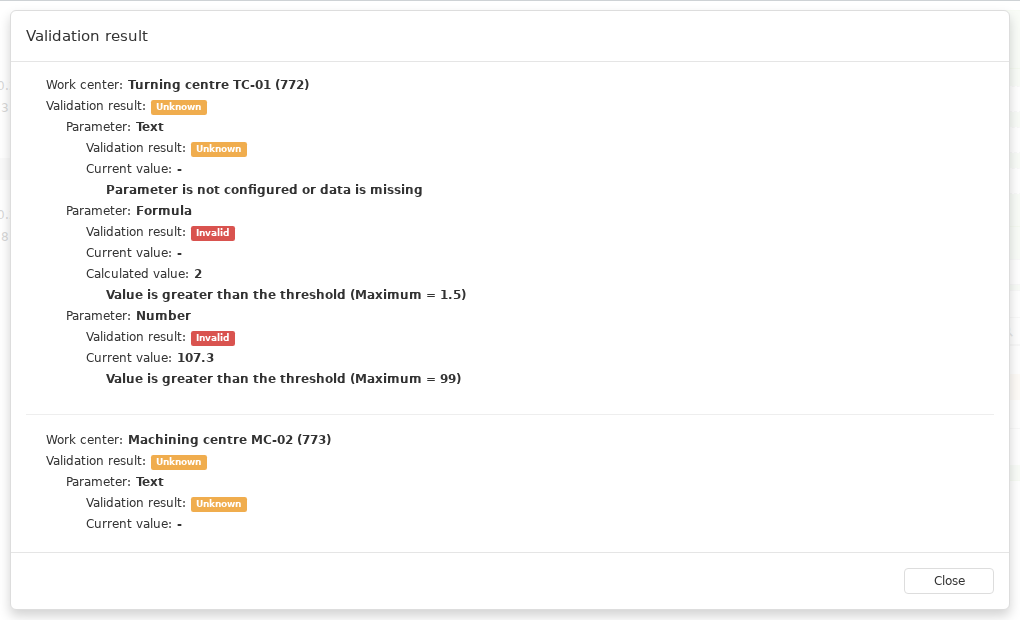
Test parameters expands results by Work center and parameter. One test can include Valid, Unknown and Invalid. Read the current or calculated value and explanation alongside the status: a missing source, a calculation error and an actual violation represent different situations.
A successful check means that the value satisfies the conditions that are actually configured. Before running the check, therefore, make sure the required boundaries have values: a numeric parameter with no lower or upper limits does not validate the expected range.
One-time validation is useful while preparing a configuration and diagnosing it. It uses the currently available values and does not replay the previous processing cycle. Running Test parameters also does not enable continuous monitoring on the machine.
On-request Parameter-set validation through Signals 2.0
Configuration of Signals 2.0 and an example that invokes the check are described in Chapter 9. This subsection focuses on the behaviour of the on-request Parameter-set validation itself.
An on-request check can also be part of an operating workflow. For example, before starting the next cycle a machine can request validation of prepared values. A Signals 2.0 script detects the request and calls DPA’s built-in validation service. The service compares text values and validates numeric parameters, including calculated-expression results, against the effective conditions in the set. The script does not need to reimplement these comparisons and calculations itself.
Such a check can use current values from linked Indicators or values supplied in the request, for example in a data file. The way the request is received, the program context is selected and input values are prepared depends on the particular integration. Text parameters and calculation expressions can therefore be checked automatically, with each check performed as a separate call triggered by the configured event.
When comparing a script-triggered check with Test parameters, use the same set in the same CP or Subprogram relationship. Different program contexts can apply different overrides even on the same machine.
The result is returned to the script. The script can send a response to the machine, save information or perform another configured reaction. The call itself does not create violation intervals in the Parameter validation log or on the Gantt chart; any further handling and persistence of the result are defined by the script.
A machine request before a cycle and a change in a monitored value are different events. Enabling KTP on a Work center does not launch the scripted check, and configuring a pre-cycle request does not mean that the set is revalidated on every change of any of its Indicators.
The capabilities of on-request validation and continuous KTP can be compared as follows:
| Parameter configuration | On-request set validation: command or script | Continuous KTP |
|---|---|---|
| Numeric parameter without an expression | Compares the obtained value with the thresholds | Compares incoming numeric values of the linked Indicator with the thresholds |
| Text parameter | Compares the obtained value with the expected text | Comparison with expected text is not supported |
| Numeric parameter with an expression | Evaluates the expression and validates its result against the thresholds | Does not evaluate the expression; if an Indicator is linked, its incoming numeric value can be checked instead |
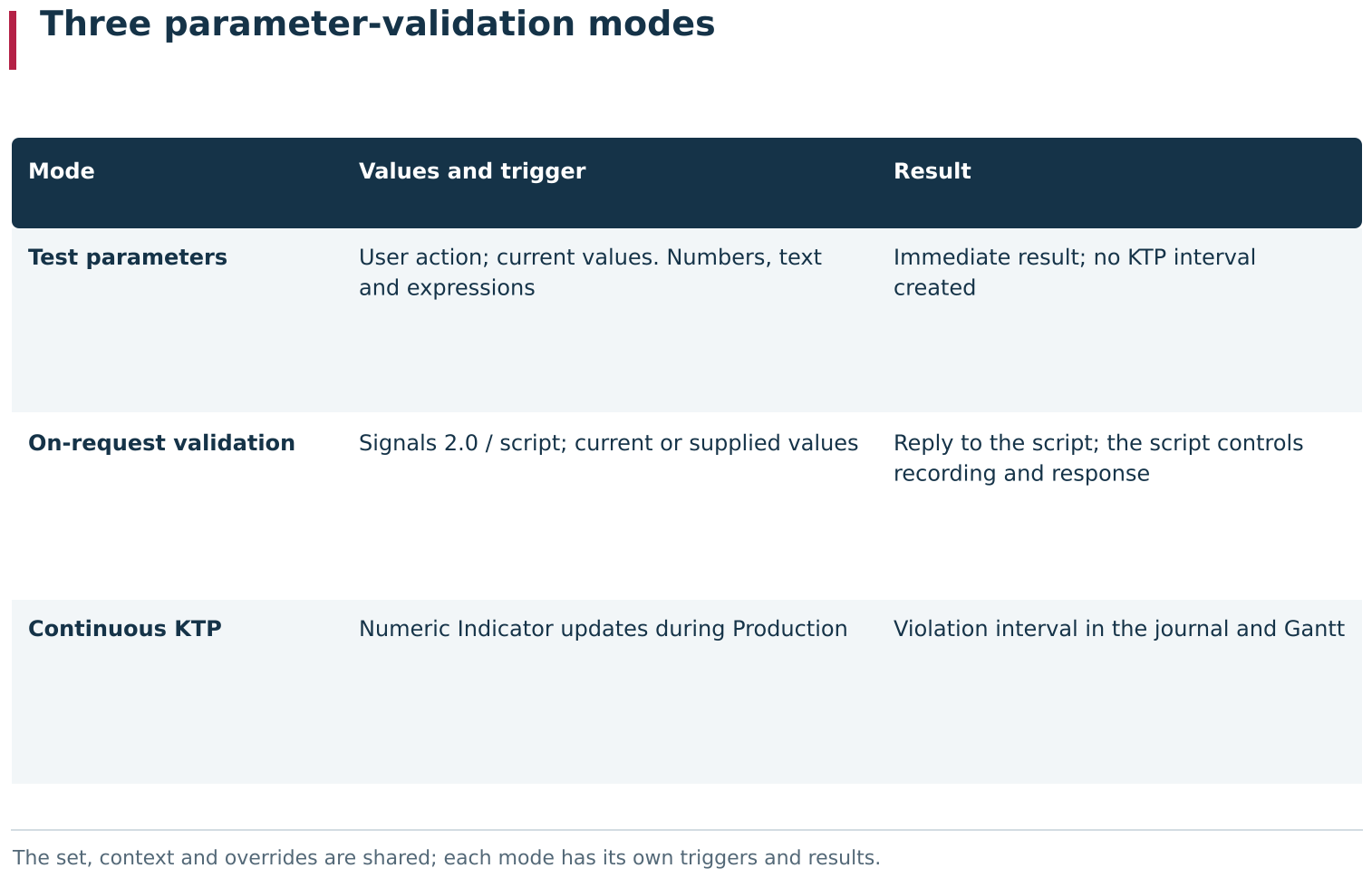
One Parameter set can participate in three distinct validation scenarios. The manual command and Signals 2.0 use on-request validation, which handles text and expressions and does not itself create KTP intervals. Continuous KTP responds to incoming numeric values of linked Indicators during Production and records violations as intervals.
Enabling continuous KTP and selecting how DPA determines the CP
To validate values while equipment is running, use Enable real-time parameter validation in the Work center settings. In the same place, select how DPA determines which CP is in use:
- By machine data — from information about the running CP received from the equipment;
- By active job — from the CP version determined from the current Job.
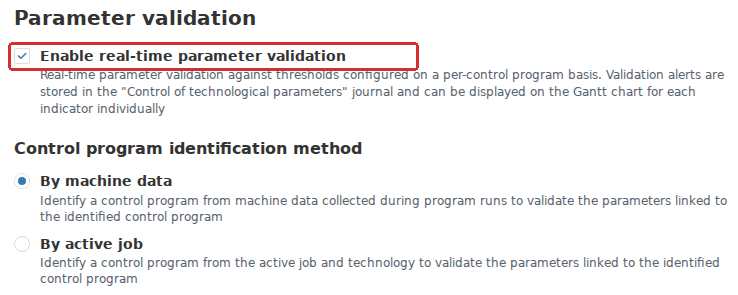
Real-time parameter validation is enabled separately in Work center settings. The identification method, By machine data or By active job, determines the control program context for validation. Linking a Parameter set to a CP version does not replace these settings.
Several conditions must be true at the same time for continuous validation: KTP is enabled, the equipment is in Production state, DPA has determined the CP version being used, and a linked Indicator has applicable numeric thresholds from Parameter sets associated with that CP version.
With By machine data, verify that the running CP is recognised in the catalogue. Monitoring a Subprogram also requires DPA to identify the running Subprogram.
With By active job, there must be a running Job from which one CP version can be determined. If no Job is running, continuous validation is absent even when the machine is executing a CP. A planned or paused Job does not provide the required context. This method does not select validation settings for an individual Subprogram.
In By machine data mode, entering a recognised Subprogram switches validation to the sets attached to that Subprogram within the running CP version. The main CP’s sets are not combined with them at that point. After leaving the Subprogram, DPA selects the main CP’s sets again. For example, if the main CP has a Maximum of 9 and the Subprogram a Maximum of 3, a value of 8 violates the condition while the Subprogram is running but is acceptable after it ends.
To identify a running Subprogram, the name reported by machine data is matched to the catalogue Subprogram Name. The file name of a Subprogram version does not substitute for that catalogue relationship. If the machine reports a non-empty name that DPA cannot recognise, continuous validation for that context stops; DPA does not automatically fall back to the main CP thresholds while that unknown Subprogram name is present.
The CP version fixed for a machine cycle that is already in progress does not have to be the version currently marked active in the catalogue. Activating another CP version does not by itself switch the started cycle to the new version’s thresholds. When reviewing a result, compare the CP version recorded in the KTP log with the execution context rather than only with the current Active mark in the catalogue.
Continuous KTP compares incoming numeric Indicator values with the effective thresholds. It does not support text comparison or evaluation of parameter expressions. Use the on-request set validation described above for those cases.
If a numeric parameter has a Calculated expression and is also linked to an Indicator, an on-request set check validates the expression result, while continuous KTP validates the incoming value of the Indicator itself. A successful set check therefore does not mean that continuous KTP is evaluating the same calculated quantity. A pre-calculated quantity can be checked continuously when it arrives as its own numeric Indicator; the expression stored on the parameter does not create such a source. For example, with expression 1+1, Maximum 3 and current Indicator value 5, an on-request check successfully validates the calculated 2, while continuous KTP records a violation for 5. Without an Indicator link the expression can still be checked on request, but that parameter does not participate in continuous KTP.
Continuous monitoring performs checks when values arrive from linked Indicators. A parameter with no Indicator link does not participate in that check; other linked parameters can continue to be monitored. The missing link does not by itself create a threshold-violation record in the Parameter validation log. If the quantity is meant to be monitored, verify its source on the Indicators tab and with an on-request set check.
If several parameters from one or more sets are linked to the same Indicator in one execution context, continuous KTP forms combined boundaries for that Indicator. At the same configuration level, DPA uses the greatest Minimum and the smallest Maximum. For example, base ranges 10…95 and 20…100 produce combined boundaries 20…95.
The configuration levels are then applied in sequence: base thresholds, general overrides for the CP or Subprogram relationship, then overrides for the particular Work center. A same-named threshold from a higher level replaces the combined boundary from the lower level even when it comes from another parameter and permits a wider deviation. In the example above, a general override of the second parameter’s Maximum to 120 makes the continuous-KTP Maximum 120, even though the first parameter still has base Maximum 95. If the first parameter also has a general Maximum 110, the combined general Maximum is 110. A local Work-center Maximum 130 then replaces that general boundary with 130.
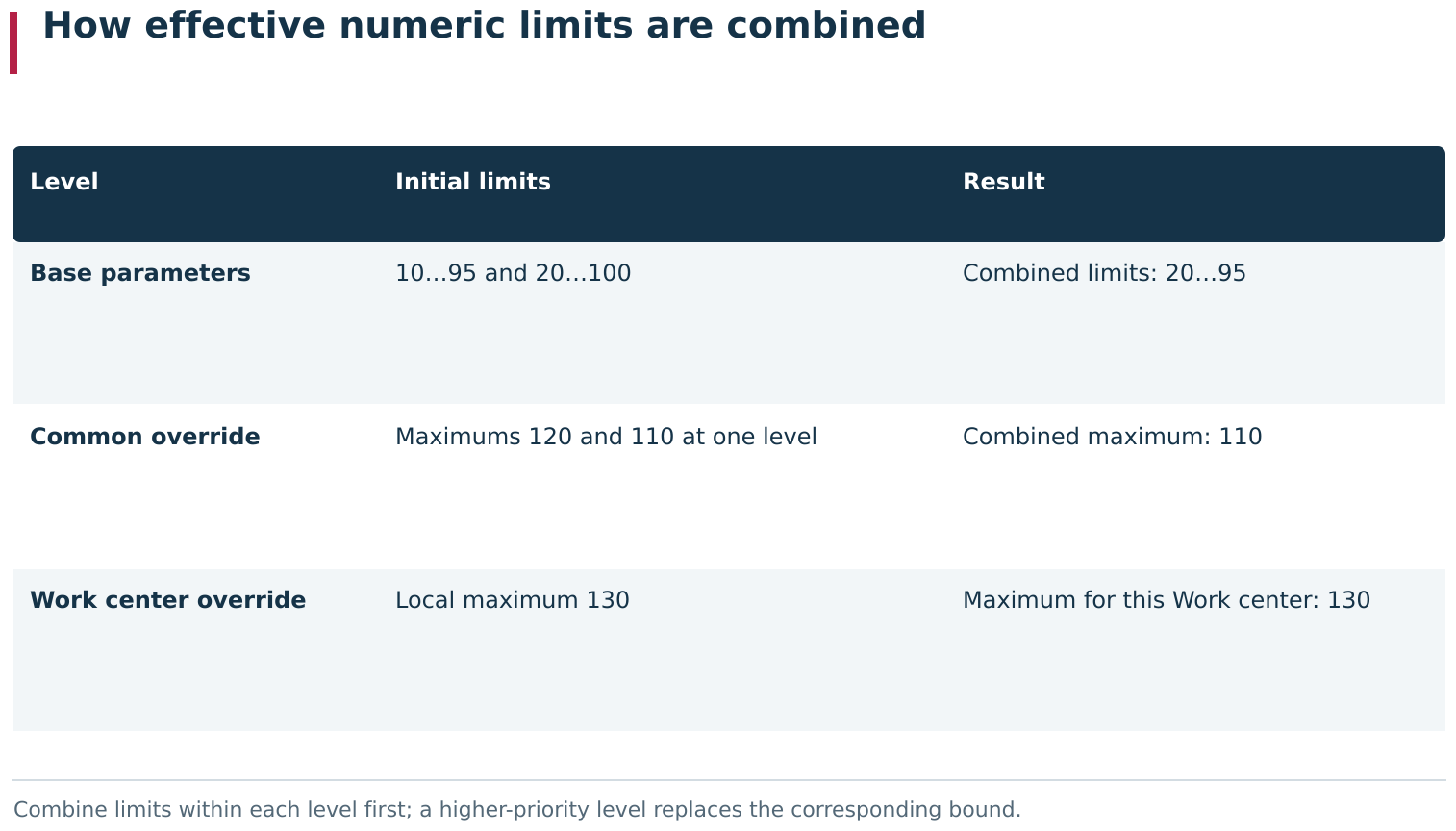
When several parameters use one Indicator, continuous KTP first combines limits within a settings level and then applies higher-priority overrides. The effective bound is therefore not simply the strictest value ever entered: a common link override or local Work center override can replace the corresponding lower-level bound.
An on-request set check validates each parameter against its own effective conditions. With the same Indicator value, it can therefore reject 110 for the first parameter with Maximum 95, while continuous KTP is already using the combined Maximum 120. Review related sets and overrides together: adding another set can change the combined boundaries of continuous monitoring.
After preparing the set, configure the required start mechanism: enable continuous KTP on the Work center, or configure an on-request scripted check. Merely attaching a set to a CP version does not mean its conditions are currently being evaluated on the equipment.
Saving and viewing KTP violation intervals
When a numeric value violates an effective threshold during continuous KTP, DPA opens a record in the Parameter validation log. The record is associated with a particular Indicator, equipment, CP version and, when present in the execution context, Subprogram. It stores the violated threshold and the time when the deviation began. If several parameters use the same Indicator, DPA does not create a separate current interval for each parameter: the record identifies the parameter that supplied the violated combined boundary. For example, with Maximum values 95 and 100, a violation of the combined 95 boundary is associated with the first parameter.
Transitions between the main CP and a Subprogram can create very short adjacent intervals with different contexts. Compare them with the timing of machine states and incoming Indicator values; a short record alone does not mean that validation was continuously running in both contexts at once.
While the same threshold remains violated in the same context, one interval stays open. Its end is recorded when the violation stops, the context changes or validation ends. The end time therefore does not always mean that the value returned to the acceptable range; for example, the production cycle may simply have ended.
Results are available under Logs → Parameter validation and on the Gantt chart for the corresponding Indicator. To show thresholds and violation areas on the chart, click the Indicator name and enable Thresholds and Threshold areas. Starts and ends of deviations can also be used by Signals. Detection records the deviation; the required production response is configured separately.
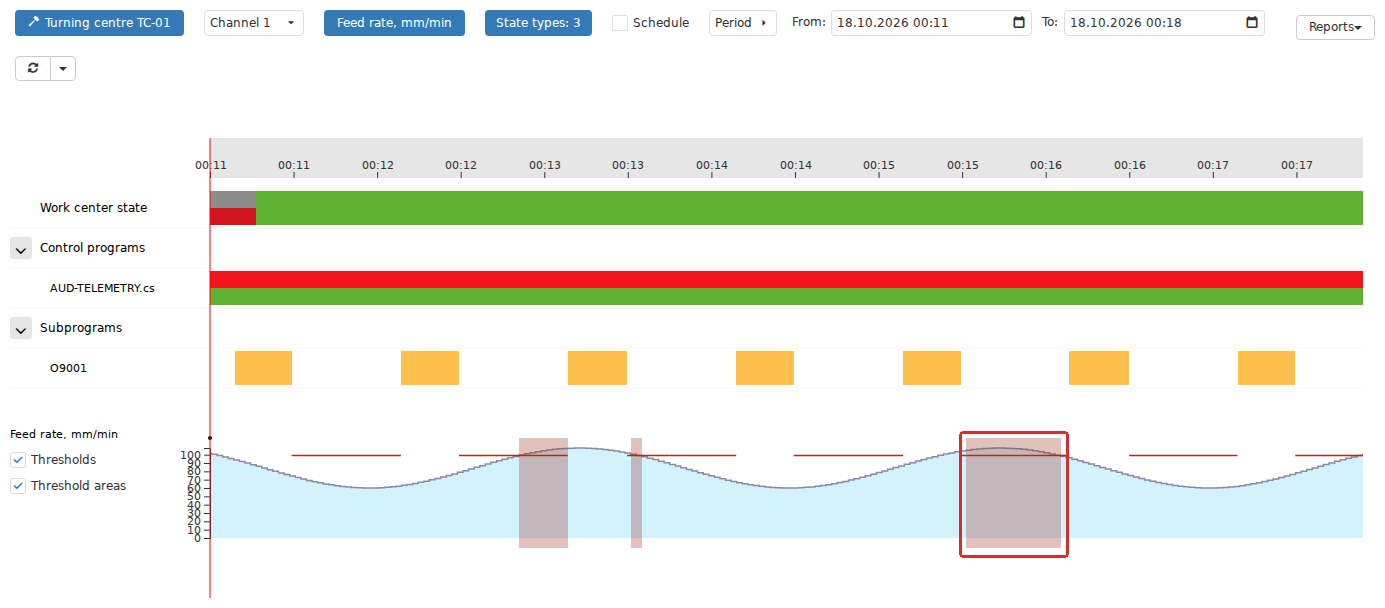
During real-time parameter validation, a violation is stored as an interval linked to an Indicator and production context. Thresholds and Threshold areas can be enabled on its Gantt chart to compare the measured value, effective limits and violation interval on one time axis.
Evaluate an absence of violation records together with the data and operating conditions. Values may have remained within the acceptable range, but KTP may also have been disabled, DPA may not have determined the CP, thresholds may not have been configured, the parameter may not have been linked to the required Indicator, or the required values may not have arrived.
Cloning a Parameter set and copying its values
Clone creates an independent Parameter set. It copies the general properties, parameter list, expressions, base thresholds, equipment relationships and Indicator mappings. Relationships with CP versions and the overrides in those relationships are not copied to the new set. After cloning, attach the copy to the required CP versions separately and verify its usage context.
Copy parameter values transfers values between existing sets. DPA matches parameters by exact name and shows the proposed changes before they are applied. For a meaningful transfer, the parameter lists and types must correspond. This command transfers text values and numeric threshold values; it does not clone the set structure.
Data-source mappings are copied separately with Copy indicator configuration on the Indicators tab. When copying between Work centers, DPA matches Indicators by name. After copying, verify the mappings on the destination equipment: the same name must represent the required quantity and use appropriate units.
Practical sequence for preparing validation
For an initial configuration, the following sequence is convenient:
- determine which quantity needs to be validated and what values are acceptable;
- verify that the required Work center has a corresponding Indicator and that data is arriving;
- create a Parameter set, add the parameters and enter expected values or thresholds;
- add the required equipment on the set’s Work centers tab;
- link parameters to the Indicators that provide the quantities to be checked on the selected machines;
- attach the set to an inactive CP version or to the required Subprogram within that version;
- add overrides for the relationship and for individual Work centers where the common values are insufficient;
- run Test parameters from the required context and confirm that the intended quantities are actually being checked;
- finish preparing and activate the CP version;
- for continuous KTP, enable it on the Work center and select how the CP is determined; for automatic on-request validation, prepare the corresponding Signals 2.0 scripts;
- verify the selected method end to end: program context, incoming values, start of the validation and the configured handling of its result.
If the result differs from what you expect, begin with the specific chain: Work center → running CP version or Subprogram → attached set → effective values → Indicator. This helps locate not only an incorrect threshold but also a wrong relationship or a missing execution context.
The prepared settings remain in DPA. Transfer of program files to the equipment is a separate process and is covered in the next section.
6. Transferring CPs and Subprograms to equipment
Saving a file in a CP version makes it available for use in DPA. To run it on equipment, the file still has to be transferred to the required destination. DPA provides Program pack loader for this purpose: select the Work centers, channels, CPs and Subprograms, review the package contents, and start the transfer.
Open the section from the Applications menu: CP uploader → Program pack loader. Upload Wizard in the CP catalogue starts a different workflow and does not replace this route.
A package can contain one CP for one machine or several files for several machines. The meaningful result is the transfer of a particular file to a particular Work center through the selected channel. Review the package row by row: successful transfer of one file does not mean that all the other files were transferred as well.
A CP can also be sent to equipment from a Job card in the Operator workplace. Select CP opens Loading CP. Select a CP from the offered list and click Upload. DPA transfers the file to the Work center of the Job through its main channel. This command does not change the CP-version assignment in the Technology and does not start the Job itself.
The list in Loading CP belongs to the particular Job, not to the complete CP catalogue. CP versions assigned to Technology operations are recorded in the Job when it starts and then become available for upload. If CP file links were supplied with the Job, the window uses those links. The presence of Select CP before the Job starts therefore does not guarantee a populated list: DPA can display CP not found.
Configuring the CP transfer method for a Work center channel
Before a package is created, the required DPA Server, driver and channel must be configured for the Work center. The user account also needs permission to upload CPs. A Work center appearing in the enterprise structure and supplying machine data does not by itself mean that program transfer is configured.
The settings are under Enterprise structure, in the Devices child item of the required Work center. Select the appropriate channel there. Upload CP to work center defines the transfer method:
| Value | How it is used |
|---|---|
| DISALLOW | CP transfer through this channel is prohibited |
| Driver | The equipment driver transfers the file; Upload CP to work center folder specifies the destination |
| Network folder | DPA Server writes the file to the directory specified in Upload CP to network folder |
Subprograms use the separate Upload subprograms to work center setting. If CP transfer is disallowed, allowing Subprogram transfer has no effect. When Driver is used, the driver must support the required operation. When Network folder is used, DPA Server must have write access to the directory.
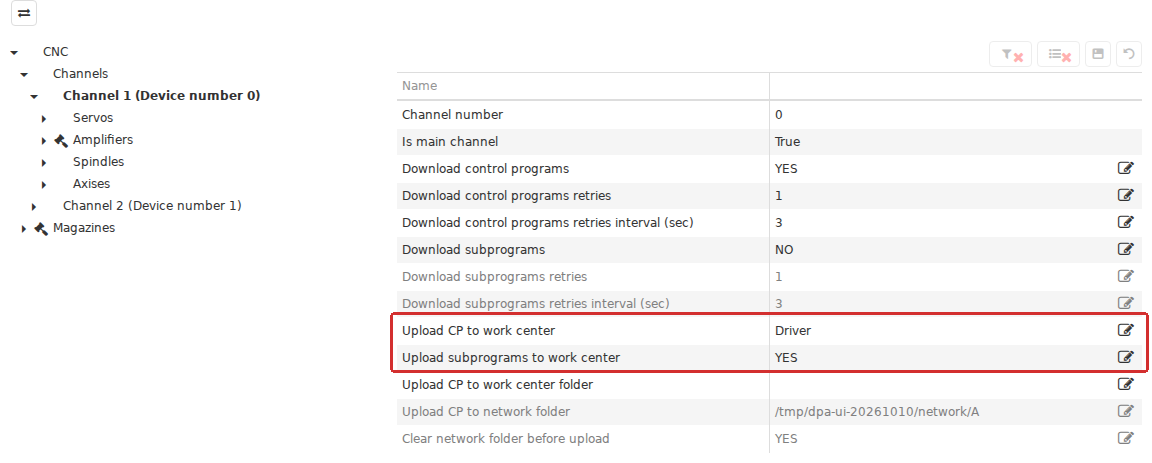
CP transfer is configured for a Work center channel. The main program can use DENY, Driver or Network folder; subprogram transfer has a separate setting. These options define how and where files are transferred. Receiving machine data alone does not mean that CP upload is configured.
Network folder is useful when program files are exchanged through a shared directory. How the equipment subsequently obtains the file from that directory depends on the exchange scheme in use. Distinguish a successful write to the network folder from the machine’s later receipt of the file.
Clear network folder before upload deletes the existing contents, including subdirectories. Clearing occurs before each file is written, not once before the whole package. Disable this option when a main CP and its Subprograms must remain in the same shared directory at the same time; otherwise the next file removes the files written earlier in the package.
Selecting Work centers and destination channels first
When Program pack loader opens, it shows current and recent transfer operations. The main view is an interactive table. To prepare another transfer, click the command of the same name above the table. This opens New pack.
At the first step, select one or more Work centers. The selected equipment is shown in an interactive table together with its channel and department. The main channel is filled in by default when it is defined. To use another channel, edit the Channel cell for the corresponding Work center.
Check the channel on every row. If no main channel is defined, select a destination explicitly. The destination channel is chosen at this wizard step. A channel number shown in CP information can help identify a program, but it does not replace selecting the channel for the receiving machine.
After selecting the equipment, click Next. The order matters: recipients are defined first, then CPs and, where required, Subprograms are selected for them.
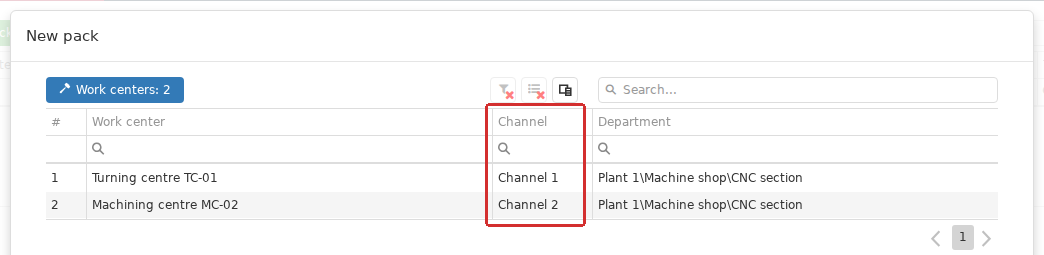
A New pack starts with recipient selection. Each Work center has its own row and channel. The main channel may be filled automatically; check or change the channel for each row before continuing.
Selecting CPs for the chosen Work centers
At the next step, open program selection, select the required rows and click Select. The main program-selection view is an interactive table; several CP versions can be selected. Active Subprogram versions are also available for independent selection.
Only for selected work centers is enabled by default. With this filter, DPA shows active CP versions whose Control programs are linked to all selected Work centers. Direct relationships and relationships through Work center groups are both taken into account. With several machines selected, the list is therefore the common set of CPs suitable for all of them, not the union of separate machine-specific lists.
For example, if a CP is linked to machine A but not to machine B, its active version does not appear while A and B are selected together. This helps prepare one common file set for the whole recipient group.
If a required CP is missing, check whether its CP version is active and whether the CP is linked to the equipment. If necessary, clear Only for selected work centers. The selection then shows active CP and Subprogram versions without filtering them by the selected Work centers. Clearing the checkbox does not make inactive CP or Subprogram versions available.
Clear the checkbox as well when a Subprogram version needs to be selected independently. With the filter enabled, the list contains main CP versions. Related Subprograms can instead be added through the switch on a selected CP.
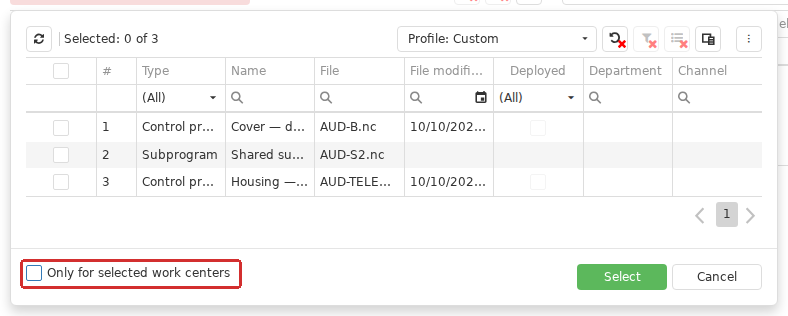
On the program-selection step, Only for selected work centers limits the list to active CP versions whose catalog links cover all selected Work centers. Clearing it allows active versions to be selected without that restriction, including a separately chosen Subprogram version. Selection does not create equipment links.
Sending a file to a machine does not create a catalogue relationship between that CP and the Work center. If DPA must later recognise and use the CP in the context of that equipment, prepare the catalogue relationship separately as described earlier in this chapter.
If you return to the first wizard step and change the selected Work centers, the selected CPs and Subprograms are cleared. Select the programs again for the new equipment set.
Adding related Subprograms to the package
Each selected CP version has an Include subprograms switch. Enable it on the CP row when its related files need to be transferred. The switch is off by default.
DPA adds the active Subprogram versions of Subprograms linked to that CP version. As described earlier, the CP-version relationship points to the independent Subprogram object; for transfer, DPA resolves that Subprogram’s active Subprogram version. If a linked Subprogram has no active version, its file is not added automatically.
Before sending the main CP, therefore, check that its Subprograms are ready as well. Changing the active version of a shared Subprogram changes the contents of new packages for every CP related to it. It does not replace files that have already been transferred to equipment.
Automatic inclusion uses relationships stored in the DPA catalogue. The wizard does not search for extra files with similar names and does not derive all dependencies from the contents of the main CP. If the CP calls a Subprogram, prepare the corresponding catalogue relationship and active Subprogram version in advance, or select the required file separately.
Parameter sets remain DPA-side validation settings. They do not become extra files in the transfer package, whether linked directly to a CP version or through a Subprogram.
Reviewing files and recipients in the package preview
After selecting CPs and Subprograms and configuring the switches, click Next. The wizard displays the individual rows that will be transferred: Work center, channel, CP/Subprogram type, name, filename, file modification date, Deployed mark and state.
The package uses one shared file selection for all recipients: every selected file is intended for every selected Work center. For example, two CPs selected for two machines produce four rows. If one of those CPs has one related Subprogram included, that Subprogram is also intended for both machines and the package contains six rows.
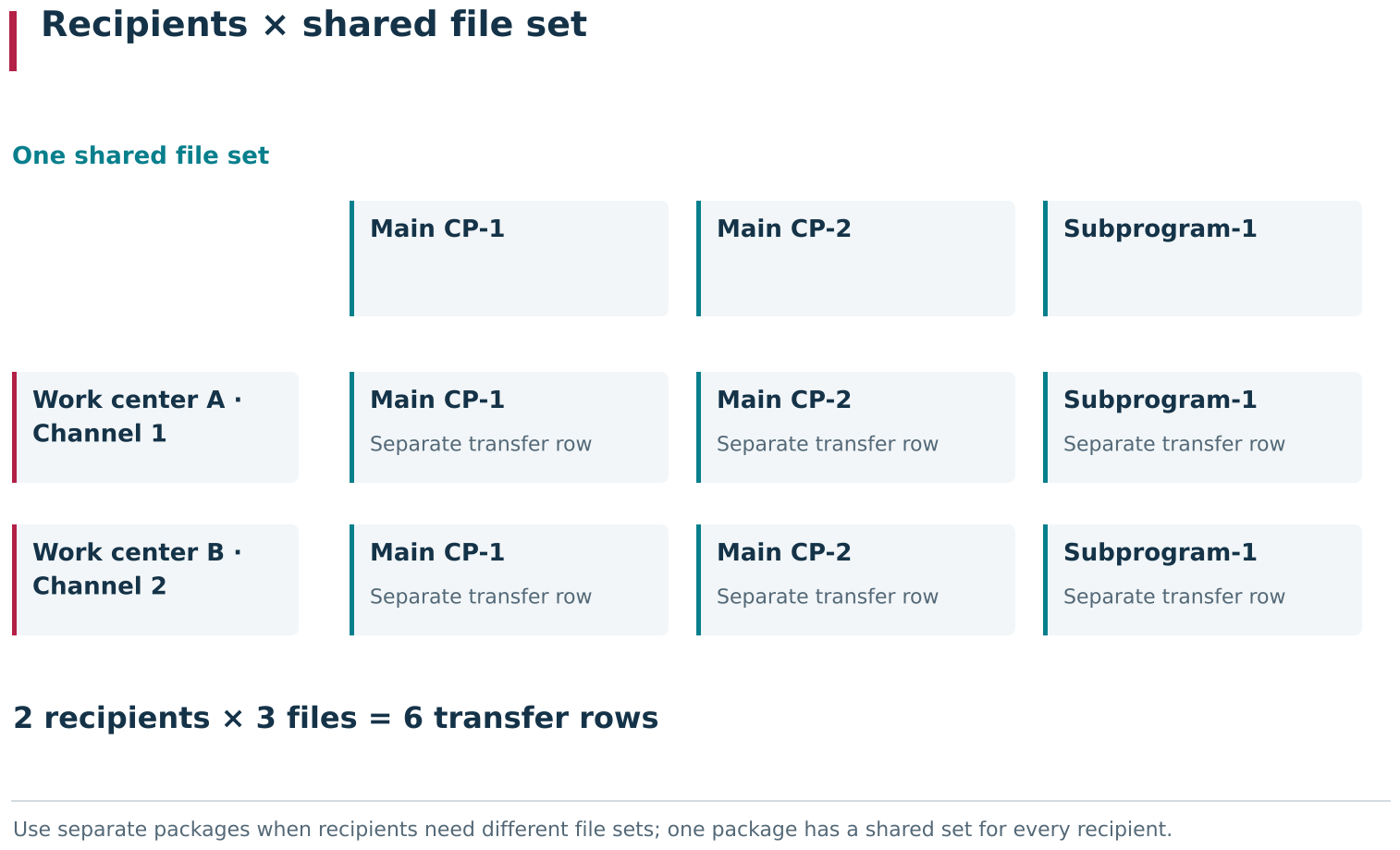
A package combines a shared set of files with a shared set of recipients: each selected file produces a separate transfer row for each selected Work center. Two files and two Work centers therefore produce four rows. An automatically included linked Subprogram adds rows for every recipient.
A single package does not define a different CP/Subprogram selection for each machine. If machine A needs only one CP and machine B needs another, create separate packages so that each preview matches the required transfer arrangement.
Before starting, verify every equipment/file pair rather than only the number of rows. Pay particular attention to the channels, actual filenames and Subprogram versions. Deployed helps identify the selected CP or Subprogram version, but it does not replace reviewing the package contents and does not mean that the file is already present on the machine.
While a row is in Preparing, its file has not yet been transferred. If necessary, select the row and click View. Program uploading state shows details of that transfer and any error messages already available.
If a catalogue file or the active Subprogram version of an automatically included Subprogram changes after the preview is opened, review the package again before starting it. The preview does not freeze an immutable copy of the files and versions for the whole preparation period. When Start is clicked, DPA resolves the active Subprogram version for an automatically included linked Subprogram again. If the preview showed Subprogram version No. 2 but No. 1 was activated before startup, No. 1 is transferred. By contrast, if a specific Subprogram version was selected directly, a later change of the active version does not replace that explicit selection: the selected version is transferred.
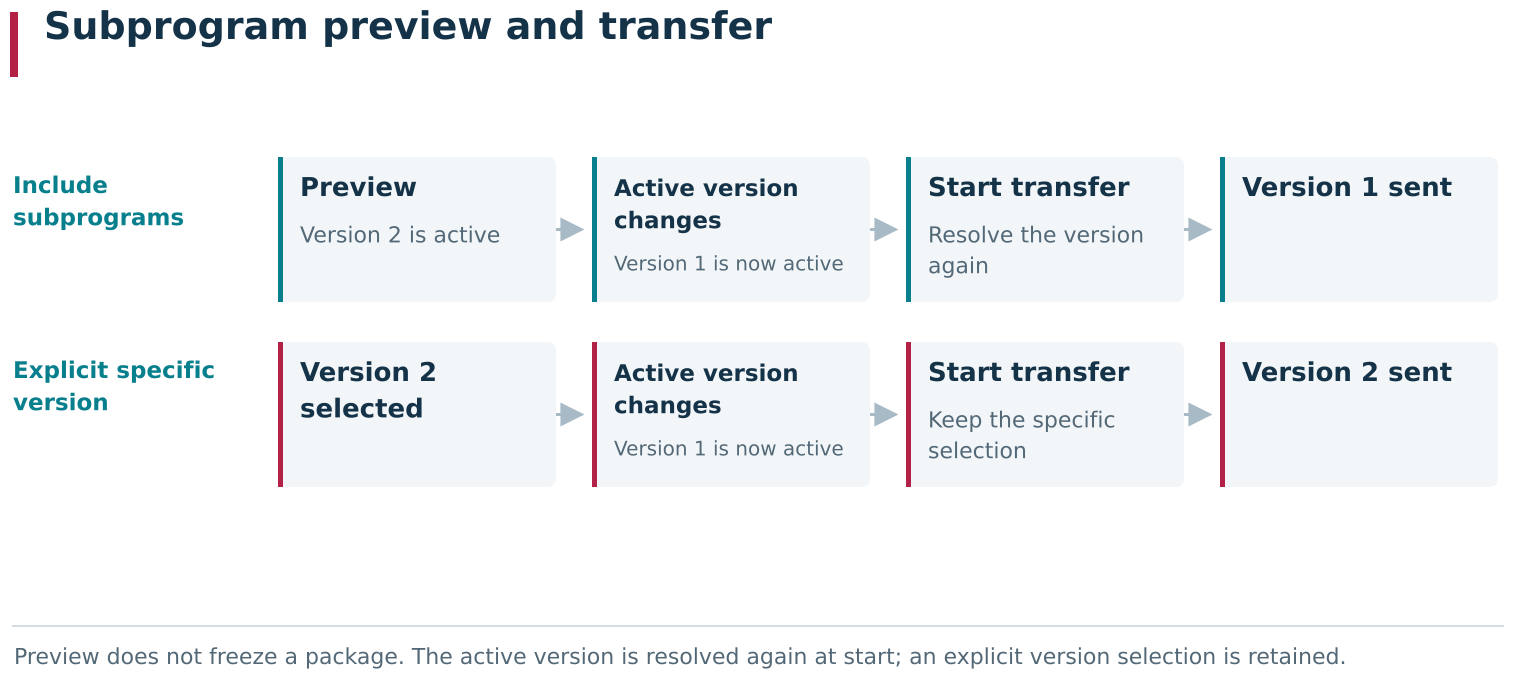
For an automatically included linked Subprogram, the active Subprogram version is resolved again when Start is pressed. Changing the active version between preview and start can therefore change the file actually sent. An explicitly selected specific Subprogram version remains the selected version.
After such a change, an already open preview can retain the earlier Subprogram row in Preparing even though another Subprogram version was actually transferred. After closing the window, verify the final package and transfer result in the main Program pack loader table and, where necessary, against the file in the destination folder.
Starting the package and interpreting individual transfer states
Start begins processing the prepared package. The state of each transfer changes independently in the table. Files for one Work center are processed sequentially; transfers to different Work centers can run in parallel.
| State | Meaning for the row |
|---|---|
| Preparing | The row is prepared for review before transfer |
| Queued | The transfer is waiting to be processed |
| Uploading | The transfer operation is in progress |
| Completed | The transfer operation for this row finished without a recorded error |
| Completed with error | An error occurred during preparation or transfer; open the message for this row |
| Cancelled | Processing was cancelled; this does not mean that actions already performed were rolled back |
After starting the package, wait for a result on every required file. Different rows in the same package can have different states at the same time: one file may already be complete, another queued, and a third completed with an error.
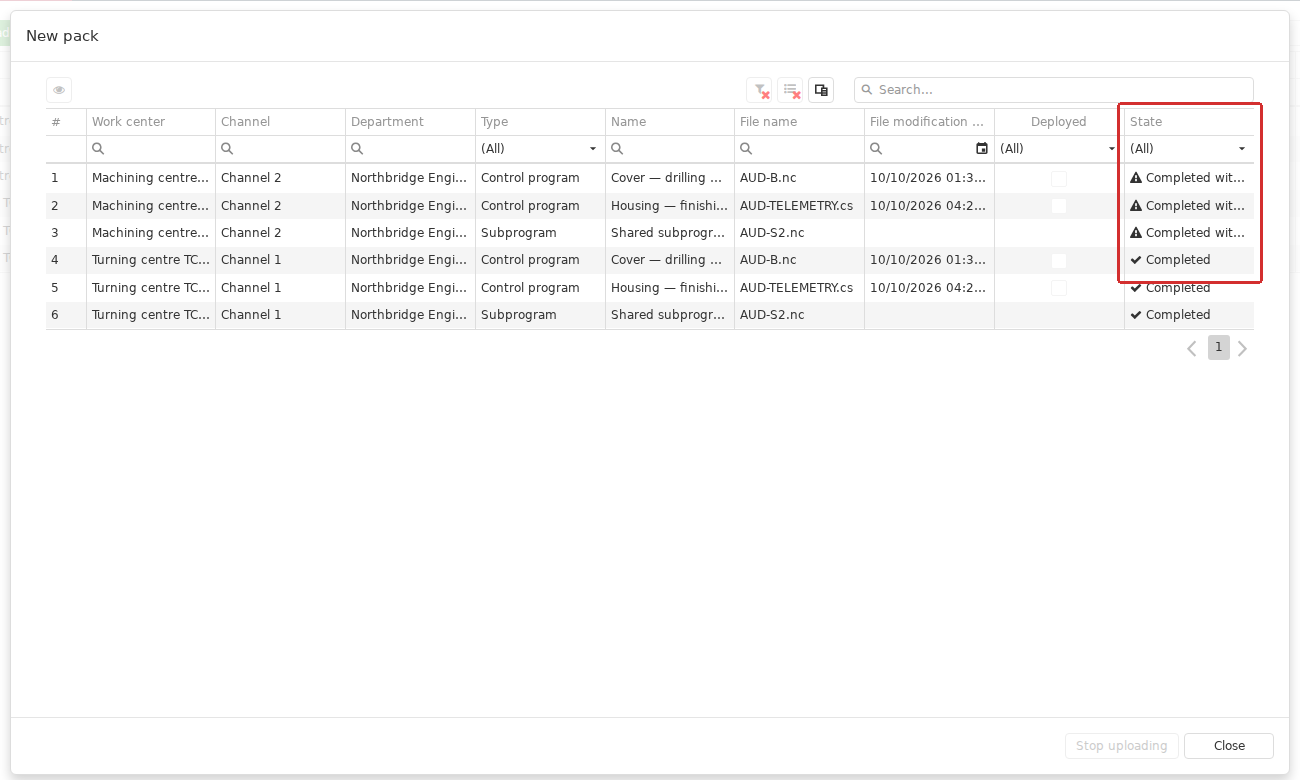
After upload starts, one table can contain Queued, Uploading, Completed, Completed with error and Cancelled rows together. Assess the result for each Work center–file pair. Selecting a row and using View helps investigate that row’s error.
When a row fails, select it and open View. The message helps distinguish recipient-configuration problems, a channel on which transfer is prohibited, an unavailable DPA Server or driver, and errors in the selected transfer method. Prepare a retry only after correcting the specific cause and checking the results already obtained.
If the main CP and only some of its Subprograms were transferred successfully, the machine still does not have the complete intended file set. Transfer the remaining required files before proceeding to use the CP.
Closing the wizard and stopping a package upload
You can close the wizard after starting the package. Processing continues and the rows remain available in the main Program pack loader table. Closing the window is not a cancellation command.
To request a stop while the package is processing, use Stop uploading in the wizard and confirm the action. Cancellation applies to the package; transfers that have not started must not be treated as completed.
Stopping does not remove files that have already been transferred and does not restore their previous contents. A transfer already in progress can still have performed an action on the equipment or written a file to the destination folder. After stopping, check the state of each row and, where necessary, the actual file set at the destination. Cancelled does not replace that verification.
Reviewing transfer results and actual CP execution
The main table lets you return to recent transfer results and see the Work center, channel, CP or Subprogram, user, time and state. It is intended for immediate investigation of package transfers. The list is cleared after DPA Host restarts; older completed packages are also displaced as new ones accumulate. A row disappearing from this table does not mean that the transferred file was removed from the equipment.
Attempts that reached the send operation are recorded separately in the CP transfer log, which provides a chronological view of transfer events. For an error detected before sending begins, start with the corresponding package row and its message.
Completed describes the transfer operation. It does not mean that the CP has already been selected or started on the machine, or that it is the CP required by the current Technology operation. For transfer through a network folder, it likewise does not prove that the equipment has consumed the file from that folder.
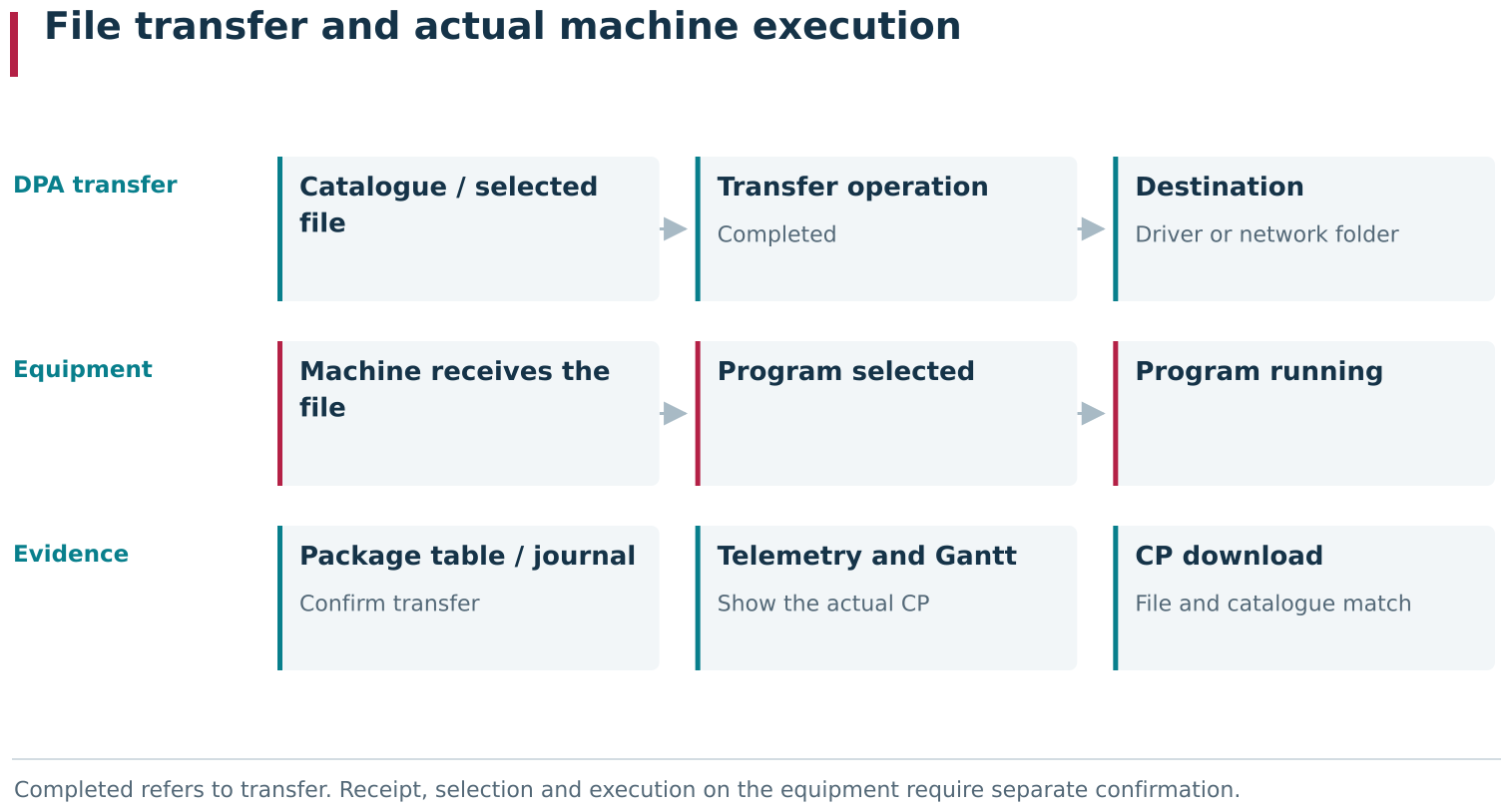
Completed means that the transfer operation to the configured destination has finished. Actual use involves separate stages: file delivery, receipt or presence at the equipment, program selection, start, and machine data identifying the CP actually running. Different DPA tools provide evidence for these stages.
For subsequent analysis, use information reported by the machine about the CP actually in use, together with the logs and Gantt chart. CP downloading shows a CP received from equipment and the result of matching it to the DPA catalogue; Subprograms have a separate Subprogram downloading log. These views connect transfer history with what the equipment actually used, rather than only with what was selected for sending.
Practical sequence for transferring a prepared CP
For a typical transfer of a main CP together with its related Subprograms:
- verify the file and activation of the required CP version;
- verify the Subprogram relationships and make sure every required Subprogram has an active version with a file;
- make sure each Work center and channel has a CP transfer method configured and permits Subprogram transfer;
- open Program pack loader and create a New pack;
- select the equipment and explicitly verify the channel on every row;
- click Next, select the required CP versions and confirm with Select;
- enable Include subprograms for CPs that require their linked files;
- click Next and review the complete package: recipients, channels, CP and Subprogram versions, and filenames;
- click Start and wait for the result of every transfer;
- investigate Completed with error and Cancelled rows, verify the complete required file set, and only then proceed to use it on the equipment.
This is where catalogue preparation becomes transfer of specific files. The CP’s relationships with Technologies, Work centers, Subprograms and validation sets remain in DPA to support planning, determination of the program context and analysis of execution. File transfer connects that preparation with the equipment; the next chapter covers planning and starting Jobs.
← Chapter 3. Equipment, Work centers and machine data · Contents · Chapter 5. Production planning and execution →