← Chapter 2. Security, users, permissions and audit · Contents · Chapter 4. Production preparation and control programs →
What this chapter covers
Before DPA can plan, monitor or explain anything, raw values from controllers and devices have to be connected to the Work centers, channels, Indicators, states and events described in the system. This chapter follows the path from physical equipment to the production data used by other DPA functions.
That path begins not with a driver or an individual signal, but with the Enterprise structure. It answers the first question: which production location will the data, settings, people and subsequent equipment history belong to?
1. Enterprise structure and Work center configuration
Open the Settings menu — the gear button on the right side of the top bar — and select Enterprise structure.
Settings → Enterprise structure contains the tree of enterprise objects. You can expand organisational levels, select a node and edit its card. DPA uses this hierarchy to locate each Work center within the enterprise and associate it with machine data, operating rules, users, planning and production history.
The general Work center model was introduced in Chapter 1. Here we look at it from the equipment-configuration perspective: where a Work center sits, which data describe the Work center itself, which describe its connection to the machine, and why moving or misplacing a node can affect much more than the appearance of the tree.
Four main levels of the structure
The basic hierarchy runs from top to bottom:
- Enterprise;
- Production site;
- Department;
- Work center.
A Department can contain nested Departments, so the structure is not limited to a single administrative level. This makes it possible to reflect the actual organisation of production: for example, a site can be divided into shops, shops into sections, and specific production units placed within those sections.
Not every visible tree item is a separate level of this hierarchy. The Work centers and Storages nodes shown beneath a Department primarily group child objects in the interface. Work centers contains the actual Work centers, while Storages opens a separate storage structure made up of zones, storage units and storage locations. Determine an object’s position from its type and card rather than from indentation or its tree icon alone.
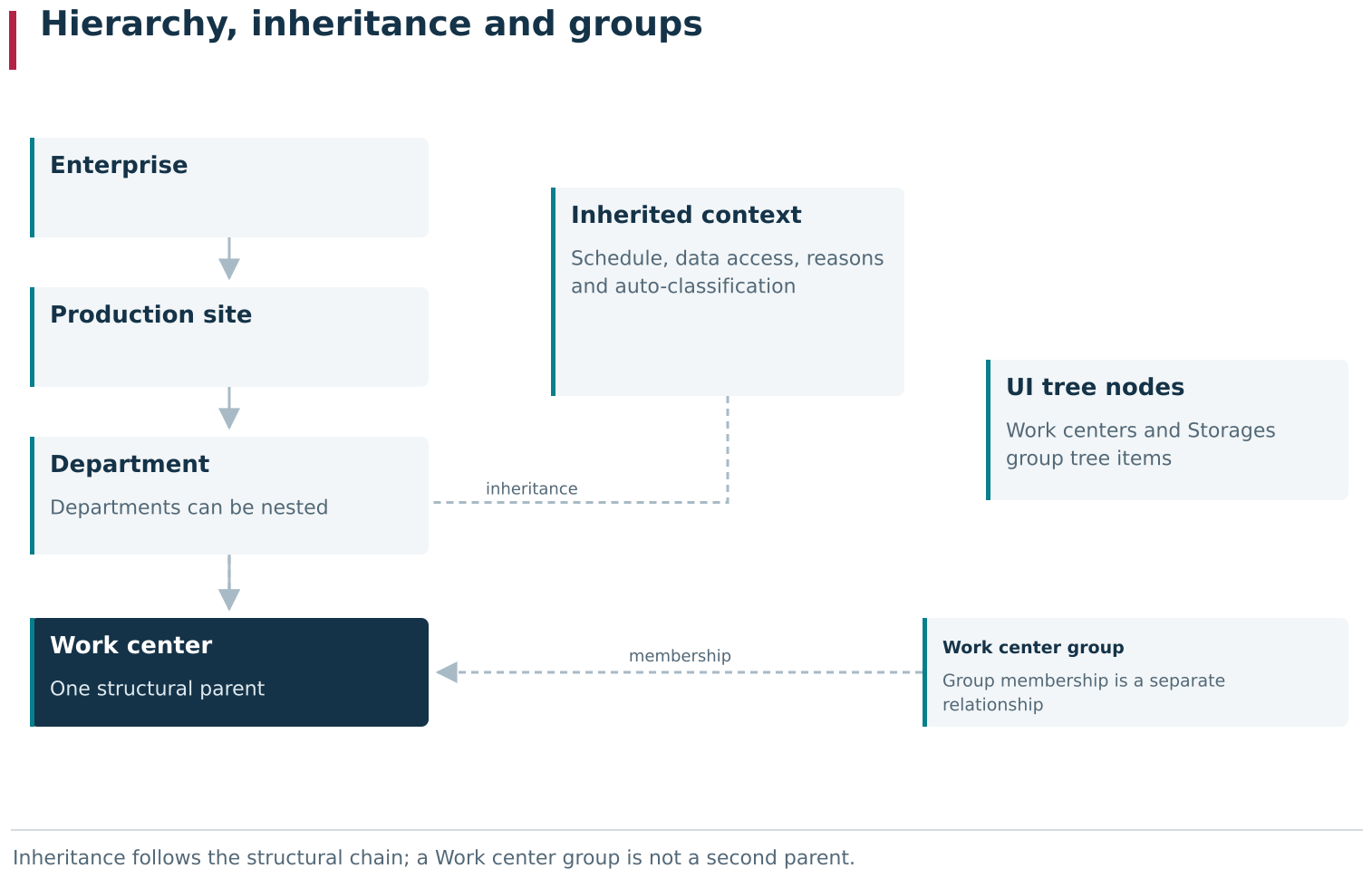
A Work center belongs to one structural branch: Enterprise → Production site → Department → Work center. Nested Departments can add intermediate levels; the Work centers and Storages UI nodes only group tree items. Settings are inherited down that branch from the nearest item with its own setting. Work center groups provide separate horizontal membership and do not become a second structural parent.
When you select a structural node, its card opens on the right side of the page. The available tabs depend on the object type. A Department can provide general information, Schedule, automatic downtime classification, filtering of available production-situation reasons and security settings. A Work center additionally provides its own operating settings, identification data and equipment-related functions.
Creating a Work center and connecting a driver
Creating a Work center establishes a persistent equipment record in DPA. For the Work center you specify its name, description, model, inventory number, parent Department and, when required, membership in one or more Work center groups. The card can then be supplemented with manufacturer, control system, image and other identification information.
The distinction is fundamental. A Work center answers “which production location are we describing?”, whereas the DPA Server and driver connection answers “where does DPA obtain this location’s machine data?”. Replacing or reconfiguring the machine connection should not turn the same machine into a new production object and break all existing relationships.
To receive data from a physical machine, select the DPA Server and the driver configured for that equipment in the Work center settings. They can be selected when the Work center is created, but this is not required. You can instead build the enterprise model first, create the future production units and configure their common context, then connect the real equipment later.
After the driver is connected, machine data becomes available through child items beneath that Work center in the tree: devices, channels, Indicators and other information supplied by the driver. If the device configuration is reread from an unchanged driver, DPA can update the corresponding part of the tree while preserving the Work center object itself and its production relationships. The connection adds machine data to the production object; it does not replace the object.
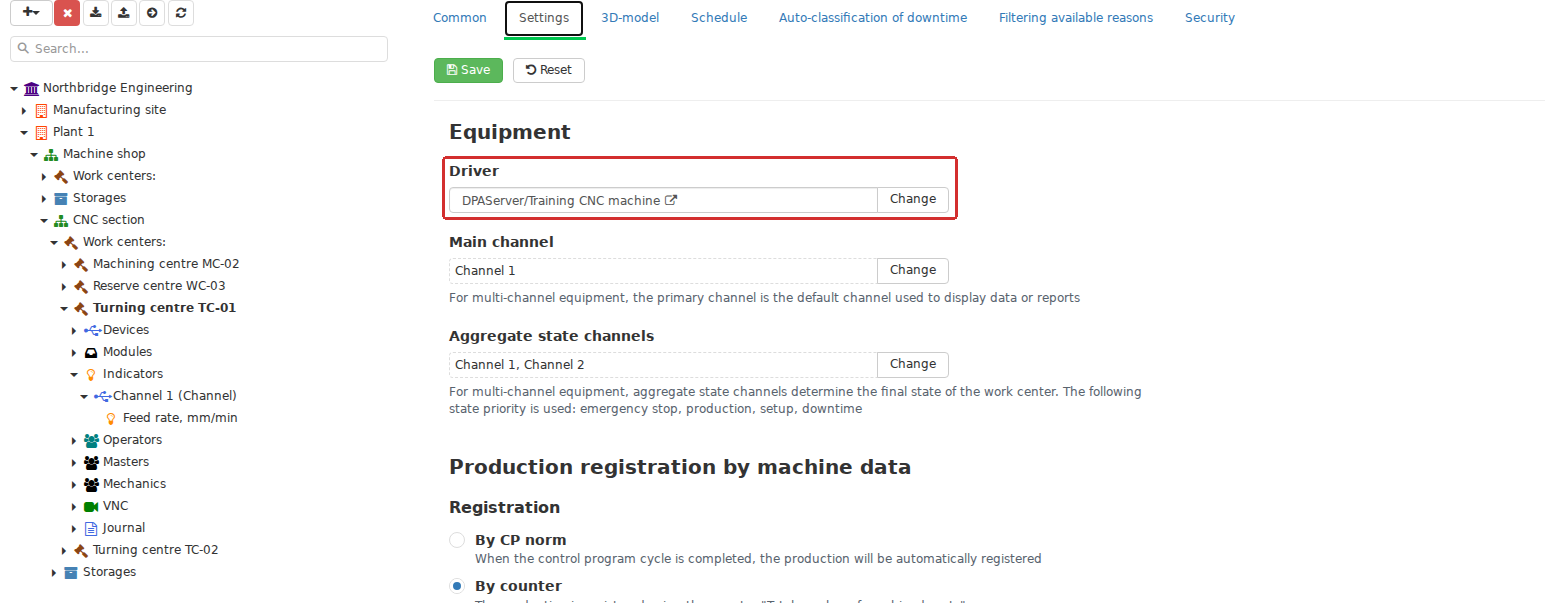
In Settings → Enterprise structure, the selected Work center appears both in the organizational hierarchy and as a production unit with its own card. Its identity fields describe the Work center; DPA Server and the driver define its machine connection. The production object can therefore be prepared before a physical machine is connected.
Inheriting settings through the enterprise structure
A Work center’s position in the enterprise structure affects inheritance of settings.
Depending on the type of setting, DPA uses either a local value defined on the Work center itself or the value of the nearest higher element in the enterprise hierarchy. This applies, in particular, to:
- Schedule;
- available production-situation reasons;
- automatic downtime-classification settings;
- access scope to structural units and their data for user groups.
This lets you define a common rule on a parent element — for example, an Enterprise or Department — and create an exception only where a particular Work center genuinely needs to differ. Detaching from a parent setting does not always have identical semantics. For example, a local Schedule is created by copying the effective parent schedule and can then be edited independently. The exact inheritance behaviour is described together with each setting.
The Filtering available reasons tab contains an interactive table where the available reason list is configured. For downtime reasons, first enable Filter downtime reasons under Filtering available reasons on Settings → System settings. When global filtering is disabled, the local list does not restrict reason selection. Detach from parent copies the parent’s effective list: these are references to existing catalogue reasons, not new instances of the reasons themselves. Subsequent changes to the parent list do not alter the detached copy. Attach to parent deletes the local list and restores inheritance from the nearest parent element that has its own setting.
On the Auto-classification of downtime tab, detaching likewise creates an independent copy of the effective settings, including switches and durations. While that copy exists, changes to the parent’s auto-classification settings do not propagate to it. Reattaching deletes the local auto-classification settings and restores inheritance. Before reattaching, check which local exceptions will be lost.
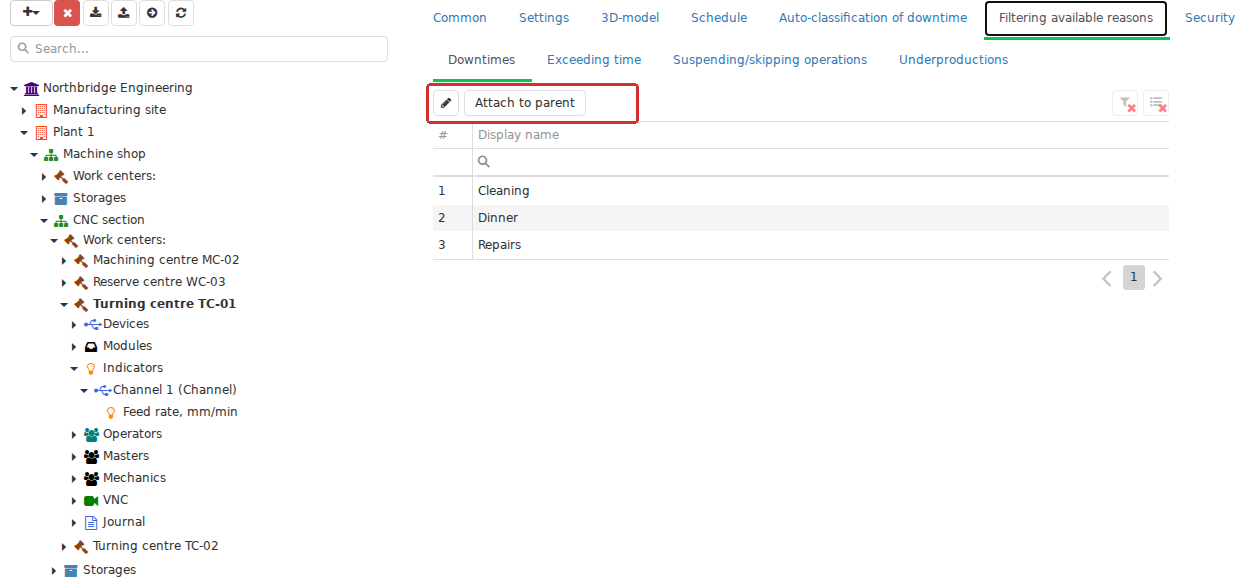
The Filtering available reasons tab shows whether a Work center uses the inherited setting or its own list. After unlinking it, the local list can be edited independently. Linking it again restores inheritance from the nearest effective parent setting.
Work center groups exist separately. They do not replace a Work center’s position in the hierarchy and do not become its second parent. A group combines production units by a practical criterion — for example, technological applicability or planning — while the Department defines the permanent organisational location of the Work center.
Child items available under a Work center
Expand a Work center in the Enterprise structure tree to see several related areas. Depending on the configuration and connected components, its branch can contain:
- equipment Devices and Modules;
- Indicators, grouped by device;
- Operators, Foremen and Mechanics assignment sections;
- VNC;
- the driver-data and state Journal.
This set of child items illustrates the role of a Work center. Some describe the physical equipment and incoming values, others the people who work with it, and others remote access or diagnostics. They remain distinct objects but share a common production reference.
The same Work center can therefore be made eligible for a Technology stage, receive a planned Job, appear in the Operator workplace or Foreman workplace, be associated with the CP being executed, have its states analysed on the Gantt chart, and have Downtimes, Tickets and maintenance work associated with it.
A shared reference does not mean that all of this information is stored inside one large Work center record. The Job, machine state, Downtime, output and Ticket remain independent objects with their own lifecycles. The Work center gives them a common answer to “where did this happen?”, while time and explicit relationships allow them to be correlated.
Structure-viewing permissions, access scope and staff assignments
Different users can have different access scopes. The access scope determines which Enterprises, Production sites, Departments, Work centers and related production data are available to a user. Production assignment as Operator, Foreman or Mechanic then additionally determines which Work centers from that scope the person works with in the corresponding workplace. Access-scope configuration is described in detail in Chapter 2.
An empty equipment list therefore does not necessarily mean that no Work centers have been created. Distinguish at least three questions:
- does the user have permission to use the function;
- is the required part of the enterprise structure within the user’s access scope;
- is the user assigned to the required Work center in the required production role.
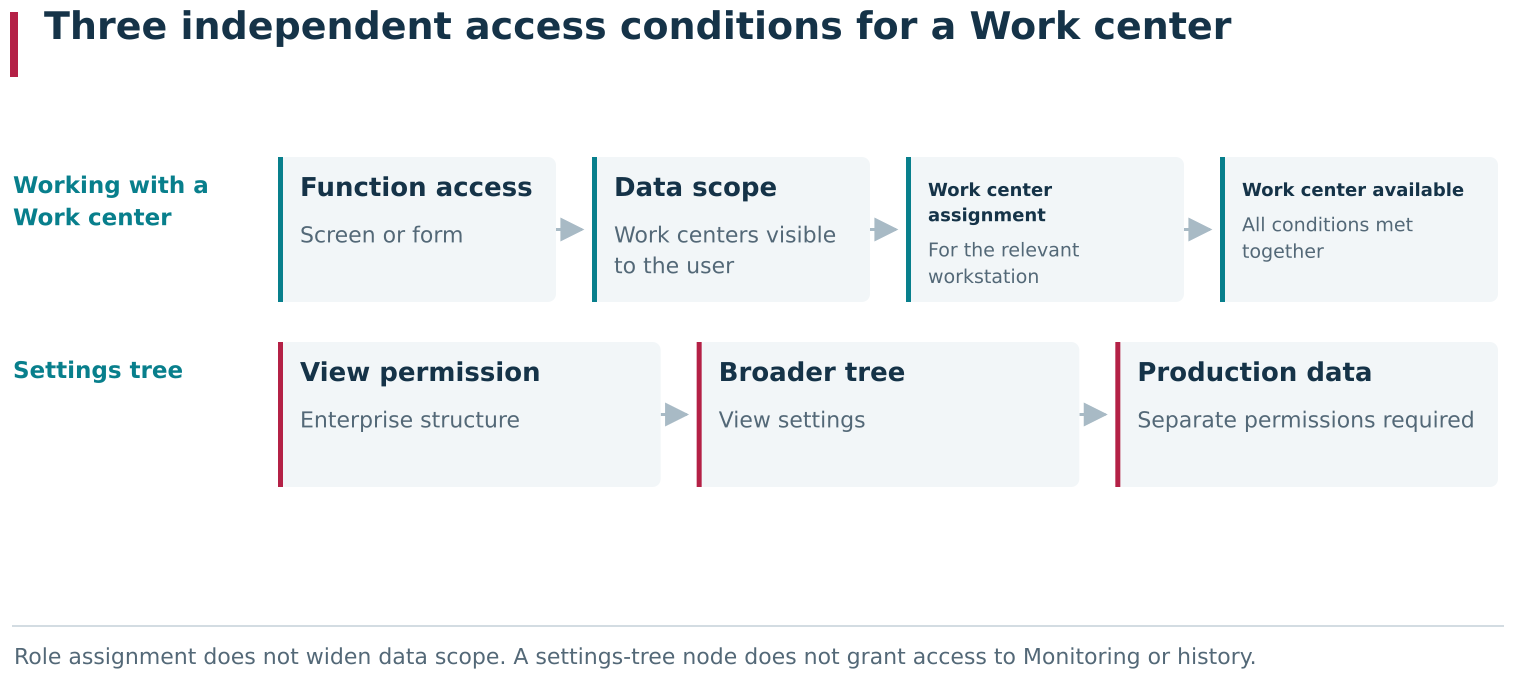
Function permissions determine which screens and forms a user can open. Data scope determines which Work centers and production data they can see. Operator, Foreman or Mechanic assignments further determine which accessible Work centers they work with in their workstation. A separate Enterprise structure view permission may expose a broader settings tree without granting access to the production data of neighbouring equipment.
The message No work centers are assigned to you in the Operator workplace can also appear when an assignment exists but the equipment is outside the user’s access scope. Check both the assignment and the access scope. After changing a setting, refresh the page and repeat the check under the employee’s account.
Equipment is filtered by access scope in data-oriented functions. For example, the Work center selector on Monitoring may show only an accessible Work center; its path through the parent departments and production site is displayed alongside it. This organisational context does not grant access to data from neighbouring equipment that is outside the user’s scope.
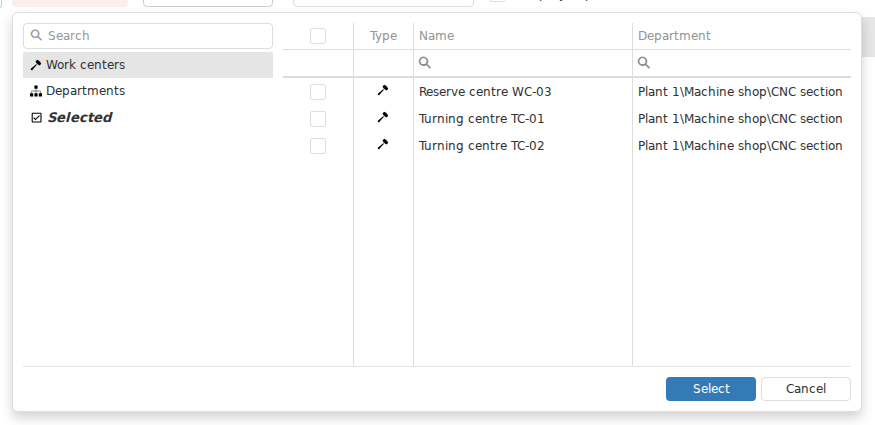
The Work center selector in Monitoring is built with the user’s access scope in mind. An available work center remains in the list together with its organisational path, while neighbouring equipment outside the scope does not appear.
Do not confuse this selection with the Settings → Enterprise structure module. Permission to use that module, including read-only permission, can make its configuration tree visible more broadly than the user’s data access scope. Seeing a Work center card in that tree does not by itself mean that its history, analytics or workplace operations are available to the user.
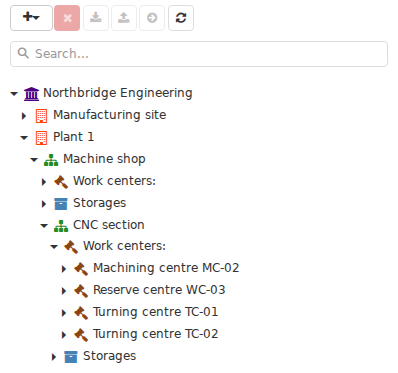
The Settings menu → Enterprise structure tree can be broader than the user’s access scope. A user with permission to view the structure can see neighbouring Work centers here even when they cannot select them in Monitoring, analytics or a role-specific workplace.
Practical order for initial configuration
For initial equipment configuration:
- create the Enterprise, Production site and required hierarchy of Departments;
- create the Work centers and fill in their persistent identification data;
- where needed, add the Work centers to suitable Work center groups;
- determine inherited and local rules: Schedule, reasons, auto-classification and access scope;
- specify the corresponding DPA Server and driver for each Work center;
- verify the resulting devices, channels and Indicators;
- assign employees and make sure the required Work center is visible in the appropriate workplace.
This order creates the enterprise structure first and then connects and checks the machine-data sources. Other configuration sequences are also valid. The next section covers the second part of the path: from the driver to devices, channels and Indicators.
2. Driver, devices, channels and Indicators
After a DPA Server and driver are selected, the Work center has a machine connection. DPA Server gives DPA access to the driver, and the driver communicates with the particular equipment: it reports the internal machine structure and transfers the data obtained from it. The connection is therefore more than a machine address or a stream of unrelated numbers. Along with every value, DPA needs to know which channel, axis, spindle or other equipment element it belongs to.
It is useful to follow this relationship in sequence:
driver → devices → driver states and their fields → Indicators
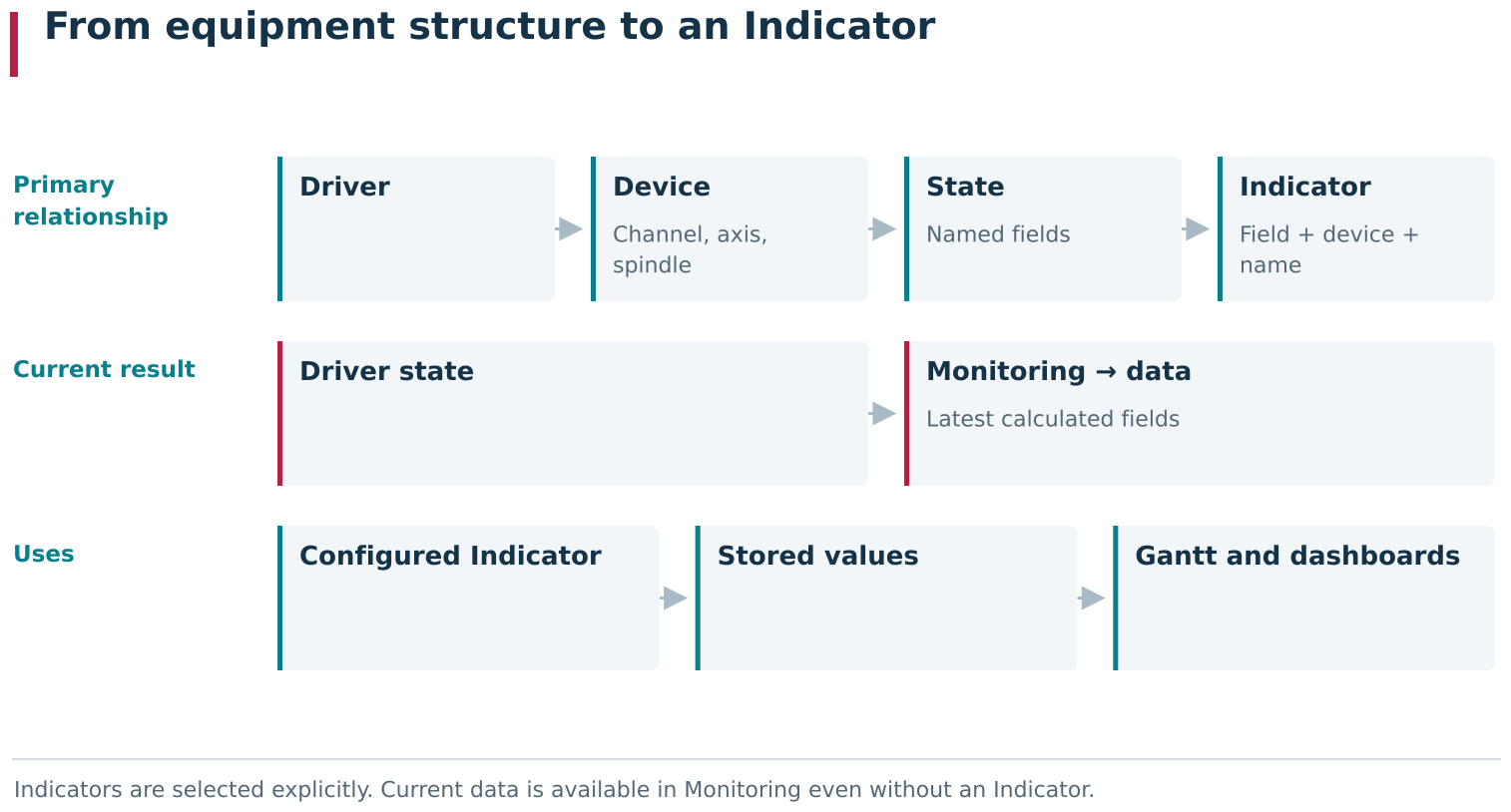
The path from a driver to an Indicator progressively adds context to machine data. The driver describes devices and supplies states with fields; an Indicator selects a field in the context of a specific device and exposes it as an explicitly configured DPA value. Monitoring can display a driver’s current state before an Indicator has been created for that field, so live data and configured analytical values have different roles.
Each step narrows down the source of a value. The driver describes what exists in the machine structure; a driver state groups related values; an Indicator selects a particular field, gives it a readable name and makes it available to DPA functions.
The driver describes the machine structure
Once a driver is associated, DPA reads the device structure described by that driver. To view it, open Settings → Enterprise structure, expand the required Work center and select Devices. A separate machine tree appears on the left side of the opened area. Selecting an item in this tree shows its available attributes and settings on the right side of the page.
The contents of the tree depend on the equipment and driver. It can include CNCs, PLCs, channels, axes, spindles and other elements. On a multi-channel machine, for example, a channel together with its axes and spindles can appear as separate items. Their attributes contain information received from the driver.
Not every node should be interpreted as a separate physical device in the everyday sense. The driver describes the structure needed to address machine data, so a logical channel, an individual axis or a tool-magazine position can also be represented as a node. The node type and number let DPA distinguish, for example, axis X from axis Y and associate each value with the correct part of the machine.
Reconfigure on the Devices page rereads this structure from the current driver. It does not restart DPA Server or the driver. If device types and numbers have not changed, DPA matches the reread nodes with the existing ones. If the equipment configuration has changed, the tree is brought into line with the new description: new nodes can appear and old ones can disappear. After a real configuration change, recheck the channels and Indicators associated with the affected devices.
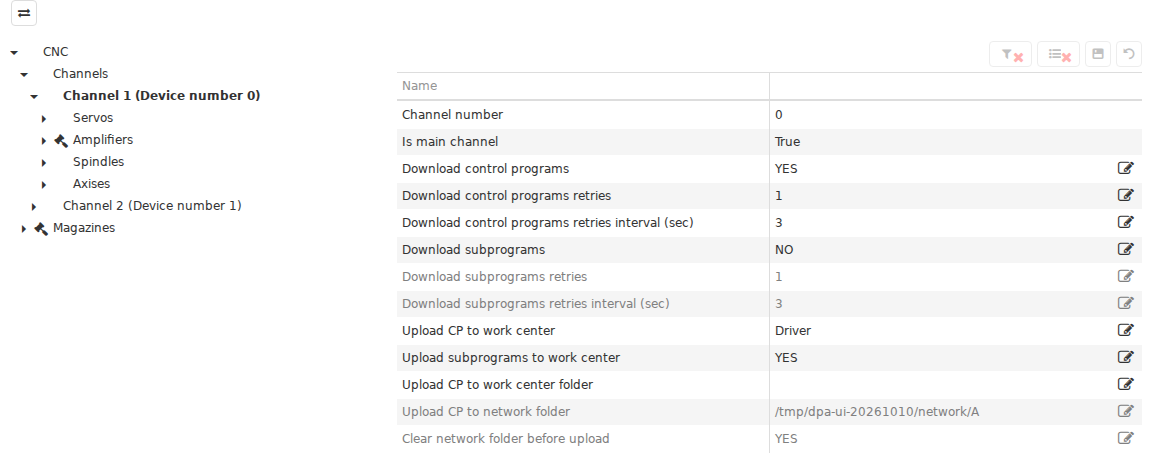
The Devices branch displays the machine structure supplied by the driver: channels, axes, spindles and other addressable elements within one Work center. Selecting a node shows its attributes; Reconfigure rereads the driver description and synchronizes the tree without creating a new Work center.
Main channel and aggregate-state channels
A Channel is a type of device, not an additional organisational level between the Work center and the machine. Single-channel equipment can have one channel in the tree; multi-channel equipment can have several. The channel number keeps data and actions belonging to different parts of the equipment separate.
The Settings tab of the Work center card assigns two different roles to channels:
- Main channel is used by default when displaying data and building reports;
- Aggregate state channels take part in determining the final state of a multi-channel Work center.
The main channel does not become the only data source and does not disable the other channels. It only provides the default channel for functions that require a single channel. That default is used when neither the user nor the scenario has selected another channel. By contrast, several channels can participate in aggregate-state calculation. The rules for producing the production state are described in detail in the next section.
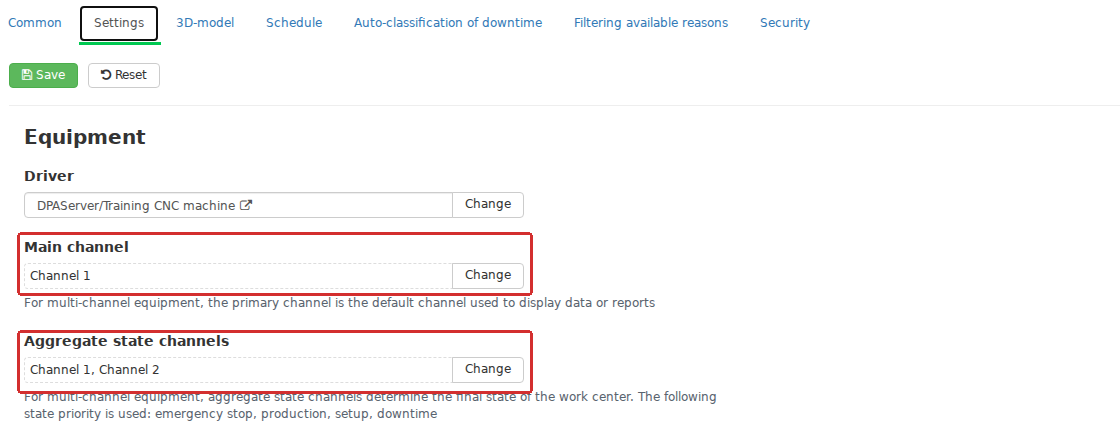
The Settings tab separately defines Main channel and Aggregate state channels for one Work center. The first provides a default channel for functions that need one; the second selects the channels used to calculate the overall state.
Selecting a particular channel under Devices also opens that channel’s own settings for transferring control programs and subprograms. The channel number therefore provides context not only for telemetry, but also for operations that must target a particular part of multi-channel equipment.
Linking an Indicator to a driver-state field
A driver transfers values as part of named states. In this context, a driver state does not necessarily mean a production state of the Work center such as production, setup or idle time. It is a structured set of related machine data — for example, axis load, spindle speed or current-tool data. One state can contain several fields.
An Indicator associates one selected field of such a state with a Work center. Its configuration specifies:
- a user-friendly name;
- the driver state and the field from which the value is taken;
- the device to which the value belongs;
- data-retention time and, where required, an acceptable value range.
For example, a driver can provide the same load state separately for axes X, Y and Z. Device binding makes it possible to create separate Indicators for each axis even though they use the same state name and field. DPA then stores the incoming values and makes the Indicators available to the Gantt chart, Dashboards and other analysis and control functions.
An Indicator is therefore not any parameter a driver might theoretically provide, and it is not another name for a raw signal. It is an explicitly configured representation of one particular field for one particular device. In the Indicators branch, child items are grouped by device: for example, the channel, axes and spindles appear first, with their associated Indicators beneath them. This branch does not have to reproduce Devices completely; a device for which no Indicator has been created may be absent.
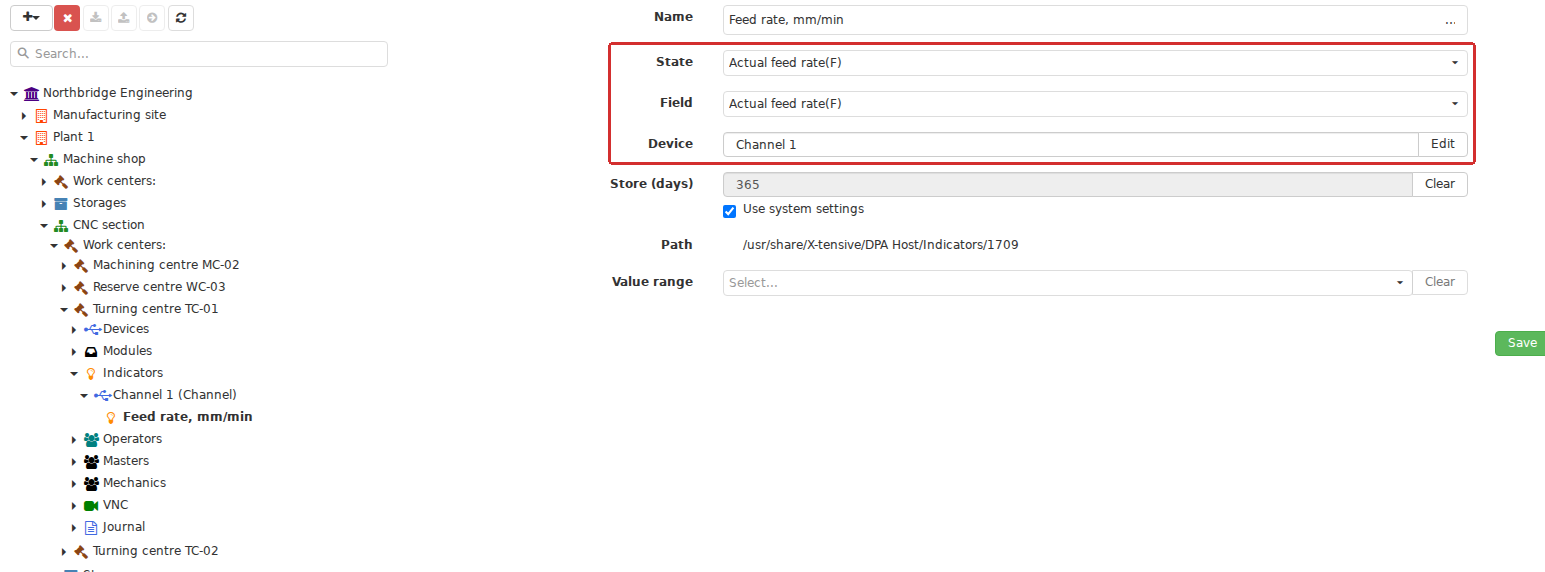
An Indicator card links a readable name to a specific device, driver state and field of that state. Storage settings and an optional value range are configured here too. The same field on different axes or channels therefore represents different Indicators when the machine context differs.
Viewing driver configuration and current data
Enterprise structure primarily answers “how is machine data associated with the Work center?”. This is where you check the selected driver, device tree, main channel, aggregate-state channels and Indicator settings.
Settings → Monitoring answers a different question: “what is the driver reporting now?”. Its tree lets you open a DPA Server, a driver and a particular state, then inspect the current values and the time at which they were received. The presence of a device or Indicator in Enterprise structure does not by itself mean that fresh data are actually arriving. Conversely, a field visible in a live driver state does not become available as an Indicator until the corresponding relationship has been configured.
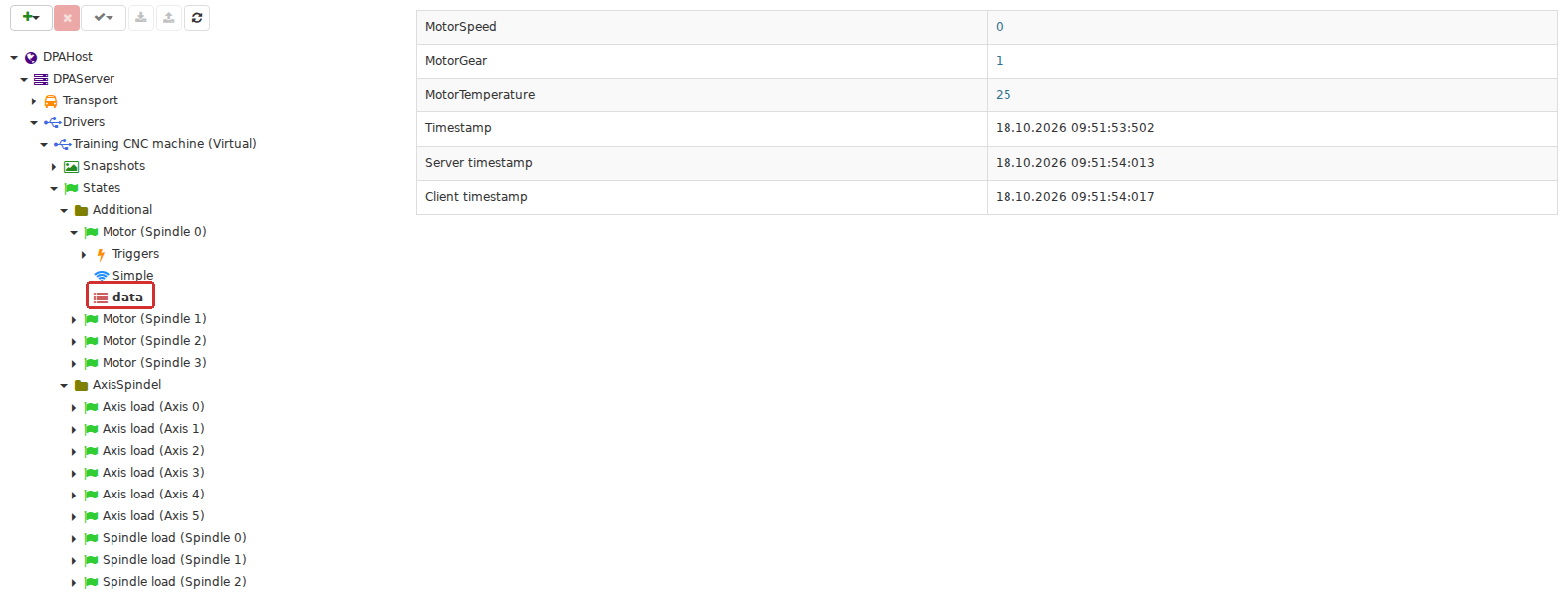
In Monitoring, the data child node displays the current calculated result of a driver state and its update timestamps. This checks that fresh machine data actually reaches the system.
After connecting equipment, check the complete chain:
- the Settings tab of the Work center card contains the expected driver;
- Devices contains the expected machine structure with its channels and other nodes;
- Main channel and Aggregate state channels are selected correctly;
- Indicators contains the values required by users and analytics;
- in Monitoring, the data reception time advances and the current values correspond to equipment operation.
It is best to perform this check from the connection towards the data. An empty device tree is a reason to check driver binding and retrieval of the device structure. If the tree is populated but the required Indicators are missing, check the configured fields. If the reception time in Monitoring does not advance, check whether the driver is sending new data. The next section examines the intermediate part of this chain in more detail: how DPA receives and processes driver states and uses them to interpret machine operation.
3. How DPA determines Work center state
The previous section distinguished a driver state from the production state of a Work center. A driver state is a set of machine data and can describe an axis load, spindle speed, tool number or another parameter. A Work center state answers a broader question: what is happening with the equipment now — production, setup, idle, emergency stop or unavailability.
DPA receives source values in named sets called snapshots. Driver states are calculated from those data. A trigger determines when a state is recalculated, while a provider forms the fields and values of the result. DPA then determines the channel state and the aggregate Work center state. The processing sequence is:
snapshot → trigger starts calculation → state provider → current state data → channel state → aggregate Work center state
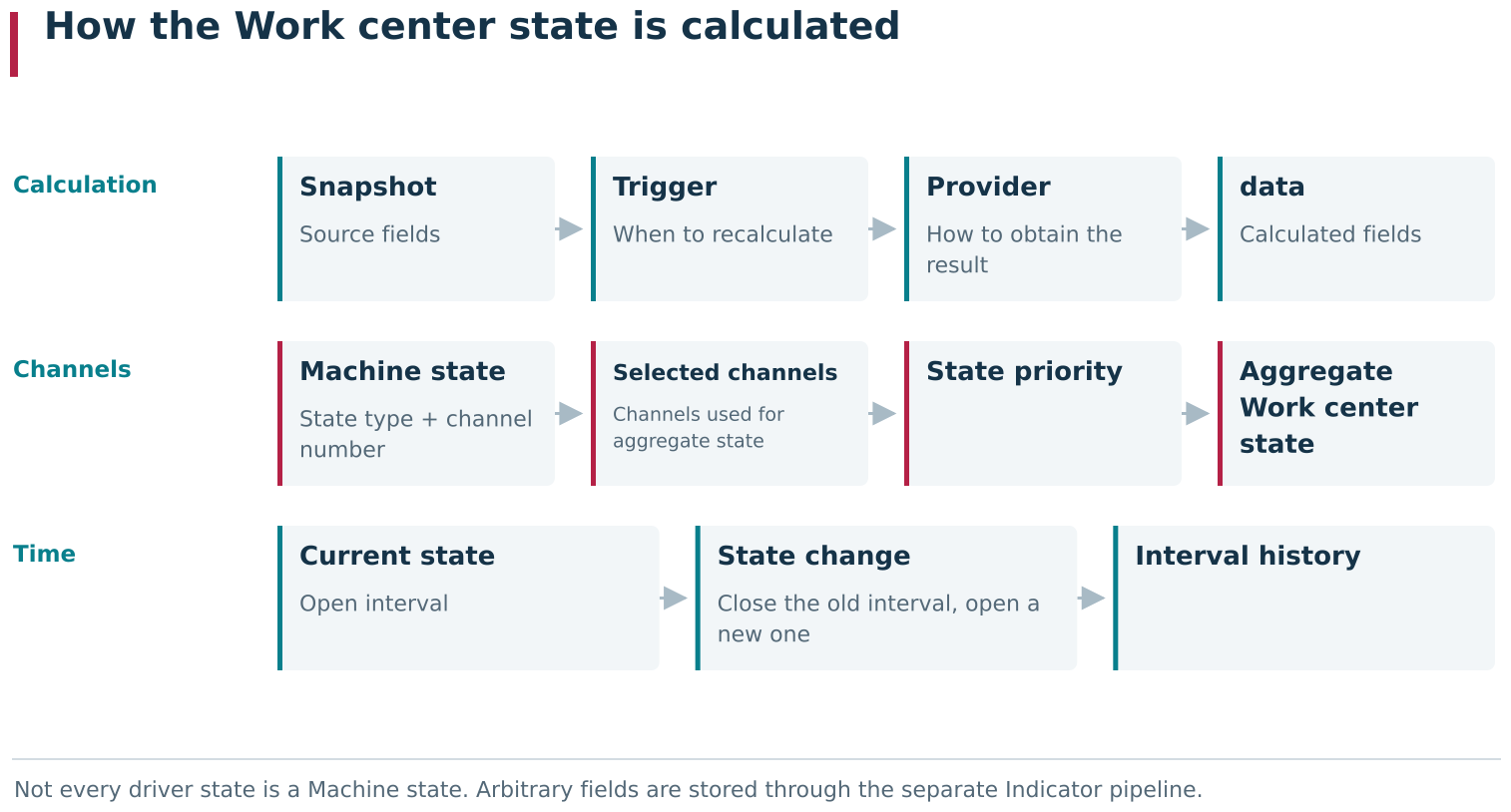
A Work center state is obtained through several transformations: a snapshot triggers calculation, a provider produces driver-state fields, Machine state associates the result with a channel, and DPA combines selected channels into an aggregate state. When that result changes, the current state becomes an interval in history. The same production situation therefore has different data representations at different stages.
This separation allows one driver to work with equipment of different configurations. The driver receives machine data, while configured rules determine when those data should be processed, which values should be produced and how the result should be interpreted.
Recalculation triggers and driver-state providers
DPA groups source values into snapshots. A snapshot can be understood as a named set of data received by the driver from the equipment. A snapshot is not itself a driver state; it is one possible source used to calculate that state.
Each driver state has triggers and a provider. They serve different purposes:
- a trigger determines when the state must be recalculated;
- a provider determines which fields and values the calculation must produce.
Three trigger types are available:
- Snapshot starts recalculation after the selected snapshot is updated;
- State starts recalculation after another driver state is updated;
- Timer starts recalculation periodically at a specified interval.
A State trigger makes it possible to build processing in stages. One state can first convert source data into a convenient intermediate form, and another state can use that prepared result. A Timer trigger is useful when a result must be refreshed regularly even if the source does not send a separate event for every calculation.
Two provider types are available:
- Simple produces named fields using predefined operations;
- Script produces them according to rules implemented in program code.
For each field in a Simple provider, you can select a value from a snapshot and, if required, apply one simple operation: multiplication, comparison, substitution of a constant or rounding. If no operation is selected, the source value is passed to the field unchanged.
The names Simple and Script describe calculation methods, not the importance of the data. A Simple provider can produce a state that is critical for analytics when the required value is already present in a snapshot and does not need complex interpretation.
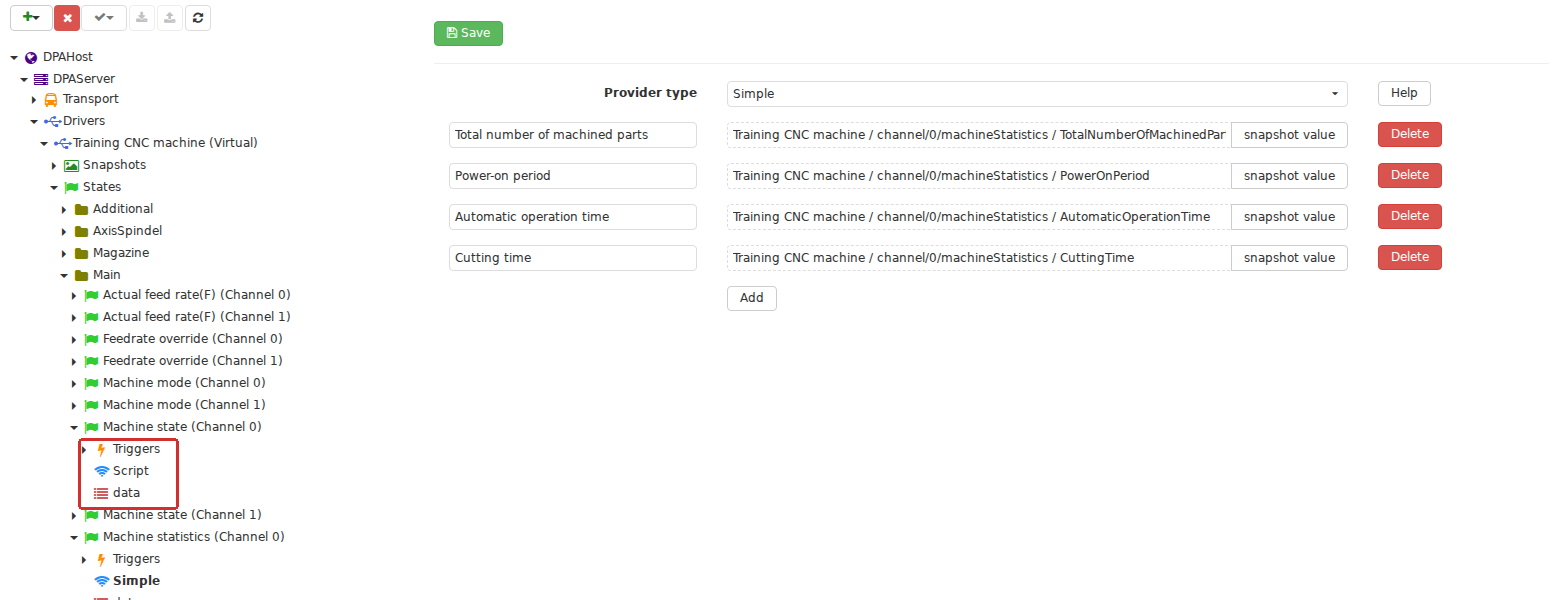
Within one driver state, the tree separates three roles: Triggers determines when recalculation runs, Simple or Script determines how the result is obtained, and data displays the latest calculated value. This supports diagnosis from the trigger conditions and calculation definition through to the result.
Check the calculated result in Monitoring
The configuration of a state and its current result are located close together. Open Settings menu → Monitoring. In the Monitoring tree, expand the required DPA Server, Drivers, the corresponding driver and then States. The selected state contains these child items:
- Triggers — the configured recalculation conditions;
- Simple or Script — the provider in use and its settings;
- data — the current processing result.
data shows the calculated fields and the time at which the data were updated. To verify a calculation, compare its configuration with its result: Triggers and the provider show where the values come from and how they are processed, while data shows what the latest calculation produced.
For example, an axis-load state can pass a field from a snapshot unchanged or multiply it by a coefficient. After saving the configuration, data is the place to check whether the calculated value changed as expected. This helps separate a processing problem from later problems with an Indicator, data retention or display.
A state must be deactivated before a trigger can be added: DPA does not allow a trigger to be added to an active state. After configuring the recalculation conditions and provider, activate the state again and check its values and update time in data. This sequence verifies the saved configuration in operation.
Changing a provider affects more than this page. Its result can be consumed by Indicators, events and other states configured with a State trigger. Before changing a state that is already in use, determine which functions depend on its fields.
Determining channel state from Machine state
Most driver states remain sets of application-specific values. The standard Machine state state has a special role. Its field with the same name contains not an arbitrary number but one of the machine-state types known to DPA. The device number is retained with the result — normally the channel number. A multi-channel machine can therefore have several simultaneous states, one for each channel.
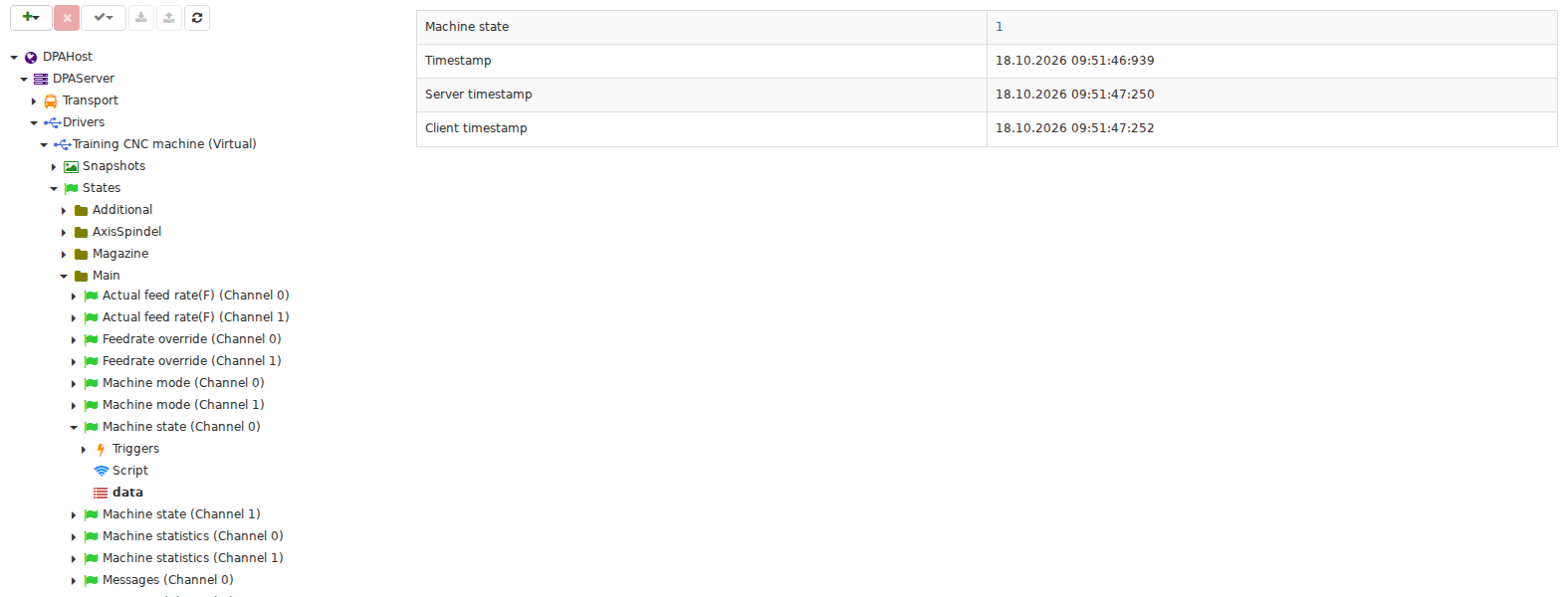
For the standard Machine state, the calculated value also records a device number, usually identifying the channel. Multi-channel equipment can therefore have separate current channel states that contribute to the overall Work center state.
The rule that converts source signals into Machine state depends on the driver and equipment configuration. For example, production detection may take into account CNC mode, execution of a control program and the absence of a blocking alarm. An arbitrary numeric field is not sufficient for DPA to infer the physical machine state automatically: the provider must produce the result in the expected form.
The interface uses the following states:
| State | General meaning |
|---|---|
| Production | The equipment is performing an operation recognised by the configured rule as production work. |
| Emergency stop | Operation has stopped because of an alarm condition. |
| Setup | The equipment is in setup mode. |
| Idle | The equipment is on, but its current operation is not recognised as production or setup. The internal state name is SwitchedOn. |
| Unavailable or Switched off | The equipment is considered off or unavailable. Different DPA screens use different labels for the internal SwitchedOff state. |
| Undefined | Current data do not allow the equipment to be assigned to any of the state types above. |
A state name does not explain the cause. Idle, for example, indicates that production was not taking place, but does not answer the question “why?”. A downtime reason is assigned separately to the corresponding time interval by a user, an auto-classification rule or another DPA function.
Calculating the aggregate Work center state from channels
The state of an individual channel and the state of the entire Work center are not the same thing. They normally coincide for single-channel equipment. For multi-channel equipment, DPA first stores the latest state of each channel and then derives one aggregate state from the selected values.
The channels that participate in this calculation are selected in Aggregate state channels on the Work center card’s Settings tab. Main channel serves a different purpose and does not define the inputs of this calculation. After changing the list of contributing channels, wait for a new Machine state event and check the result: saving the list alone does not recalculate the last displayed aggregate state.
If the selected channels are in different states, DPA applies the following priority:
- Emergency stop;
- Production;
- Setup;
- Idle;
- Unavailable or Switched off;
- Undefined.
The aggregate state is the first item in this list that is present on at least one participating channel. For example, Production together with Setup produces aggregate Production. If Emergency stop then appears on one of the participating channels, it becomes the state of the entire Work center. If no participating channel has a known current value, the result is Undefined.
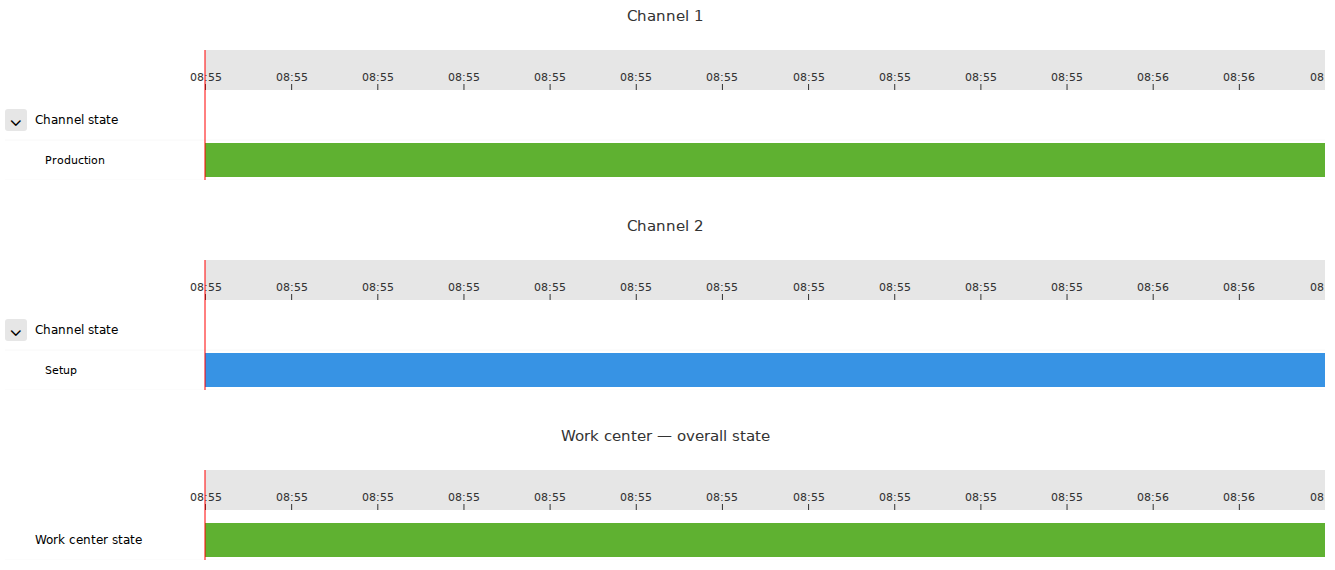
For a multi-channel Work center, the overall state is a separate aggregation result. Over the same time interval, Channel 1 is in Production and Channel 2 is in Setup, while the overall Work center state is Production. An Emergency stop on a participating channel takes priority over these states.
This priority order provides a single aggregate state for equipment cards, the Gantt chart, statistics and other functions operating at Work-center level.
Opening and closing state intervals
When a new value arrives, DPA compares it with the state already known for the same channel. Repeating the same value does not create a new interval. If the state type changes, the previous interval ends at the time of the new event and the next interval begins at that same time with the new state.
After channel states are recalculated, the same rule is applied to the aggregate Work center state. As long as the aggregate value does not change, one open interval continues. When the value changes, that interval is closed and a new one begins. Current state and state history are therefore directly connected: the current value is simply the still-open part of the same time sequence.
These aggregate-state intervals are used to draw the Work center state band on the Gantt chart and to calculate the duration of production, setup, idle and other states. Downtime reasons add a separate classification to the corresponding intervals; they do not replace the states themselves.
Verifying Work center state calculation
If a Work center state does not match the equipment’s actual operation, check the path from source data to the resulting interval:
- in Monitoring, open the required driver state and confirm that values and reception times in data are updating;
- check which snapshots or states are specified in Triggers and what transformation Simple or Script performs;
- for Machine state, check the calculated state type and the channel number to which it belongs;
- in the Work center settings, check Aggregate state channels;
- compare the participating channel states with the priority order and the expected aggregate result;
- on the Gantt chart, check whether the corresponding time interval appeared.
If the value is already wrong in data, investigate the source snapshot, triggers or provider. If data contains the expected value but the aggregate Work center state differs, first check the channel number and Aggregate state channels. This identifies the stage at which the incorrect state appeared: source-data acquisition, channel-state calculation or channel aggregation.
Along this path, the current value changes form several times: first it is a snapshot field, then a calculated driver-state field, then a channel state, and finally a Work center time interval. The next section distinguishes the live result shown in Monitoring from the stored history displayed by the Gantt chart and analytical functions.
4. Current data and saved history
The previous section followed a machine value all the way to a time interval of a Work center. In practice, that chain is spread across several screens. Monitoring shows the latest calculated driver-state result, while the Gantt chart and other analytical functions work with data saved for a selected period.
Two situations are therefore possible: the current value has already changed while the historical view has not refreshed yet, or the chart still contains earlier history even though new equipment data are no longer arriving. To distinguish these cases, it is important to understand what each view is designed to show.
Monitoring shows the latest calculated result
Current data are reached through the Monitoring tree: DPA Server → Drivers → required driver → States → state → data. The data child item shows the calculated state fields and their update time. When new data arrive, the displayed result changes; this item does not expand into a complete sequence of all previous values.
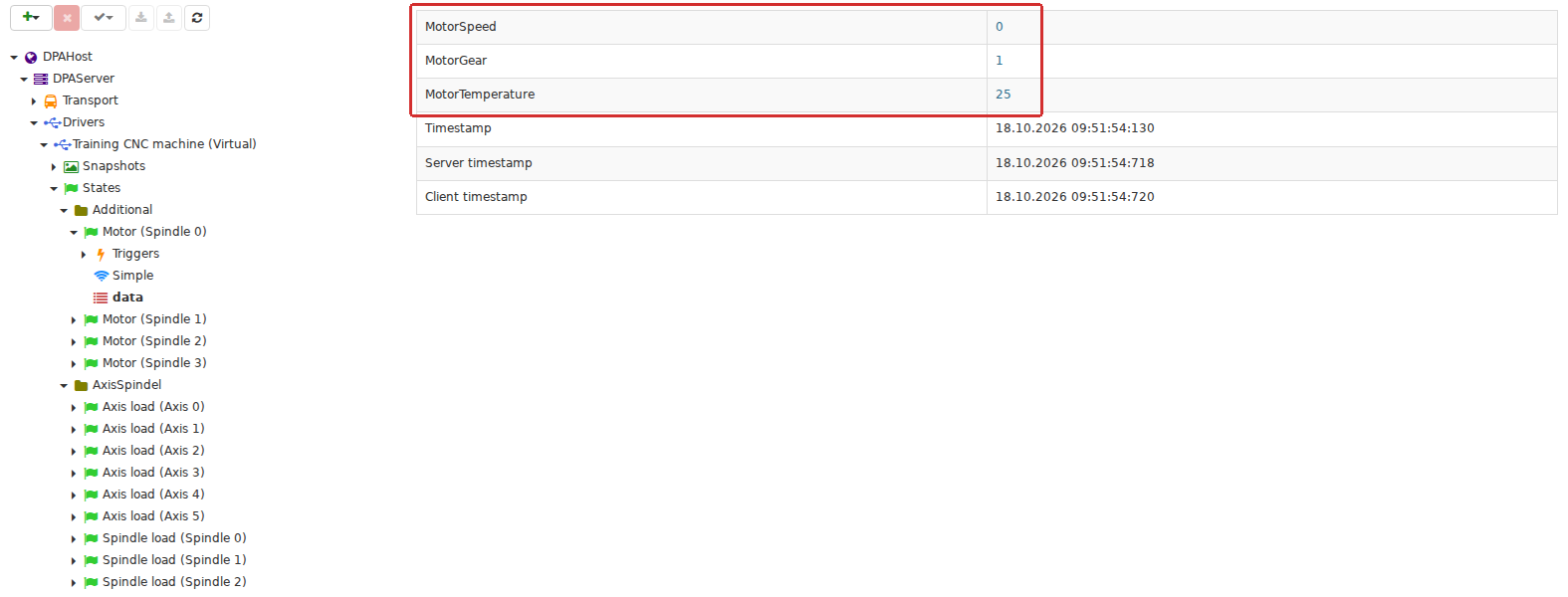
The data child node displays the latest calculated snapshot of a state: fields with current values and update timestamps. For example, motor temperature, selected gear and other parameters of the same State appear together. This view helps check exactly what DPA currently receives and calculates before investigating the corresponding history.
Values and timestamps that continue to update show that the data have at least reached the state provider and been processed by it. This still does not guarantee that an Indicator has been created for the required field, that its values are being stored, or that the selected analytical screen displays that Indicator. Monitoring separates reception and calculation from subsequent storage and use.
If a value is already wrong in data, it is too early to investigate the Gantt chart: first check the snapshot, triggers and provider. If data contains the expected result, the next check is either the Indicator binding or Machine state processing, depending on which historical data are required.
How values, events and states are stored
Data obtained from one driver can share a common timeline while being stored in different forms.
| Data type | Current view | Historical view |
|---|---|---|
| Calculated driver-state field | value in data | sequence of values of the linked Indicator |
| Channel state and aggregate Work center state | latest known state | intervals with a start and end |
| Errors, modes, CP execution, subprograms and output | their own current data or events | separate intervals, events or points of the corresponding type |
An Indicator selects one driver-state field, binds it to a device and defines the retention period. Stored values form a time series that can be plotted. A field being present in data and a history existing for that field are therefore related but not identical conditions: Indicator configuration and recording of its values lie between them.
Machine state uses a different model. The current state is an open interval. When the state type changes, DPA ends that interval at the time of the new event and starts the next one. Its history therefore consists not of individual samples from one numeric field, but of a sequence of Production, Setup, Idle and other state segments.
A downtime reason is assigned when a downtime period is classified. This is a separate record associated with the underlying machine-state interval. Changing the reason or splitting a downtime classification does not necessarily mean that the original equipment-state interval was split as well.
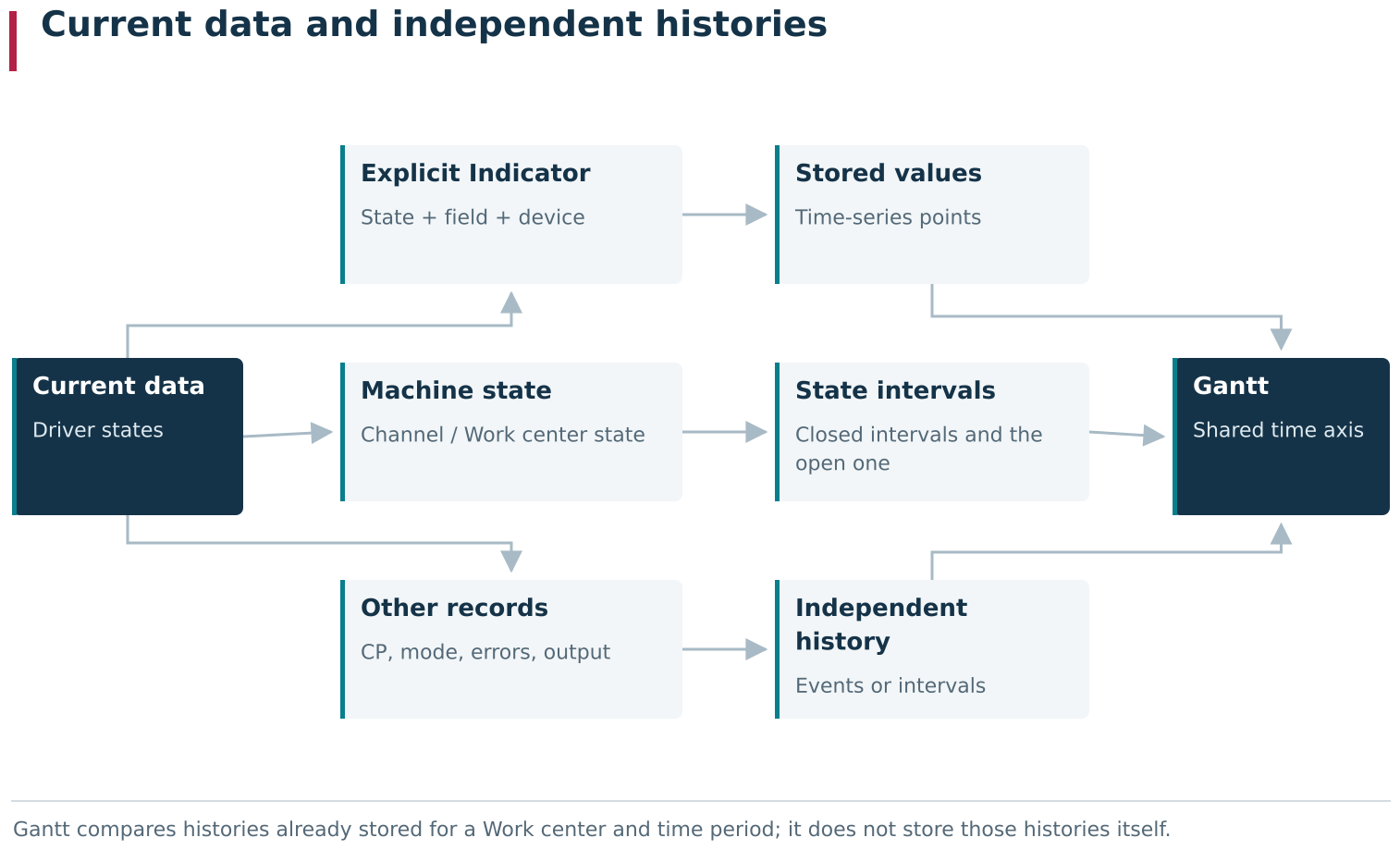
Current machine data becomes history under different rules. An ordinary data field acquires a historical series through a configured Indicator, whereas Machine state forms a sequence of state intervals; other events and intervals are stored by their own independent streams. Gantt then aligns these histories by Work center and time while keeping their records separate.
The Gantt chart combines several timelines
In Analytics → 1. Gantt chart, select a Work center, channel, period, Indicators and the types of states to display. The upper part of the chart can contain bands for Work center state, errors, channel modes, control-program and subprogram execution, together with output markers derived from machine data. Charts of the selected Indicators are shown below them.
A shared time axis makes these data easy to compare. For example, you can see how spindle load changed while a CP was executing and which equipment state existed at the same time. Visual coincidence does not turn the displayed information into one record: a CP interval, an output point, a machine state and an Indicator value are different data types and are loaded independently.
This distinction also matters when investigating causes. An output point that falls inside a CP interval is not a child of that interval. Likewise, a downtime reason classifies a time segment but does not replace the underlying machine state. When displaying the chart, DPA correlates separate records by Work center and time.
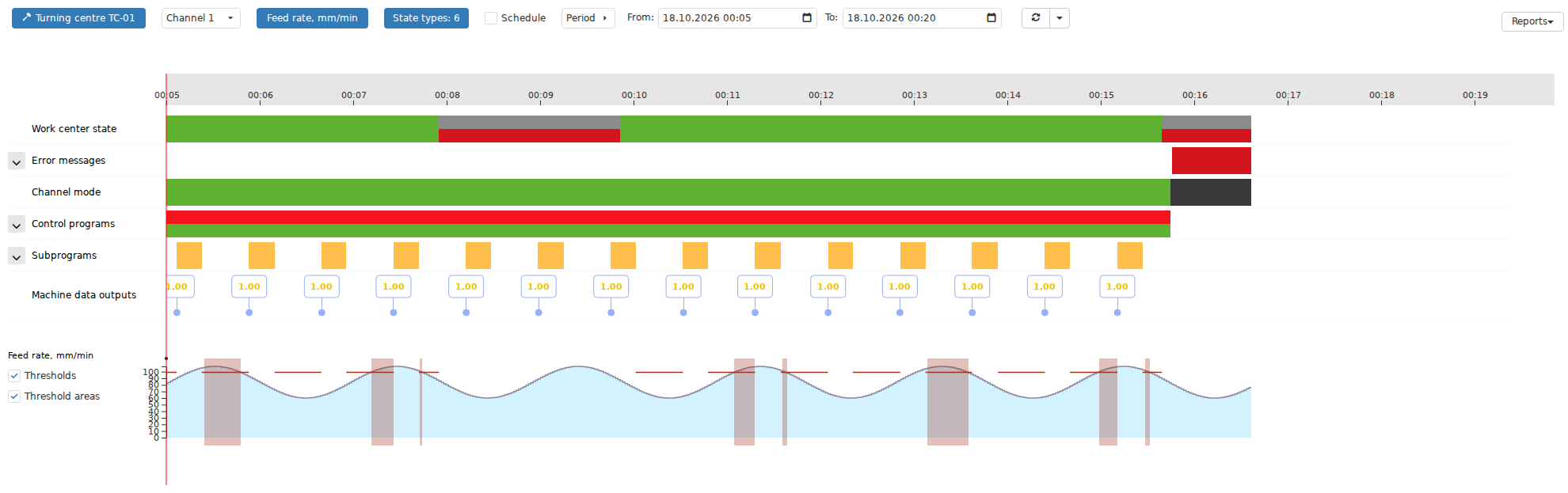
The Gantt chart aligns several independent histories: Work center states, modes and errors, control program and subprogram execution, output events and Indicator charts. Their alignment helps investigate a production episode while preserving the separate records behind each timeline.
Current data and analytics may refresh at different times
Within a moving time range, Indicator curves can extend almost to the present while state bands advance in discrete updates and therefore do not always reach the right edge of the chart.
The right edge of an open state interval is drawn to the timestamp of the most recently received Machine state event, not automatically to the current point on the time axis. A repeated event with the same state does not create a new interval, but it confirms that the current interval continues. After the chart refreshes, the existing state band extends to this newly confirmed timestamp.
There is no fixed extension step. The actual interval depends on how often the particular driver receives equipment data, how they are transferred to DPA and how the chart itself refreshes. As the chart’s right edge moves, a small unfilled gap can therefore reappear between the end of the state band and the present. If Machine state events stop arriving, DPA does not extend the band merely by assuming that the previous state continues: the time after the last event has not been confirmed by equipment data.
If later events and chart refreshes still do not extend the state band, investigate the particular type of history that stopped changing: state intervals, Indicator values, CP events or another series. An update to one series does not guarantee an update to the others.
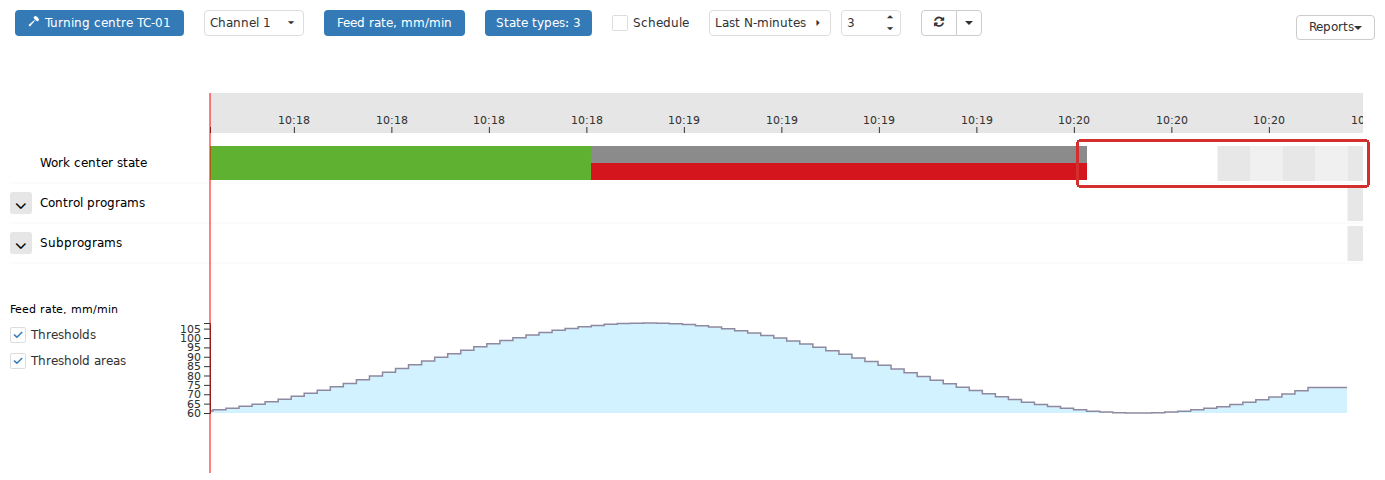
With a delayed response for the state history, a moving Gantt range can show data series updated at different times. Here, the Indicator curve reaches close to the current right boundary while the state bar still ends earlier. This controlled laboratory example illustrates asynchronous refresh; it does not mean that the product has a fixed latency.
Showing the Schedule on the Gantt chart
When Schedule is enabled, the Gantt chart adds the effective Schedule of the selected Work center as its background. This is the same local or inherited Schedule configured in Enterprise structure; no separate schedule is created specifically for the Gantt chart.
The schedule background does not change stored Indicator values or machine-state types. A single state interval can cross a shift start, a break or inter-shift time. When automatic classification is enabled, those boundaries can split downtime-reason classification even though the original machine-state interval remains continuous.
The schedule therefore helps interpret history but is not the source of that history. Its inheritance, editing and effect on shifts and downtime are covered separately in the next section.
Checking reception and storage of historical data
If current and historical data do not agree, check the chain in order:
- in Monitoring, open data for the required state and check both the values and their update time;
- for a numeric, Boolean or text field, check the Indicator configuration: selected state, field, device and retention period;
- for machine state, check the Machine state result, channel number and Aggregate state channels;
- on Gantt chart, select the same Work center, the required channel, a suitable period, the required Indicators and state types;
- when checking current data, select Last N-minutes and make sure the chart range reaches the present;
- determine exactly which series is not updating: an Indicator curve, state band, CP events, output or another data type;
- if only the right edge of a state band lags, refresh the chart again and check whether the band extends.
This sequence avoids mistaking a problem in one analytical view for a stopped driver. Monitoring shows the current processed result, Work center settings connect it to production context, and historical and analytical functions show what has been stored and prepared for the selected time range.
5. Configuring and using a Work center Schedule
Machine state shows what was happening to the equipment. A Schedule defines working time, breaks and periods between shifts. This allows the same state interval to be treated differently in analytics and downtime classification without changing the source data received from the machine.
A Schedule does not belong only to the Gantt chart or to a particular report. It is configured for an enterprise-structure item and then used by all DPA functions that need shift and break boundaries. An incorrectly configured schedule can therefore appear in several places at once: the Gantt background, the Current shift period, shift-based measures and downtime reasons.
The effective Schedule is determined through the hierarchy
Open Settings → Enterprise structure, select an Enterprise, Production site, Department or Work center, then open the Schedule tab of the selected item’s card.
An enterprise-structure item can have its own Schedule. If it does not, DPA checks its parent items in sequence and uses the nearest available Schedule. For example, a Work center can inherit its Department’s schedule, while the Department can inherit the Enterprise schedule. In this case the editor shows Inherited from … together with the name of the item that owns the effective Schedule.
Inheritance remains in effect until the child item receives its own Schedule. If shifts or breaks are changed on the parent item, the changes immediately become effective for all children that still inherit that Schedule. A common production calendar can therefore be maintained at Enterprise or Department level, with separate settings only for items that use a different working pattern.
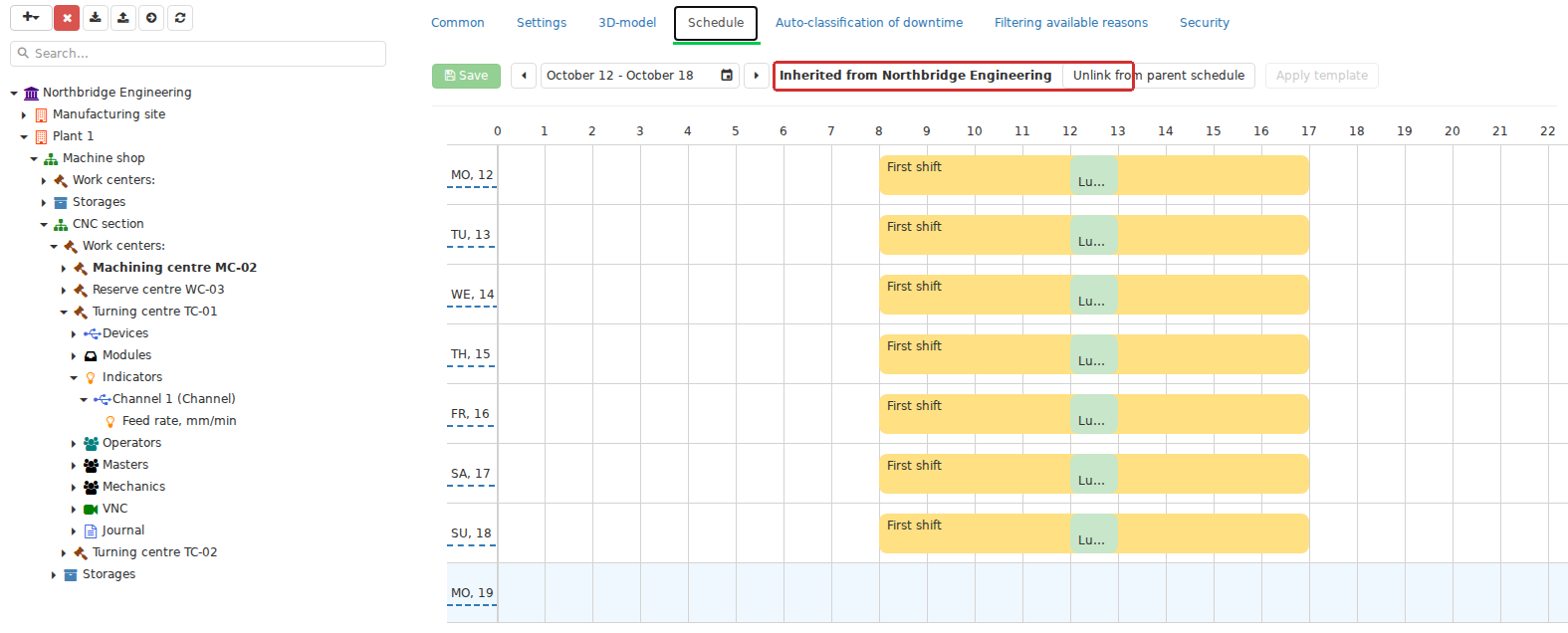
The Schedule tab identifies the level from which a child object inherits its effective calendar. While Inherited from … is displayed, shifts and breaks come from the parent’s schedule. Local editing starts by creating a separate copy, making inheritance an explicit property of the hierarchy.
An inherited Schedule can be viewed from the child card but cannot be edited there directly. To change the shared schedule, open the parent named by Inherited from …. To change only the selected Work center or Department, create its own schedule.
Creating a local Schedule and returning to inheritance
Unlink from parent schedule copies the complete effective parent Schedule, including its dated shifts and breaks. The editor receives an independent copy of the calendar that was already displayed rather than an empty template. You can edit and save this copy as the selected item’s own Schedule.
From that point on, later changes to the parent Schedule do not affect the selected item. This makes it possible to inherit the common calendar first and then create a local exception — for example, a different shift for one Work center or a special working day for one Department. If the selected item has child structural items without their own Schedules, those children begin inheriting the newly created schedule.
Link to parent schedule performs the reverse operation: the item’s own Schedule is deleted, and the item again uses the nearest parent Schedule. Local changes stop applying after this operation. Before returning to inheritance, make sure the separate calendar is no longer needed.
Shift and break names are not recreated. They are selected from the shared Shifts and Breaks reference books and can be reused in different schedules. Unlinking copies the intervals placed on the calendar while preserving their relationship with the same reference names.
A Schedule consists of dated shifts and breaks
In the editor, each shift has a name, start time and end time. A shift can contain one or more breaks with their own names and boundaries. This is not a repeating set of weekday fields, but a sequence of specific time intervals attached to dates.
The editor shows the selected week and the following Monday. That Monday row can display the continuation of a night shift that started on Sunday of the selected week. To edit the next week’s schedule, navigate to that week. Shifts and breaks can be moved and resized on the timeline, while their exact boundaries can be entered in the edit dialog. The day-name context menu can copy a day’s shifts together with their breaks and paste them into another day.
A shift can start on one calendar day and end on the next. It remains one interval and is not split automatically at midnight. A break must lie within its shift; shifts must not overlap, and neither may breaks within one shift. One shift may, however, end exactly when the next begins.
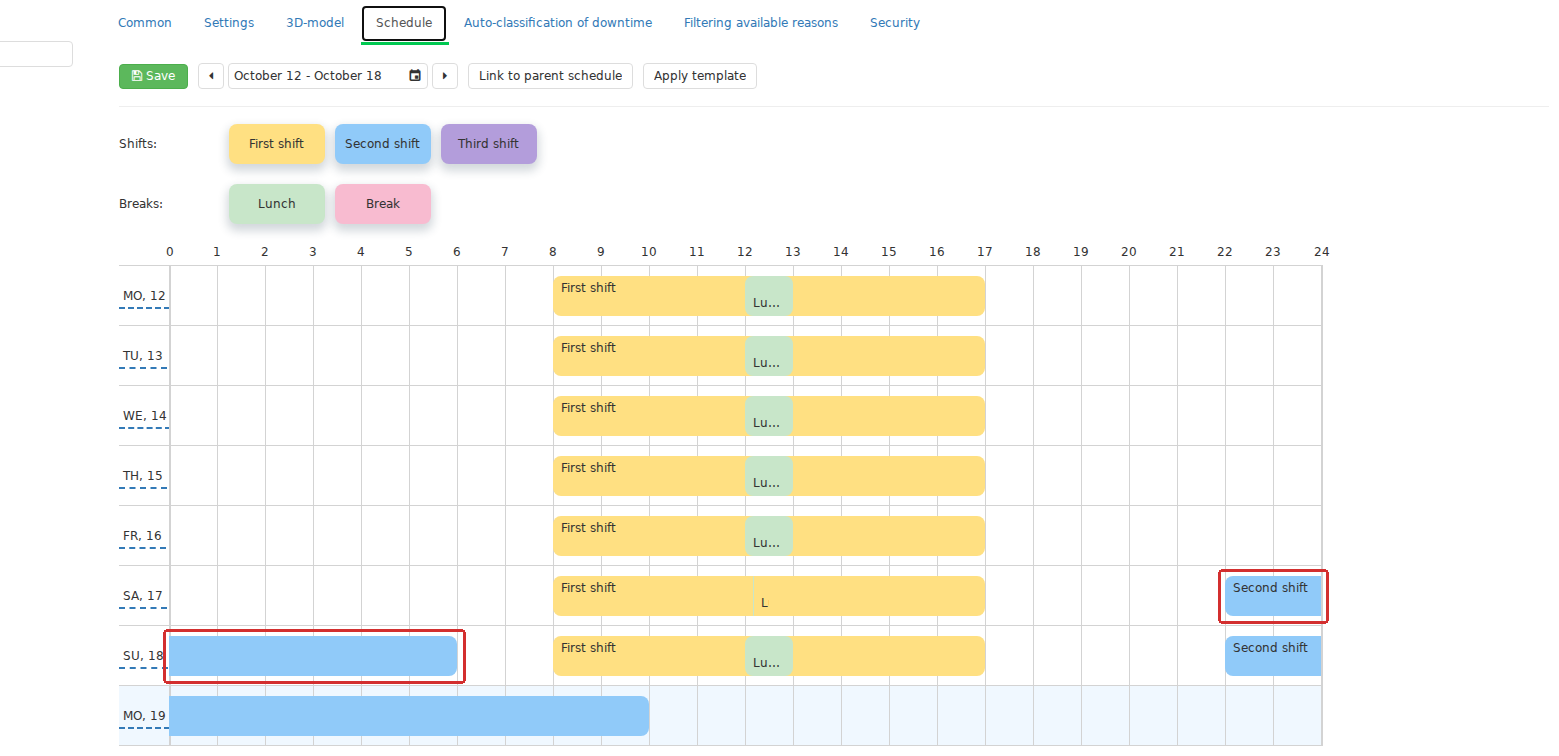
The Schedule editor displays dated shift and break intervals on a timeline. A night shift that starts in the evening and ends the following morning remains one interval and continues across the calendar-day boundary. A production shift therefore need not coincide with a calendar day.
Times in the editor use DPA’s common server time rather than independent browser clocks at every workplace. If displayed shift boundaries are offset from what you expect, first compare the server time and time zone with the enterprise’s actual time.
Applying a Schedule template to selected dates
Recurring schedules are easier to create with the Schedule templates reference book. A template defines a typical combination of shifts and breaks — for example, a working day, a day off or a standard working week. The template does not become a separate continuously applied rule: Apply template creates dated shifts and breaks from it in the selected period of the current Schedule.
When applying a template, specify the template, start date and end date; the full end date is included. The form requires the end date to be later than the start date, so identical start and end dates are not accepted. Before confirmation, DPA shows the period in which the shifts to be removed begin. A shift that starts inside this period is deleted completely even if it ends after the period boundary. A shift that started earlier can remain across midnight; if it overlaps the start of a new template shift, its end is shortened to the start of that new shift. Trimming therefore does not necessarily occur at midnight. If the final new shift extends beyond the end date and overlaps the next existing shift, the existing shift’s start is moved to the end of the new shift. DPA separately warns about shifts that will be trimmed. This preview is particularly important when modifying an already populated production calendar: after applying the template, check both boundaries of the selected period.
A template speeds up initial filling but does not remove the need to check specific dates. Afterwards, account for holidays, moved working days, shortened shifts and local changes. If the Schedule is inherited, first decide whether the shared calendar should be changed at its owner or an independent copy should be created for the selected item.
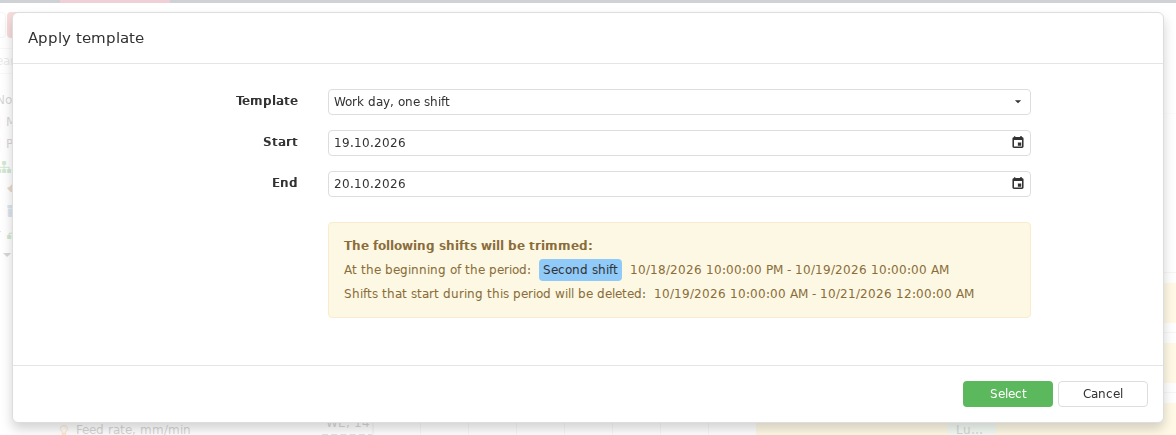
Before applying a Schedule template, DPA shows the selected period and warns about existing shifts that will be removed or cut at its boundaries. This preview helps assess the consequences of applying a template to an already populated calendar before saving changes.
Functions that use the Work center Schedule
All functions use the selected Work center’s effective local or inherited Schedule. A separate calendar is not created for each analytical page.
| Where the Schedule is used | What it determines |
|---|---|
| Gantt chart | background showing shifts, breaks and inter-shift time when Schedule is enabled |
| period filters in analytics, widgets and the Operator workplace | boundaries of the Current shift and Previous shift presets |
| shift measures, analytics and reports | whether production data belong to a particular shift or to non-working time |
| planning and work with Jobs | available working intervals where the calculation uses the production calendar |
| Auto-classification of downtime | transition points between a shift, a break and inter-shift time, together with the corresponding system reasons |
Current shift is the shift in the effective Schedule that contains the current time. Previous shift is the latest shift that has already ended. These periods are not the same as a calendar day: a night shift can cross midnight and still remain one interval. If the current time is not inside any shift, Current shift cannot be determined for that Work center.
Changing a Schedule therefore affects more than the background that is displayed. If period boundaries, shift-report results or downtime classification change after an edit, that can be a normal consequence of several functions using the same production calendar.
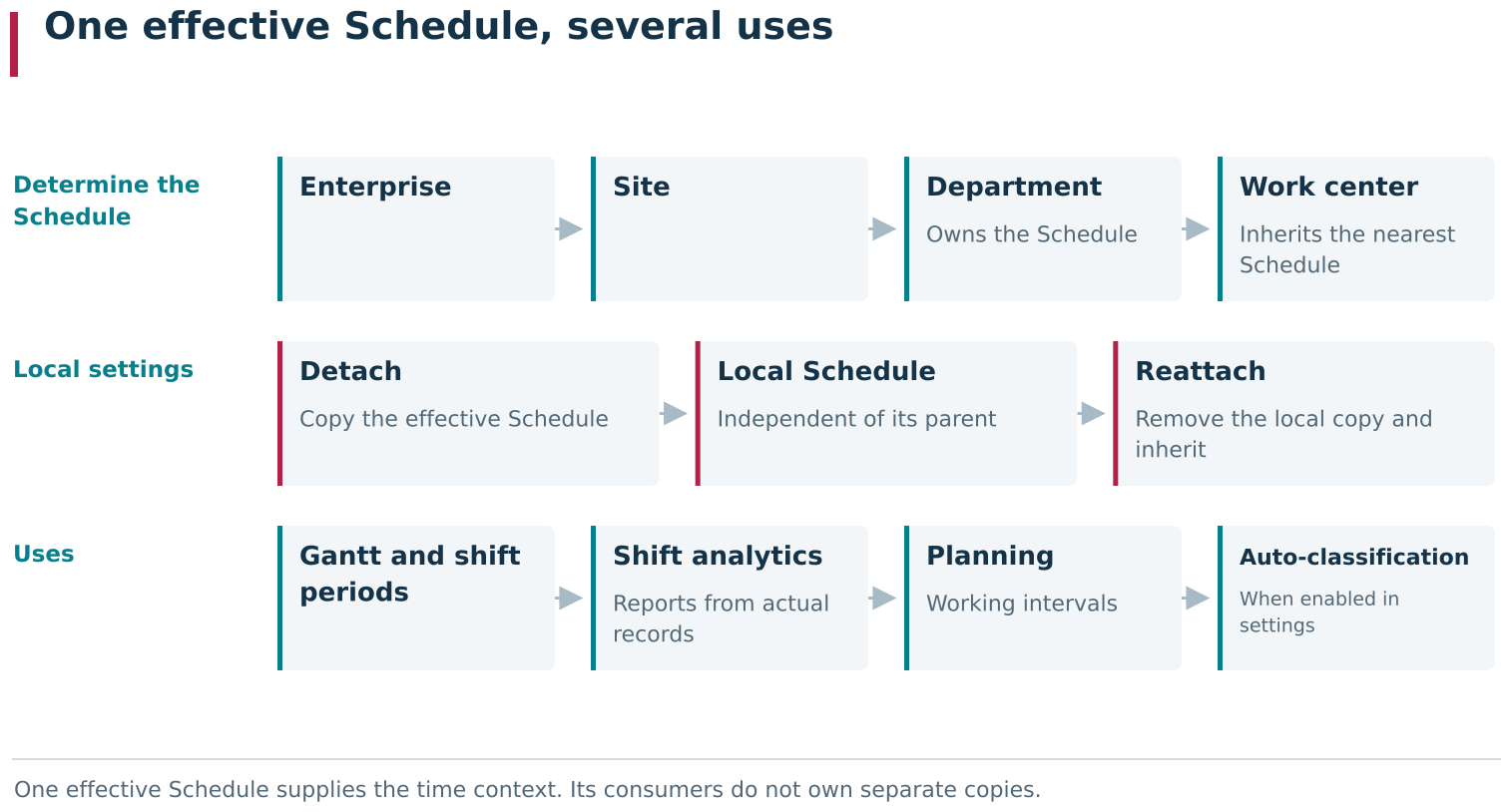
One effective Schedule is selected for a Work center: its own calendar is used when present; otherwise, the nearest ancestor calendar in the enterprise structure applies. The same Schedule supplies time context to Gantt, Current shift and Previous shift periods, shift analytics and reports, Job planning and downtime auto-classification. Detaching creates a local copy and changes the calendar source for the selected item and its inheriting descendants.
Splitting and classifying downtime periods by Schedule
The Auto-classification of downtime tab contains a separate Schedule settings group. Its two options serve different purposes:
- Automatically split downtimes by shift changes allows classification of an ongoing downtime to be split at shift or break starts and ends;
- Automatically classify downtimes based on the schedule assigns the system reason Break to segments inside a break and Break between shifts to segments outside shifts.
The second option becomes available after the first one is enabled. No special schedule-based reason is assigned during ordinary working time within a shift. In addition, these settings affect only the machine-state types for which downtime classification is enabled. Merely having a populated Schedule does not enable automatic classification: its settings are configured separately and can also be inherited through the enterprise structure.
Suppose the equipment remained switched off before a shift, throughout the shift and after it ended. The original machine-state interval can remain continuous. If schedule-based splitting and classification are enabled, several consecutive classified segments with assigned reasons are created for that downtime:
- before the shift — Break between shifts;
- during ordinary working time — the reason determined by the other classification rules;
- during a scheduled break — Break;
- after the shift — Break between shifts again.
This distinction matters when reading the Gantt chart: the boundary of a downtime segment with an assigned reason does not necessarily indicate a new machine event or a change of machine state. It may have been created because the effective Schedule crossed a shift or break boundary.
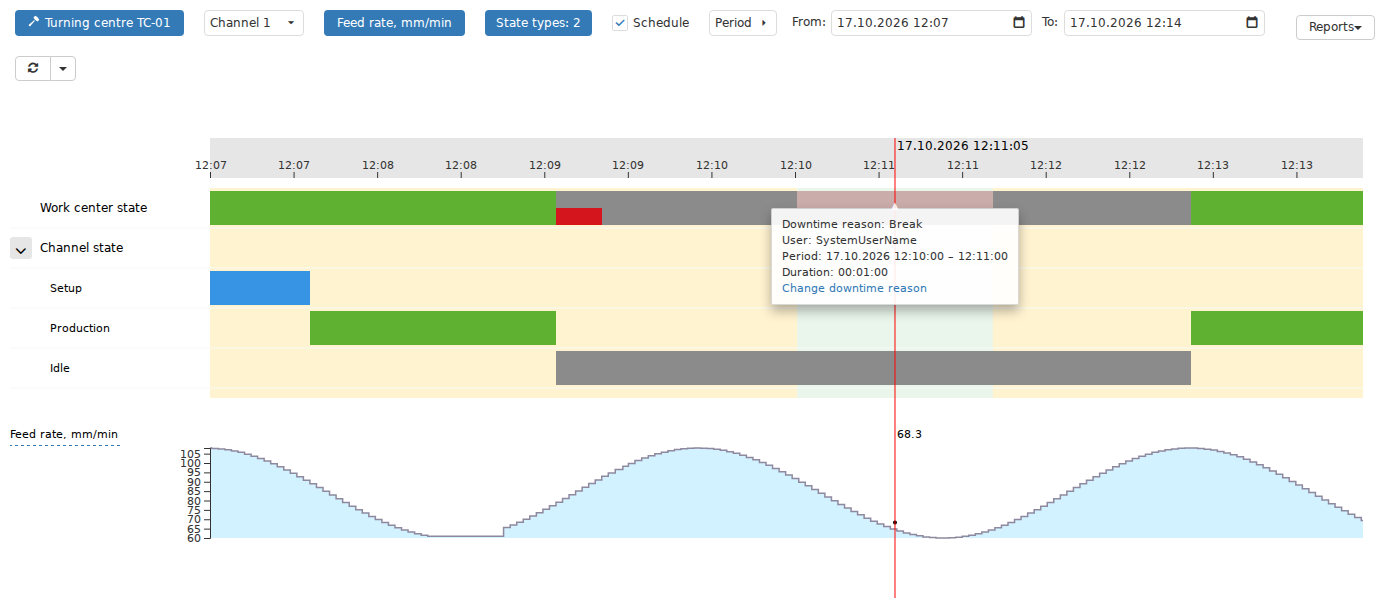
On the Gantt chart, the effective Schedule adds a time background. Automatic classification can split the reason for an ongoing downtime exactly at shift or inter-shift boundaries, while the underlying machine-state interval remains continuous. This separates equipment-state history from its additional classification by schedule.
Checking a Schedule after configuration
After changing the production calendar, check its owner, contents and use in sequence:
- in
Settings → Enterprise structure, select the required item and open Schedule; - check whether the effective Schedule belongs to the selected item or to the parent named by Inherited from …;
- navigate to the required week and check shift boundaries, overnight transitions and break positions;
- after applying a template, inspect holidays, days off and the selected period boundaries as well as ordinary working days;
- save the changes and open Gantt chart with Schedule enabled;
- check Current shift and Previous shift for the same Work center;
- if schedule-based classification is expected, separately check the settings on Auto-classification of downtime and the machine-state type.
This sequence distinguishes three causes of an unexpected result: the wrong Schedule owner is being used, the time intervals themselves are incorrect, or the function that should use the schedule is configured separately. The next section draws another important boundary — between DPA core capabilities and functions that appear only when additional microservices are connected.
6. Core DPA components and additional microservices
Users work with DPA through one interface, so all of the functions available there can look like parts of one application. Some of those functions, however, are provided by separately deployed microservices. If such a microservice is not installed, is configured incorrectly or is temporarily unavailable, the function that depends on it stops working without the whole DPA system necessarily failing.
When a function fails, first identify which component performs it. If the remote screen does not open from a Work center page, check the VNC microservice before reconfiguring the driver. If a Signal fired but no notification arrived, separate the Signal event itself from subsequent message delivery. If KPI calculation is unavailable, that does not by itself mean that DPA stopped recording the underlying equipment states.
Machine data through the driver and DPA Server
DPA Host is the central component of the system. It contains much of DPA’s configuration, business logic, production data and history. DPA Host also provides the main web interface and can work with several DPA Servers.
DPA Server is placed in the network where production equipment is accessible and works with drivers. A driver communicates with a particular machine or another data source, describes its devices and transfers machine data. The basic path discussed in this chapter is:
equipment → driver → DPA Server → DPA Host → Work center and its production data
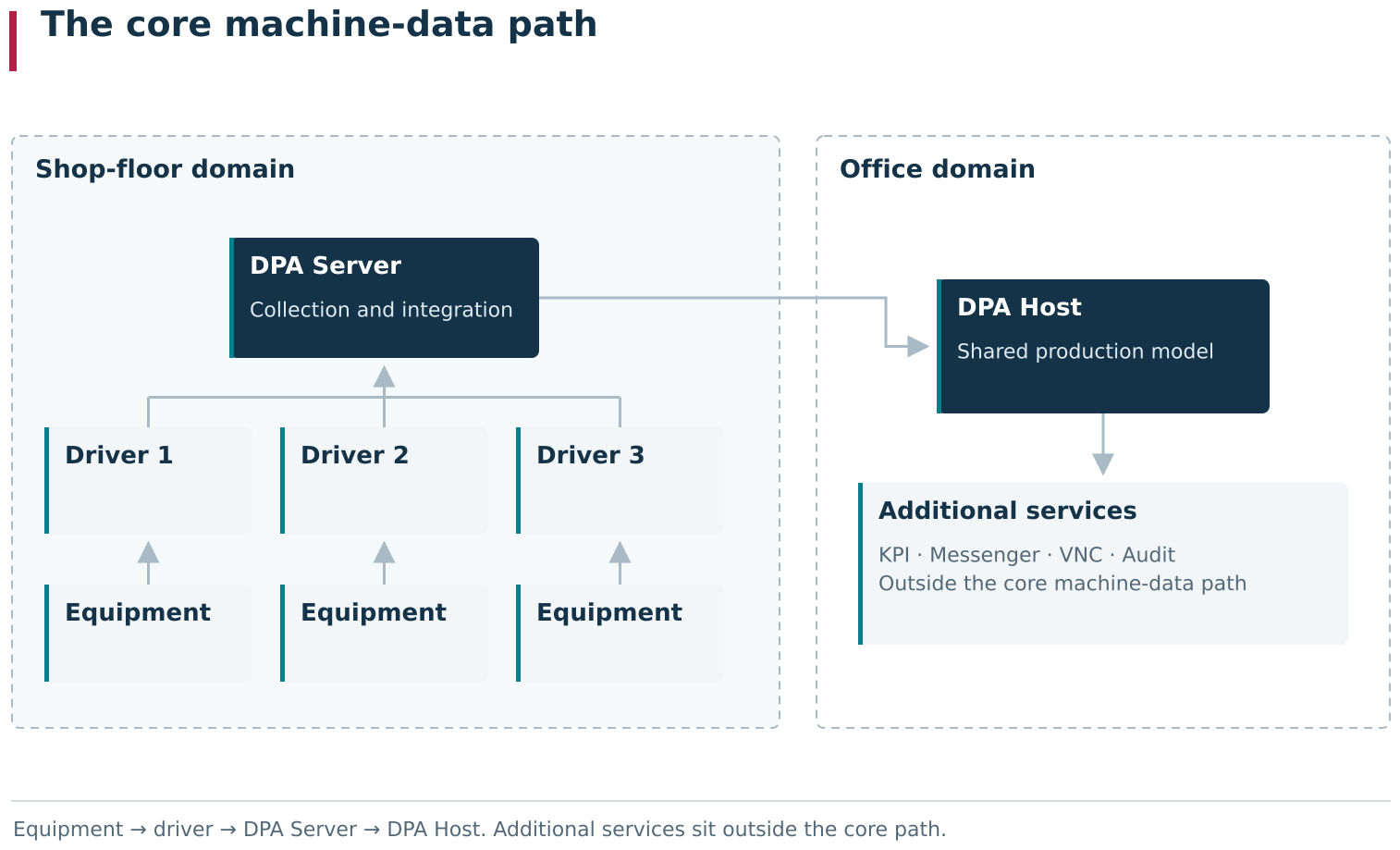
The simplified diagram shows the core machine-data path: equipment → driver → DPA Server → DPA Host. DPA Server accesses equipment and collects the driver streams; DPA Host receives those data and links them with DPA production objects. Dashed boundaries distinguish the shop-floor equipment domain from the rest of the system and separate the core path from additional microservices.
DPA Server is not an optional microservice. Without DPA Server and the corresponding driver, a Work center can remain present in the Enterprise structure but does not receive current data from the associated equipment. Additional microservices connect to the existing system for narrower tasks: KPI calculation, message delivery, audit storage, tool management or VNC access.
This separation avoids putting every specialised subsystem into the continuously running DPA Host process. Additional components can be deployed only where their functions are required, and computational load can be distributed across separate processes and nodes.
What the additional microservices do
A user may not notice the transition to a microservice at all: the command is available in the main DPA Host interface, source data come from DPA Host, and the result is displayed on a DPA Host page again. Internally, however, different components perform different parts of the operation, each with its own responsibility.
| Additional microservice | What the microservice does and which data it receives from DPA Host |
|---|---|
| Messenger | DPA evaluates the Signal condition, records that the Signal fired and starts its handler. Messenger creates messages for recipients, queues them and performs delivery, including web notifications. |
| KPI | DPA Host provides the source time series of states and Indicators. KPI uses them to calculate derived series and aggregate values for the selected period. |
| Tool Management | The driver and DPA Host obtain tool information from the controller and associate it with the Work center. Tool Management maintains independent Tool instances, their locations and movement history, as well as offset and tool-life Journals. |
| VNC | The Work center card stores connection settings and user assignments. VNC establishes a session with the machine’s remote screen and transfers the image and control commands between the browser and the target VNC server. |
| Audit | The action is performed in DPA Host, which also determines which audit streams are enabled. Audit receives and stores audit records, user actions and user sessions. |
A Signal handler that sends a notification therefore consists of at least two independent stages. First the DPA core detects the condition and records the Signal event; then Messenger processes the message and delivers it to the particular recipient. A successfully fired Signal does not guarantee delivery, and a delivery error does not cancel the Signal event that has already been stored.
Source state intervals are stored in DPA Host, while calculated KPI data are stored by the KPI microservice. If KPI is unavailable, a derived value may not be calculated or its history may stop updating, but the Work center state and the source Indicator values should be checked separately. Before troubleshooting a calculation, first make sure that the required source data are actually arriving for the requested period.
Microservice functions can appear on existing DPA Host pages, but this does not make them part of the core machine-data path. User-facing communication channels and external interfaces are covered in Chapter 7. Management of individual Tool instances is covered in the Tool Management chapter. Installation, registration, synchronisation and maintenance of microservices are described in the DPA Installation and Operations Guide.
A single DPA interface therefore brings these functions together without removing the responsibility boundaries between components. DPA Host, DPA Server and drivers provide the core connection between the production structure, equipment and its data. Additional microservices extend that foundation with specialised capabilities.
← Chapter 2. Security, users, permissions and audit · Contents · Chapter 4. Production preparation and control programs →