← Chapter 1. What DPA is and how to navigate it · Contents · Chapter 3. Equipment, Work centers and machine data →
DPA does not have one universal attribute that answers every access question at once. A user may have permission to use a function but see only part of the enterprise structure; be assigned as an Operator to a particular Work center but have no administrative permissions; or see equipment while lacking the current production context required for a particular action.
This chapter therefore treats security as several related but independent mechanisms. We will cover accounts and sign-in methods, groups and permissions, access scope within the enterprise structure, production roles and additional restrictions imposed by individual functions. We will then look at security settings, external identity and user-action auditing. Installation and technical connection of the Audit microservice are described in the DPA Installation and Operations Guide; here we are concerned with using it to verify actions and changes.
The main user, group and permission settings are under Settings menu → Security. Not every access rule is configured on this screen, however: access scope is tied to the Enterprise structure, Operator, Foreman and Mechanic assignments are tied to Work centers, and individual functions may add their own rules. When diagnosing an access problem, it is therefore important first to determine which mechanism is actually restricting the required action or data.
1. What determines access in DPA
When a user signs in to DPA and accesses a function, the system takes several different conditions into account. They use the same accounts, groups and production objects, but answer different questions.
| Condition | Question it answers |
|---|---|
| Account and session | Who signed in and whether this account is allowed to continue working |
| Permissions | Which functions and actions the user is allowed to use |
| Access scope | Which sites, departments, Work centers and related data are available to the user through the Enterprise structure |
| Production assignment | On which Work centers the user is assigned as an Operator, Foreman or Mechanic |
| Current work context | Whether an additional current-work condition is satisfied, for example whether the Operator has the required Personal shift open or the Foreman is registered |
| Function-local rule | Whether the function or a particular object imposes an additional restriction, where that part of DPA provides one |
These conditions should not be substituted for one another. A permission determines whether the user may use a function, but by itself it does not make all enterprise equipment available. Conversely, having a Work center within the user’s access scope does not grant permission to change system settings and does not assign the user as an Operator, Foreman or Mechanic.
For example, a user may see a Work center in production views because it is within the user’s access scope. To work with it as an Operator, the user must additionally be assigned as an Operator to that specific Work center. If the system requires a Personal shift, the actions that depend on it also require an open shift. At the same time, being assigned as an Operator does not give the user permission to edit users, groups or the enterprise structure.
Groups participate in several parts of this model. They can grant permissions, while Enterprise structure settings can use groups to determine access scope. These are still different settings: membership in a Group does not automatically mean access to every function or to all equipment. The following sections discuss permission inheritance and the availability of production data separately.
Some functions add another layer of rules. A Dashboard, for example, can have its own access settings, while VNC uses user assignments for viewing and controlling a remote workplace. These rules belong to the particular function and do not remove the need to consider general permissions and access scope separately. Their interaction with the other restrictions is described where the corresponding function is configured.
In practice, this gives a simple troubleshooting order. If a user cannot see the required object or perform an action, check in sequence: whether the user signed in with the intended account; whether the account has permission to use the function; whether the object is within the access scope; whether a production role is required; whether the current work context is satisfied; and whether the function has its own restriction. This makes it possible to distinguish a missing permission from missing data or a production assignment instead of looking for every cause on the Security screen.
2. Accounts and signing in
An account ties a person’s actions in DPA to one User. It stores general information about the person, group membership, sign-in methods, contacts and production assignments. These parts of the card serve different purposes: adding a sign-in method, for example, allows the system to recognise the user but does not by itself grant permissions or assign the user to a Work center.
Open Settings menu → Security and select Users. The main list is an interactive table. It shows the user name, personnel information, locked status and, for users from an external source, the provider. To create a user, click the add button; to change an existing record, select its row and open it for editing.
User card
The User card is divided into the Information, Group membership, Entry Methods, Contacts and Work centers tabs. A user received from an external data provider also has a Provider data tab, and some fields are unavailable for ordinary editing. External identity is covered in Section 9.
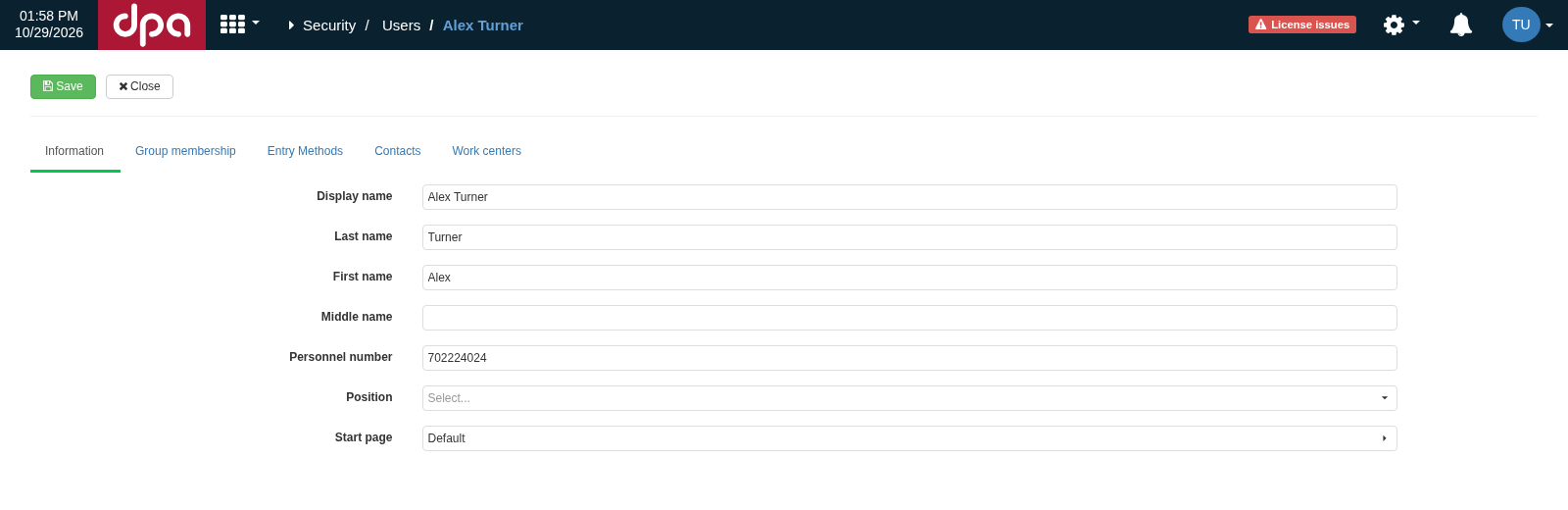
The User card separates general information, group membership, sign-in methods, contacts and assignments to Work centers. The Information tab contains the user’s display name and personnel information.
The Information tab contains Display name, surname, first name, patronymic, personnel number, position and start page. Display name is the name under which the user appears in the interface and related DPA records. The start page determines which screen is selected after sign-in; it does not change the user’s permissions or access scope.
The Group membership and Work centers tabs are in the same card but belong to different access mechanisms. Membership and permission inheritance are covered in Section 4, while Operator, Foreman and Mechanic assignments are covered in Section 6.
Sign-in methods
The Entry Methods tab stores the separate methods by which DPA can recognise this User. A user can have several sign-in methods; having a sign-in method does not change the user’s Groups, permissions, access scope or production assignments. Configuration of each supported method is covered in detail in Section 3.
Contacts and the user session
The Contacts tab stores ways of contacting the person: telephone, email, chat, website, social network or another contact. A contact is not a sign-in method and does not grant access to DPA functions. Other functions may use it as an address or reference information, but identity verification during sign-in uses the records on the Entry Methods tab.
After successful sign-in, DPA creates a user session. Signing out ends the user’s own session. If an administrator locks or deletes a user, that user’s already open session ceases to be valid: the next protected request requires sign-in again.
Locking and deleting a User
In the Users list, the Locked column shows the current account state. Lock prevents this user from signing in and invalidates the current session. On a new sign-in attempt, DPA reports that the user is locked. Unlock restores the ability to sign in, provided that the user has an appropriate sign-in method and that method is allowed by the general security settings.
Locking is suitable for temporarily restricting access: the user card, groups, contacts and production assignments remain in place. There is therefore no need to delete the account for leave, temporary suspension or another reversible restriction.
Delete ends the account lifecycle. DPA removes its sign-in methods, closes that user’s open Personal shifts and removes the user from the ordinary list of active accounts. Historical identity is preserved: audit entries, production history and other records created earlier continue to refer to this user. Deletion should therefore not be used as a way to clear the history of the user’s actions.
A deleted account does not reserve its former local login or personnel number. They can be used when creating a new user. This will be a new account with its own identity: previously saved history remains associated with the deleted user and is not transferred to the new one.
3. Sign-in methods: configuration and verification
A sign-in method answers only one question: how DPA recognises the user when a session begins. For an ordinary account, three methods are available in the User card: Login/Password, Windows and Barcode or RFID. They are independent of one another: a user can have several sign-in methods, and the same method can be configured for different users with different identifiers.
Each method has two levels of configuration. First, the method must be enabled for the system as a whole; then the corresponding record must be added to the particular User. If the global setting is disabled, merely having a record on the Entry Methods tab does not allow the user to sign in by that method.
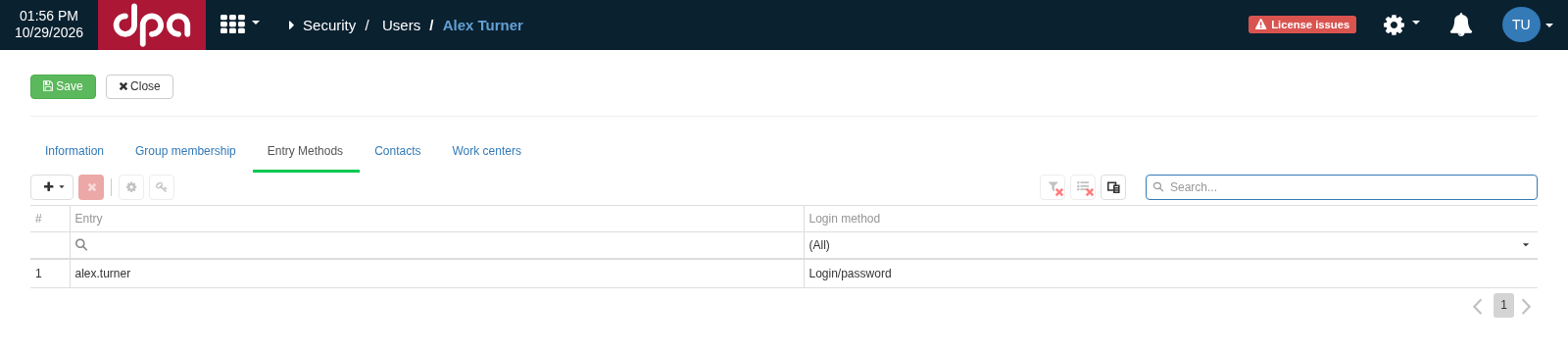
On the Entry Methods tab, each method is stored as a separate record. In this example, the User has a Login/password method configured with the login alex.turner; other methods can be added independently.
Microsoft SSO does not belong to these three records in the user card: it is a separate external identity scheme covered in Section 9. The internal application login is likewise not a sign-in method that an administrator assigns to a person through this tab.
General sign-in settings
Open Settings menu → Security → Access rights and expand the Log in group. It contains the system-wide switches Authentication login/password, Windows authentication enabled and Authentication by barcode or RFID. The same group also contains the minimum login length and Windows/Active Directory directory-connection settings.
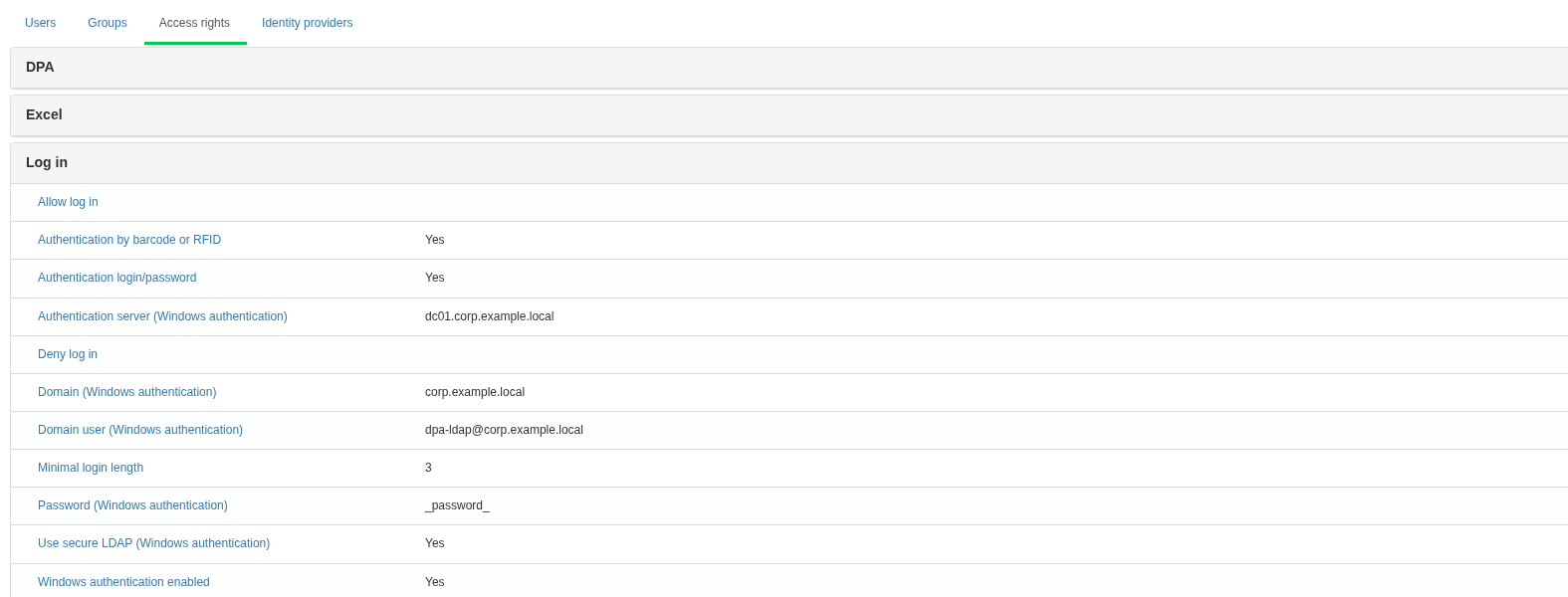
The Sign in group contains the system-wide switches for the three sign-in methods available in the User card and the Active Directory connection settings. The screenshot uses example domain and LDAP-server values; the configured service-account password is not disclosed and is shown as the _password_ placeholder.
When introducing a new sign-in method, use a safe sequence: first enable and configure the new method, assign it to a test user and verify sign-in in a separate private browser window or on another workplace. Only after successful verification should you disable the previous method for the system, if that is actually required. In particular, do not disable Authentication login/password until you have confirmed that an administrator still has a working alternative sign-in method.
Login and password
For local password sign-in, make sure Authentication login/password is enabled. Then open Settings menu → Security → Users, select the user, go to Entry Methods and choose Login/Password from the add menu.
The form defines the login. It must be unique among local DPA logins and satisfy Minimal login length in the Log in settings group. After you confirm this form, DPA opens a separate password form: the password is not stored as part of the user name and is validated against the general password policy. Save the User card after adding the method.
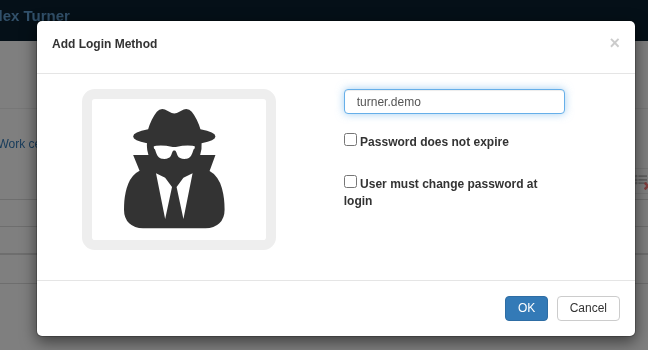
When adding Login/Password, first specify the login and sign-in properties. After this form is confirmed, DPA requests the password separately; for an existing record, the password is also changed with the separate Set password command.
If User must change password at login is selected, the first successful entry of the administrator-issued password does not immediately create an ordinary working session. DPA first requires a new password and signs the user in only after it has been set. This is useful for temporary initial passwords. For an existing Login/Password method, change the login properties with Properties and the password with the separate Set password command.
The password-change requirement applies to this interactive sign-in process. For programmatic Basic access it does not prohibit use of the previous password; the boundary and ways to revoke access are described in Section 7 of Chapter 7.
The form also has a Password does not expire check box. When selected, the general Passwords expire in (days) period does not apply to this sign-in method. The separate User must change password at login option continues to apply. The general password policy is covered in Section 8.
After configuration, verify the new login/password pair in a new session. If sign-in fails, check the system-wide switch first, then the exact login, whether the User is locked, the password and the password-policy requirements.
Windows
The Windows method links a DPA User to a Windows or Active Directory account. The person does not enter a domain password in a DPA form: the browser and operating system pass the integrated Windows identity, and DPA matches the received account to the saved link. This release accepts Negotiate, Kerberos and NTLM schemes.
For a domain scenario, first configure the Log in settings group:
| Setting | What to specify |
|---|---|
| Windows authentication enabled | Yes to enable this sign-in method |
| Domain (Windows authentication) | Active Directory DNS domain name, for example corp.example.local; DPA derives the LDAP base DN from it |
| Authentication server (Windows authentication) | LDAP/AD server name or FQDN, for example dc01.corp.example.local; do not include a protocol or port in this field |
| Domain user (Windows authentication) | Service account used by DPA to read the directory through LDAP; this is not the end user’s account |
| Password (Windows authentication) | Password of the specified service account |
| Use secure LDAP (Windows authentication) | Yes for LDAPS; in this release ordinary LDAP uses port 389 and secure LDAP uses 636 |
After saving these settings, open the required User card, go to Entry Methods, open the add menu and select Windows. DPA opens the Select user window; with a working AD/LDAP connection, find the required domain account there. The table shows full name, first name, surname and login. When selected, DPA saves the SID of this Windows account, so renaming its display name in the directory does not turn the link into an ordinary text comparison of the login. The same Windows account cannot serve as a sign-in method for two different DPA users at the same time.
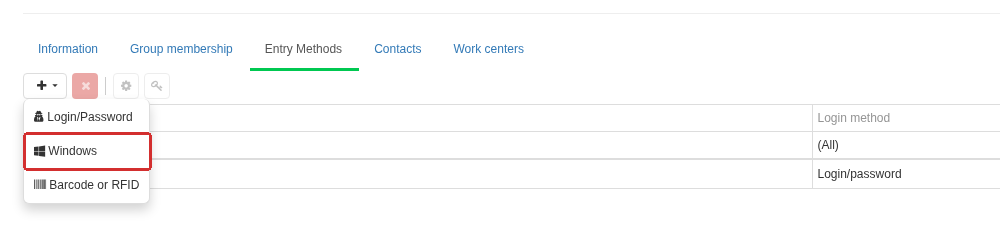
On Entry Methods, open the add menu and select Windows. DPA then opens Select user, where a Windows or Active Directory account is selected; the selected account is linked to the DPA User by SID.
If Domain is empty and Host runs on Windows, DPA can offer active local accounts from that Windows machine. With Host on Linux, an empty domain does not produce such a list; domain sign-in there requires LDAP configuration.
Directory configuration solves only user lookup and matching. For sign-in itself, the client computer and browser must actually pass integrated Windows authentication to Host. Specific Kerberos/SPN, NTLM, browser trusted-zone and domain-infrastructure settings depend on the deployment and are outside the User card. Verify Windows sign-in from an ordinary client computer in the real domain environment rather than relying only on the fact that the required account appears in the DPA selector.
If the Select user list is empty, first check Domain, Authentication server, the LDAP service account and password, network reachability of the server and, for LDAPS, trust of its certificate. If the account can be selected but sign-in ends with a user-not-found message, check that this exact Windows account is assigned to the intended DPA User and that the browser is actually passing the Windows identity.
Barcode or RFID
This sign-in method uses a text identifier that the reader sends to the computer as a rapid sequence of characters. DPA does not configure the radio protocol of an RFID tag and does not communicate directly with a particular card type: the hardware reader itself must convert the barcode or tag into a string. In practice, a USB/HID or other keyboard-wedge reader is convenient because it quickly types the string and terminates it with an Enter event.
First enable Authentication by barcode or RFID. Then open Entry Methods for the required user and choose Barcode or RFID. Present the code or tag once in the form that opens, wait for confirmation of the first read, and present it a second time. DPA accepts registration only after two identical reads. Save the User card after confirmation.
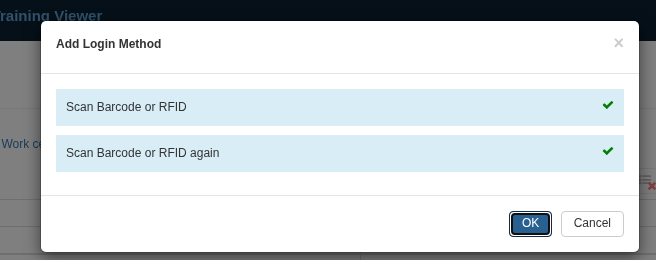
When registering Barcode or RFID, DPA asks for the same identifier to be scanned twice. Two green marks mean that both reads were accepted and match; after OK, save the sign-in method in the user card.
Only one such identifier can be stored for a User, and the same identifier cannot be assigned to two users. DPA stores the code in hashed form, so it should be treated as a credential rather than as an openly readable personnel field.
The sign-in page does not need a separate RFID text field: when this method is enabled, the page waits for a reader event and sends the scanned identifier for verification. If the registration form does not react to the device, check that the reader really emulates a keyboard, outputs the whole string quickly enough and terminates it with Enter. If the two reads differ, check the device output format — for example, whether a prefix, suffix or tag-number representation changes between reads.
Verification after configuration
After adding any sign-in method, do not verify only that a row exists in the user card. For a new test user, sign in from a clean browser session, confirm that DPA recognised the expected User, and only then continue to permissions, access scope and production-role checks. If the sign-in method works but the user cannot see the required function or equipment, the cause is in the next security layers rather than in authentication.
4. Groups and permissions
Groups let you grant permissions to a set of users and other groups rather than to every user separately. A user can belong to several Groups, and a Group can itself belong to one or more other Groups. A user’s effective permission can therefore be obtained directly or inherited through several membership chains.
Groups and the direction of inheritance
Open Settings menu → Security → Groups. The main list is an interactive table. An existing Group card has three main tabs:
- Information — the group name and description;
- Group members — users and groups that belong to this group and inherit its permissions;
- Group membership — higher-level groups whose permissions the current group inherits.
It is important not to reverse the direction. If a User belongs to Group A, and Group A belongs to Group B, the user receives the permissions of both groups. Group members shows the relationship down this chain, while Group membership shows it upward, towards the groups from which permissions are inherited.
A user can be added to a group from either side of the same relationship: through Group membership in the User card or through Group members in the Group card. After saving, this is one membership, not two independent settings.
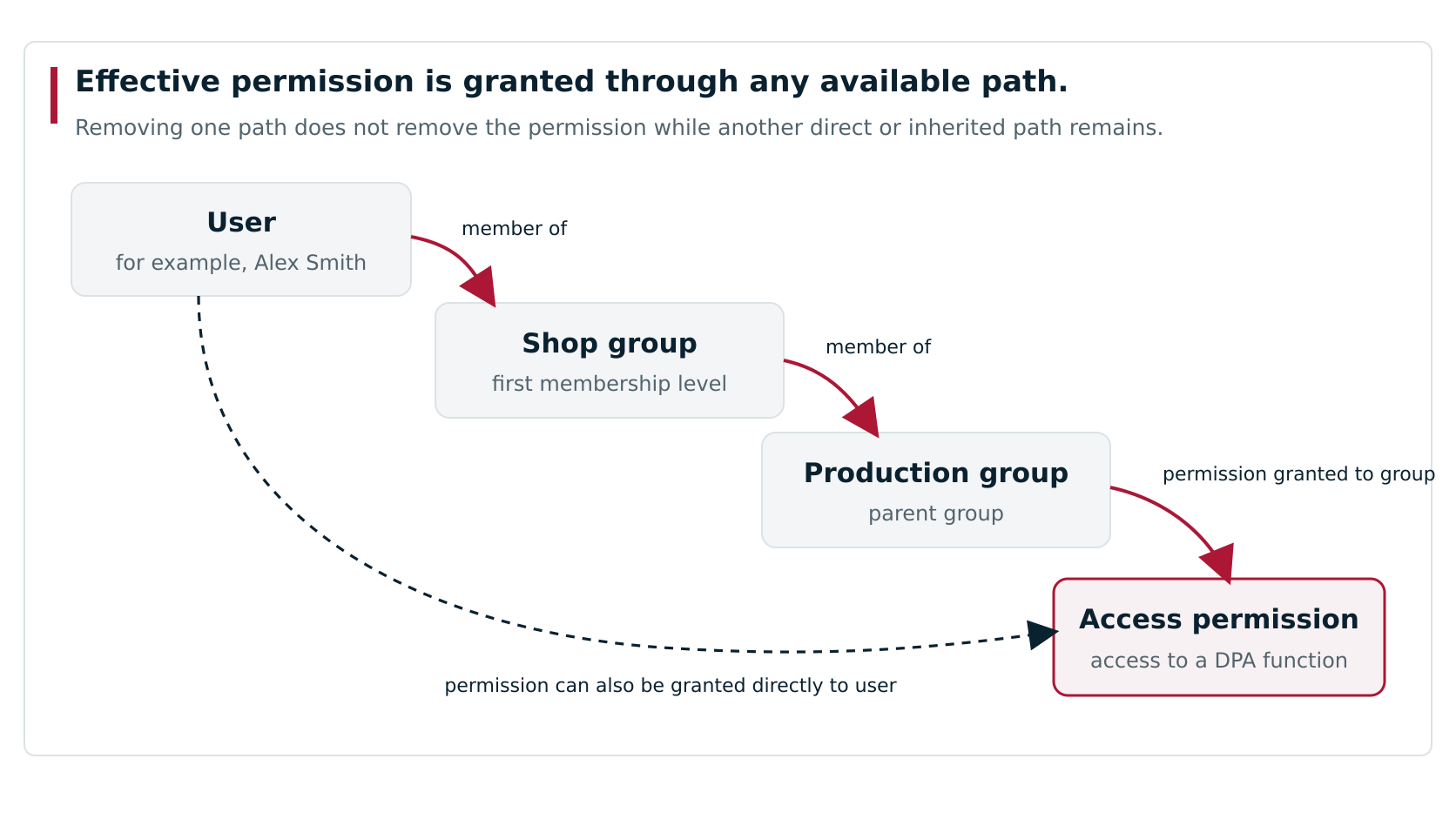
A User receives a permission directly or through one or more nested Groups. Removing one path does not remove the permission while another direct or inherited path remains.
The name of a Group does not by itself assign a production role. Membership in a group intended for Operators or Foremen, for example, may grant permissions for the required functions, but assignment as an Operator, Foreman or Mechanic on a particular Work center is configured separately, as described in Section 6.
Assigning permissions
Open Settings menu → Security → Access rights. Settings here are grouped by subsystem. If a row represents a permission, selecting it opens the Select a user or group window. Its table shows all Users and Groups to which the selected permission is granted directly; both subject types appear in one list and are distinguished by an icon. Add users, with the user-and-plus icon, opens User selection. The neighbouring Add (+) button opens Group selection. In the DPA group, for example, permissions for individual modules and actions are assigned in this way.
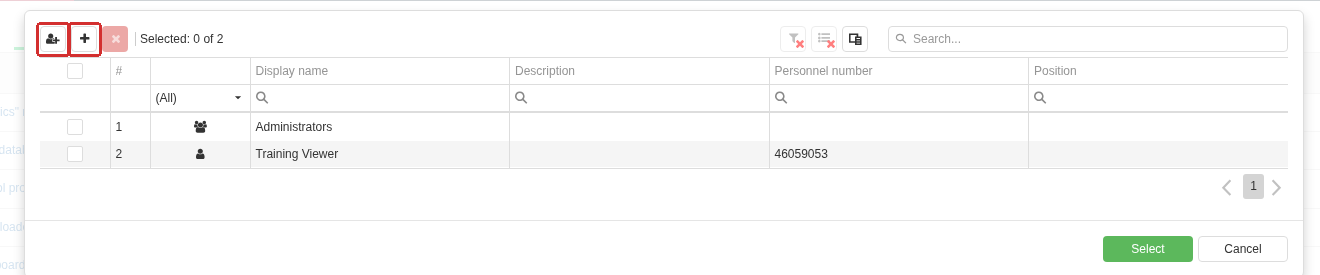
The Select user or group window shows the current direct assignments of the selected permission in one table: the screenshot contains one Group and one User. The two highlighted commands add different subject types: Add users opens User selection, while the neighbouring Add (+) button opens Group selection.
The same page also contains settings of another kind — Boolean, numeric or text security parameters. Such rows define a system value rather than a list of Users and Groups to which a permission is granted. These settings are covered in Section 8.
A permission can be granted directly to a User, but for recurring access sets it is usually more convenient to assign it to a Group. Adding a new person to that group then gives the person the same permission set without separately editing each permission.
How effective permissions are formed
DPA takes every path by which a user receives a permission into account:
| Permission source | Result |
|---|---|
| Permission is granted directly to the User | The user receives the permission directly |
| Permission is granted to a Group to which the user belongs | The user inherits the group’s permission |
| Permission is granted to a parent Group | The permission is inherited through the complete chain of nested groups |
| The same permission is obtained through several paths | Any one of these paths is sufficient |
Permissions in this model are only granted: there is no separate deny rule that cancels a permission obtained by another path. When revoking access, you must therefore check all inheritance paths. Removing a direct assignment does not remove the permission if one of the user’s groups still has it; removing the user from one group likewise does not help if the permission arrives through another group or a higher level of nesting.
The User card does not contain a separate list of all effective permissions. It shows Group membership, while direct permission assignments are checked on the Access rights page. The absence of a direct assignment to the user therefore does not mean that the permission is absent: it may be inherited through a group.
Verifying permission changes
After saving a membership or permission-assignment change, it applies to the user’s already open session as well; signing in again is normally unnecessary. A page that is already loaded may not rebuild its interface automatically, however. For example, an Applications menu item that became available after a permission was granted may remain disabled until the page is fully reloaded. After changing permissions, refresh the page when necessary and verify the specific function or action for which the permission was changed. If the permission controls data modification, test the relevant command rather than only the presence of a menu item.
If access remains after a permission was expected to be revoked, first check the direct assignment to the user, then all of the user’s Groups and their parent Groups. If the permission is present but the required production data still do not appear, the cause may no longer be permissions but access scope within the Enterprise structure. That boundary is covered in the next section.
5. Access scope within the enterprise structure
Permissions answer which functions a user can use and which actions the user can perform. Access scope answers a different question: which organisational units, Work centers and related production data are available to the user through the Enterprise structure. Permission to open Monitoring or the Operator workplace therefore does not mean that all enterprise equipment will be available there.
Where access scope is configured
Open Settings menu → Enterprise structure, select an Enterprise, Production site, Department or Work center, and go to Security.
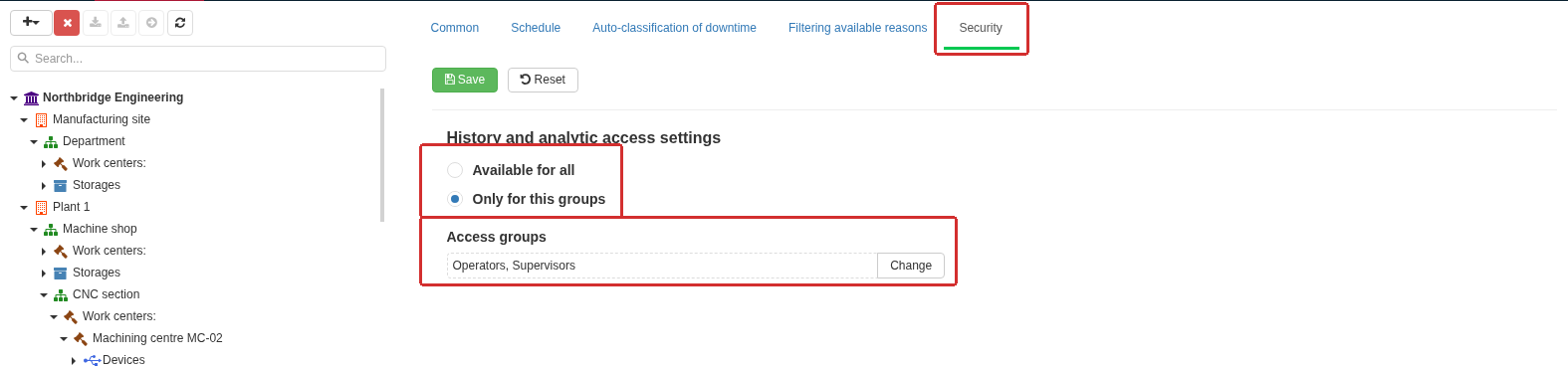
On Security for the selected Enterprise, the access-scope setting is local and editable. With Only for this groups, Access groups contains the groups selected for this scope.
The Security tab contains the History and analytic access settings form. It provides two options:
- Available for all — data for the selected structural unit are available to all users for whom the function itself is allowed by the other access mechanisms;
- Only for this groups — access is granted to users who are direct members of at least one selected Access group.
The form name mentions history and analytics, but this setting is used more broadly. It participates in forming the set of Work centers available to the user in production views and selectors and is also taken into account by role-specific workplaces. It should therefore be treated as an access-scope setting, not only as a filter for historical screens.
Nested Groups do not expand access scope here
The group rule in this mechanism differs from permission inheritance in Section 4. For permissions, a user receives a permission through a chain of nested Groups. For access scope within the Enterprise structure, DPA matches the user’s direct Groups against the Access groups selected in the structural-unit setting.
For example, suppose the user is a direct member of the Area operators Group, and that group belongs to the parent Area access Group. If a Work center has only Area access in Access groups, this nested membership alone is not enough. To give the user this Work center through this setting, either add the user directly to Area access or select the user’s direct Area operators group in the setting.
This distinction is particularly important when the same group hierarchy is used both to grant permissions and to restrict production data: a structure that correctly inherits permissions does not necessarily produce the same access scope.
Inheritance through the Enterprise structure
For an Enterprise, the setting is defined directly. Child Production sites, Departments and Work centers can inherit the nearest parent setting. In the inherited state, the fields cannot be edited and the interface shows the element from which the effective rule is obtained.
If a child structural unit needs its own access scope, click Detach from parent. DPA copies the current effective setting into the child, after which it can be changed locally. Later changes to the parent setting no longer affect this local copy.
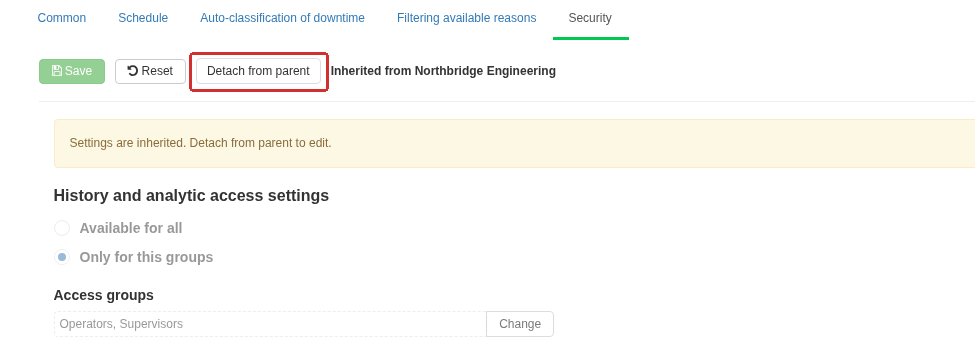
For a child structural unit, an inherited setting cannot be edited. Detach from parent creates a local copy of the effective access scope; it can then be changed independently of the parent.
Attach to parent restores live inheritance: the local group list stops applying and the result is again determined by the parent element’s setting. After changing access scope, check not only the selected groups but also whether the setting is local or inherited.
How the scope appears in working screens
The restriction is applied to equipment available to the user on the DPA side; it does not merely hide interface elements. Ordinary equipment lists and selectors are built with access scope in mind, so a neighbouring Work center excluded by the Security setting should not appear as an ordinary selection option in the corresponding production views.
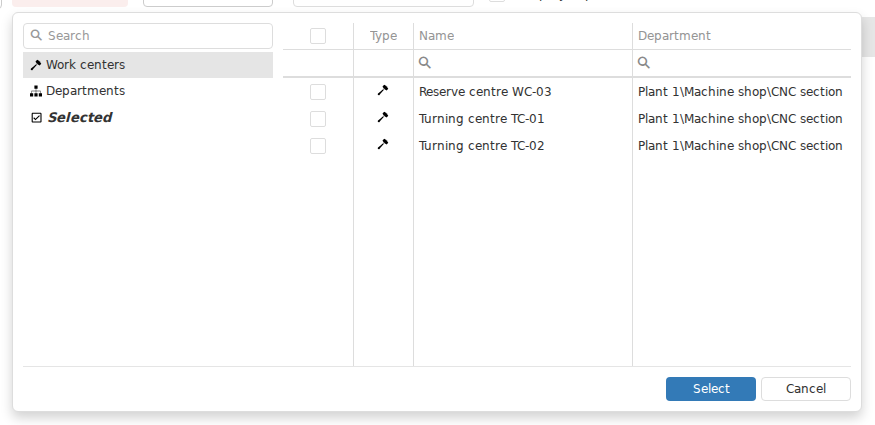
The Work center selector in Monitoring is built with the user’s access scope in mind. An available work center remains in the list together with its organisational path, while neighbouring equipment outside the scope does not appear.
Administrative permissions do not by themselves expand access scope. A user may have broad permissions for DPA functions and still see only the Work centers within that user’s access scope. This is another reason to check permissions and access scope independently.
Changes to Access groups or user membership also affect an already open session; signing in again is normally unnecessary. As with permission changes, a page that is already loaded may retain the old list until it is refreshed. After changing access scope, refresh the page and reopen the required selector or view.
Why the configuration tree can show more equipment
Do not determine access scope from what is visible in the administrative Settings menu → Enterprise structure tree. Permission to view the Enterprise structure allows the configuration tree to be opened, and it can show structural units and Work centers that are not within this user’s access scope.
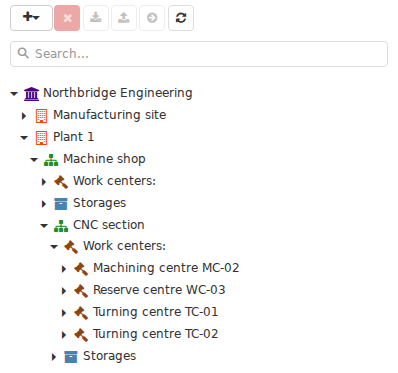
The Settings menu → Enterprise structure tree can be broader than the user’s access scope. A user with permission to view the structure can see neighbouring Work centers here even when they cannot select them in Monitoring, analytics or a role-specific workplace.
A visible node in the configuration tree therefore means that the user can see the configuration structure; it does not automatically mean access to the data of that Work center in Monitoring, analytics or a role-specific workplace.
Checking why a required Work center does not appear
If the user has permission to use the required function but does not see the expected Work center, check the following in order:
- Open Security for the required Work center and determine whether the setting is local or inherited.
- If Only for this groups is selected, check Access groups and the user’s direct membership in one of them. Do not rely on a parent Group that grants permissions transitively.
- After changing the setting or membership, fully refresh the working page and reopen the equipment list.
- If the equipment is now within access scope but is absent from a role-specific workplace, separately check whether the user is assigned as an Operator, Foreman or Mechanic to that Work center. Production assignments are covered in the next section.
This sequence separates the absence of permission to use a function from the absence of production data and from the absence of a production role.
6. Production roles and work context
A production assignment answers which Work center a particular User works on as an Operator, Foreman or Mechanic. This is a separate mechanism: permission to use a function does not create a production role, and having a Work center within the user’s access scope does not assign that user to the Work center.
For role-specific workplaces, DPA takes both conditions into account. The Work center must be within the user’s access scope and also be assigned to the user in the required role. The same person can therefore see equipment in Monitoring, for example, but not receive it in the Operator workplace; or work on it as an Operator without having a Foreman assignment.
Assigning an Operator, Foreman or Mechanic
Open Settings menu → Security → Users, select the required User and go to Work centers. It contains three independent lists: Operator, Master and Mechanic.

The Work centers tab in the User card separates assignments into Operator, Master and Mechanic. The screenshot shows the Operator list; changes to the list take effect after Save.
To add an assignment:
- select the tab for the required role;
- click Add;
- in the list that opens, select one or more Work centers and click Select;
- if necessary, repeat the assignment on other role tabs;
- click Save in the User card.
Until the card is saved, the changes remain in the form and do not change effective assignments. To remove an assignment, select the Work center in the corresponding list, click Delete, and then save the card.
The same assignments can be configured from the equipment side. Open Settings menu → Enterprise structure, expand the required Work center and select Operators, Foremen or Mechanics. Here the list is built from the Work center: Add selects users for the current role, while Delete removes the selected assignments. The User card and the role lists under the Work center modify the same set of production assignments; they are two views of one relationship. In the Enterprise structure, there is no separate user-card save step — adding or confirming removal is applied directly from the role list.
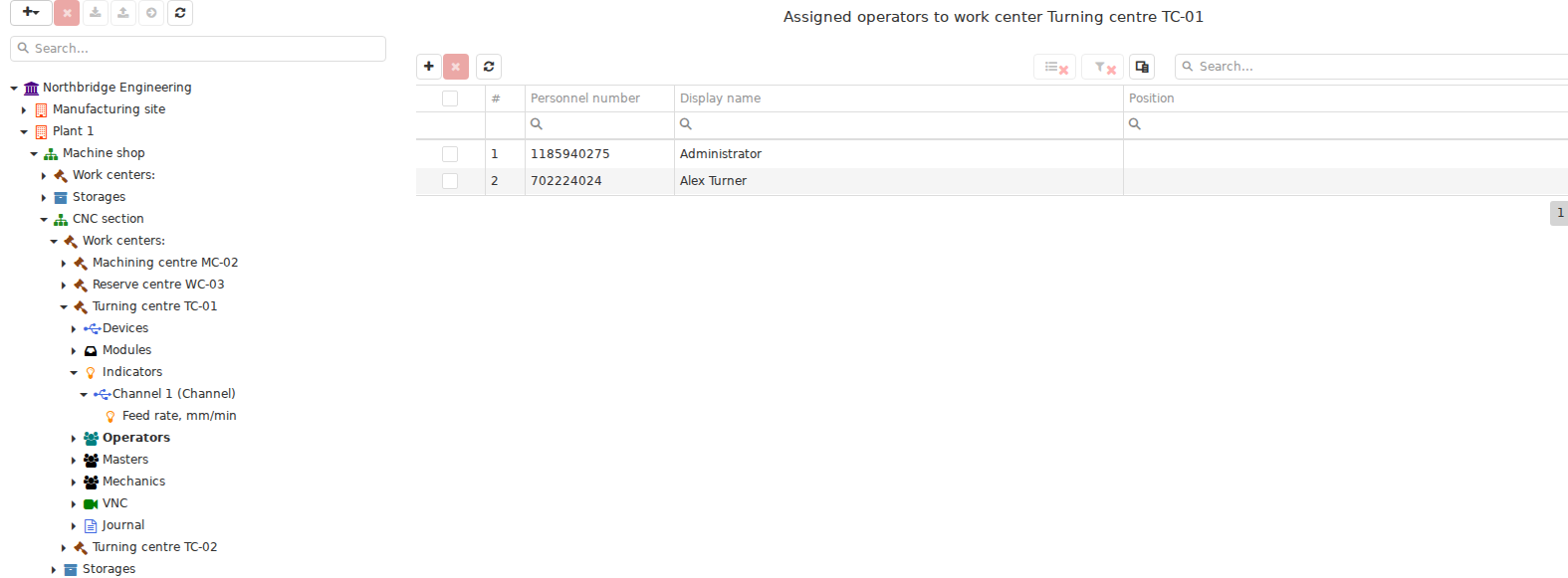
The Operators child item under a Work center shows assignments from the equipment side. Add assigns users as Operators on the current Work center, while Delete removes the selected assignment.
A User can have several production roles, including on the same Work center. These assignments are independent: adding the Foreman role does not remove an Operator assignment, and removing the Mechanic role does not change the other two. Likewise, membership in a Group named, for example, “Operators” does not by itself create a production assignment.
If Work centers or its editing commands are unavailable, separately check the administrator account’s permissions for working with users and the Enterprise structure. Administrative permissions allow assignments to be configured, but do not replace the user’s own access scope or work context.
Assignment and current work context
A production assignment defines a saved relationship between a user and equipment in a particular role. Some actions also require a current work context:
- Operator. The assignment determines the Work centers on which the user can work as an Operator. If Personal shift registration is required, the relevant production actions additionally require an open Personal shift on the corresponding Work center.
- Foreman. The assignment determines the Work centers on which the user can work as a Foreman. An open Foreman shift defines the current supervision scope and the actions the Foreman can perform.
- Mechanic. The assignment determines the Work centers on which the user can work as a Mechanic. A separate Mechanic shift is not opened in the Maintenance workplace.
Opening the Operator workplace, Foreman workplace or Maintenance workplace does not create an assignment or open a shift. If an employee combines roles, switching between workplaces likewise does not change the assignments: each workplace uses its own role and corresponding current context. The detailed procedures for opening and closing shifts, executing Jobs and working with Tickets are covered in Chapter 6.
For a Mechanic, assignment to a Work center and assignment as the responsible person for a particular Ticket are also different relationships. The first determines the work area in the workplace; the second determines who is responsible for the individual request.
If a Work center does not appear in a role-specific workplace
Check the conditions separately rather than trying to fix them with one setting:
- make sure the user has permission to use the required function or work in the corresponding workplace;
- check whether the Work center is within the user’s access scope;
- open Work centers in the User card and check the assignment in the exact role that is required;
- if the equipment is visible but the required action is unavailable, check the required Personal shift, Foreman shift or other current-work-context condition;
- after changing an assignment, refresh the working page and reopen the equipment list.
This separation makes it possible to distinguish a missing production role from a missing permission, access scope or current shift. These mechanisms complement one another but do not replace one another.
7. Local policies of individual functions
General permissions, access scope through the Enterprise structure and production roles apply to many DPA functions, but they do not describe every restriction. Some functions store their own access setting next to a particular object. In this release, independent rules of this kind are used for global Dashboards and VNC.
These settings do not form another general permission system. A Dashboard selects the groups that can access that particular dashboard. VNC assigns individual users on a specific Work center, and permission to control the remote screen is configured separately from permission to view it. Identical words such as “user”, “group” or “access” in these forms should therefore not automatically be interpreted according to other security mechanisms.
Access to global Dashboards
Open Settings menu → Security → Access rights and expand DPA. It contains permissions that control access to the Dashboards module and editing of global dashboards.
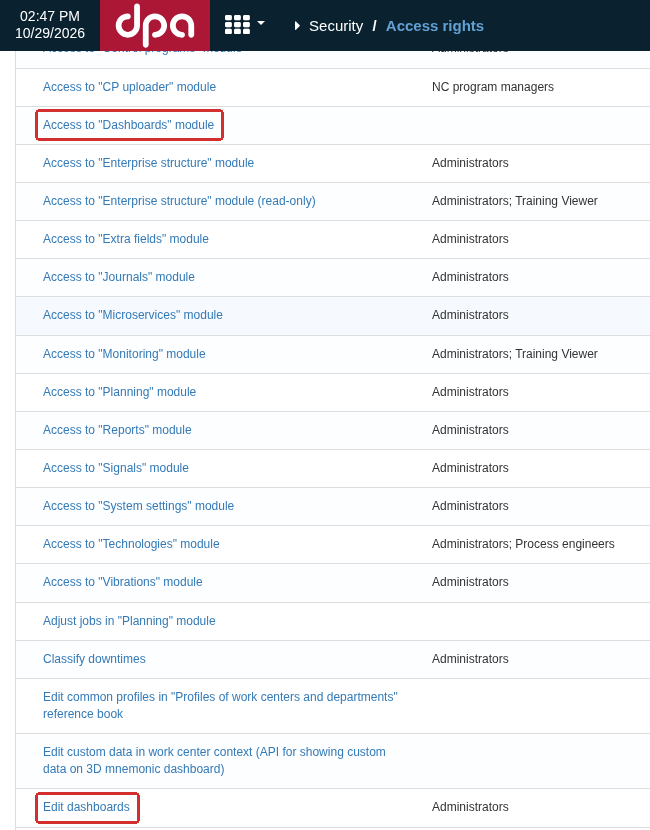
Under Settings menu -> Security -> Access rights, the DPA section contains Access to the “Dashboards” module and Edit dashboards.
Ordinary use of the module requires Access to “Dashboards” module. The separate Edit dashboards permission allows global dashboards to be created and modified, opens their security settings, and also grants access to the module itself. Detailed work with widgets and saved dashboards is covered in Chapter 8; here only the additional access policy of a saved dashboard matters.
A non-global dashboard belongs to the user’s My set. When a dashboard is made global, its Security tab gains a separate Access settings control:
- Available for all — the global dashboard is available to users who can use the module;
- Only for this groups — the dashboard is available to users who are direct members of at least one selected Access group.
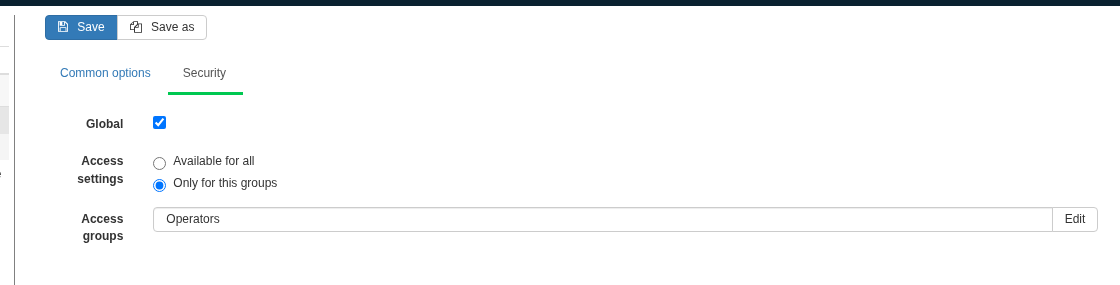
For a global Dashboard, Security can allow access to all users of the module or restrict the dashboard to selected Access groups. In the screenshot, access is limited to the Operators group.
Nested Groups do not extend access transitively in this mechanism. If a User belongs to Group A and Group A belongs to Group B selected for the dashboard, that inheritance alone is not enough: to access the dashboard, the user must be a direct member of one of the listed Access groups. This differs from inheritance of ordinary permissions described in Section 4.
Access to the Dashboard itself also does not expand the user’s access scope or grant additional permissions for the data used by its widgets. The dashboard appearing in the list should therefore be distinguished from availability of particular Work centers, history and other data inside it.
VNC users and control permission
VNC uses a local policy of a specific Work center. Open Settings menu → Enterprise structure, expand the required Work center and select its VNC child item. Changing the connection and user list requires Edit VNC settings in “Enterprise structure” module. Functional connection settings and opening the remote screen are covered in Section 2 of Chapter 7.
The Users tab lists accounts that are allowed VNC access to this Work center. Adding a user lets that user request a viewing session; a production assignment as an Operator, Foreman or Mechanic does not create this access by itself.
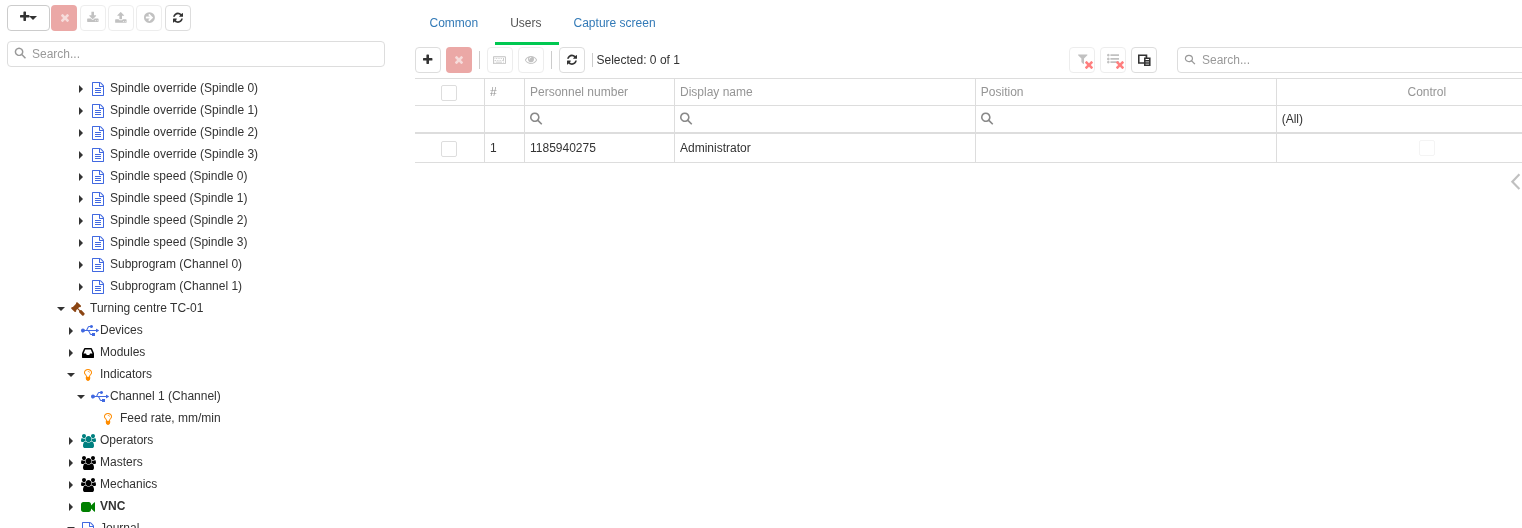
VNC access is assigned separately for a particular Work center. A listed user can receive viewing only or both viewing and control; control status is shown in the separate Control column.
The Control column defines a second level of access. Control is disabled for a newly added user. To allow control actions to be sent to the remote screen, select the user in the table and click Set control ability.

After selecting a user on Users, the highlighted Set control ability button allows that user to control the remote screen over VNC.
Reset control ability leaves viewing available to the user but again prevents the normal control mode from being opened. Removing the user from the VNC list prevents that user from requesting new viewing and control sessions for this Work center.
VNC therefore distinguishes three states: the user is not assigned and cannot open a VNC session; the user is assigned for viewing only; or the user is assigned and is additionally allowed to control the remote screen. This rule is independent of the employee’s production role. To reliably prohibit input, the restrictions of the endpoint VNC server must also be considered: the current VNC microservice does not filter input from its own client within an allowed viewing connection. The boundary of this mechanism is explained in Section 2 of Chapter 7.
Checking a local policy
If general permissions look correct but a particular dashboard or remote screen remains unavailable, check the local setting separately:
- for a Dashboard, make sure the user can open the module and, for a global dashboard, that Available for all applies or the user is a direct member of one of the selected Access groups;
- for VNC, check that the user is present on Users for the required Work center; if viewing works but control does not, check the Control column separately;
- then check only the other mechanisms that apply to the required function: data access scope, general permissions and production context.
A local policy governs only its own object or function. It can impose an additional restriction, but it should not be treated as a replacement for general permissions, access scope or production assignments.
8. Security settings and inheritance
The Settings menu → Security → Access rights page contains more than permissions assigned to Users and Groups. Some rows store one system-wide value: a Boolean switch, number or text. Such a value acts as a DPA setting and is not inherited through the user’s Group membership.
You can distinguish the two row types by the editor that opens. An ordinary permission opens the Select a user or group table, where permission recipients are configured. A system-wide setting opens a single-value editor with Save and Cancel. Clicking Save changes this shared value, not the permissions of a selected user.

A system-wide numeric setting opens as a single-value editor. After Save, the system setting itself changes; no recipient Users or Groups are selected here.
The initial value with which a setting is first created is not a separate inheritance layer. Once the setting exists and an administrator changes it, restarting DPA preserves the stored value rather than restoring the supplied default. Default values should therefore be treated as initial configuration that is then set deliberately for the particular organisation.
Password policy
For the Login/Password sign-in method, the main requirements are grouped under Password. Expand this group on the Access rights page.
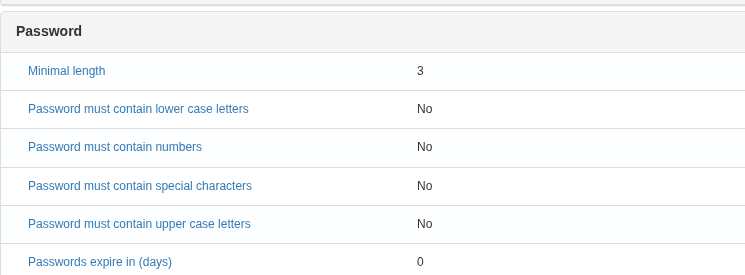
The Password group contains system-wide requirements for the Login/Password sign-in method. A value of 0 in Passwords expire in (days) disables password-age checking.
The group contains:
- Minimal length;
- requirements to use uppercase and lowercase letters;
- a requirement to use special characters;
- a requirement to use digits;
- Passwords expire in (days).
Composition requirements are checked when an administrator or the user sets a new password. Changing these settings does not rewrite passwords that are already stored and does not by itself force an immediate replacement of a password that was previously accepted. The new value is used the next time a password is set or changed.
For Passwords expire in (days), a value of 0 disables password-age checking. With a positive value, DPA compares the period with the time of the last password change; once the configured number of days has elapsed, the user must change the password at the next Login/Password sign-in. If Password does not expire is selected in the properties of a particular sign-in method, the general expiry period does not apply to that password. Configuration of the sign-in method itself is covered in Section 3.
The supplied initial values for this group are deliberately lenient: the minimum length is 3, uppercase/lowercase, digit and special-character requirements are disabled, and the expiry period is 0. This is the product’s initial configuration, not a recommendation for an organisation’s security policy; set these parameters deliberately when the system is put into operation.
The Log in group on the same page contains similar system-wide values for sign-in methods, such as Minimal login length, enabling Login/Password, Windows authentication and barcode/RFID, and Active Directory settings. Their practical configuration is covered in Section 3, so it is not repeated here.
Default groups for new users
The Users registration group contains Default group for new users. In the initial configuration, the Group Users is selected.

Under Users registration, Default group for new users shows the groups that DPA adds to a new account when it is created. The initial configuration selects the Users group.
When a new User is created through Settings menu → Security → Users, DPA adds that user directly to every Group selected in this setting. This is a one-time action when the account is created, not continuous inheritance. If the default-group list is changed later, existing users are not automatically added to the new groups or removed from the previous ones.
Clicking the setting name opens the same Select a user or group dialog used when assigning permissions. For this setting, select Groups: when an account is created, DPA uses only group records from the list.
After the user is created, membership in the selected default Groups becomes ordinary direct membership and is then changed in the same ways described in Section 4. Removing a Group from the default setting, for example, does not remove users who were created earlier from that group.
Do not transfer inheritance rules between mechanisms
This chapter contains several different forms of inheritance and default values. They may look similar from an administrator’s point of view, but they are implemented independently:
| Mechanism | How it is applied |
|---|---|
| Permissions through Groups | A user receives the permissions of direct and nested parent Groups; the chain is inherited transitively as described in Section 4 |
| System-wide settings on the Access rights page | One current value is stored for the system; user Groups neither inherit nor override it |
| Default group for new users | A newly created user is added directly to the selected Groups; later changes to the setting are not applied retrospectively |
| Access scope through the Enterprise structure | A structural-unit setting can be attached to its parent and receive the parent’s current value; selected Access groups are still checked only against direct user membership as described in Section 5 |
| Production roles | Operator, Foreman and Mechanic roles are assigned directly on specific Work centers; membership in a Group with the same name does not create a role |
| Function-local policies | Each function uses its own rule: for example, a global Dashboard checks its own Access groups, while VNC uses its own user list and separate control permission as described in Section 7 |
When a result is unexpected, first determine the type of setting and only then check its rule. The fact that a row is located on Access rights, contains the word “group” or has an initial default value does not mean that ordinary permission inheritance applies to it.
9. External identity
External identity in DPA is built around a Data provider. It connects an external directory to local DPA Users and Groups and can independently use two mechanisms: SCIM for account synchronisation and Microsoft Entra for single sign-on (SSO).
These mechanisms solve different problems. SCIM creates and updates local DPA security objects. Microsoft Entra SSO confirms a person’s identity in the external system and then matches it to an existing local User. External sign-in itself does not create a user or grant DPA permissions: after matching, the ordinary Groups, permissions, access scope, production roles and local policies apply.
Do not confuse this scenario with the Windows method from Section 3. Windows is assigned to a particular User and links that user to Windows/Active Directory by SID. Microsoft Entra SSO is configured at Data provider level and matches the external account to a local user by its external identifier.
Data provider
Open Settings menu → Security → Identity providers. The table lists configured providers and separately indicates whether SCIM and SSO are enabled for each one.

Under Identity providers, the SCIM and SSO columns separately show which mechanisms are enabled for each external provider.
To create a provider, click Add, enter a clear Name and save the record. Then open it with Edit. Its card contains the Properties, SCIM and Single sign-on tabs.
SCIM and SSO are independent: a provider can have only synchronisation, only single sign-on or both. Microsoft SSO can be enabled for only one provider in a DPA installation at a time.
Do not delete a provider merely as a way to “clear the settings” while external Users or Groups are still linked to it. DPA will not allow such a record to be deleted: the linked objects must first complete their lifecycle through the external system or be removed using the intended administrative procedure.
SCIM: synchronising Users and Groups
Open SCIM. The external system needs a provider token to access the DPA SCIM API. If a token has not yet been issued, click Issue token.

On SCIM, a token is issued with Issue token. After it is issued, copy it into the configuration of the external user-provisioning system.
A new token is displayed immediately after it is issued — copy it and save it in the external system’s protected secret storage. When the card is opened later, DPA shows the token issue date rather than the token value. Reissue creates a new token and invalidates the previous one; Revoke stops this provider’s SCIM access.
The SCIM API is provided by DPA Host under the /scim base path. In the external user-provisioning system, specify the DPA Host address with this path and the provider token. The external system then calls /scim/Users and /scim/Groups itself, sending the token with its requests; ordinary administration does not require SCIM methods to be called manually from a browser.
When synchronising a user, DPA creates an ordinary local User and stores its relationship with the particular Data provider. The Default group for new users setting from Section 8 also applies to this creation path. The external record can update first name and surname, display name, preferred language, personnel number, active state, email addresses and telephone numbers. Deactivating the external account locks the corresponding DPA user; deletion through SCIM deletes the local user according to the ordinary rules while preserving historical references to that user’s former internal identity, as described in Section 2.
For SCIM and Microsoft Entra SSO to work together, the user’s SCIM externalId must match the Microsoft Entra Object ID (objectId). In DPA, this value can be checked on Provider data in the synchronised user’s card, in External ID. The field is read-only: the identifier comes from the external system through SCIM and is not entered manually by a DPA administrator.
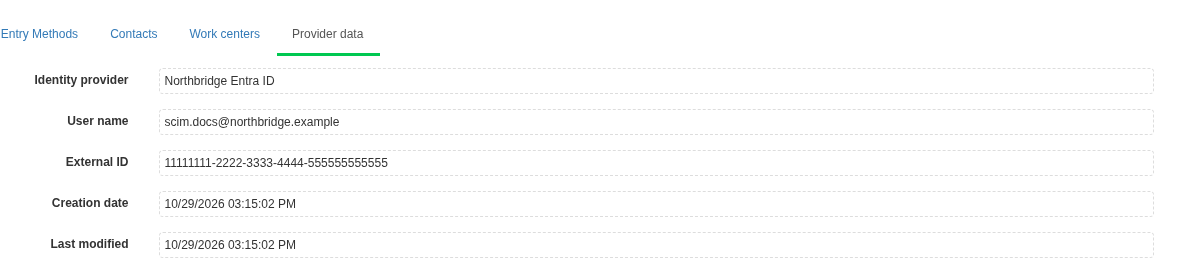
A User synchronised through SCIM has a Provider data tab. External ID shows the SCIM externalId; it is read-only and is used to match the user to the Microsoft Entra Object ID for SSO.
An external Group is similarly created as an ordinary DPA Group. Membership received through SCIM defines direct user membership in this group. The group then participates in the ordinary permission model from Section 4: permissions of the group itself and its parent groups can be inherited transitively by the user. In this release, SCIM synchronises users as members of an external group; it does not construct a nested group hierarchy from the external directory.
SCIM does not assign a production role and does not replace Enterprise structure settings. If an external group should grant access to particular data or functions, configure the appropriate permissions for the DPA Group that has already been created and, where applicable, include it in the Access groups of the required objects.
Microsoft Entra SSO
For single sign-on, open Single sign-on and enable Enable SSO with Microsoft Entra. Enter the identifiers from the Microsoft Entra application registration:
Tenant Id— the directory (tenant) identifier;Application Id— the identifier of the application registered for DPA Host.
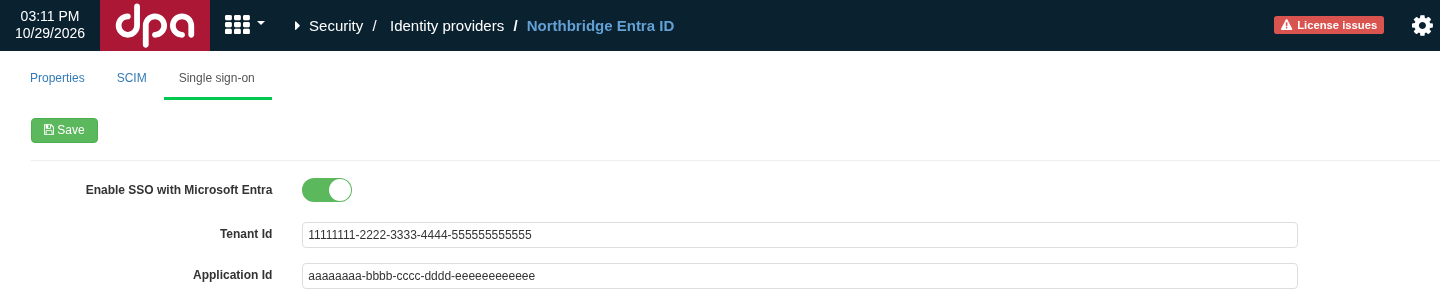
On Single sign-on, Enable SSO with Microsoft Entra is enabled and Tenant Id and Application Id are specified. The screenshot uses example identifiers.
Click Save. After Microsoft SSO is enabled, Log in with Microsoft appears on the DPA sign-in page. Selecting it takes the browser through the external Microsoft authentication flow and back to DPA Host.
After successful external authentication, Microsoft Entra supplies DPA Host with the oid claim — the user’s Object ID, a standard GUID identifier of the directory object. DPA looks for a local User whose External ID matches this oid. In Microsoft Entra provisioning, therefore, configure the mapping so that SCIM externalId receives the user’s objectId. If there is no matching local user or the user is inactive, DPA does not create a working session. Enabling SSO by itself is not enough for a new employee’s first sign-in: the local account must already have been provisioned, normally through SCIM.
After Microsoft sign-in, the same local User receives exactly the work context configured in DPA. SSO does not expand permissions or bypass locking, access scope, production assignments or function-local restrictions.
Verifying external identity
Check the chain in the same order in which it operates:
- under Identity providers, make sure SCIM is enabled for the required provider and, when single sign-on is used, SSO as well;
- verify that the external user actually appears under
Security → Usersand the required external groups underSecurity → Groups; - check the user’s direct membership in the synchronised groups, and only then check permissions, access scope and production assignments of these local objects;
- for Microsoft SSO, check
Tenant IdandApplication Id, then sign in through Log in with Microsoft in a new browser session; - if Microsoft successfully authenticates the account but DPA does not create a session, first check that the corresponding local user exists and is active, check External ID on Provider data, and verify the
objectId→ SCIMexternalIdmapping rather than permissions for an application function.
This separation helps distinguish three different failures: the external directory did not provision a local account, external sign-in could not authenticate the user, or the matched user signed in to DPA but lacks the required local permissions and assignments.
10. Auditing actions and security changes
Audit in DPA answers three different questions: what a user did in DPA Host, when the user’s sessions started and ended, and what changes occurred in the security model. These data are collected as separate streams and, with the standard storage scheme, sent to the Audit microservice. Do not confuse them with production Logs or technical service logs: those sources serve different purposes.
Before using this function, make sure the Audit microservice is installed, connected to DPA Host and synchronised in accordance with the DPA Installation and Operations Guide. This section covers configuration and use of the functional audit itself.
Three audit streams
DPA separates audit data into three independent streams:
- User actions — user requests to DPA Host functions. A record stores the User, time, action path, parameters and result code. This is not a literal record of every mouse movement: the record is created at the level of an action processed by the server. For sensitive sign-in, password-change and password-setting, barcode/RFID and certain security-setting operations, arguments are deliberately omitted or scrubbed of secret values.
- User sessions — start and end of user sessions for supported sign-in methods, including Microsoft Entra SSO. A record contains the user, start and end times, duration and session attributes; the attributes include the IP address. If an end event was not recorded, the end time and duration can remain empty.
- Security Audit — sign-in/sign-out events and changes to security objects. It records creation, modification, locking, unlocking and deletion of Users and Groups, changes to group membership, granting and revoking permissions, and successful and unsuccessful sign-in attempts. The record shows the action, object, object name, OK or Error status and details.
One administrative action can appear in more than one stream. Changing a user, for example, is an ordinary DPA Host action and also has meaning as a security change. These are not duplicates in the same format: the action stream shows the technical request context, while Security Audit shows the meaning of the security-object change.
Choosing which streams to save
Open Settings menu → System settings → Audit. Access to this section uses Access to “System settings” module. It contains three independent groups: User actions audit, User sessions audit and Security Audit.
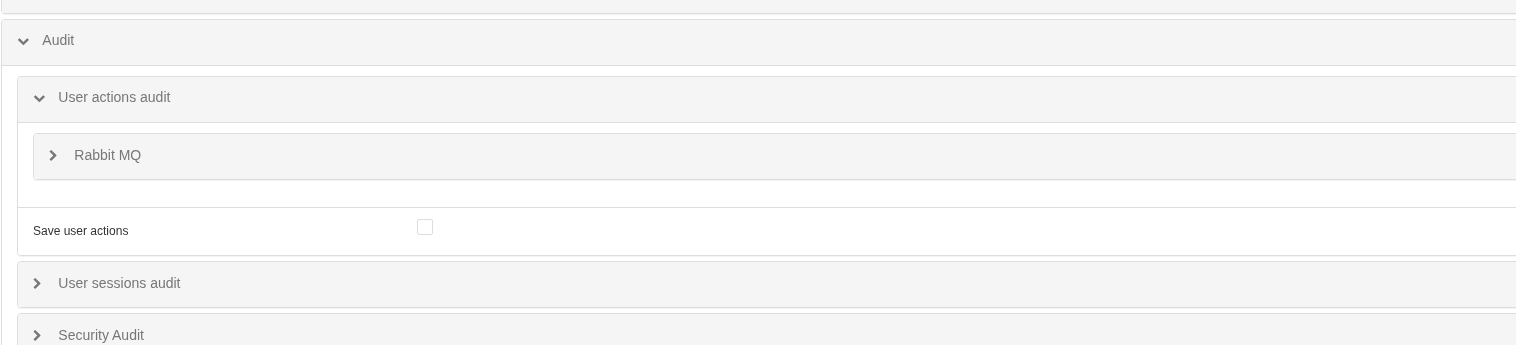
Under System settings → Audit, the three streams are enabled independently. The screenshot expands User actions audit with its own Save user actions switch; the separate session and security groups are visible alongside it.
Each group has its own switch:
- Save user actions;
- Save user sessions;
- Save Security Audit.
None of the three check boxes is selected in the initial configuration. Enable only the streams that are actually needed for operation and investigations. The settings apply to new events: enabling a stream does not retroactively create records for actions that occurred earlier.
If saving is disabled for one stream, DPA Host does not send that stream’s records to Audit regardless of the settings of the other two streams. The absence of User sessions, for example, does not mean that Security Audit is also disabled.
Rabbit MQ as a separate stream route
Each of the three groups contains a nested Rabbit MQ block. It belongs to that particular audit stream, not to the general Audit-microservice connection.
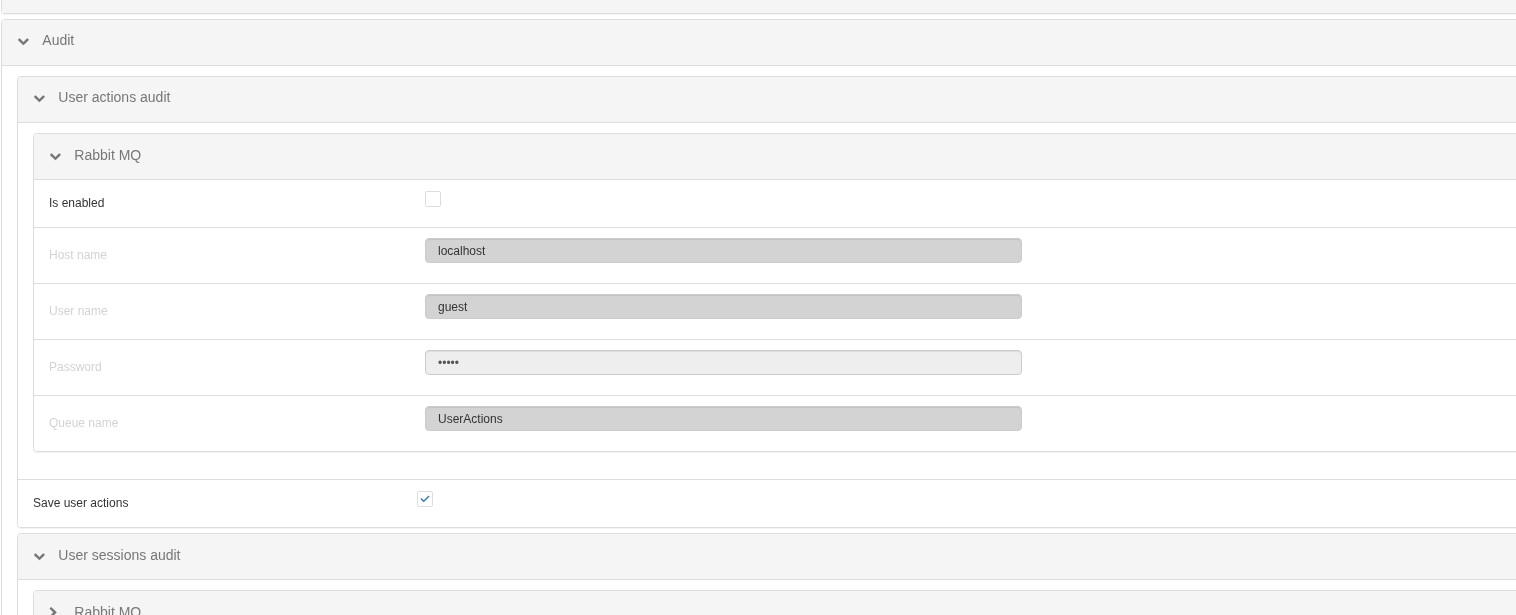
The Rabbit MQ block is configured separately for each audit stream. Enabling it changes that stream’s publication route; Host name, credentials and Queue name belong to RabbitMQ, not to the general Audit-microservice connection.
If Rabbit MQ is disabled and Audit is connected to DPA Host, the saved stream is sent directly to the Audit microservice. If Rabbit MQ is enabled, DPA Host publishes messages for that stream to RabbitMQ using the specified settings instead:
- Host name — RabbitMQ broker address;
- User name and Password — connection credentials;
- Queue name — the queue for this stream; when required, an exchange and routing key with the same name are created automatically.
RabbitMQ settings are independent for actions, sessions and security events. Different streams can therefore be routed differently, but configure such a scheme deliberately: enabling RabbitMQ changes the DPA Host publication path. Whether the records then appear in the built-in Audit tables depends on whether the corresponding queue consumer is configured. Broker, consumer and technical microservice connection configuration are described in the DPA Installation and Operations Guide.
If saving is enabled for a stream, RabbitMQ is disabled for it and no Audit microservice is connected, the record does not reach the Audit log: DPA Host only reports in its technical log that Audit is enabled but the microservice is unavailable. The Save… check box by itself therefore does not confirm that data are actually being retained in external storage.
Viewing Audit records
When the Audit microservice is connected, Security Audit, Actions and User sessions appear under Settings menu → Security. The account needs the corresponding permission to open the Security module, for example View security settings; reading Audit data is additionally protected by the microservice permission View events. After the microservice is synchronised, its permissions appear in the Access rights tree, and the Administrators group receives them by default.
The lists on these tabs are interactive tables; the commands available depend on the particular tab.
On Security Audit, the table shows User, Timestamp, Action, Object, Object name and Status. Open a record for viewing: Details additionally shows the user and object identifiers and event details. For security changes, OK corresponds to a successfully completed operation and Error to an operation that ended without successful confirmation; for a sign-in attempt, the result is recorded directly from the authentication outcome.
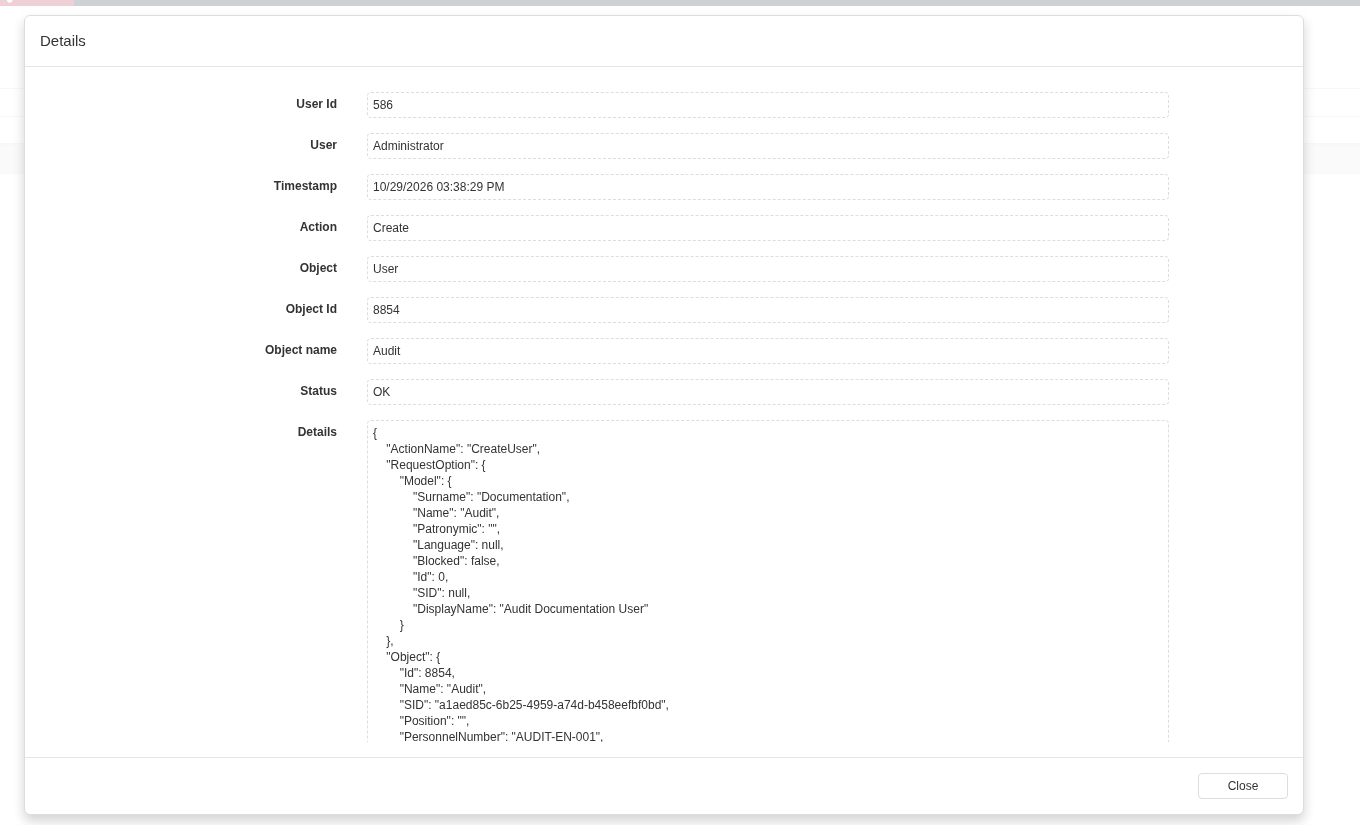
An opened Security Audit record shows the user and object identifiers, operation status and the Details field containing the event data. The screenshot shows successful creation of a disposable test user.
On Actions, the available fields are User, Timestamp, Action, Options and Result. The action value is normally the path of the processed DPA Host request, while Result contains the HTTP response code. Use this table when you need to understand which server request a user made and how it ended.
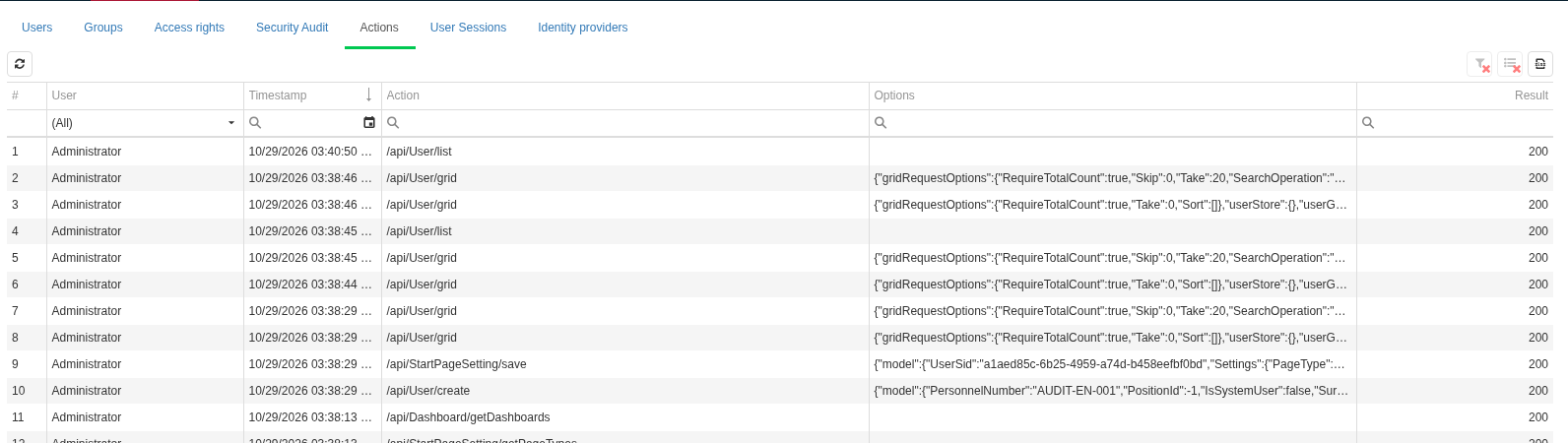
Actions shows processed DPA Host requests and HTTP response codes. An empty Options field is valid: some calls have no options or deliberately do not retain them.
On User sessions, the table shows User, Identifier, Start time, End date, Duration and Attributes. Do not confuse the displayed row Identifier with the internal session GUID: the list shows the Audit-record identifier, while start and end events are correlated inside the service by a separate session identifier.
Audit and production logs answer different questions
If you need to find who changed a user’s permissions or added the user to a group, start with Security Audit. If you need to know which request a user made and how it ended, check Actions. Use User sessions for sign-in and sign-out times.
Audit does not replace domain-specific history sources. Job execution, equipment states, process-parameter control, Tickets, downtime and other production processes have their own logs and history. Technical logs of DPA Host and the microservices, in turn, are used to diagnose errors and component state. Matching timestamps across these sources can be useful during an investigation, but the records have different meanings and different completeness.
If an expected record is missing
Check the chain in order:
- open
System settings → Auditand make sure Save… is selected for the required stream; - if Rabbit MQ is disabled, check the Audit-microservice connection; if Rabbit MQ is enabled, check the selected broker, queue and configured consumer;
- make sure the event occurred after the required stream was enabled;
- for viewing through DPA, check access to the Security module and the Audit View events permission;
- choose the correct stream: look for a permission change primarily in Security Audit, an ordinary action in Actions, and sign-in/sign-out in User sessions;
- if Actions does not contain parameters for a sensitive operation, do not treat this as a lost record: for a number of authentication and secret-handling operations, DPA deliberately does not store the arguments.
This sequence distinguishes disabled collection from an unavailable publication route, insufficient viewing permissions and searching for the event in the wrong log.
← Chapter 1. What DPA is and how to navigate it · Contents · Chapter 3. Equipment, Work centers and machine data →